
Configure the general settings of your new jurisdiction
To configure the general settings of your new jurisdiction:
- Go to
 Manage>Property Settings>Jurisdictions.
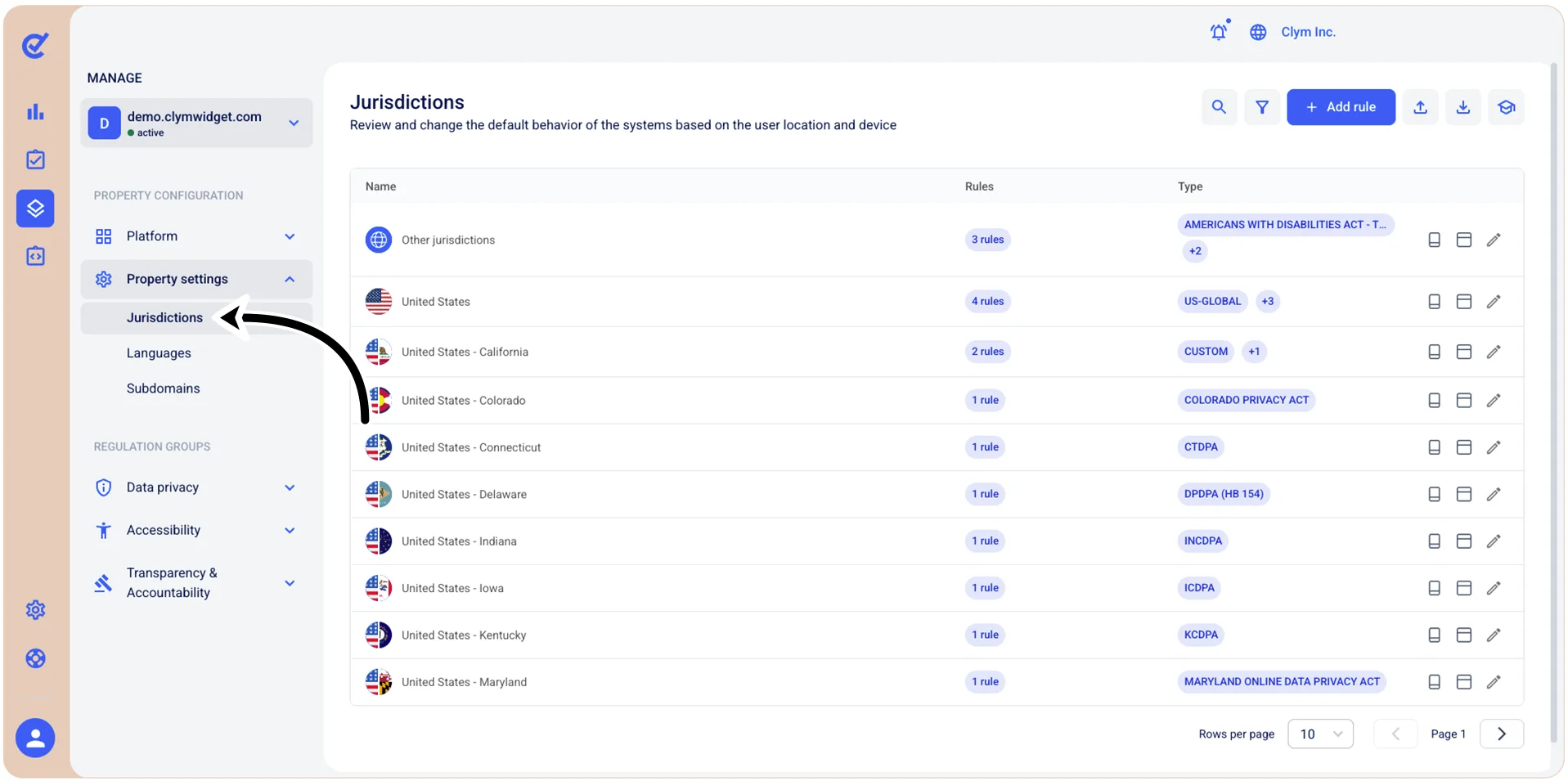
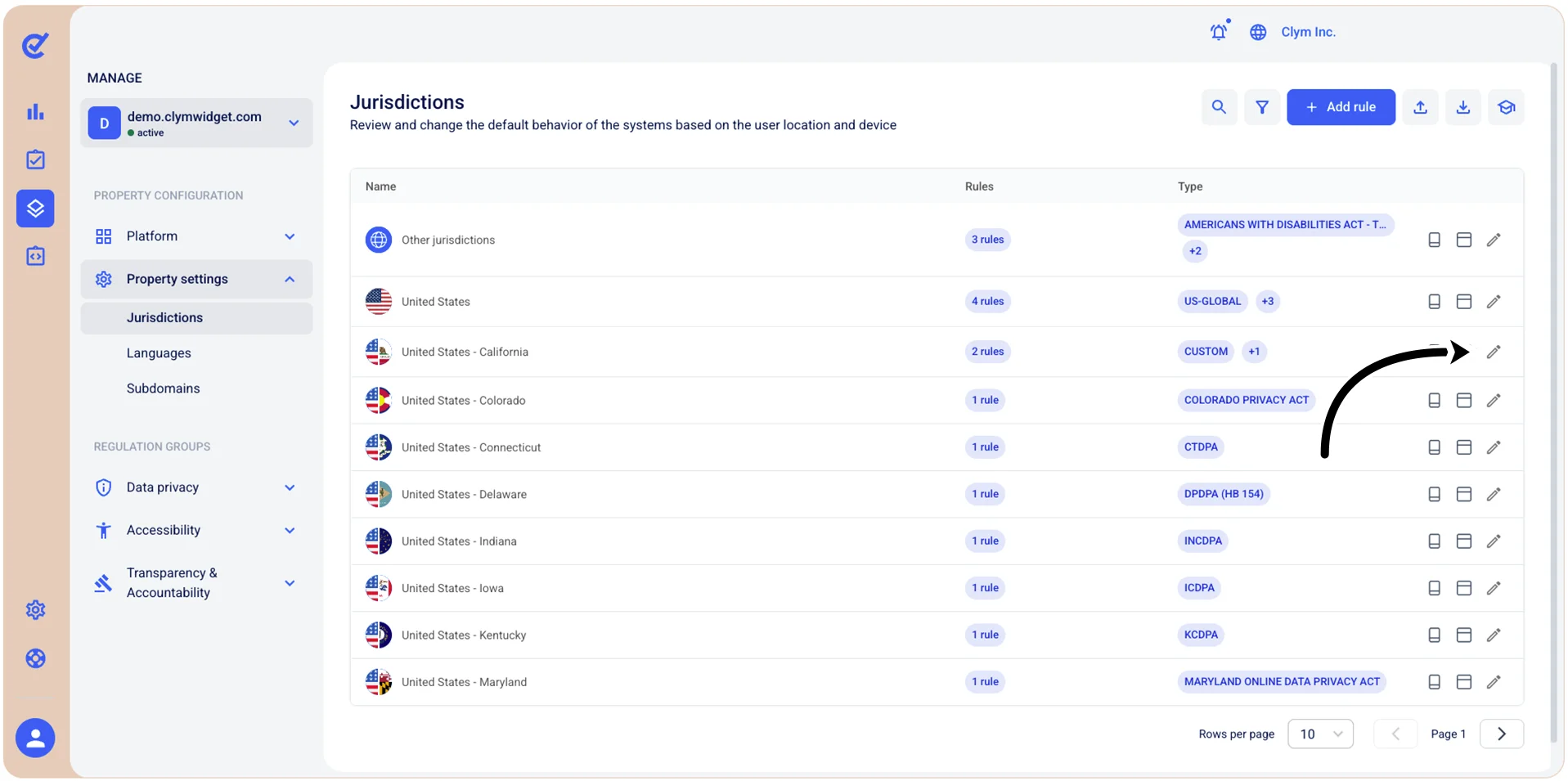
- In the Jurisdictions section, select
 Edit next to the new jurisdiction that you have just created.
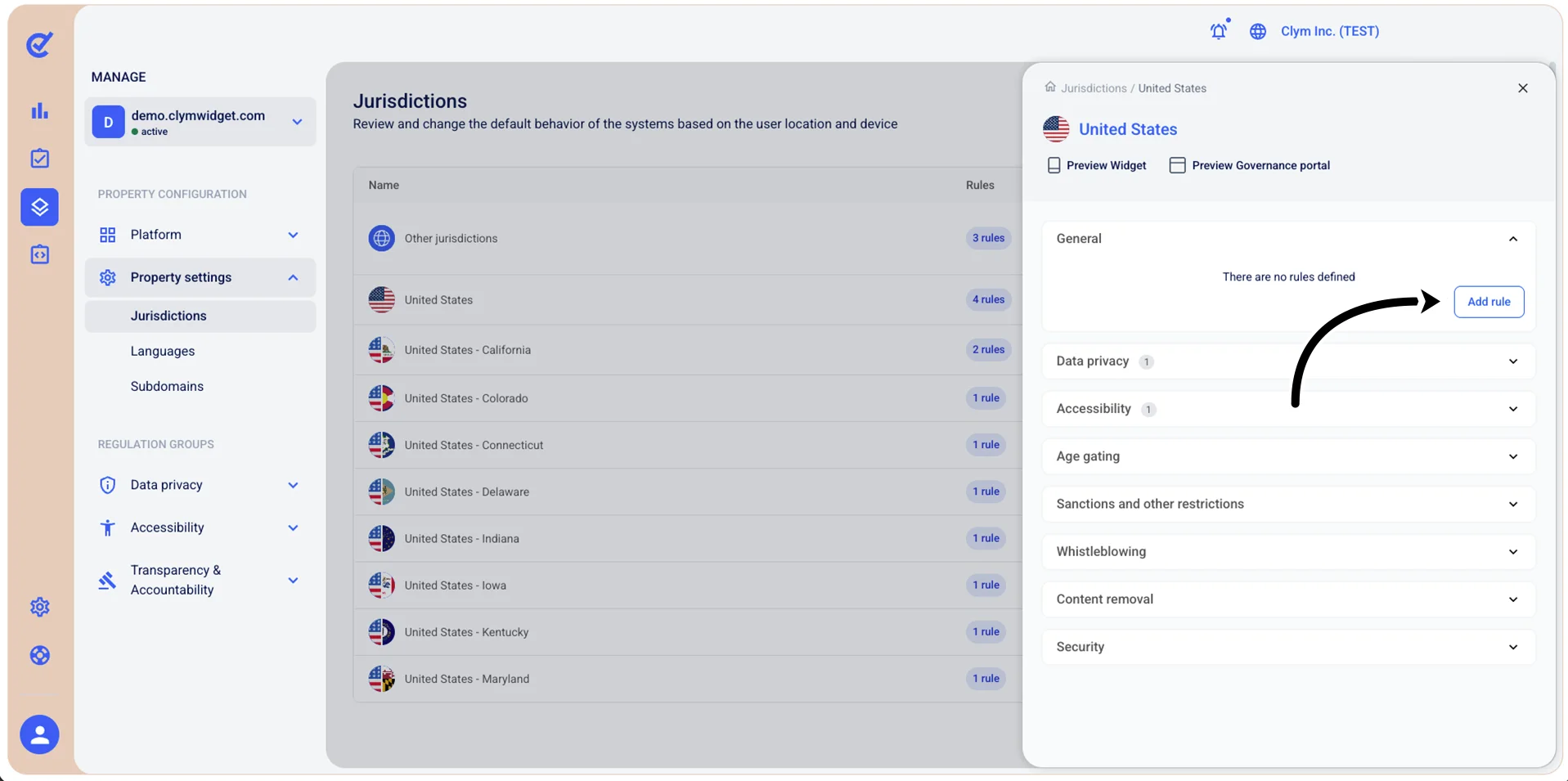
- Under Rule configuration, expand General and then select Add rule.
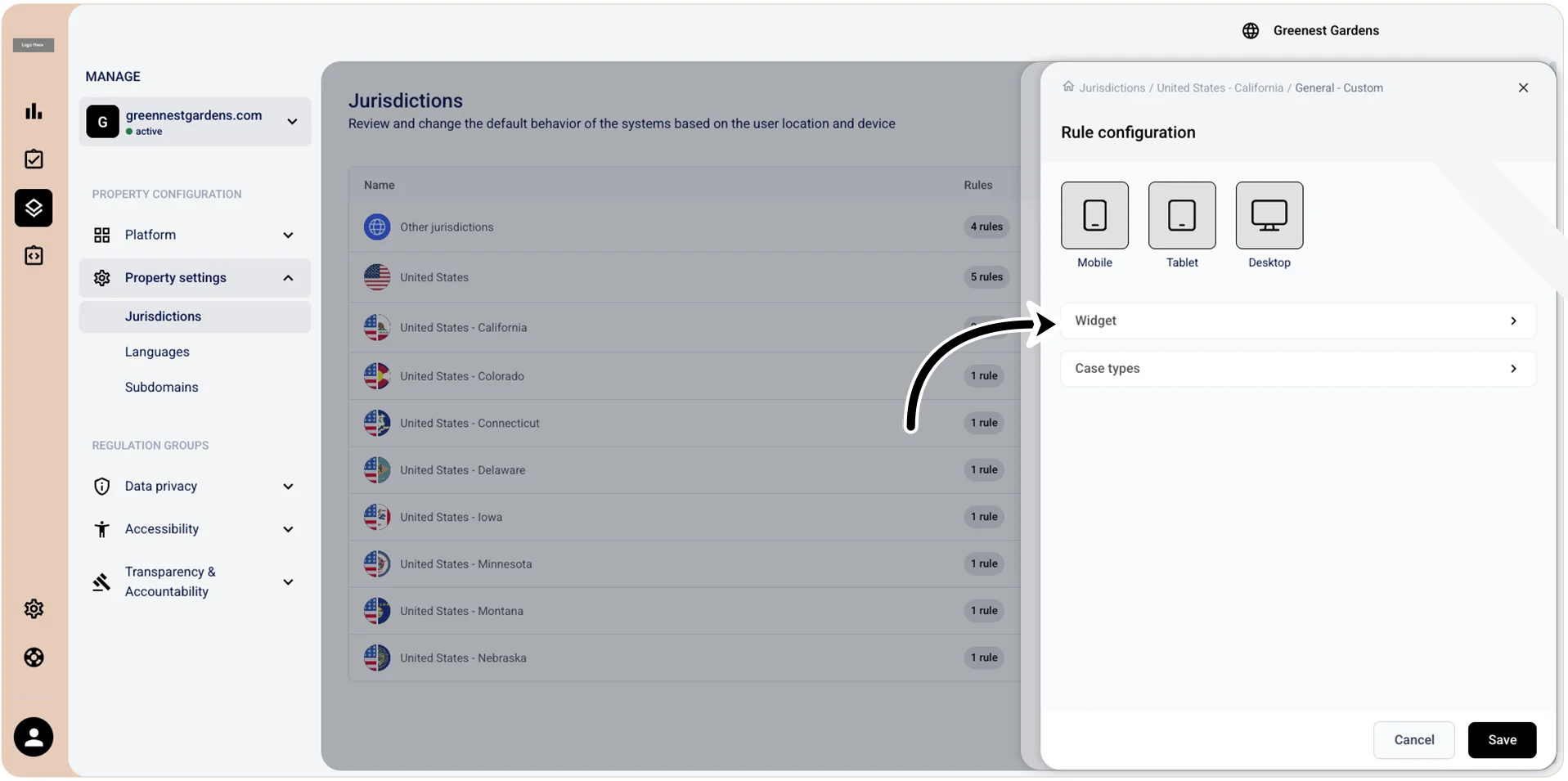
- In the General - Custom section, select mobile/tablet/desktop to determine how the Widget will be displayed on the each of the selected mediums. To prevent the widget from being displayed at all on any of these mediums, simply clear the desired selection(s). You can make combinations of multiple mediums, such as both tablet and mobile, or both tablet and desktop, or mobile only. Then, select Widget below the mobile/tablet/desktop icons to configure the Data privacy settings of the widget.
- In the Widget screen, toggle on/off Display privacy widget launcher, according to your needs, then select Save.
- When finished, select Save.