
Filter existing jurisdictions
For better visual management, you can filter which jurisdictions are displayed in the Control Center. Depending on your selection at this stage, the UI available to you may vary.
To filter jurisdictions:
- Go to
 Manage>Property Settings>Jurisdictions.
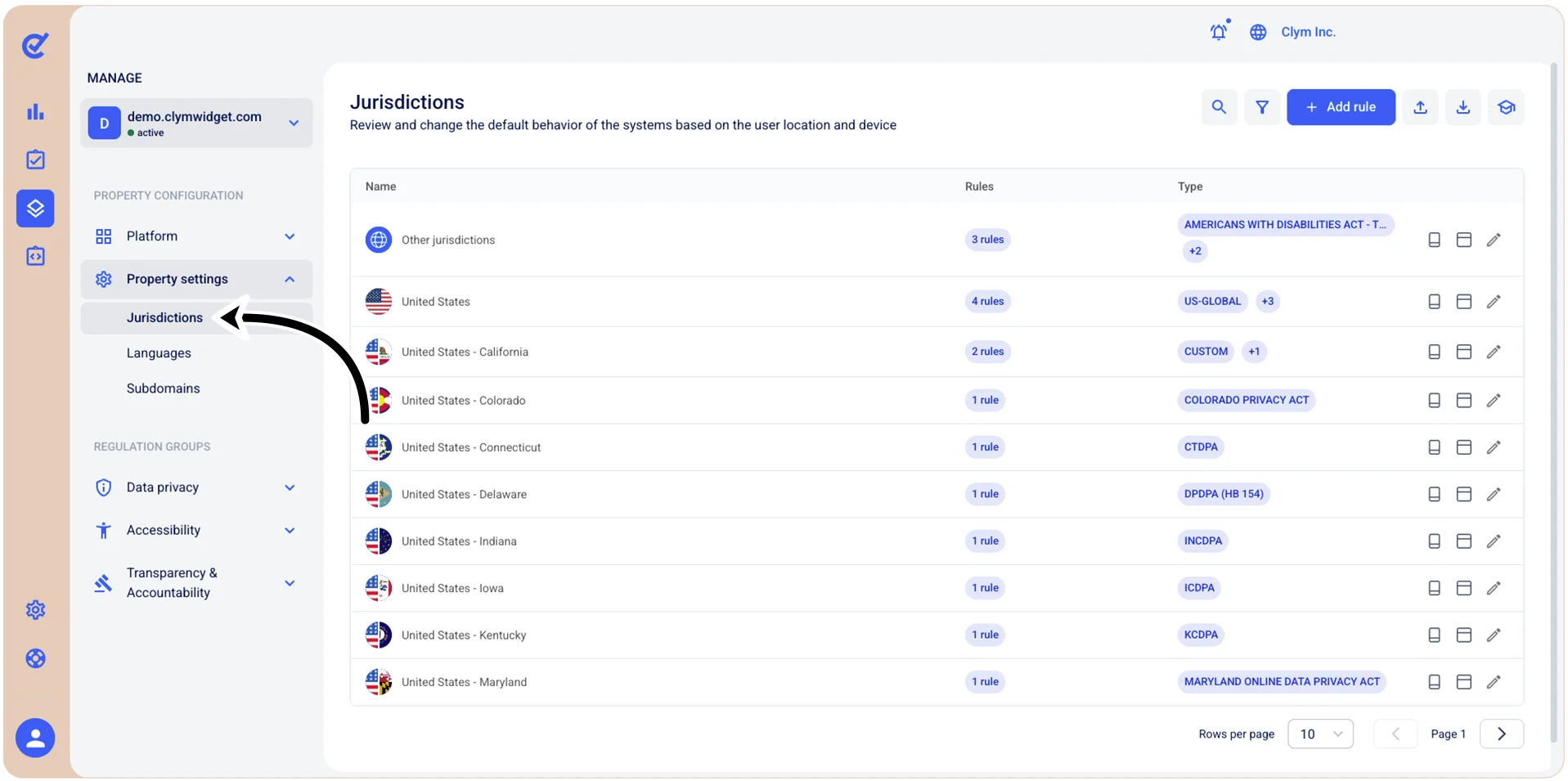
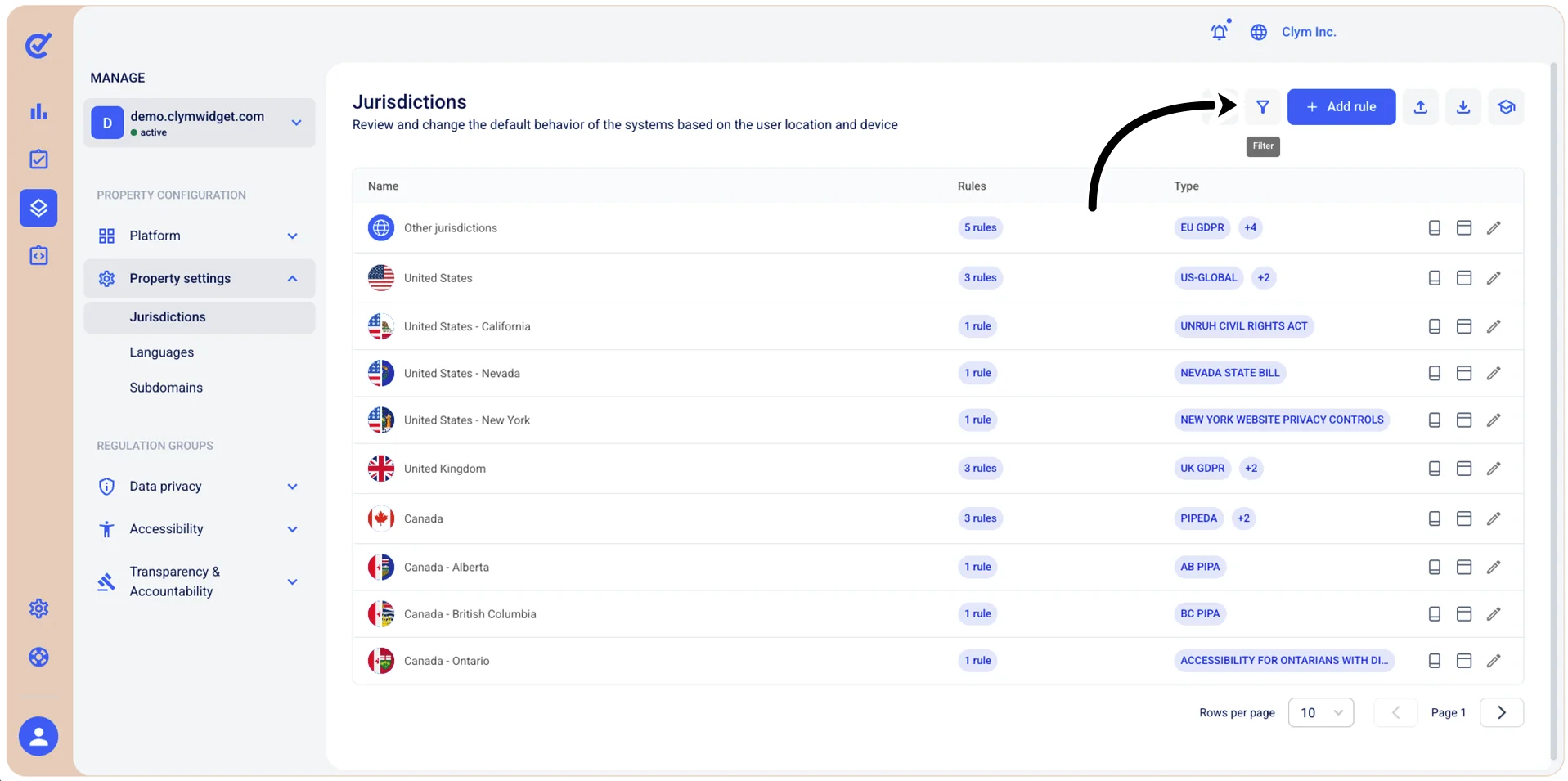
- In the Jurisdictions section, select
 Filter.
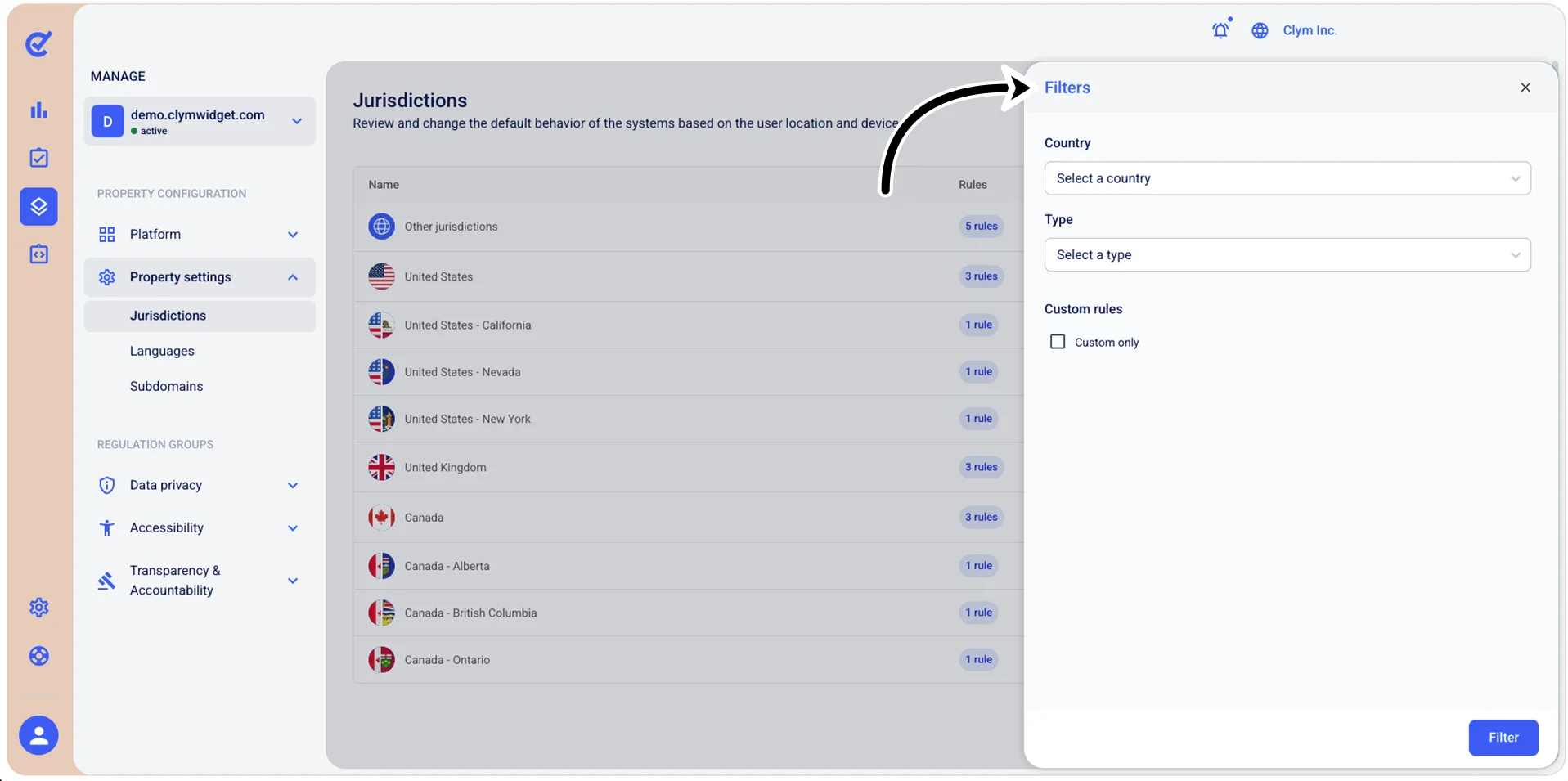
- In the Filters section, select the filtering parameters, as follows:
- Country: Select the desired country for which you want to filter the Jurisdictions. You can only select one country. Depending on which country you select at this stage, you can also select a State.
- State: Select the desired state if you selected a country organized into states that have their own individual jurisdictions.
- Type: Select one or more types of regulations that you want to filter (for example, Data privacy, Accessibility and so on).
- Custom Rules—Custom only: If, when creating your account, you created customized rules, you can select to only display these rules here.
- When finished, select Filter.
The filtered results are displayed in the Jurisdictions section. To notify you that the results are not displayed in full, but have been filtered, the  Filter icon is marked with a tiny green dot.