Manage your profile
In the Control Center, users can customize their profile details and authentication settings to personalize their experience.
Manage your personal account
To edit your profile:
- Go to
 Profile>Profile data.
- In the Personal info section, configure your account personal information, as follows:
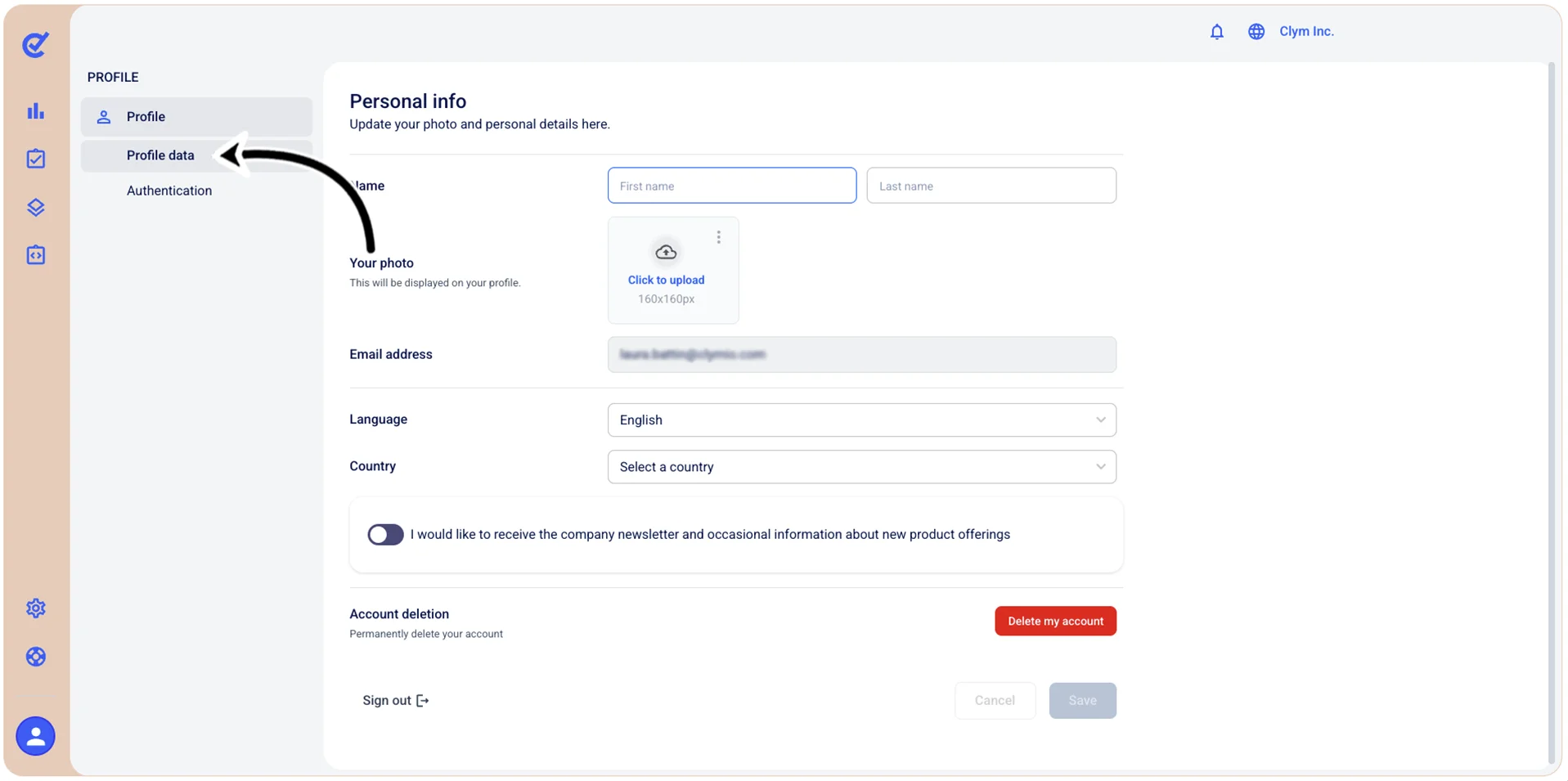
- Name: Enter your first name and last name in the respective fields.
- Your photo: Upload a 160x160 pixels, JPG/PNG profile picture that will be displayed on your account.
- Email address: Enter your registered email address for this account.
- Language: Select your preferred language for the user interface.
- Country: Select the country where you are located.
- Newsletter subscription: Toggle this option on to receive the company newsletter and occasional information about new product offerings.
- Sign out: Click to log out of your account and end your current session securely.
- When finished, select Save.
Manage the authentication method: Email/Password
Authentication settings control how you access your Control Center account and protect it from unauthorized use. This section explains how to configure your login method and enable additional security features like two factor authentication to keep your account and data secure.
The Control Center supports email and password authentication, with the option to activate two factor authentication.
Log in using email
To configure email authentication method:
- Go to Profile>Authentication.
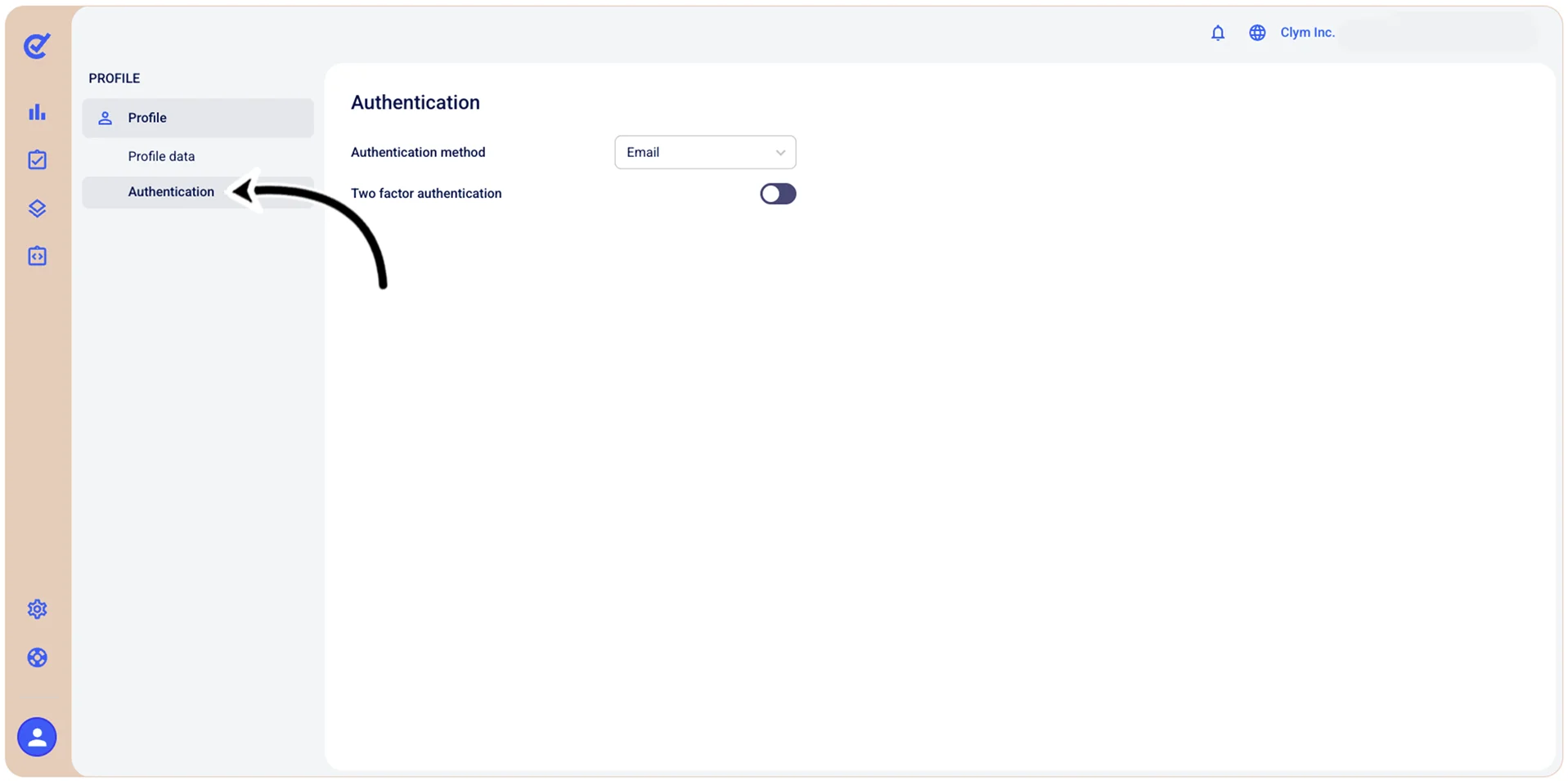
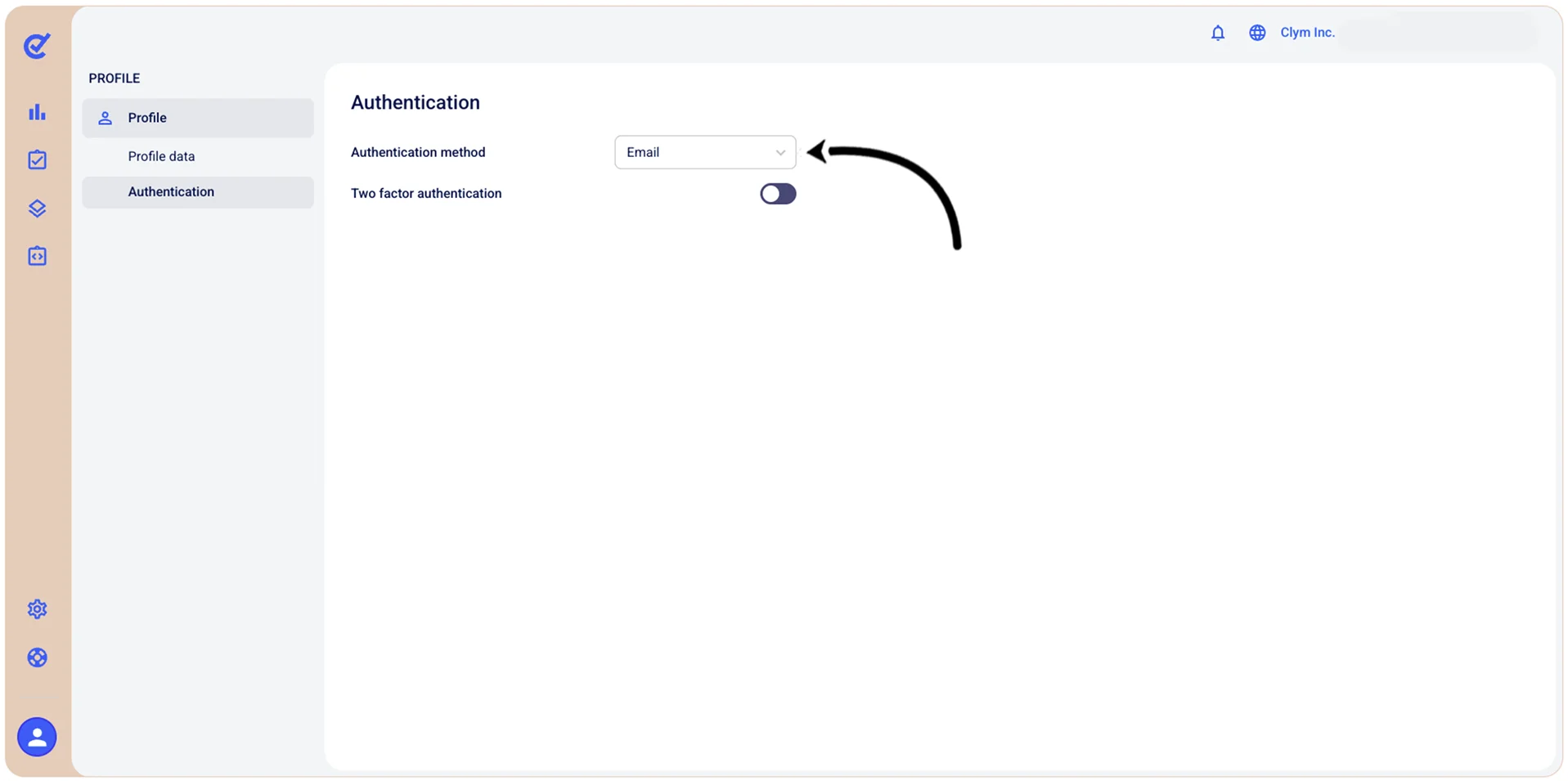
- In the Authentication section, in the Authentication method field, select Email.
- In the right-side Change auth method to email section, provide the email address you would like to receive the magic link to.
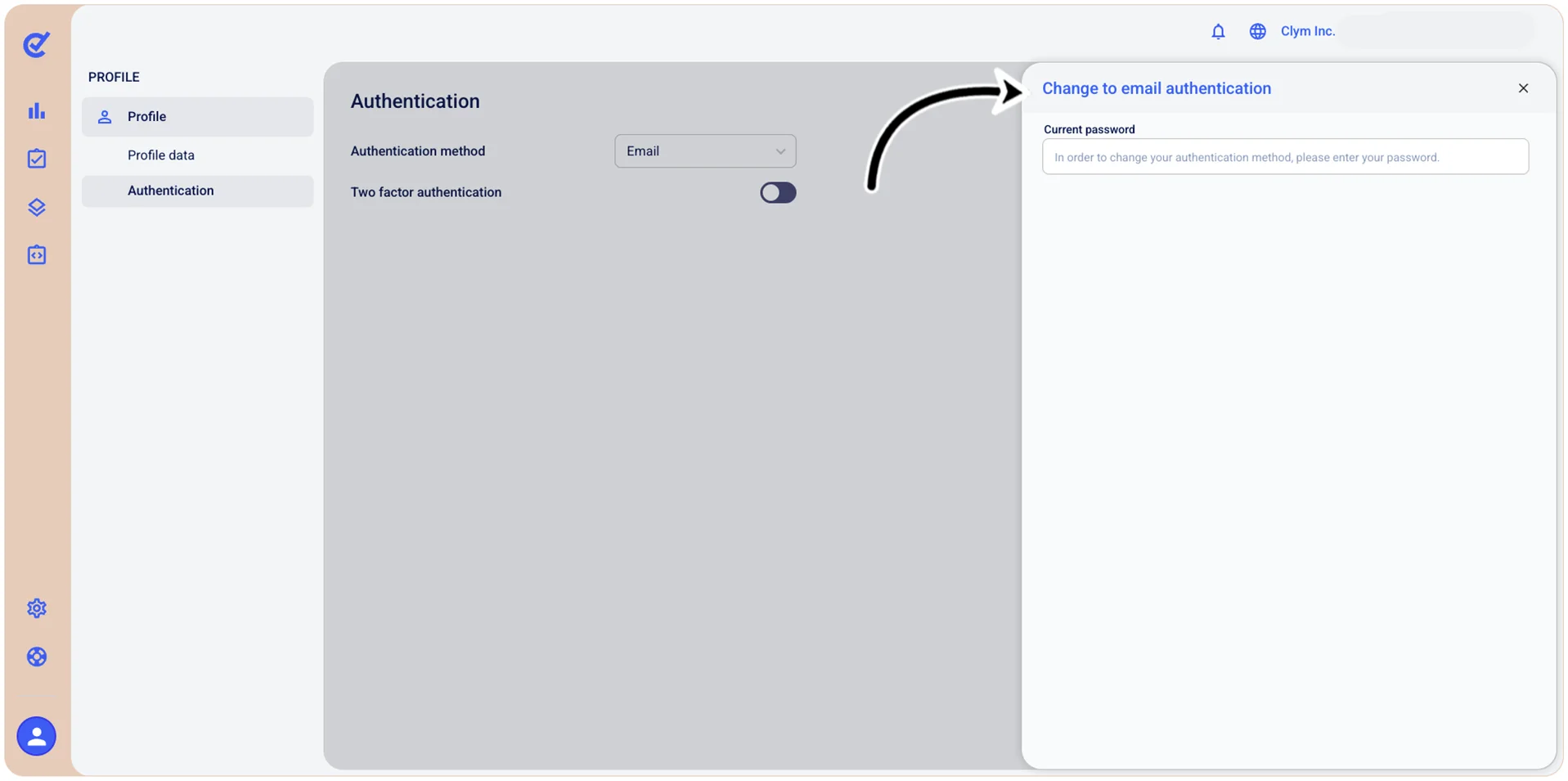
- When finished, select Save.
Log in using password
To configure password authentication method:
- Go to Profile>Authentication.
- In the Authentication section, in the Authentication method field, select Password.
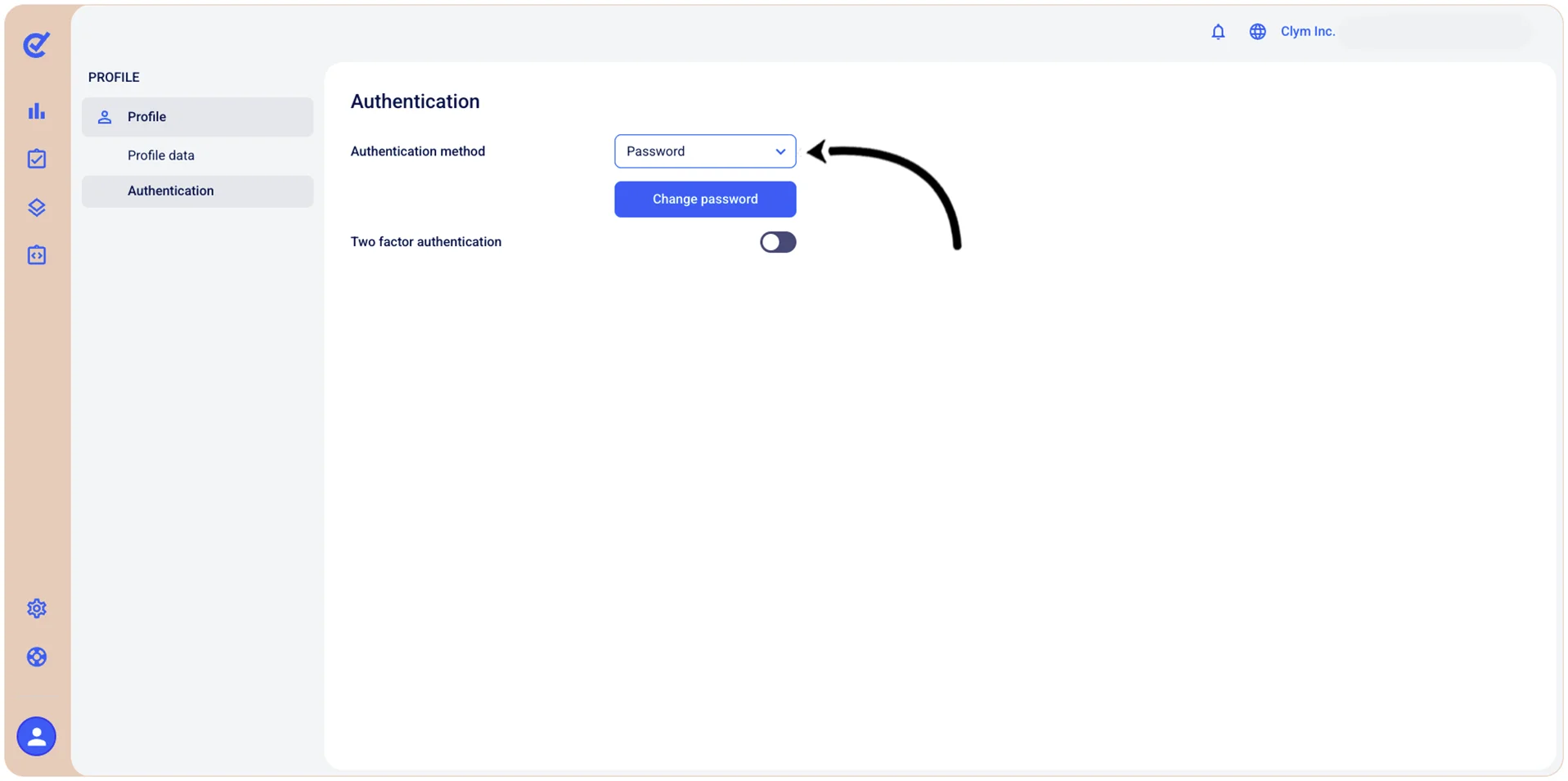
- In the right-side Change auth method to password section, type the new password. For login, you will have to use the registered email and the password you enter here.
- When finished, select Save.
Log in using two factor authentication
In the Control Center, you can configure the login using two factor authentication via email or time-based OTP. To configure two factor authentication:
- Go to Profile>Authentication.
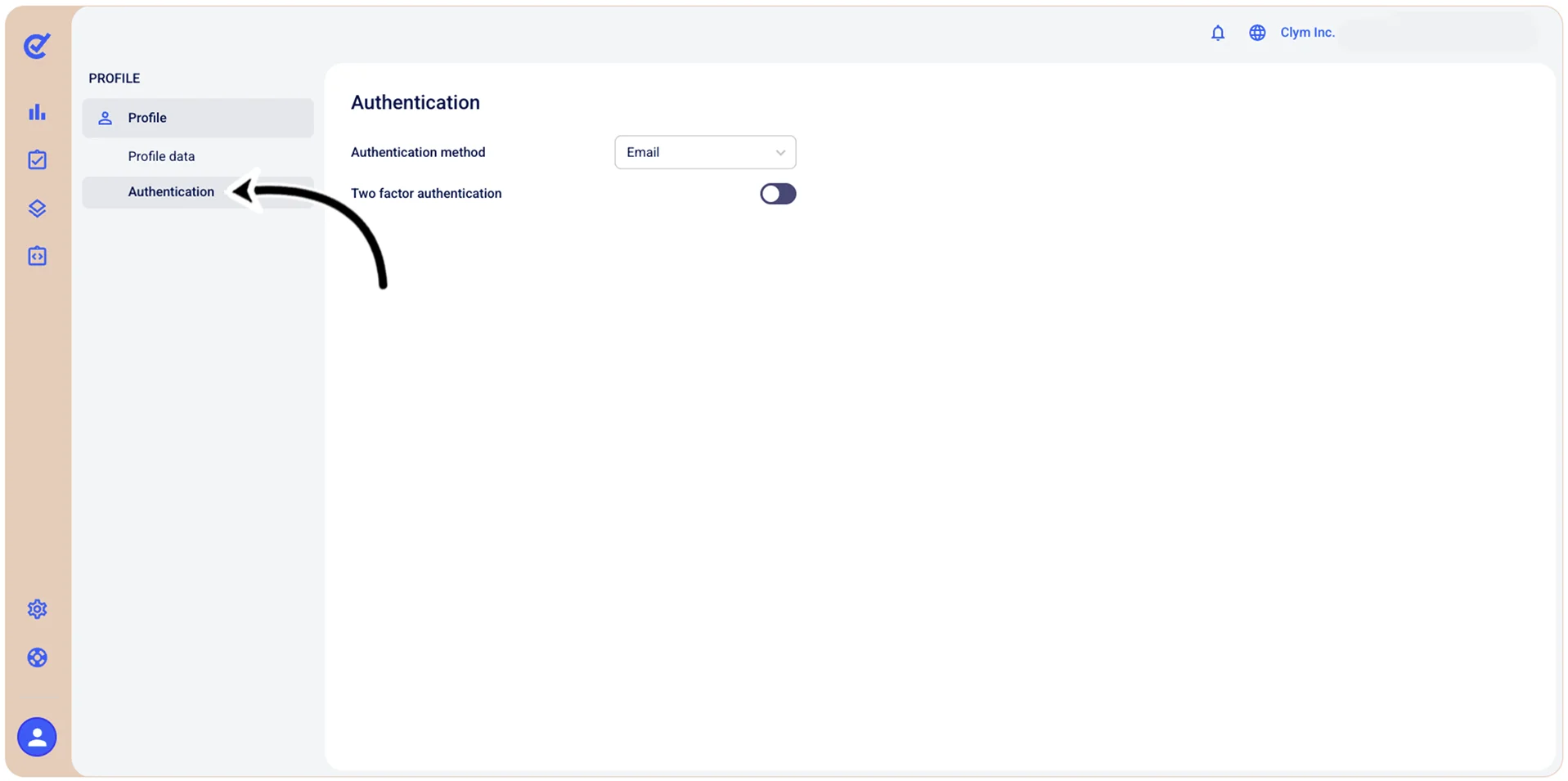
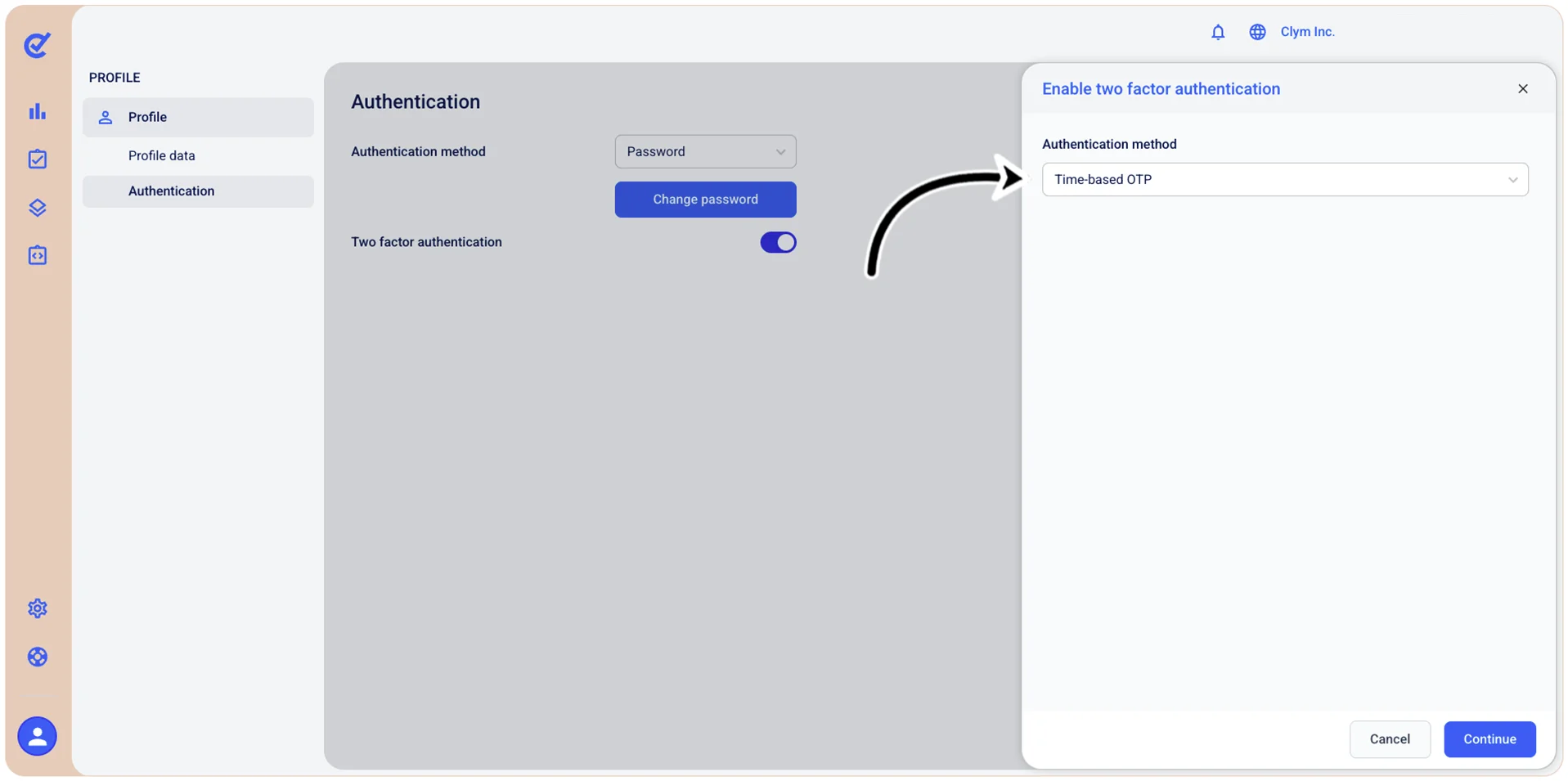
- In the Authentication section, toggle on Two factor authentication.
- On the Enable two factor authentication right-side section, select either Email or Time-based OTP as the the second authentication factor.
Depending on your selection, the options available to you at this stage may vary.
If you choose Email, select Save.
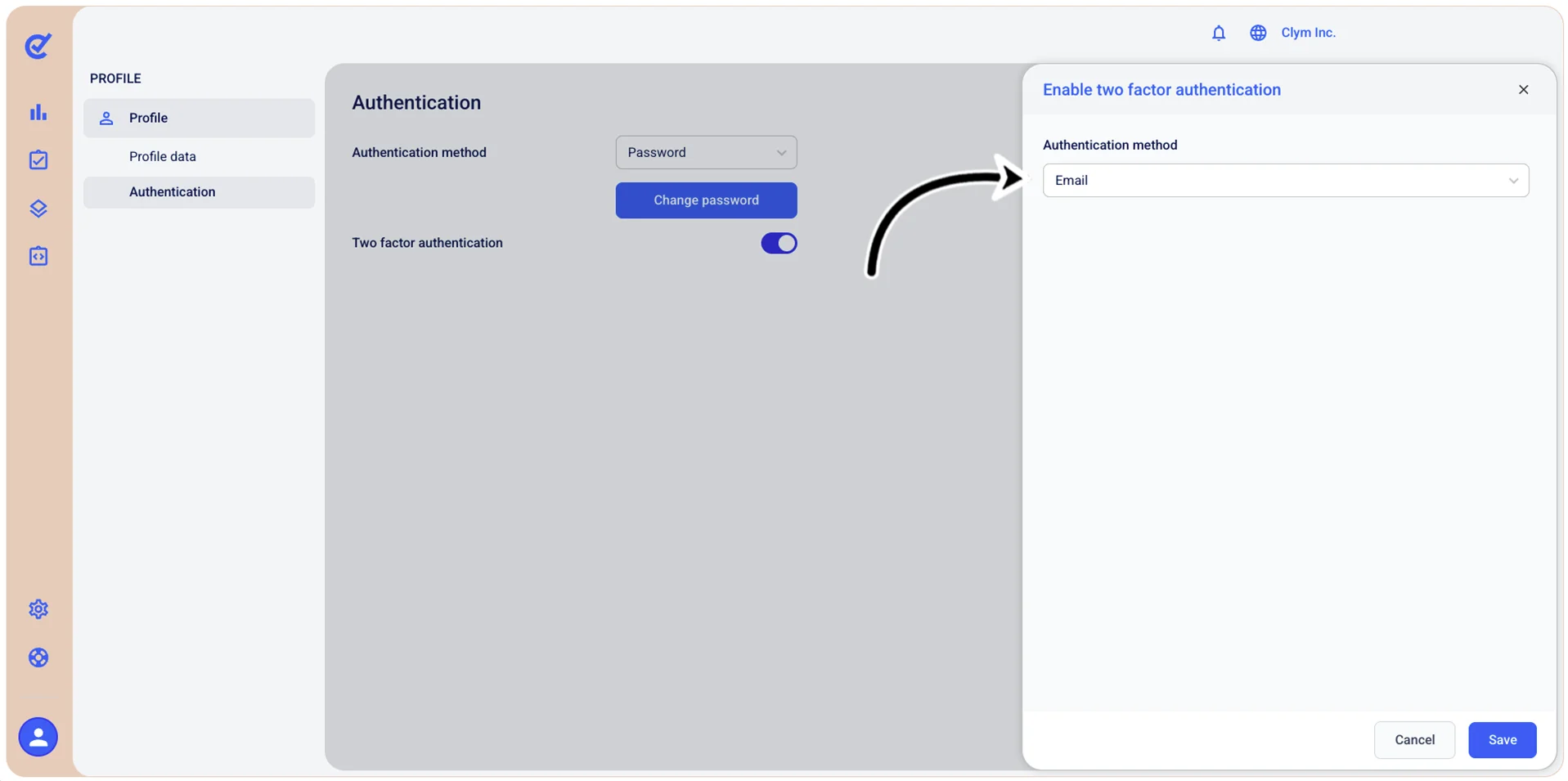
If you select Time-based OTP, click Continue.
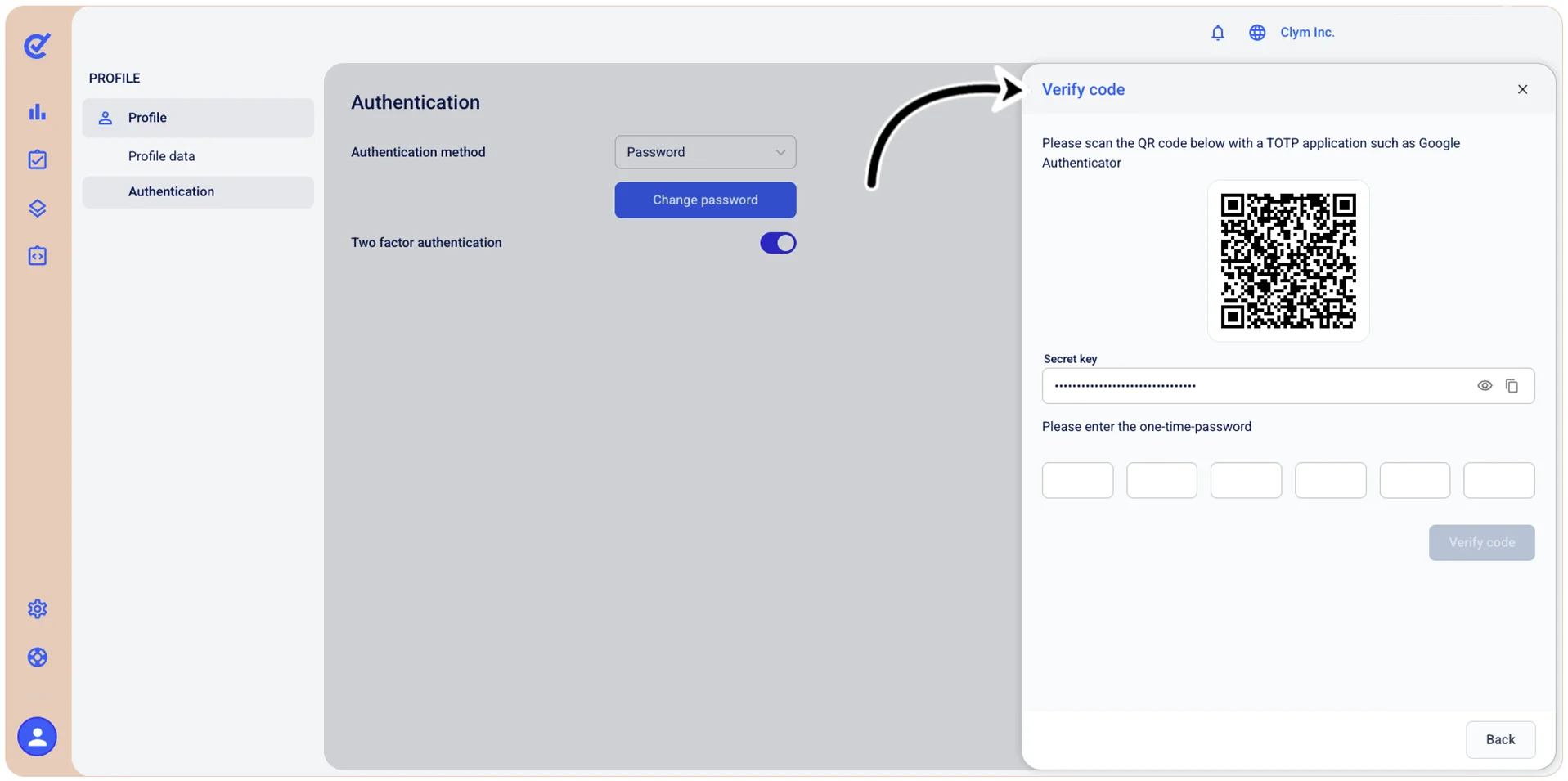
In the Verify code screen, scan the QR code with a TOTP application and verify the code.