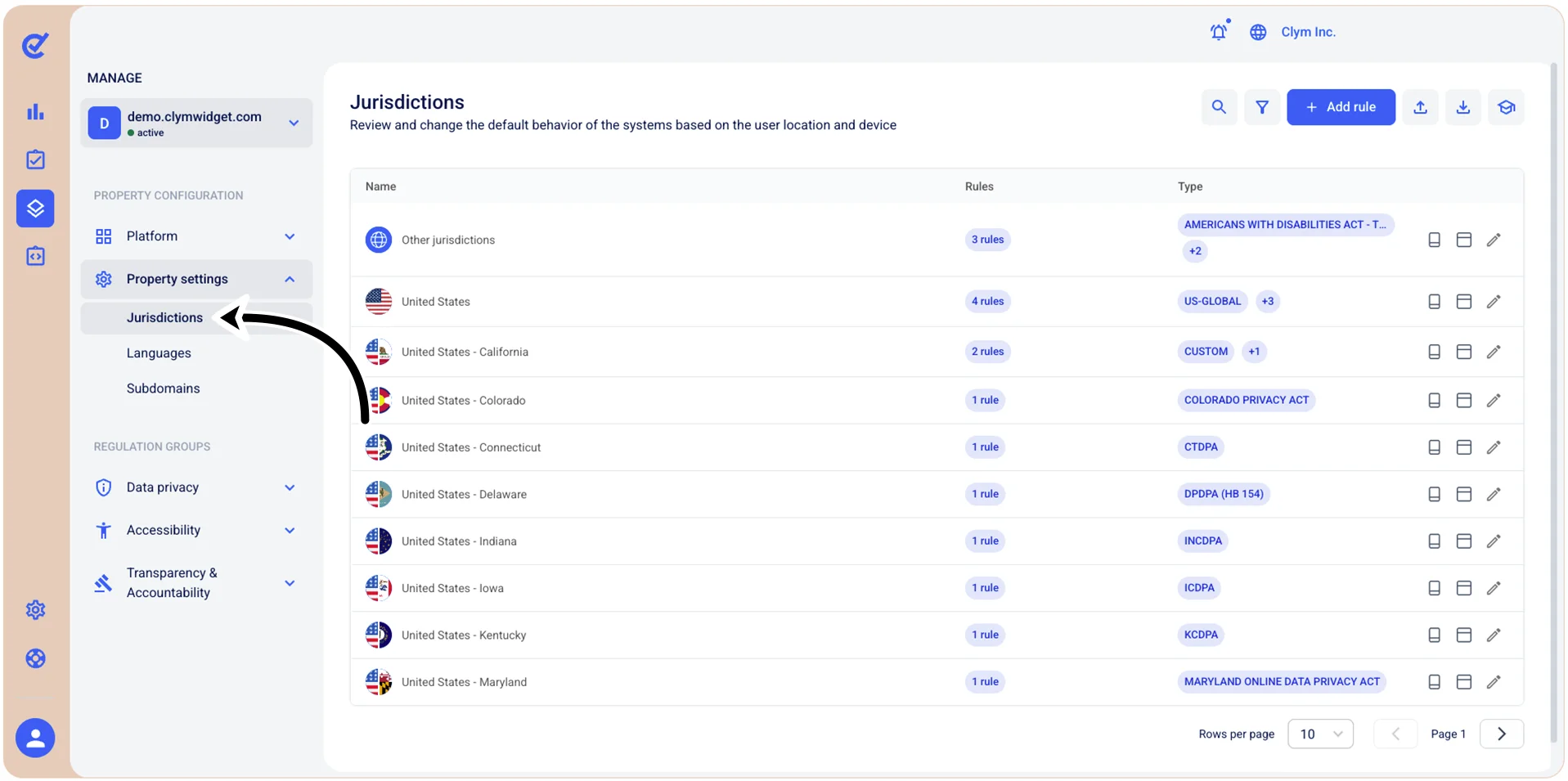
Manage Property settings: Manage jurisdictions
As technology evolves, the regulatory compliance landscape changes to protect consumers, potentially affecting your business's website. The main goal is to help identify the increasing compliance requirements placed on various businesses, including Data Privacy, Accessibility, Age Gating, Sanctions and additional restrictions, to help protect our customers.
The Control Center removes the added stress of needing to keep up with laws as they are introduced and constantly amended. After the installation, we automatically update your widget with new features and compliance updates, eliminating the need for manual adjustments.
If you need to implement additional rules to support your business requirements (such as Age Gating, or displaying a mobile-compliant version of the widget), you can now benefit from robust geographical and device-based settings. These settings enable you to establish specific rules effectively.
Notes:
- If you have not already filled out all of the fields under your Company Data section, we recommend that you edit your company data before creating any custom rules.
- Depending on your answers to some of the questions in your Company Data section, certain rules may automatically be created based on certain criteria and regulations that may protect your users. To make sure that your custom-created rules are not overwritten, please first complete your Company Data section before creating any custom rules.
- Since regulations are country and state dependent, based on the selections you make while configuring jurisdictions, the UI features available to you may vary.
To access the Jurisdictions section, go to  Manage>Property Settings>Jurisdictions.