
Filter Transparency & Accountability legal documents
To narrow down your search using filtering:
- Go to
 _Manage>Transparency & Accountability>Legal documents.
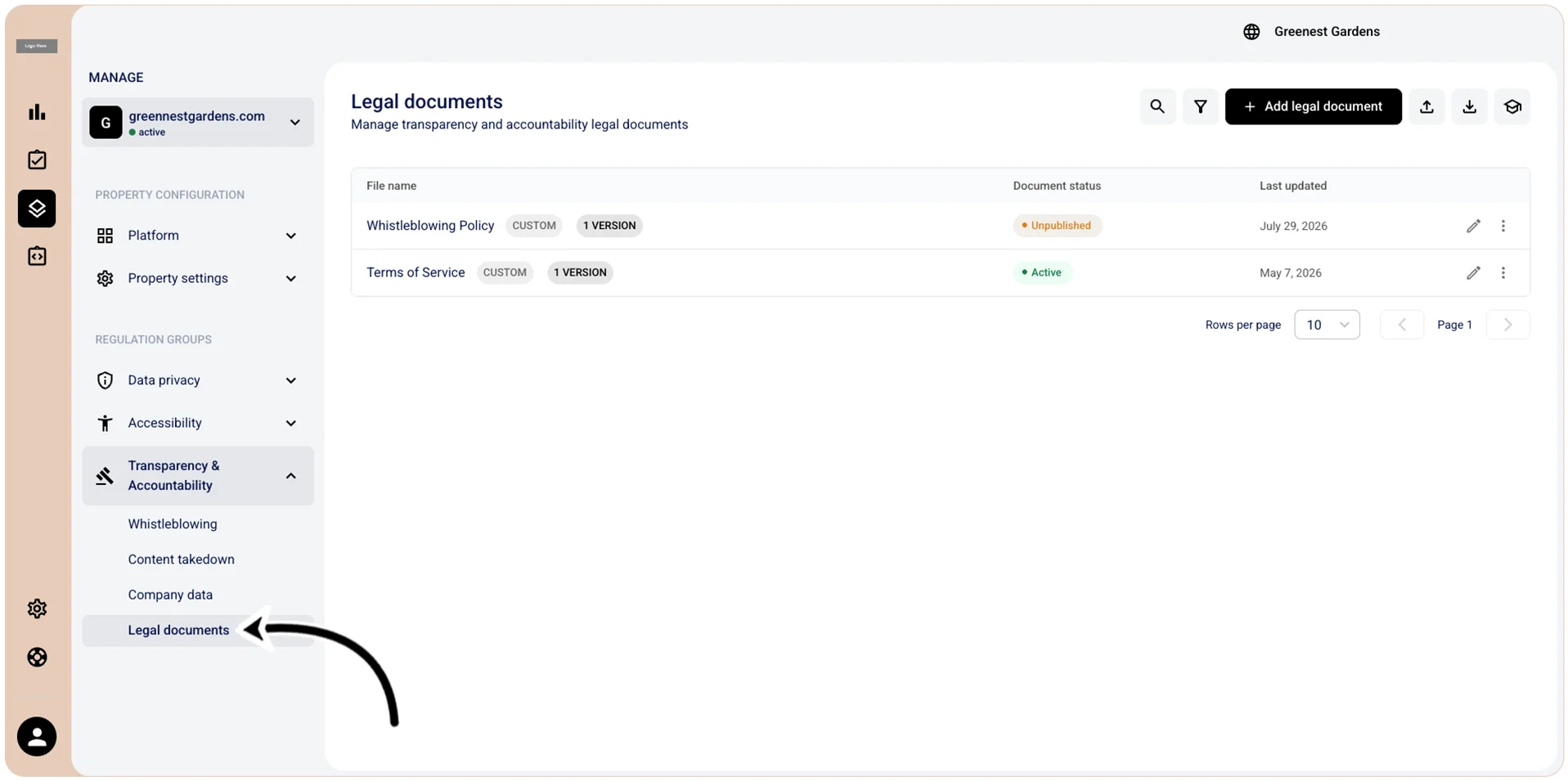
- In the Legal documents section, select
 Filter.
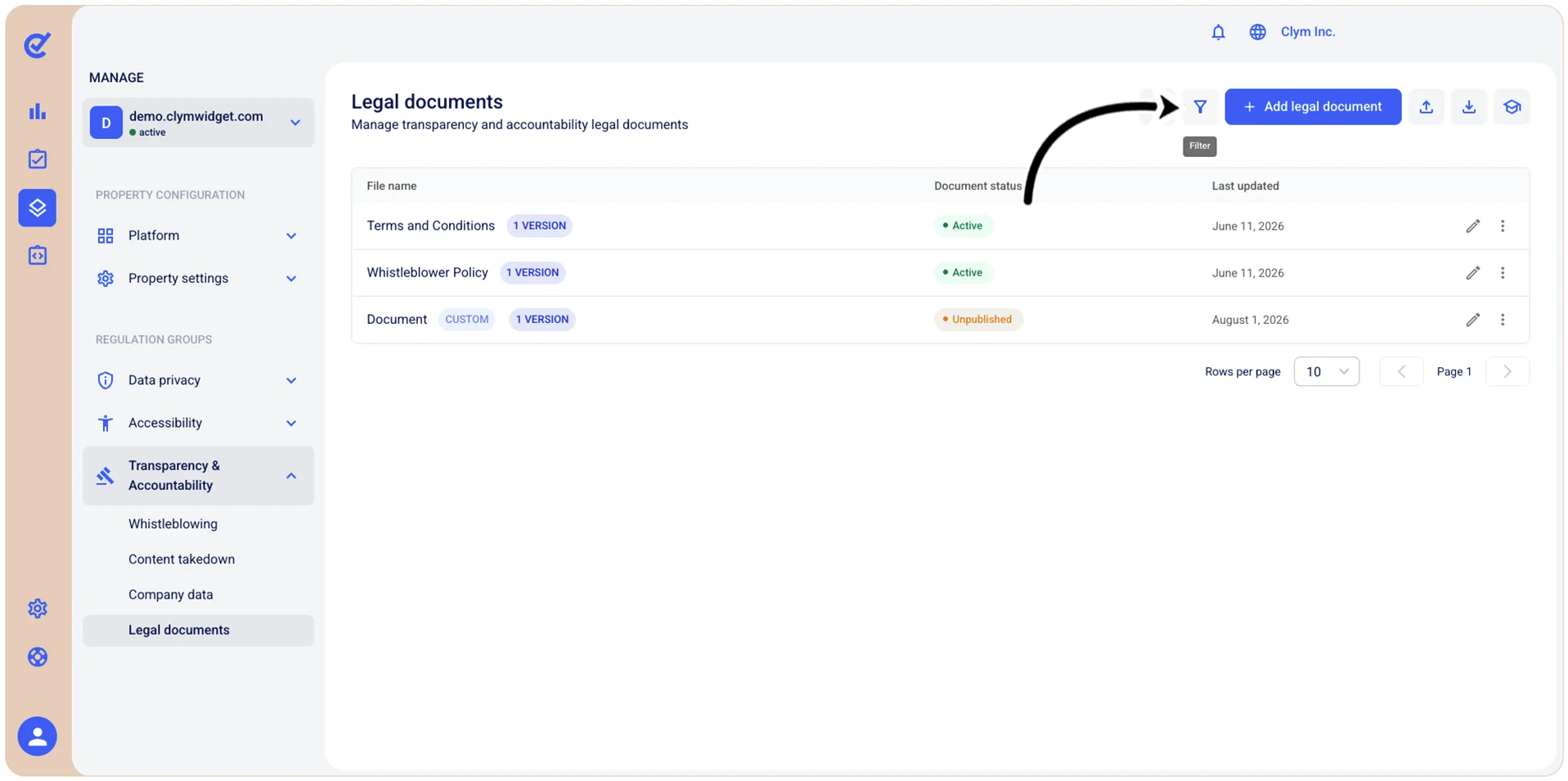
- In the Filters section, configure the parameters of your filter, as follows:
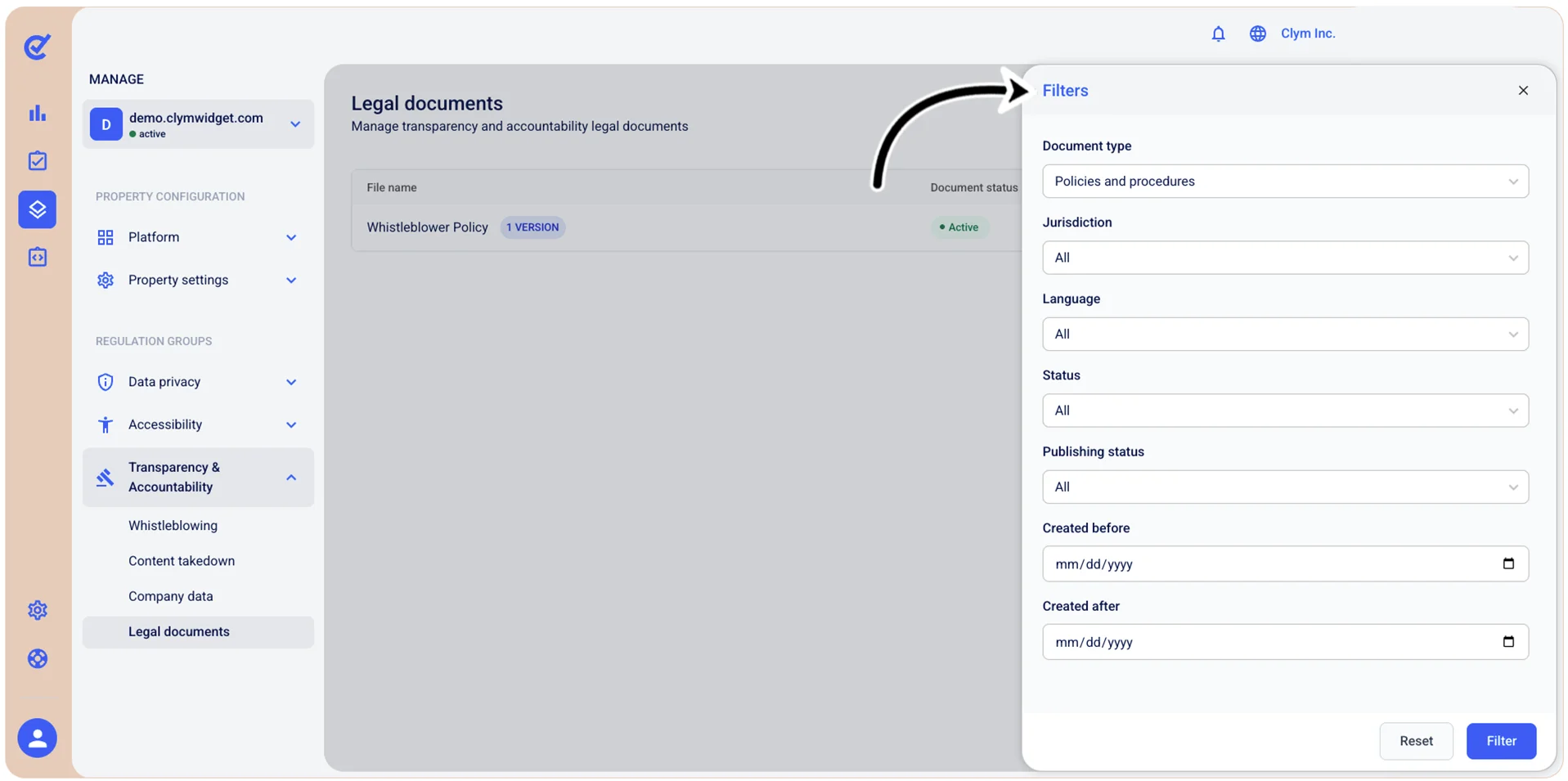
- Document type: Select the desired document type (such as, Agreement, DSR, Terms and so on) that will be applied to the filter legal documents by their category or type.
- Jurisdiction: Select the desired jurisdiction of the filter to view only documents relevant to that location.
- Language: Select the desired language from the list to filter documents by the language in which they are written.
- Status: Filter documents by their current status - Active, Inactive, None or All.
- Publishing status: Filter documents by their publication state - Published or Unpublished.
- Created before: Use the
 date selector to show only the documents created before the date you specify here.
 - Created after: Use the date selector to show only the documents created after the date you specify here.
- When finished, select Filter.