
Manage the design of the AI Assistant
In the Design section, you can configure the general look-and-feel of the AI Assistant from the perspective of layout, color, font and more.
Note: After editing any parameters in this section, select Save on the tab you just configured before moving on to another tab, otherwise the updated parameters will not be saved.
To configure the design of the widget:
- Go to
 Manage>Platform.
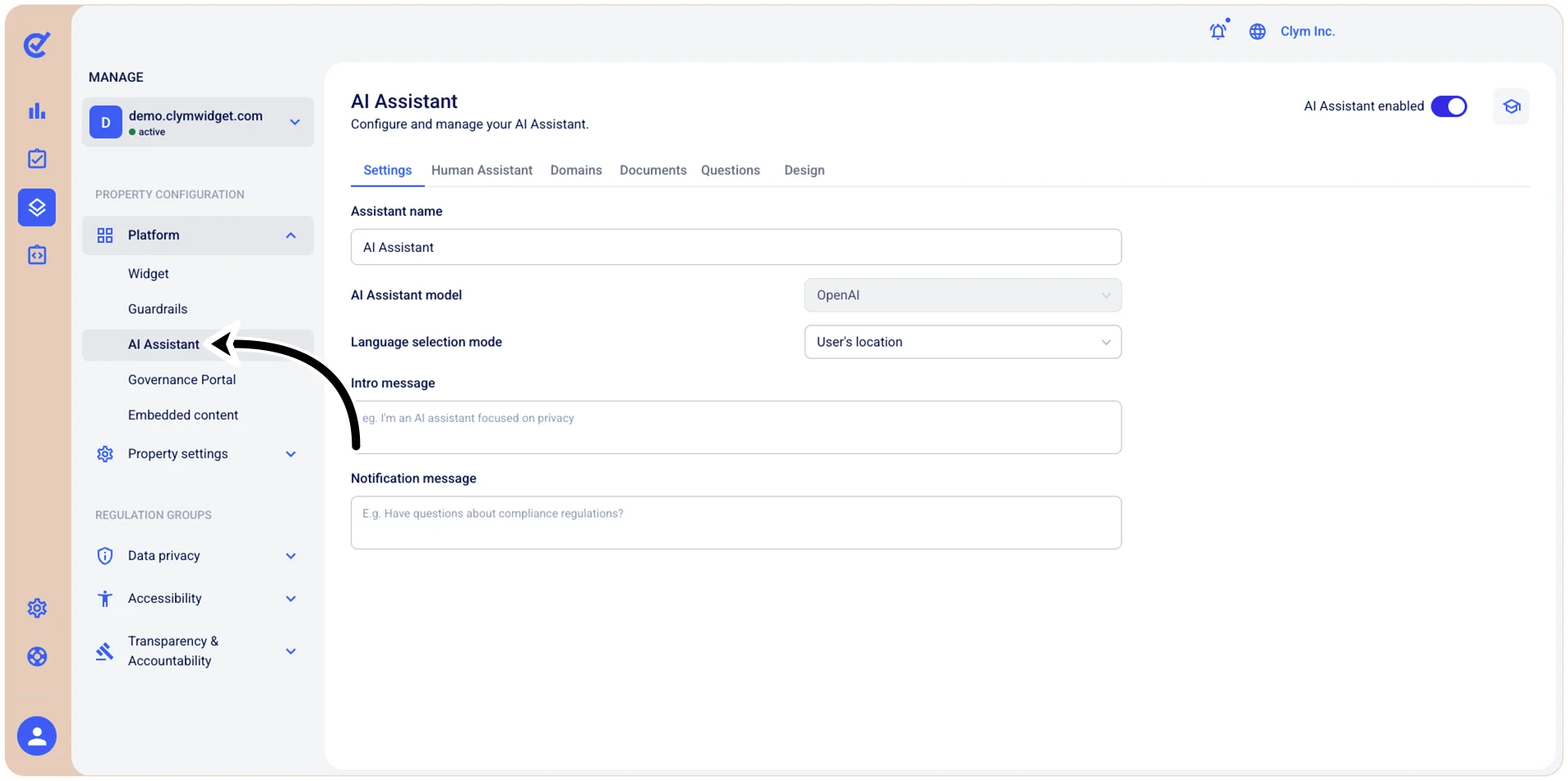
- Select AI Assistant.
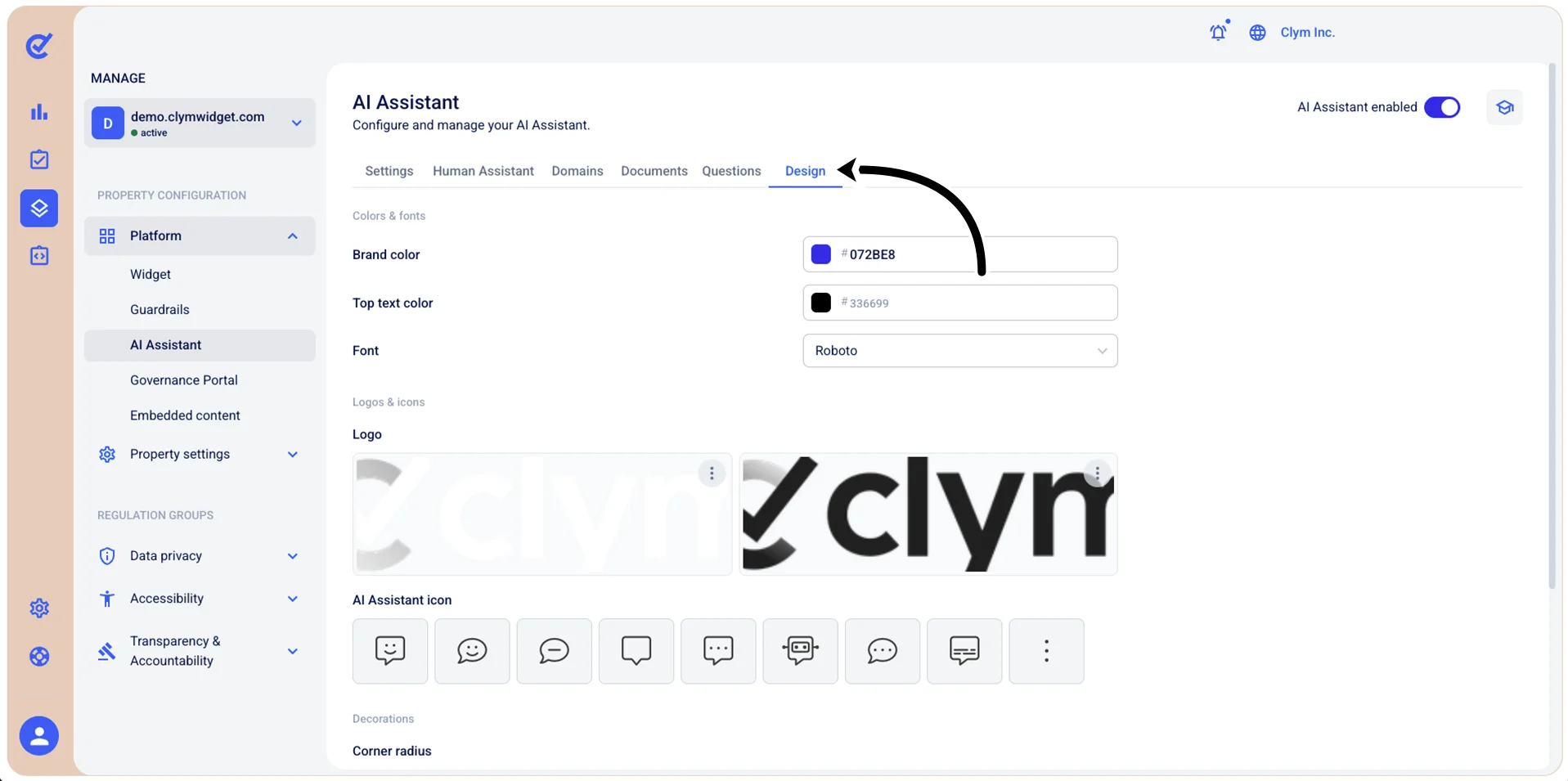
Under Colors & Fonts, configure the core visual identity of your AI Assistant:
- Brand Color: Set the primary color used throughout the AI Assistant (buttons, highlights, and accents). Click the color swatch to open a color picker, or type a hex code directly into the field (for example, #CE1010).
- Top Text Color: Define the color of the text displayed at the top of the AI Assistant by entering a hex value or by using the color picker.
- Font: Sets the typeface used across the widget.
Under Logos & Icons, manage the images and icons that represent your organization within the AI Assistant:
- Logo: You can upload two versions of your logo to make sure it looks great on any background - on brand color or light color. Make sure you observe the size requirements specified on screen.
- AI Assistant icon: Select the icon shown on the floating button that opens the AI Assistant.
Under Decorations:
- Corner radius: Select how rounded you want the corners of the widget to appear.
- When finished, select Save.