
Filter services
To narrow down your search using filtering:
- Go to
 Manage>Data privacy>Services.
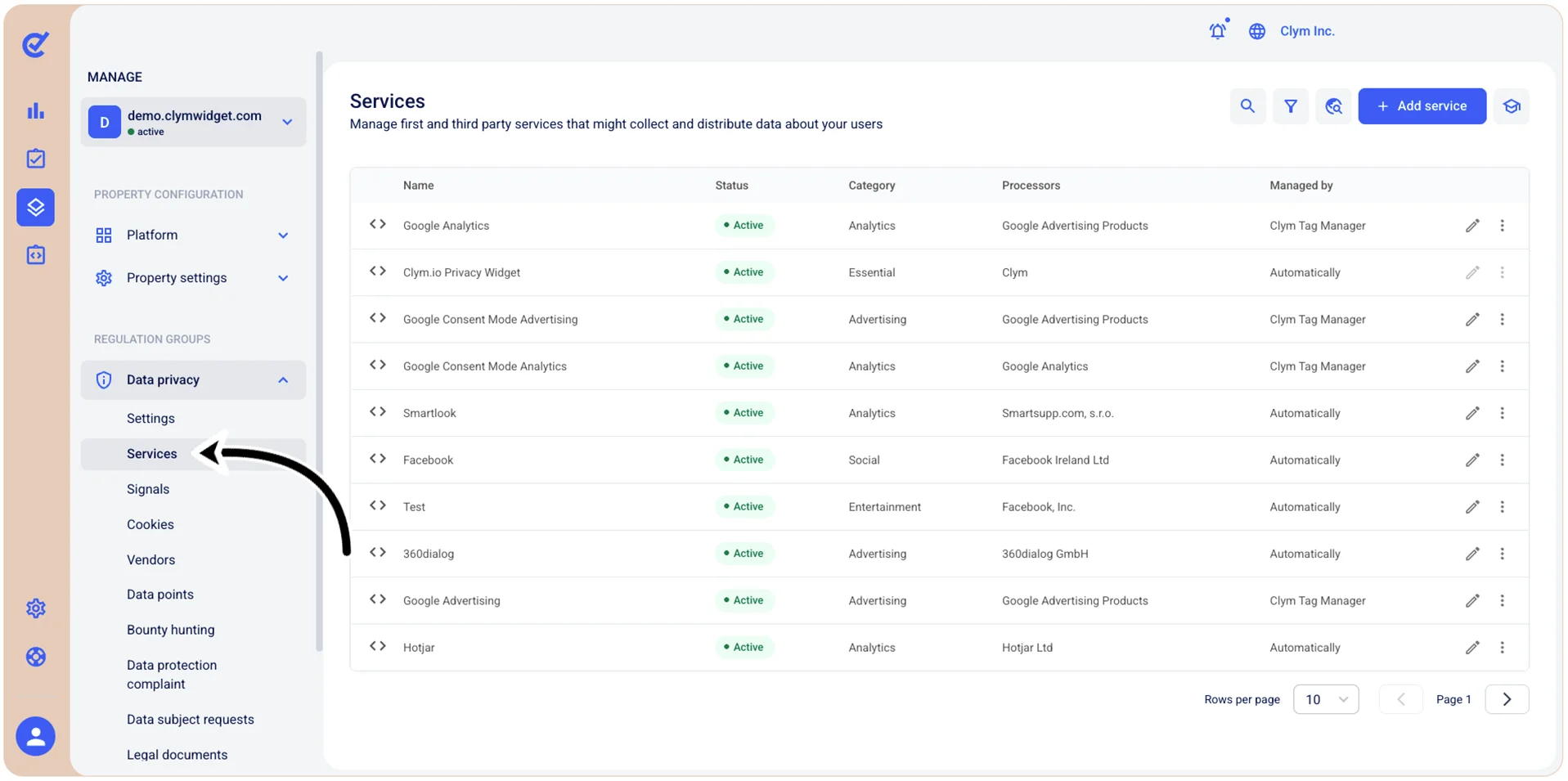
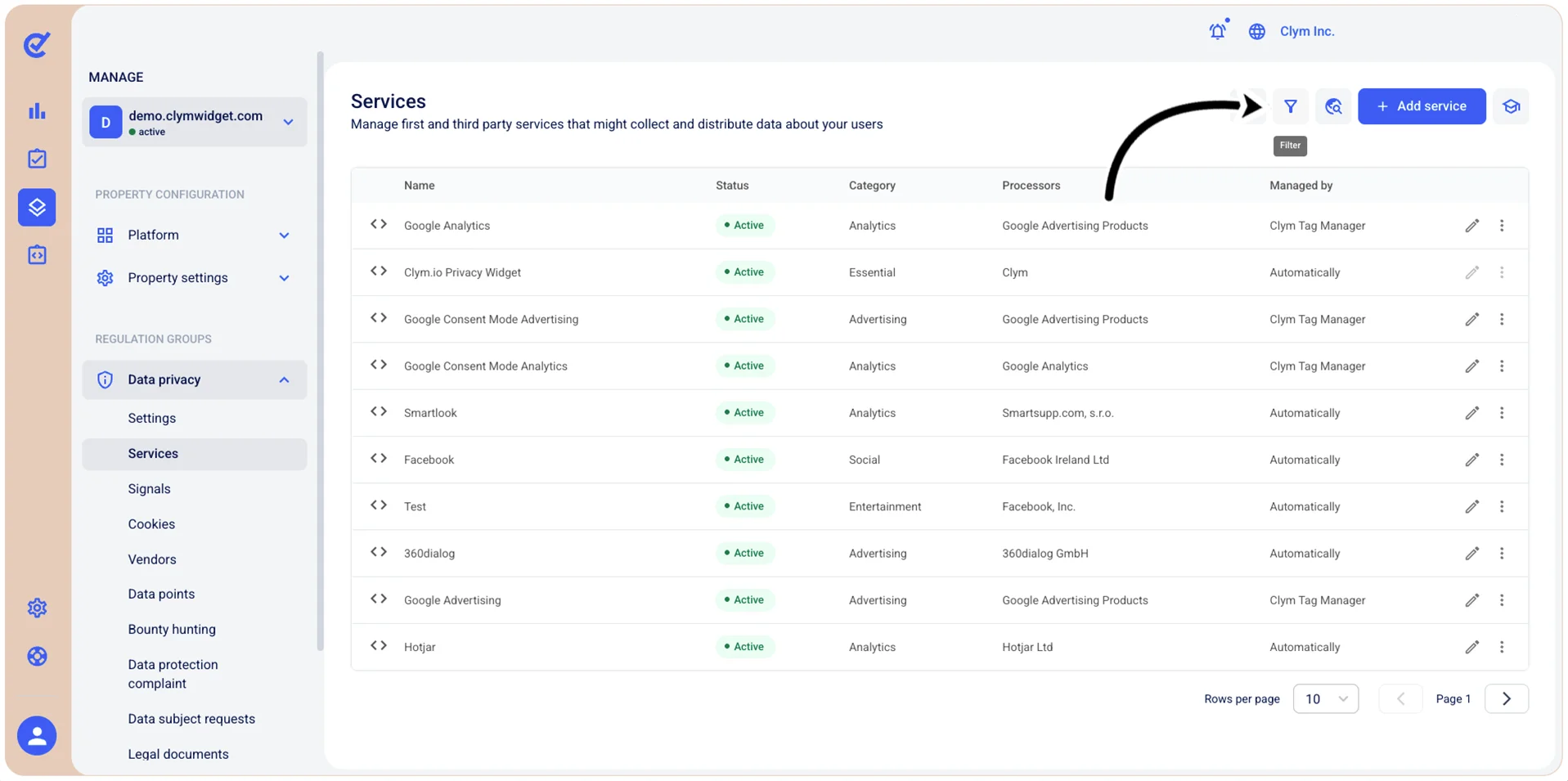
- In the Services section, select
 Filter.
- In the Filters section, use the filtering parameters to find cases, as follows:
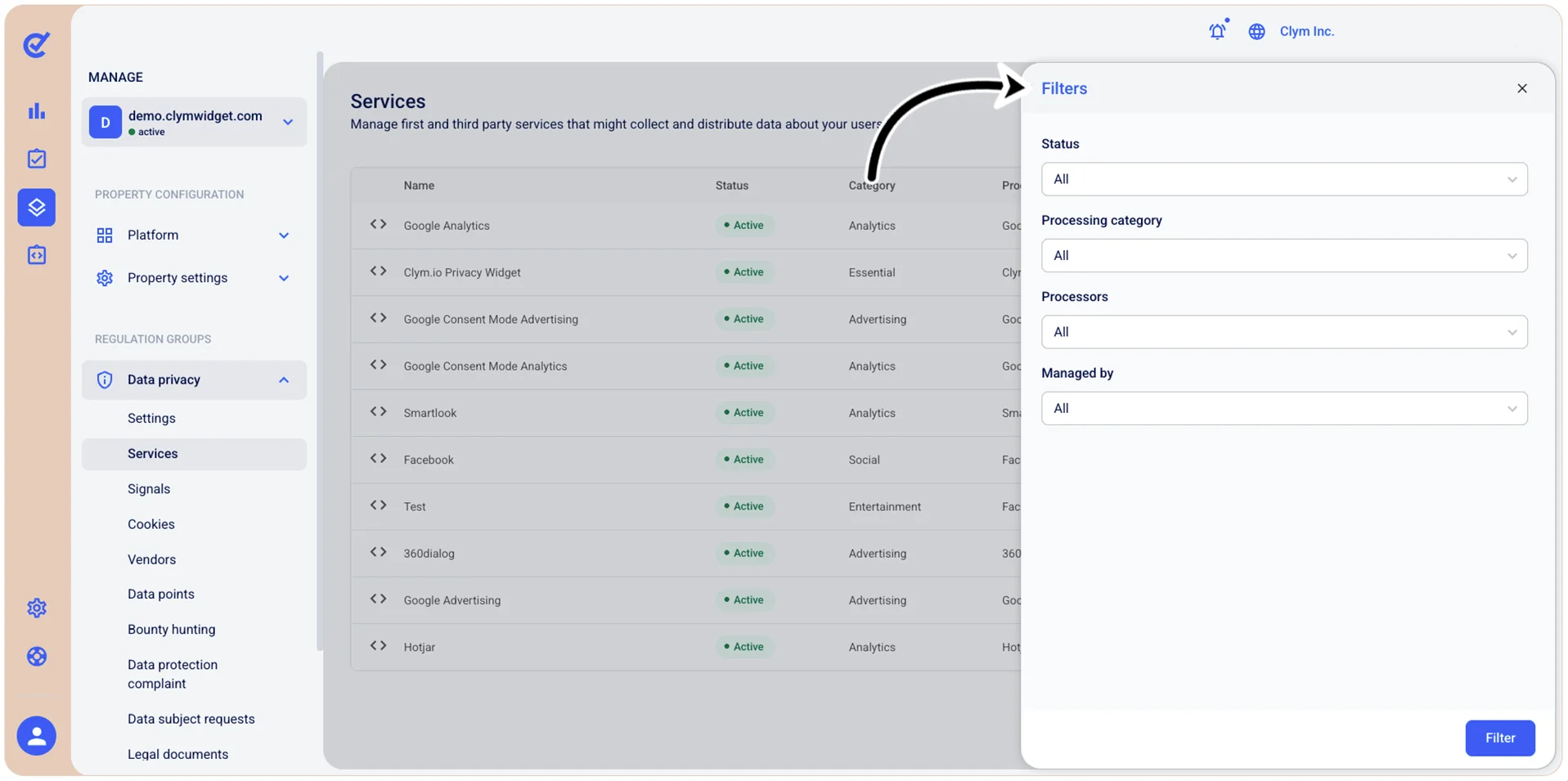
- Status: Select a specific status to view only cases based on their current status (for example, Active/Inactive).
- Processing category: Select a specific category to view only cases of that type (for example, Analytics/Entertainment/Essential and so on).
- Processors: Select the desired Data processor.
- Managed by: Select the Service managing service.
- When finished, select Filter.
The filtered results are displayed in the Services section. Note that, whenever the Control Center displays filtered information, the
 filter icon is marked with a tiny bubble.