Designate case managers for content takedown requests
In the Control Center, you can designate content takedown case managers, or the persons who are in charge of handling content takedown requests. You can also designate specific people to handle specific content takedown requests, depending on their object.
Important!
- To be able to customize this section, you need to toggle on Overwrite default settings.
- When configuring this section, make sure that you select Save on the tab you just configured before moving on to another tab.
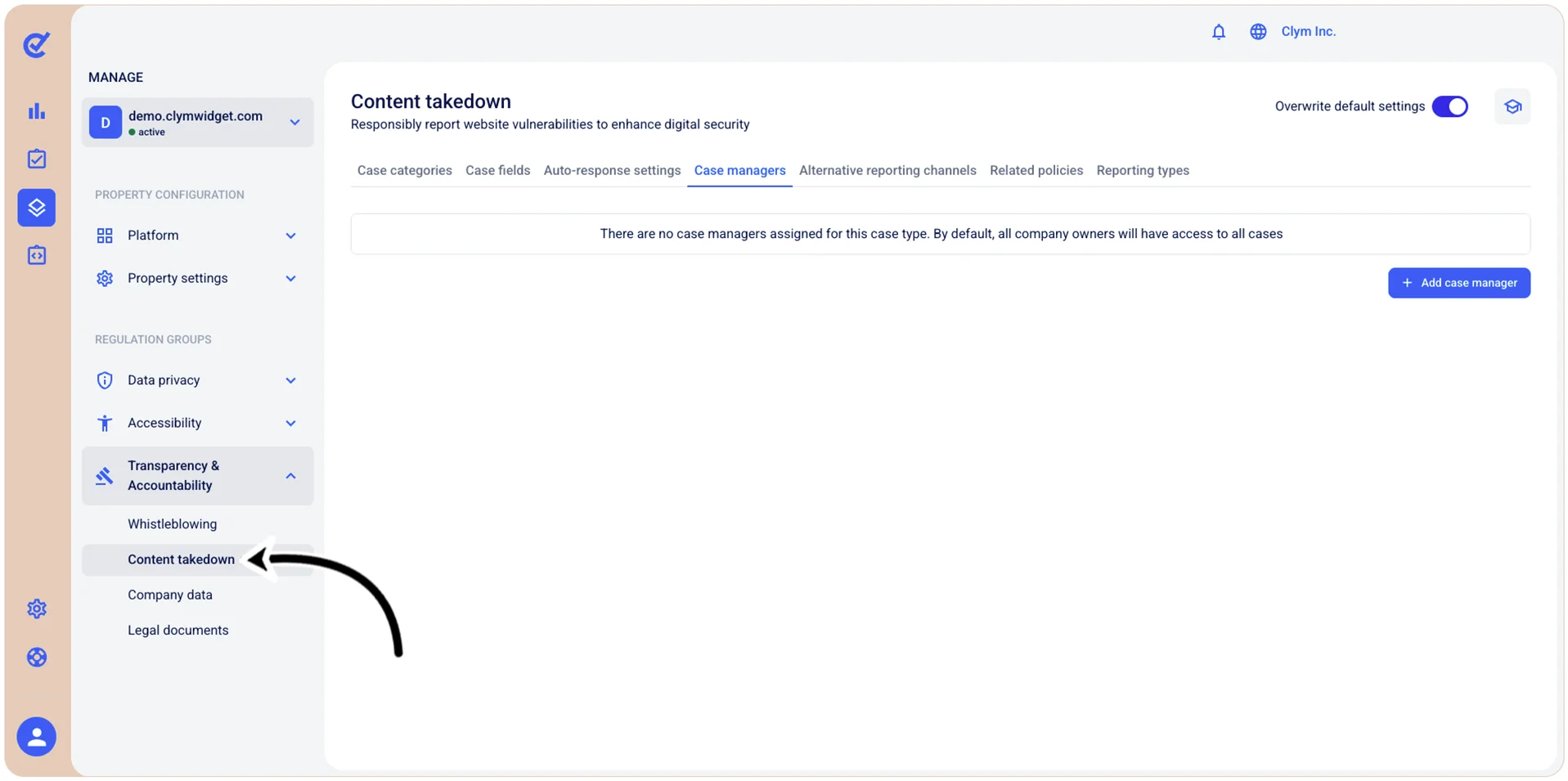
To access the content takedown case managers section, go to  Manage>Transparency & Accountability>Content takedown and select the Case managers tab.
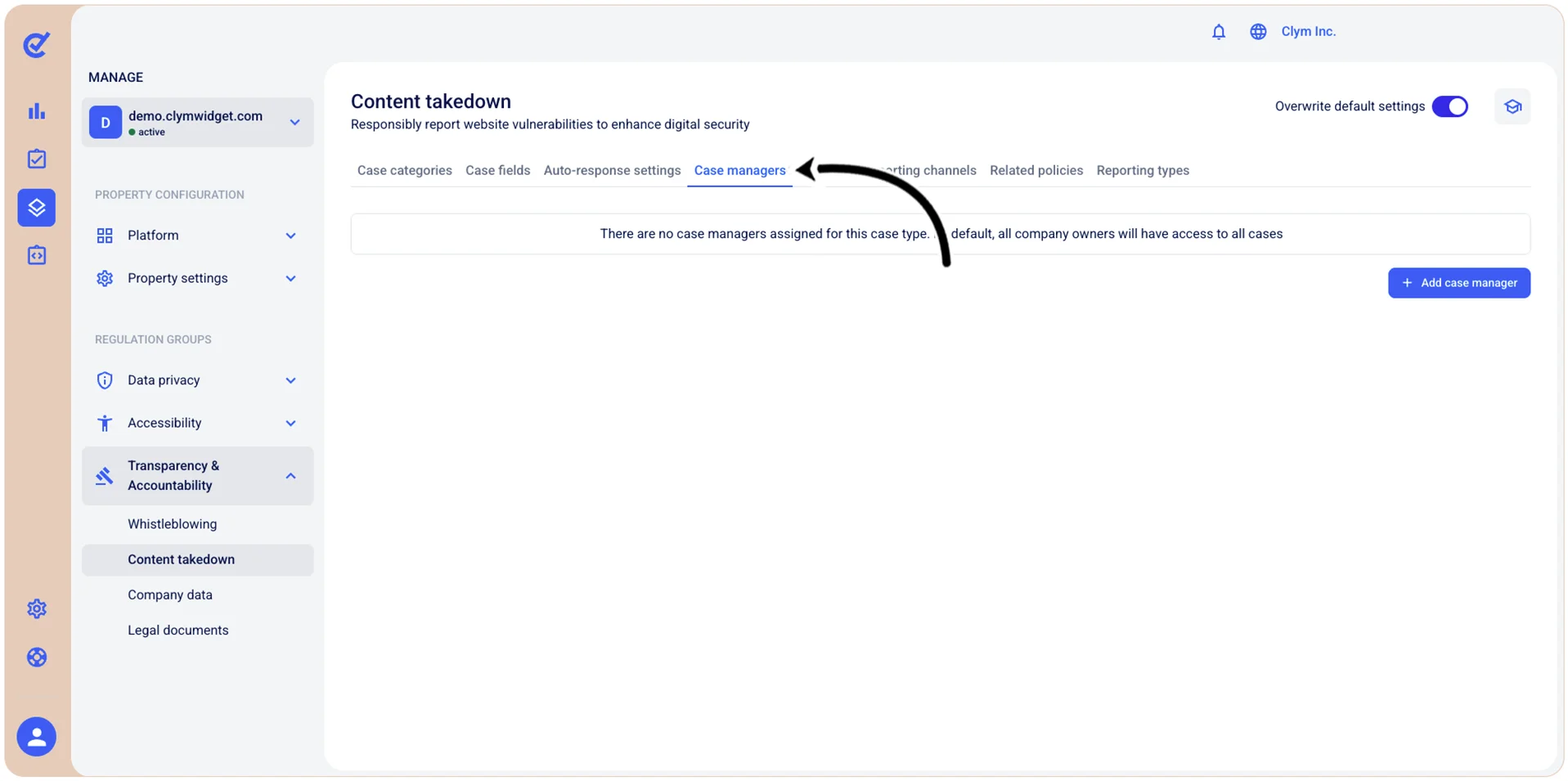
You can add, edit and remove content takedown case managers.
Add a content takedown case manager
In the Control Center, you can easily add the manager of a content takedown case.
Important!
- To be able to customize this section, you need to toggle on Overwrite default settings.
- When configuring this section, make sure that you select Save on the tab you just configured before moving on to another tab.
To add a content takedown case manager:
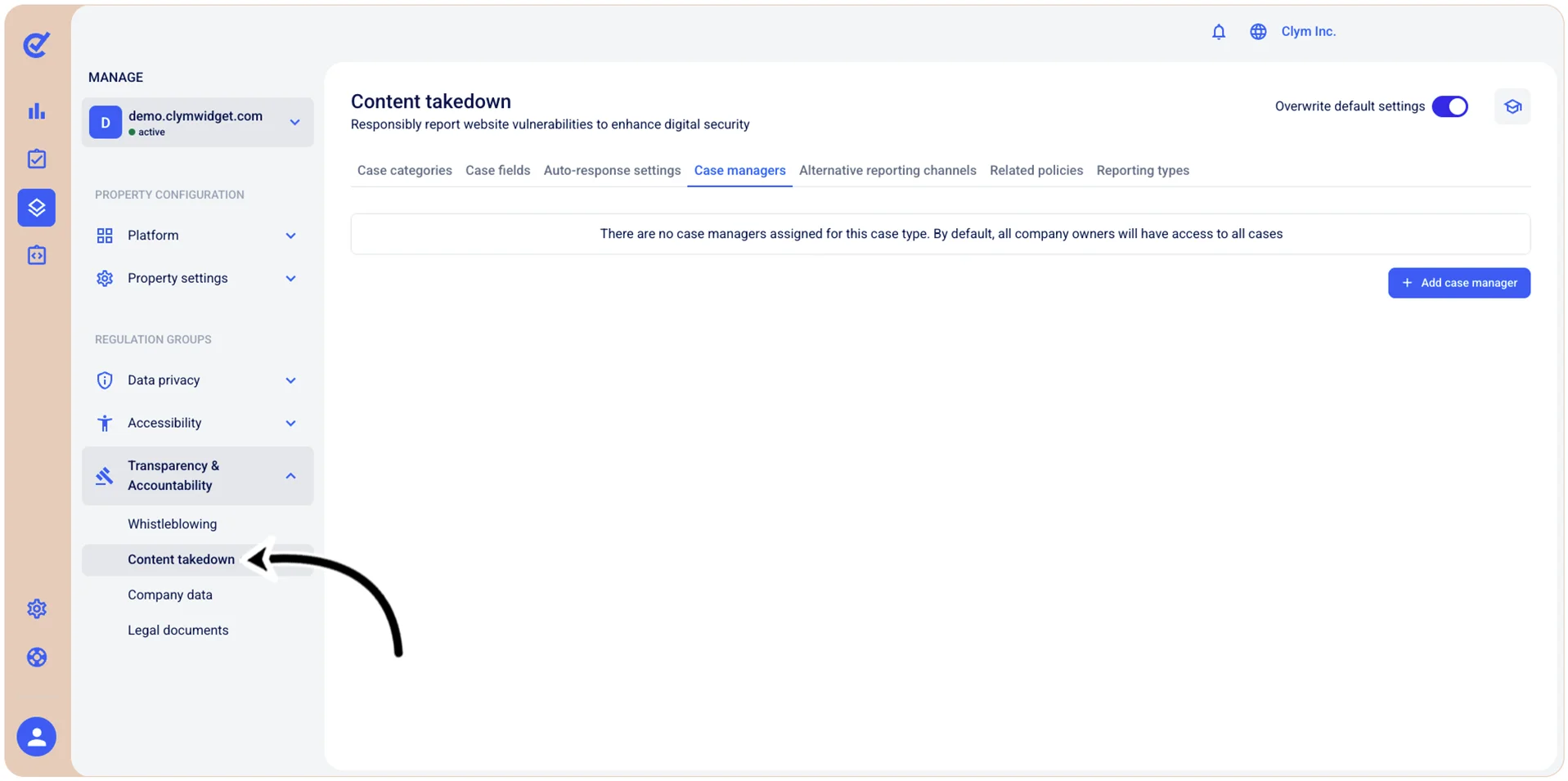
- Go to Manage>Transparency & Accountability>Content takedown.
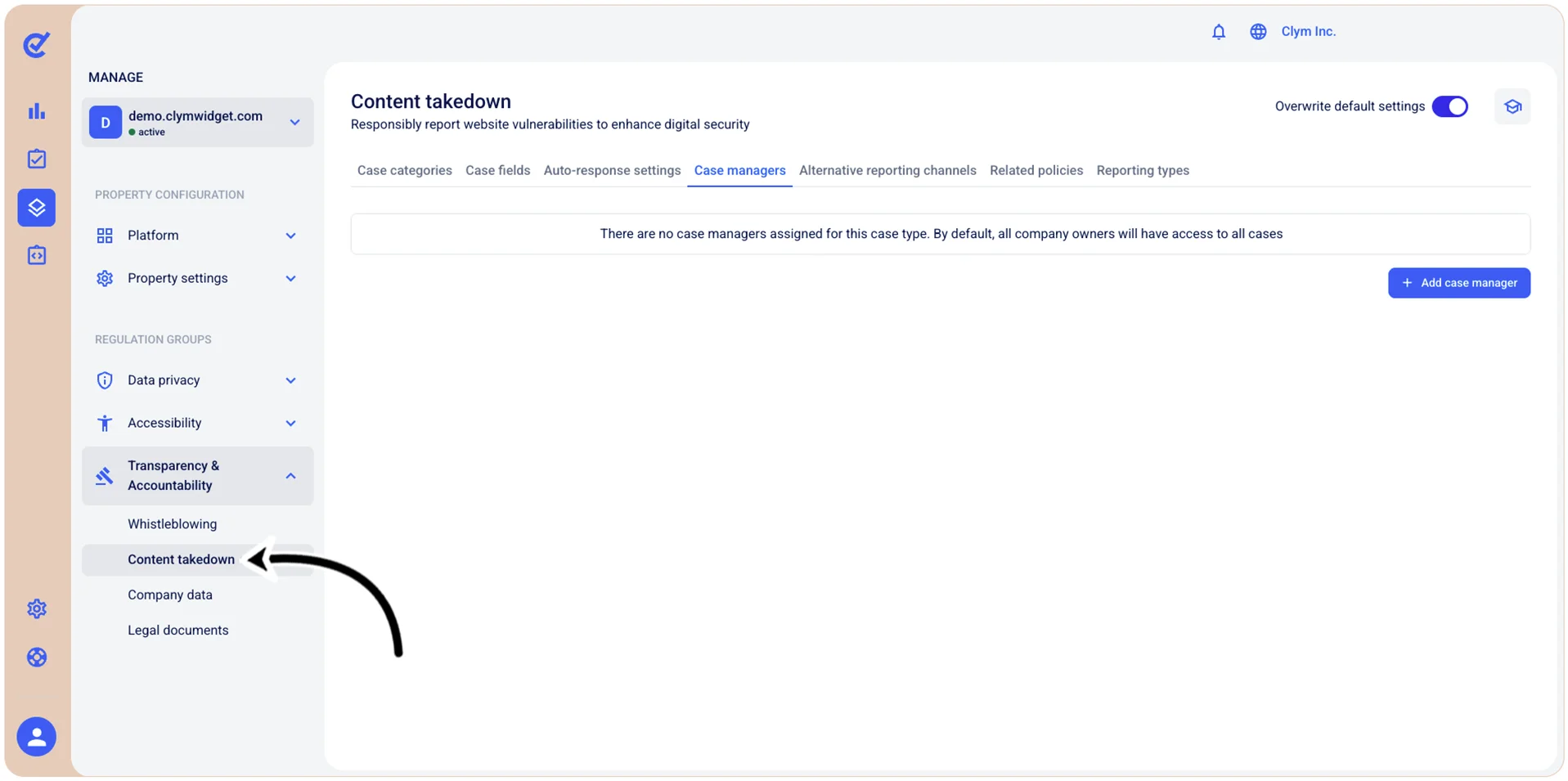
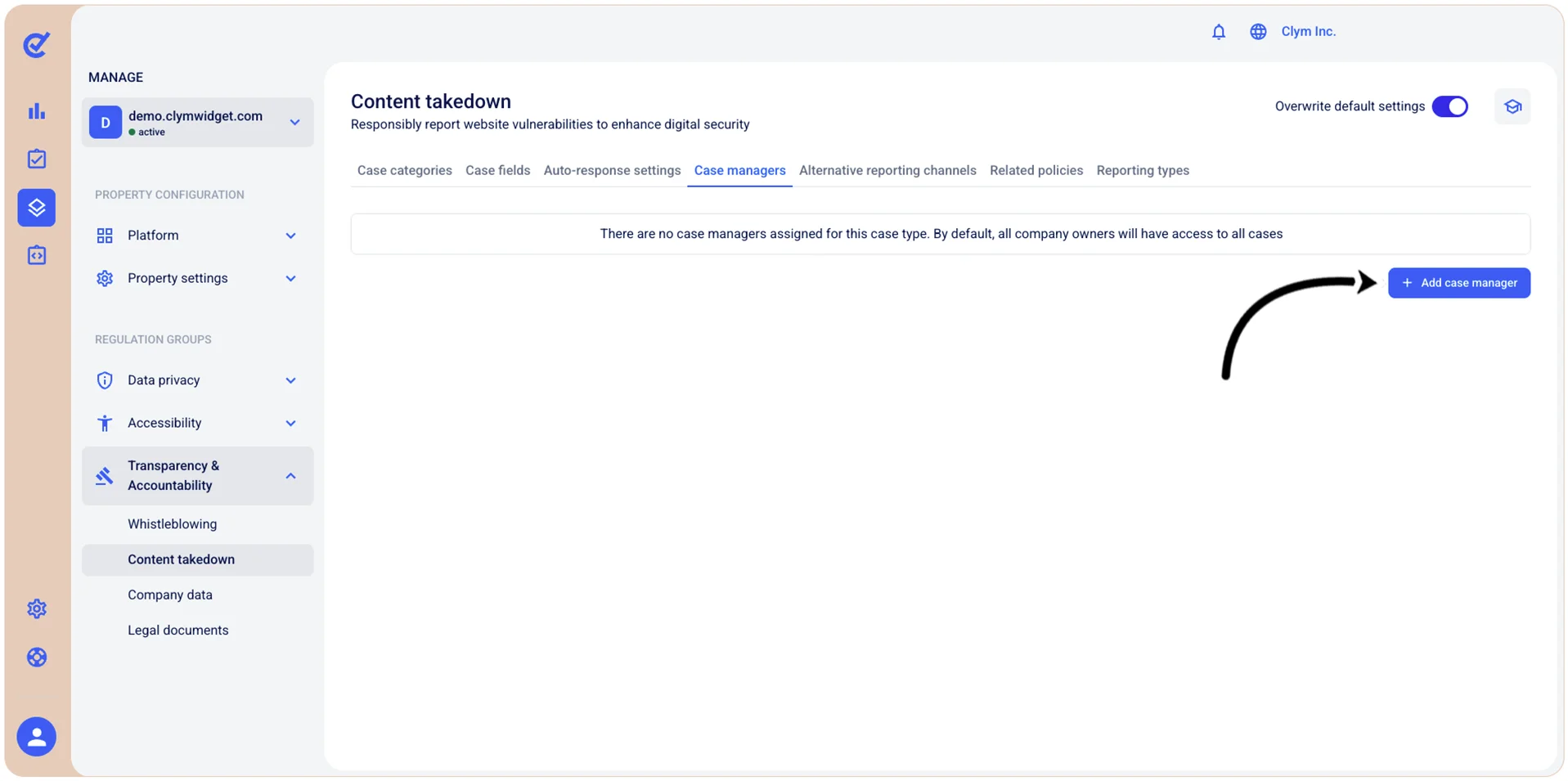
- In the Case managers tab, select +Add case manager.
- In the Add case manager section, configure the case manager’s details, as follows:
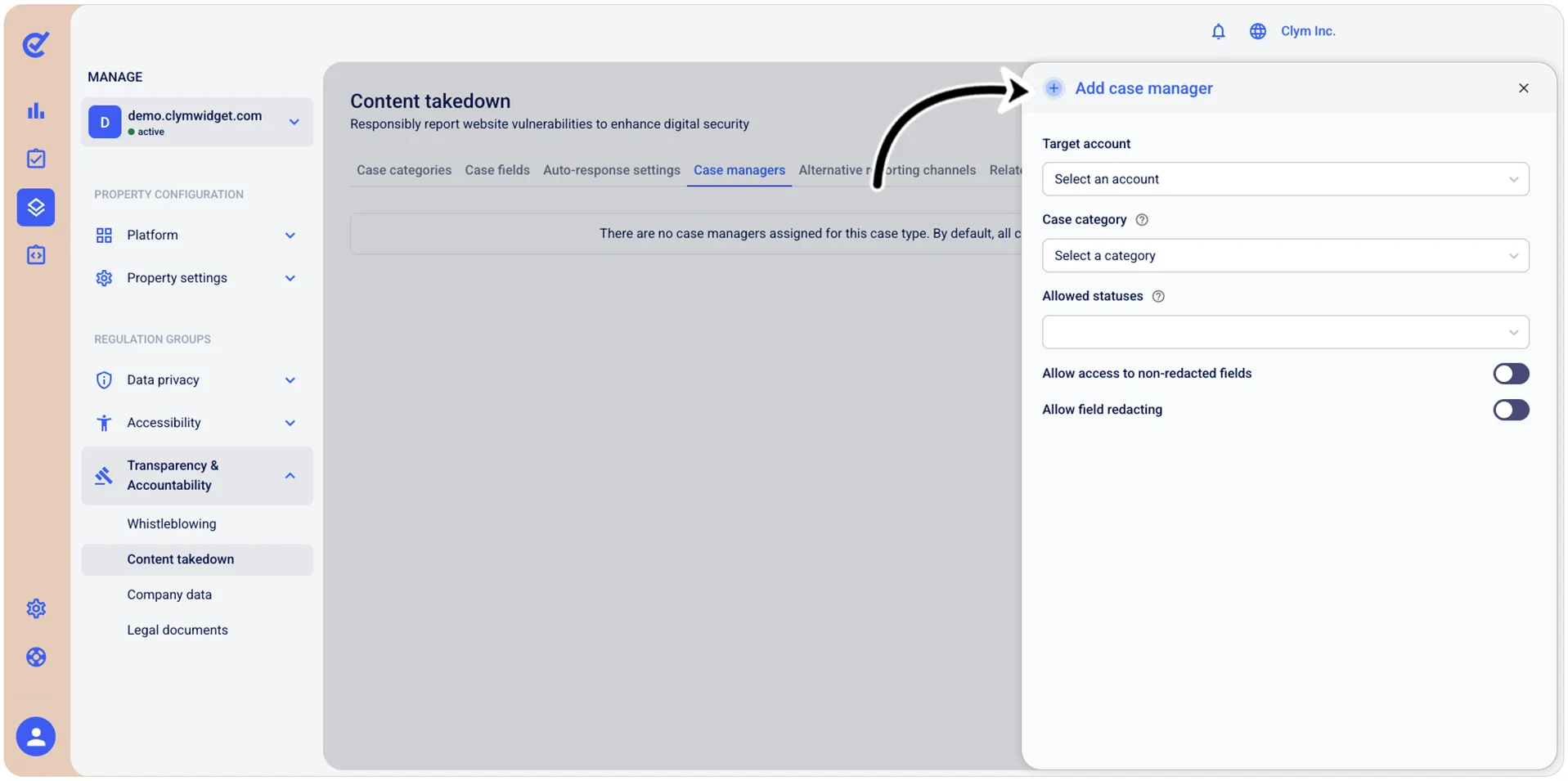
- Target account: Select the user account that you want to designate as content takedown request manager for the case category that you select in the subsequent step. This makes sure the requests are assigned to the most experienced case manager in the matter.
- Case category: Select the desired case category that will be handled by the case manager you designated at the previous step.
- Allowed statuses: Select what statuses the content takedown request goes through during the investigation (for example, pending/in progress/open and so on).
- Allow access to non-redacted fields: Toggle on to enable case managers to view fields that contain unredacted (non-anonymized) information in content takedown cases. When activated, case managers can see the original, complete data in all fields, including potentially sensitive information like the reporters' names, email addresses, or technical details.
- Allow field redacting: Toggle on to enable the ability to redact (hide or anonymize) specific fields in content takedown cases. When activated, administrators or case managers can mark certain fields as redacted to protect sensitive information such as reporter identity, contact details, or confidential vulnerability details.
- When finished, select Add.
Edit content takedown case managers
In the Control center, you can easily edit the managers of a content takedown case.
Important!
- To be able to customize this section, you need to toggle on Overwrite default settings.
- When configuring this section, make sure that you select Save on the tab you just configured before moving on to another tab.
To change the case managers of content takedown reports:
- Go to Manage>Transparency & Accountability>Content takedown.
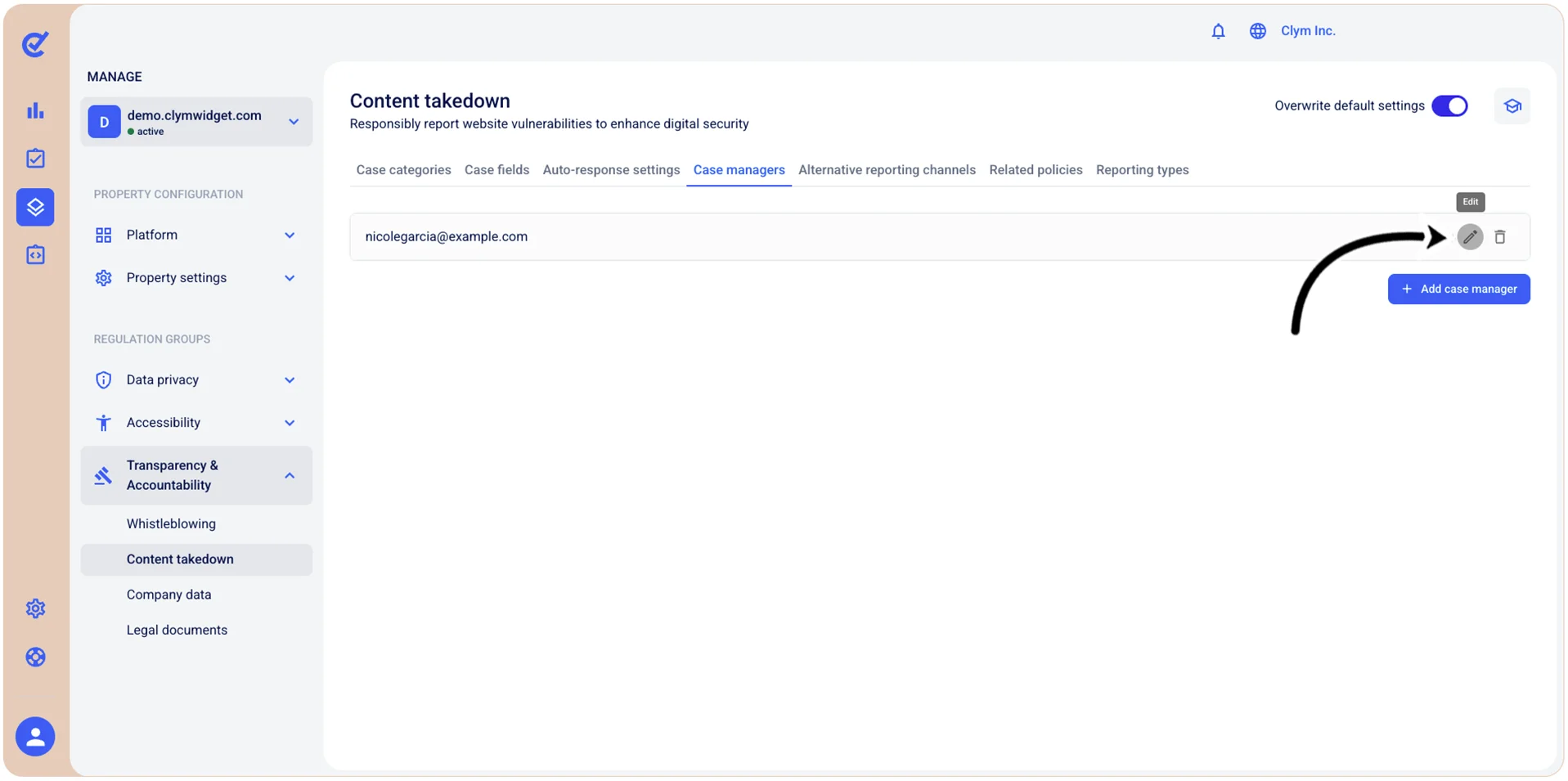
- In the Case managers tab, select
 Edit next to the desired case manager.
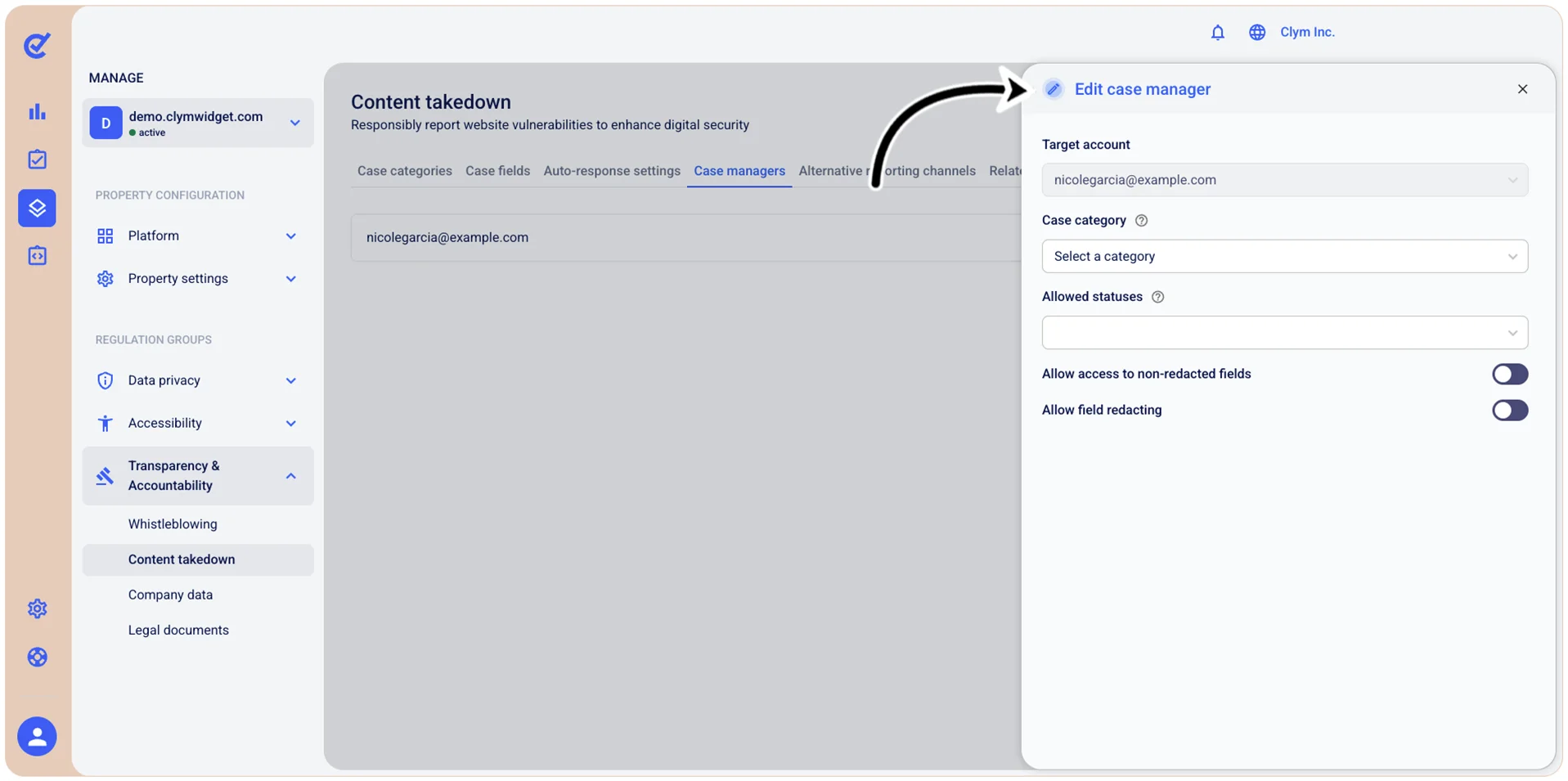
- In the Edit case manager section, change the desired parameters of the content takedown case manager.
- When finished, select Save.
Delete a content takedown case manager
In the Control center, you can easily remove the manager of a content takedown case.
Important!
- To be able to customize this section, you need to toggle on Overwrite default settings.
- When configuring this section, make sure that you select Save on the tab you just configured before moving on to another tab.
To remove a content takedown case manager:
- Go to Manage>Transparency & Accountability>Content takedown.
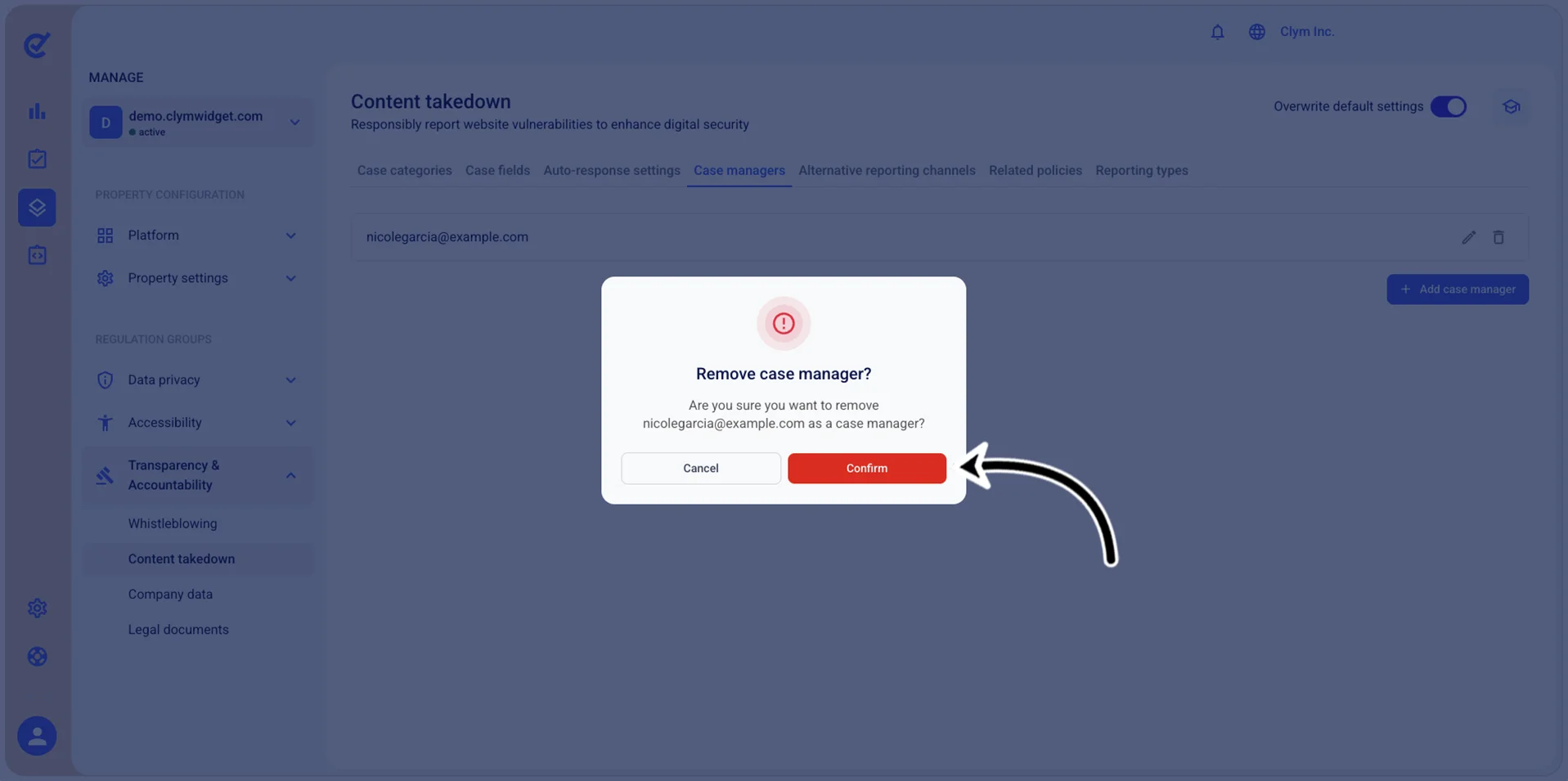
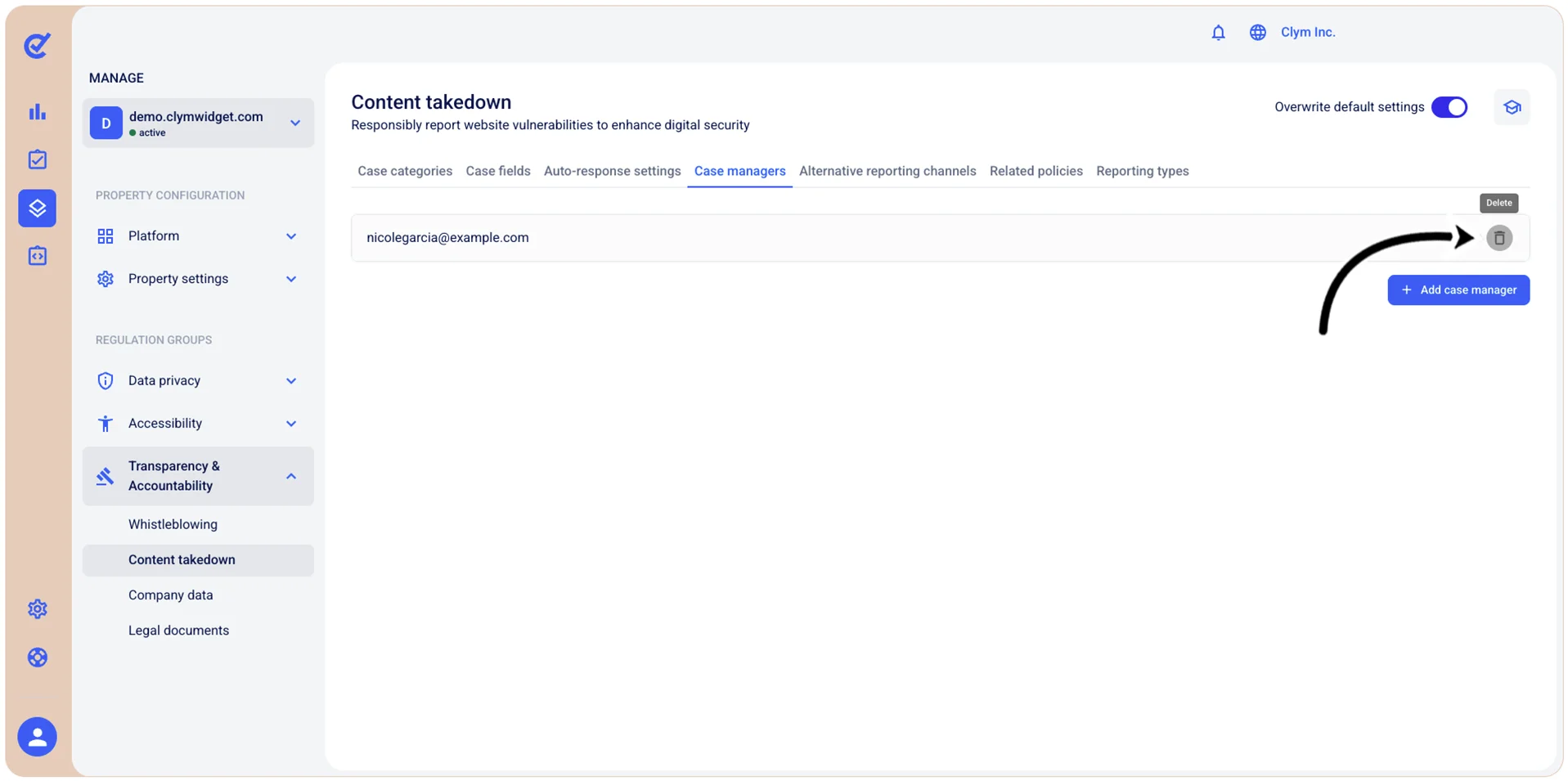
- In the Case managers tab, select
 Delete next to the content takedown case manager that you want to remove.
- In the confirmation message, select Confirm.