
Configure the content takedown request auto-response settings
After filing a content takedown case, you might want to keep users updated with the progress of the case analysis. In the Control Center, you can set up email templates that will enable you to communicate the status of the case to the reporters. After being reported, a case can be in one of the following states:
- Open: The content takedown case is open and being investigated.
- In progress: The content takedown case investigation is ongoing.
- Closed: The content takedown issue has been addressed.
Important!
- To be able to customize this section, you need to toggle on Overwrite default settings.
- When configuring this section, make sure that you select Save on the tab you just configured before moving on to another tab.
To configure the auto-response settings of a content takedown case:
- Go to
 Manage>Transparency & Accountability>Content takedown.
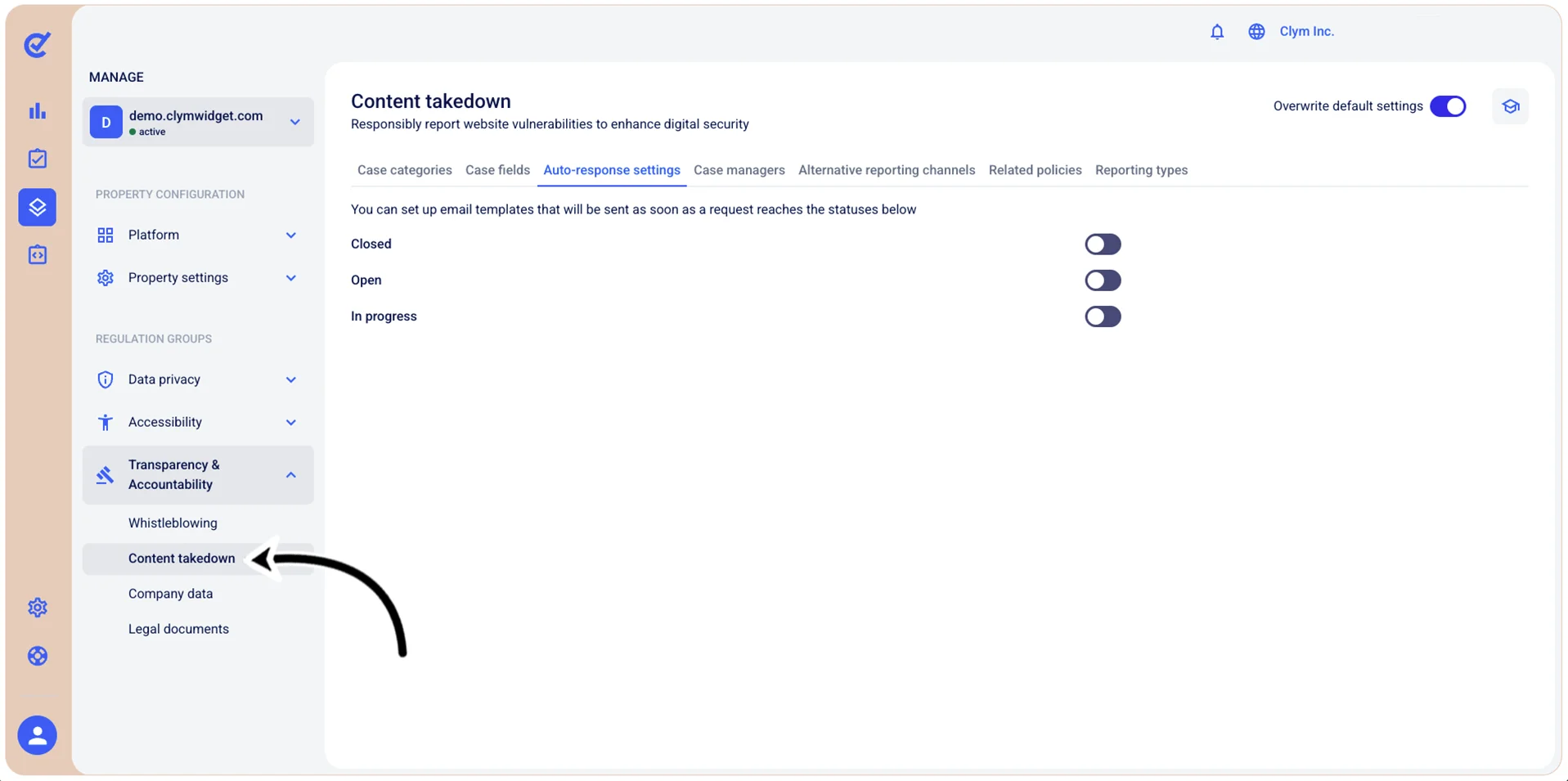
- In the Auto-response settings tab, toggle on/off the desired options. As you toggle on an option, the corresponding email template code editor is displayed, enabling you to manually configure the message as you please.
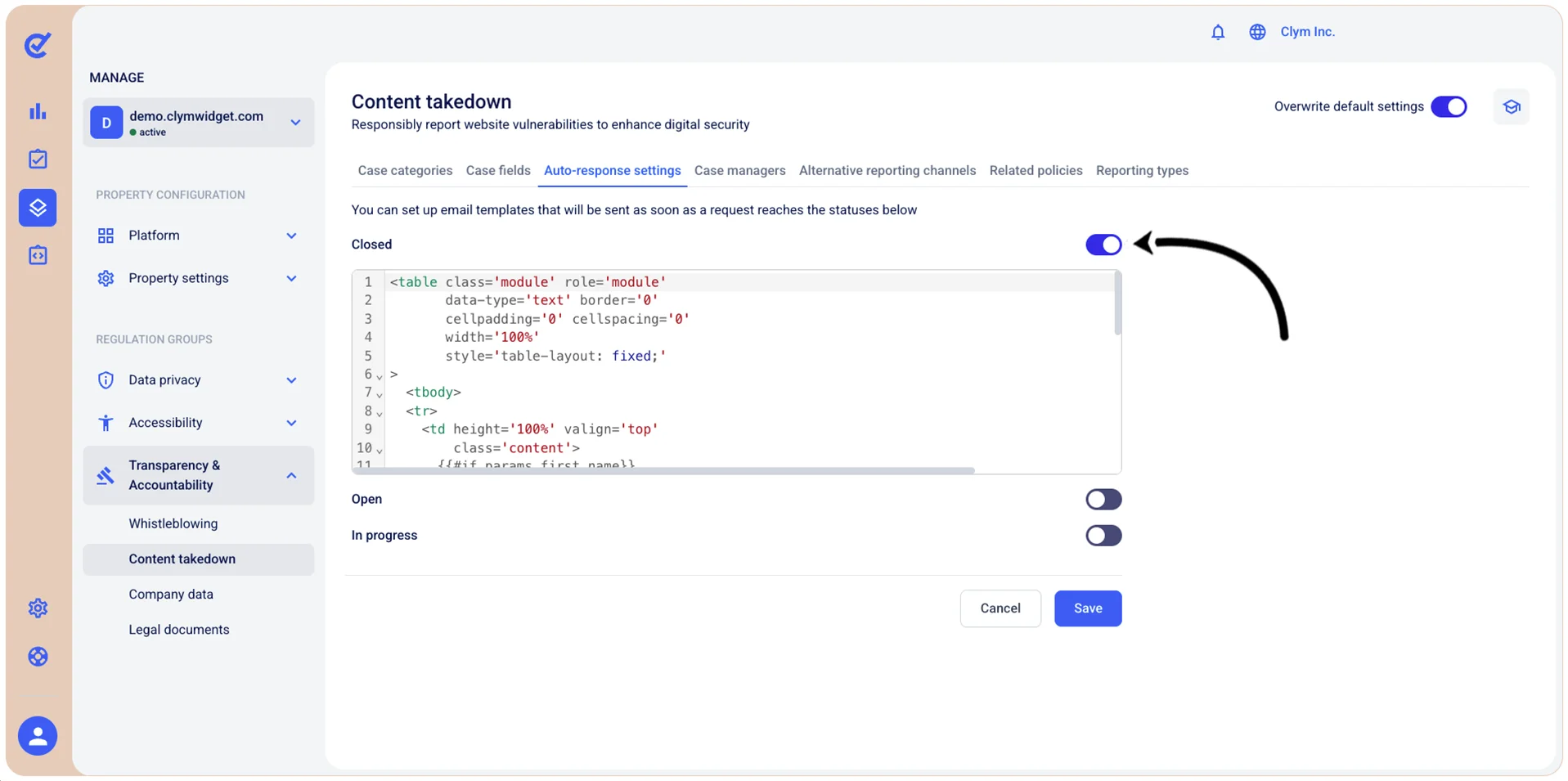
- When finished, select Save.