Designate alternative reporting channels for content takedown
Some of your users may feel more comfortable filing their reports by other means than the form you provide on your website. Therefore, in the Control Center you can configure additional reporting channels to better suit your needs using the alternative reporting channels feature.
Important!
- To be able to customize this section, you need to toggle on Overwrite default settings.
- When configuring this section, make sure that you select Save on the tab you just configured before moving on to another tab.
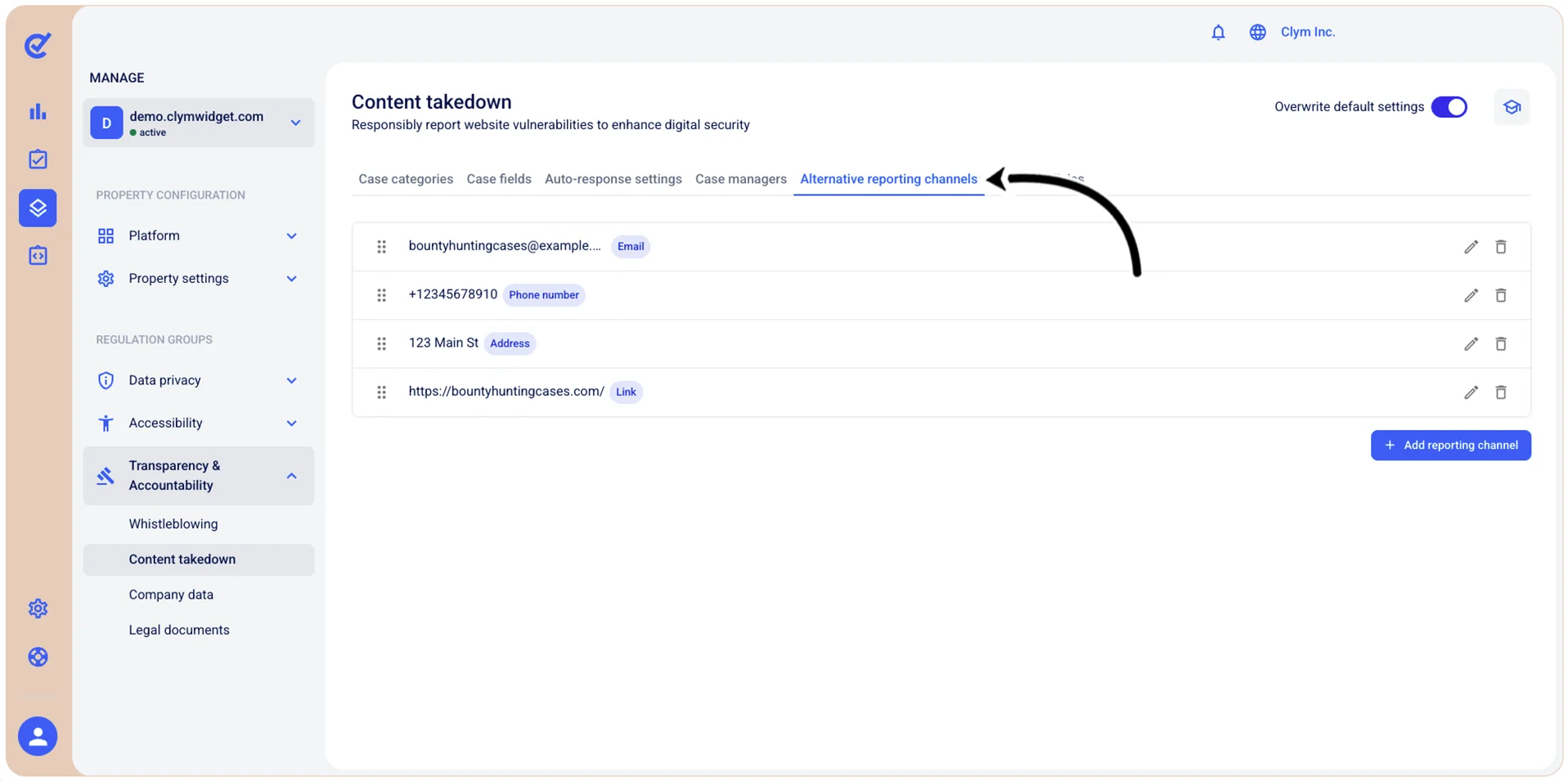
To access the section where you can configure other reporting channels, go to  Manage>Transparency & Accountability>Content takedown and select the Alternative reporting channels tab.
Add an alternative reporting channel for content takedown cases
In the Control Center, you can add as many reporting channels (email, phone number, physical address, and link) to be used for content takedown requests as you desire.
Important!
- To be able to customize this section, you need to toggle on Overwrite default settings.
- When configuring this section, make sure that you select Save on the tab you just configured before moving on to another tab.
To add a new content takedown reporting channel:
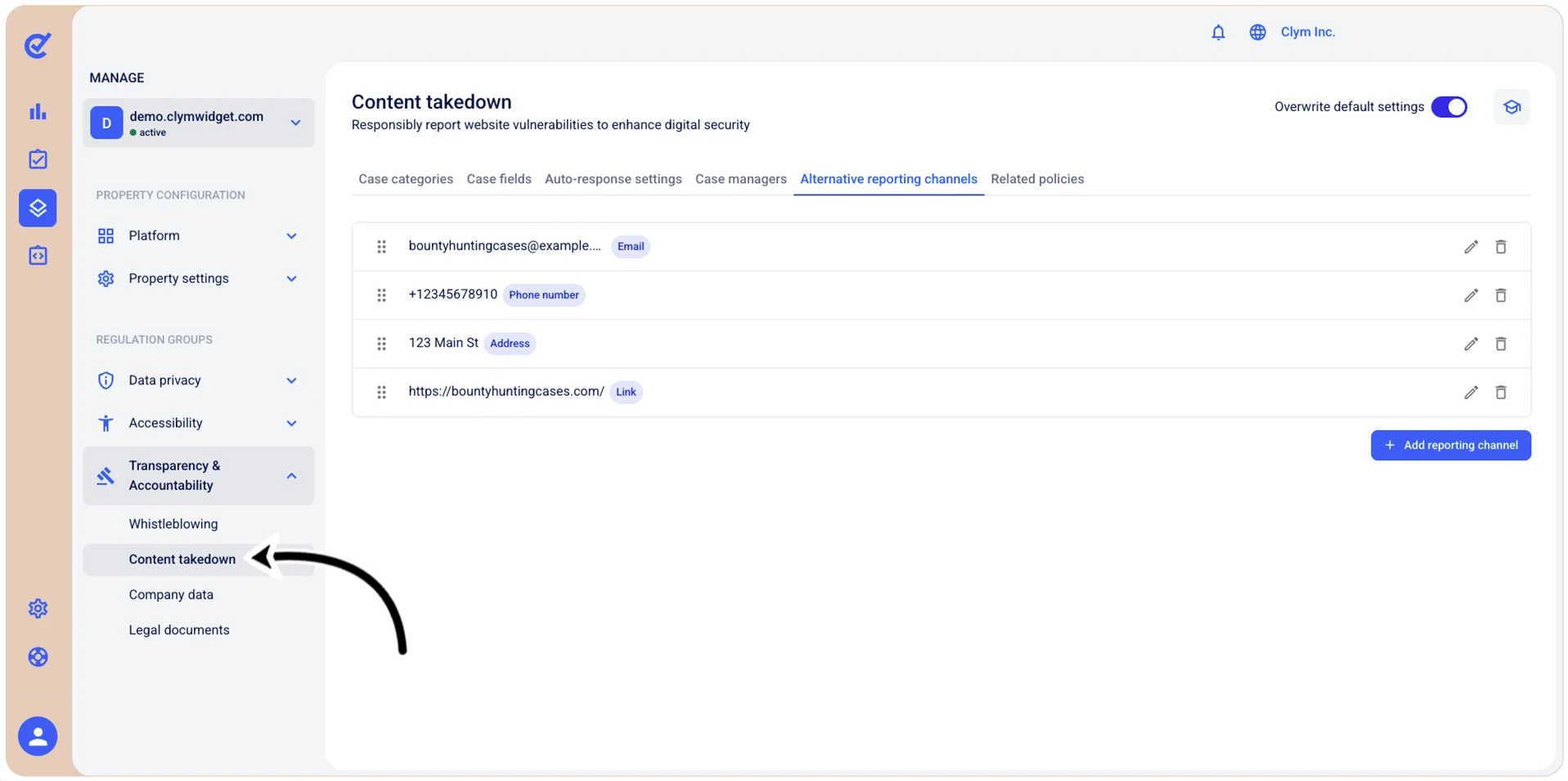
- Go to Manage>Transparency & Accountability>Content takedown.
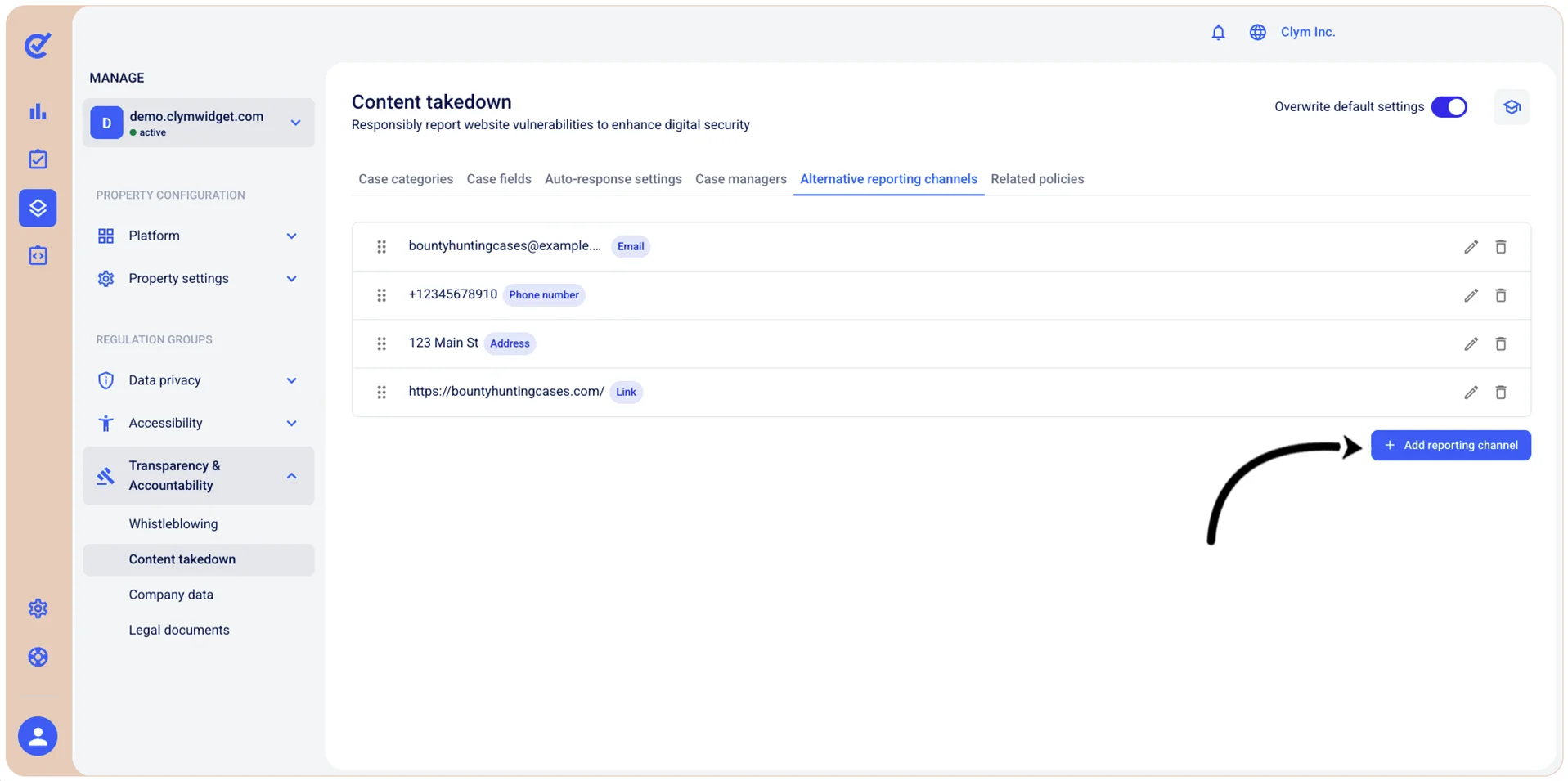
- In the Alternative reporting channels tab, select +Add reporting channel.
- In the Add reporting channel section, configure the additional content takedown reporting channel, as follows:
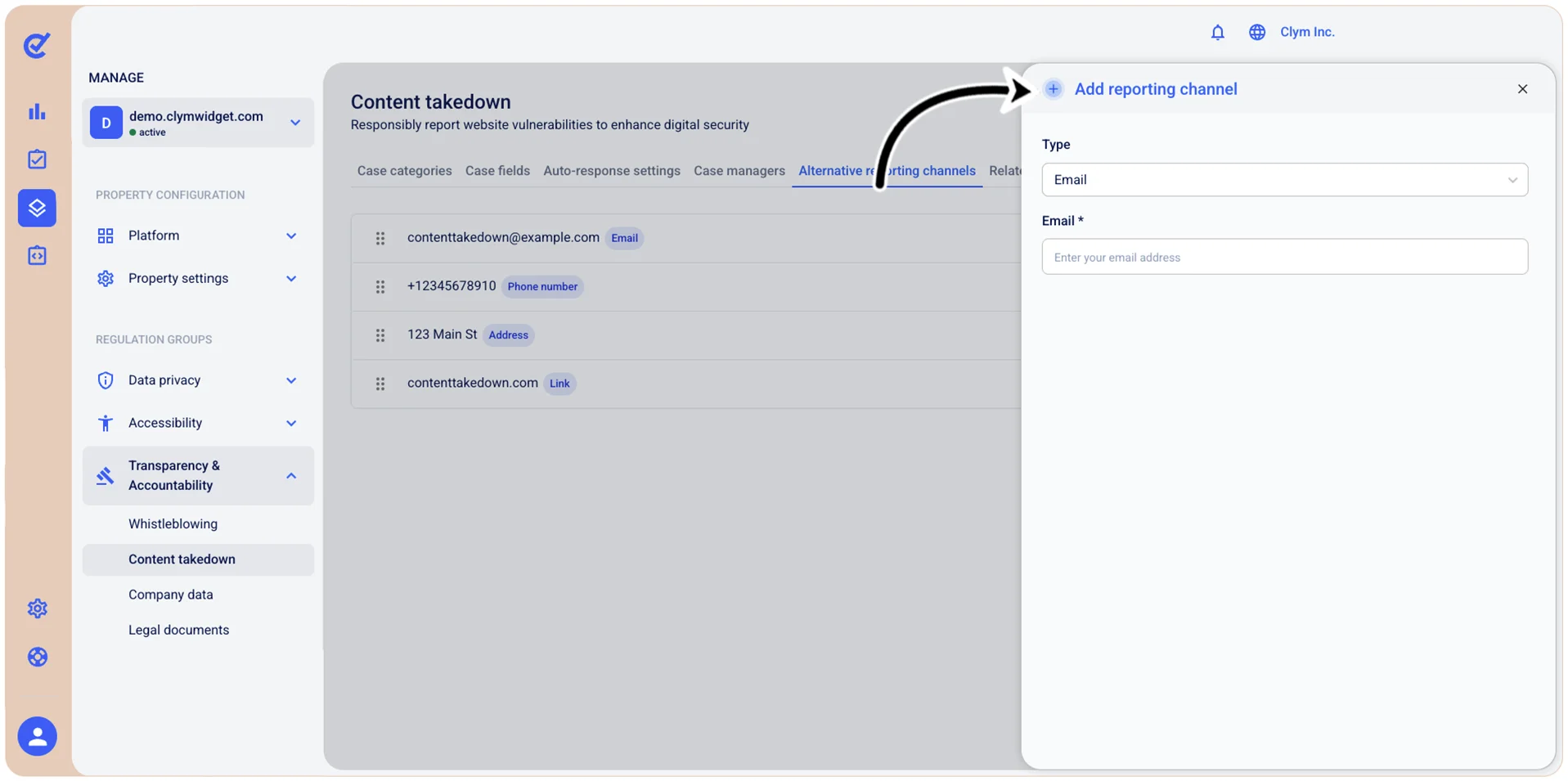
- Type: Select the new content takedown reporting channel. Depending on your selection at this stage, the options available to you may vary, as follows:
- Email: Select the email where users can send content takedown requests in the Email field.
- Phone number: Add a valid phone number where users can send content takedown requests.
- Address: Configure the physical address where users can send content takedown requests.
- Link: Enter a link, as well as a link alternative text where users can send content takedown requests.
- When finished, select Add. Your newly-added reporting channel is displayed in the Alternative reporting channels tab.
Edit alternative content takedown reporting channels
In the Control Center, you can easily modify alternative reporting channels for content takedown.
Important!
- To be able to customize this section, you need to toggle on Overwrite default settings.
- When configuring this section, make sure that you select Save on the tab you just configured before moving on to another tab.
To edit an alternative reporting channel for content takedown:
- Go to _Manage>Transparency & Accountability>Content takedown.
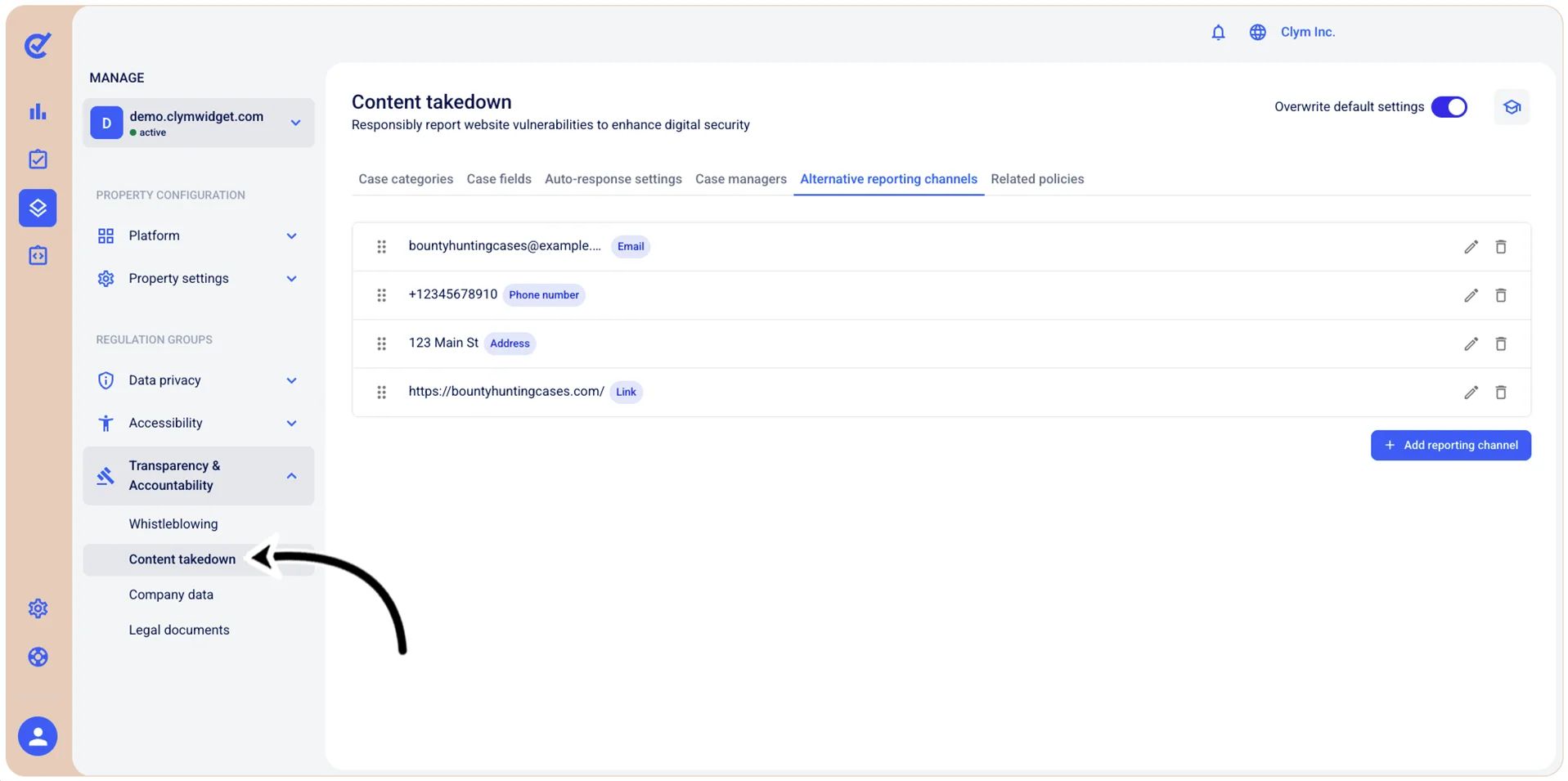
- In the Alternative reporting channels tab, select
 Edit next to the desired reporting channel.
 - In the Edit reporting channel section, configure the details of the alternative content takedown reporting channel, as desired.
- When finished, select Save.
Delete alternative content takedown reporting channels
In the Control Center, you can easily remove an alternative reporting channel for content takedown.
Important!
- To be able to customize this section, you need to toggle on Overwrite default settings.
- When configuring this section, make sure that you select Save on the tab you just configured before moving on to another tab.
To remove alternative content takedown reporting channels:
- Go to Manage>Transparency & Accountability>Content takedown.
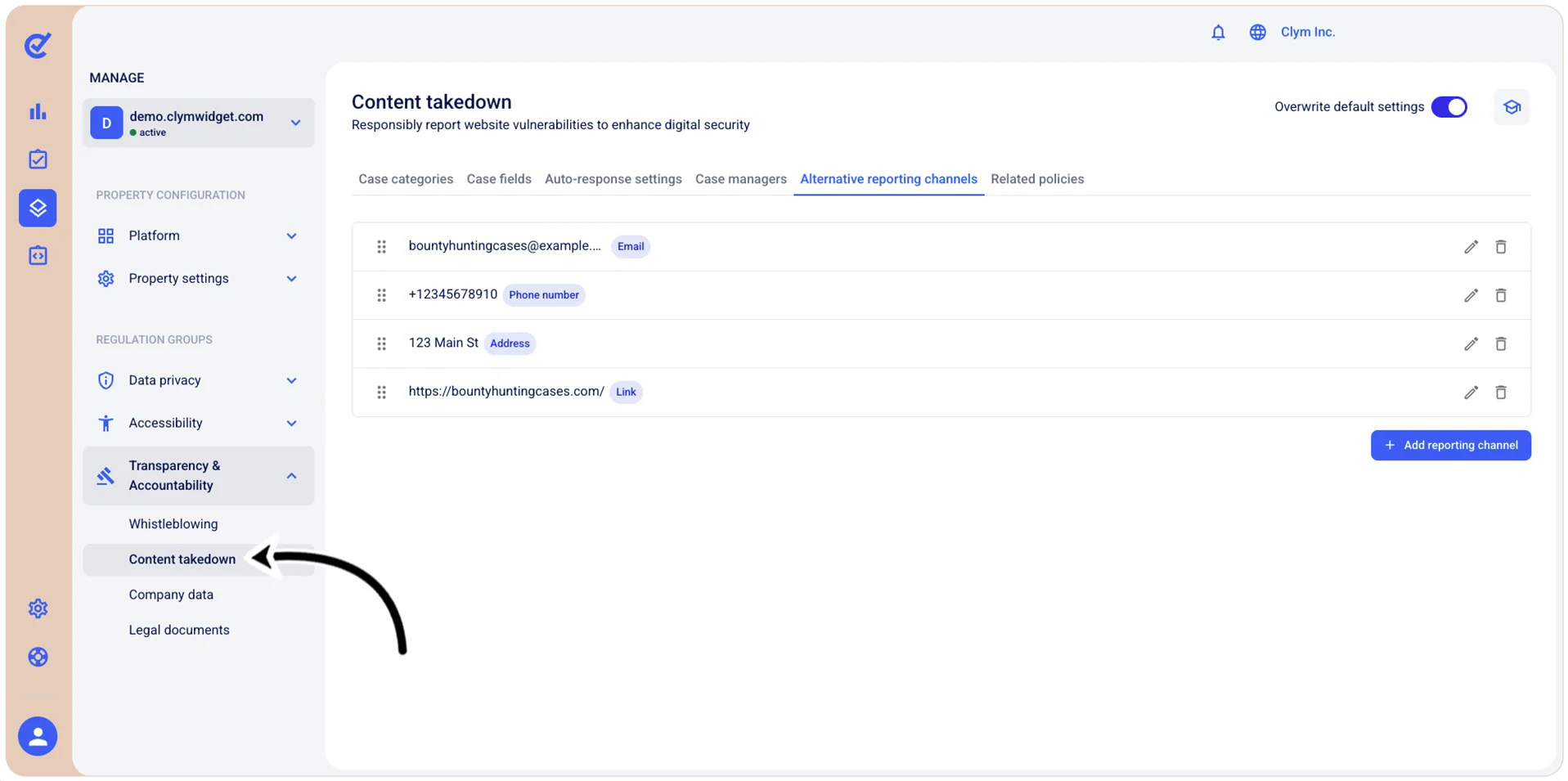
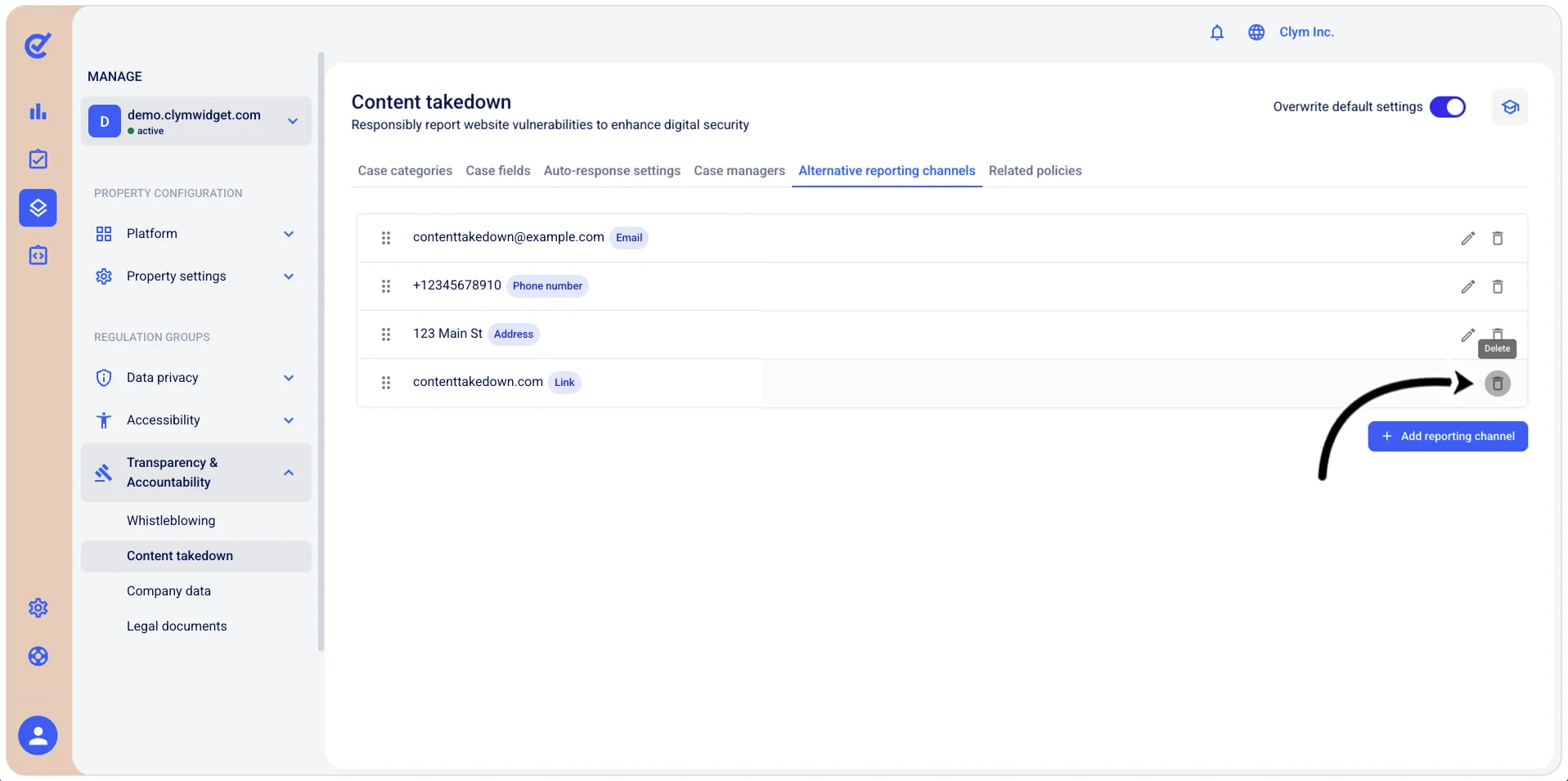
- In the Alternative reporting channels tab, select
 Delete next to the desired content takedown reporting channel.
 - In the confirmation message, select Confirm.