
Configure the Governance Portal's accessibility settings
In the Accessibility section, you can configure the accessibility settings of the Governance Portal. Depending on the selections you make at this stage, the UI and the features available to you may vary.
Important! When configuring the Governance Portal settings, make sure that you select Save on the page you just configured before moving on to configure the Governance Portal parameters in another tab.
To configure the accessibility settings of the Governance Portal:
- Go to
 Manage>Platform>Governance Portal.
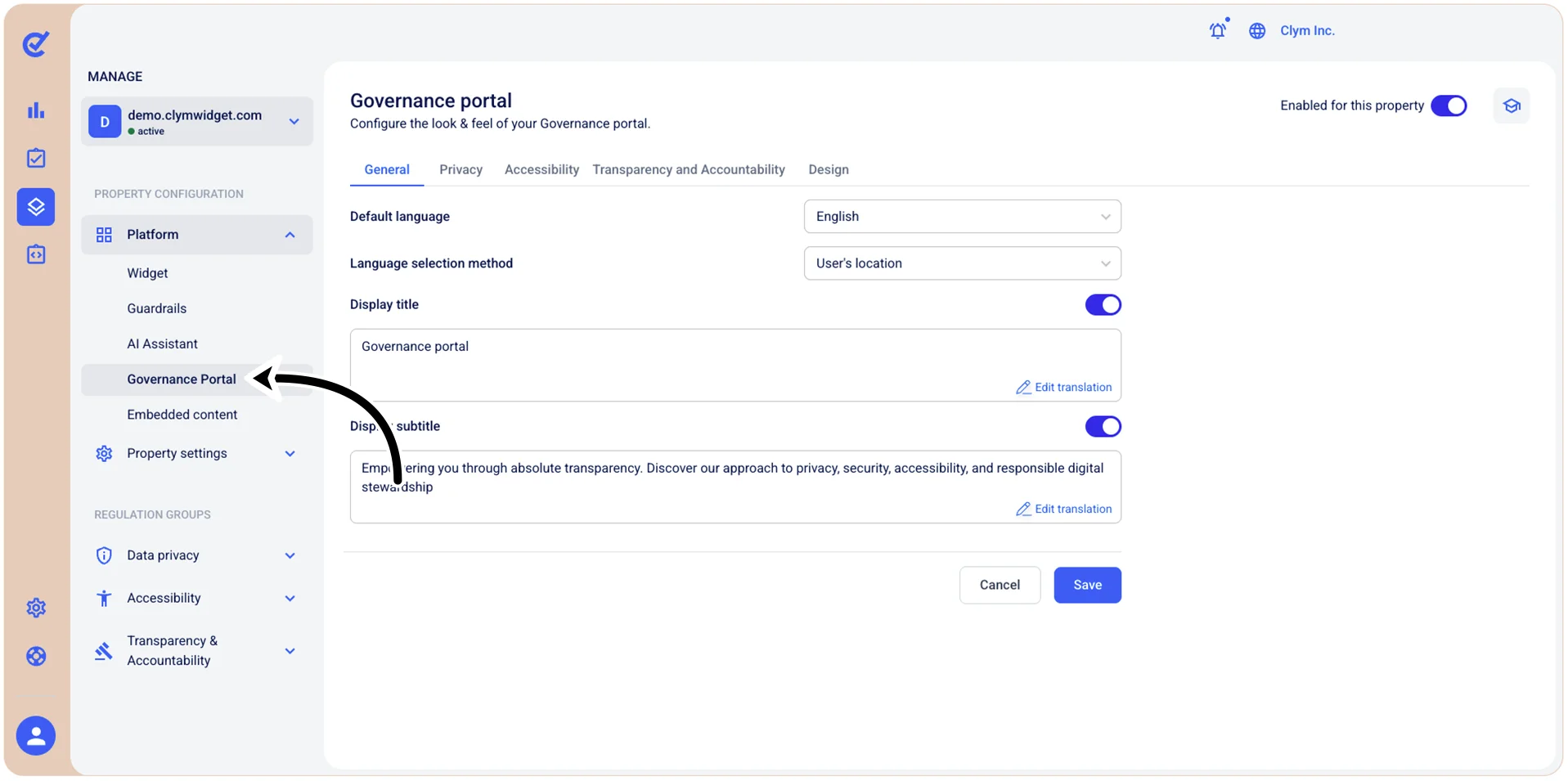
- In the Governance Portal section, go to the Accessibility tab and configure the parameters, as follows:
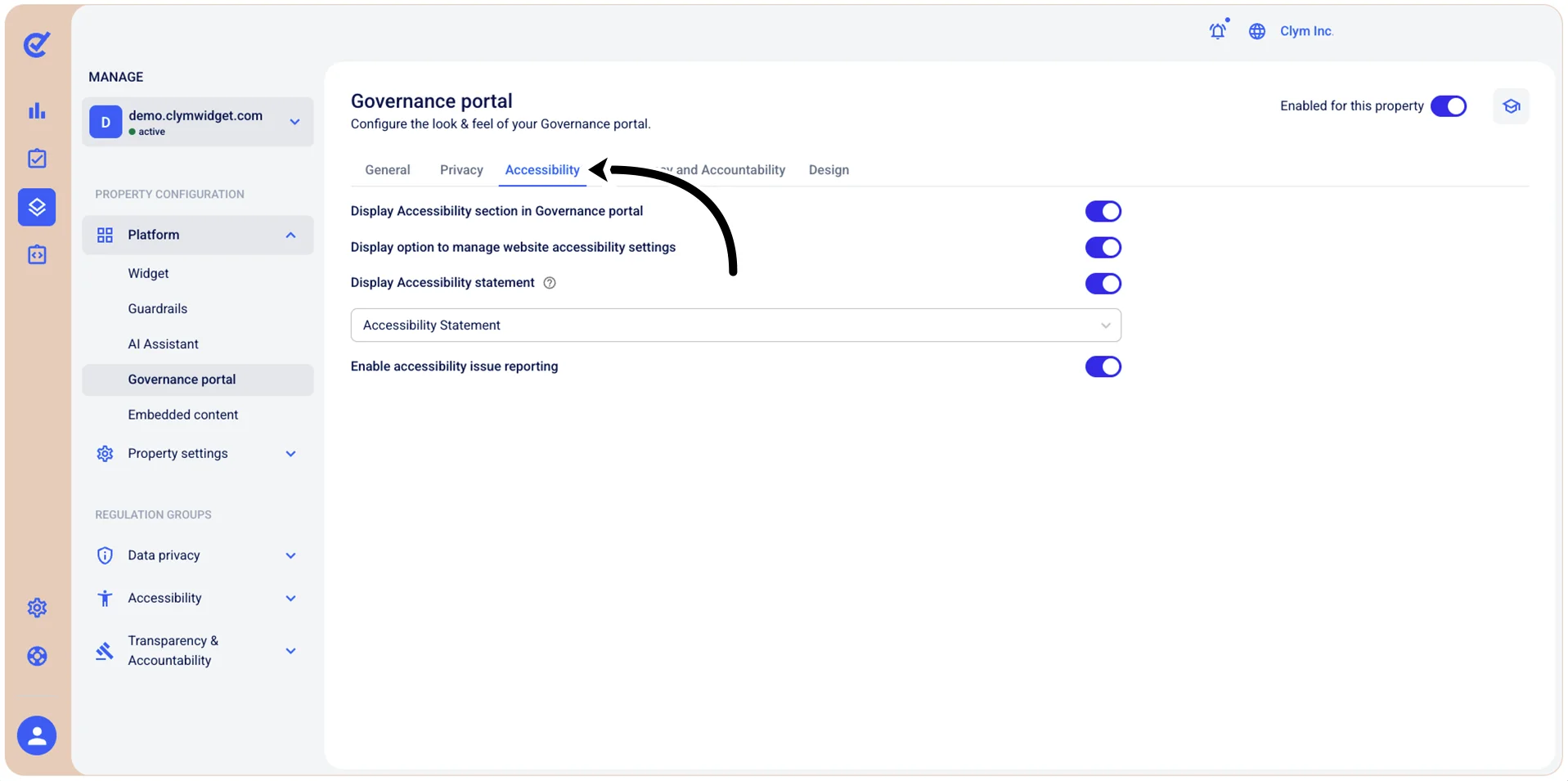
- Display Accessibility section in Governance Portal: Toggle on to display the accessibility Widget within the Governance Portal so that users can access accessibility-related features and information.
- Display option to manage website accessibility settings: Toggle on to display the controls that enable users to adjust website accessibility preferences, such as text size, contrast, or other accessibility accommodations.
- Display Accessibility statement: Toggle on to display the accessibility statement in the Governance Portal, together with conformance levels, known limitations, and how to report issues. When toggling this option on, you need to select the available statement from the subsequent list.
- Enable accessibility issue reporting: Toggle on to enable users to submit reports about accessibility barriers or problems they encounter on your website through the Governance Portal.
- When finished, select Save.