
Manage the Widget’s general settings
There are several parameters that you can configure in the General tab, for example, the position of the Widget on the website, the default language, the salutation and intro message and so on.
Important! When configuring the Widget settings, make sure that you select Save on the tab you just configured before moving on to configure the Widget parameters in another tab.
To configure the Widget's general settings:
- Go to
 Manage>Platform>Widget.
 - In the Widget section, go to the General tab and configure the parameters, as follows:
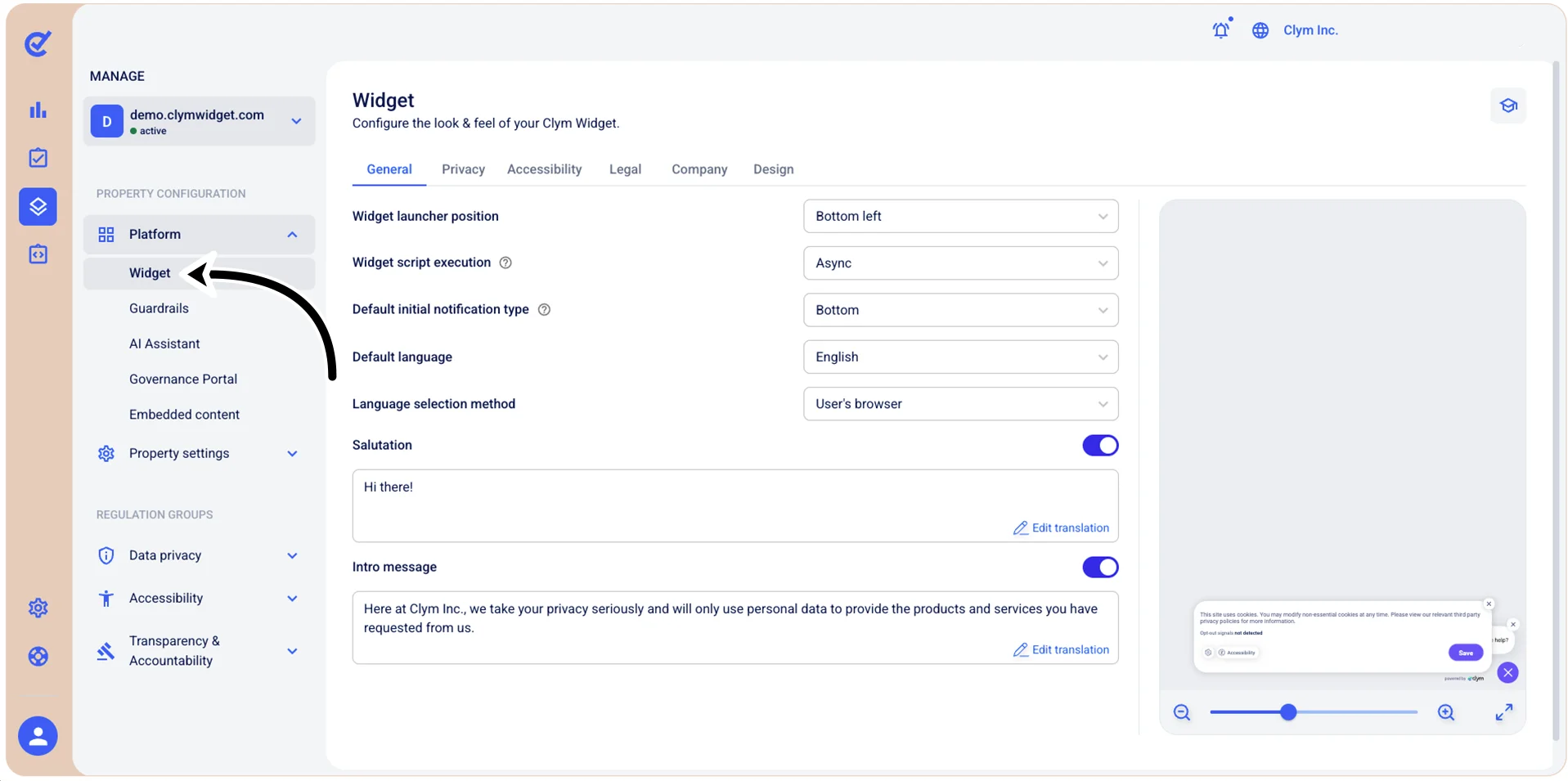
- Widget launcher position: Select where you want the widget launcher button to appear on your website. Usually, the recommended position is bottom left, since the bottom right may be occupied by the AI Assistant (chatbot).
- Widget script execution: Choose how the widget script loads on your website.
- Async: The script loads asynchronously in parallel with page parsing, executing as soon as it is downloaded and improving page load performance by not blocking other content.
- Defer: The script loads in parallel, but only executes after the page has finished parsing. This makes sure that the widget loads without blocking page content while maintaining execution order.
- None: The script loads synchronously in the normal page flow, blocking page parsing until it has been downloaded and executed.
- Default initial notification type: Select how the privacy notice first appears to users, depending on your digital strategy, website design or simply your preferences:
- Full widget: Displays the complete privacy notice with all cookie categories, consent options and so on.
- Discrete: Shows a minimal, subtle, unobtrusive notification that does not dominate the page and that users can expand for more details.
- Bottom: Displays the privacy notice as a banner positioned at the bottom of the page - a common, non-intrusive format that appears across the bottom edge.
- Top: Displays the privacy notice as a banner positioned at the top of the page. The notification appears across the top edge of the screen, immediately visible upon landing.
- TCF: The Widget will use the Transparency and Consent Framework (TCF) format, a standardized interface designed for compliance with IAB Europe's consent framework. This option is typically used for advertising and ad-tech compliance.
- Not specified: No default notification type is set. The widget behavior will be determined by other settings (such as, the norms applicable to your user's location) or default system configuration.
- Default language: Select how you want the system to determine which language to use when communicating with users:
- User's browser: Automatically uses the language detected in the user's web browser
- Default language: Uses the predefined default language
- User’s location: Uses the language based on the user's geographic location which will be displayed to users by default when they first interact with the widget, unless overridden by the language selection method (see below) or user preferences.
- Language selection method: Choose how the widget determines which language to display: the default, the user’s location or the user’s browser.
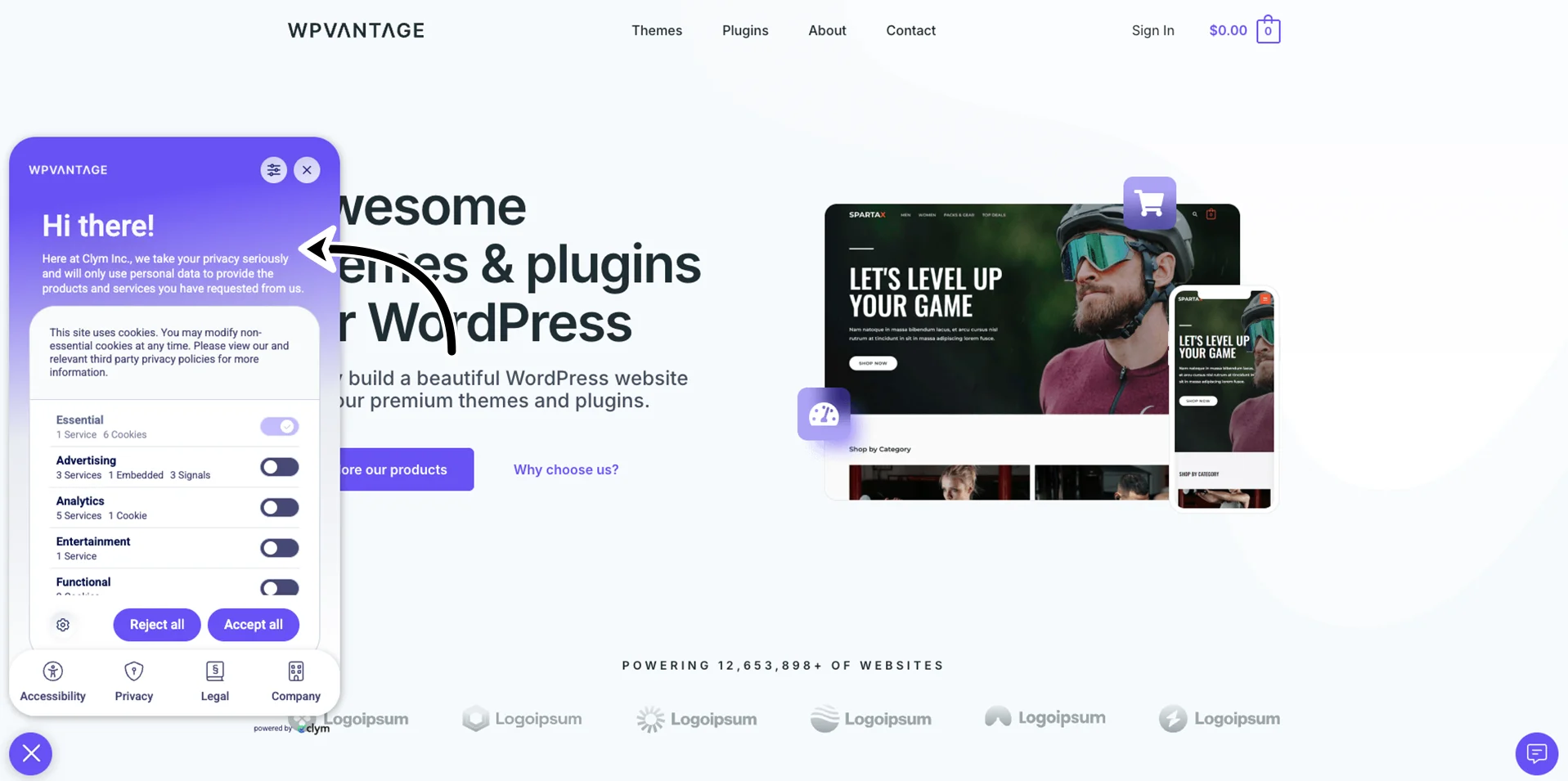
- Salutation: Toggle on to activate a greeting message in the widget, then enter your custom salutation text in the field below.
- Click Edit translation and then, in the Edit translation section, manually enter the salutations in multiple languages. When finished adding your translations, select Save changes.
- Intro message: Toggle on to activate an introductory message in the widget, then enter your custom introduction text in the field below (for example, "We value your privacy"). Click Edit translation and then, in the Edit translation section, manually enter the salutations in multiple languages.
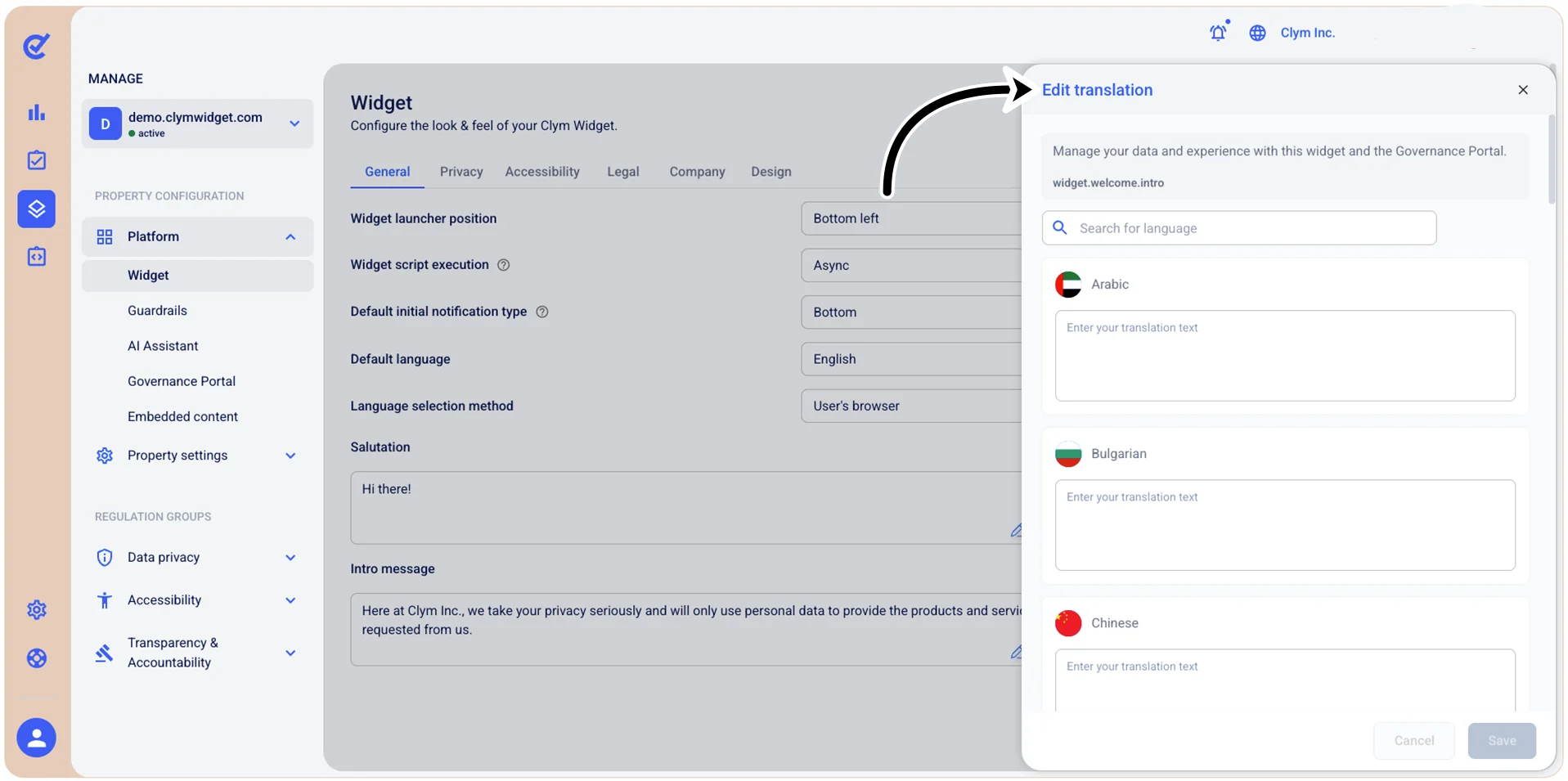
When finished adding your translations, select Save changes.
Here is an example of salutation and intro message:
- When finished, select Save.
You need to select Save before moving on to other configurations in the same section if you want to preserve your parameters.
Next, you can move on to other configurations in the Widget section.