
Configure the Widget's accessibility settings
In the Accessibility section, you can configure your Widget to display the accessibility options on your Widget.
Important! When configuring the Widget settings, make sure that you select Save on the page you just configured before moving on to configure the Widget parameters in another tab.
To configure the accessibility section on your Widget:
- Go to
 Manage>Platform>Widget.
 - In the Widget section, go to the Accessibility tab and configure the parameters, as follows:
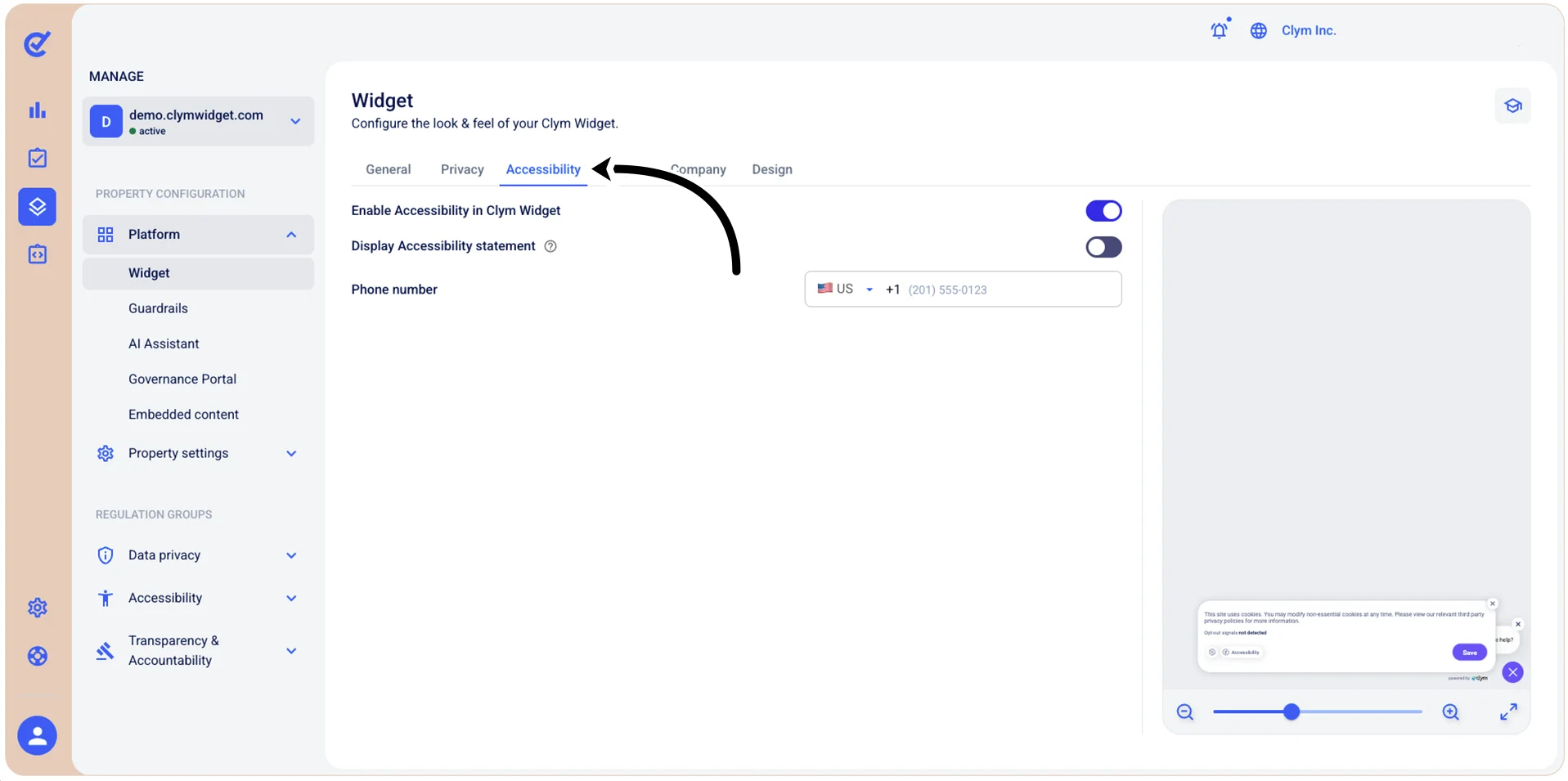
- Enable Accessibility in Widget: Toggle on to display the Accessibility option on the Widget. Doing so activates the accessibility options below.
- Display Accessibility statement: Toggle on to post the Accessibility Statement in the widget and then use the Select a document field to upload a predefined Accessibility Statement.
- Phone number: (Optional) Enter a phone number where users can report Accessibility issues.
- When finished, select Save.
You need to select Save before moving on to other configurations in the same section if you want to preserve your parameters.
Next, you can move on to other configurations in the Widget section.