
Configure the Widget's privacy section
In the Privacy tab, you can configure how you want the privacy settings displayed in the widget.
Important! When configuring the Widget settings, make sure that you select Save on the page you just configured before moving on to configure the Widget parameters in another tab.
To configure the privacy settings of the widget:
- Go to
 Manage>Platform>Widget.
 - In the Widget section, go to the Privacy tab and configure the parameters, as follows:
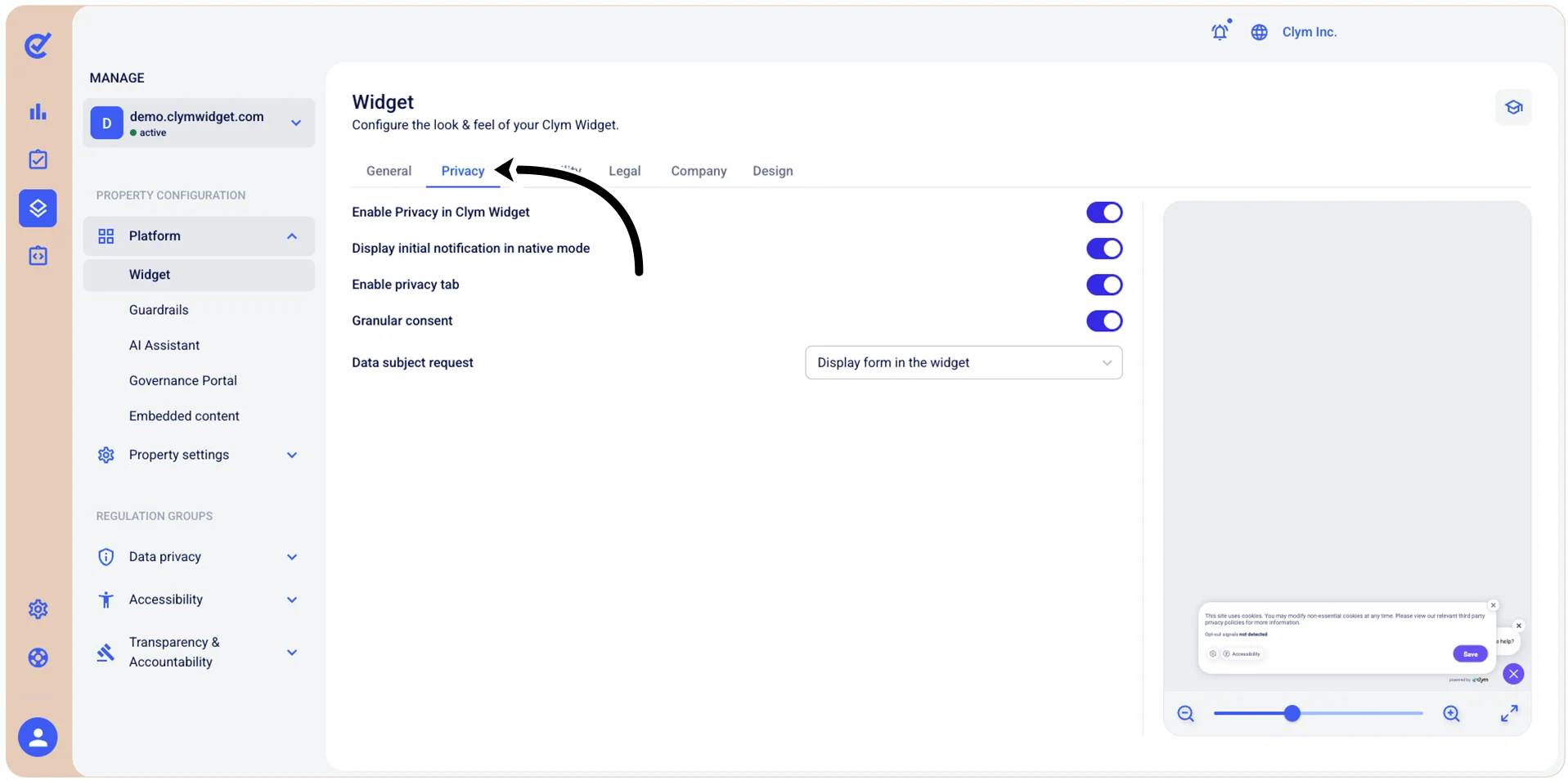
- Enable Privacy in Clym Widget: Toggle on to activate privacy-related features within the widget.
- Display initial notification in native mode: Toggle to display the initial privacy notification using native browser styling and behavior instead of the custom widget design.
- Data subject request: Choose how users can submit data subject requests (such as access, deletion, or correction requests) through the widget:
- Do not display: Hides the data subject request option from the widget entirely.
- Link to Governance Portal: Provides a link that directs users to the Governance Portal where they can submit their data subject requests.
- Display form in the widget: Shows the data subject request form directly within the privacy widget, allowing users to submit requests without leaving your website.
- When finished, select Save.
You need to select Save before moving on to other configurations in the same section if you want to preserve your parameters.
Next, you can move on to other configurations in the Widget section.