Manage bounty hunting reports case fields
Whenever filling a bounty hunting case, reporters need to fill in certain relevant details about the case. You can configure which of these fields, called case fields, are relevant for the reports in the Case fields section and decide whether or not they should be available in the bounty hunting report.
You can add, modify, reposition and remove these case fields.
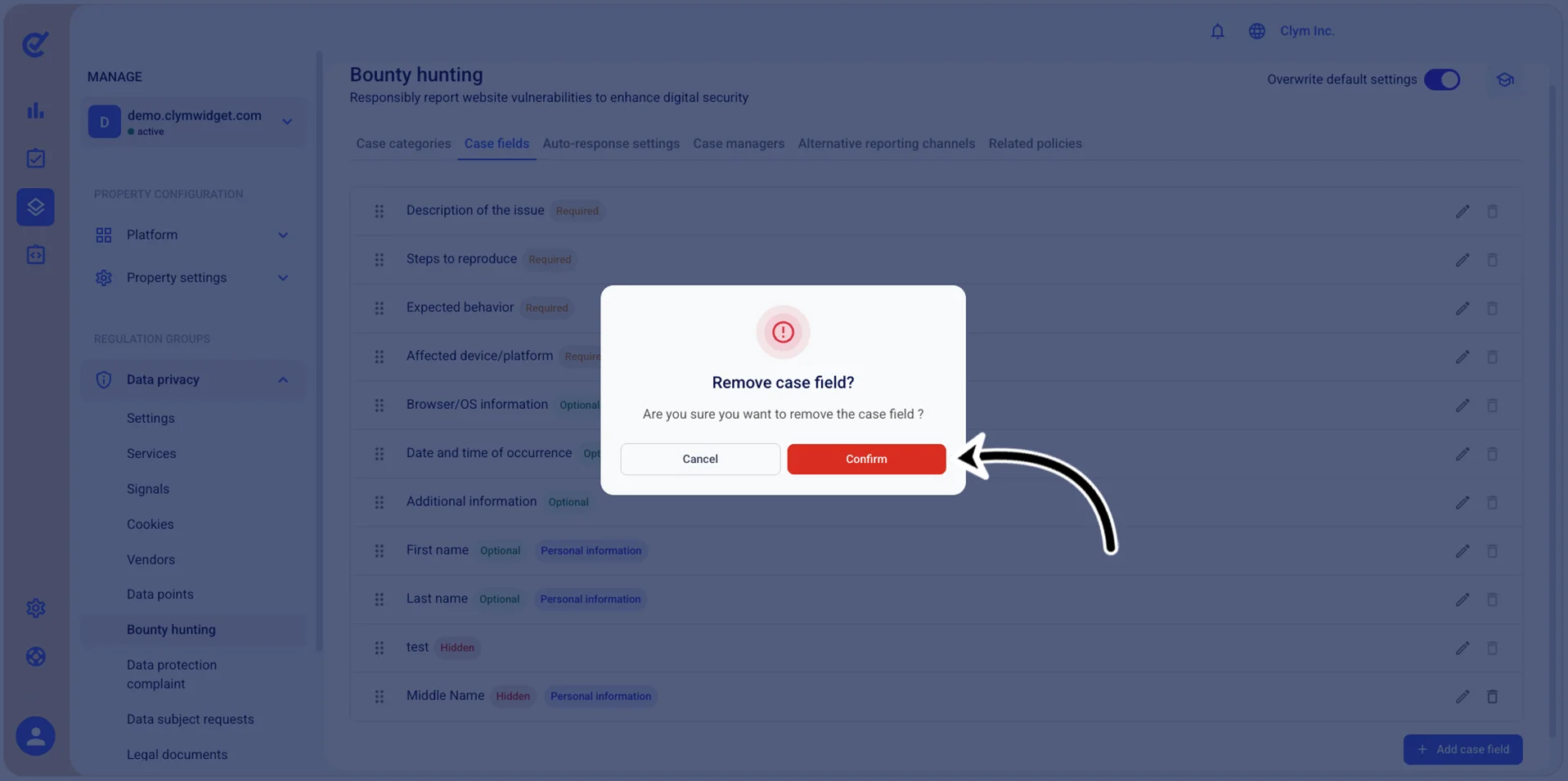
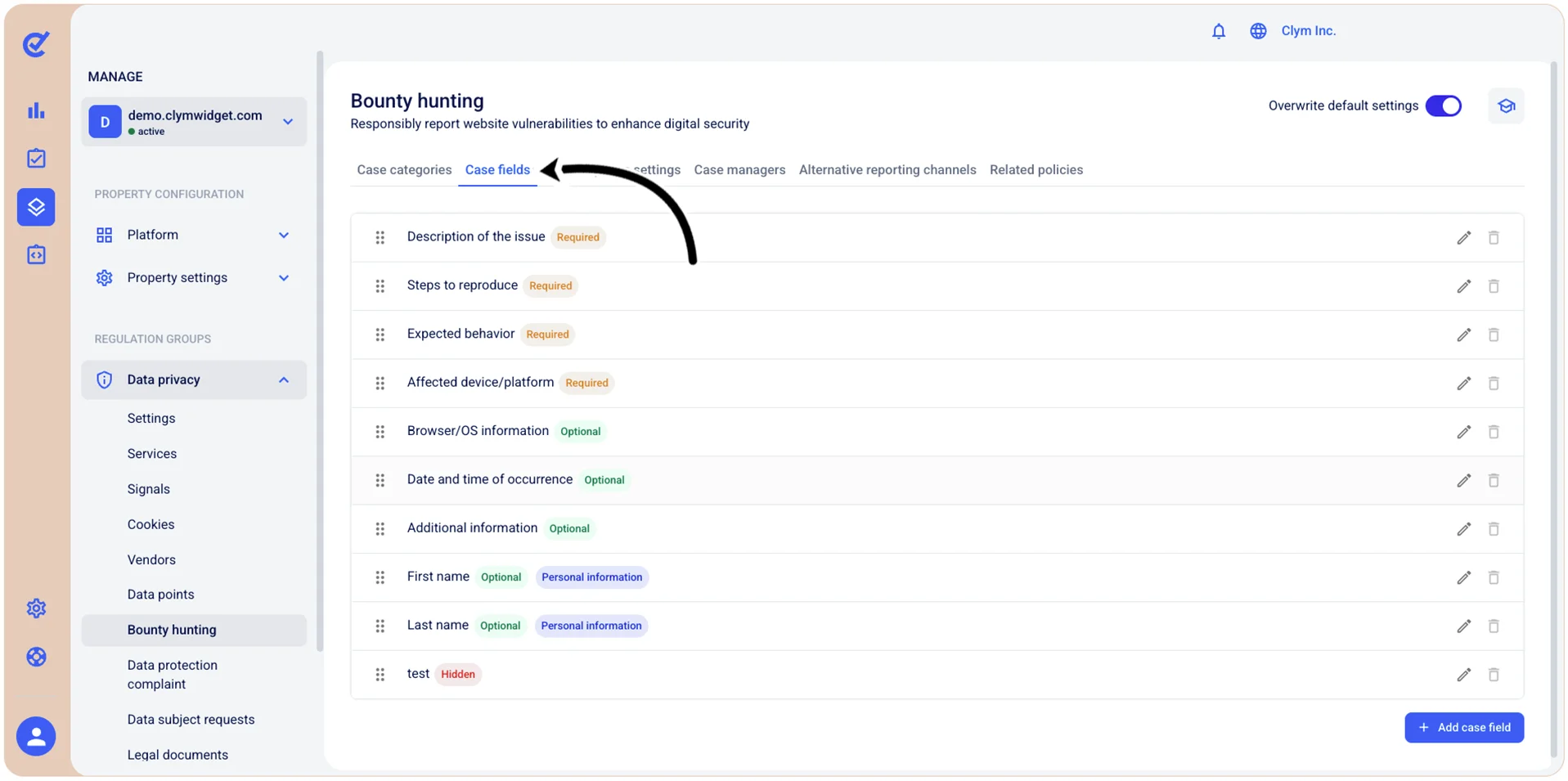
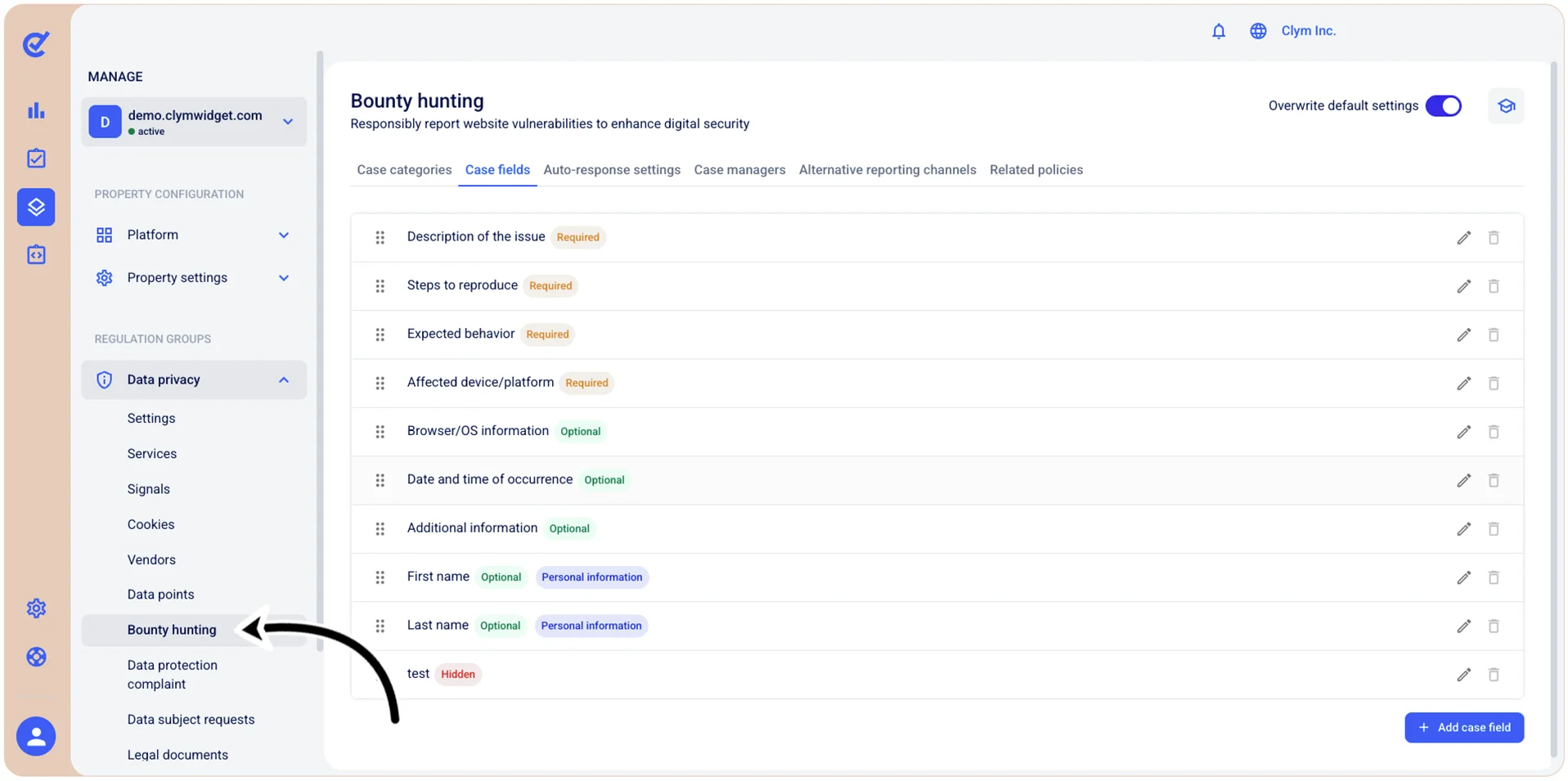
To access the Case fields section, go to  Manage>Data privacy>Bounty hunting and select the Case fields tab.
Add a Bounty hunting case field
To add a Bounty hunting case field:
- Go to Manage>Data privacy>Bounty hunting.
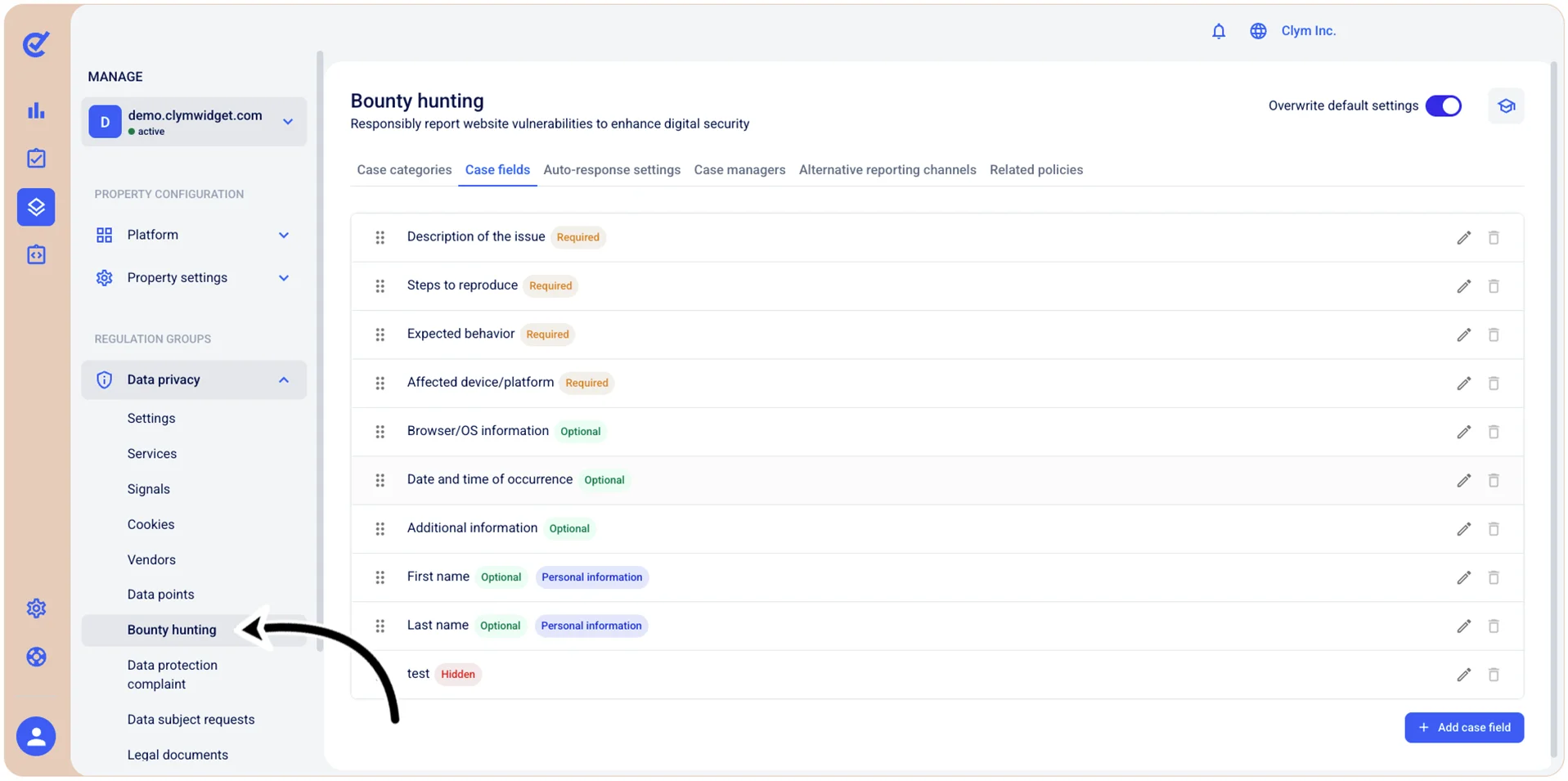
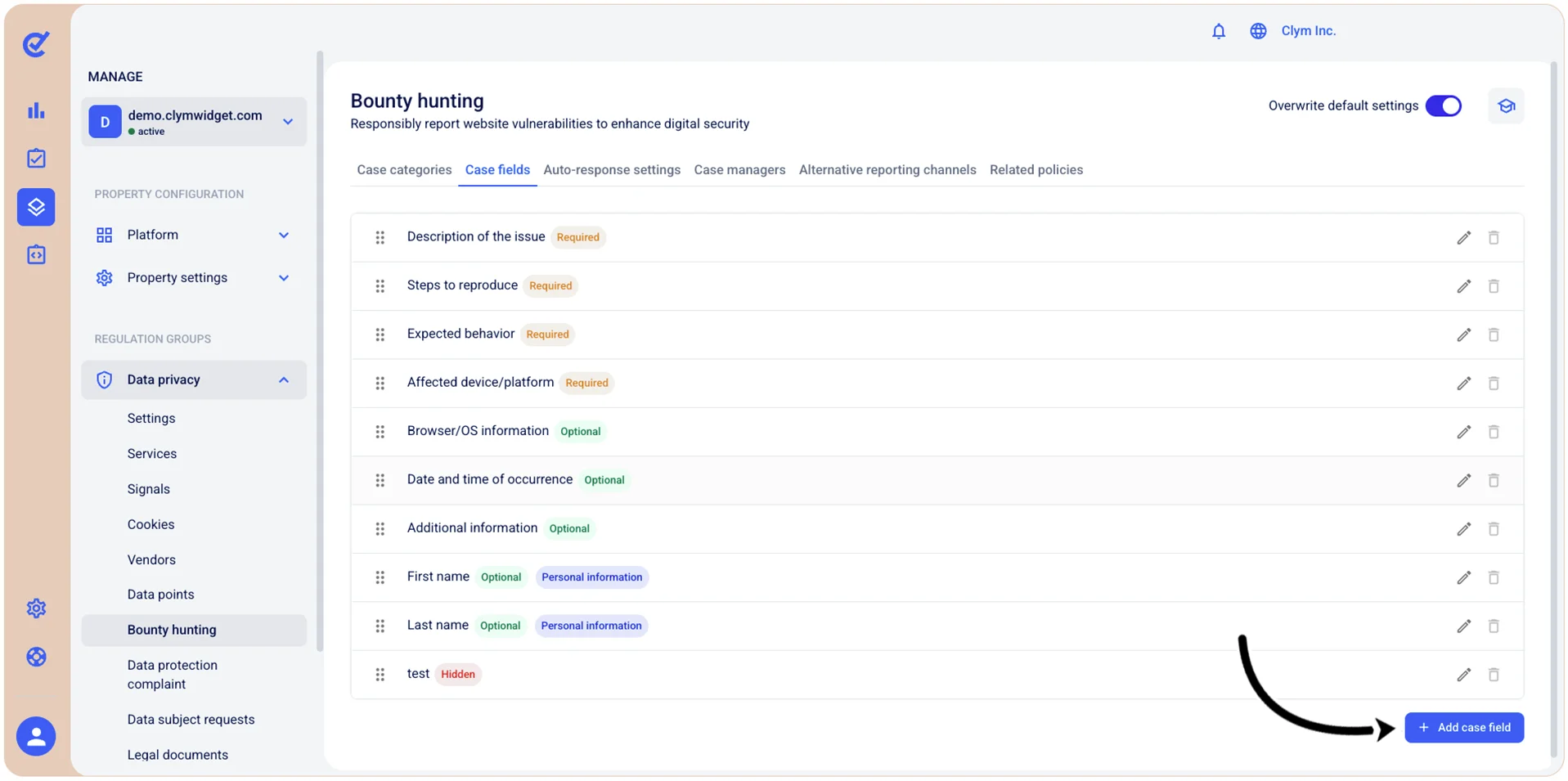
- In the Case fields tab, select +Add case field.
- In the Add case field section, configure the fields, as follows. Depending on your selection at this stage, the options available to you may vary.
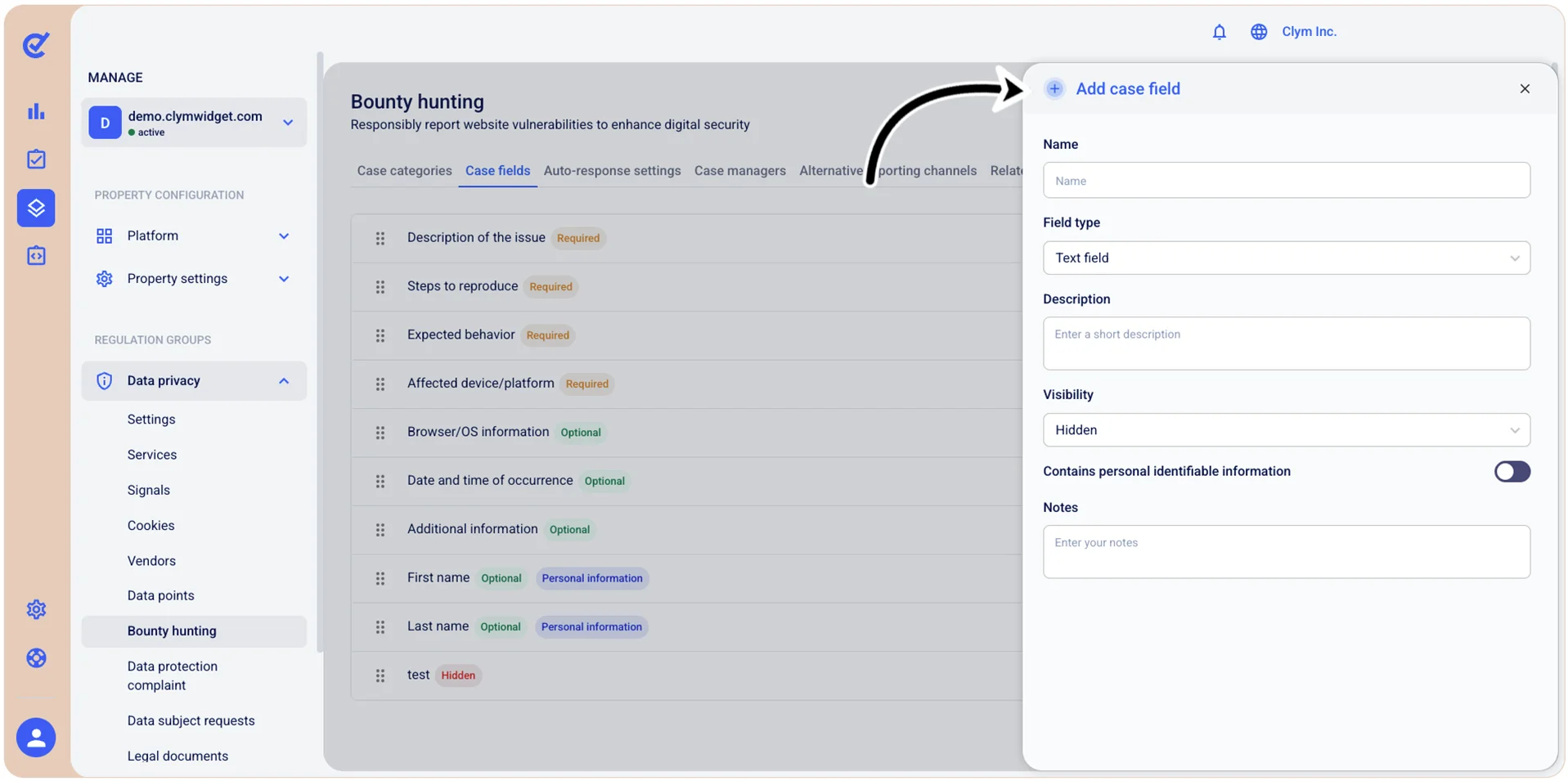
- Name: Enter a descriptive name for this custom case field.
- Field type: Select the desired type of input field to create (for example, Text field/Dropdown/Switch and so on). The visibility level you select here will be displayed next to the case field.
- If you select Dropdown, add the Accepted values amount.
- Description: Enter a short description of what information should be entered in this field or how it should be used.
- Visibility: Select whether or not this case field will be hidden, optional, or required. The visibility level you select here will be displayed next to the case field.
- Contains personal identifiable information: Toggle on to indicate whether this field collects or stores personally identifiable information.
- Notes: Enter internal notes or additional context about this field.
- When finished, select Save. Your newly-created case field is displayed in the Case fields tab.
Reposition bounty hunting case fields
Depending on your organization’s needs, you can reposition a bounty hunting case field in the hierarchy it is displayed on the screen.
To reposition a case field:
- Go to Manage>Data privacy>Bounty hunting.
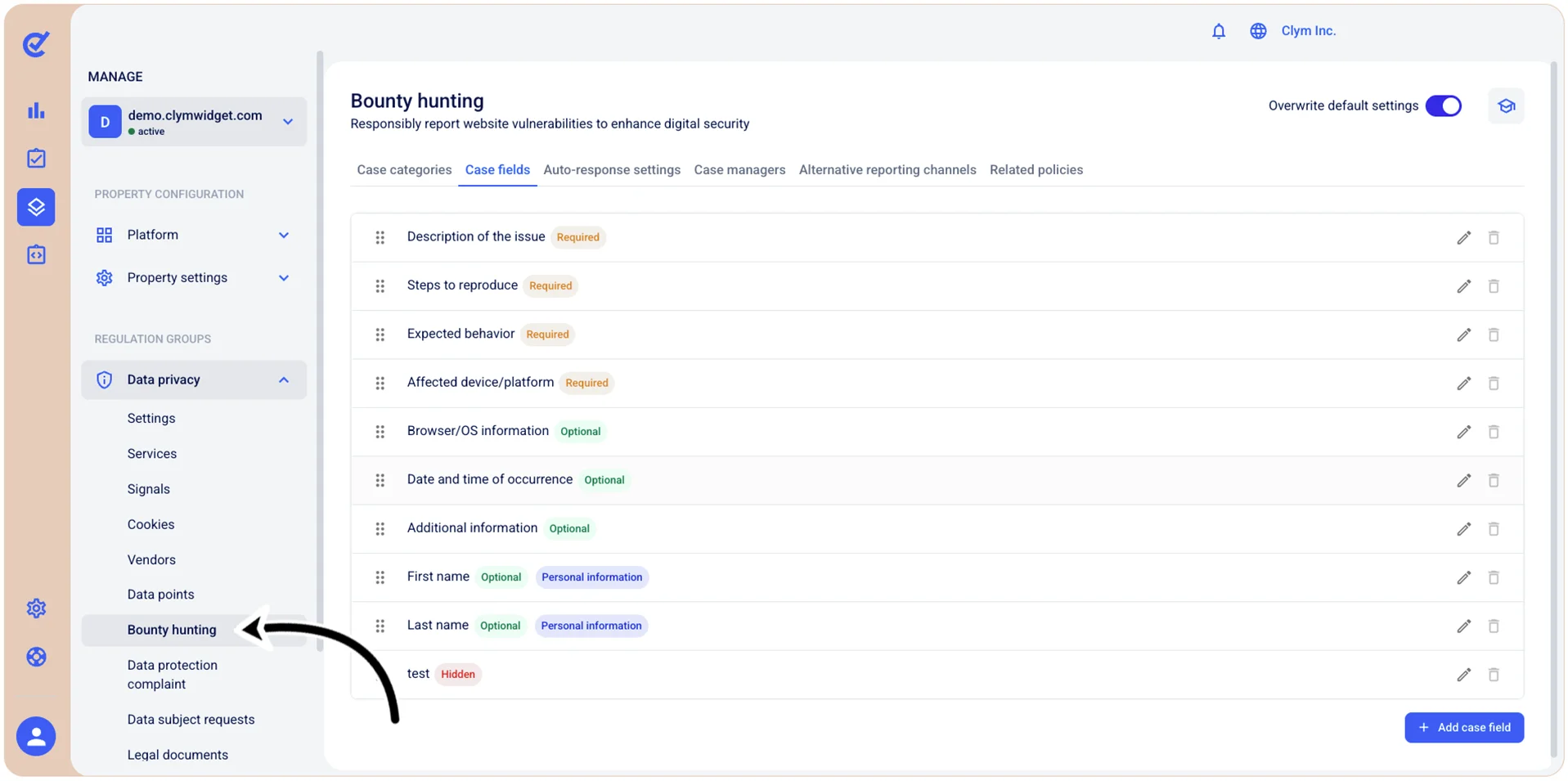
- In the Case fields tab, use the ⠿ drag handles to drag-and-drop the desired case category in the list.
Edit bounty hunting case fields
To modify a bounty hunting case field:
- Go to Manage>Data privacy>Bounty hunting.
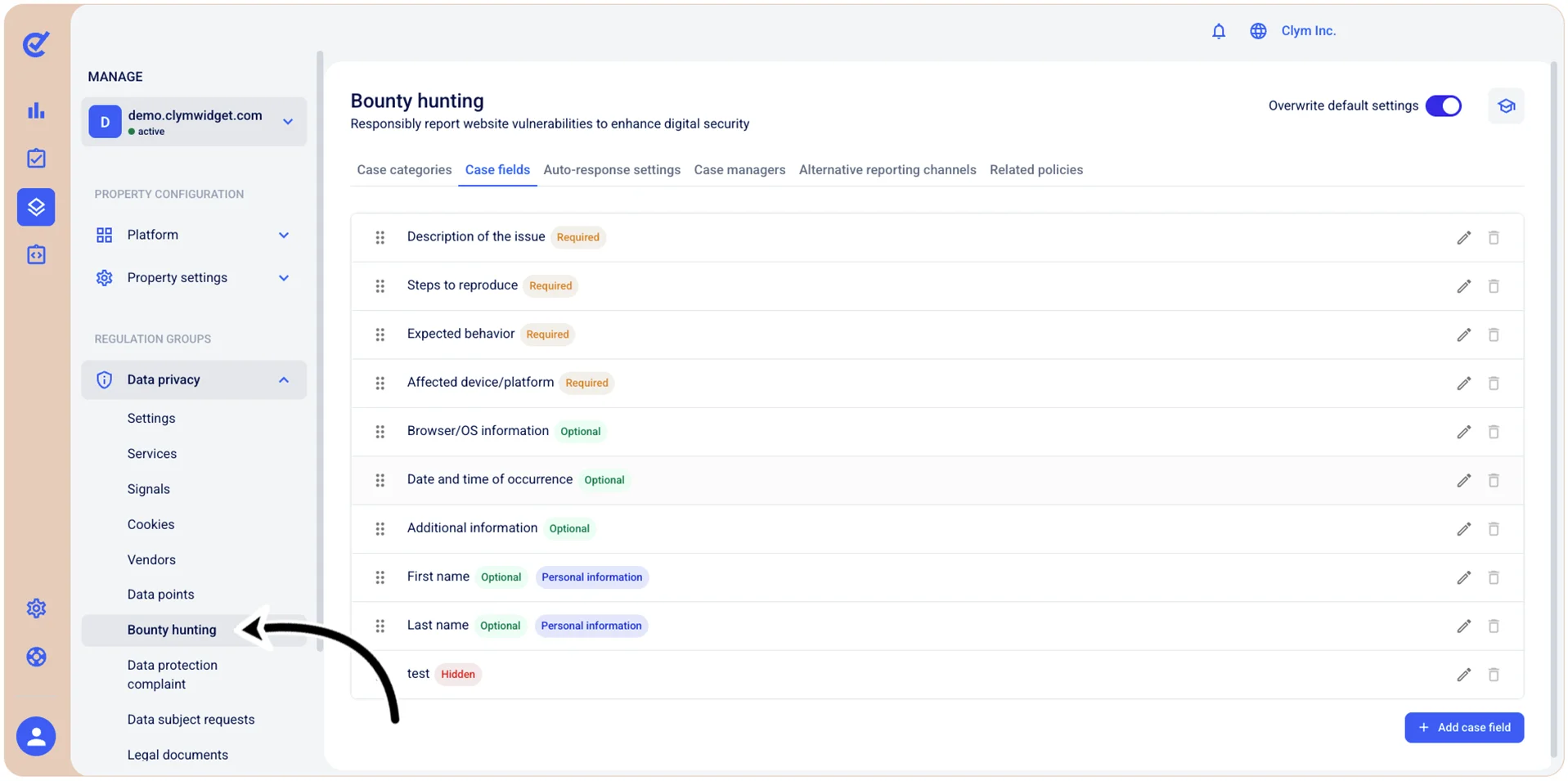
- In the Case fields tab, select
 Edit next to the case field you want to modify and then, in the Edit case field section, configure the desired fields.
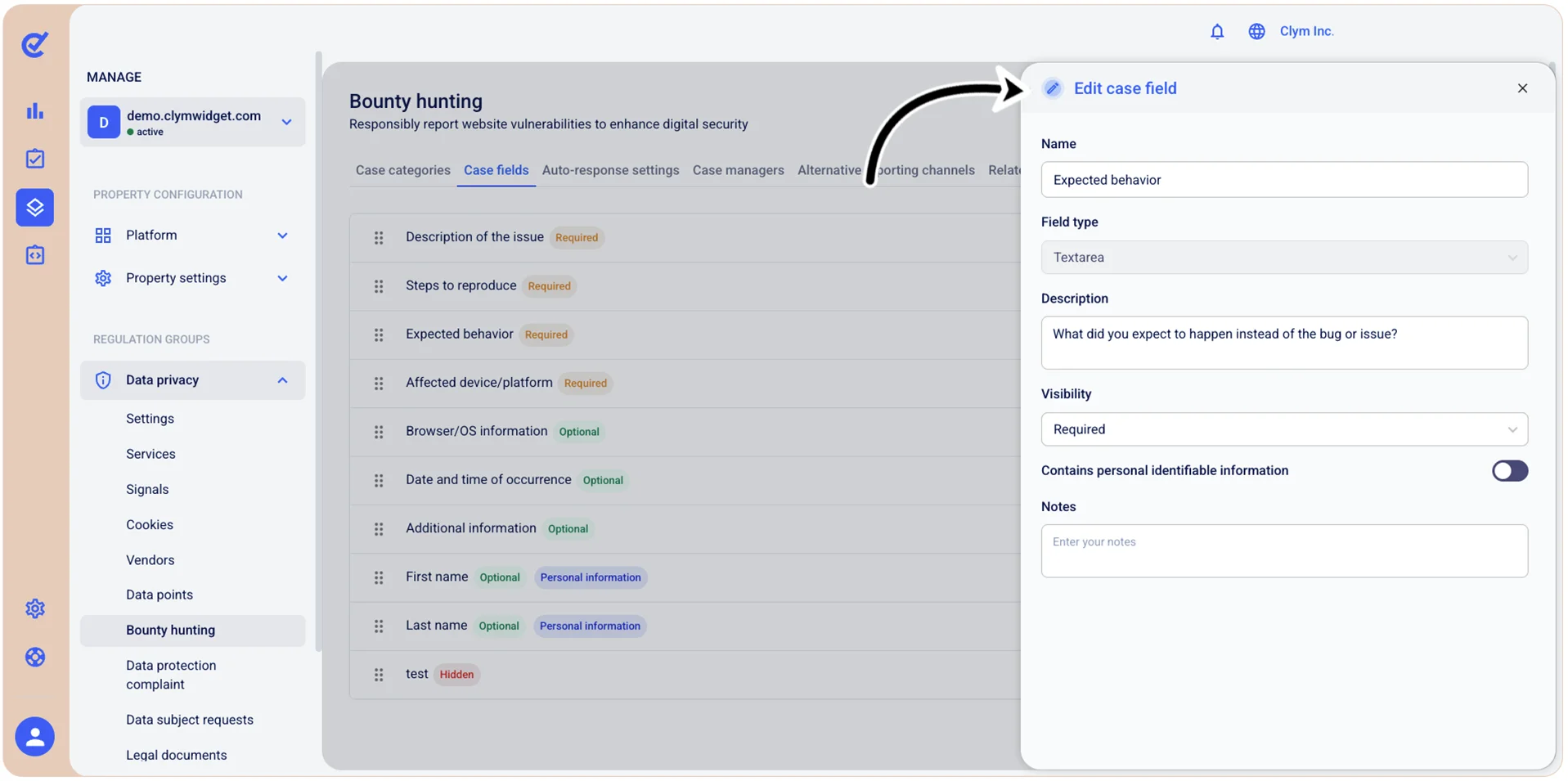
- When finished, select Save.
Delete bounty hunting case fields
You can remove the case fields that your organization no longer needs.
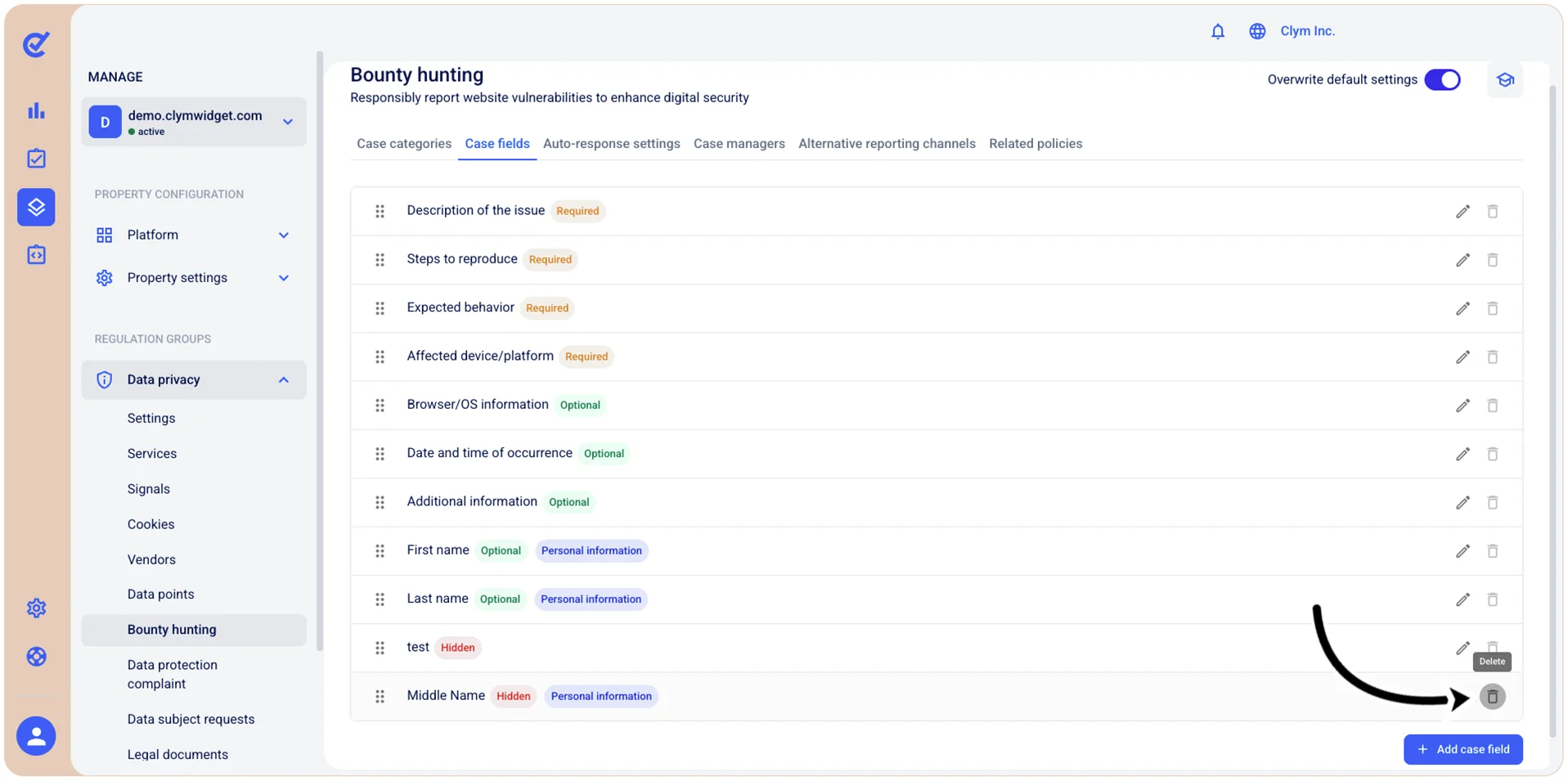
Note: You can only remove the case fields that you created, not the built-in ones. However, if you want to remove some fields from the UI, you can hide their visibility when modifying a case field.
- Go to Manage>Data privacy>Bounty hunting.
- In the Case fields tab, select
 Delete next to the case field that you want to remove.
- In the confirmation message, select Confirm.