Configure bounty hunting related policies
In the Control Center, you can easily configure bounty hunting related policies. You can add, modify and remove related policies.
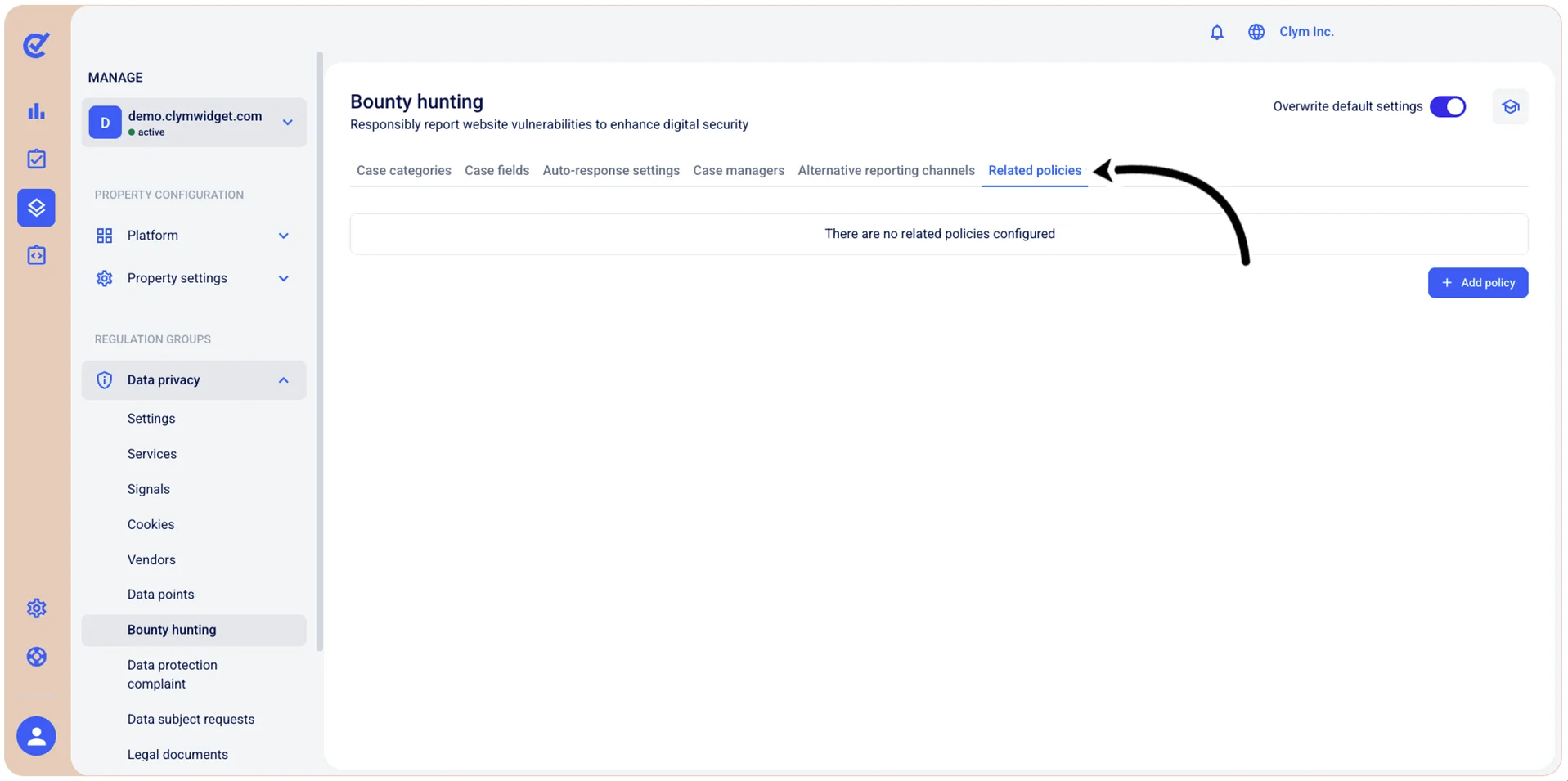
To access the Bounty hunting related policies section, go to  Manage>Data privacy>Bounty hunting and select the Related policies tab.
Add a new bounty hunting related policy
To add a new bounty hunting policy:
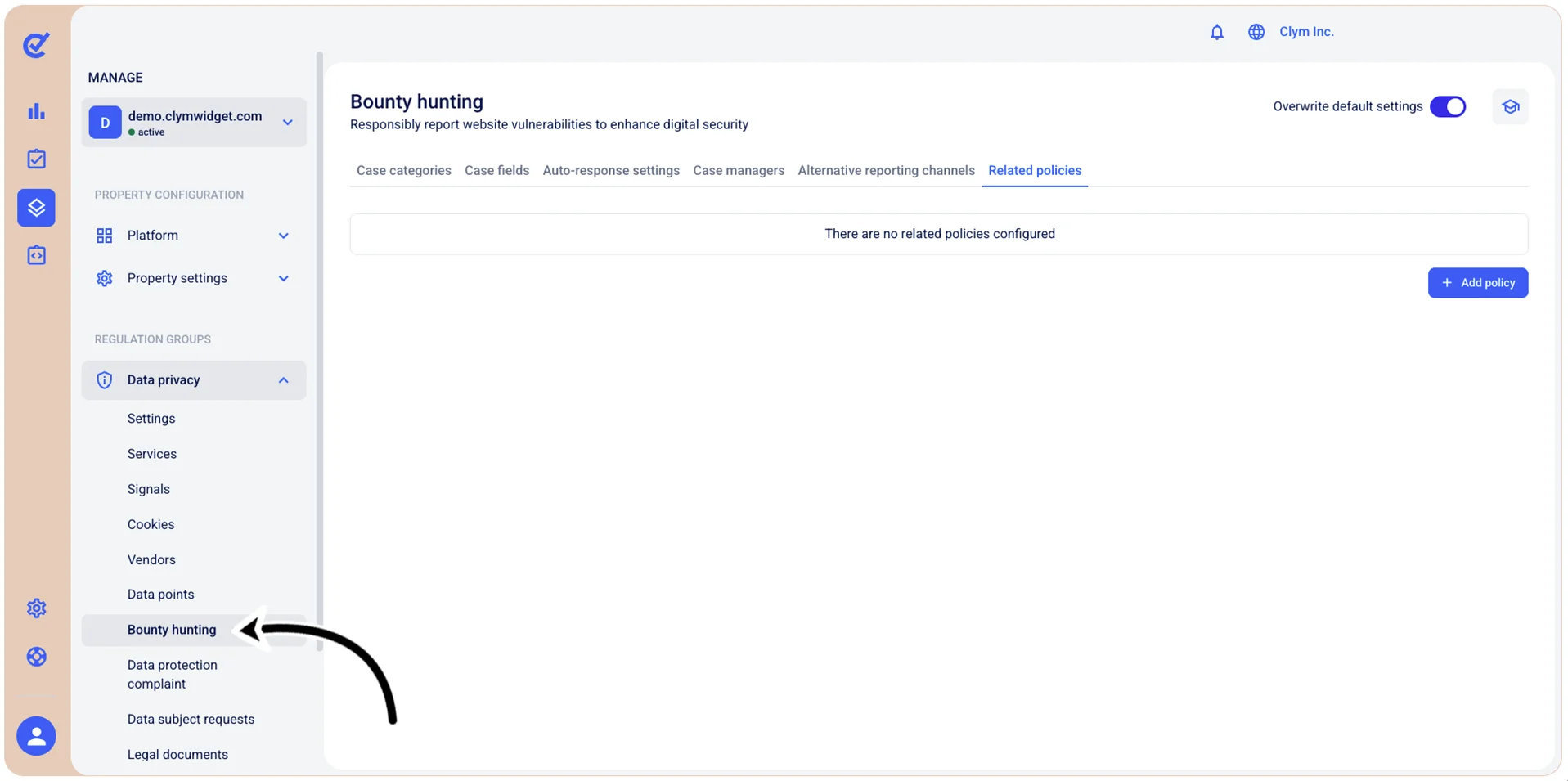
- Go to Manage>Data privacy>Bounty hunting.
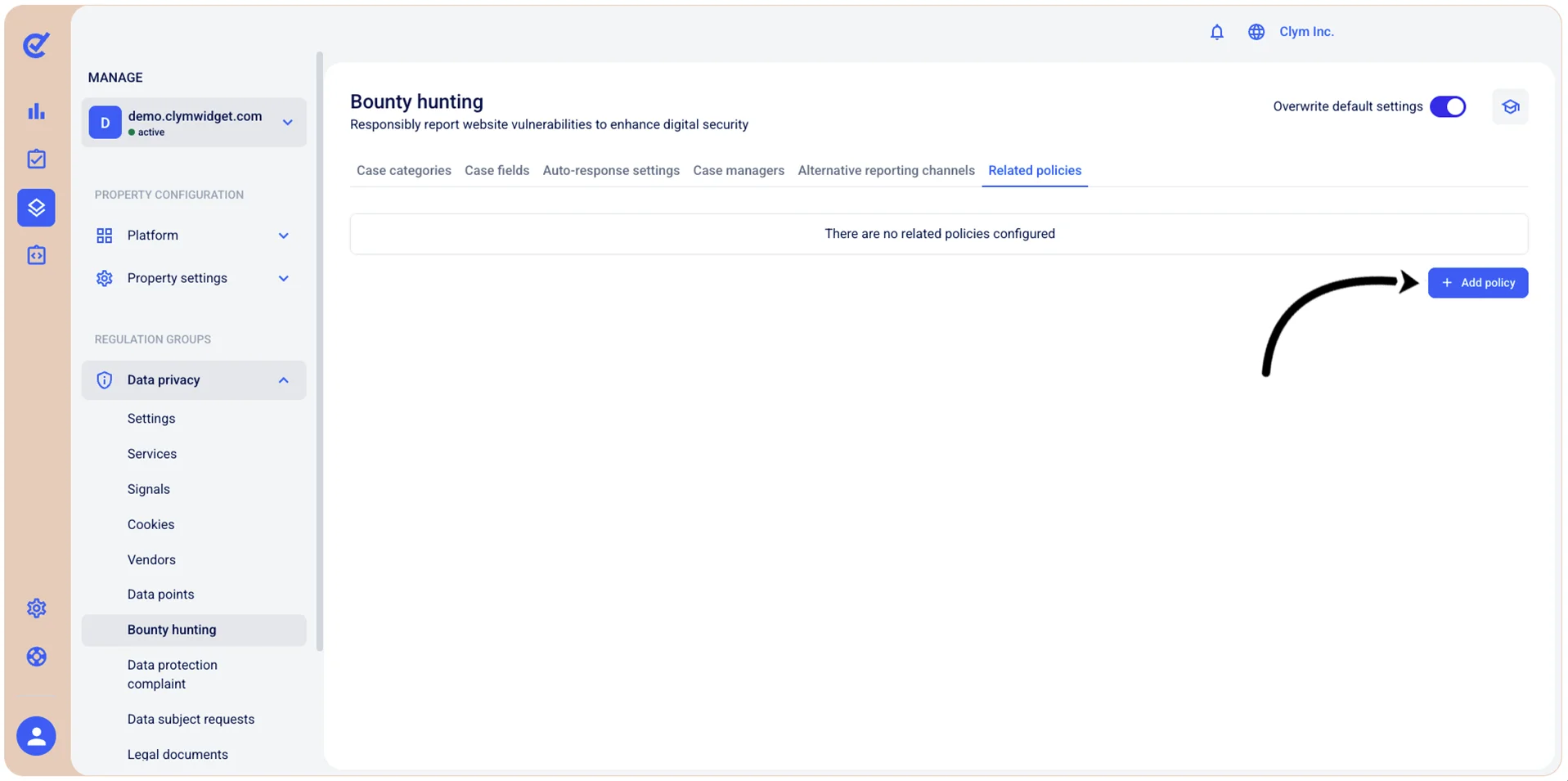
- In the Related policies tab, select Add policy.
- In the Add policy section, select the desired policy from the list, and then select the desired policy version that you want to apply.
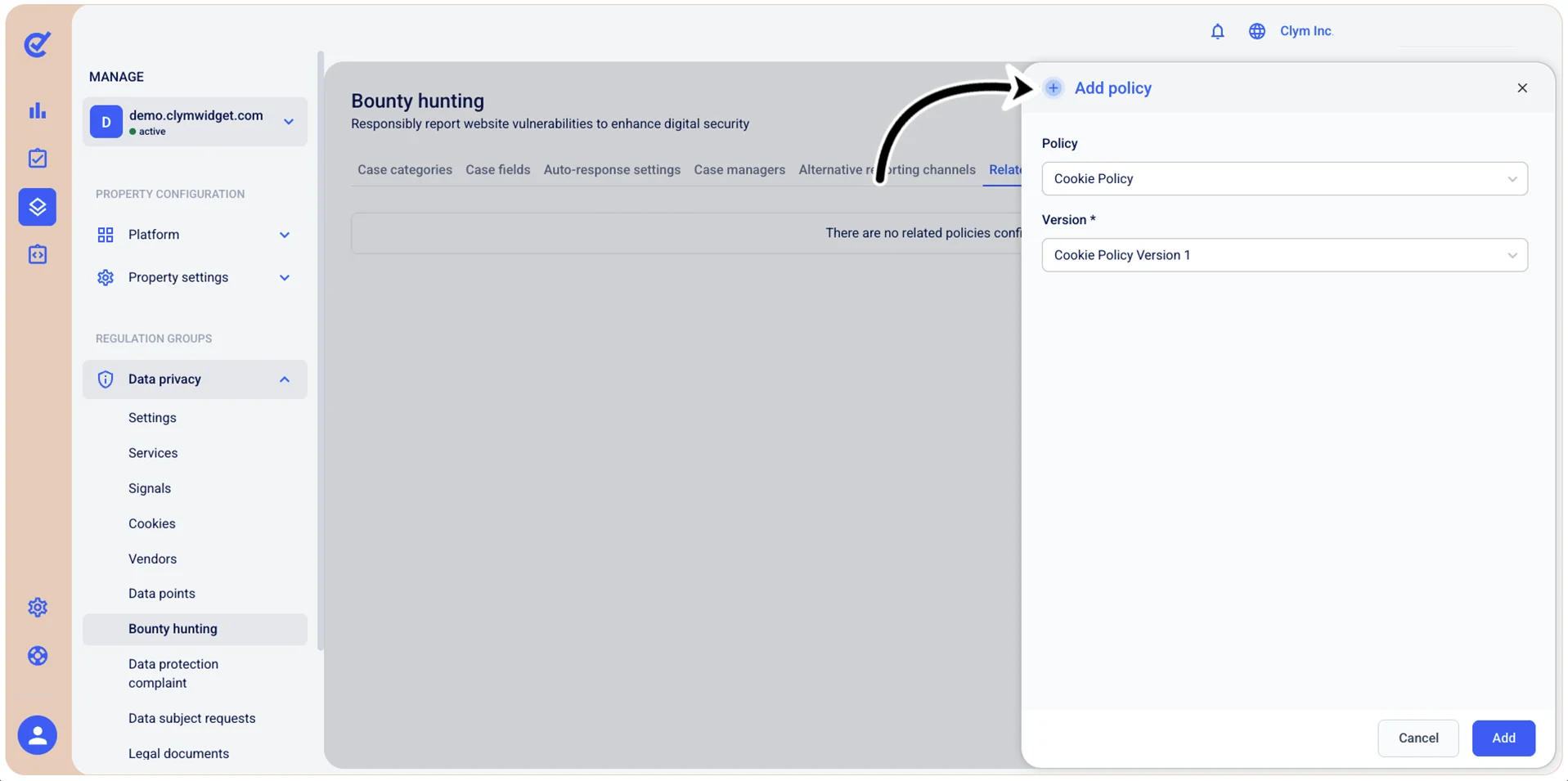
- When finished, select Add. Your newly-added policy is displayed in the Related policies tab.
Reposition a bounty hunting policy
Depending on your organization’s needs, you can reposition a bounty hunting policy in the hierarchy it is displayed on the UI. To reposition a policy:
- Go to Manage>Data privacy>Bounty hunting.
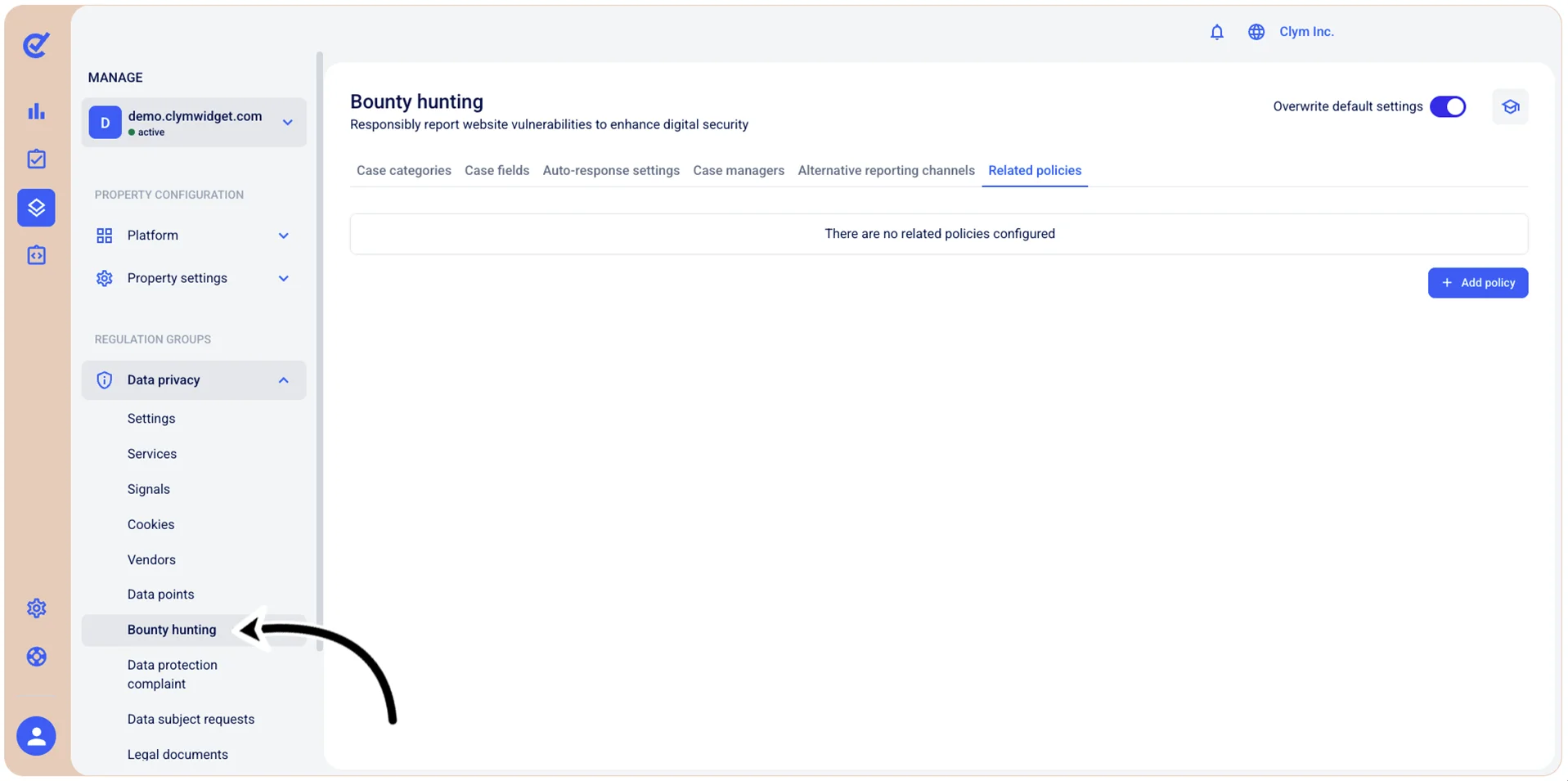
- In the Related policies tab, use the drag handle (⋮⋮) to rearrange the desired item in the list.
Delete a bounty hunting related policy
In the Control Center, you can easily remove the bounty hunting related policies that your organization no longer needs.
To delete a bounty hunting related policy:
- Go to Manage>Data privacy>Bounty hunting.
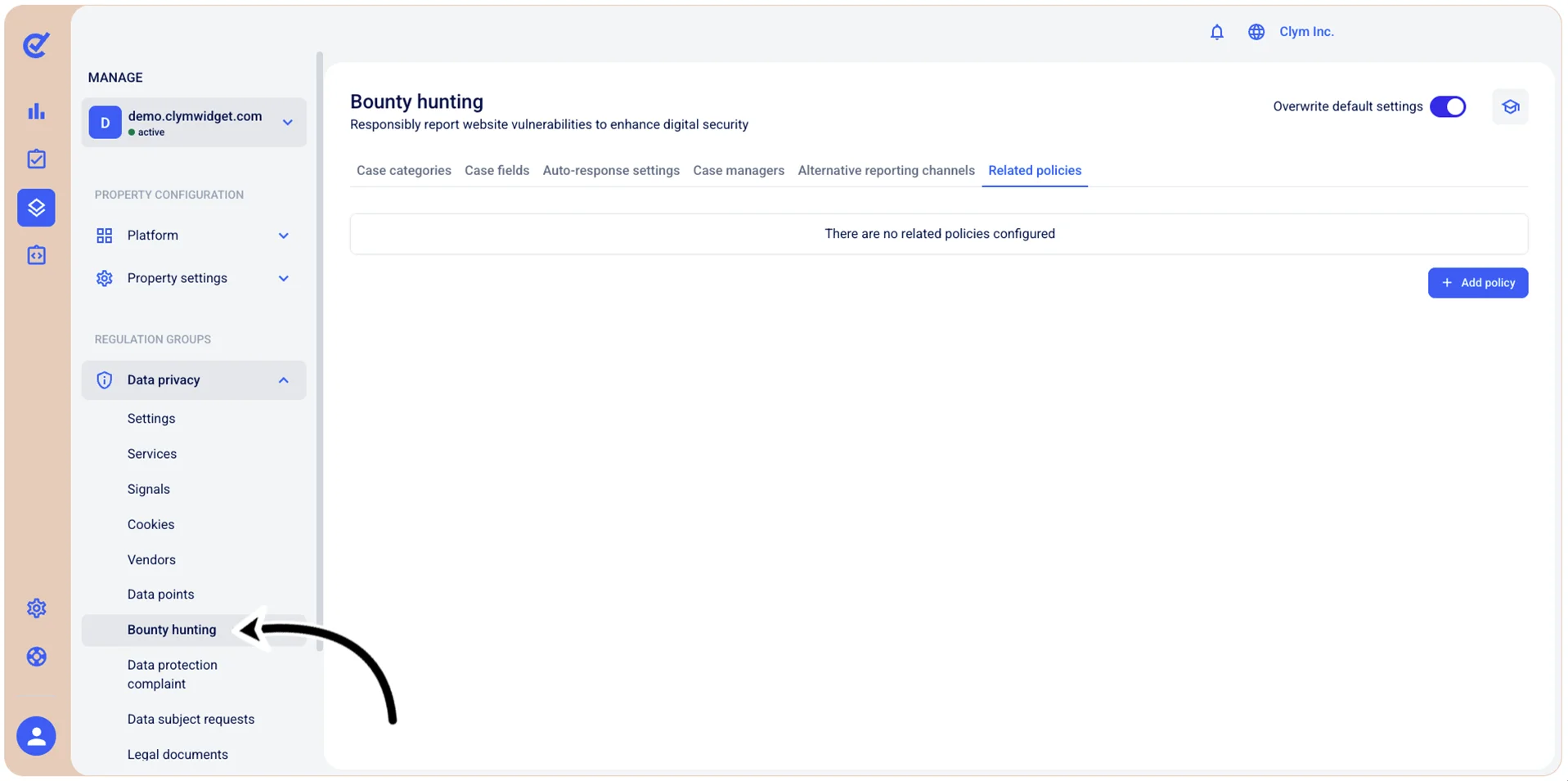
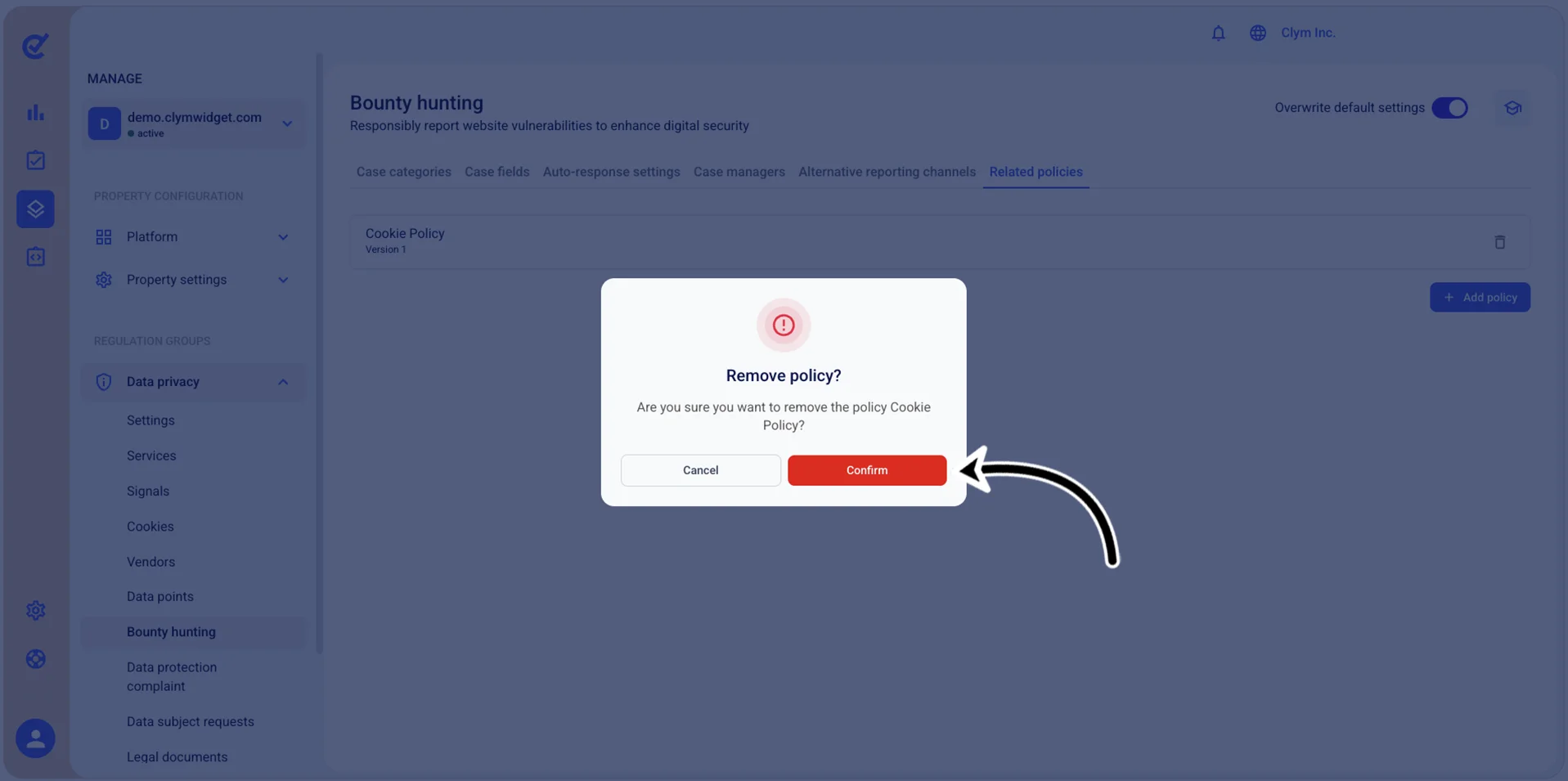
- In the Related policies tab, select
 Delete next to the policy that you want to remove.
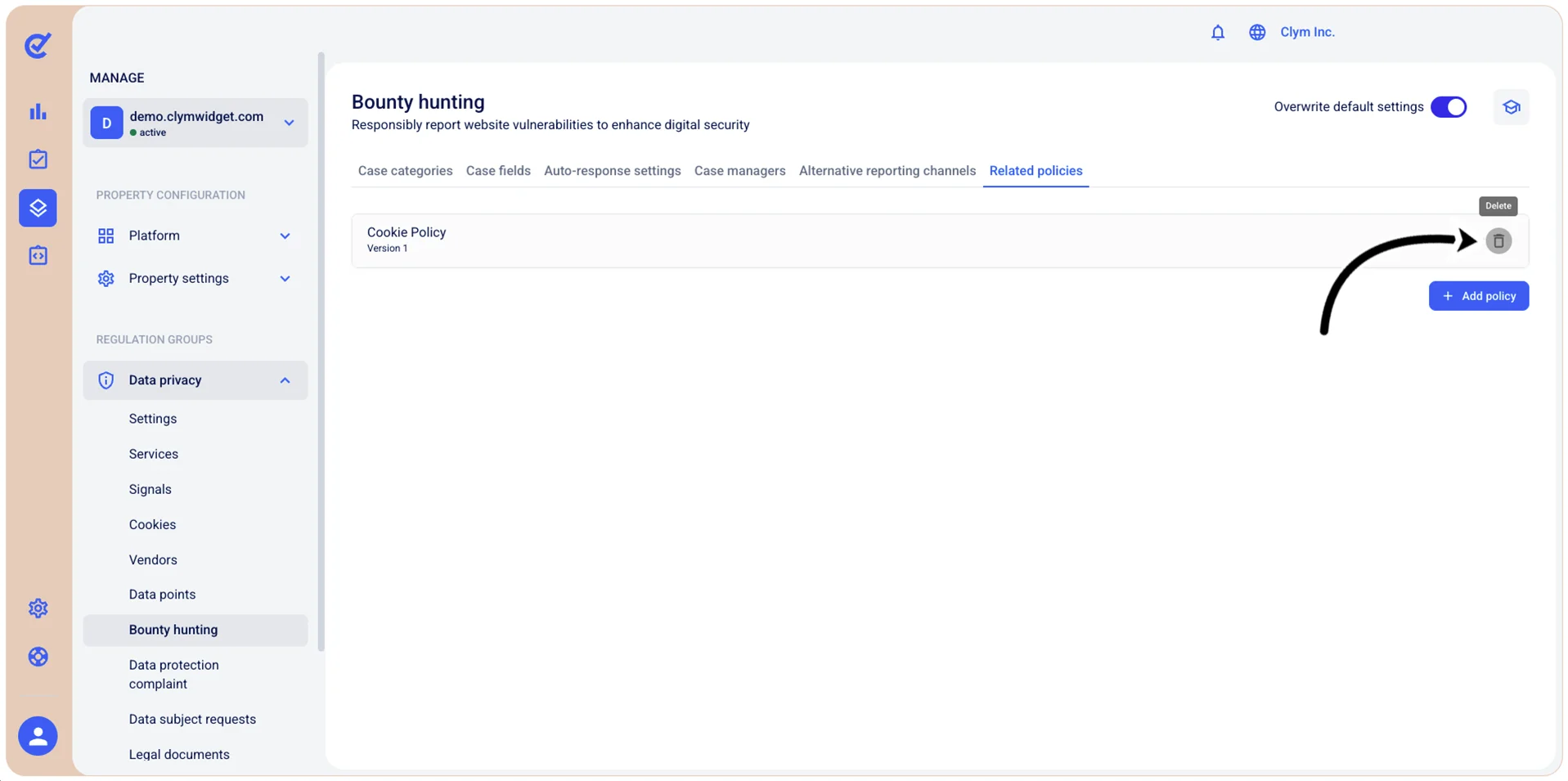
- In the confirmation message, select Confirm.