
Add a built-in legal document
In the Control Center, there are certain documents, such as the Privacy Policy or Cookie Policy, that are automatically indicated as required, recommended, or optional, depending on your Company settings.
To add a built-in legal document:
- Go to
 Manage>Data privacy>Legal documents.
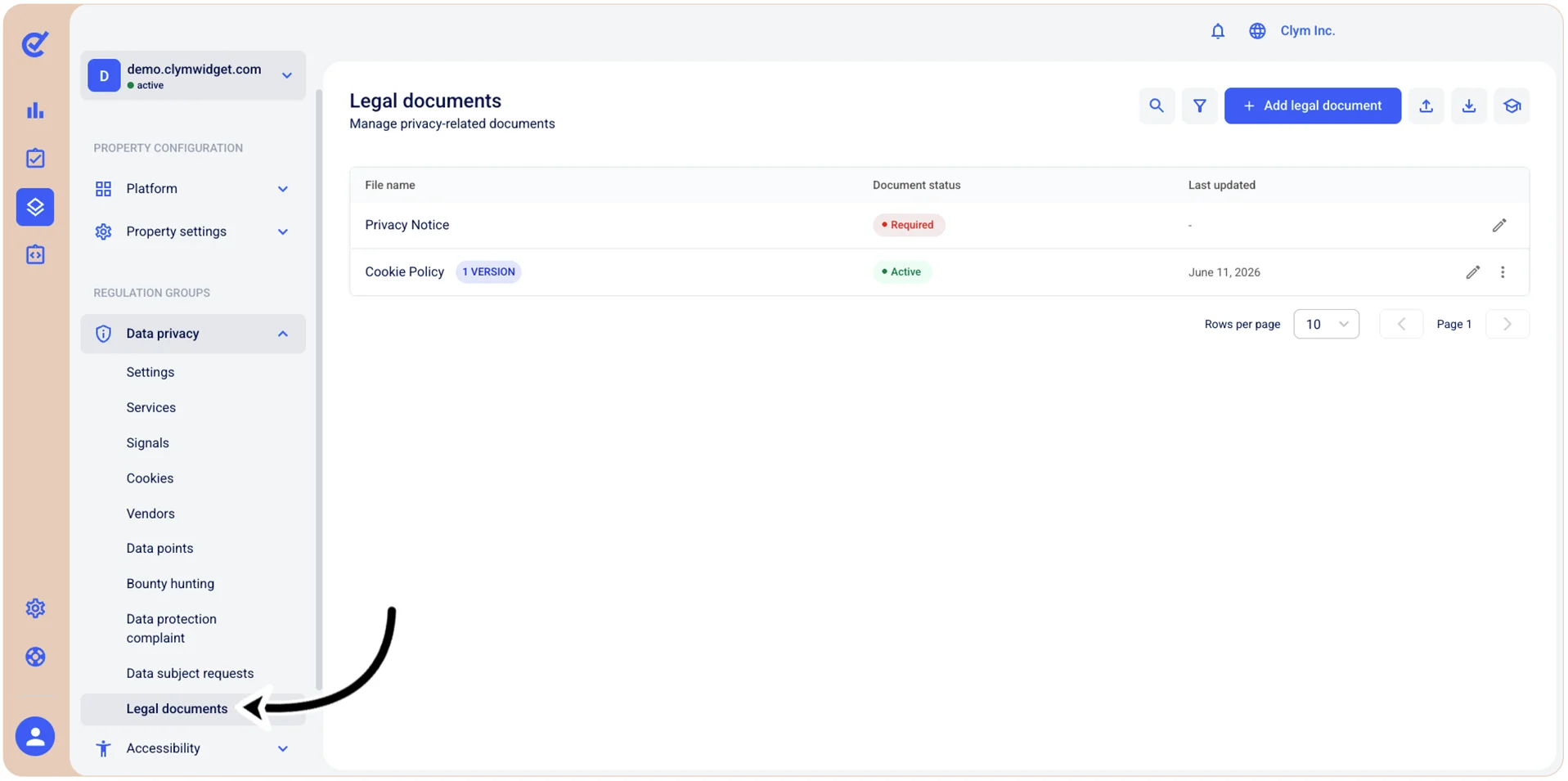
- Click Add document next to the desired legal document.
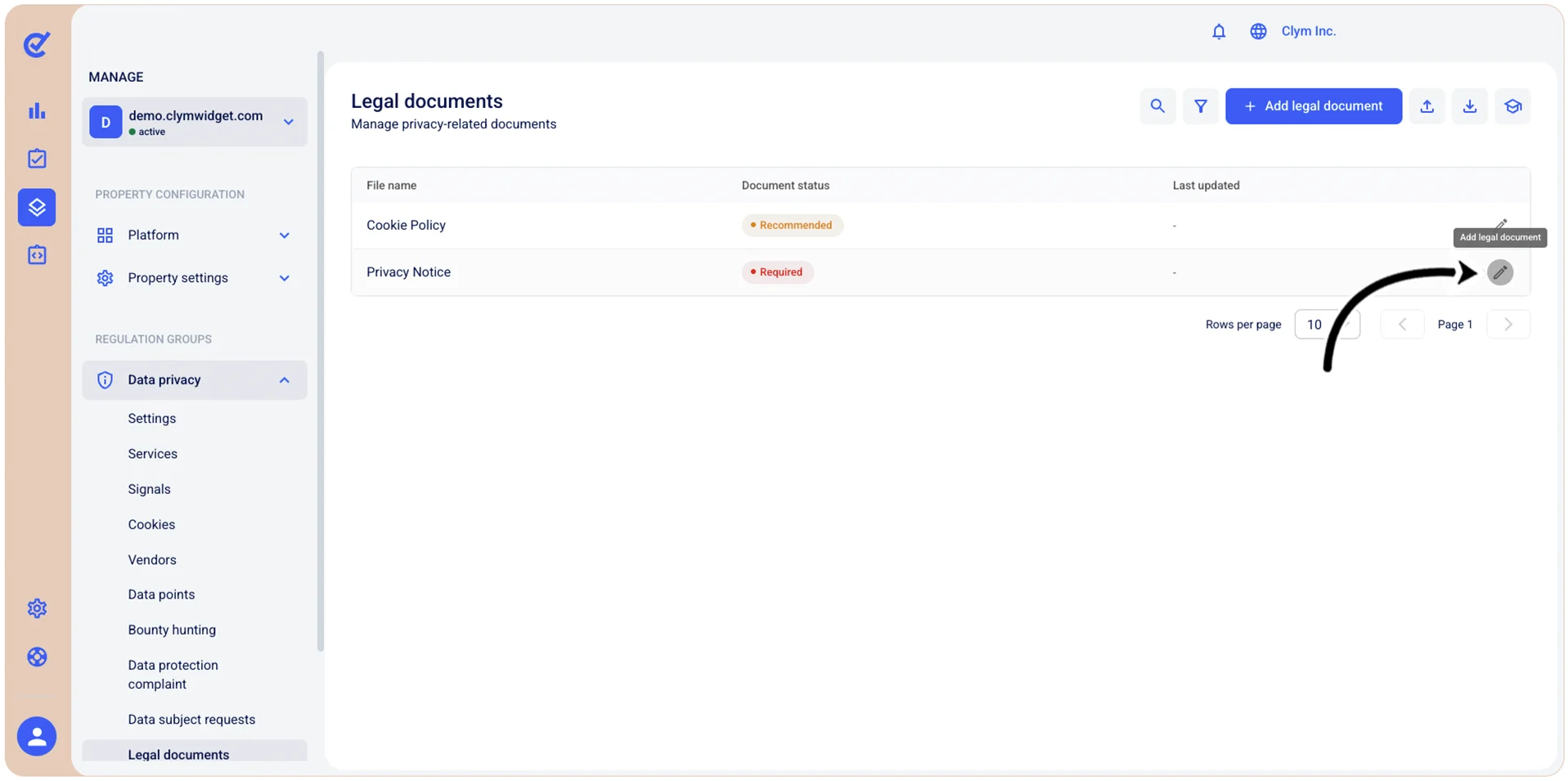
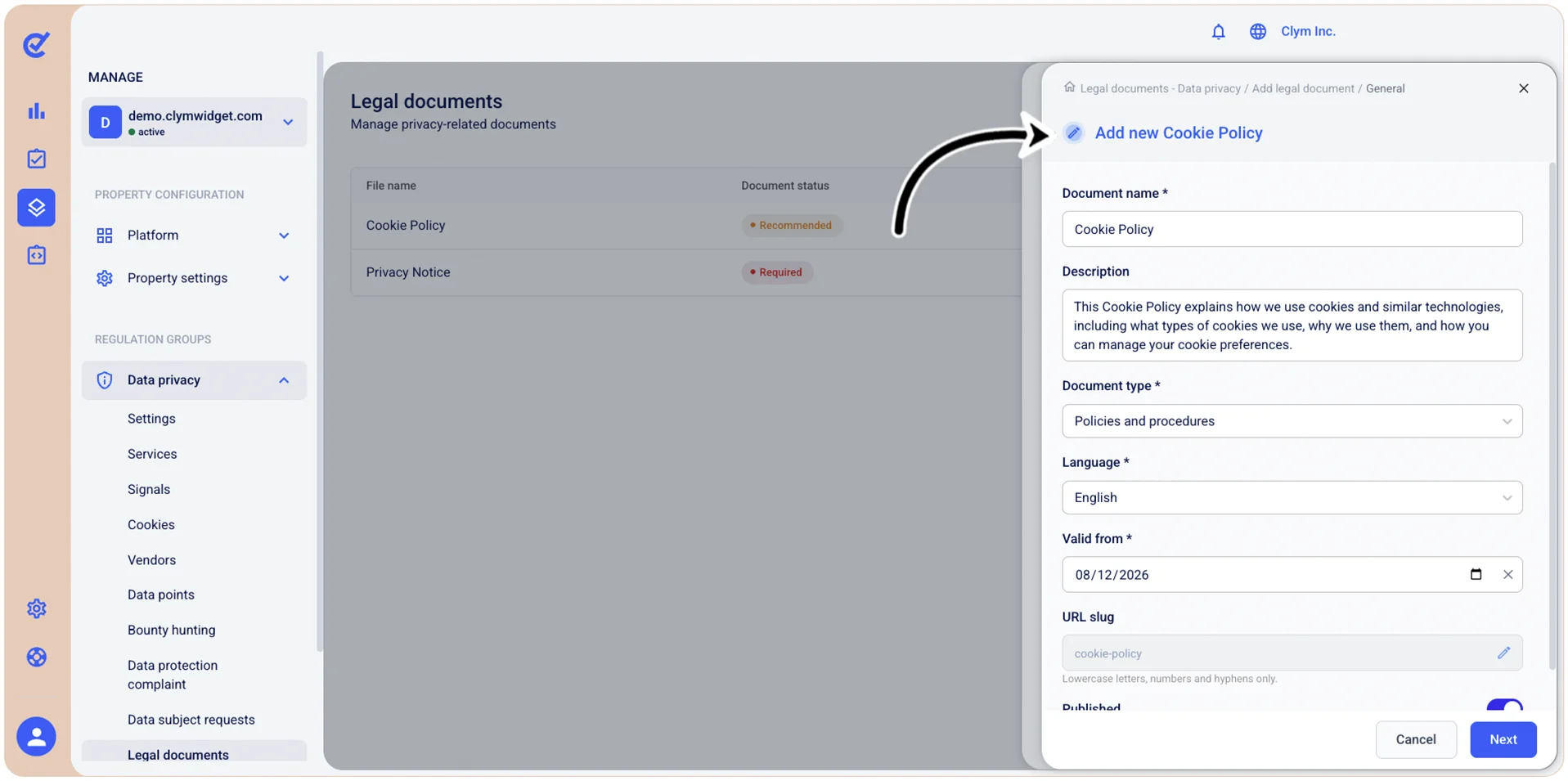
- In the Add new Privacy Notice window, confirm the General settings of the document. Click Next.
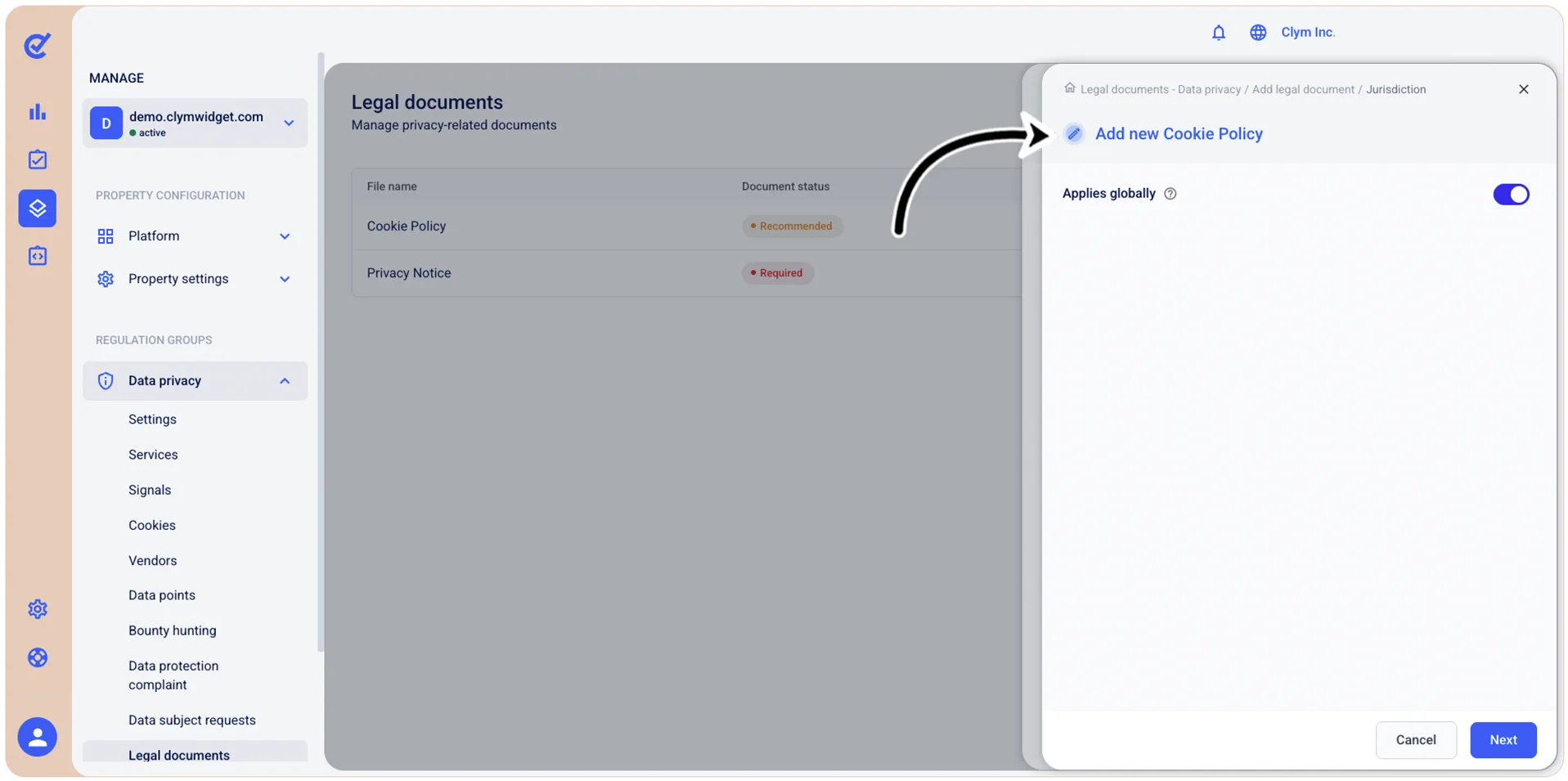
- Next, toggle on Applies globally if you want your new legal document to be enforced globally. Note that generic legal documents that apply globally are overridden by jurisdiction specific documents. When finished, select Next.
- In the Content section, configure the parameters of your legal document, as follows:
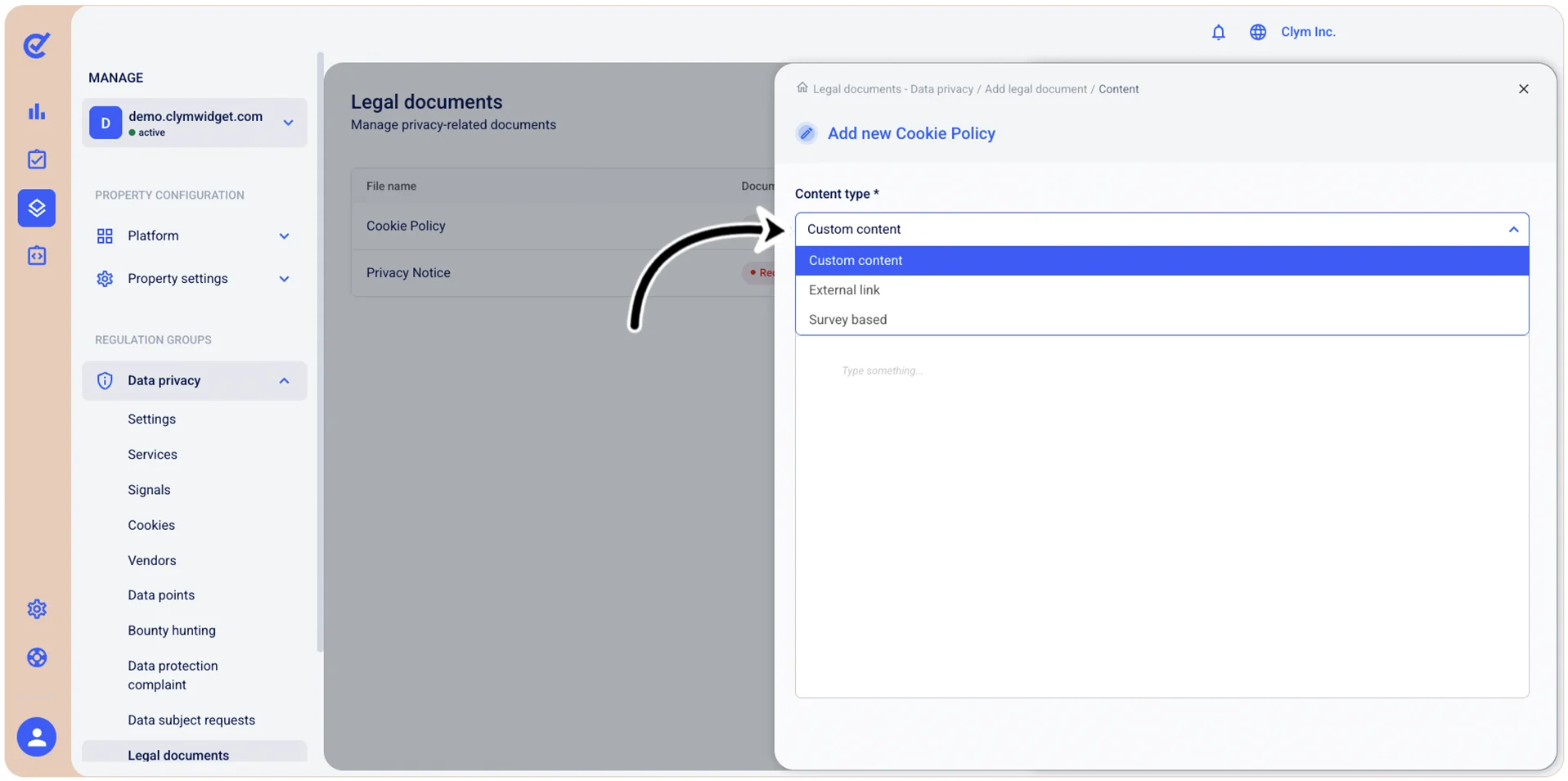
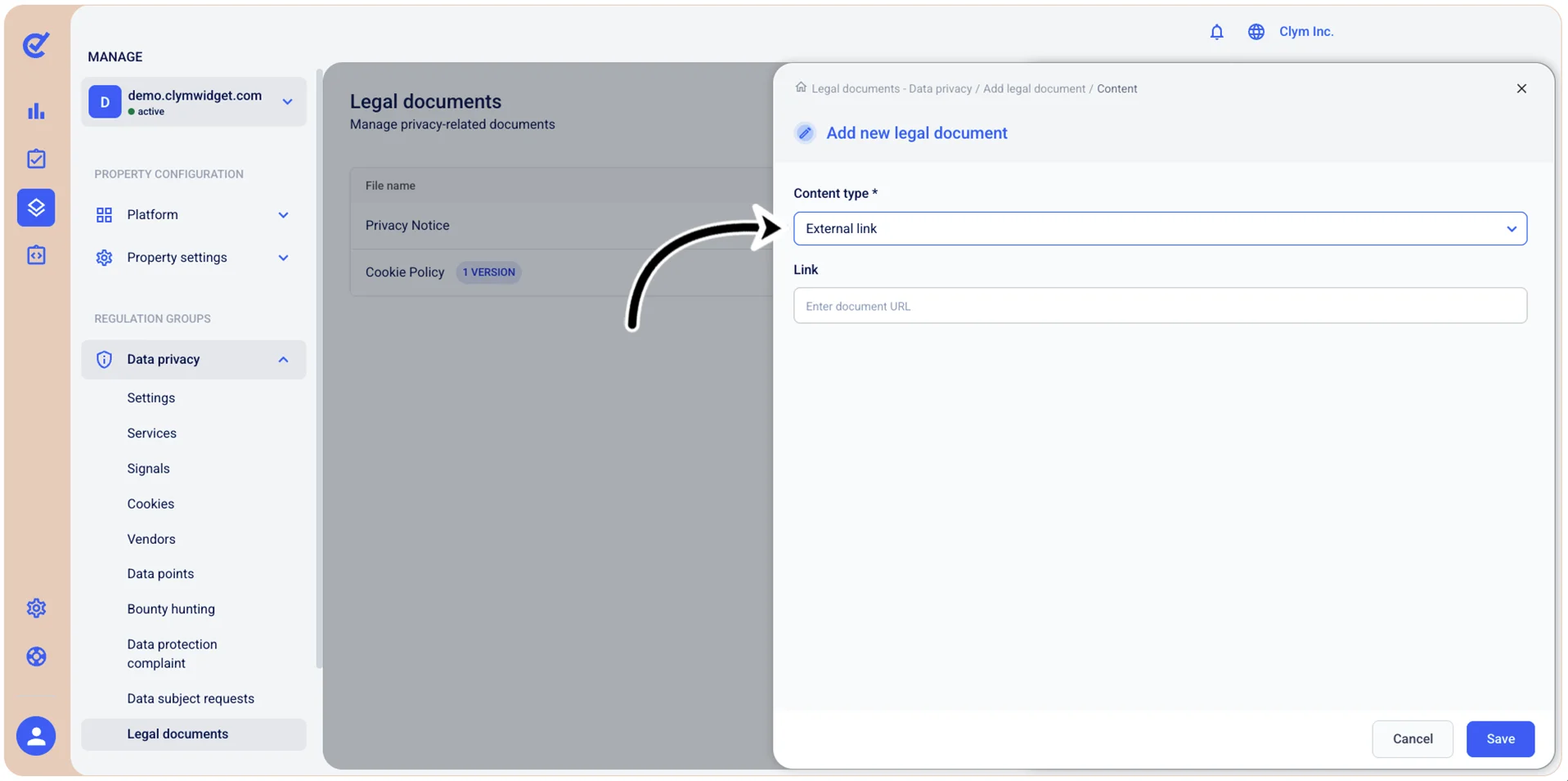
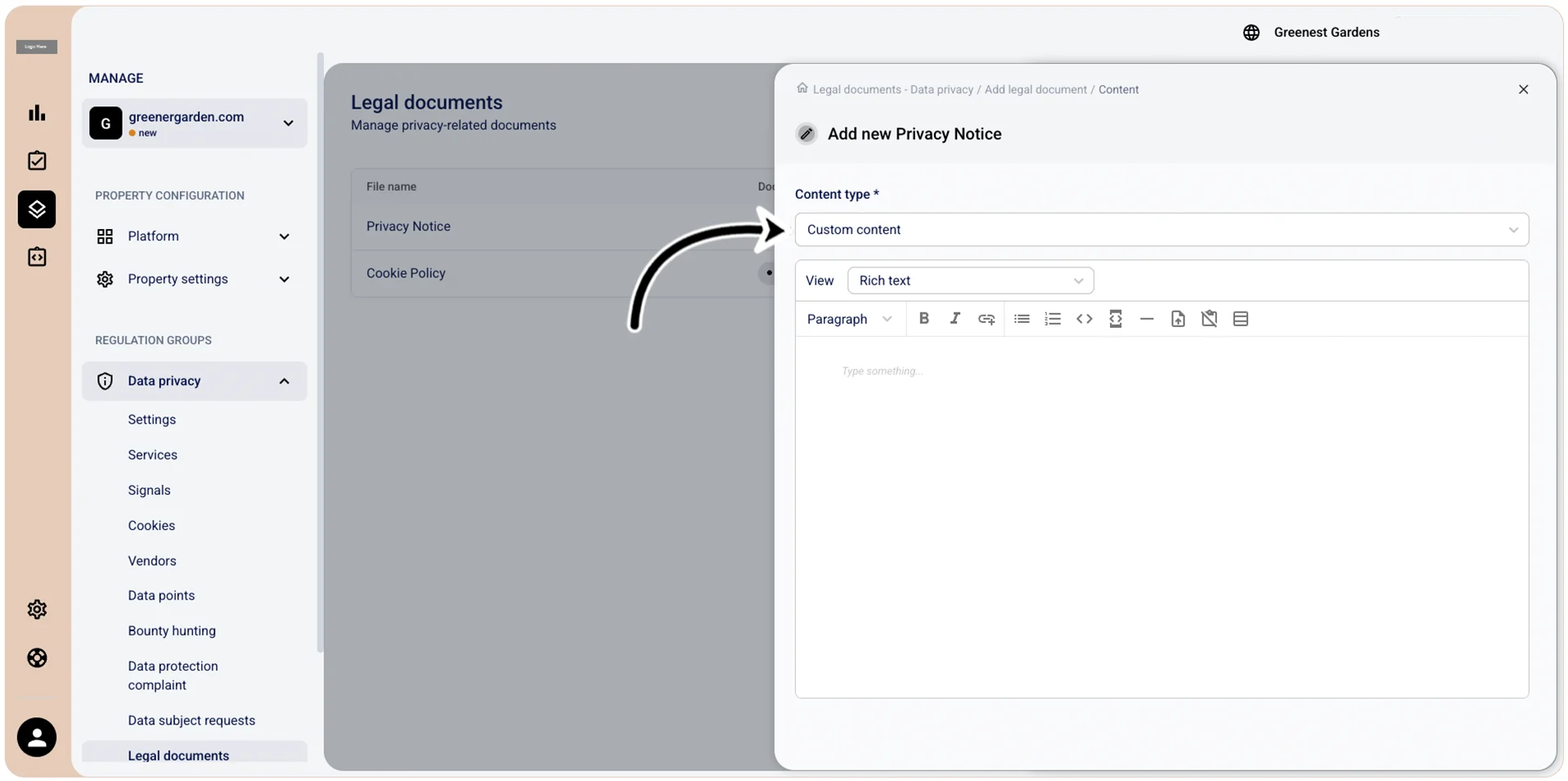
- Content type: Select External link if you want your legal document to be displayed as an external URL. Select Custom content to display your legal document as a custom text. Select Survey if you want to create a new version of the legal document based on a survey. Depending on your selection at this stage, the options available to you may vary.
(If you selected Content type>External link above) Link: Enter the external link where your legal document can be accessed.
(If you selected Content type>Custom content above) View: Select the format in which you want to draft the legal document (for example, Rich text/markdown/HTML and so on) and then enter the content accordingly in the text editor.
If you selected Content type>Survey based above, click Start survey to open the document generator.
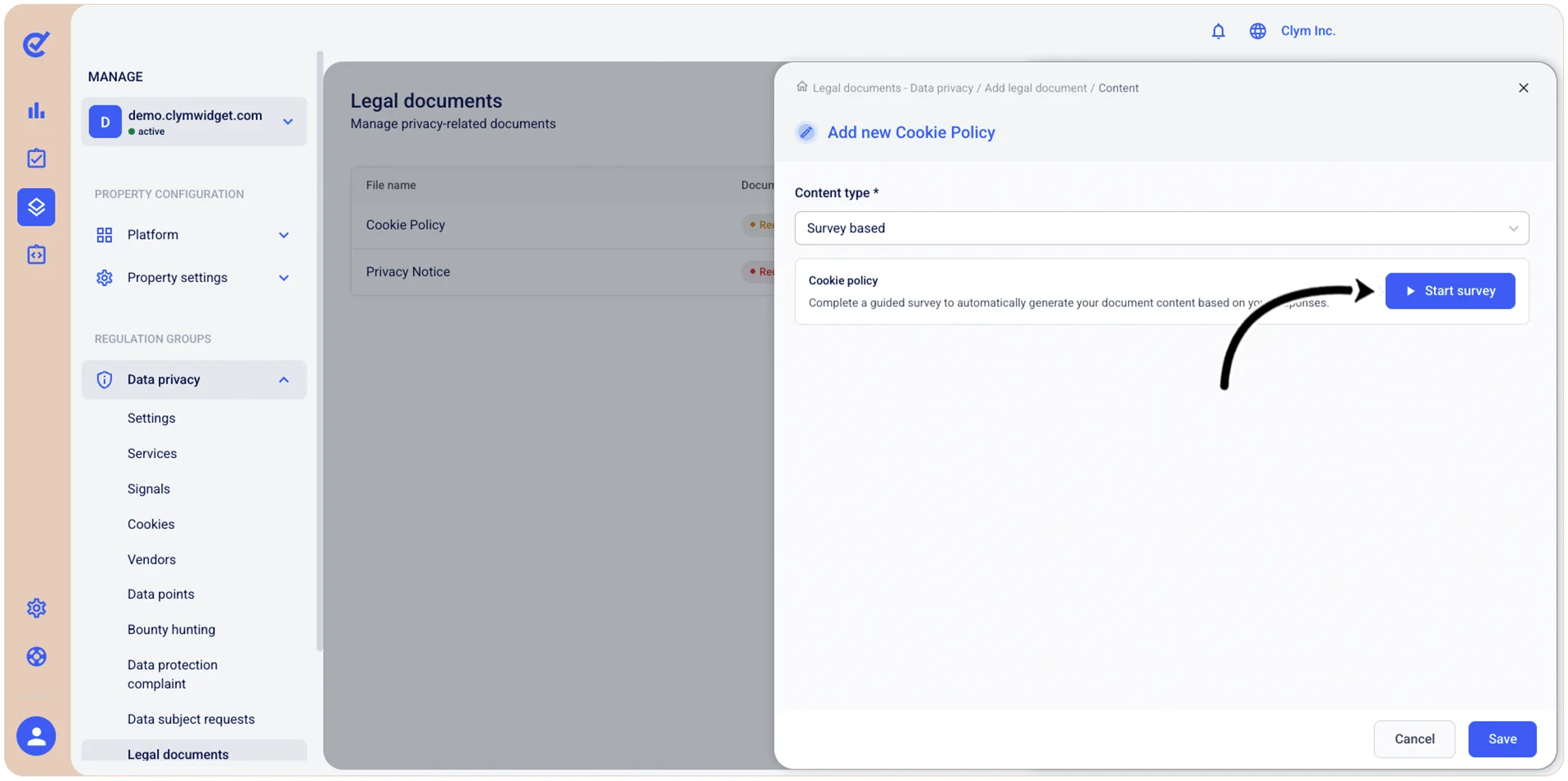
Once the survey loads, proceed through each step to provide all relevant information.
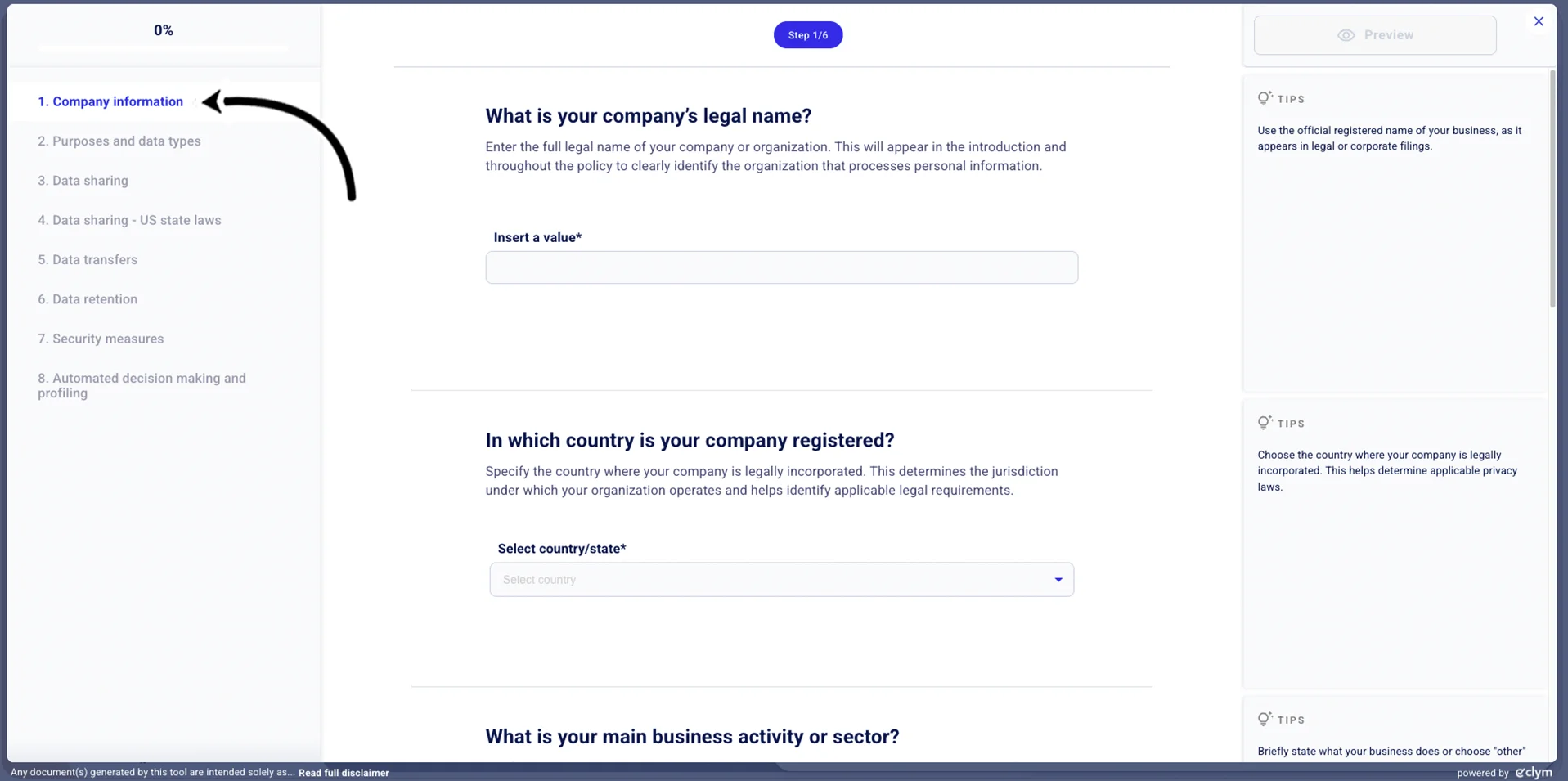
Your newly generated document will be available for preview before saving. Click Save.