Manage DSR templates
In the Control Center, you can add your own DSR templates to streamline your replies and communications with your customers.
The Control Center comes with the following types of DSR templates:
- System templates: Preconfigured (built-in) DSR templates,
and - Company templates: DSR templates that you can create from scratch based on the specific needs of your organization.
The system templates are available by default and you can only create, modify and delete company templates. You can search and filter both system and company templates.
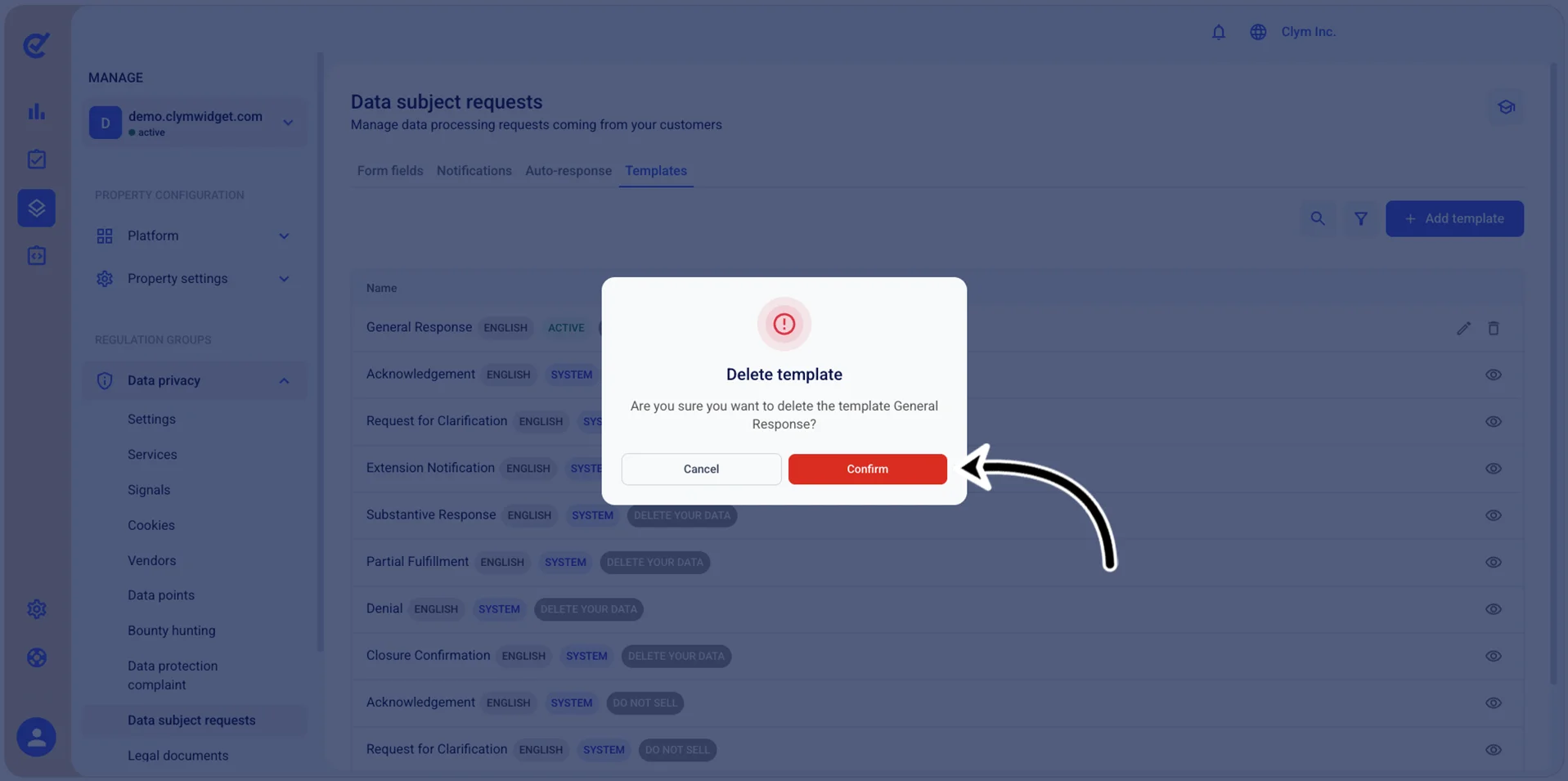
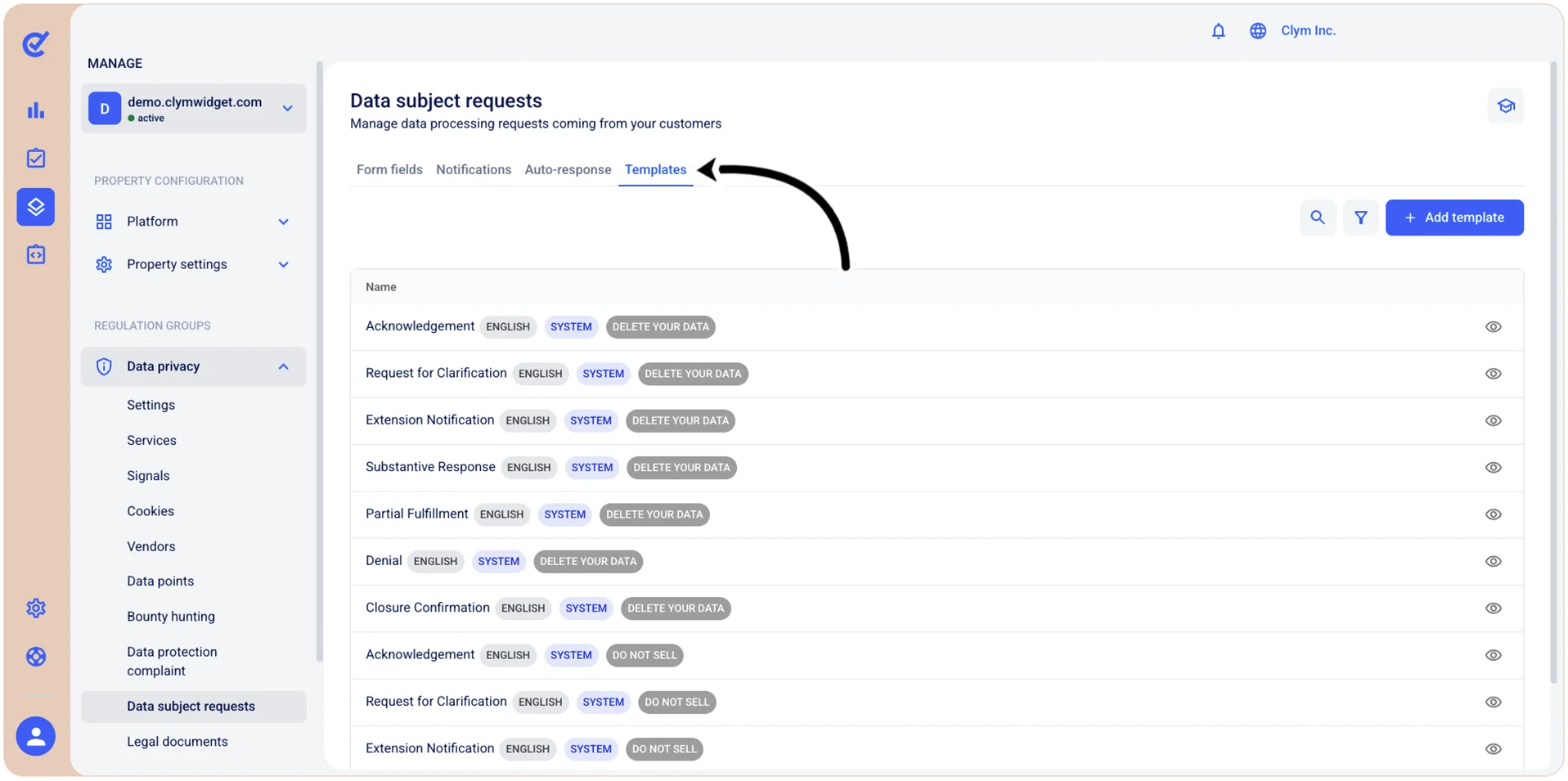
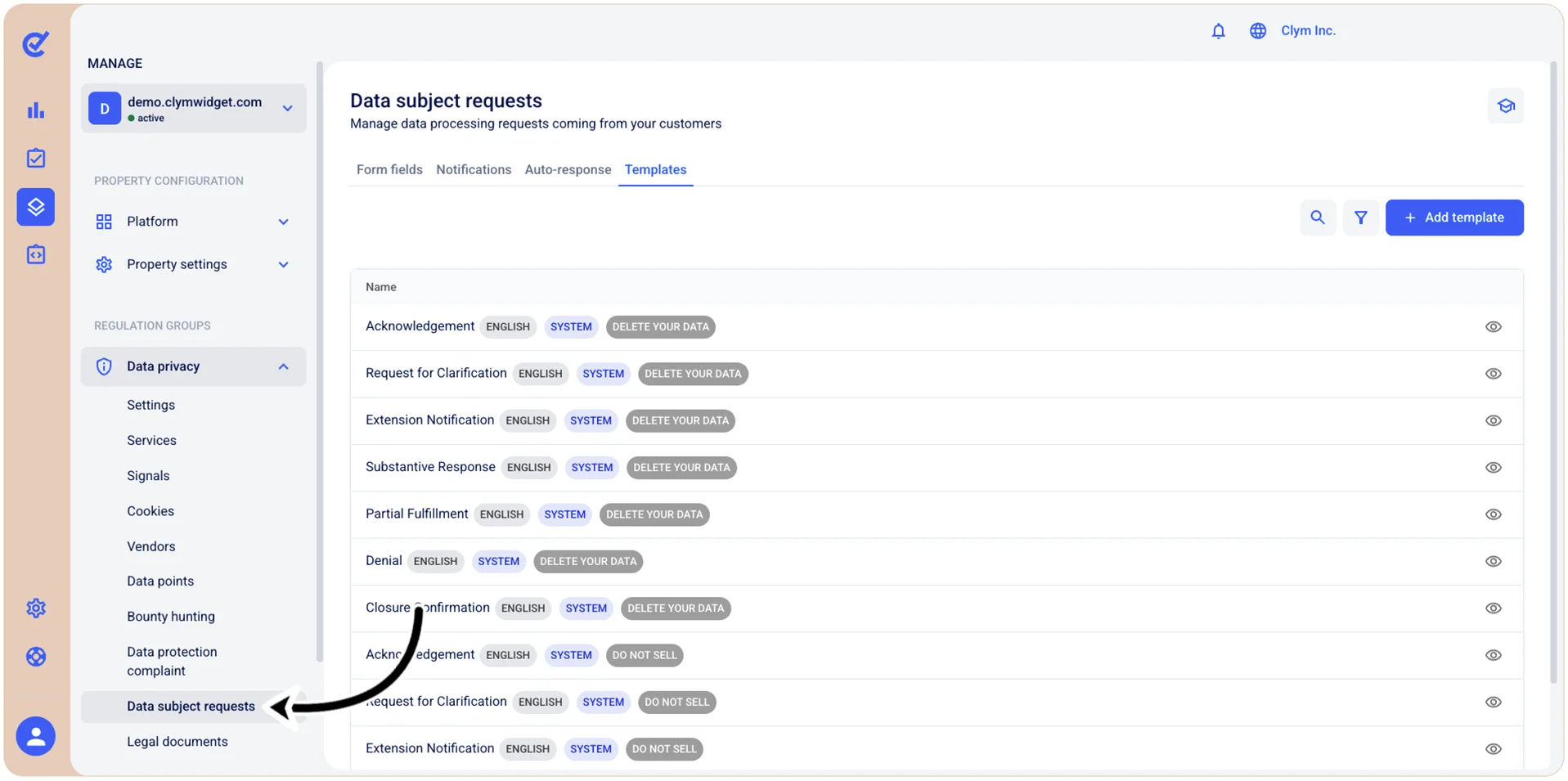
To access the DSR templates section, go to  Manage>Data privacy>Data subject requests and select the Templates tab.
Add a DSR template
To add a new DSR template:
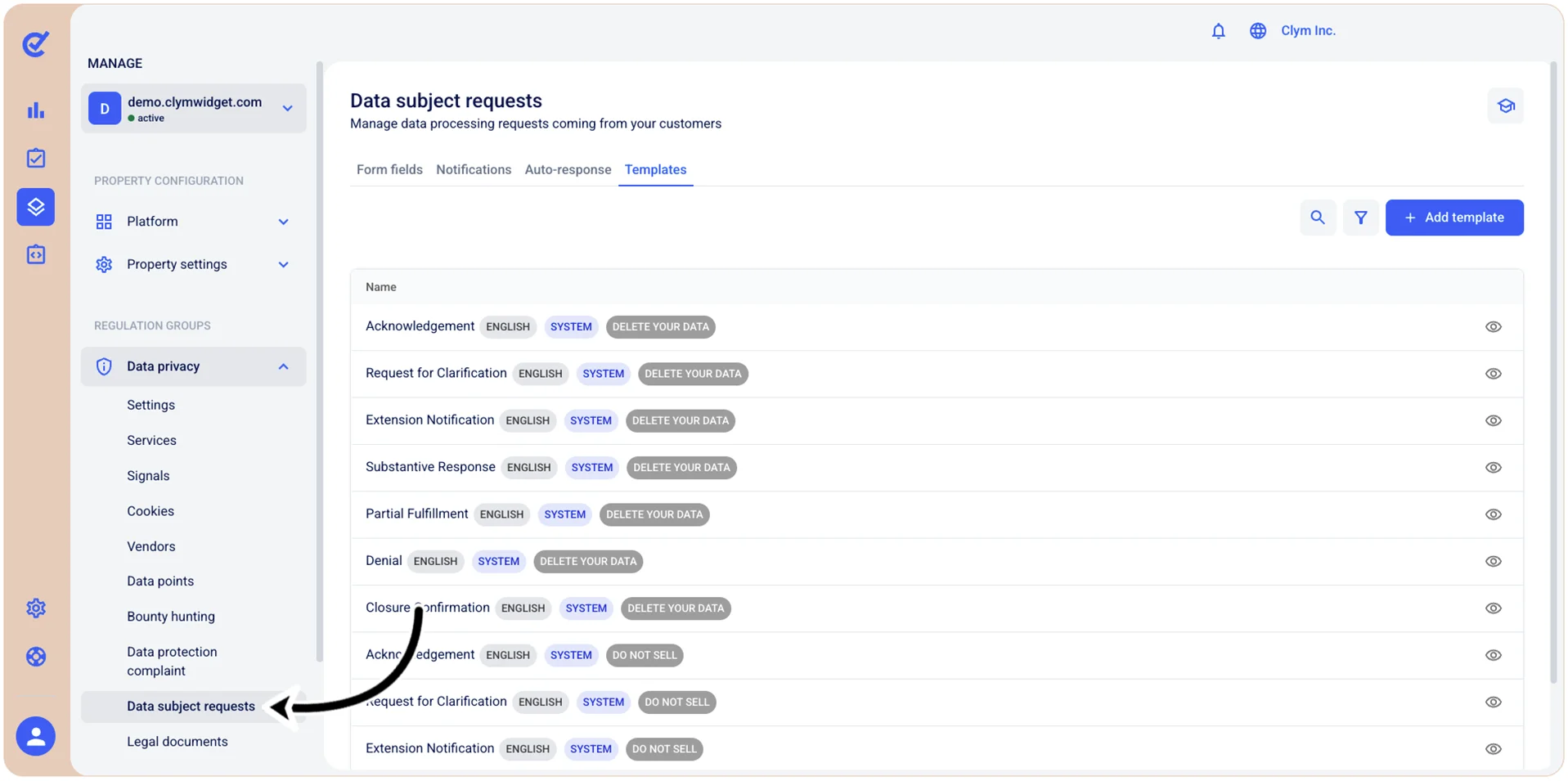
- Go to Manage>Data privacy>Data subject requests.
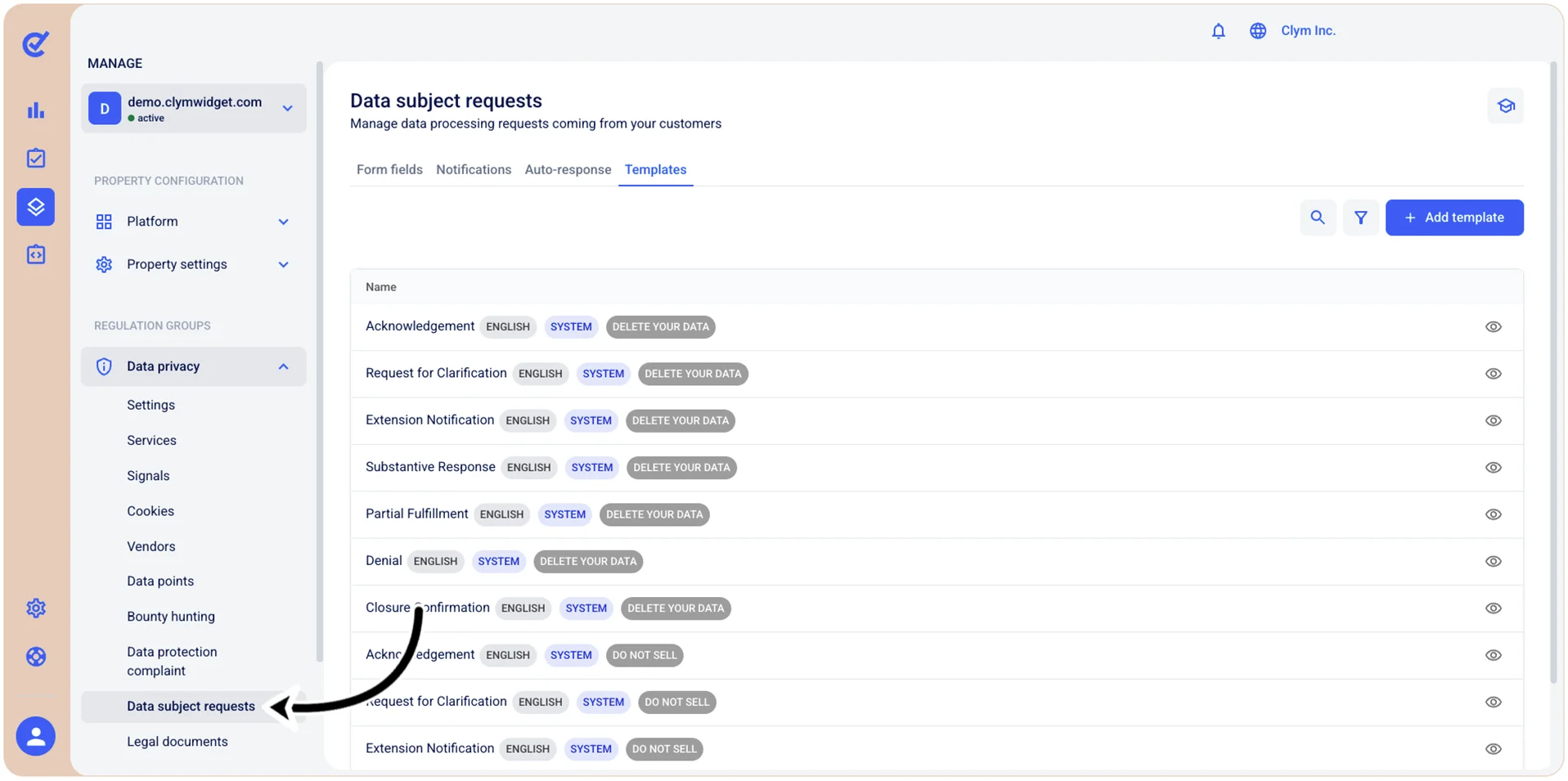
- In the Templates tab, select +Add template.
- In the Add template section, configure the fields of your new template, as follows:
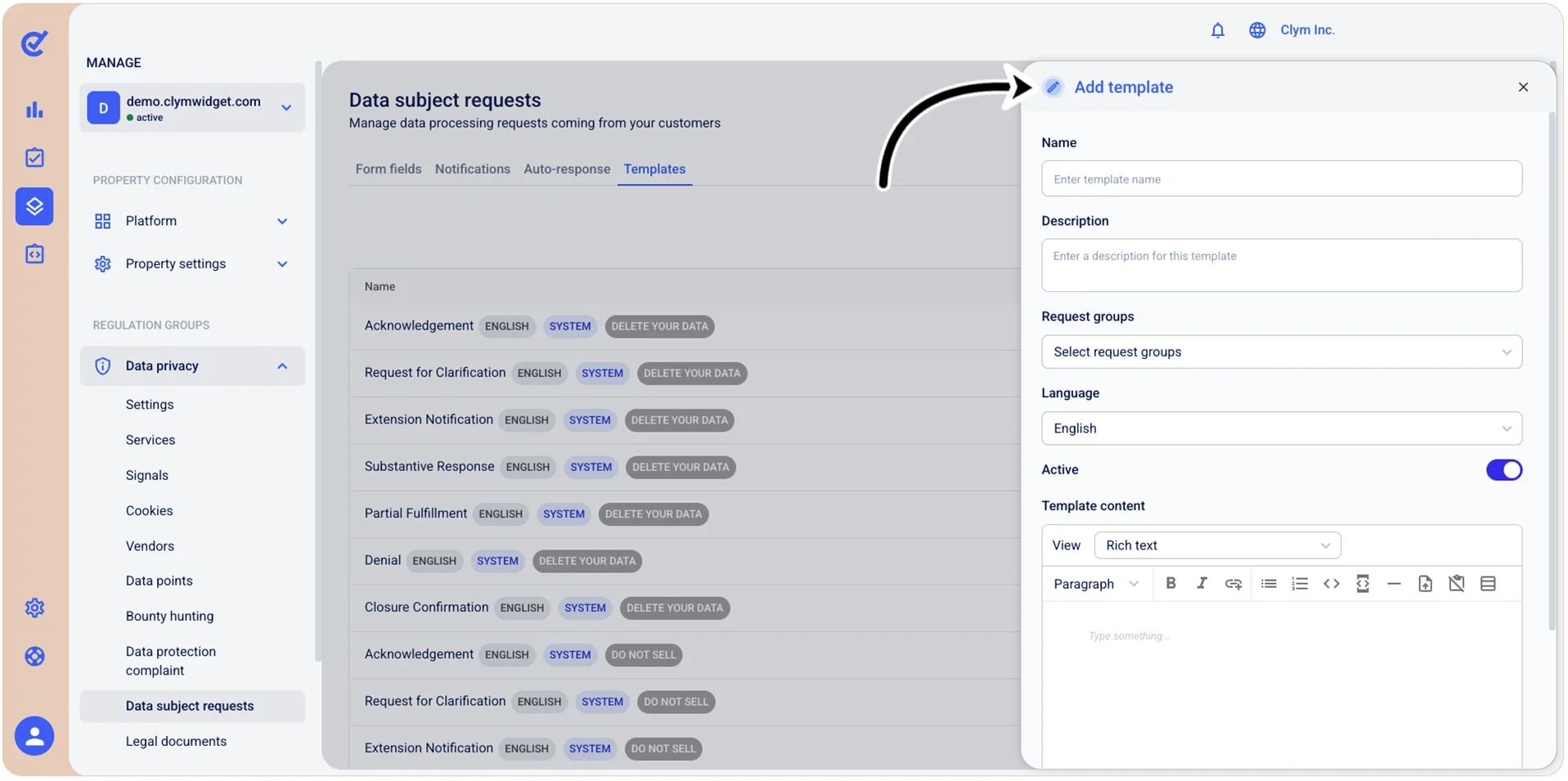
- Name: Give your new template a descriptive name.
- Description: Give your new template a meaningful description.
- Request goals: Select one or more request goals from the list. The request goal is the object of the DSR.
- Language: Select the DSR template’s communication language from the list.
- Active: Toggle on to make this template active.
- Template content: Enter the content of the template in the desired structure. All messages based on this template will follow the structure you configure at this stage.
- When finished, select Add. Your newly-created DSR template is displayed in the Templates tab.
View a DSR template
In the Control Center, you can make a quick visual check of a system template to make sure it delivers on the needs of your organization.
To view a DSR template:
- Go to Manage>Data privacy>Data subject requests.
- In the Templates tab, select
 View next to the desired template.
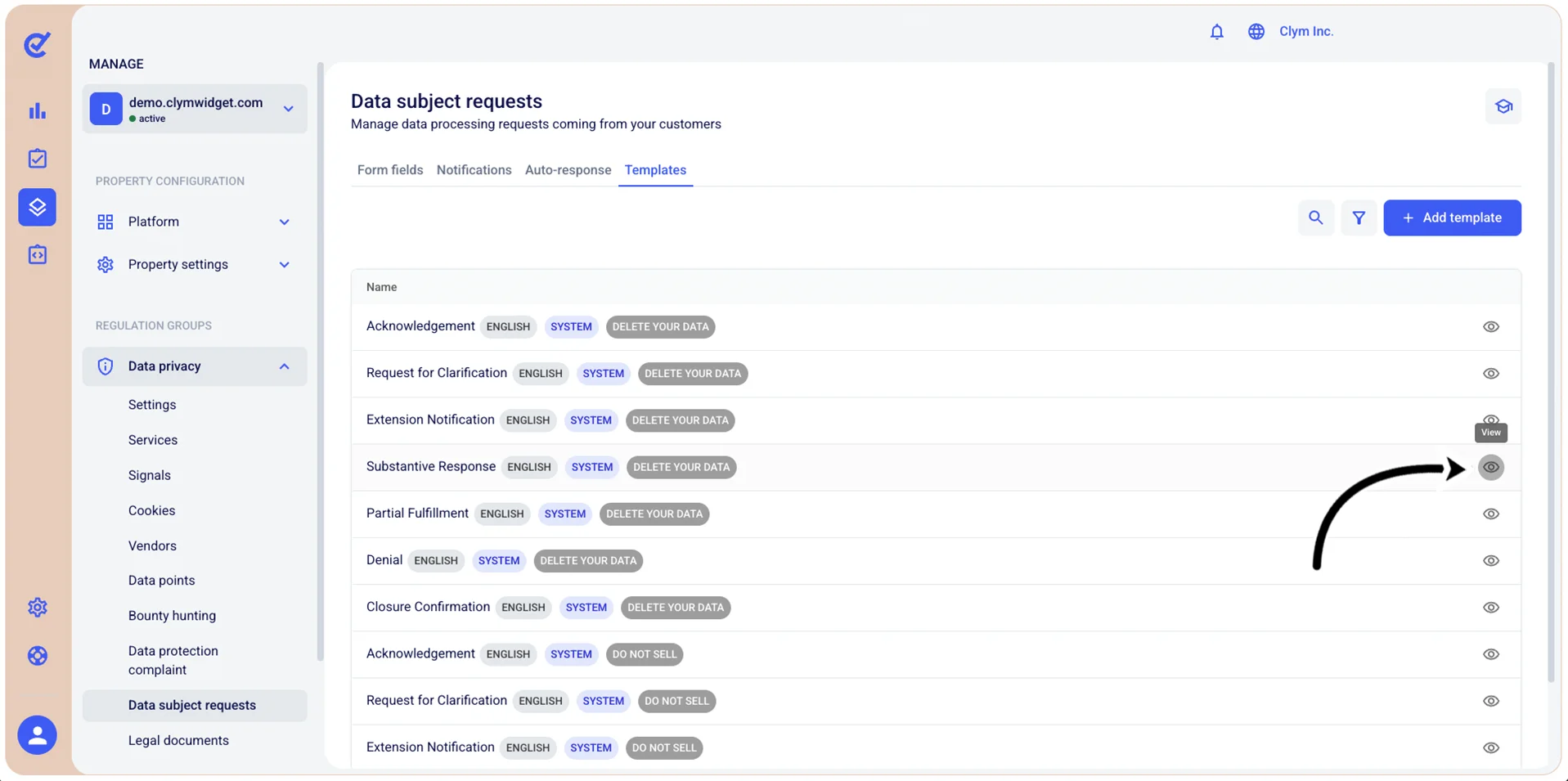
The template is displayed in the View template section.
Edit a DSR company template
In the Control Center, you can modify the company templates (the custom templates that you created), not the system (built-in) ones.
To edit a custom DSR company template:
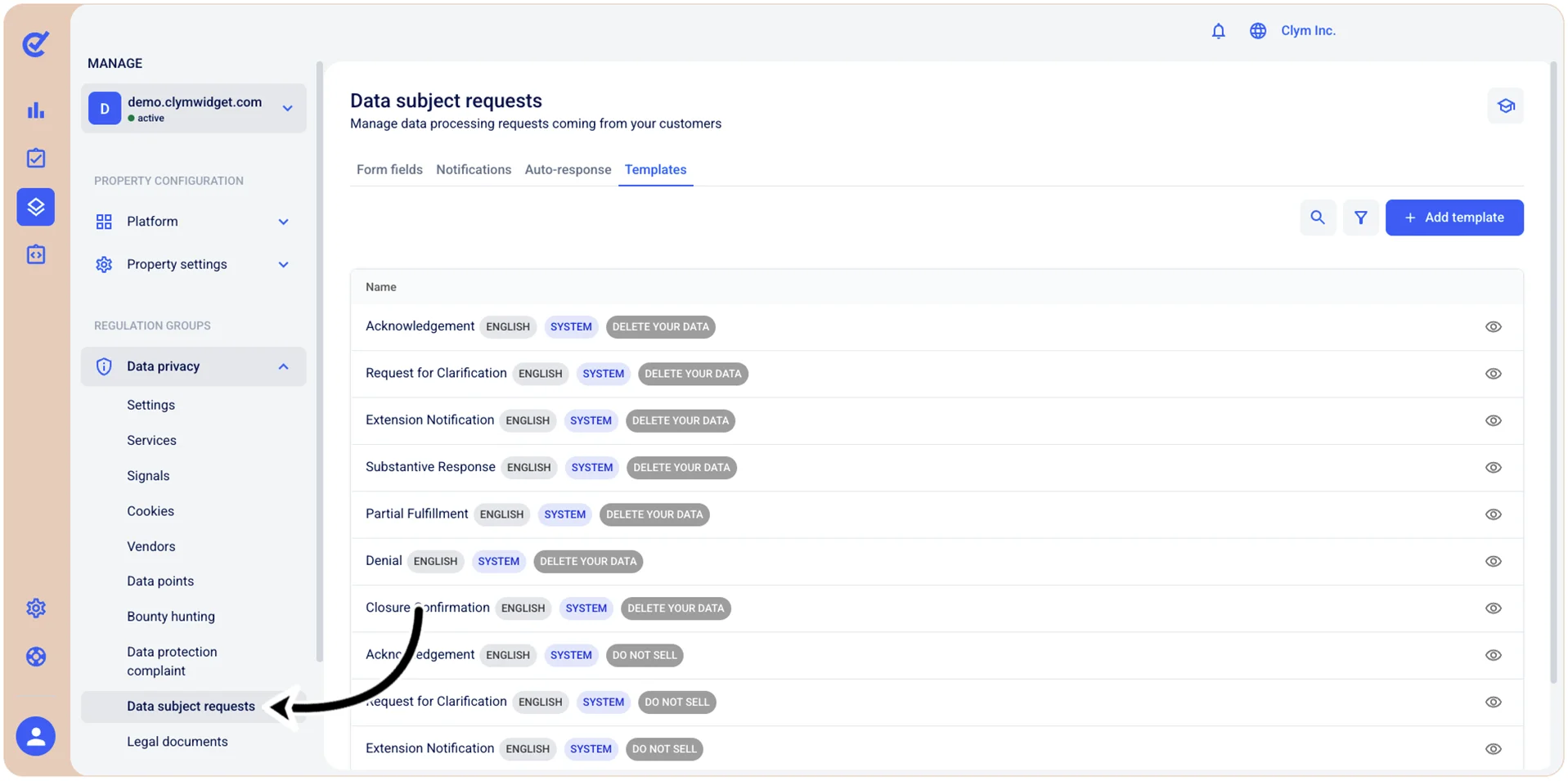
- Go to Manage>Data privacy>Data subject requests.
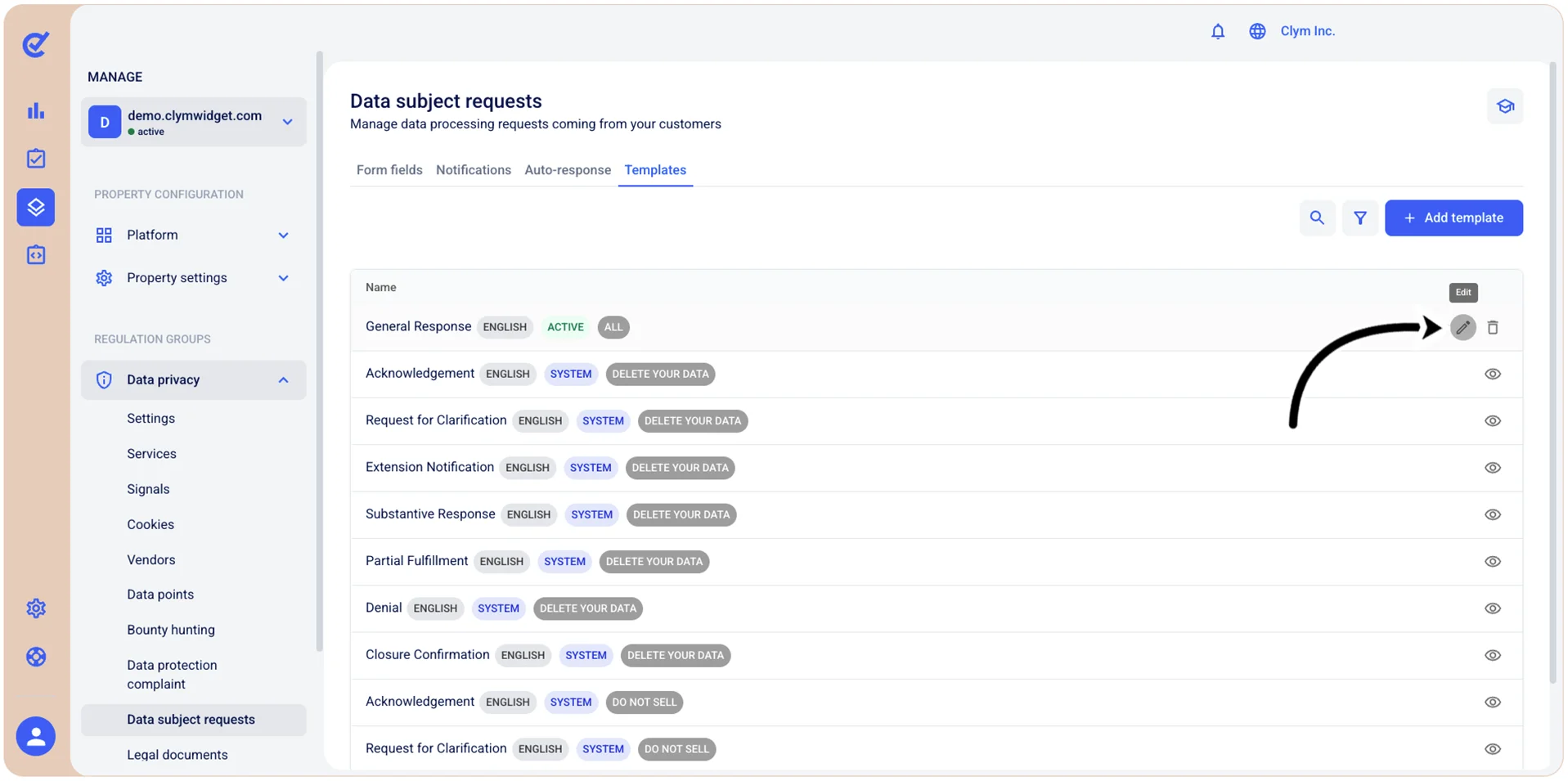
- In the Templates tab, select
 Edit next to the editable custom template that you want to modify.
- In the Edit template section, update the details of the custom template, as desired.
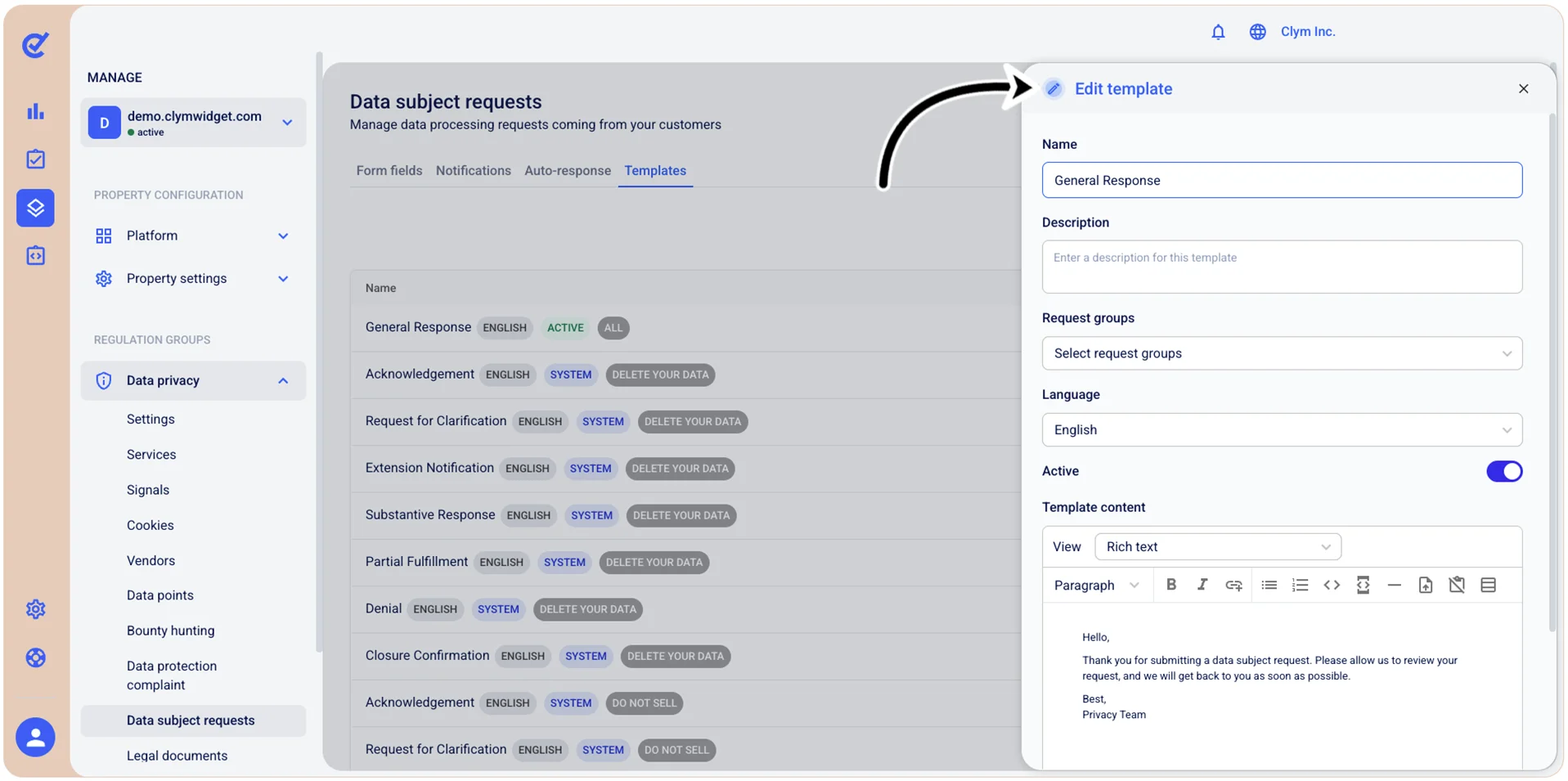
- When finished, select Save.
Search for a DSR template
You can search for templates (both built-in and custom) based on the name of the desired template.
To search for templates:
- Go to Manage>Data privacy>Data subject requests.
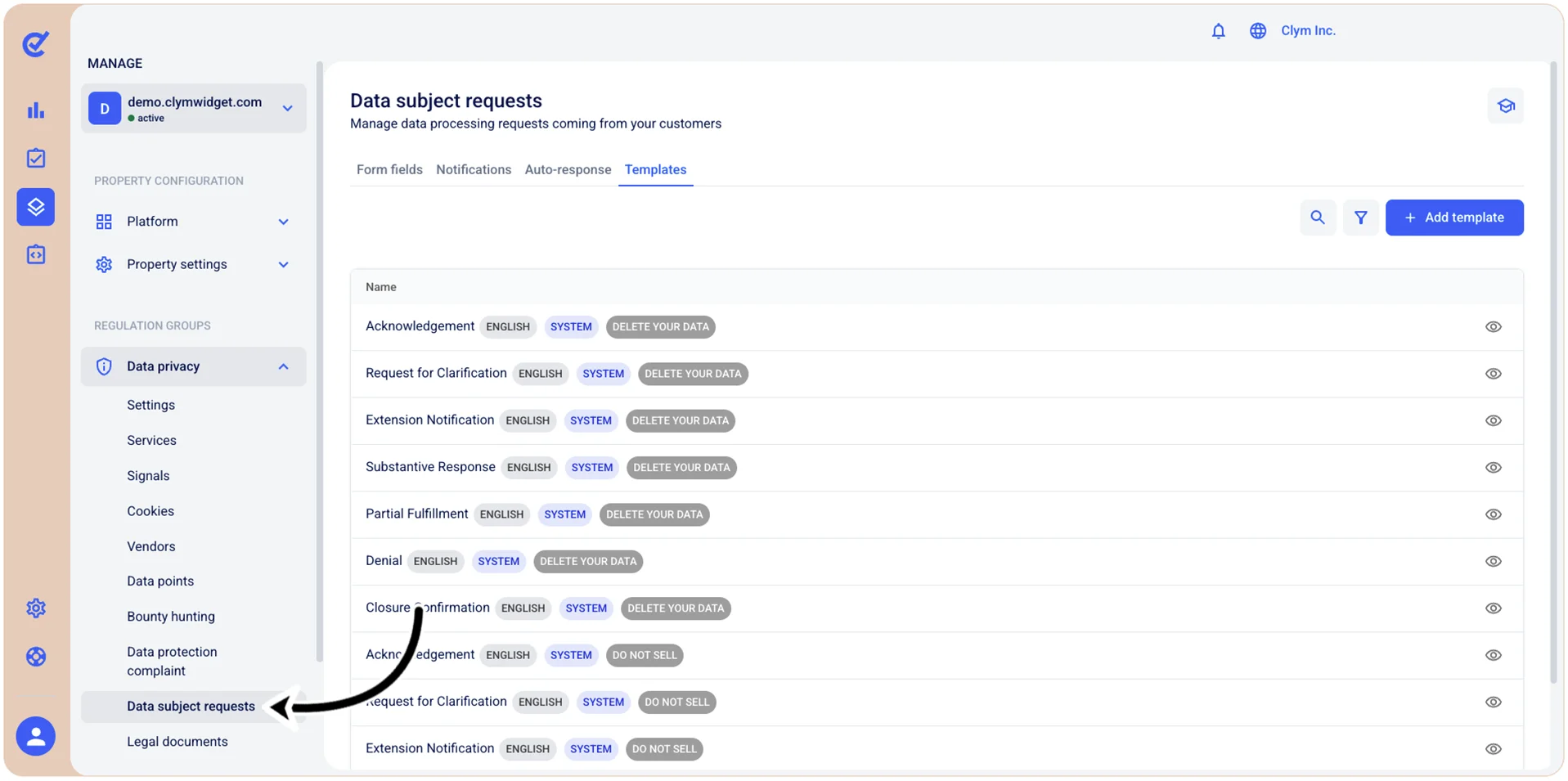
- In the Templates tab, select
 Search.
 - In the Search field, enter the desired search parameter. The results of your query are displayed in the Templates section in real-time, but you can also select Search or press Enter.
Filter DSR templates
To narrow down your search using filtering:
- Go to Manage>Data privacy>Data subject requests.
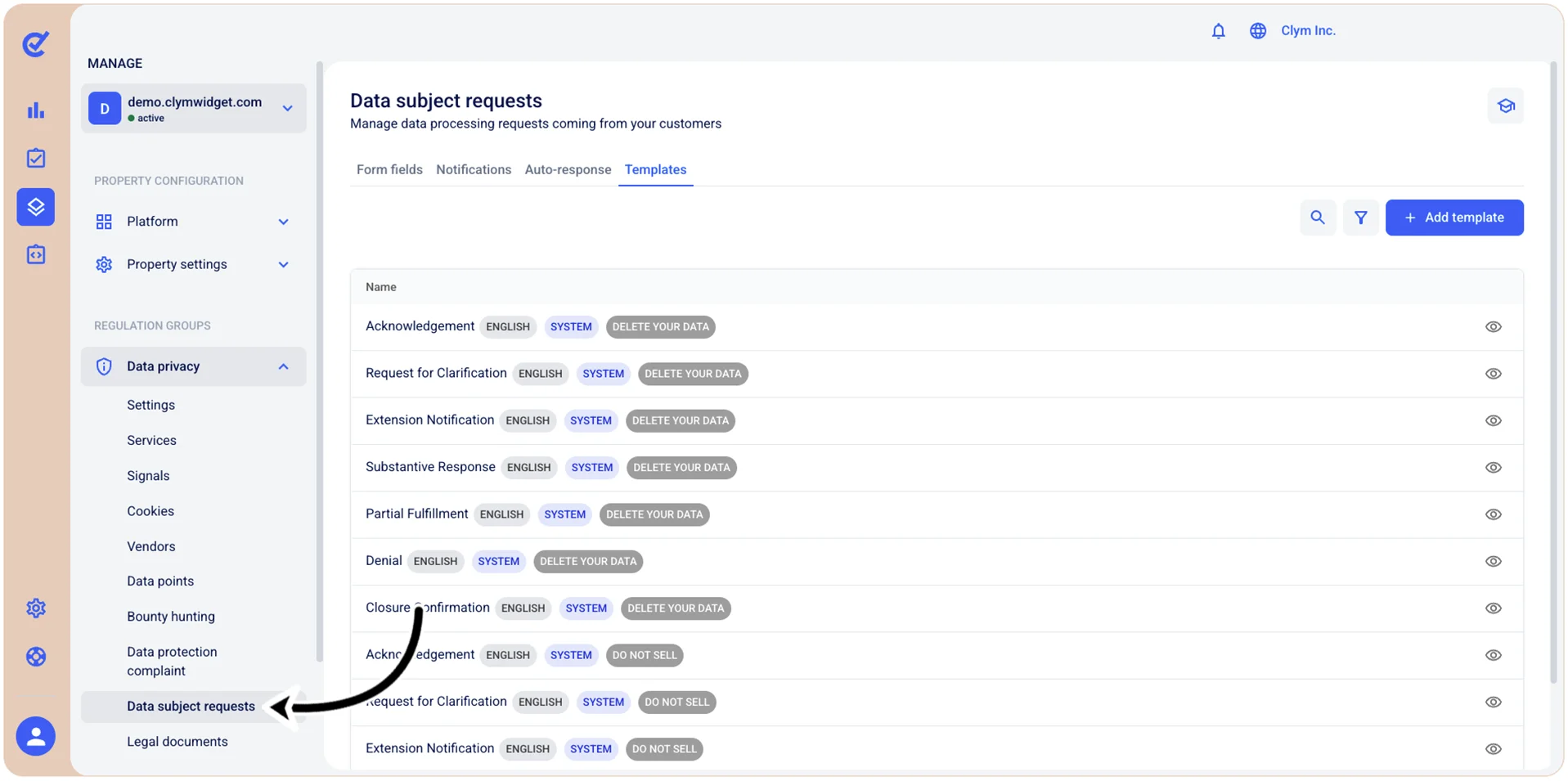
- In the Templates tab, select
 Filter.
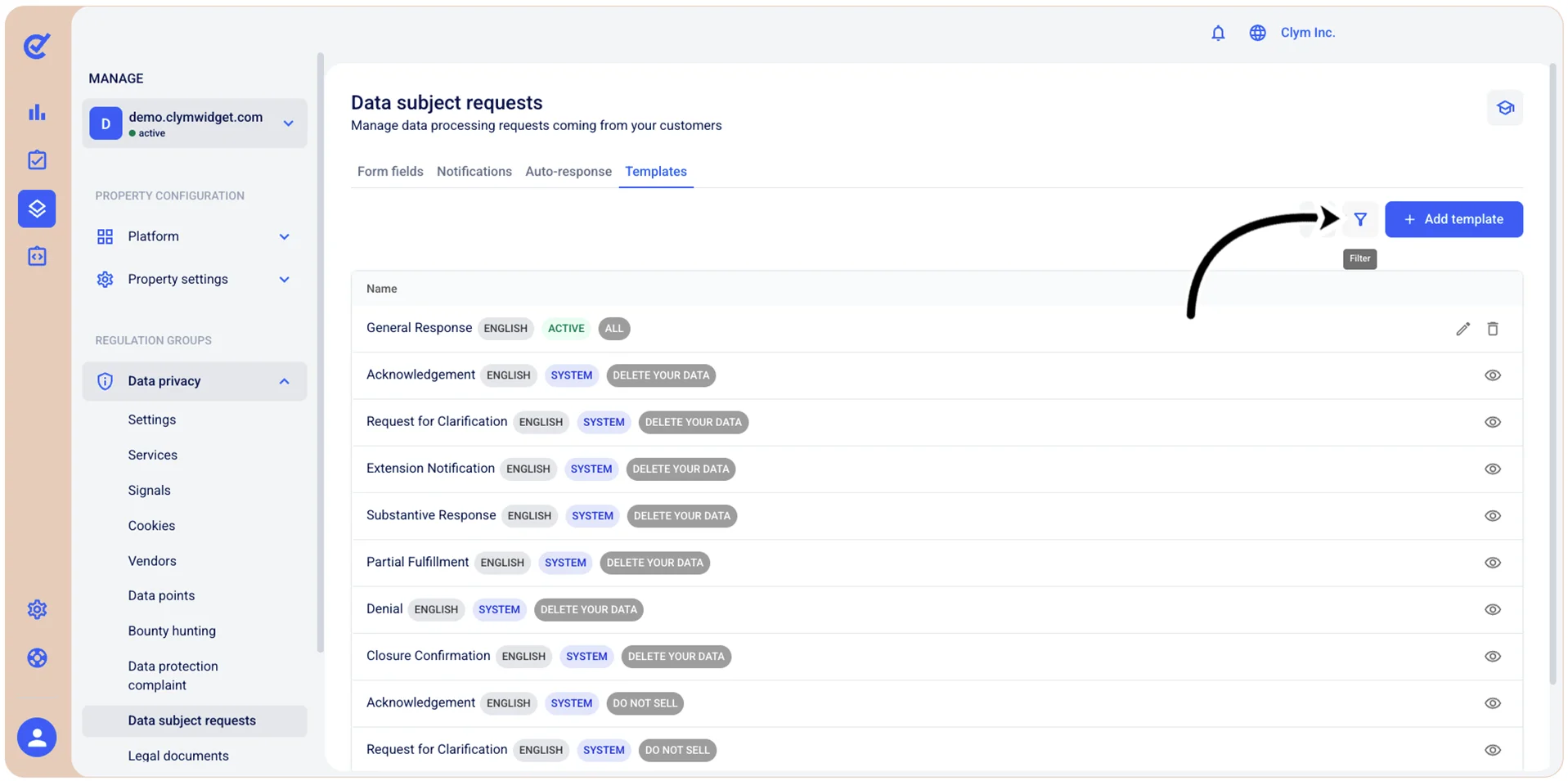
- In the Filters section, configure the parameters of your filter, as follows:
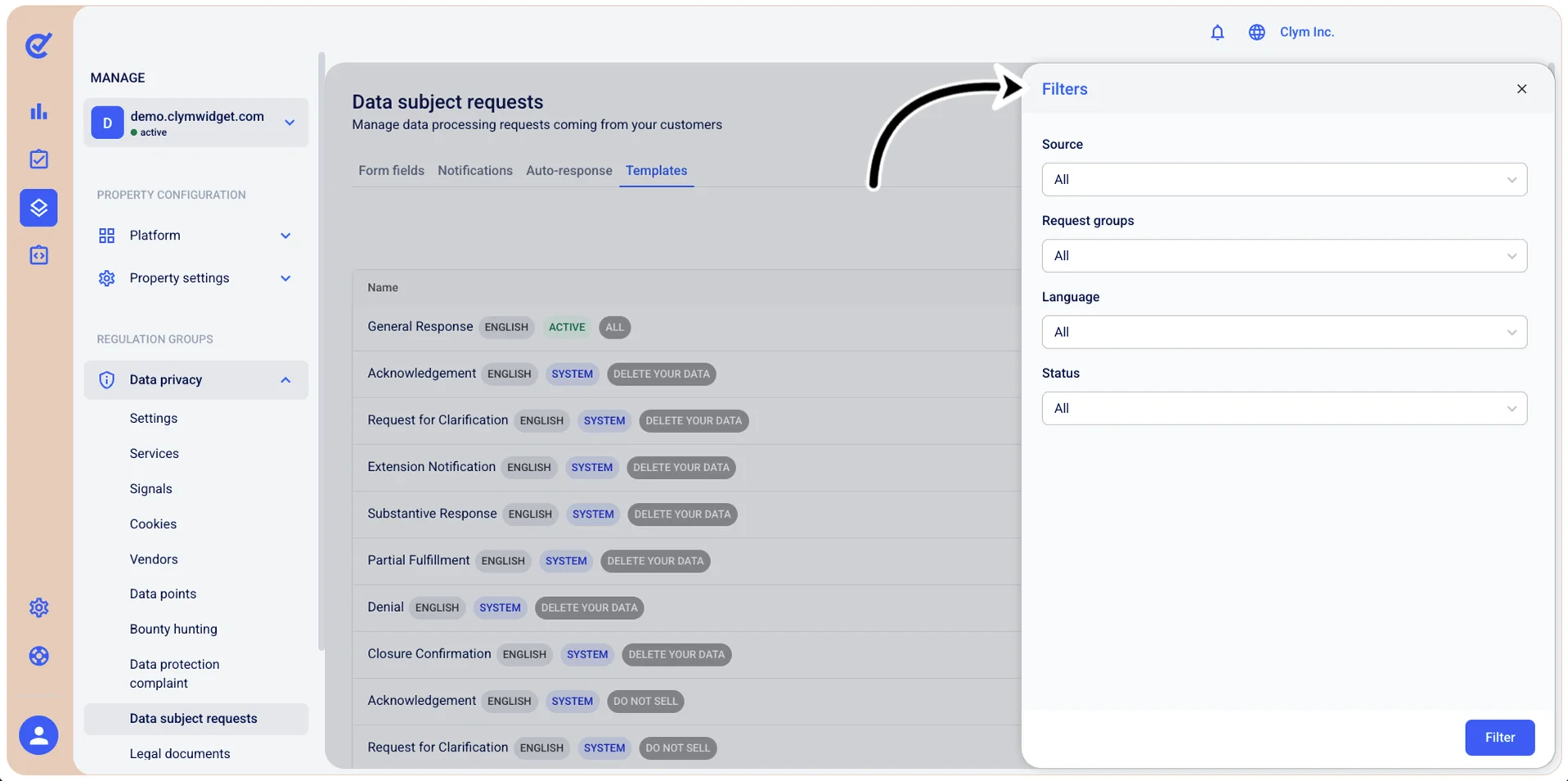
- Source: Select whether you want your query results to be extracted from system templates (built-in) or company templates (that you created).
- Request groups: Select the desired type of DSR on which the query should be performed (for example, update or delete personal data, request for a copy of personal data and so on).
- Language: Select the language of the DSR.
- Status: Select whether you want the query to be run across active or inactive DSRs.
- When finished, select Filter. The results of your query are displayed in the Templates section
Clear a filtered query
After performing a search using filters, you can clear the filtered parameters to revert to the default display on the page.
To clear a filtered query and view all the available DSRs:
- Go to Manage>Data privacy>Data subject requests.
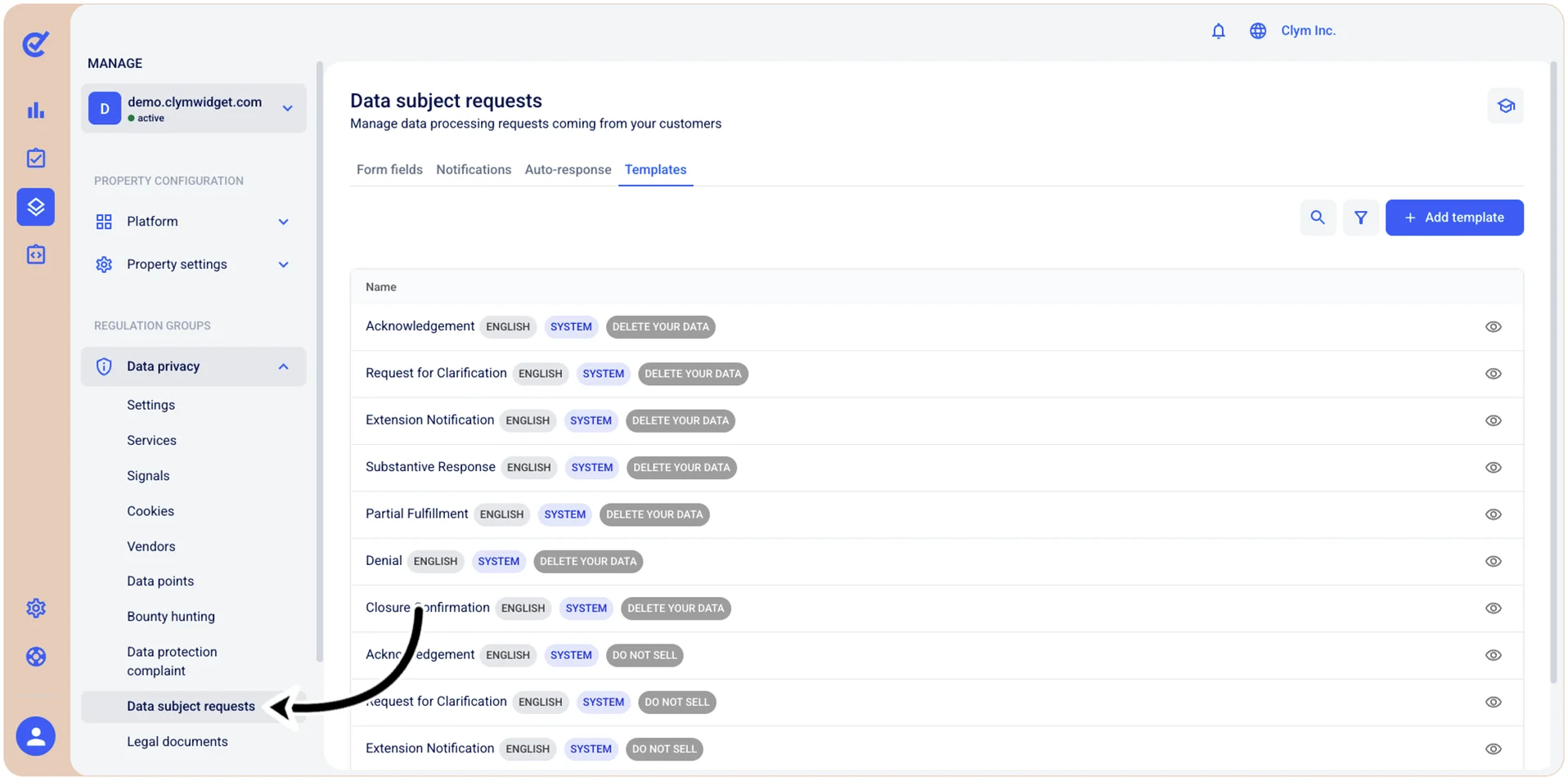
- In the Templates tab, select the Filter icon. If the filter is applied, the
 Filter icon is marked with a green dot.
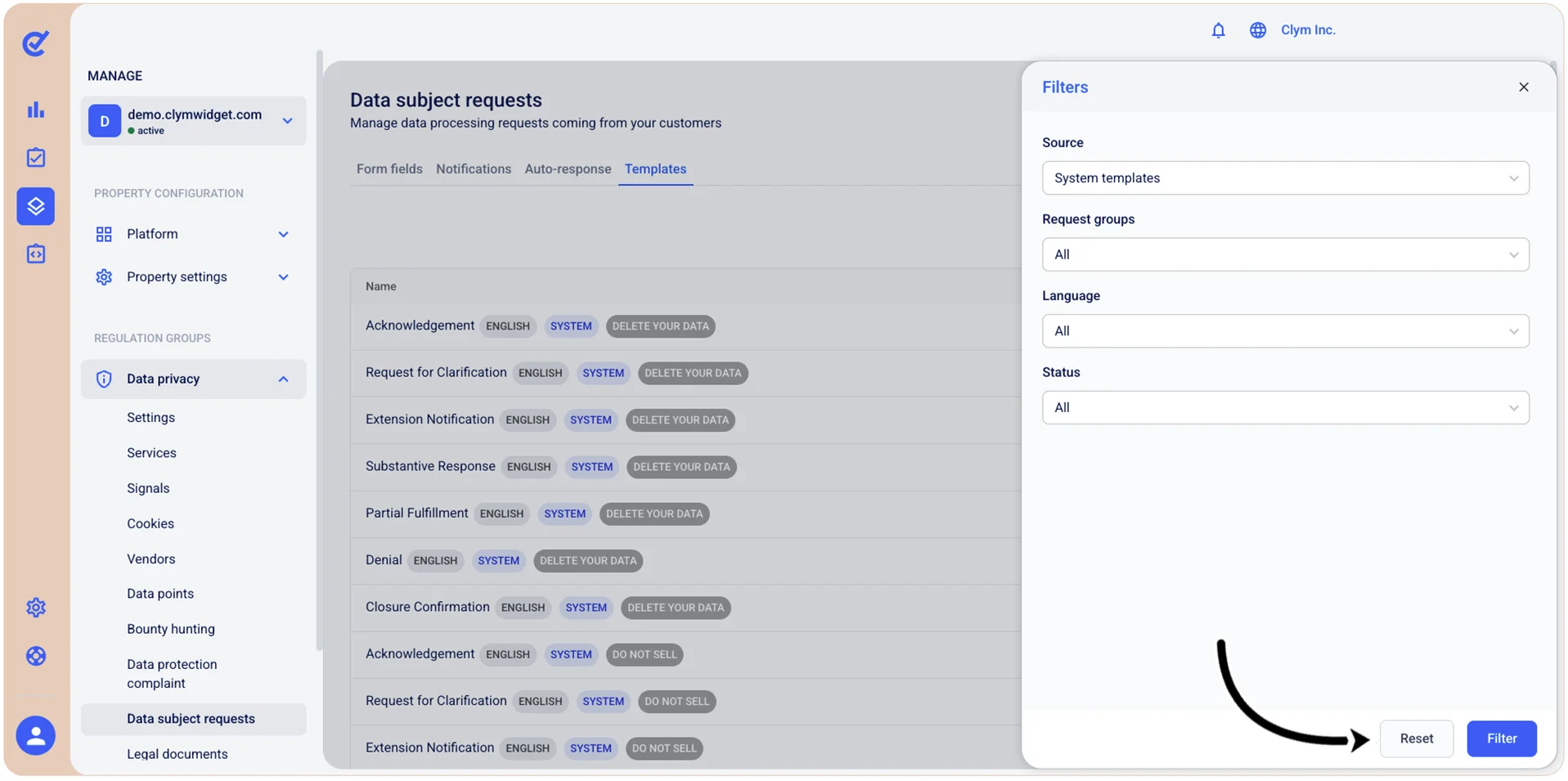
 - In the Filters section, select Reset.
Delete a DSR template
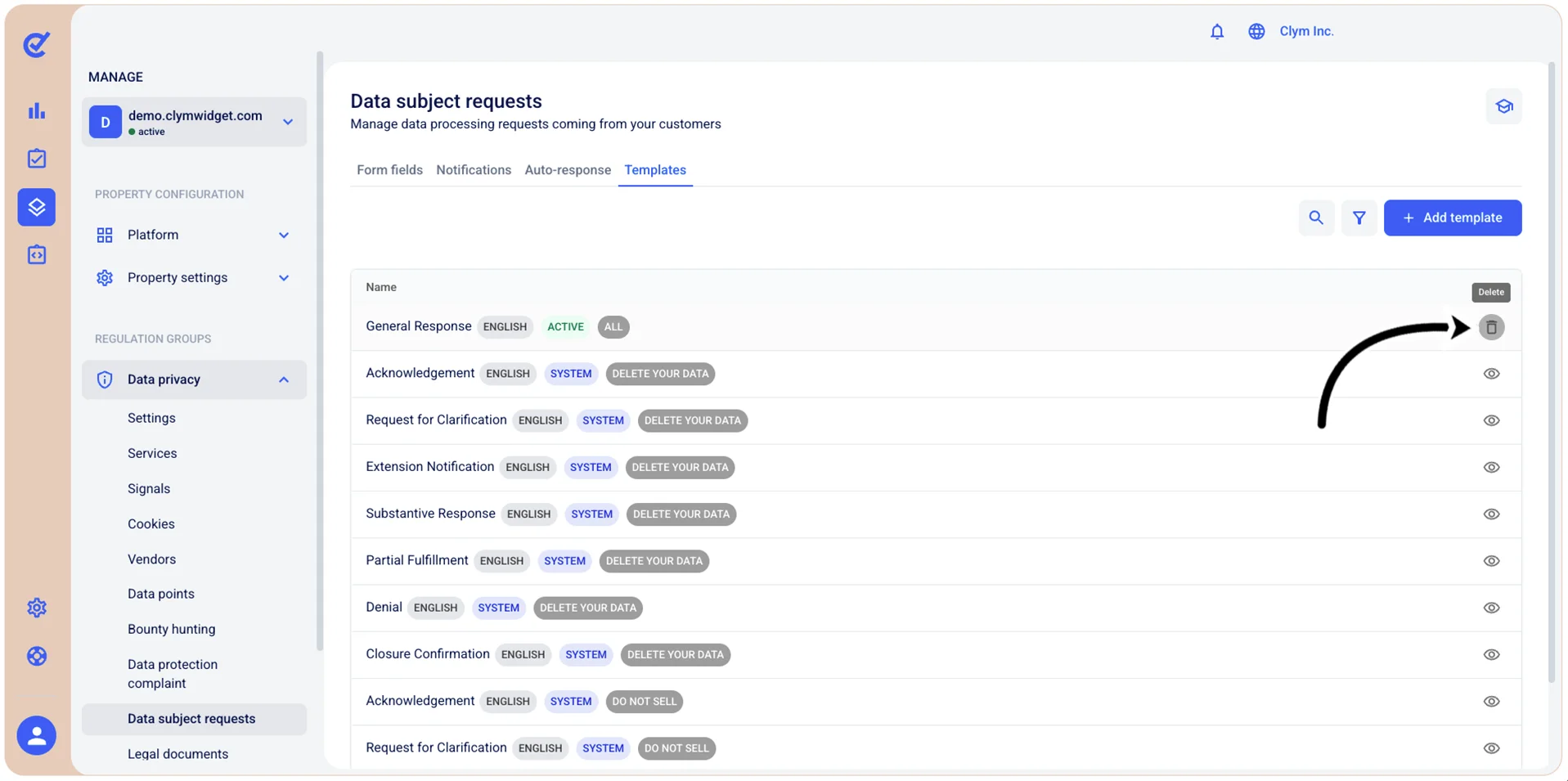
In the Control Center, you can remove the company templates (the custom templates that you created), not the system (built-in) ones.
To delete a DSR template:
- Go to Manage>Data privacy>Data subject requests.
- In the Templates tab, select
 Delete next to the DSR template that you want to remove.
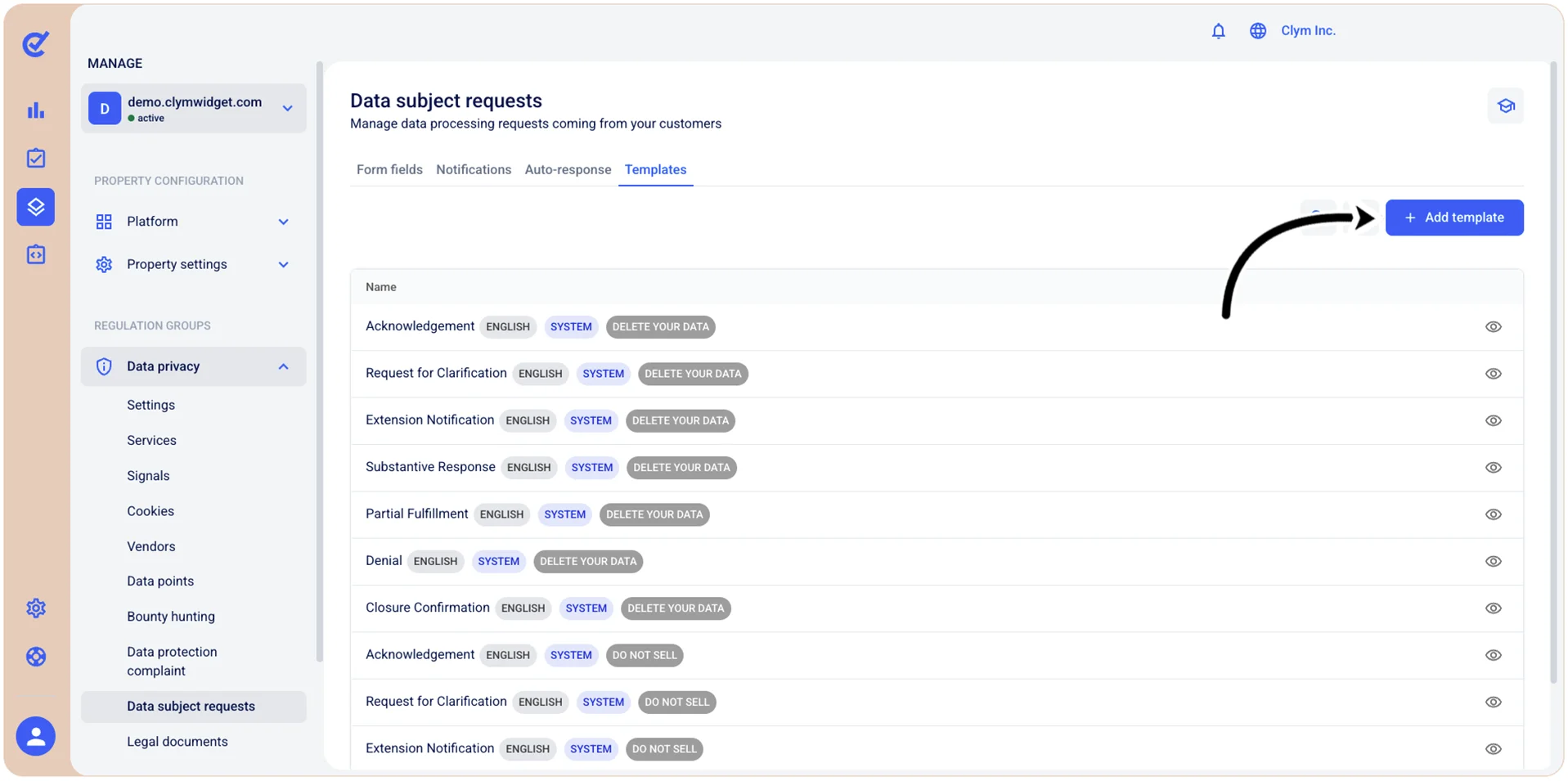
- In the confirmation message, select Confirm.