
Embed an accessibility legal document
Some regulations require organizations to publish specific legal documents, such as a Privacy Policy, Accessibility Statement, and Terms of Service, to clearly explain their practices, commitments, and user rights. Laws like GDPR, CCPA/CPRA, and various accessibility regulations emphasize transparency, informed consent, and equal access, and these documents are a key part of meeting those obligations. Beyond regulatory requirements, having clear, up-to-date legal pages helps build trust with your visitors, sets expectations, and demonstrates that your organization takes compliance, user experience, and accountability seriously.
After adding legal documents to your account, you can easily bring them in front of your users via embed codes for both iFrame and JavaScript. You can place these embed codes anywhere on your website to display your legal documents in a consistent and accessible way. This means you can manage your content centrally in the Control Center, keep it up to date in one place, and make sure the latest versions are always shown wherever they’re embedded, without needing to manually update multiple pages or systems.
To access the legal documents' embed code:
- Go to
 Manage>Accessibility>Legal documents.
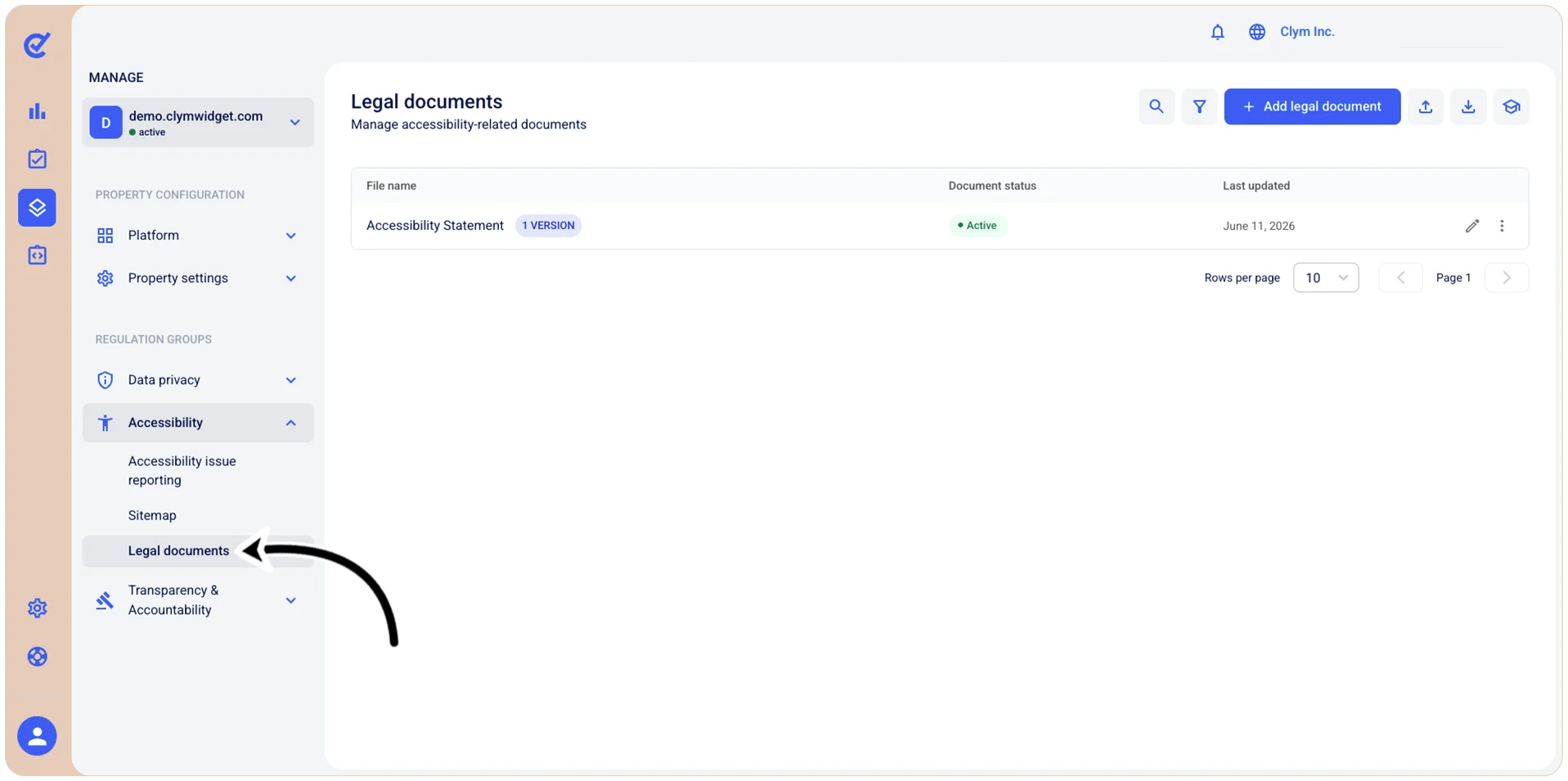
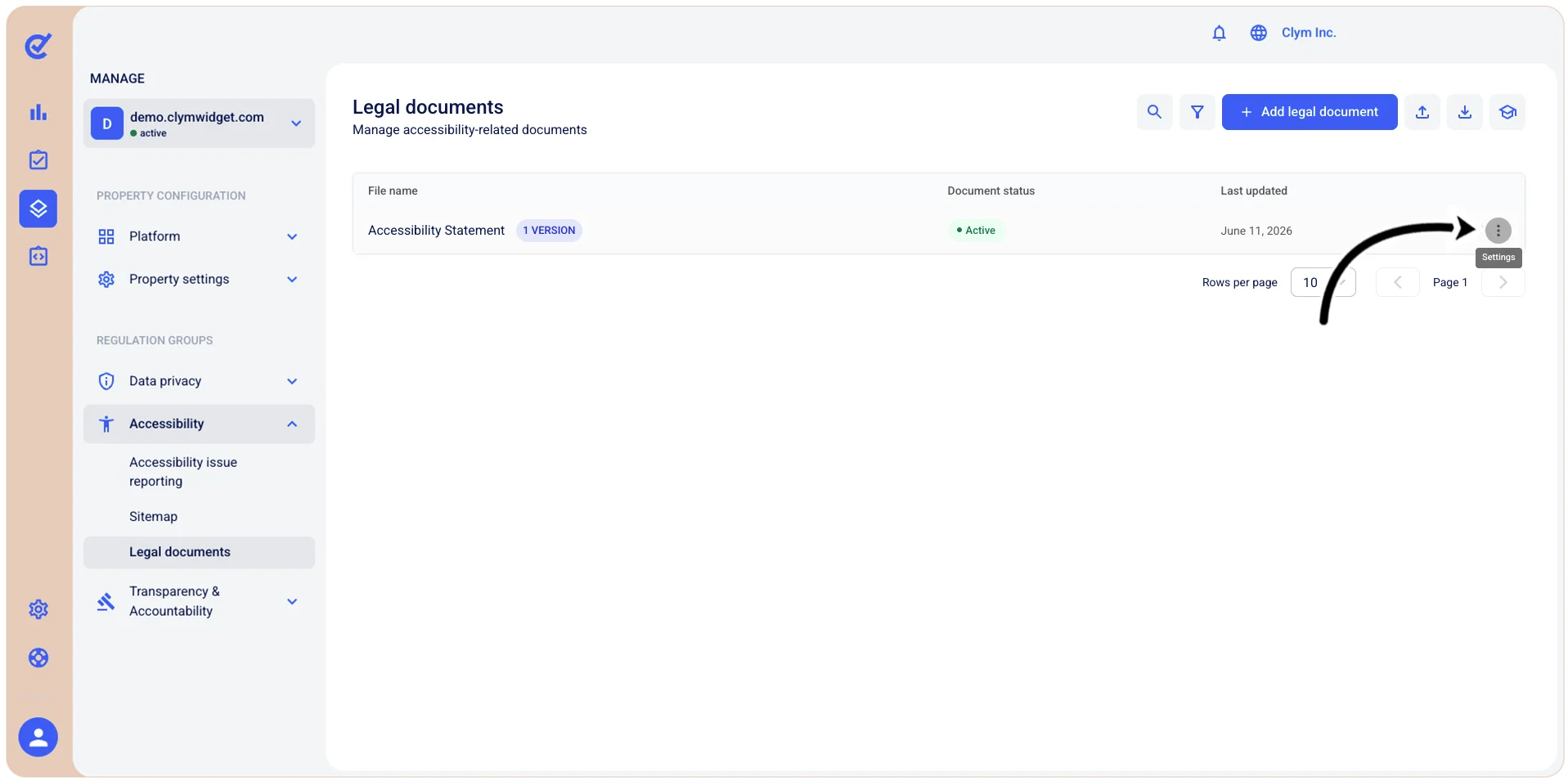
- In the Legal documents section, select ⋮ Settings next to the desired legal document and then click View versions.
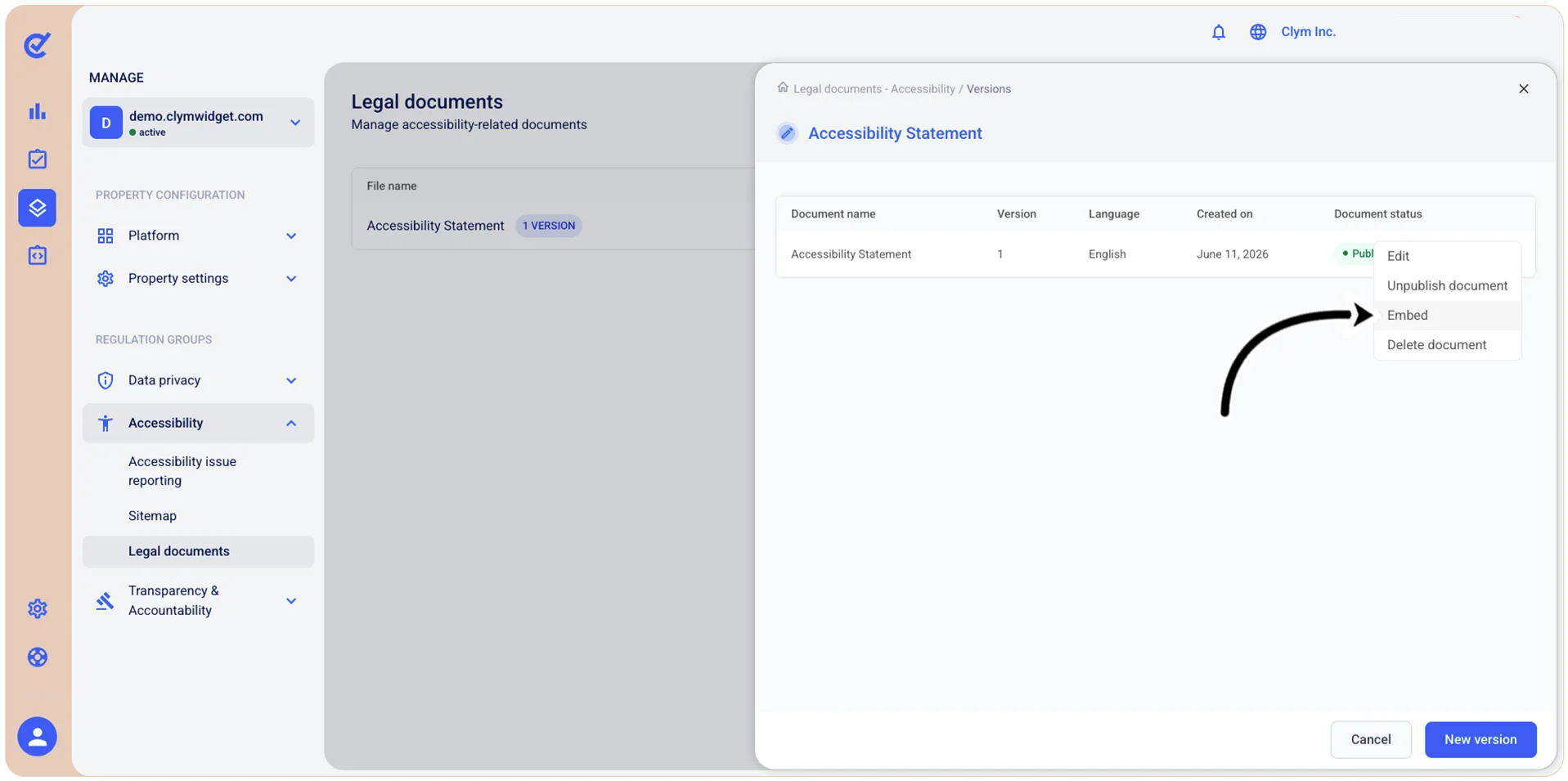
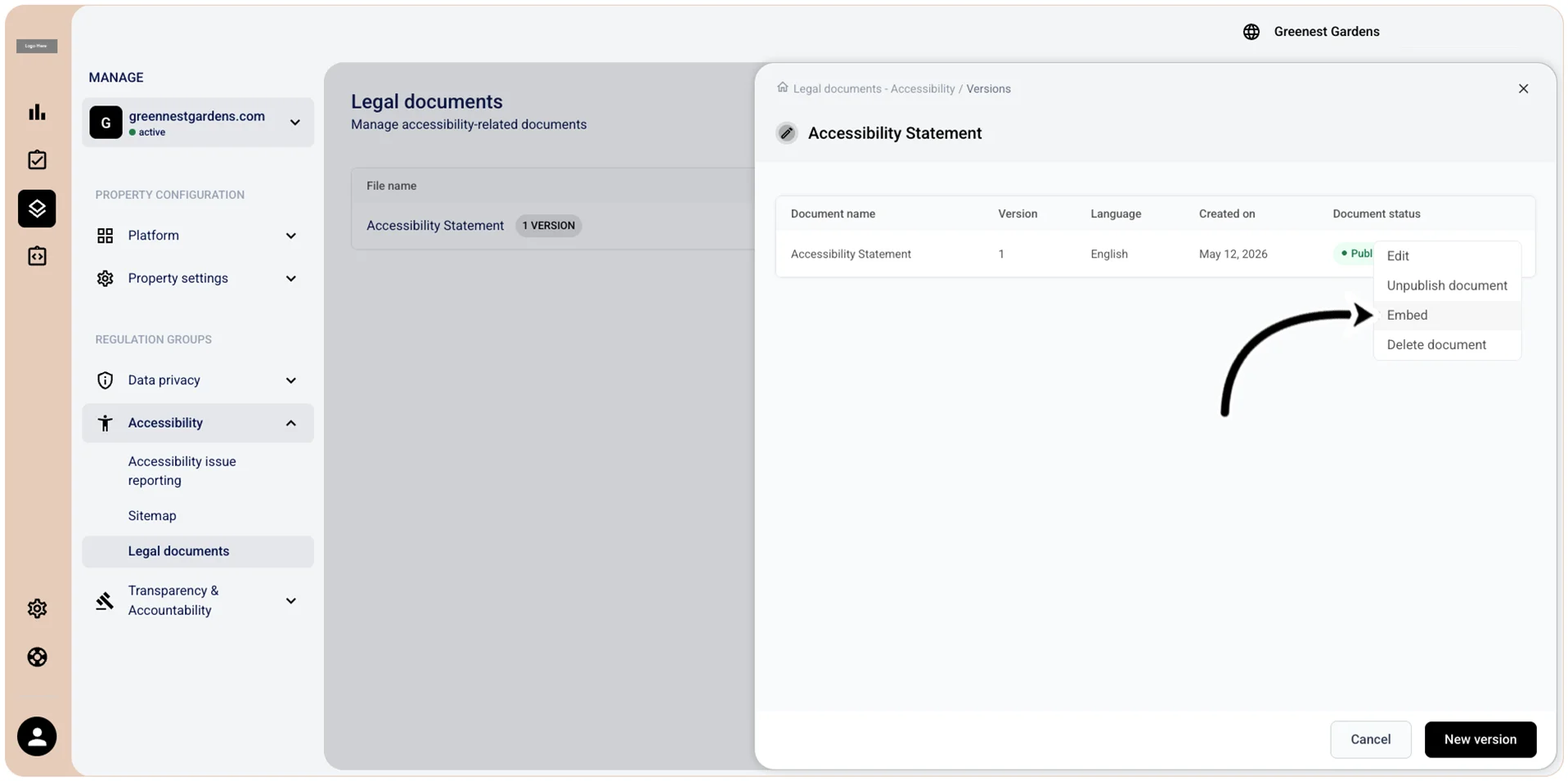
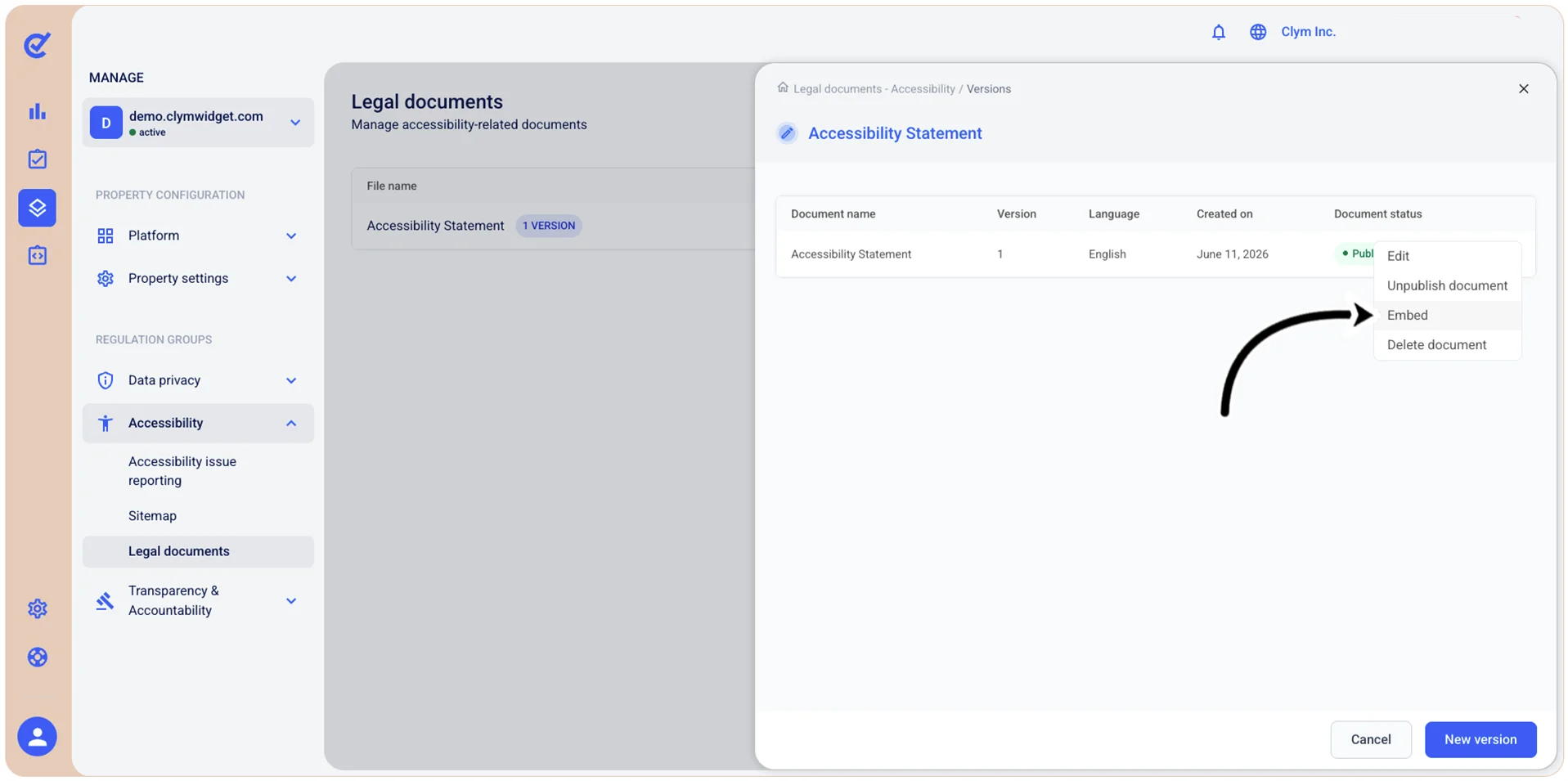
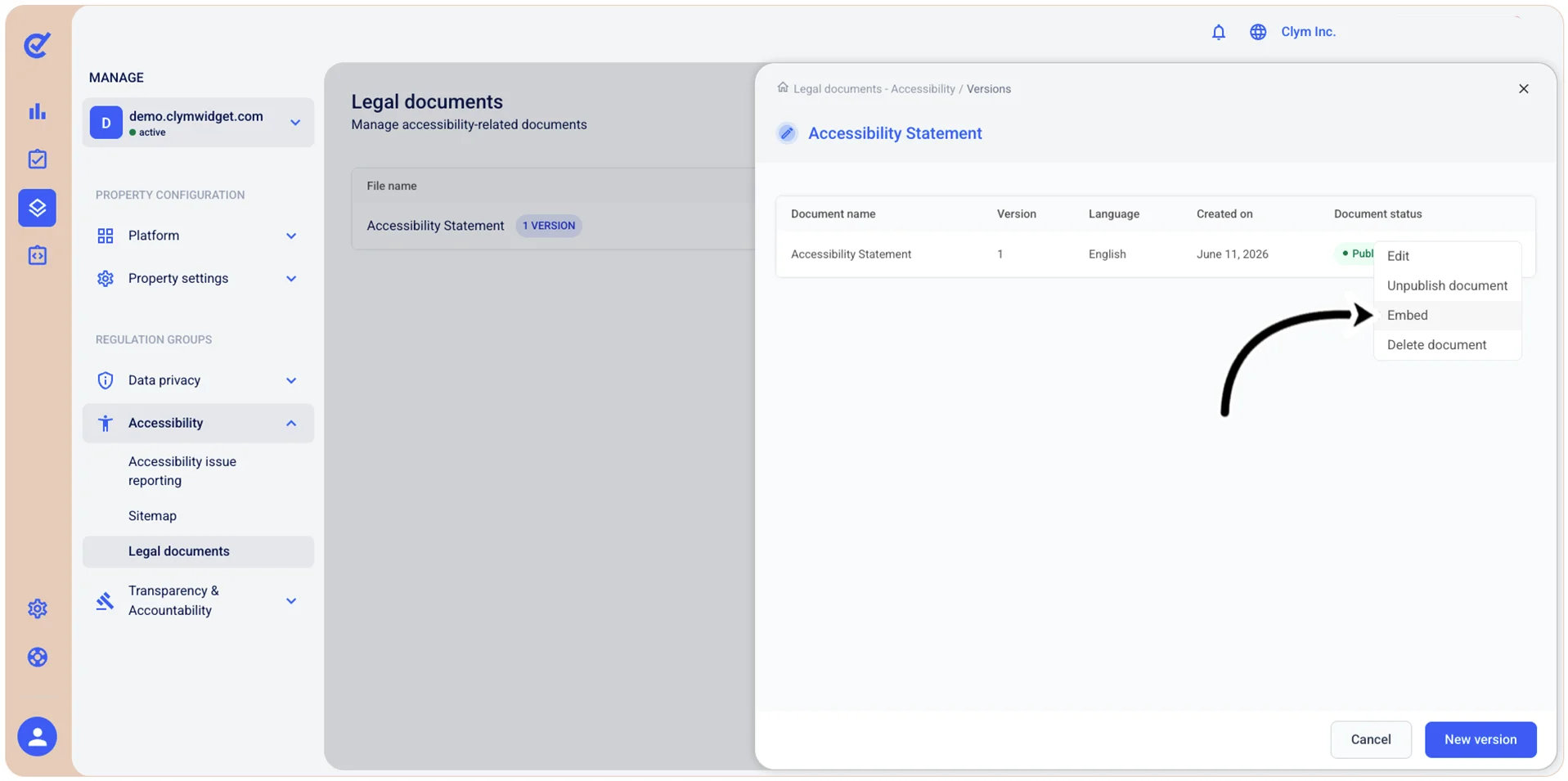
- In the <Legal document name> screen, select ⋮ Settings and point to Embed.
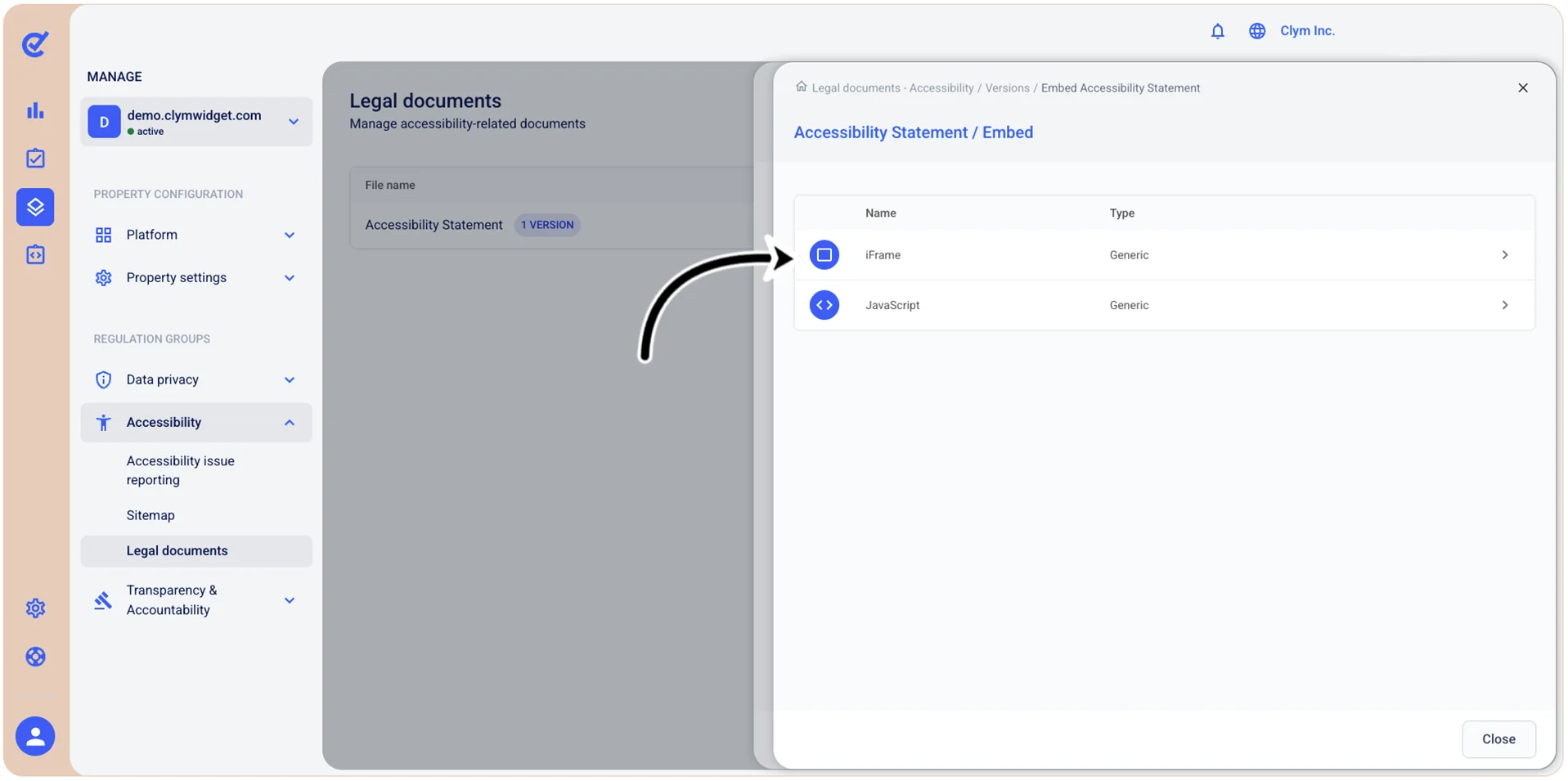
- Next, select whether you want to embed your legal document using IFrame or JavaScript.
Embed a legal document using iFrame
To generate the iFrame embed code for a legal document:
- Go to Manage>Accessibility>Legal documents.
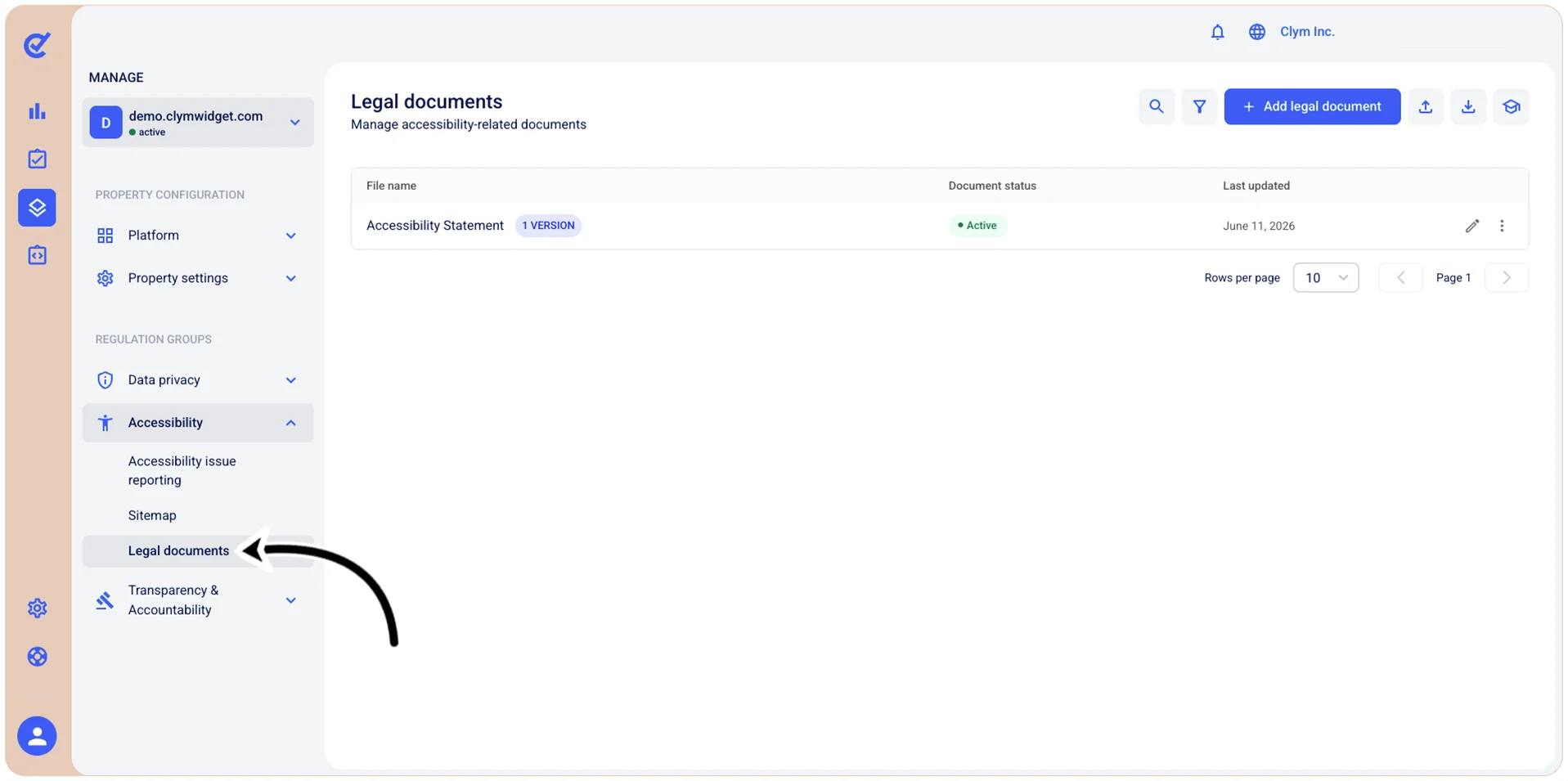
- In the Legal documents section, select ⋮Settings next to the desired legal document and then select View versions.
- In the Versions screen, select ⋮ Settings and point to Embed.
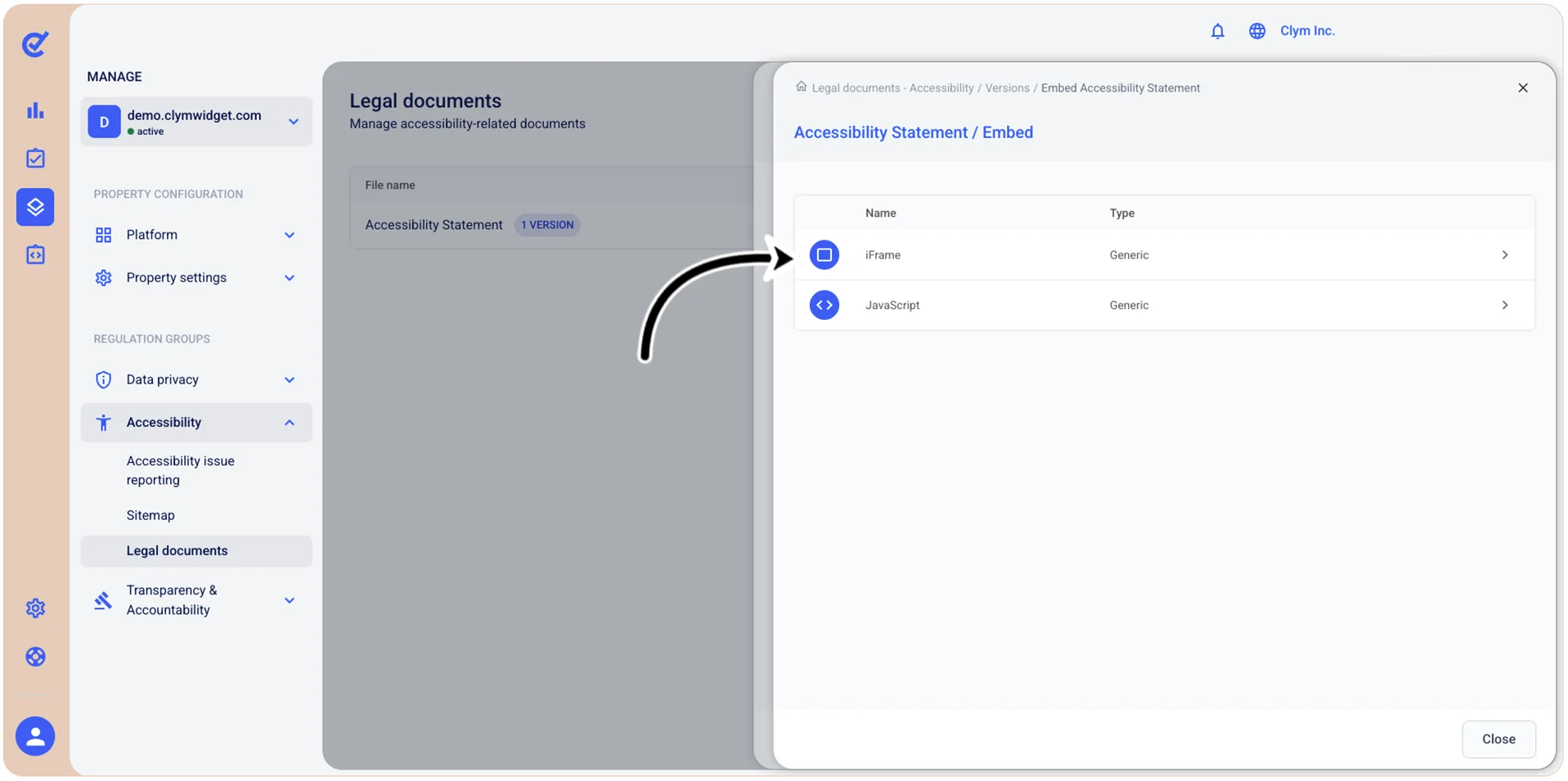
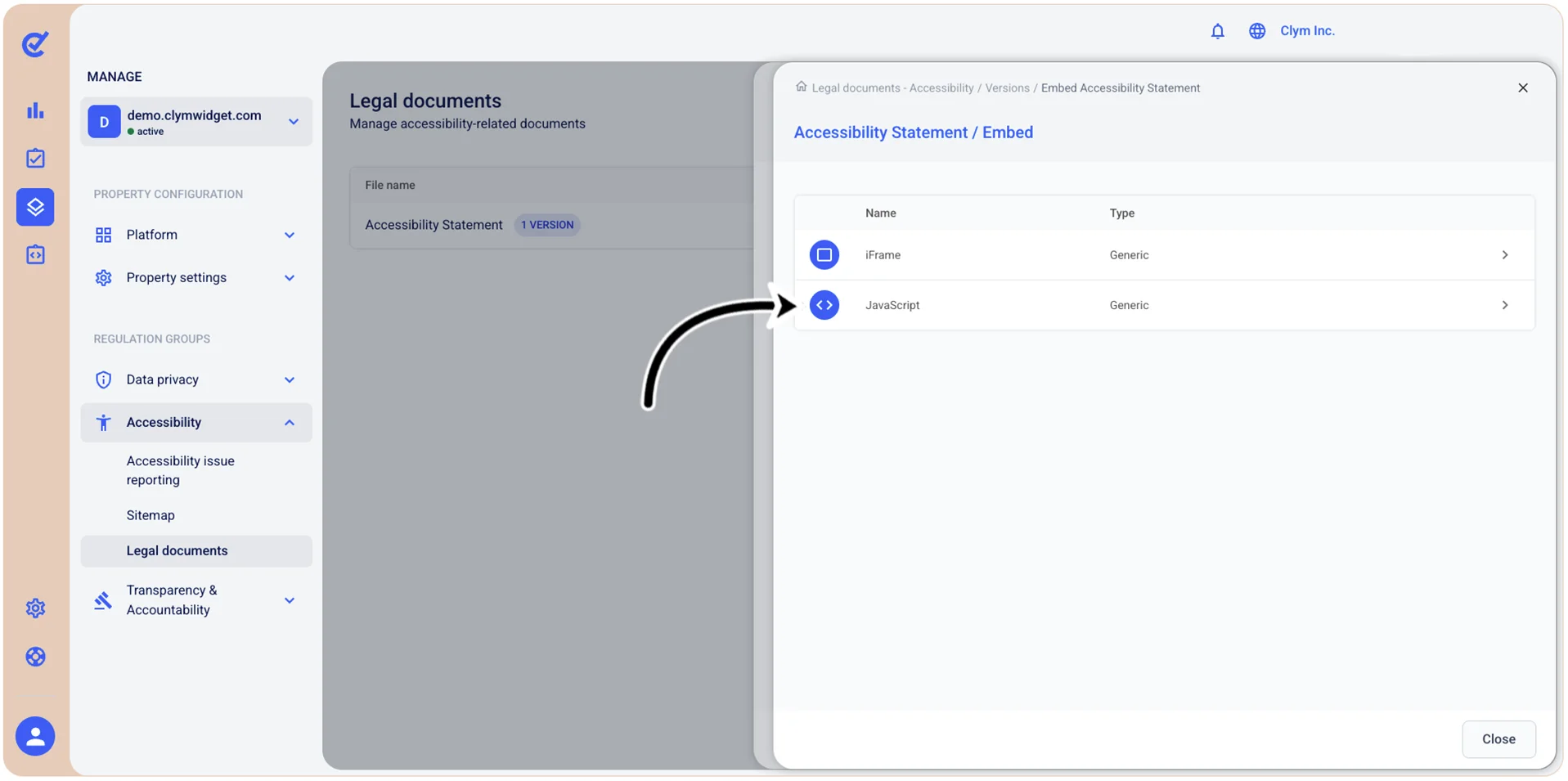
- In the Legal document / Embed screen, select iFrame.
- In the iFrame section, configure the parameters of the embed code, as follows:
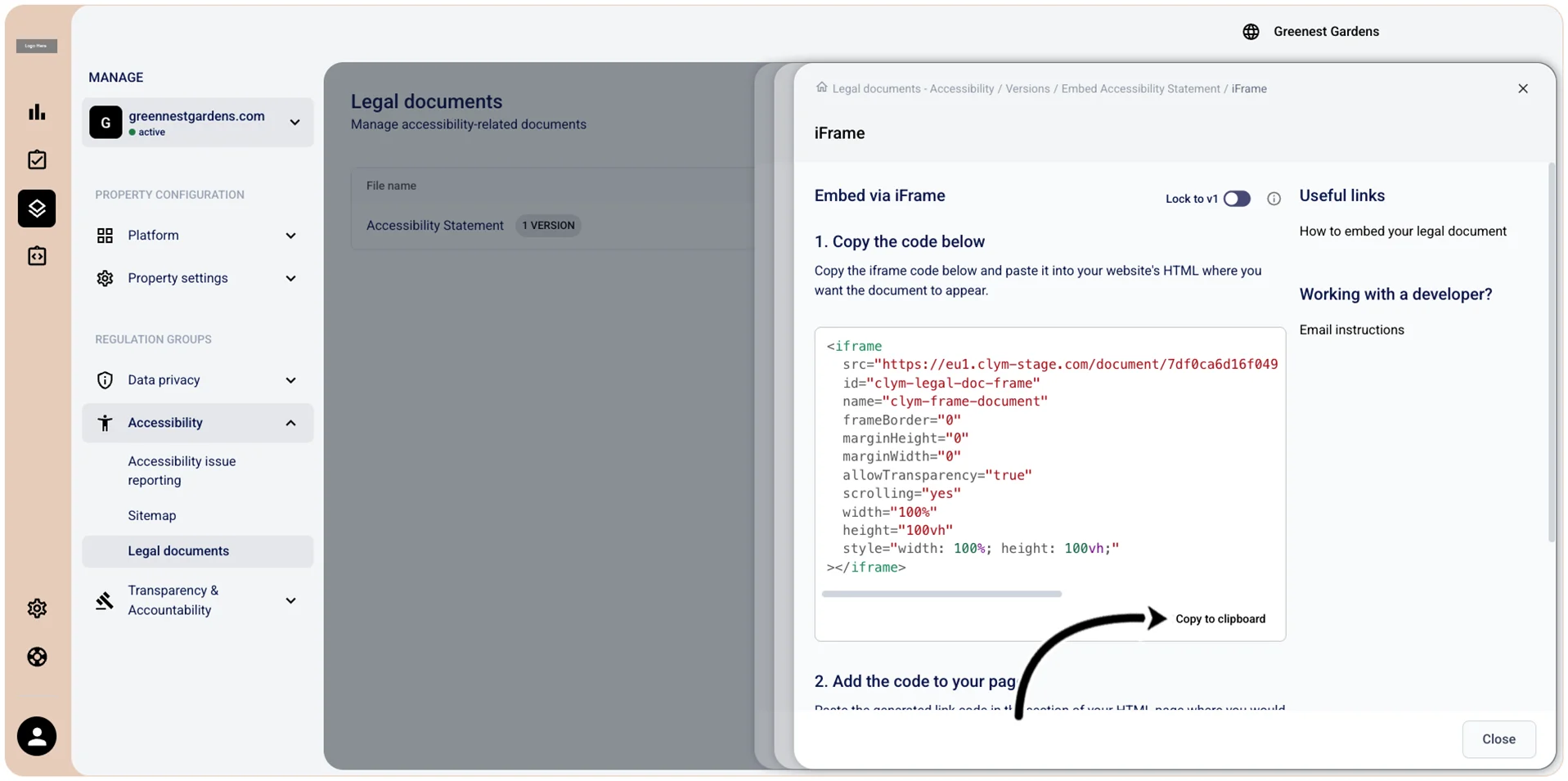
- Lock to v1: Toggle on if you want to make version 1 of the embed code the only valid one.
- Copy to clipboard: Select to copy the code embed to clipboard before pasting it to the section of your HTML page where you would like them to appear, such as the website's footer. To see the changes, clear your cache.
- Customize the CSS: In the Play with CSS section, you are free to customize the CSS to better suit your needs. When finished, select Save CSS.
- To exit the screen, select Close.
Embed a legal document using JavaScript
To generate the JavaScript embed code for a legal document:
- Go to Manage>Accessibility>Legal documents.
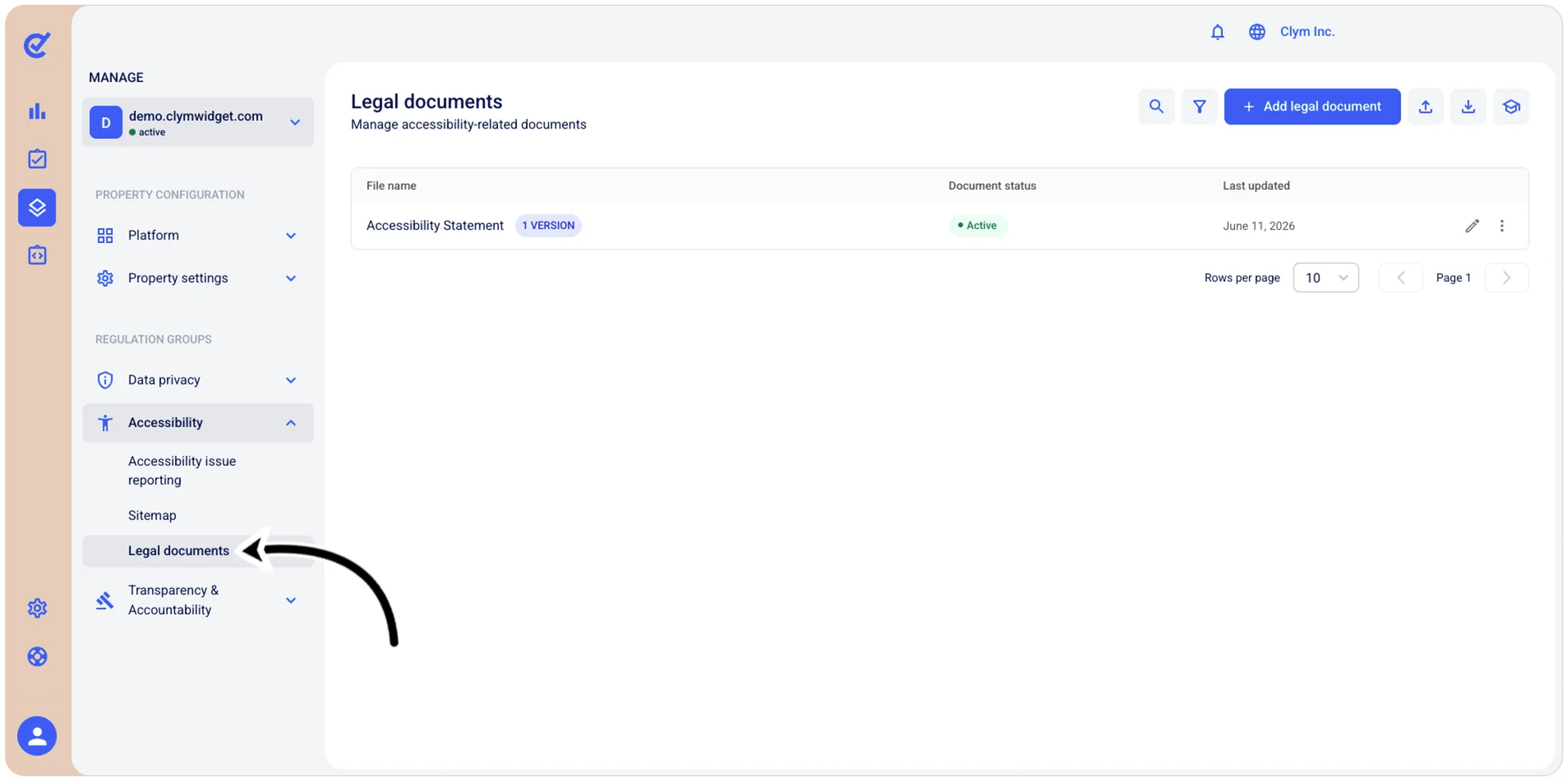
- In the Legal documents section, select ⋮ Settings next to the desired legal document and then select View versions.
- In the Versions screen, select ⋮ Settings and point to Embed.
- In the Legal document / Embed screen, select JavaScript.
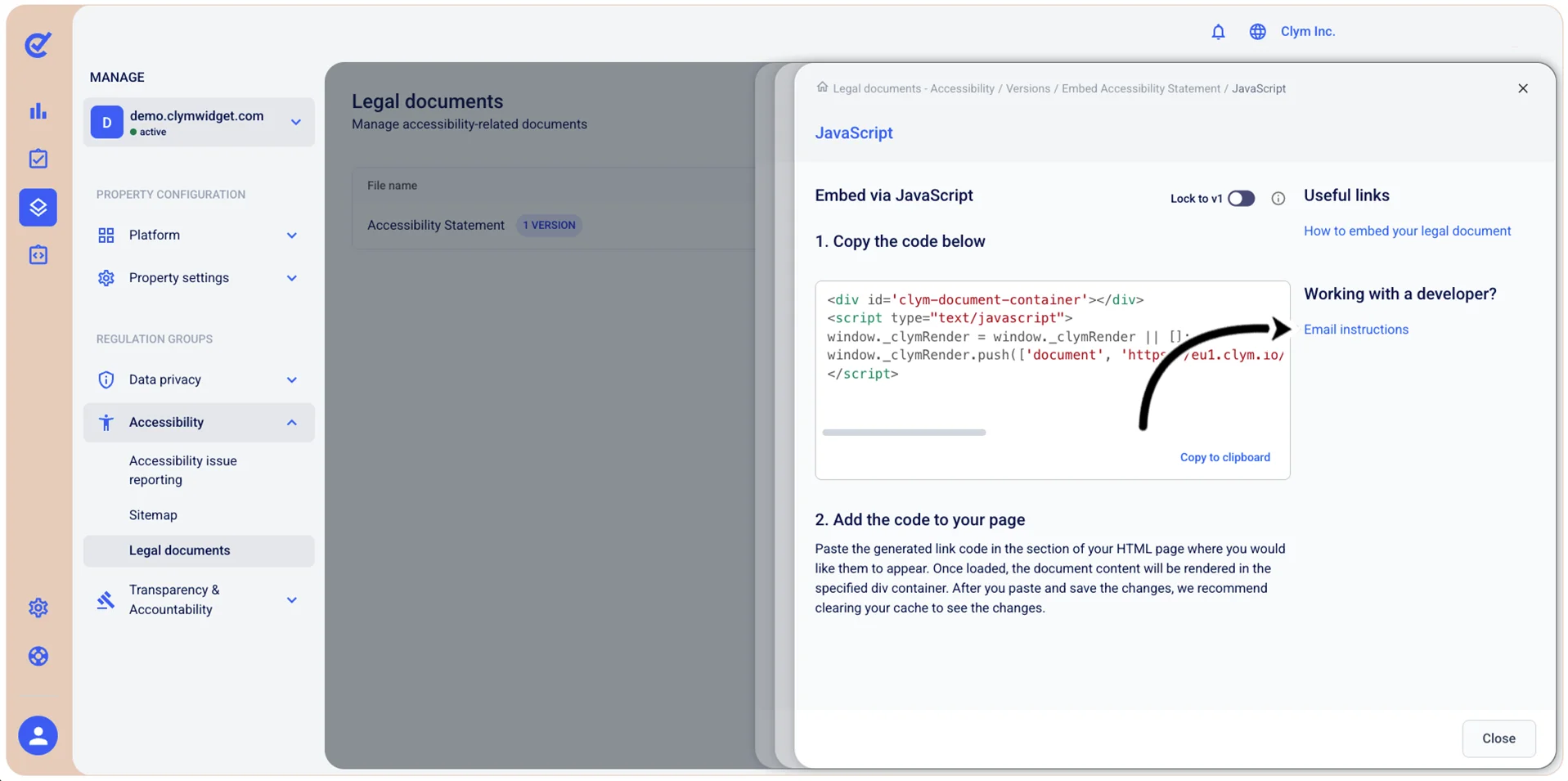
- In the JavaScript section, configure the parameters of the embed code, as follows:
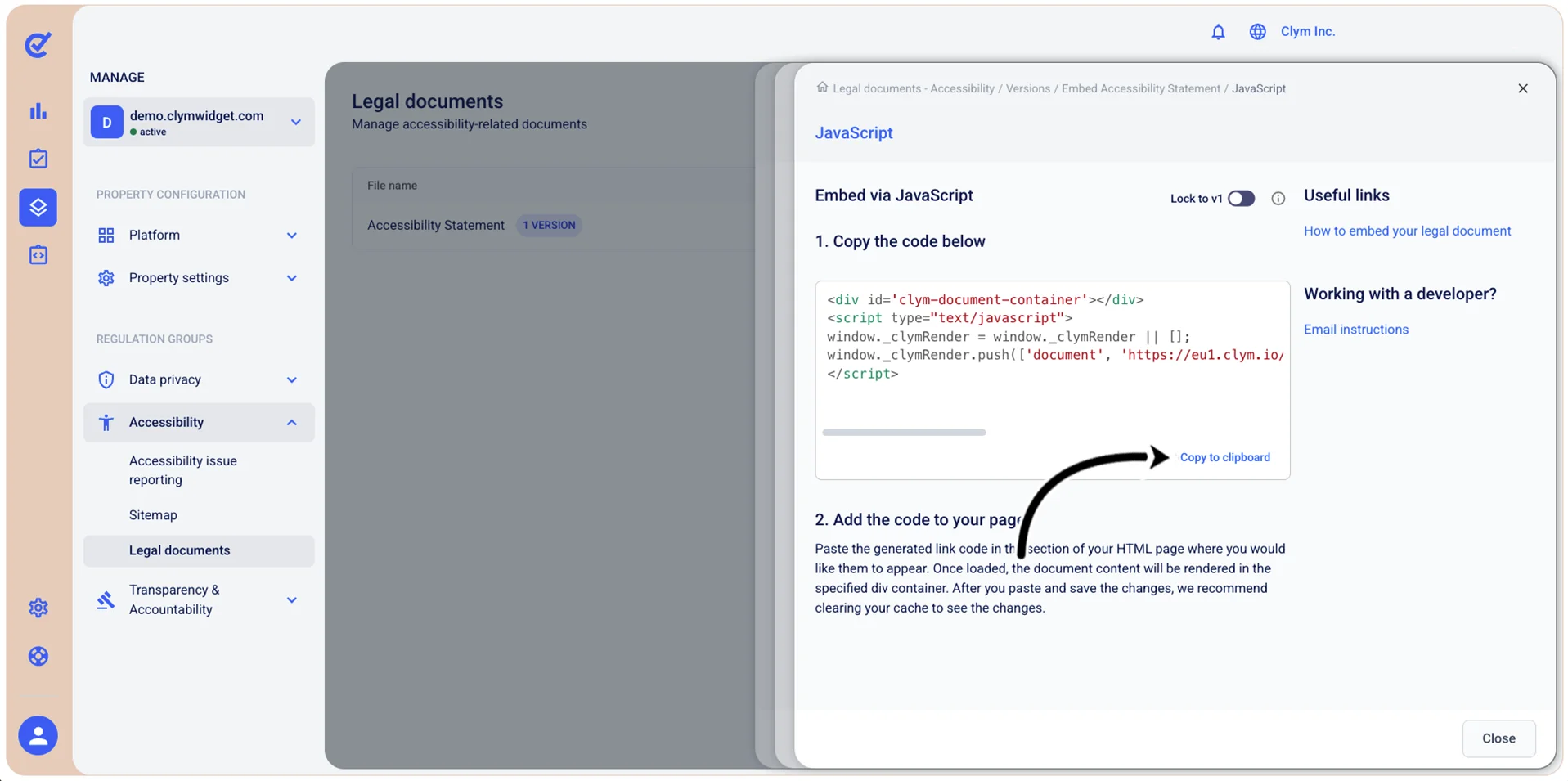
- Lock to v1: Toggle on if you want to make version 1 of the embed code the only valid one.
- Copy to clipboard: Select to copy the code embed to clipboard before pasting it to the section of your HTML page where you would like them to appear, such as the website's footer. To see the changes, clear your browser's cache.
- To exit the screen, select Close.
Email the embed code instructions to the website developer
In the Control Center, you can send the instructions for the embed code (iFrame/JavaScript) to your developer to make sure the code is implemented correctly.
To email the embed code instructions to the website developer:
- Go to Manage>Accessibility>Legal documents.
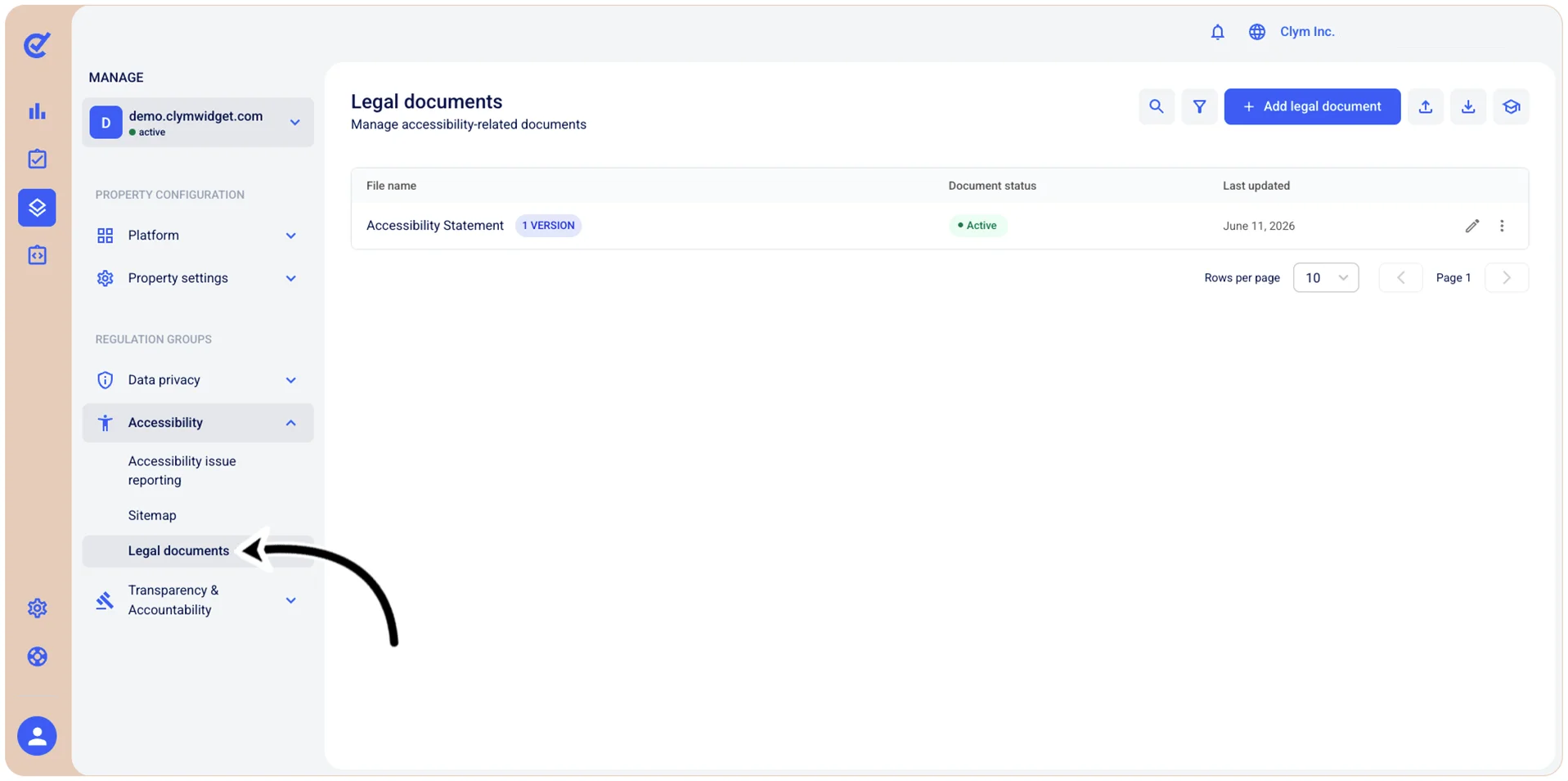
- In the Legal documents section, select ⋮ Settings next to the desired legal document and then select View versions.
- In the Versions screen, select ⋮ Settings and point to Embed.
- In the Legal document / Embed screen, select either iFrame or JavaScript.
- In the iFrame or JavaScript section, under Working with a developer?, select Email instructions.
- In the Send instructions screen, enter the Email of the recipient and the Message with the embed code in the respective boxes.
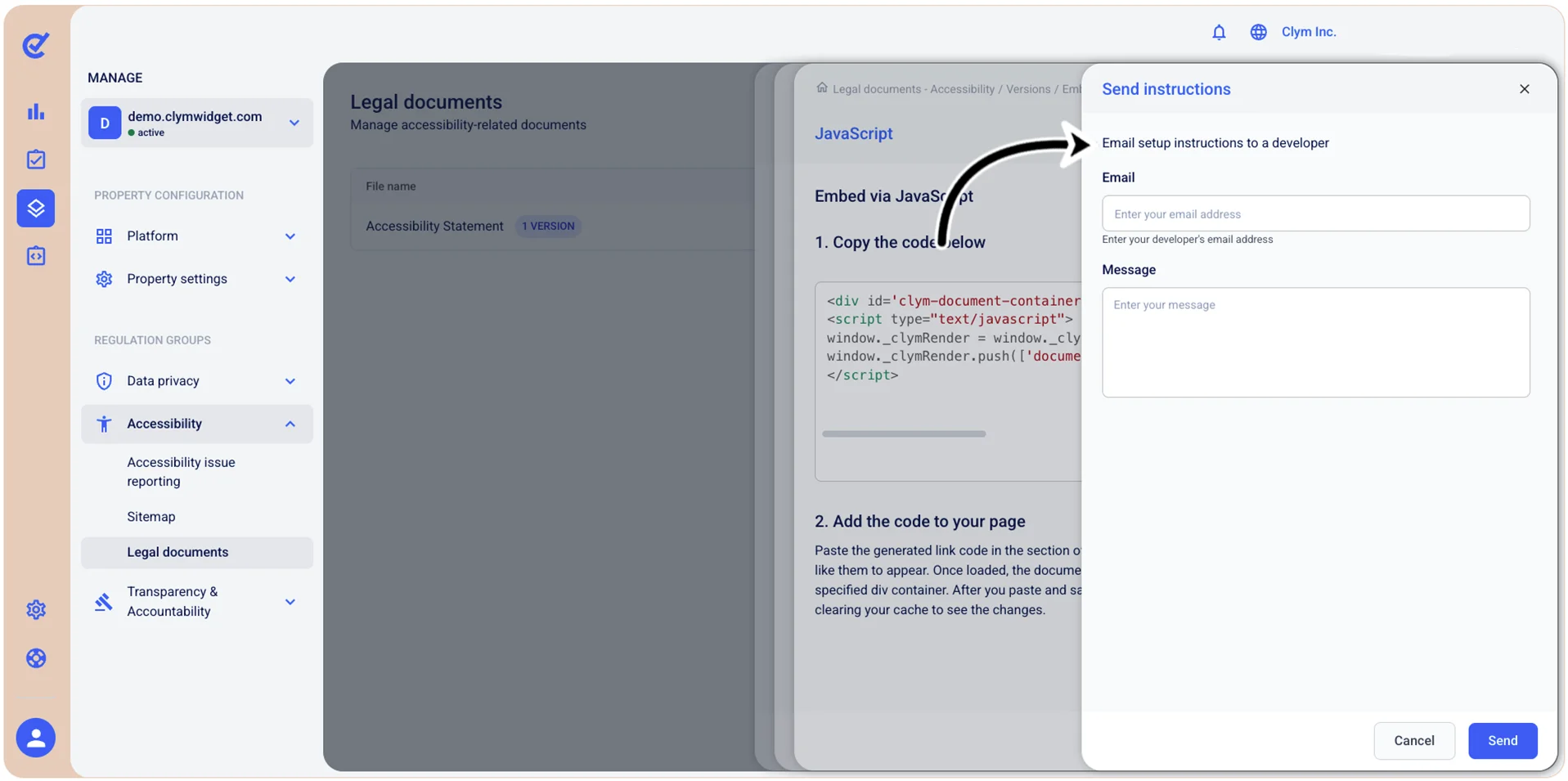
- To send your email, select Send.