
Create a new version of an accessibility legal document
Depending on changes of accessibility requirements, your own organization’s policies or updates in governmental regulations, you may need to update the legal documents available on your website. You can do this by creating a new, updated version of an existing legal document - custom content or external link.
To create a new version of a legal document:
- Go to
 Manage>Accessibility>Legal documents.
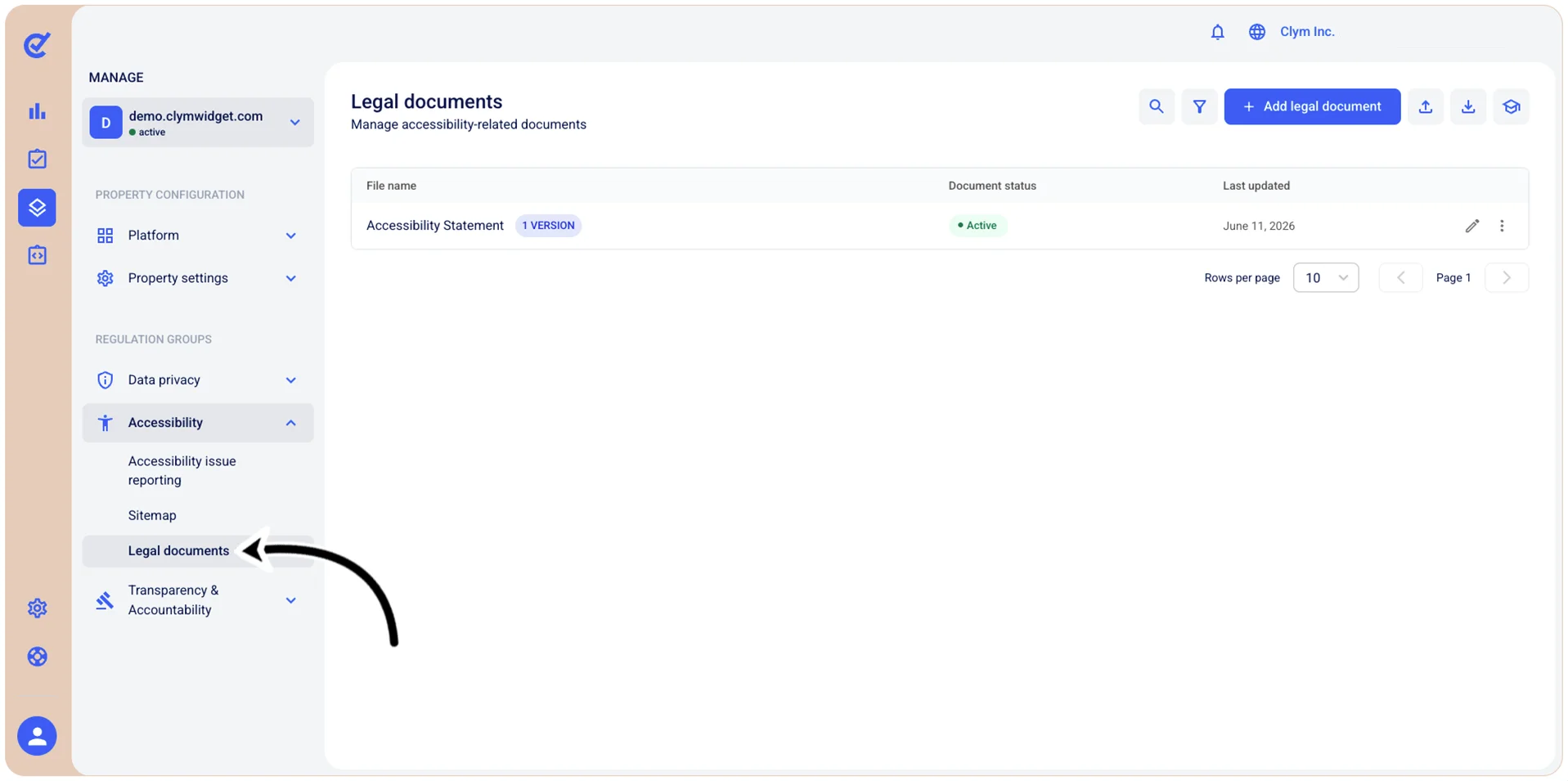
- In the Legal documents section, select ⋮ Settings next to the document that you would like to create a new version for and then point to View versions.
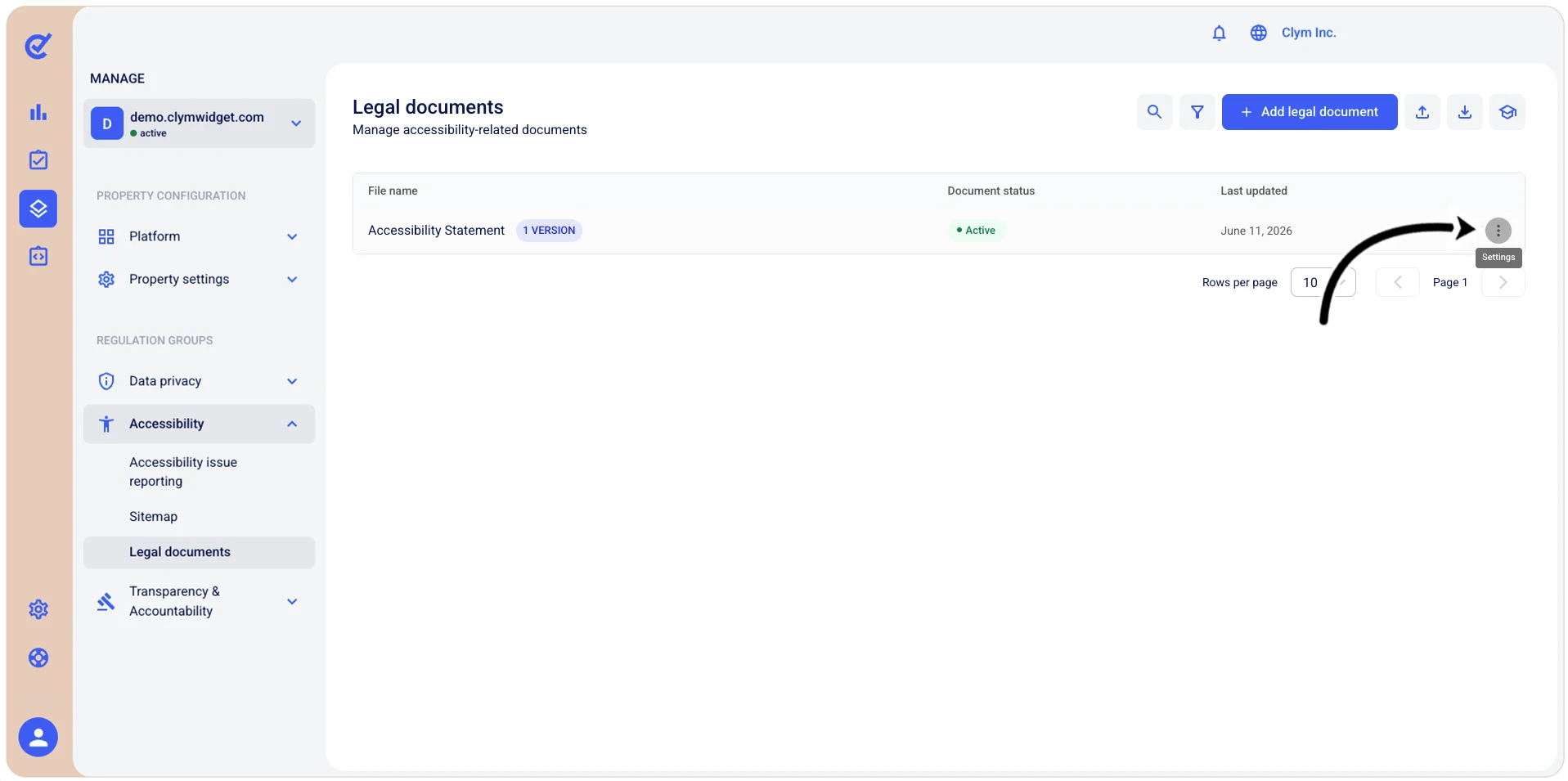
- In the <Legal document name> section, select New version.
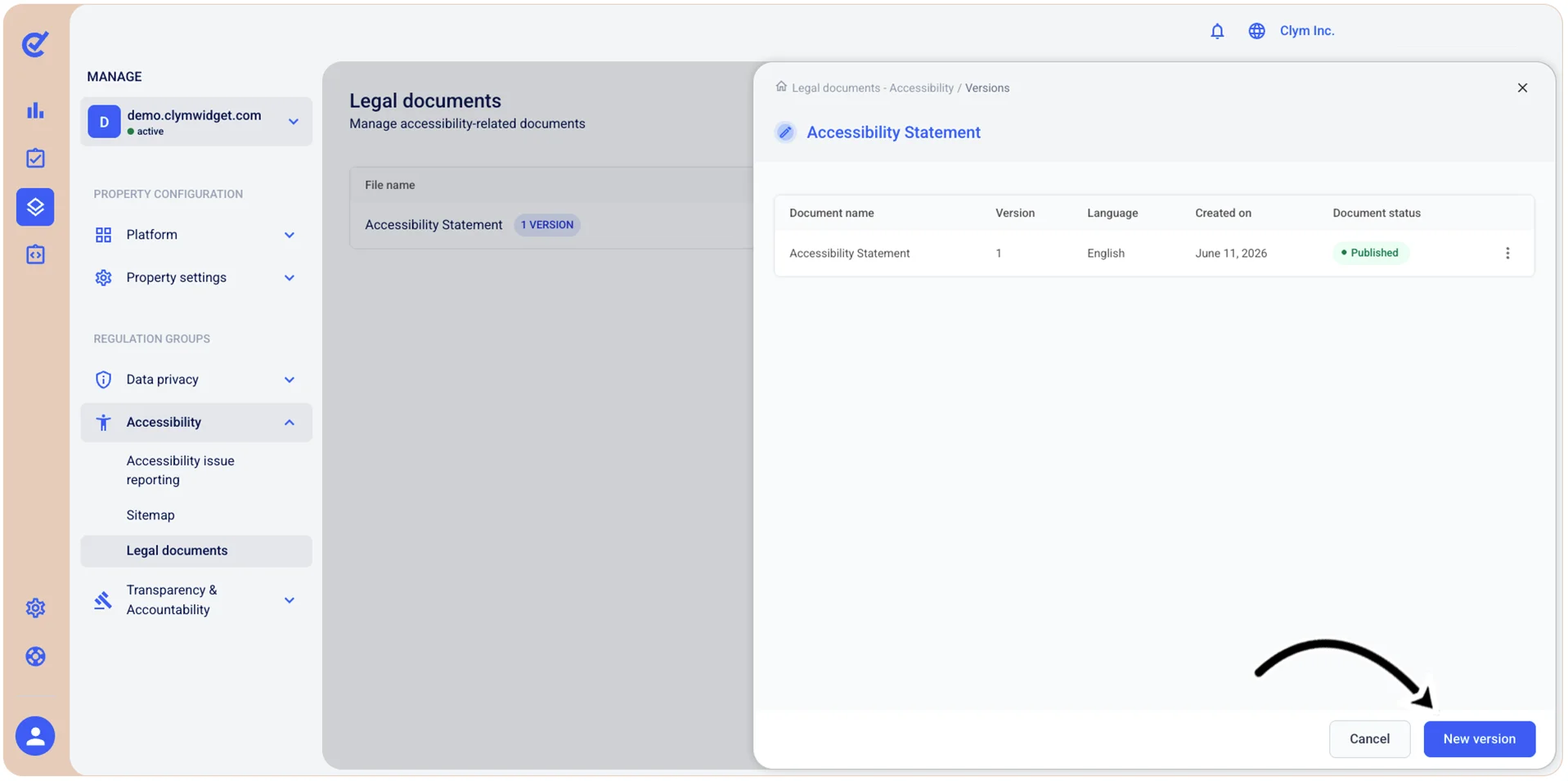
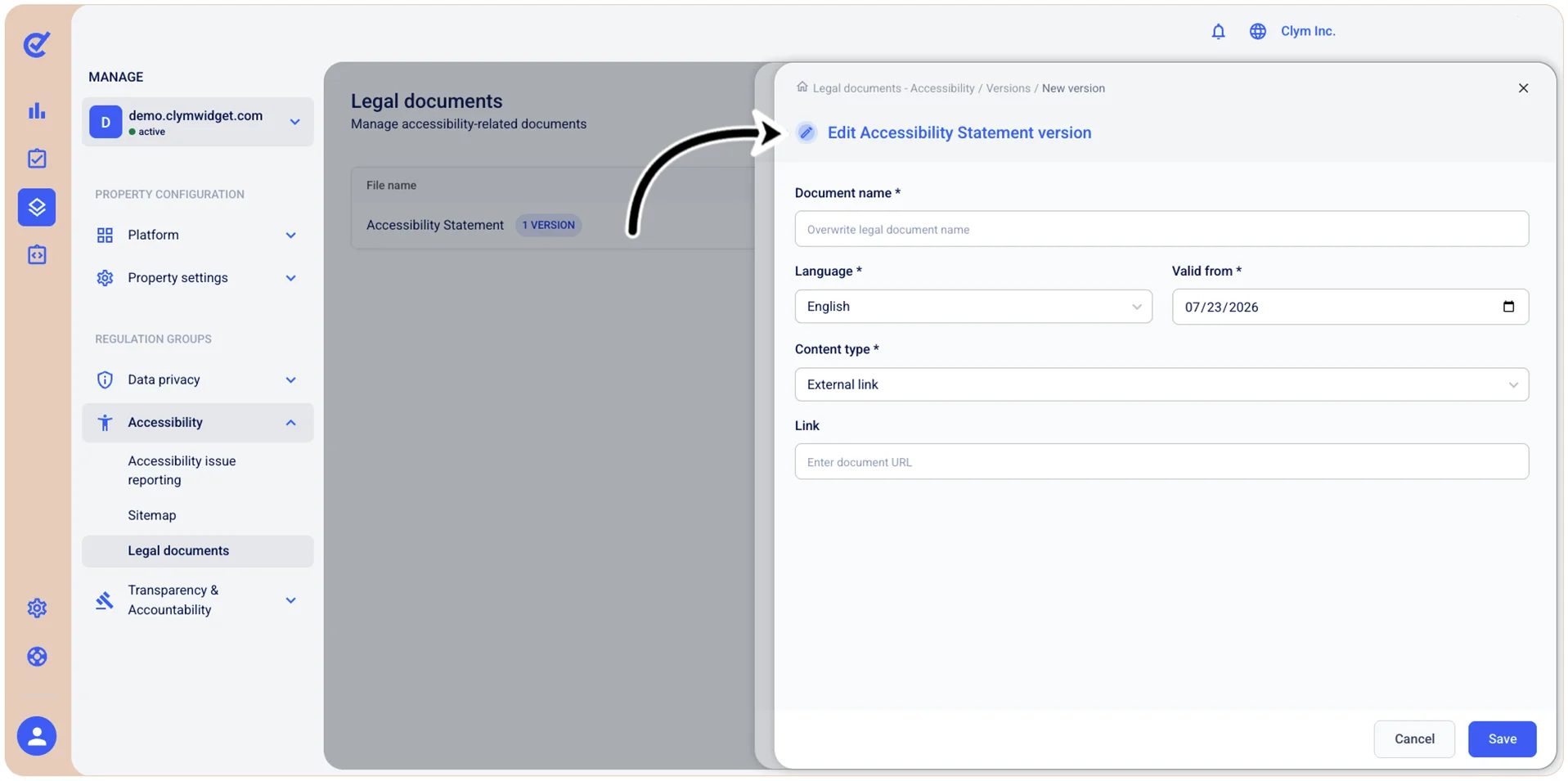
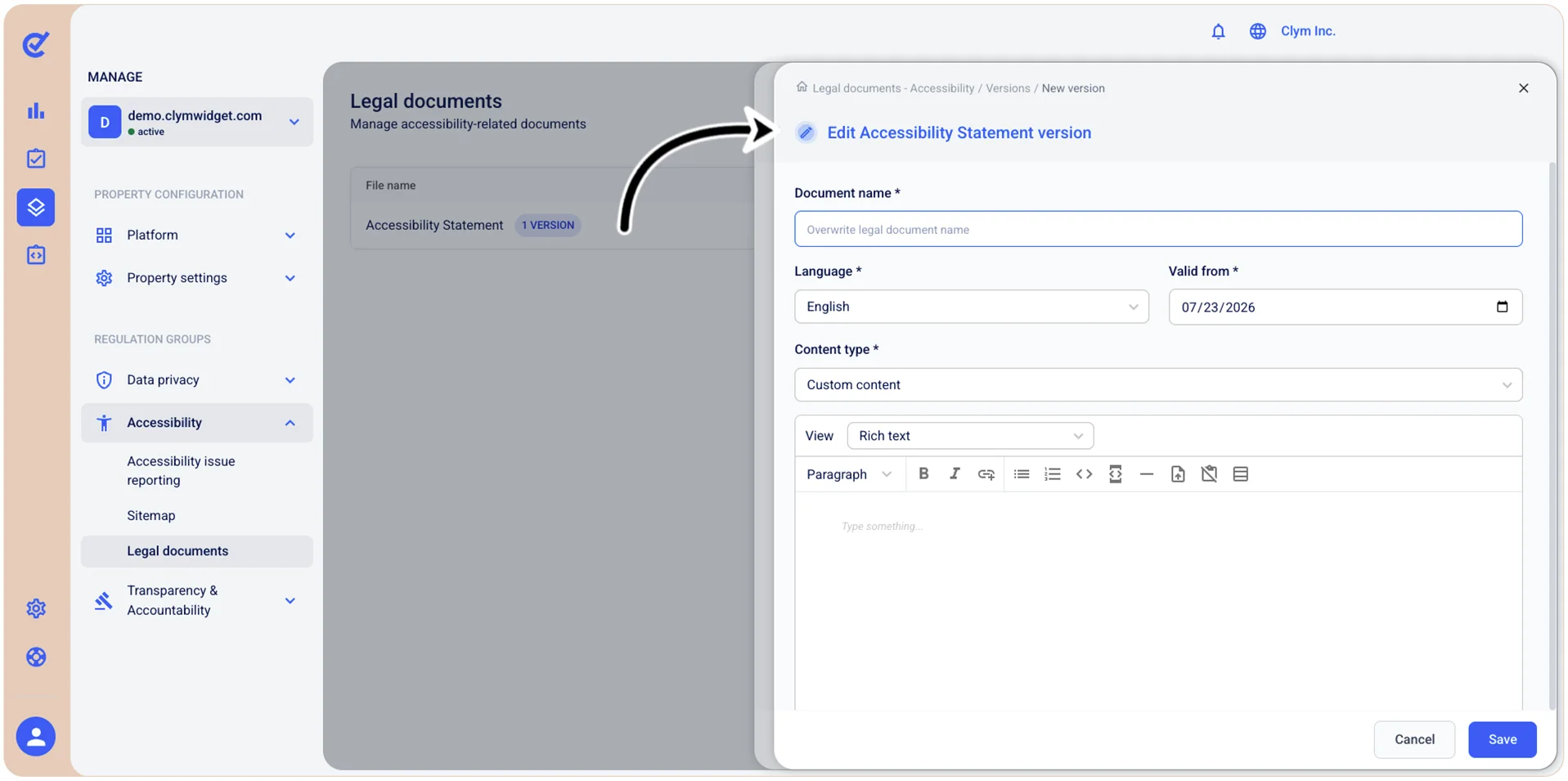
- In the Edit <Document name> version screen, configure the new version parameters, as follows:
- Document name: Give the new version of your document a meaningful name, if needed (for example, <document name> version 2.4).
- Language: Select the language in which your document is written.
- Valid from: Use the date picker to configure the date from which this document version becomes active.
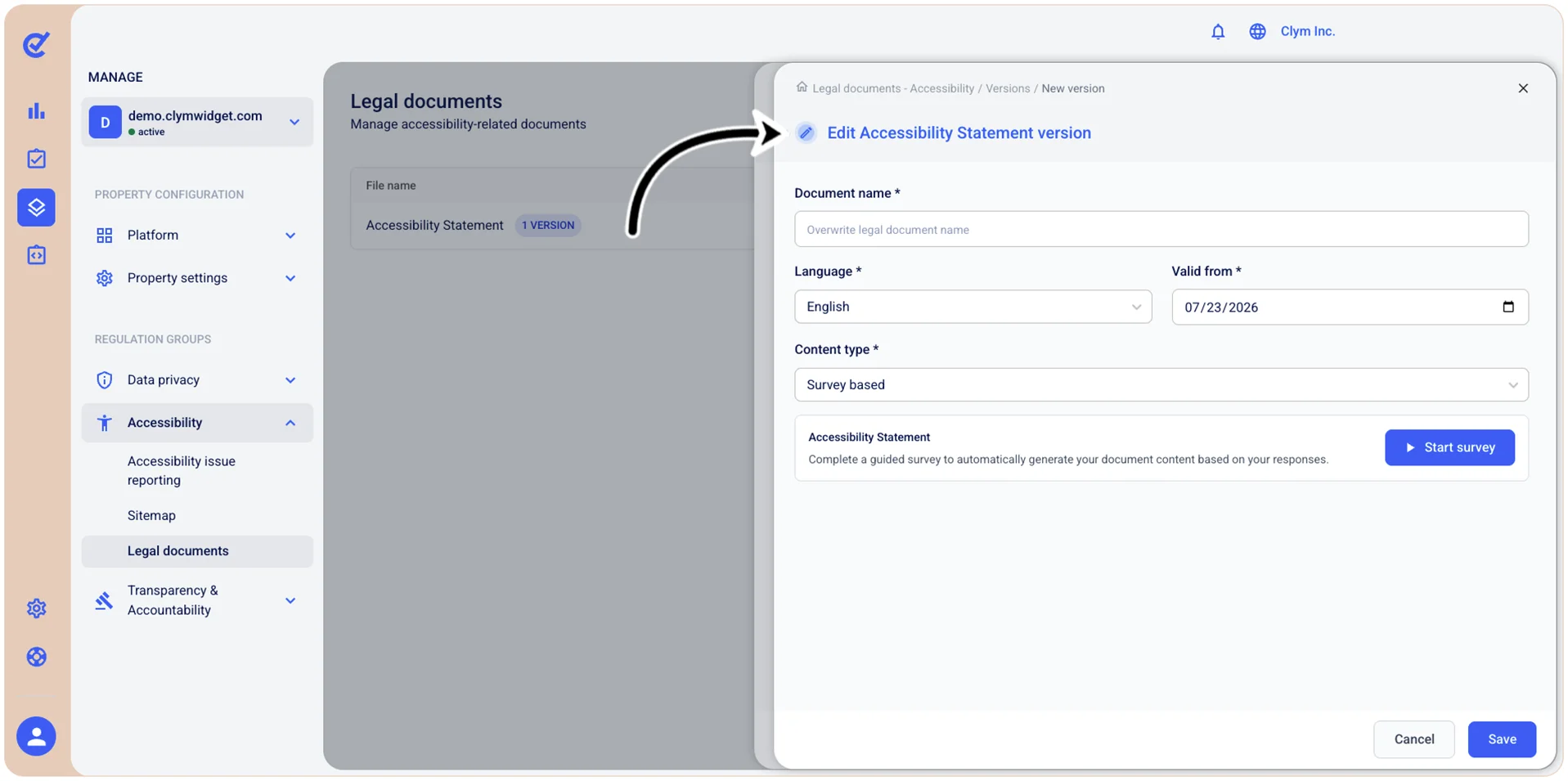
- Content type: Select External link if you want your legal document to be displayed as an external URL. Select Custom content to display your legal document as a custom text. Select Survey if you want to create a new version of the legal document based on a survey. Depending on your selection at this stage, the options available to you may vary.
- (If you selected Content type>External link above): Link: Enter the external link where your legal document can be accessed.
- (If you selected Content type>Custom content above) View: Select the format in which you want to draft the legal document (for example, Rich text, markdown, HTML and so on) and then enter the content accordingly in the text editor.
- If you selected Content type>Survey based above: Select Start survey and then use the survey to generate a legal document for your organization.
- When finished, select Save. Your newly-updated document version is displayed in the Legal documents section.