Configure the case categories of accessibility reports
Whenever submitting an accessibility case report, users need to fill in a report to describe the nature of the issue. The report contains several types of vulnerability categories that you can configure to ease up their task and to facilitate better handling on your part.
Important! To be able to customize the accessibility case categories, you need to toggle on Overwrite default settings, otherwise you can only use the default settings.
To configure the accessibility case categories:
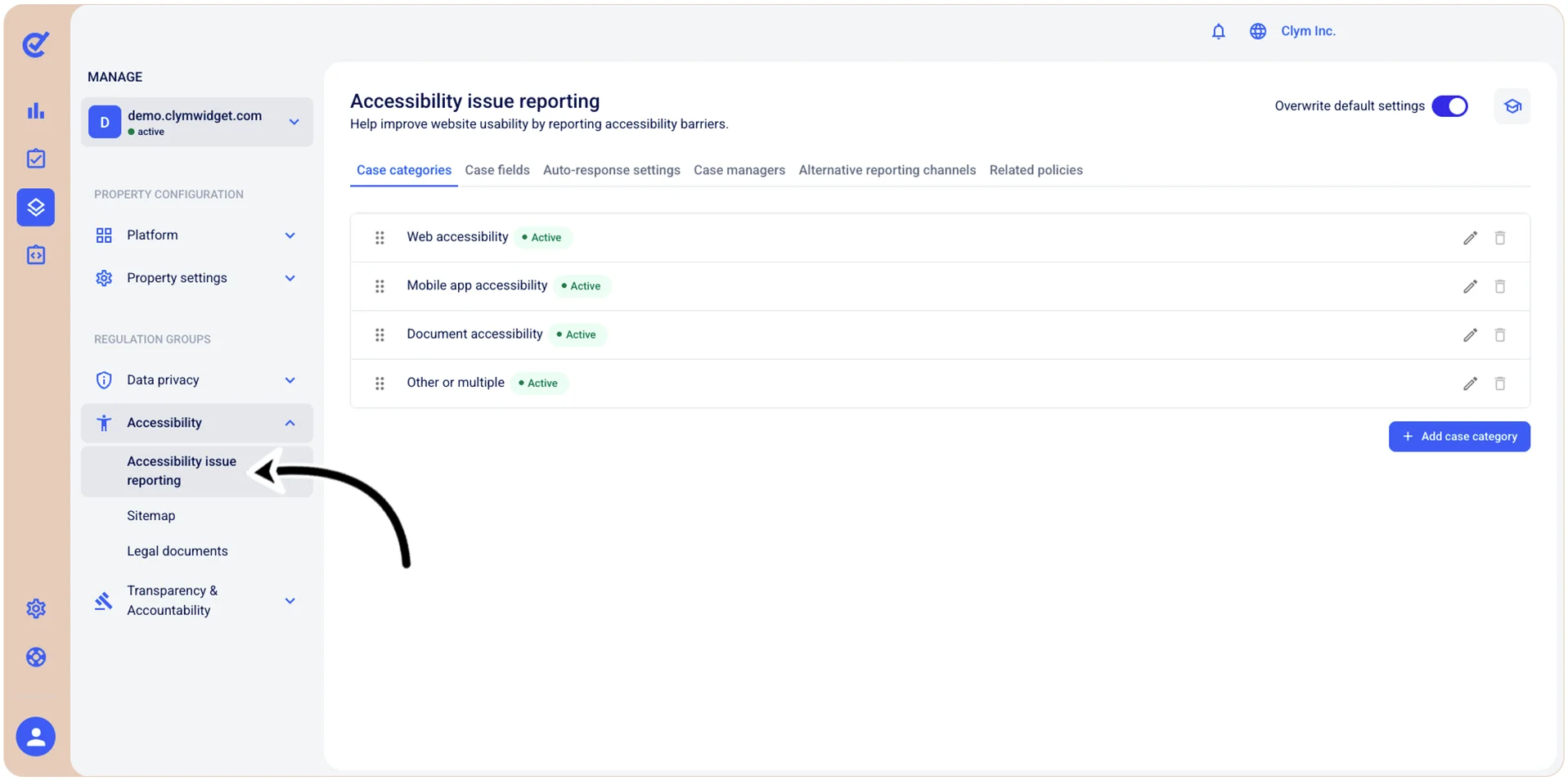
- Go to
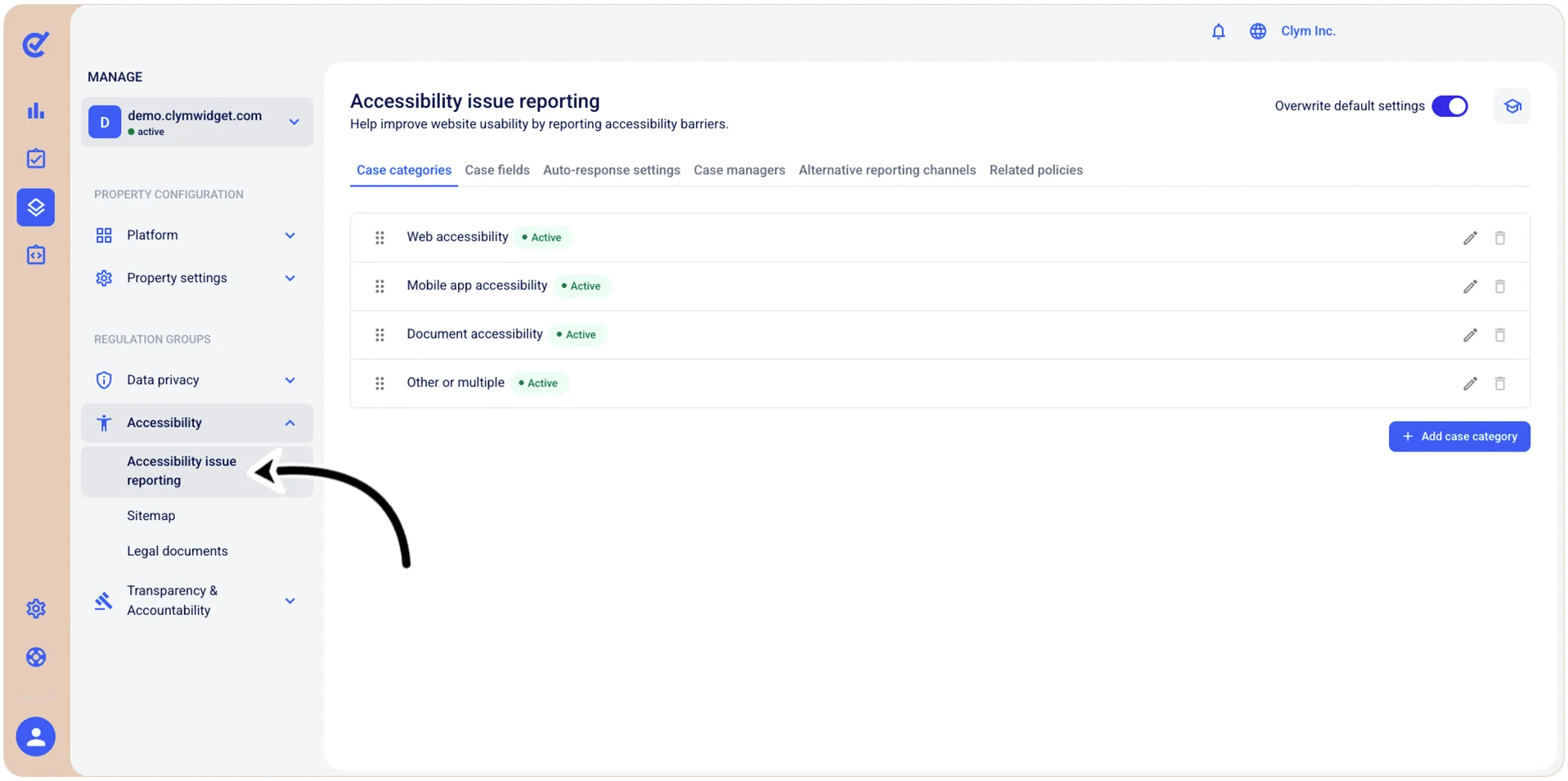
 Manage>Accessibility>Accessibility issue reporting.
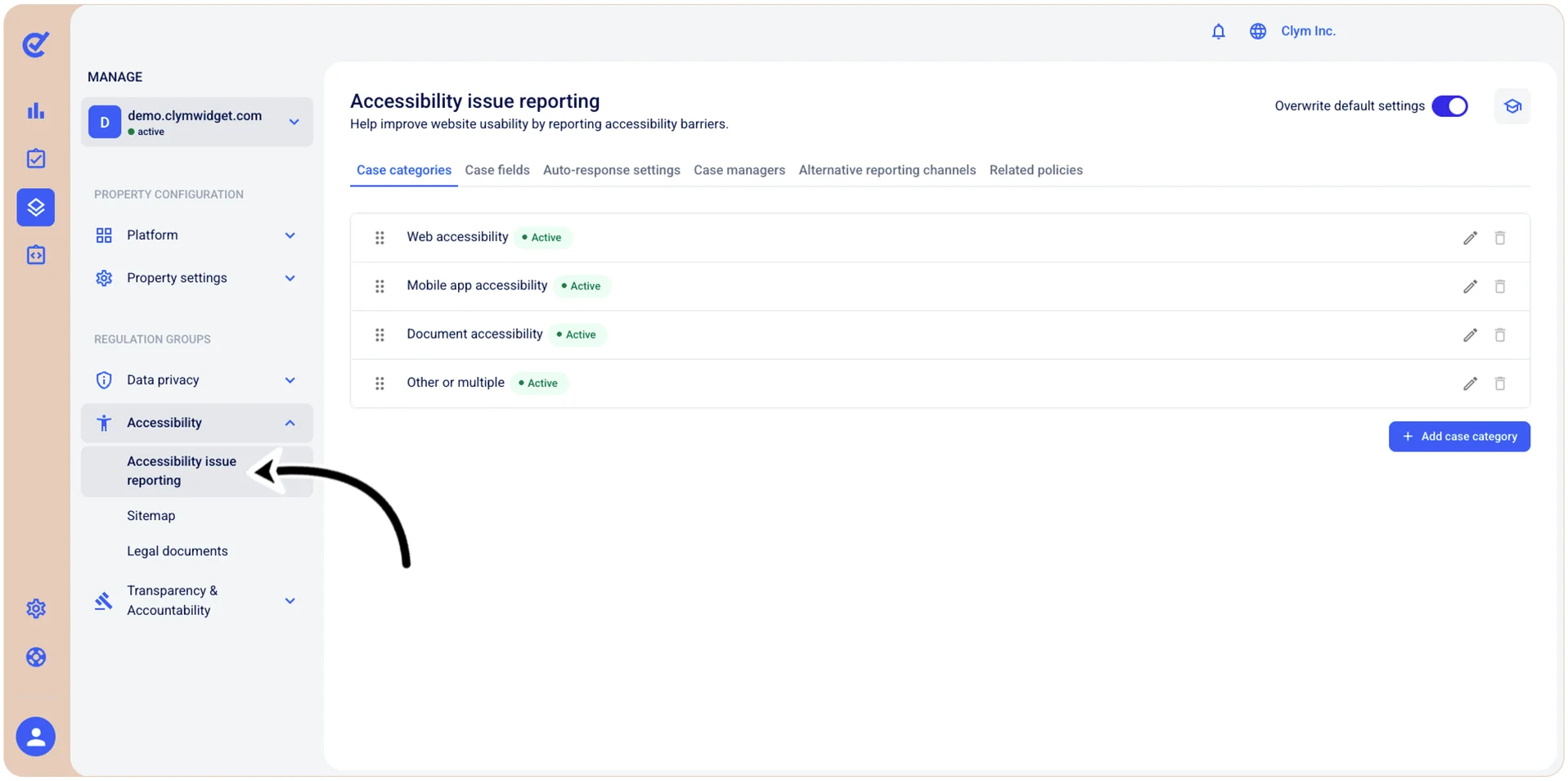
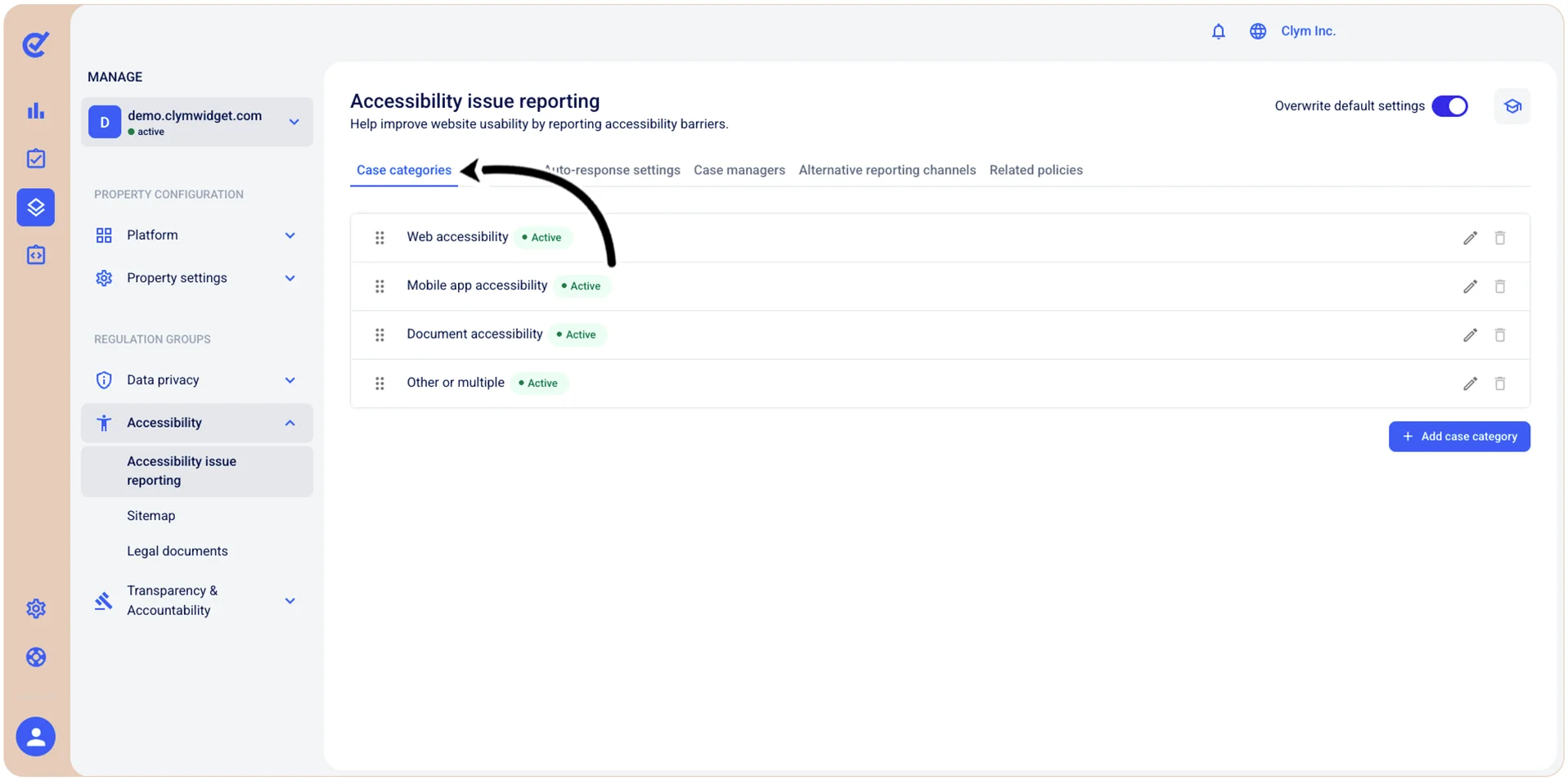
- In the Case categories tab, you can see all the case categories that an accessibility case could belong to.
Add a new accessibility case category
To add a new accessibility case category:
- Go to Manage>Accessibility>Accessibility issue reporting.
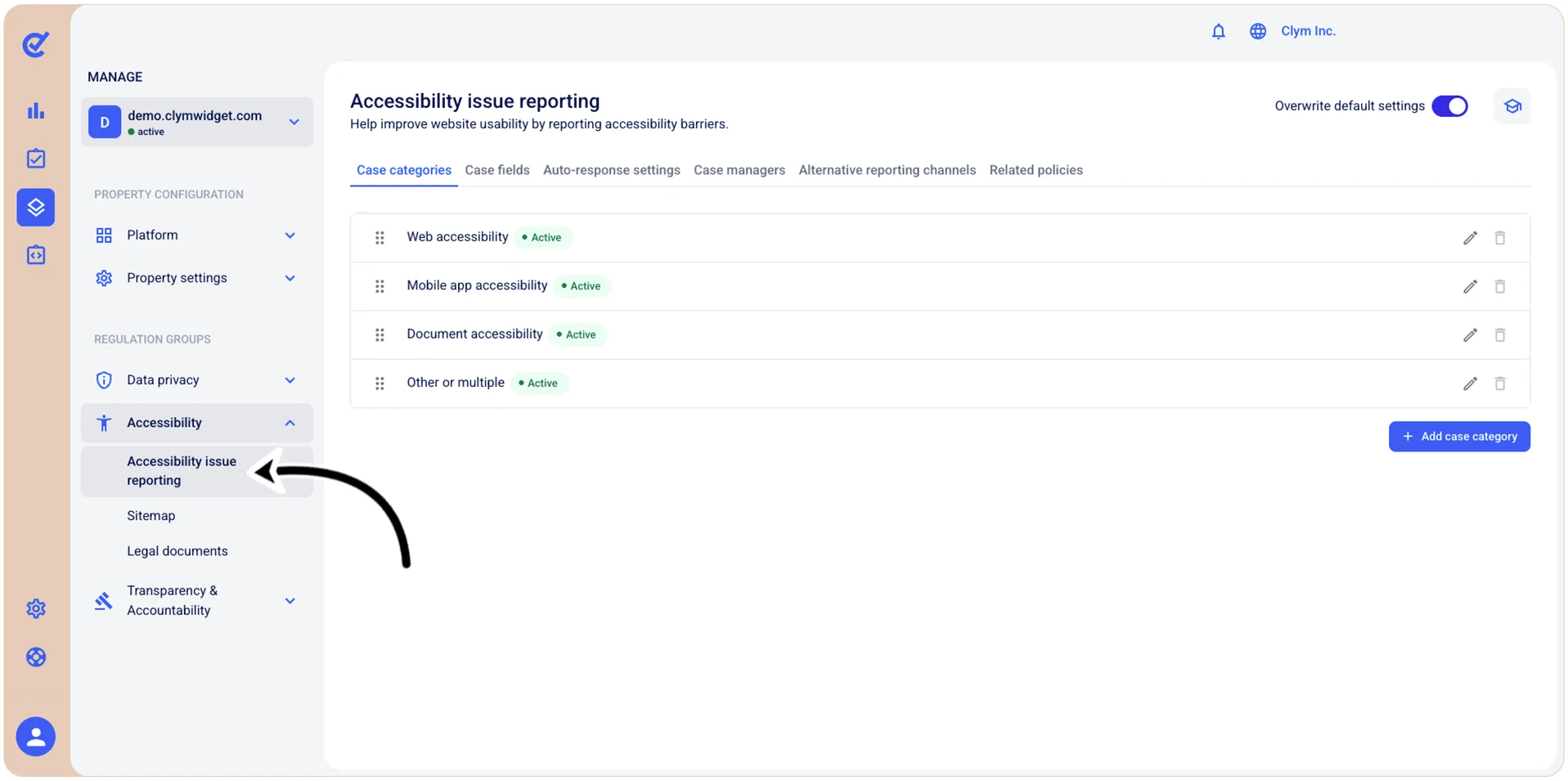
- In the Case categories tab, select +Add case category and then configure the new accessibility case category details, as follows:
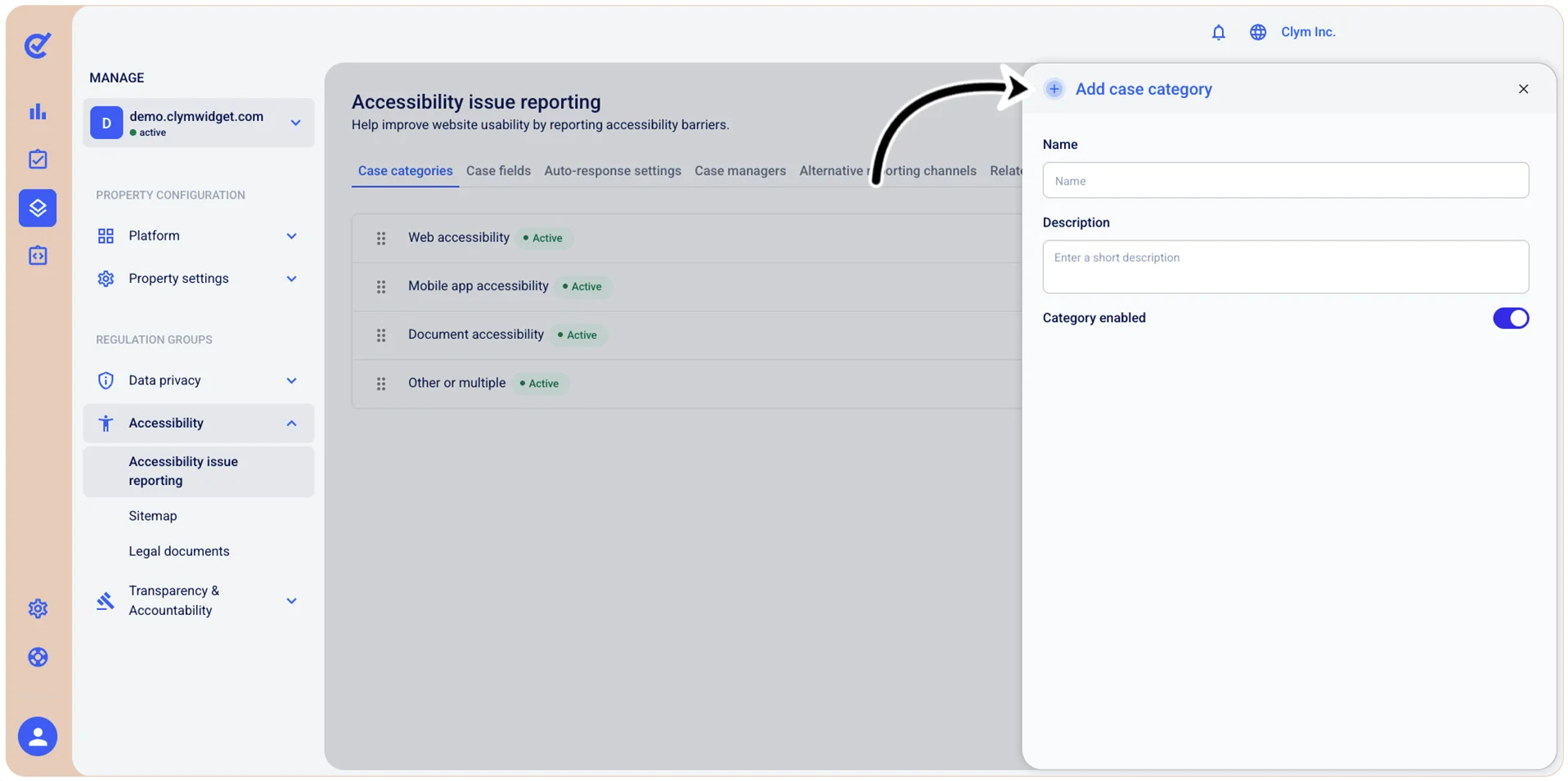
- Name: Give your new case category a descriptive name.
- Description: Give your case category a meaningful description.
- Category enabled: Toggle on if you want this category to be active.
- When finished, select Save.
Your newly-created case category is displayed in the Accessibility issue reporting section, in the Case categories tab.
Deactivate an accessibility case category
Depending on your organization’s needs, you can temporarily deactivate an accessibility case category. The case categories that you can deactivate must be labeled with the Active label. Deactivating a case category does not remove it, but only makes it unavailable until you reactivate it.
To deactivate an accessibility case category:
- Go to Manage>Accessibility>Accessibility issue reporting.
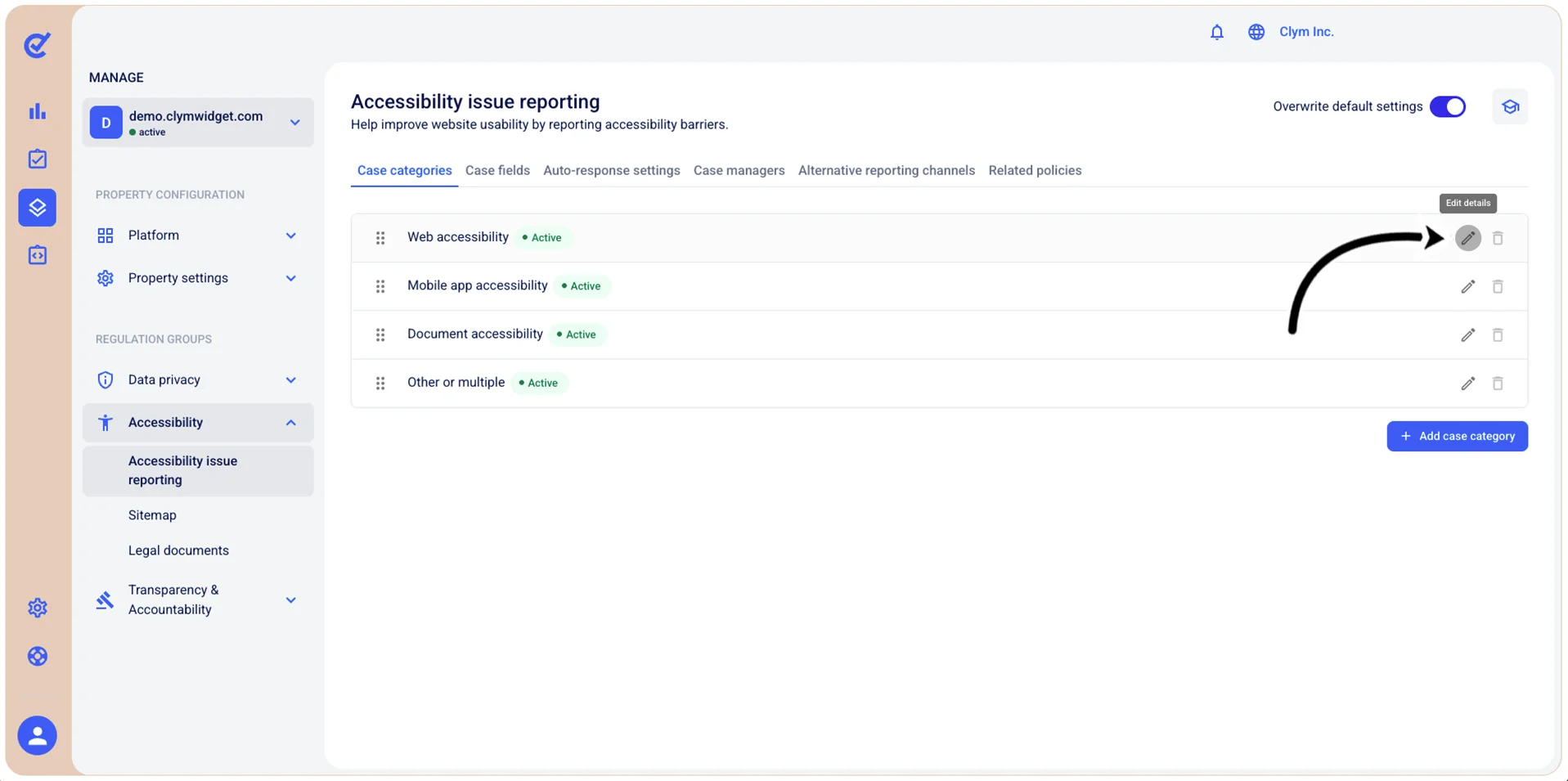
- In the Case categories tab, select
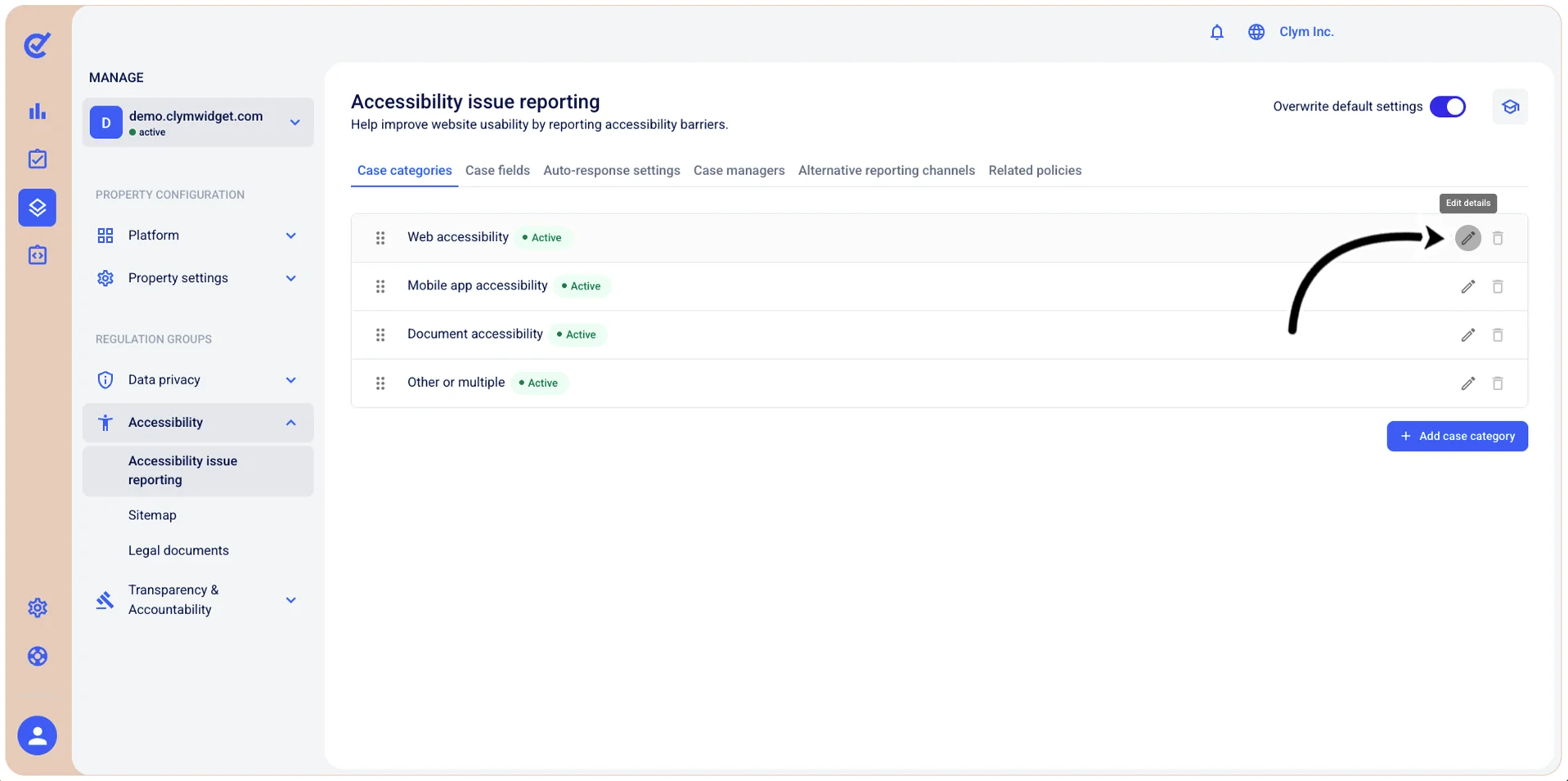
 Edit next to the desired case category marked with the Active label.
- In the Edit case category section, toggle off Category enabled.
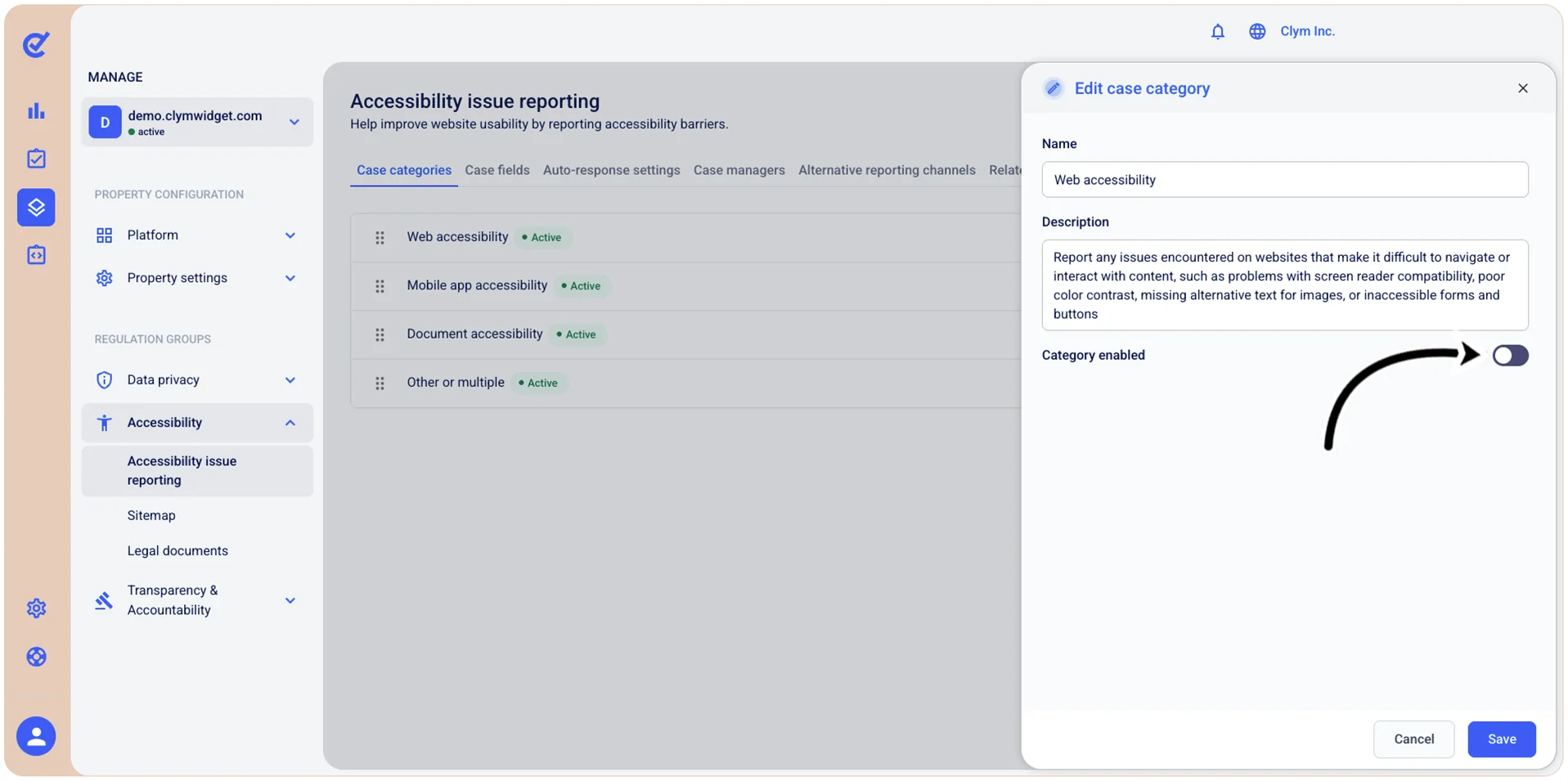
- When finished, select Save.
Reactivate a deactivated accessibility case category
Depending on your organization’s needs, you can reactivate an inactive accessibility case category. The case categories that you can reactivate must be labeled with the Inactive label.
To reactivate a deactivated accessibility case category:
- Go to Manage>Accessibility>Accessibility issue reporting.
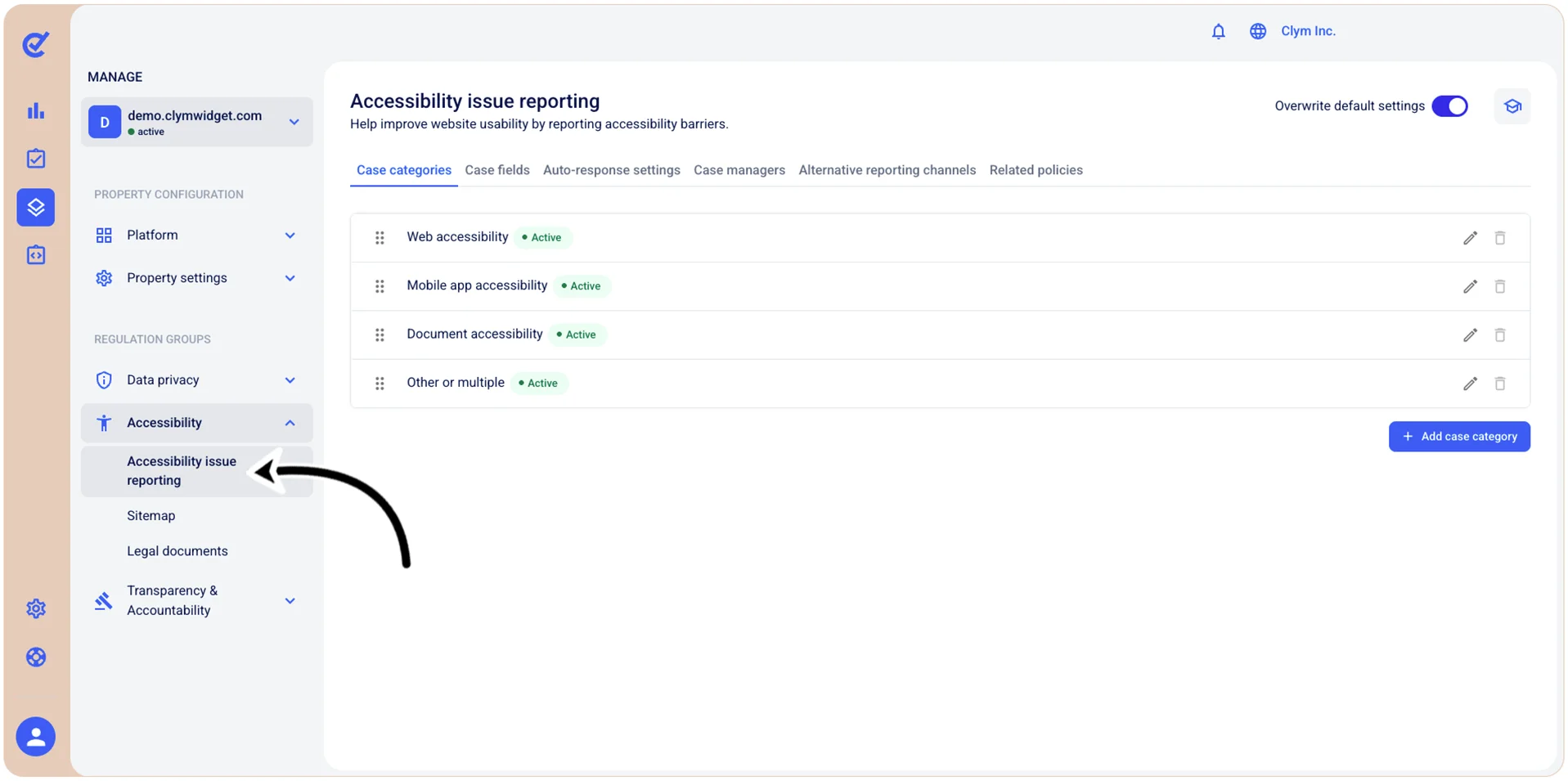
- In the Case categories tab, select Edit next to the desired case category marked with the Inactive label.
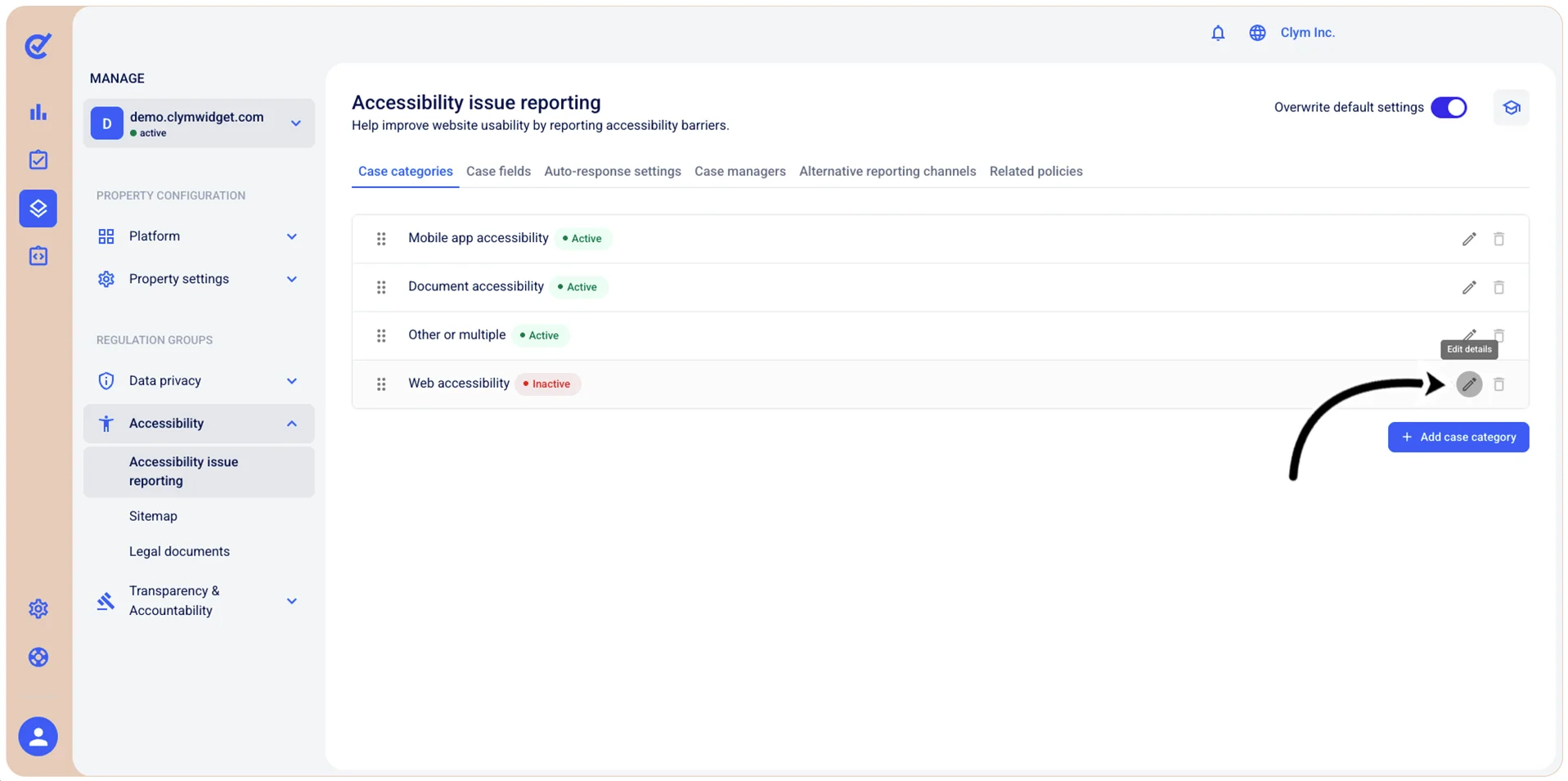
- In the Edit case category section, toggle on Category enabled.
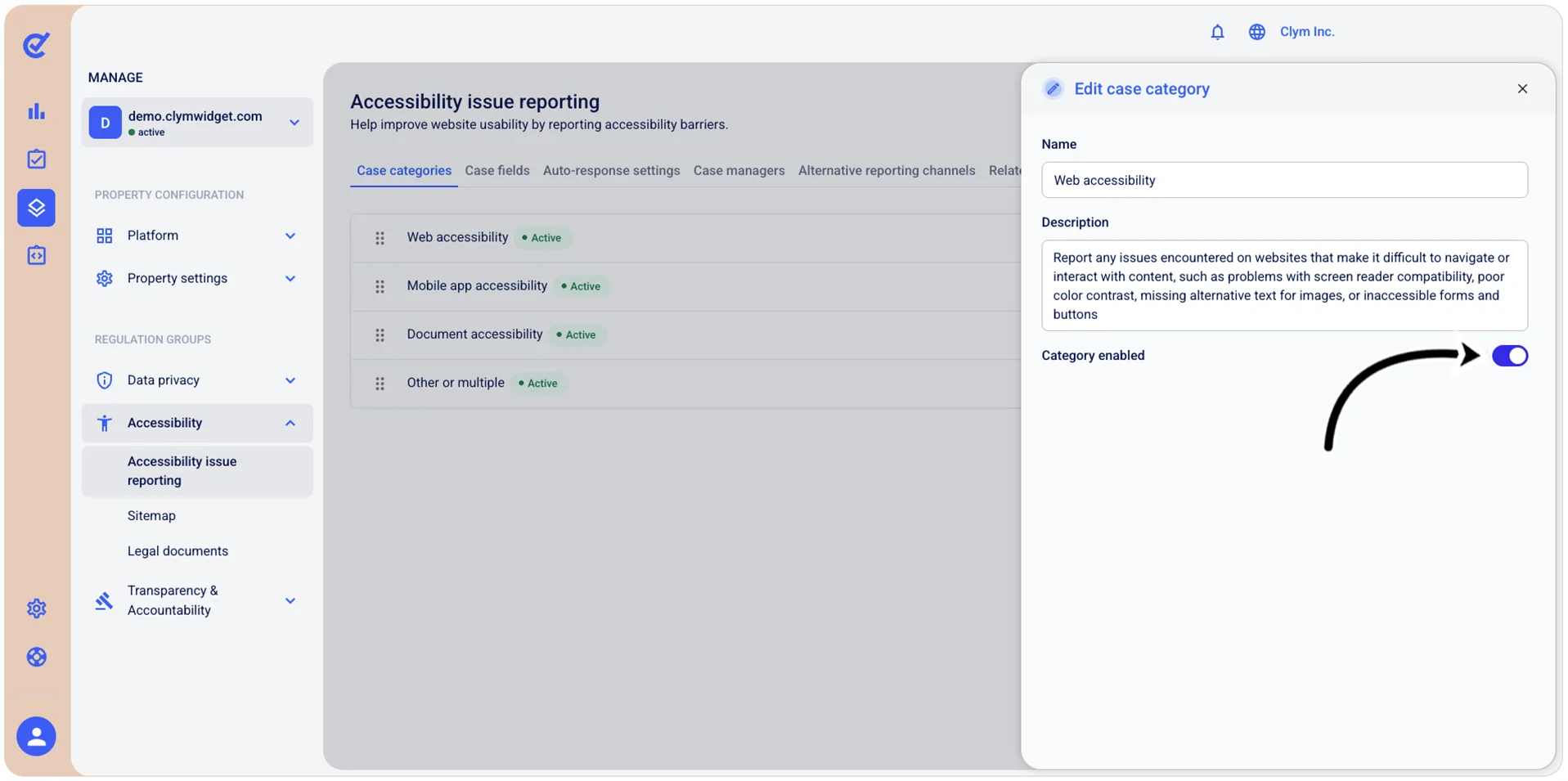
- When finished, select Save.
Reposition an accessibility report case category
Depending on your organization’s needs, you can reposition an accessibility case category in the hierarchy it is displayed on the UI.
To reposition a case category:
- Go to Manage>Accessibility>Accessibility issue reporting.
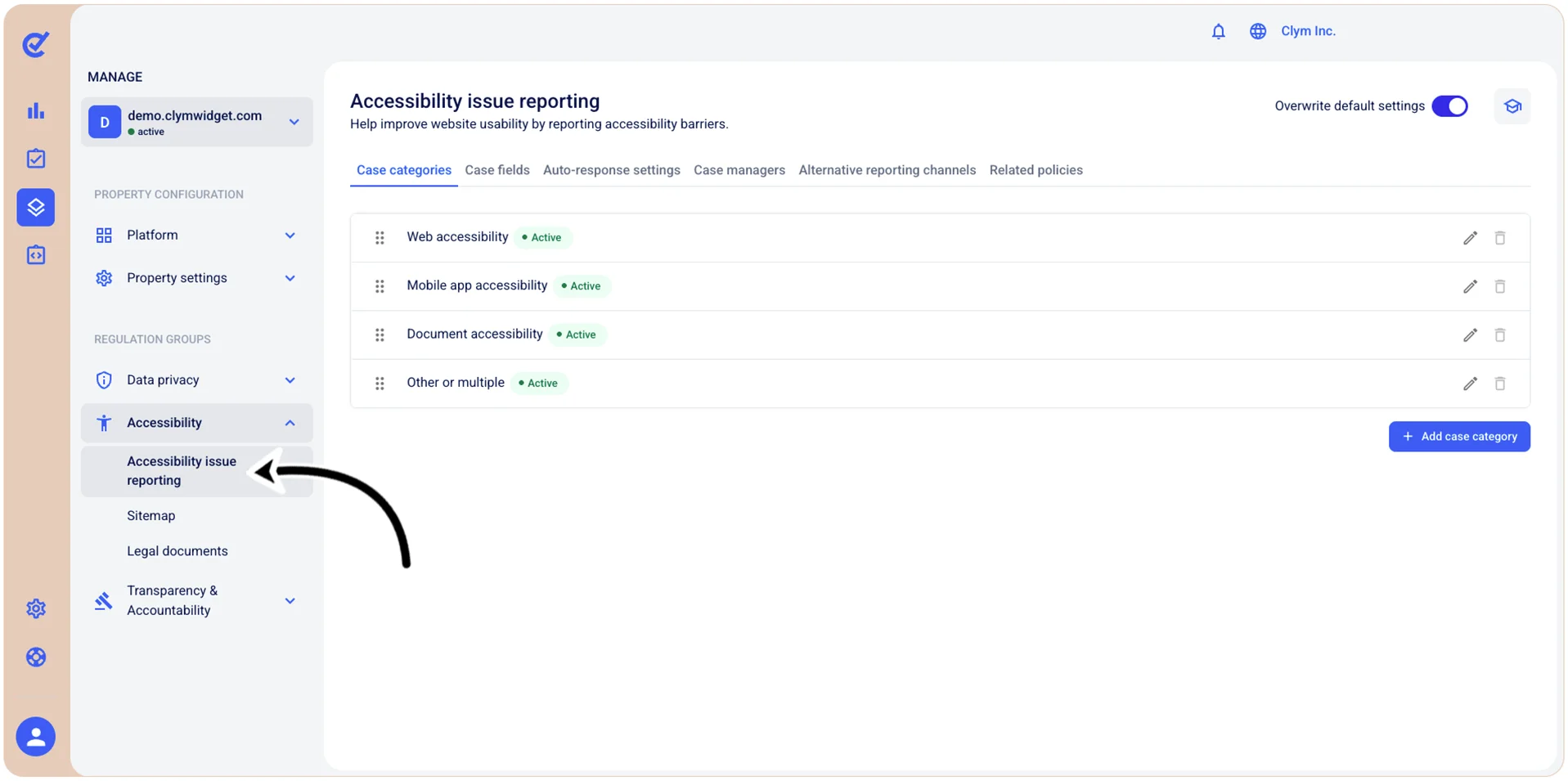
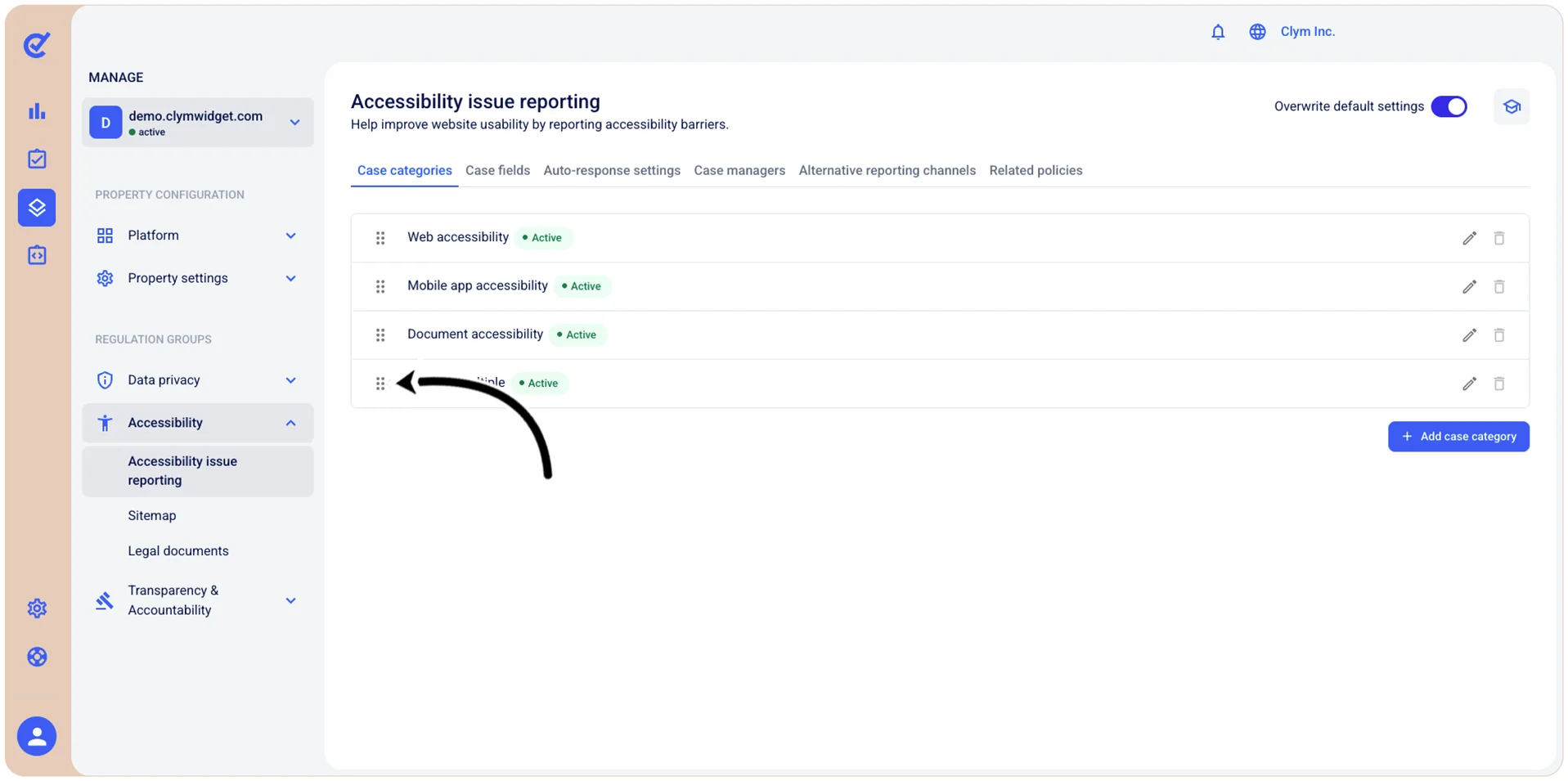
- In the Case categories tab, use the drag handle (⋮⋮) to rearrange the desired item in the list.
Edit an accessibility case category
In the Control Center, you can easily edit an accessibility case category.
To modify a case category of an accessibility report:
- Go to Manage>Accessibility>Accessibility issue reporting.
- In the Case categories tab, select Edit next to the desired case category.
- In the Edit case category section, you can rename the case category, change its description, or make it active/inactive by toggling on/off Category enabled.
- When finished, select Save.
Delete an Accessibility report case category
In the Control Center, you can easily remove the case categories that your organization no longer needs.
Note: You can only remove the case categories that you created, not the built-in ones.
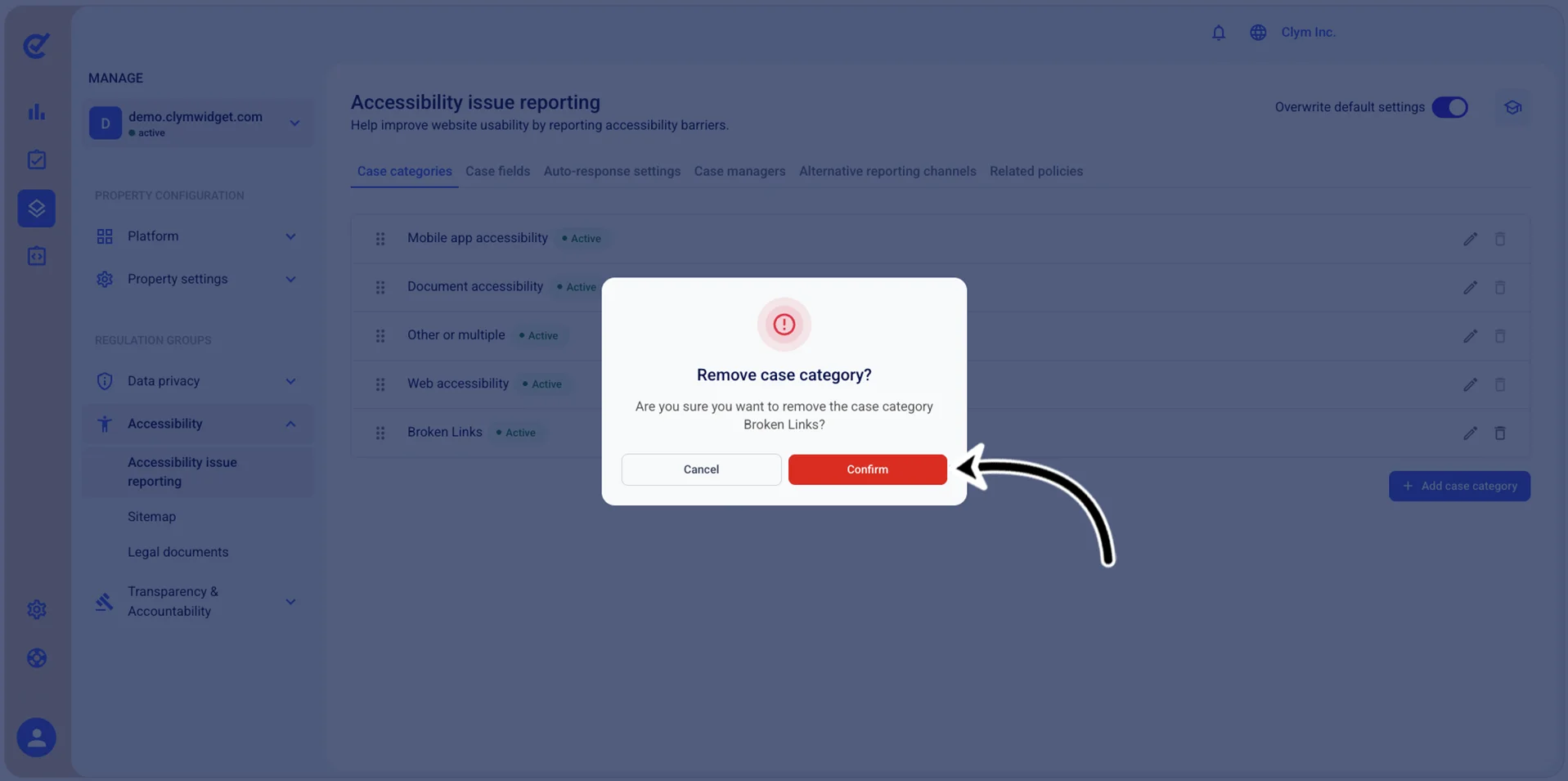
To remove a case category:
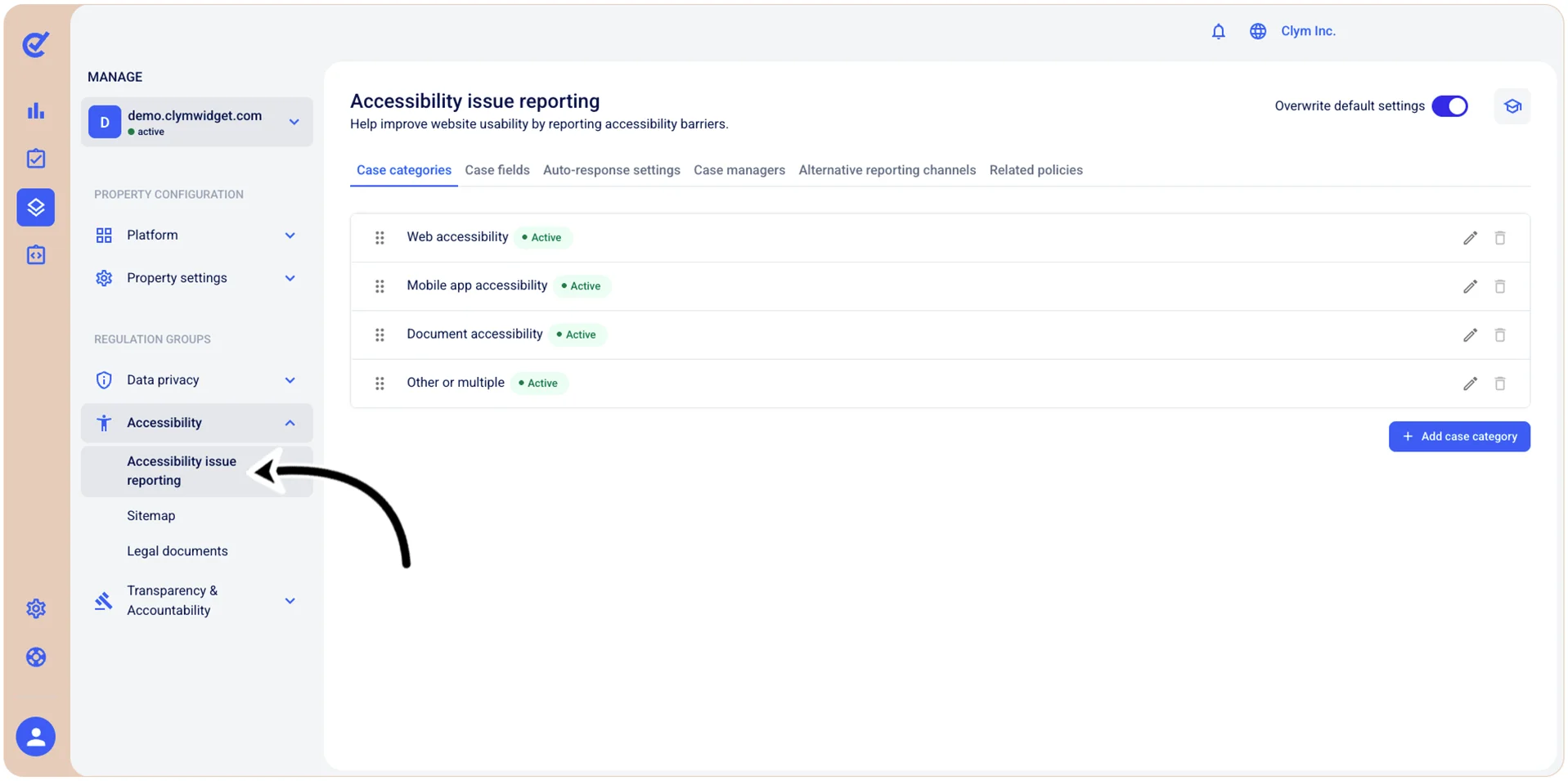
- Manage>Accessibility>Accessibility issue reporting.
- In the Case categories tab, select
 Delete next to the case category that you want to remove.
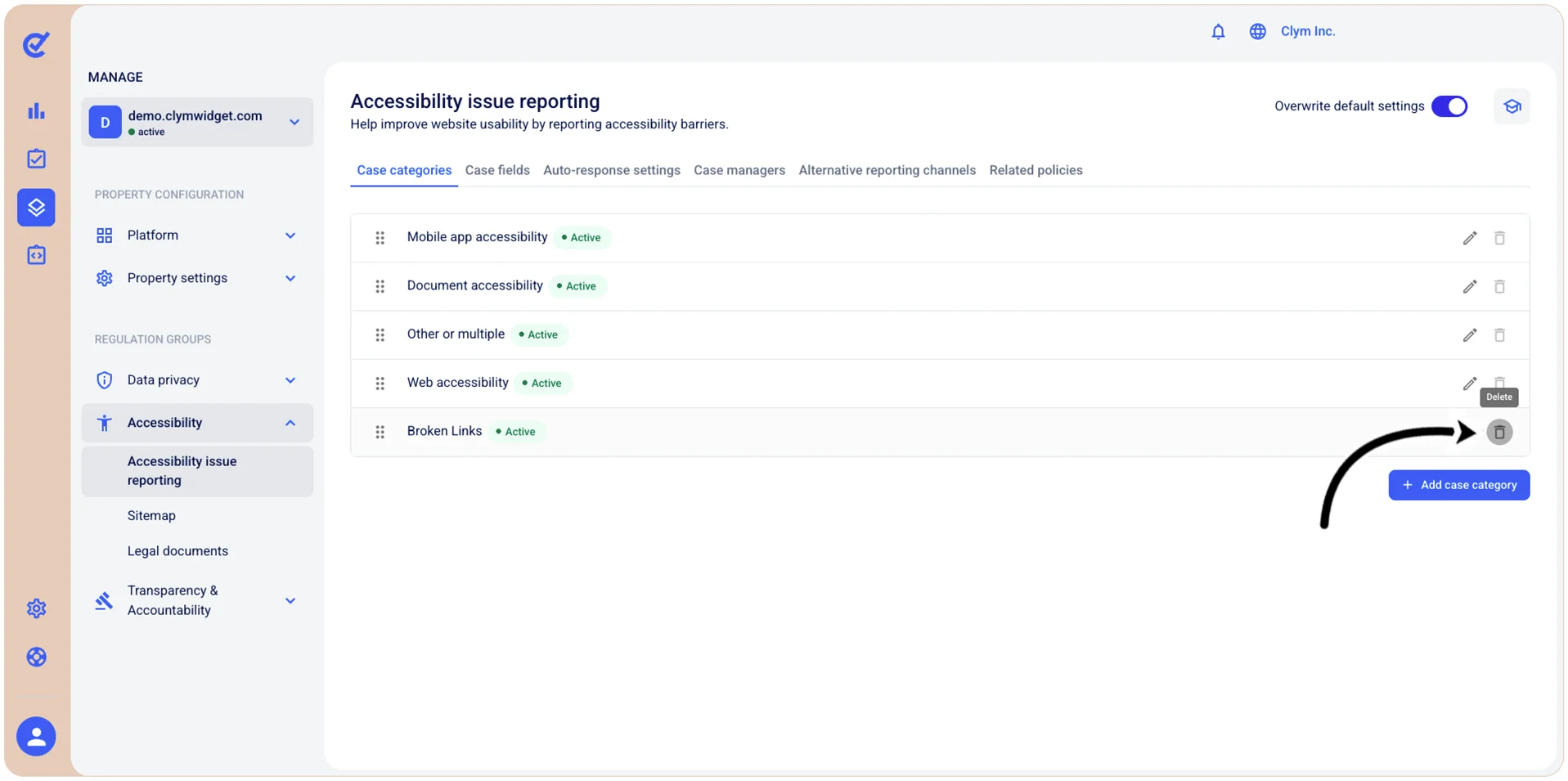
- In the confirmation message, select Confirm.