
Reply to DSR cases
To stay compliant, your organization must respond to various requests by specific deadlines. Each regulation has different requirements for how long your organization has to handle requests. The Control Center not only provides you with a platform to view, manage, and respond to your requests, but also keeps track of your impending deadlines across regulations.
Note: Once a user submits a DSR, they will receive a verification email to confirm their identity.
To converse with website users who initiated DSR requests:
- Go to
 Operate>Data Subject Requests.
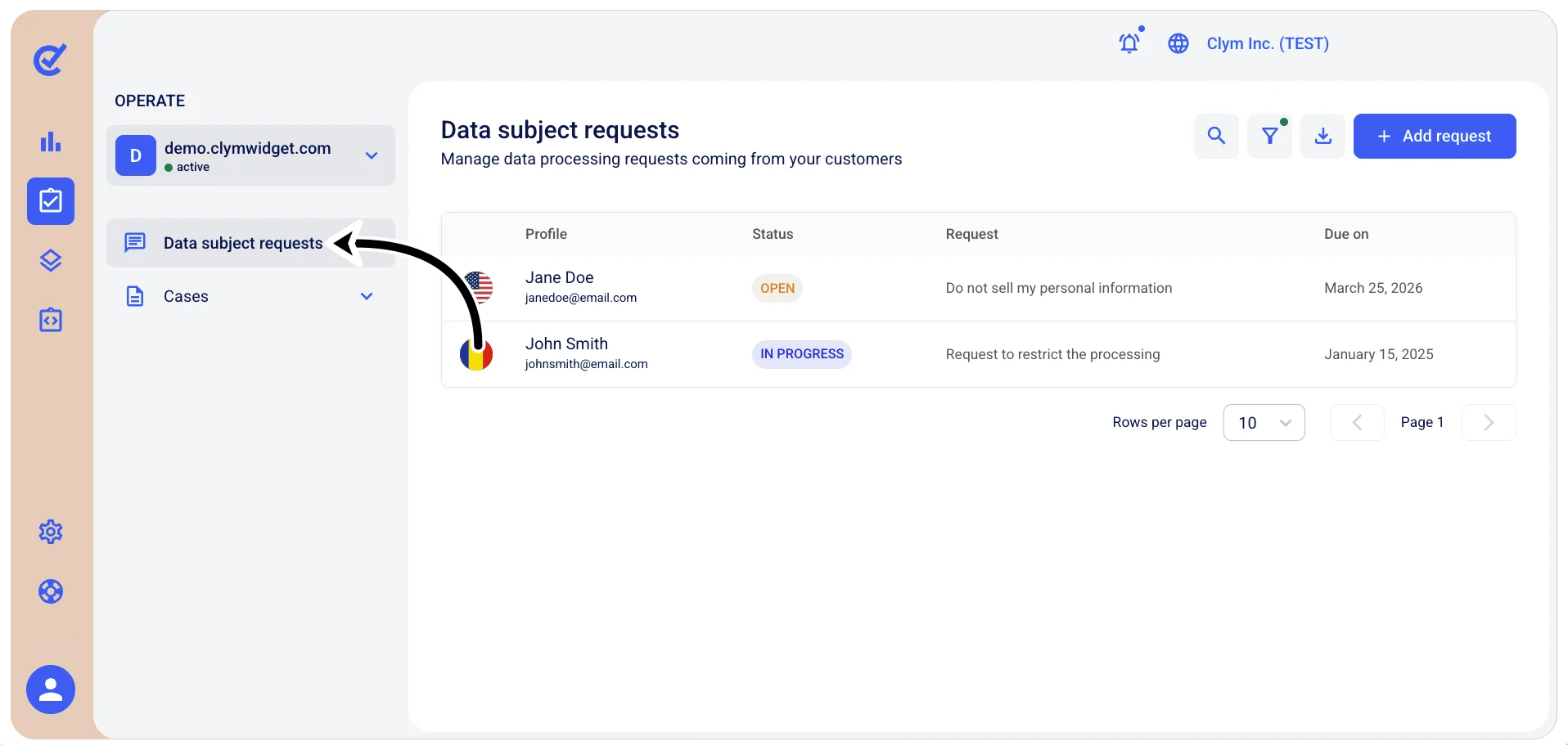
- In the Data Subject Requests section, select the desired DSR.
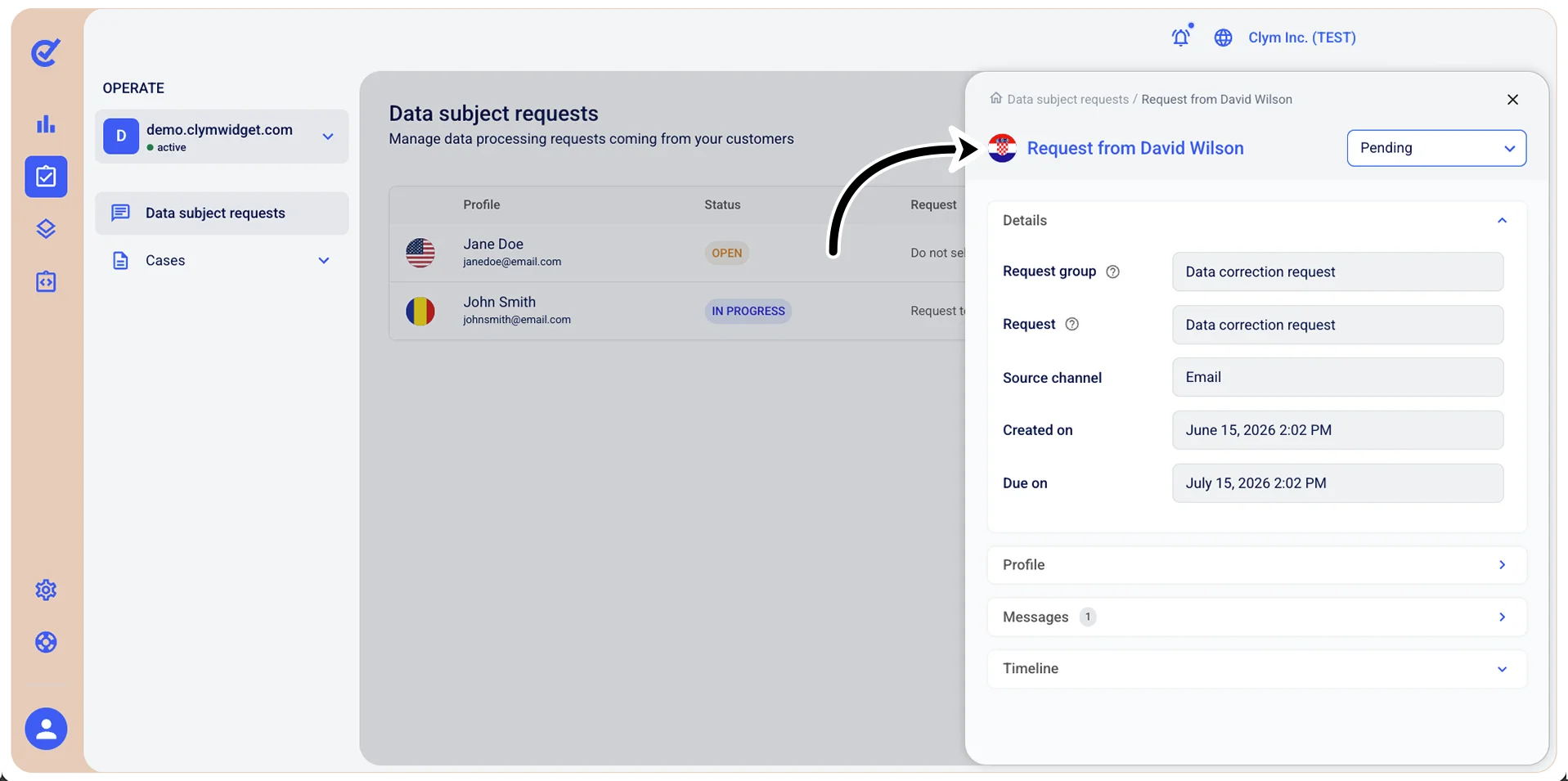
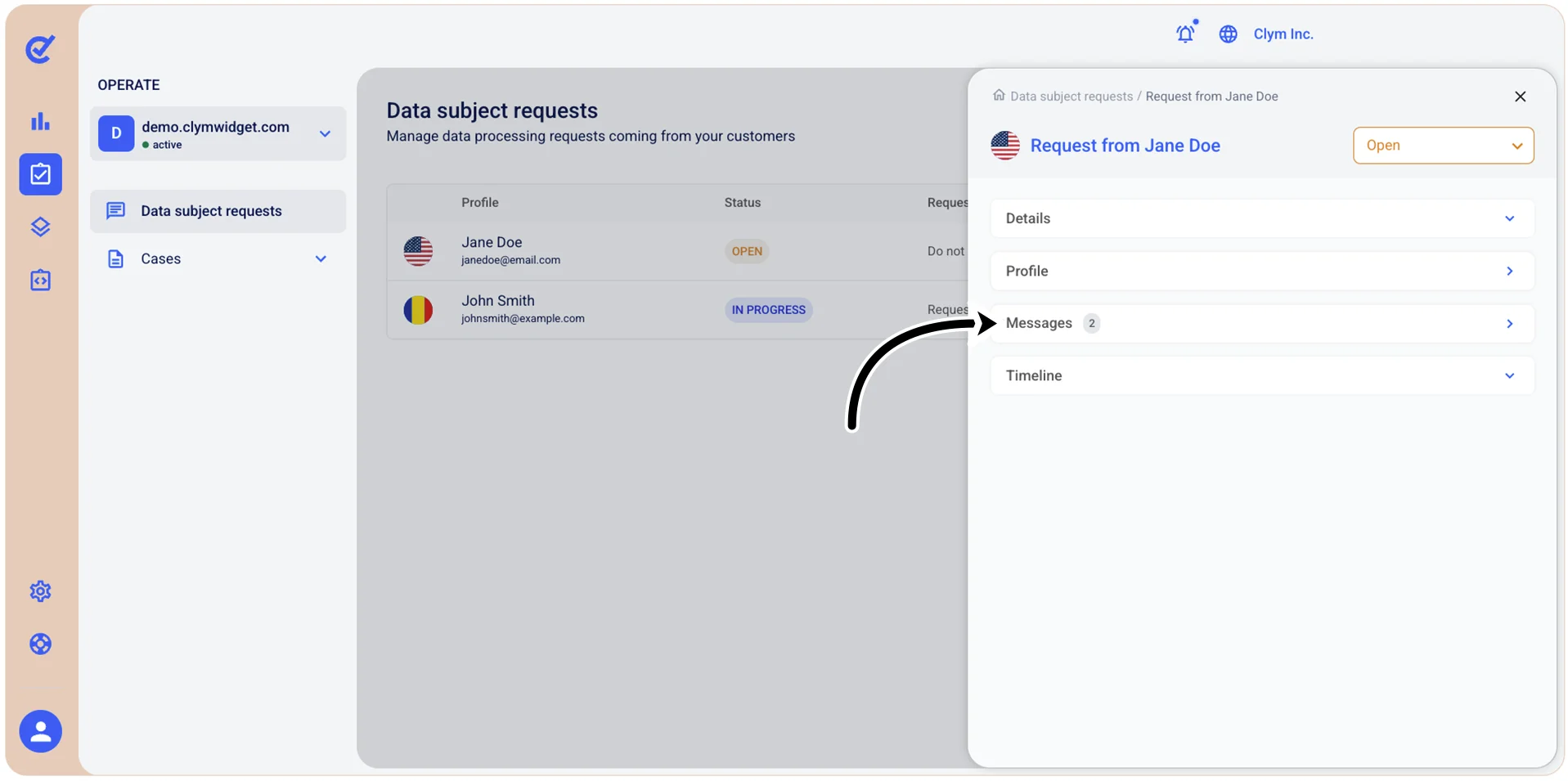
- In the Request from
right-side section, select Messages. Once a user submits a DSR, they will receive a verification email to confirm their identity. The number badge indicates the number of messages in the conversation thread.
- Expand Messages to view the DSR-related messages used to communicate with the requester. To respond to your website visitor’s message, select Reply and then enter your message in the respective email body.
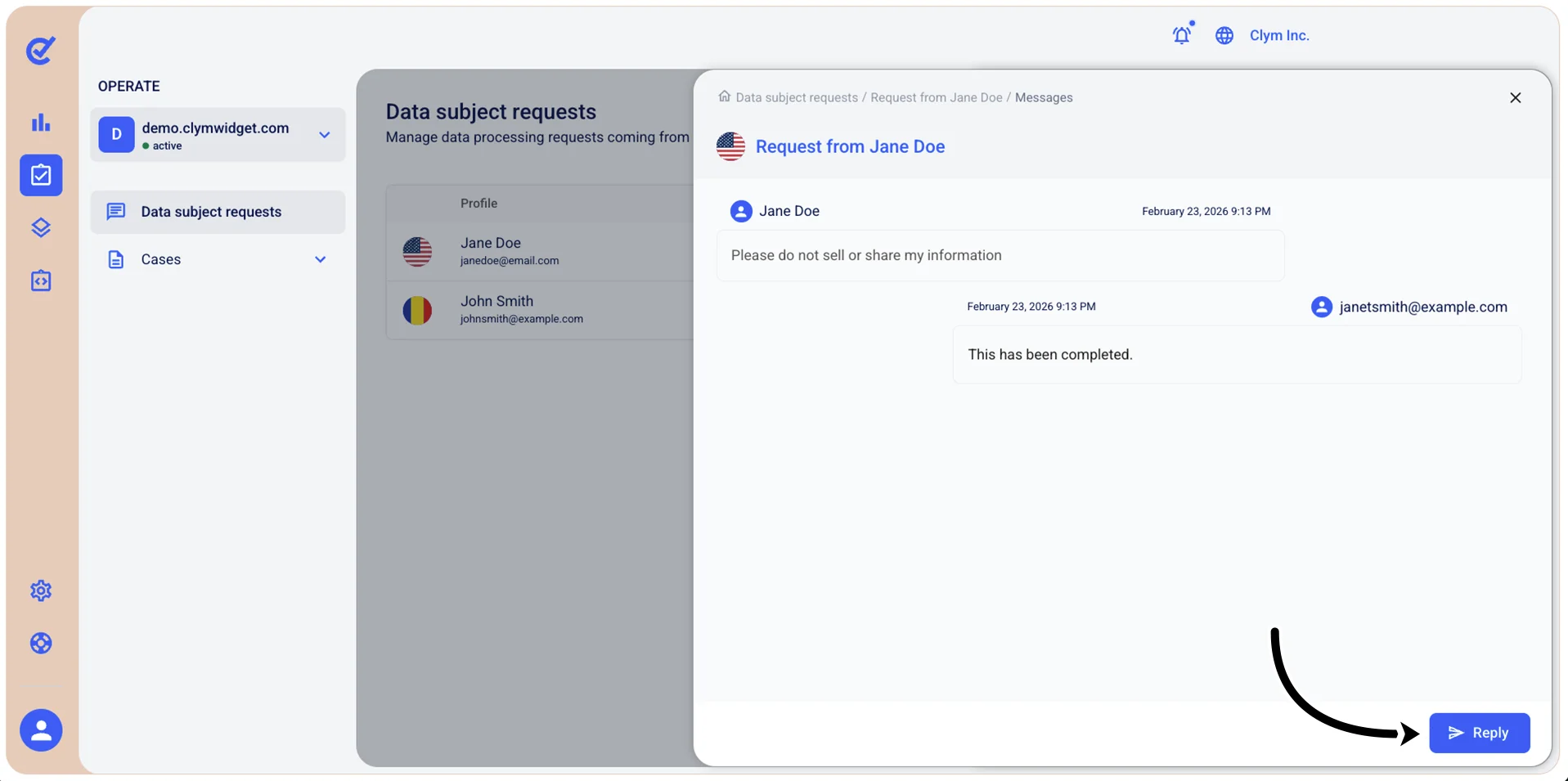
You can use the email formatting features available (bold, italics, underline and so on). The Messages feature also supports file attachments for supporting documents.
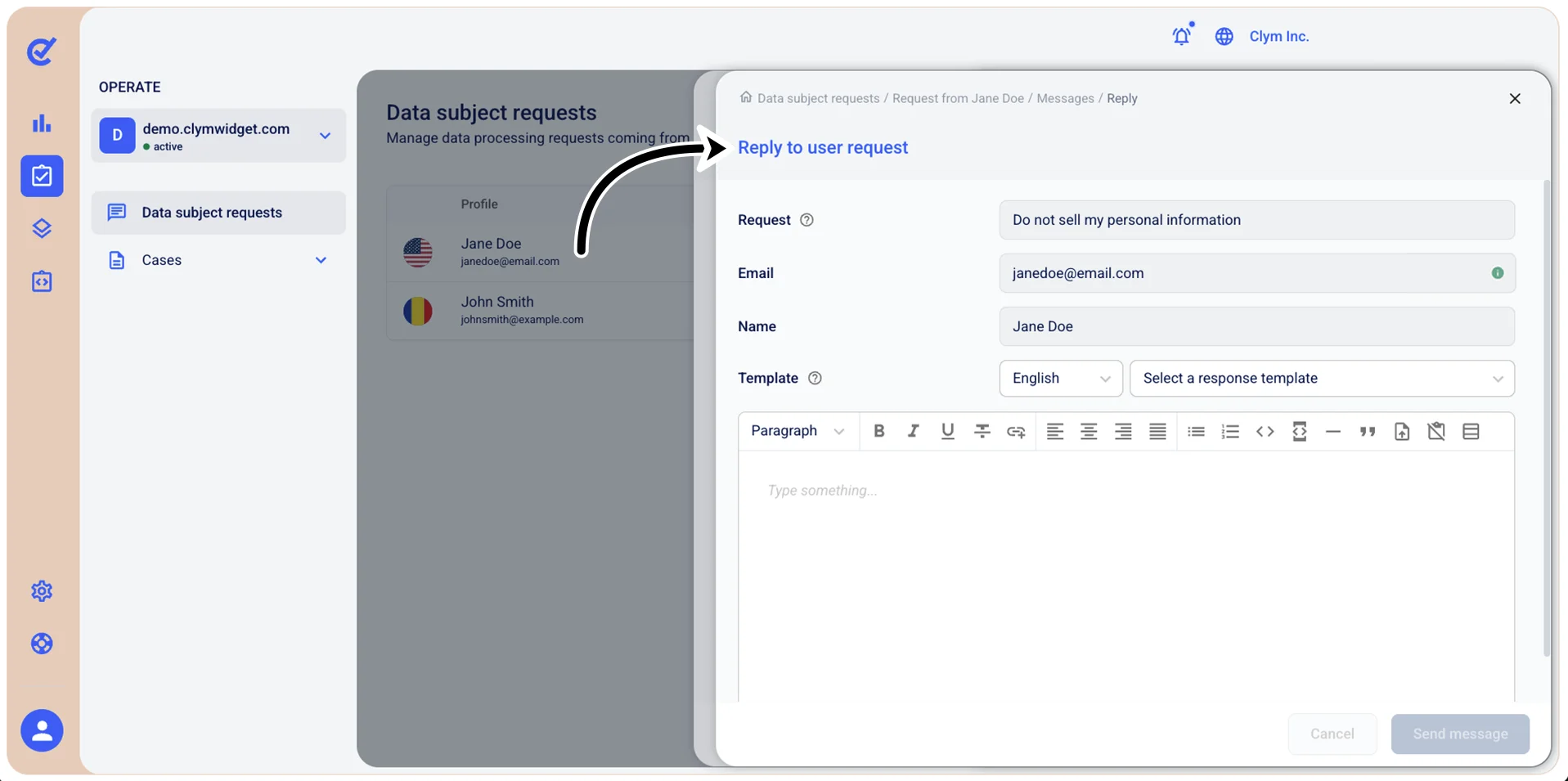
- When finished, select Send message to dispatch your response. Repeat steps 1-3 above to view the conversation.