
Filter DSRs
To narrow down your search of DSRs using filtering:
- Go to
 Operate > Data Subject Requests.
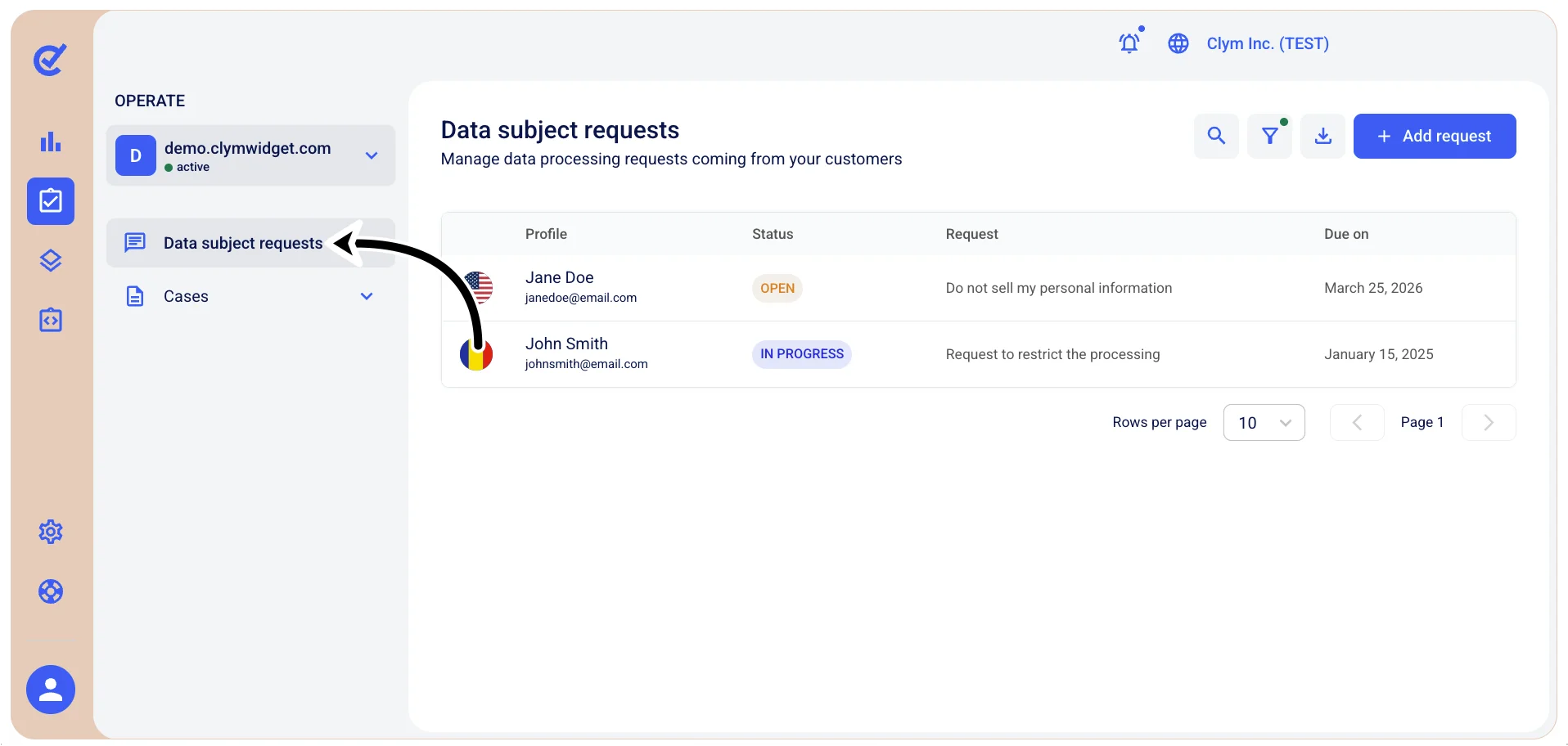
- In the Data Subject Requests section, select
 Filter.
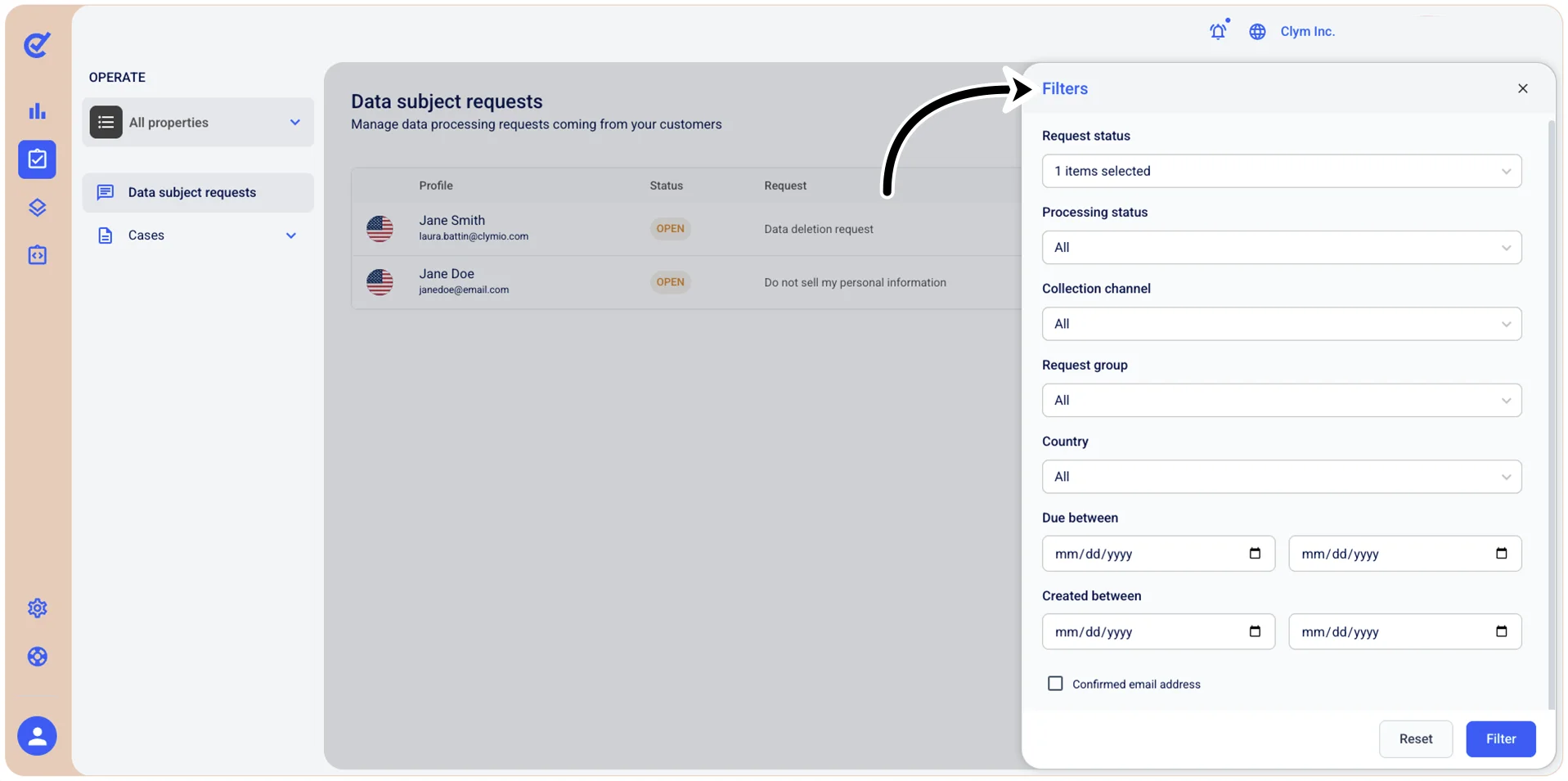
- In the Filters section, use the filtering parameters to find cases based on the following:
- Request status: Filter data subject requests by their current status, for example, Pending/Open/In progress and so on.
- Processing status: Select the specific processing status to narrow results, for example, Overdue/On time and so on.
- Collection channel: Filter requests by the channel through which they were submitted, for example, Widget/Governance Portal and so on.
- Request group: Filter requests by their category or type, for example, Update your data/Delete your data/Receive a copy and so on.
- Country: Filter requests by the country or geographic location of the requester.
- Due between: Filter requests by their resolution deadline or due date range.
- Created between: Filter requests by the date range when they were submitted or created.
- Confirmed email address: Select this checkbox to include only DSRs with confirmed email addresses.
- When finished, select Filter.
The filtered DSRs are displayed in the Data Subject Requests section. Note that, whenever the Control Center displays filtered information, the  filter icon is marked with a tiny bubble.