
Define your company’s settings on an individual domain
If you manage multiple domains, you can easily configure your company's generic settings for an individual domain.
Important!
- To be able to customize this section, you need to toggle on Overwrite default settings.
- When configuring this section, make sure that you select Save on the tab you just configured before moving on to another tab.
To define your company’s contact information, as well as other generic details:
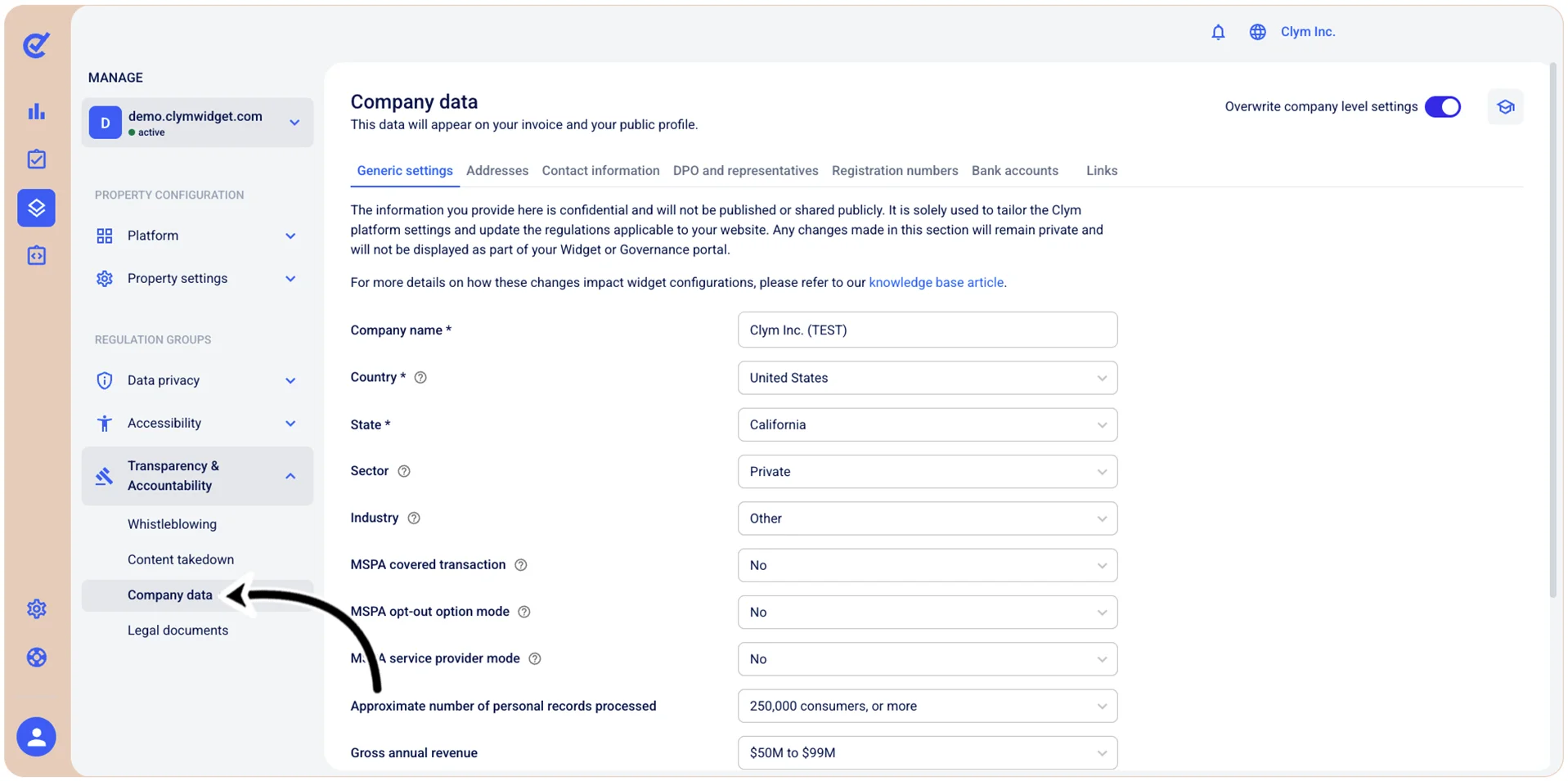
- Go to
 Manage>Transparency & Accountability>Company data.
- Under Company data, in the Generic settings tab, enter your company’s details, as follows. All fields marked with * are mandatory.
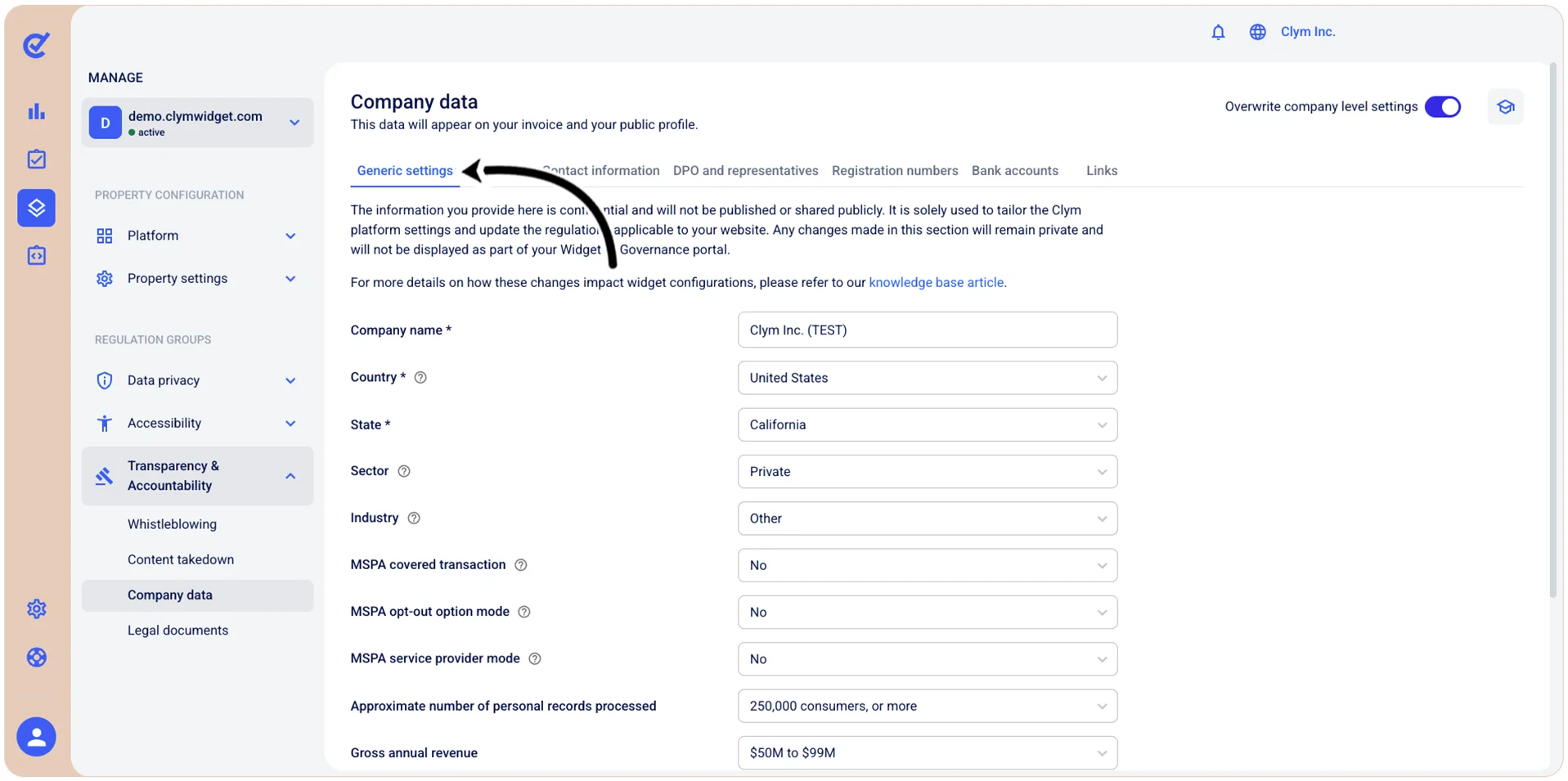
- Company name*: The legal name of your organization.
- Main account email*: The primary email address for your company's account.
- Country*: Select the country where your company is headquartered or primarily operates. Your company is subjected to the legislation of the country you select here - and, if applicable, the region: For example, selecting Germany translates into your company being subjected to both German and European Data Protection legislation.
- State*: Select the state or province where your company is located.
- Sector: Choose whether your organization operates in the public or private sector, for-profit or non-profit. This classification helps tailor compliance requirements to your organization type. For example, NGO Data Protection legislation may differ from that of private/corporate.
- Industry: Select the industry category that best describes your company's primary business activities. This helps customize privacy guidance relevant to your sector. Note that some industries (Alcohol, Cannabis, Gambling) are more highly regulated than others (Finance and Insurance), so make sure you select the correct one, according to your company’s line of work. Depending on your selection at this stage, public access to your website may be subject to age gating.
- MSPA covered transaction: Indicate whether your company engages in transactions covered by the Multi-State Privacy Agreement (MSPA).
- MSPA opt-out option mode: Specify how your company handles consumer opt-out requests under MSPA regulations.
- MSPA service provider mode: Define your company's role under MSPA regulations, if any.
- Approximate number of personal records processed: Select the range that best represents how many individual consumer or user records your company processes. Note that the applicable legislation may become more restrictive the more records your company processes.
- Gross annual revenue: Select the range that reflects your company's total annual revenue. Note that the applicable legislation may change based on the revenue you report.
- Number of employees: Select the range that represents your company's total workforce size. Employee count can be a factor in determining applicable privacy law requirements and the applicable legislation may change based on your staff number.
- Percentage of revenue derived from selling or sharing data: Select the range that represents what portion of your company's revenue comes from selling or sharing consumer data. This metric is important for determining specific privacy obligations under laws like the CCPA.
- When finished, select Save.