Define additional company links on an individual domain
In the Control Center, you can manage the external links that you want to publish on your website—for example, Consumer Protection or legislation websites.
Important!
- To be able to customize this section, you need to toggle on Overwrite default settings.
- When configuring this section, make sure that you select Save on the tab you just configured before moving on to another tab.
You can add, modify and remove links.
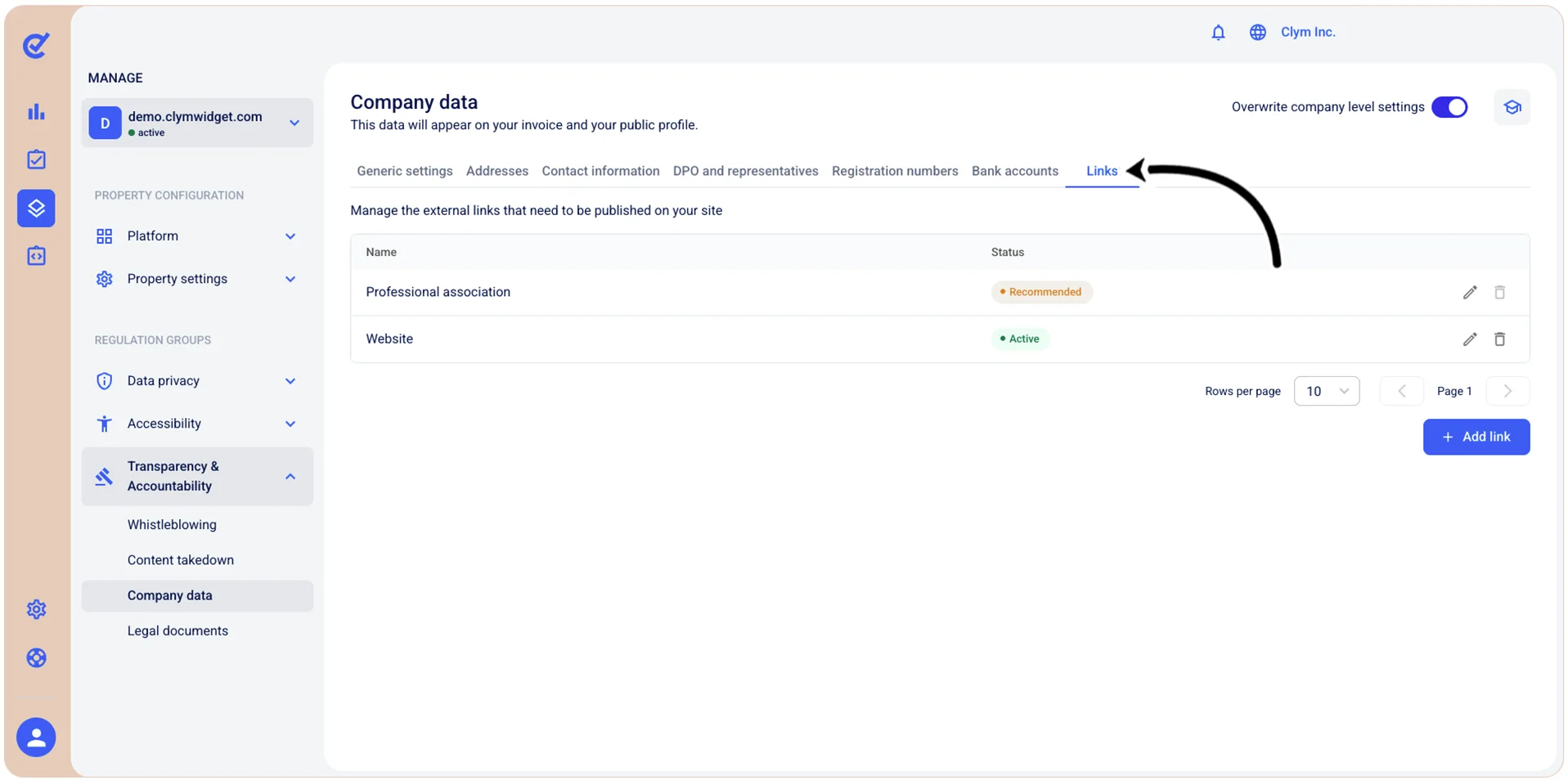
To access this section, go to  Manage>Transparency & Accountability>Company data and select the Links tab.
Add link on an individual domain
To add a link on an individual domain:
- Go to Manage>Transparency & Accountability>Company data.
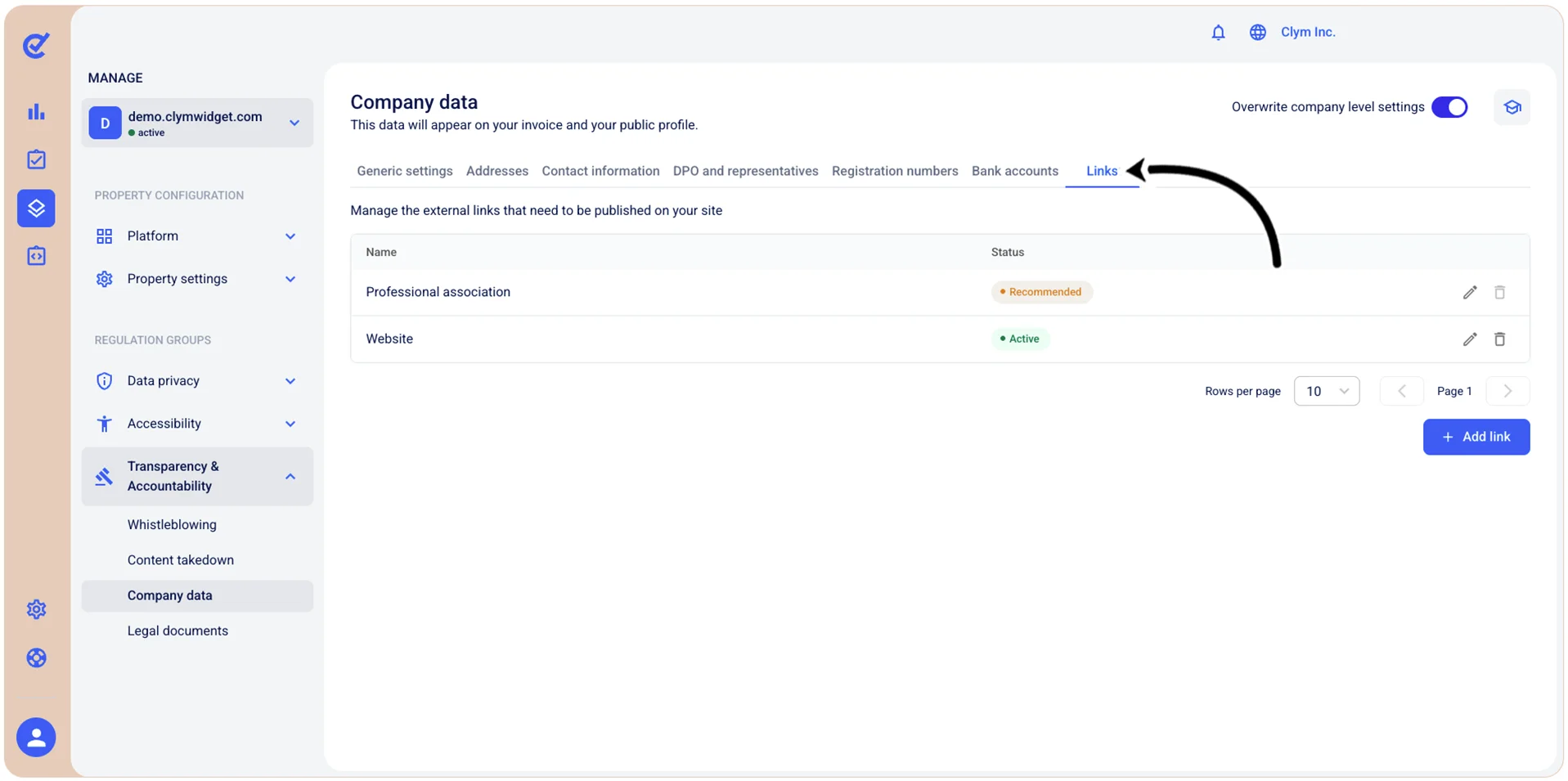
- In the Company data section, in the Links tab, select +Add link and then, in the Add link section, configure the Status of the link (Active/Inactive) fields, the Link name (for easier identification) and the URL. All fields marked with * are mandatory.
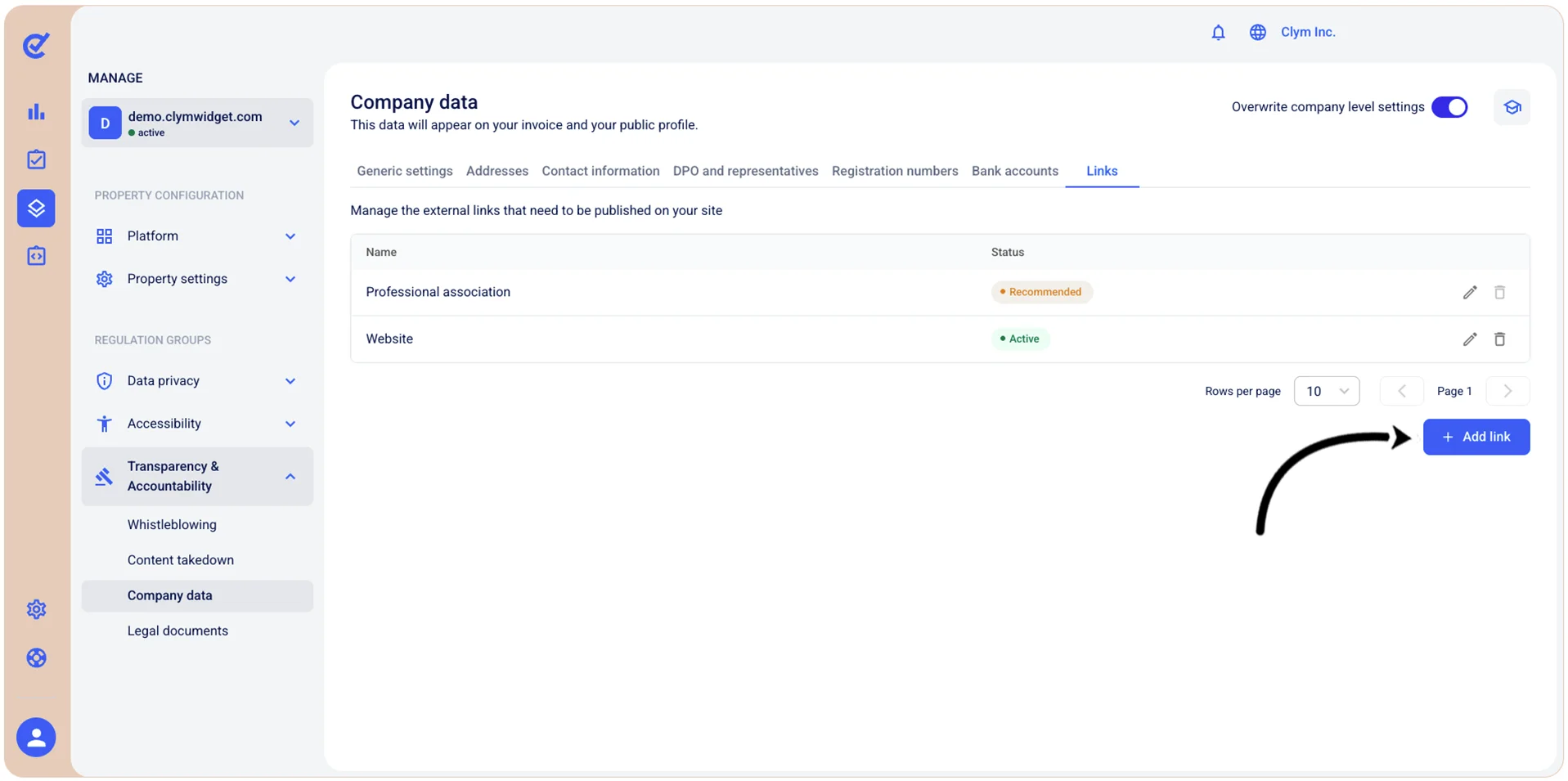
- When finished, select Save.
Modify a link on an individual domain
To modify a company link:
- Go to Manage>Transparency & Accountability>Company data.
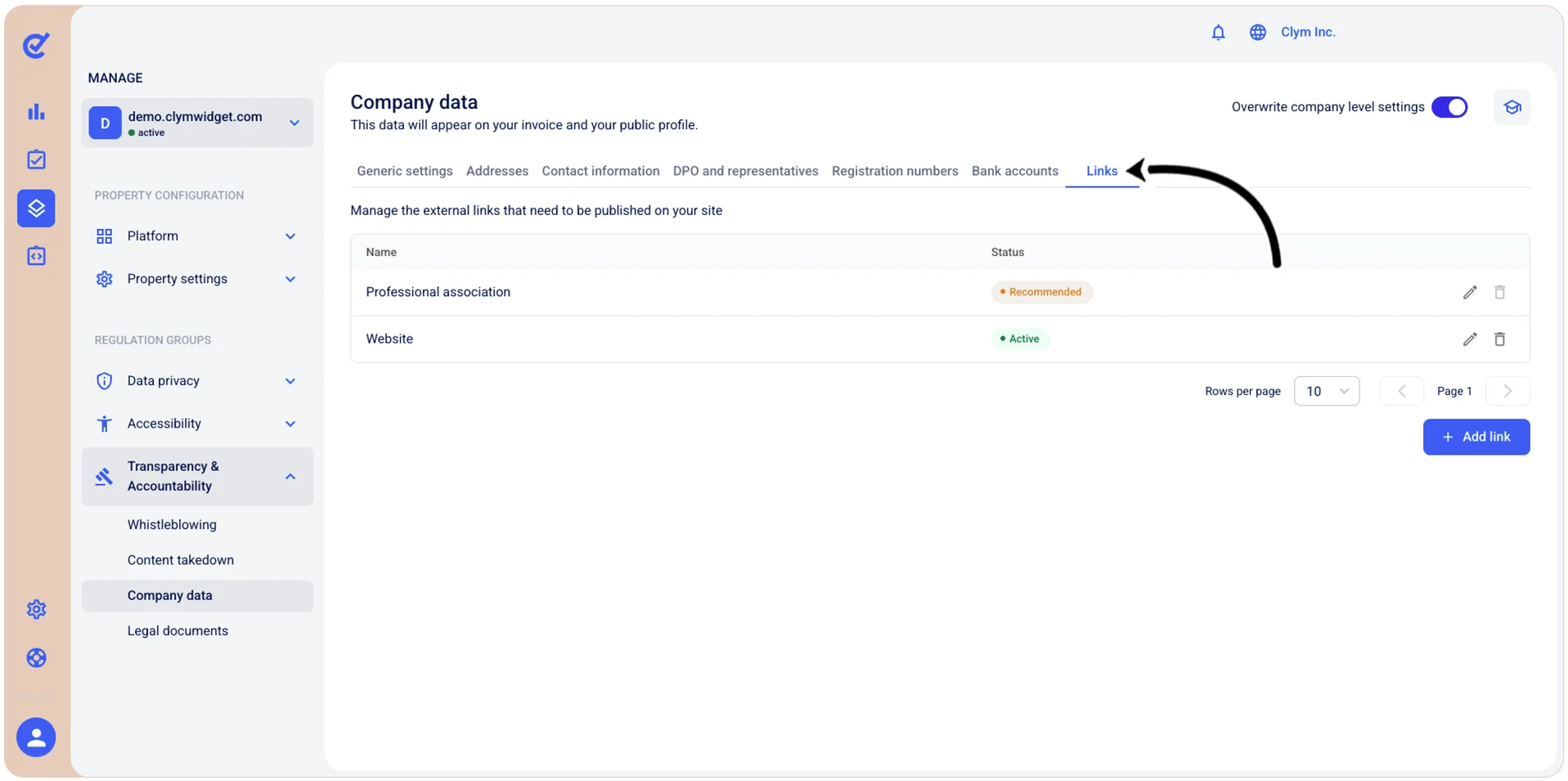
- In the Links tab, select
 Edit next to the desired entry and then proceed to modify the link.
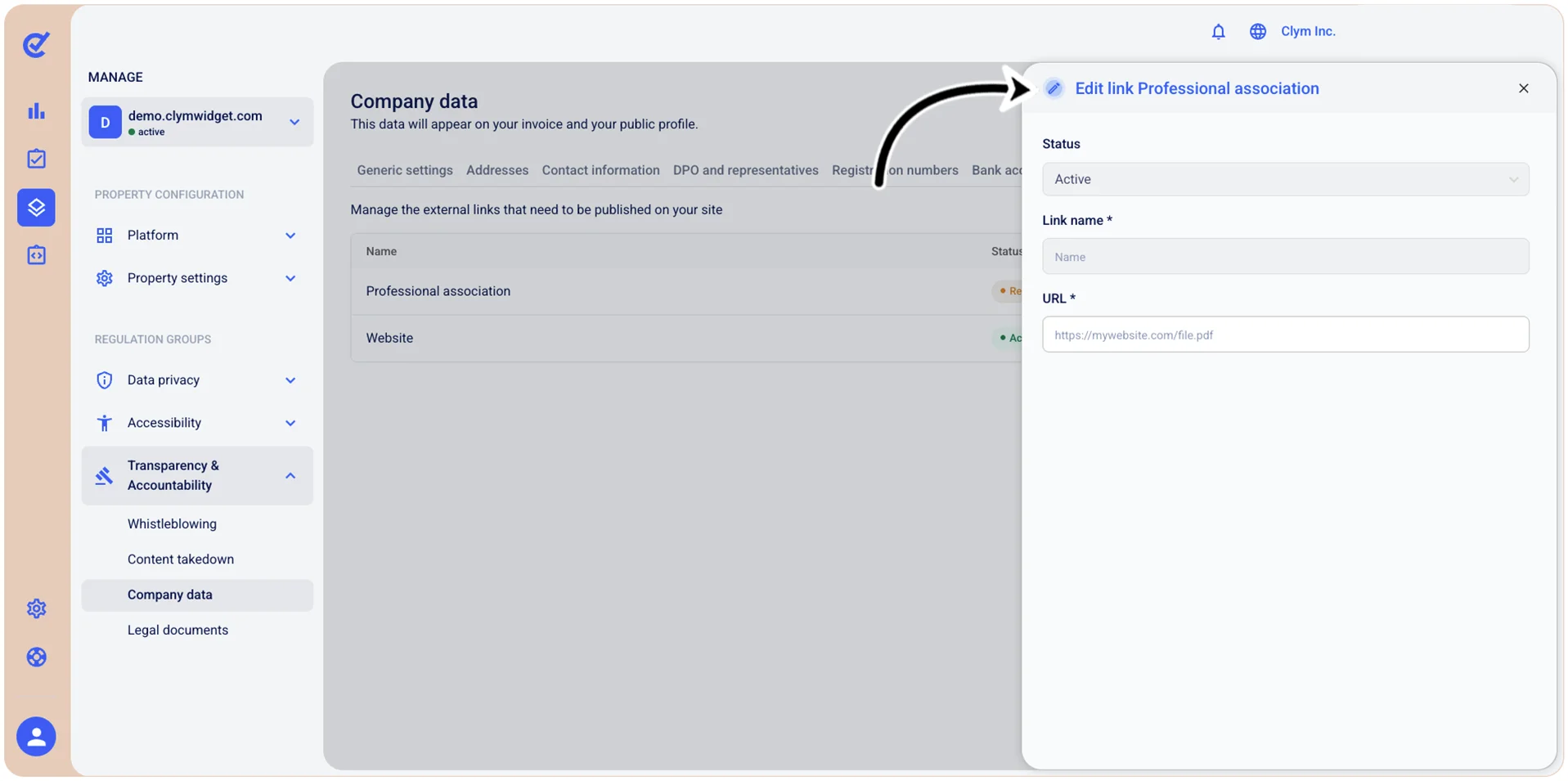
Delete link
To delete a company link:
- Go to Manage>Transparency & Accountability>Company data.
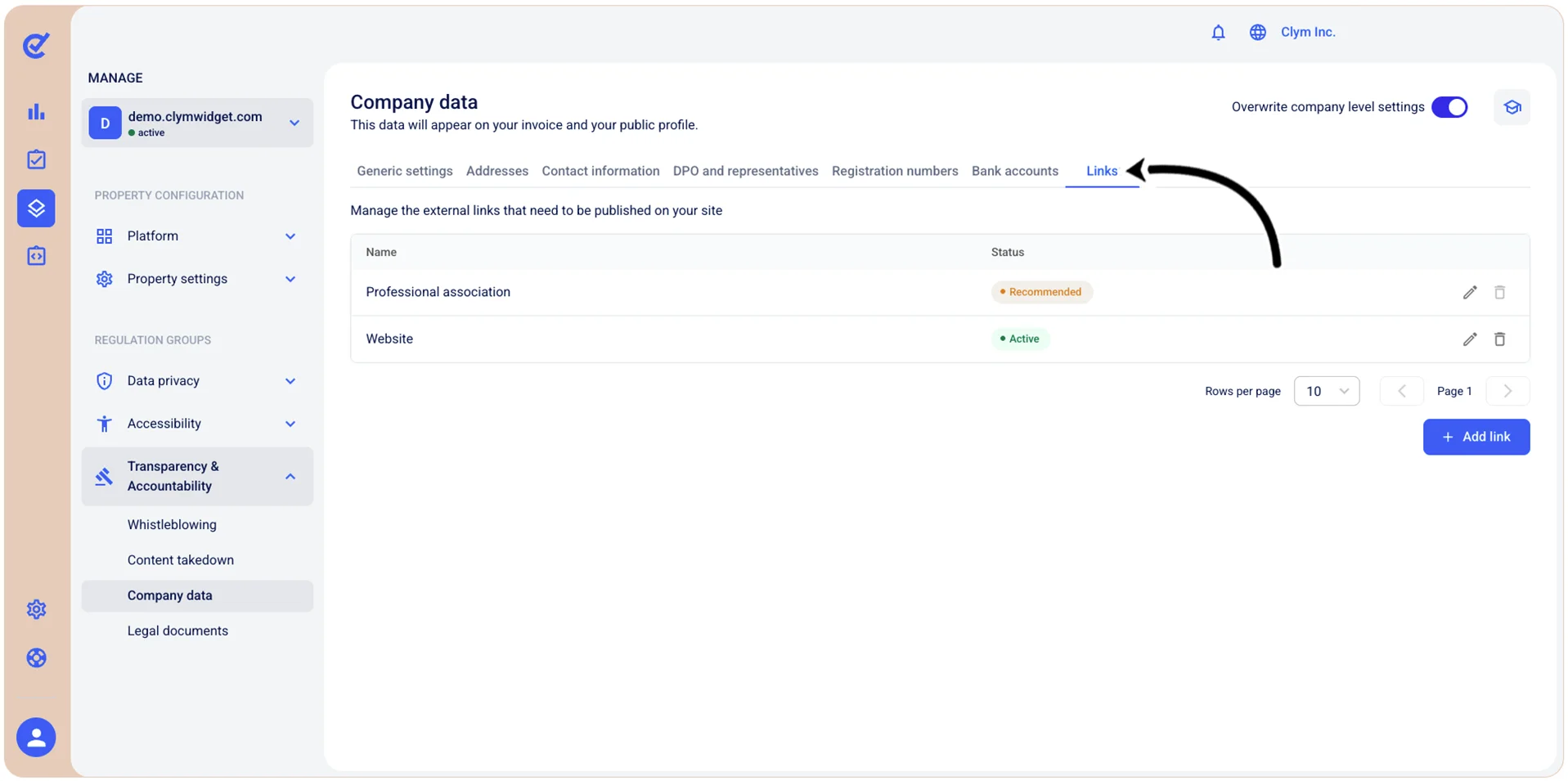
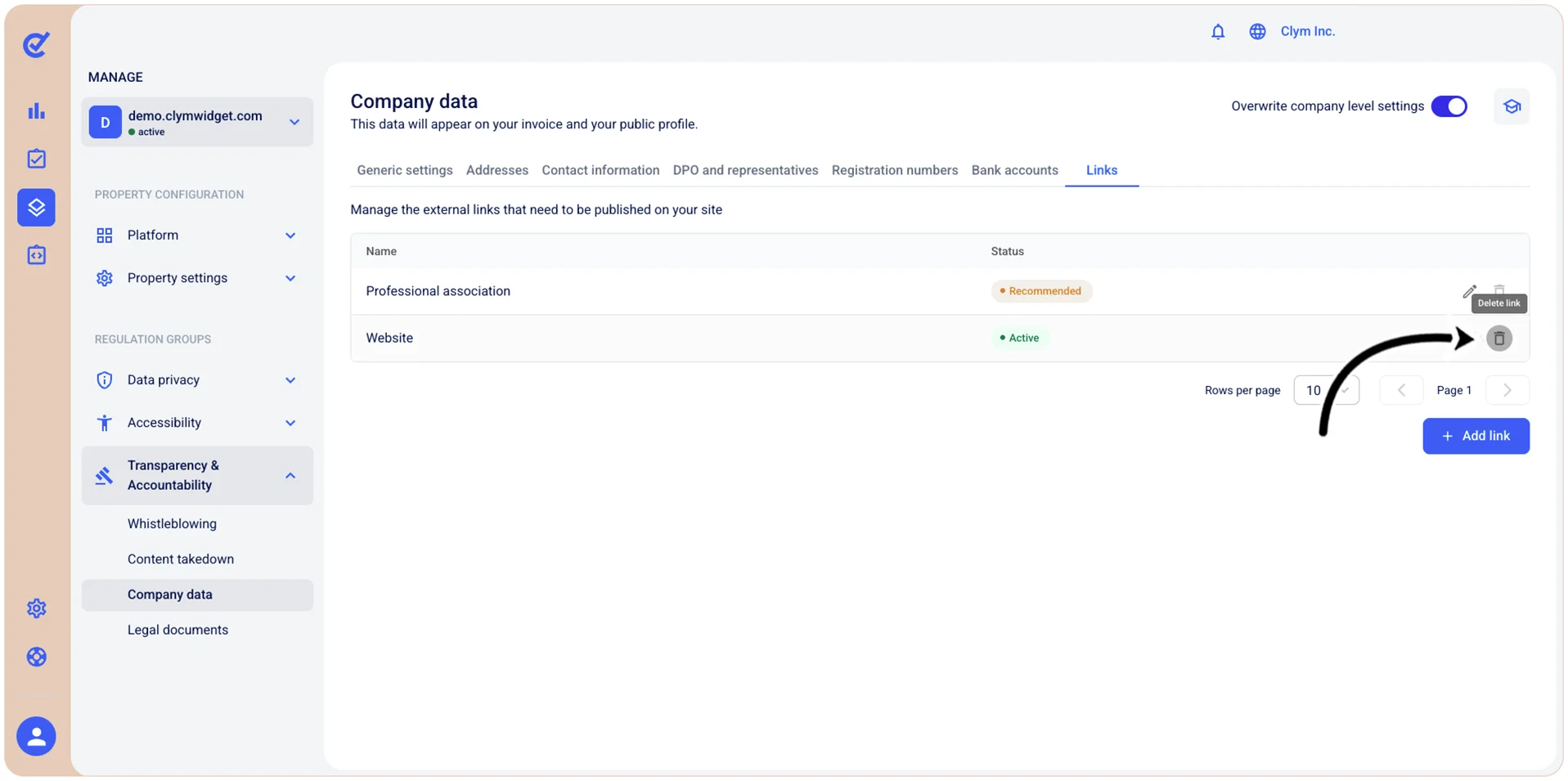
- In the Company data section, in the Links tab, select
 Delete link next to the desired entry.
 - In the confirmation message, select Confirm.