Manage translations/localizations in the Control Center
In the Control Center, you can translate any of the terms used across your Clym solutions to better align with your business needs. By accessing the Languages section, you can manually update the strings of the desired target language to better match your website’s personality.
To change the translations in the Control Center:
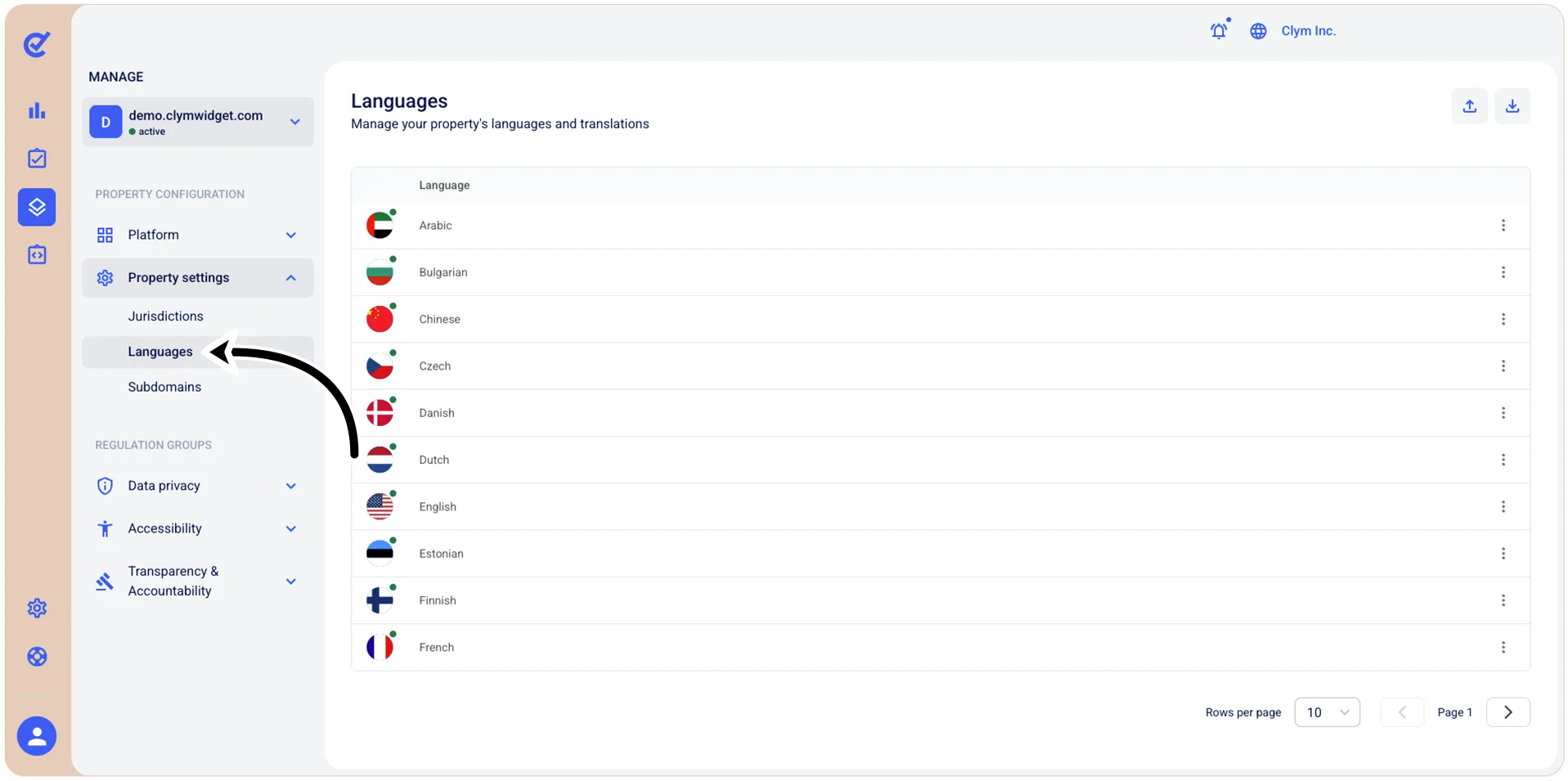
- Go to
 Manage>Property Settings>Languages.
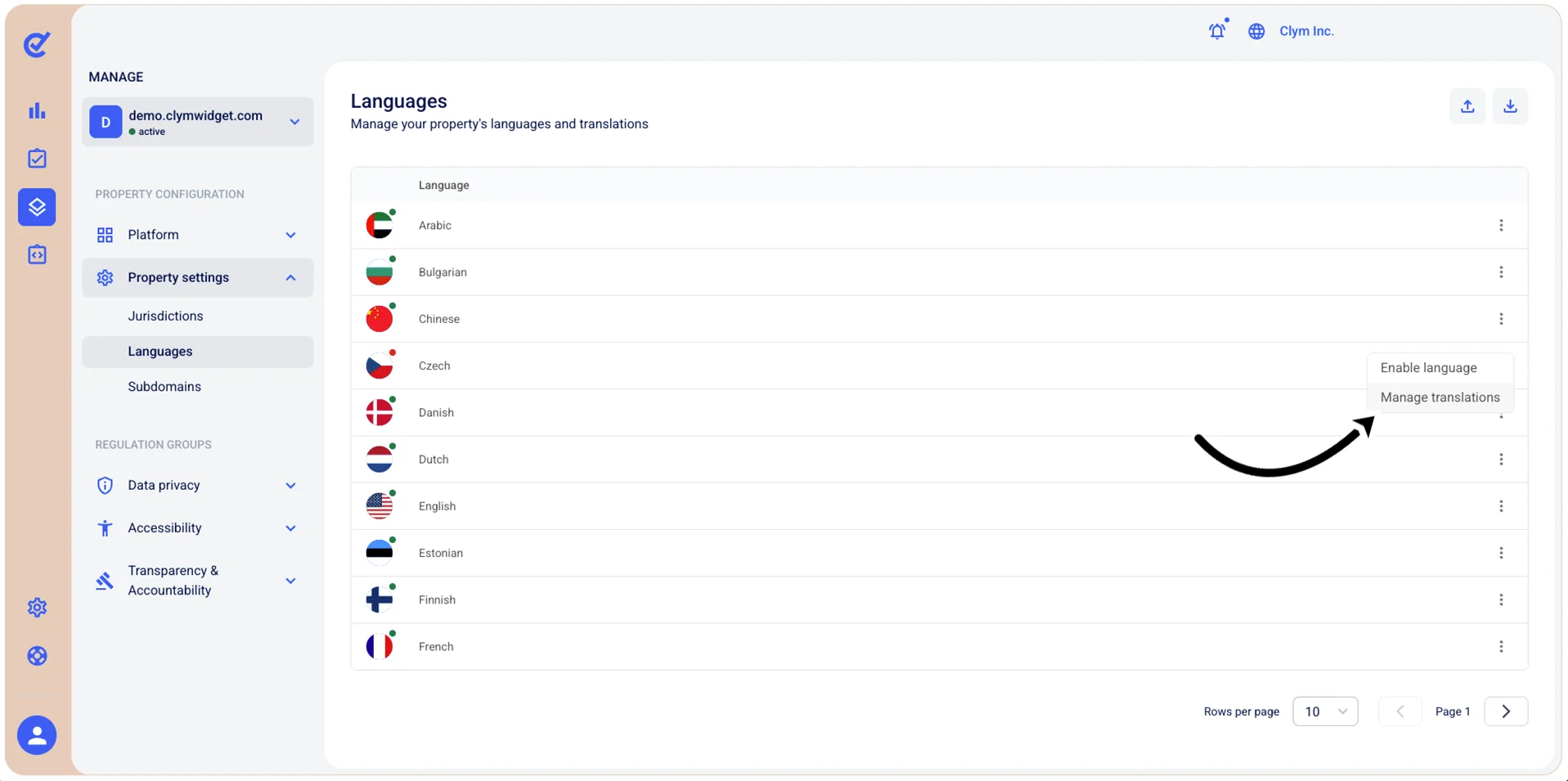
- In the Languages section, select ⋮ Settings next to the desired language and then select Manage translations on the shortcut menu.
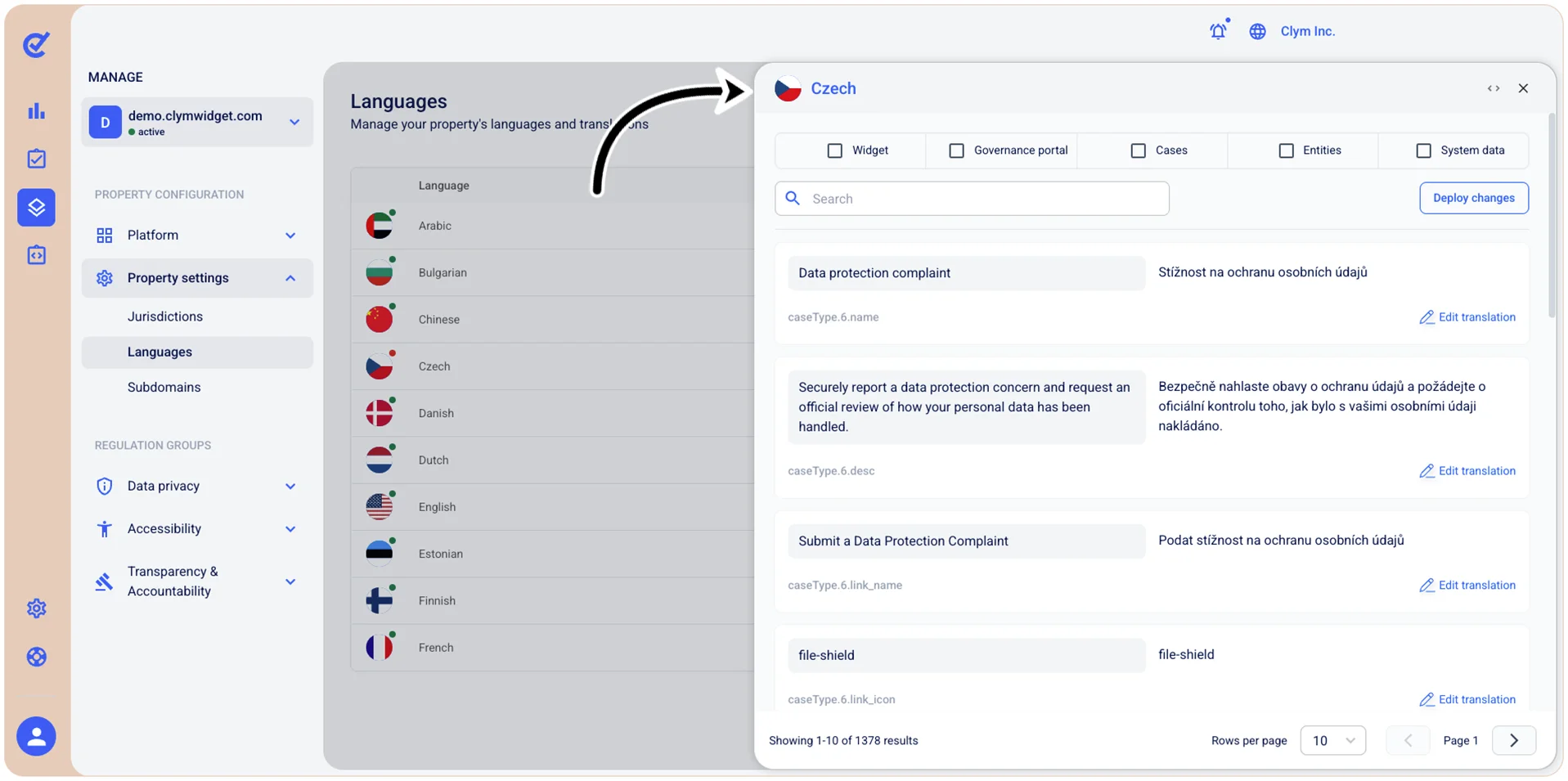
- In the
section, select which strings you want to display on the screen by selecting the desired component: Widget, Governance portal, Cases, Entities or System data. Depending on your selection at this stage, the UI options available to you may vary. - The
section displays the source language to the left and the target language to the right. Scroll around to verify the translations and wherever you want to change a string, select Edit translation. Then, enter your new strings in the adjacent target field and then select Save.
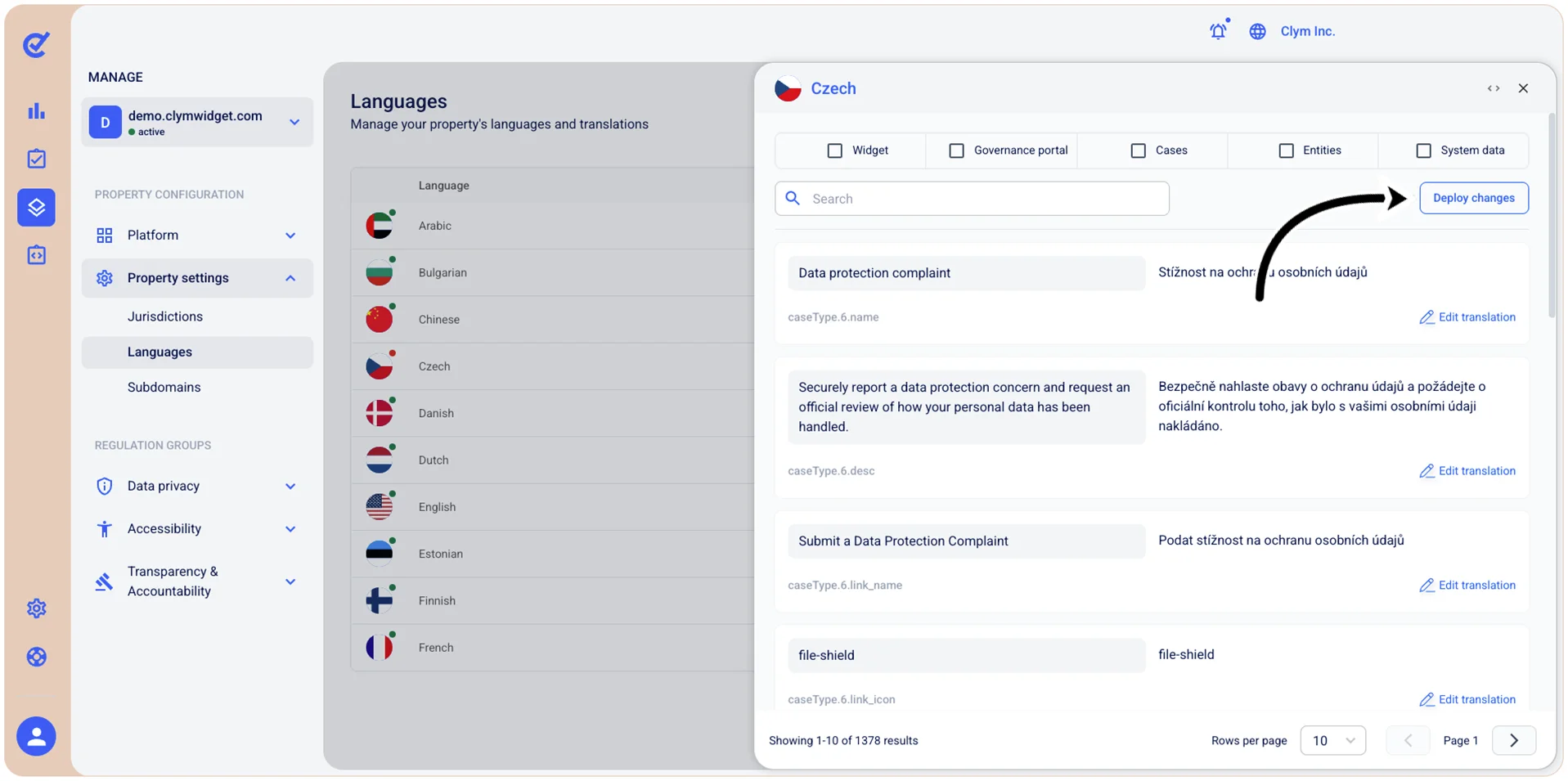
- To publish all your updated strings across all the selected platforms, when finished with all the changes, select Deploy changes.