
Data privacy: Add cookies management
To add cookies management in the Control Center:
- Go to
 Manage>Data privacy>Cookies.
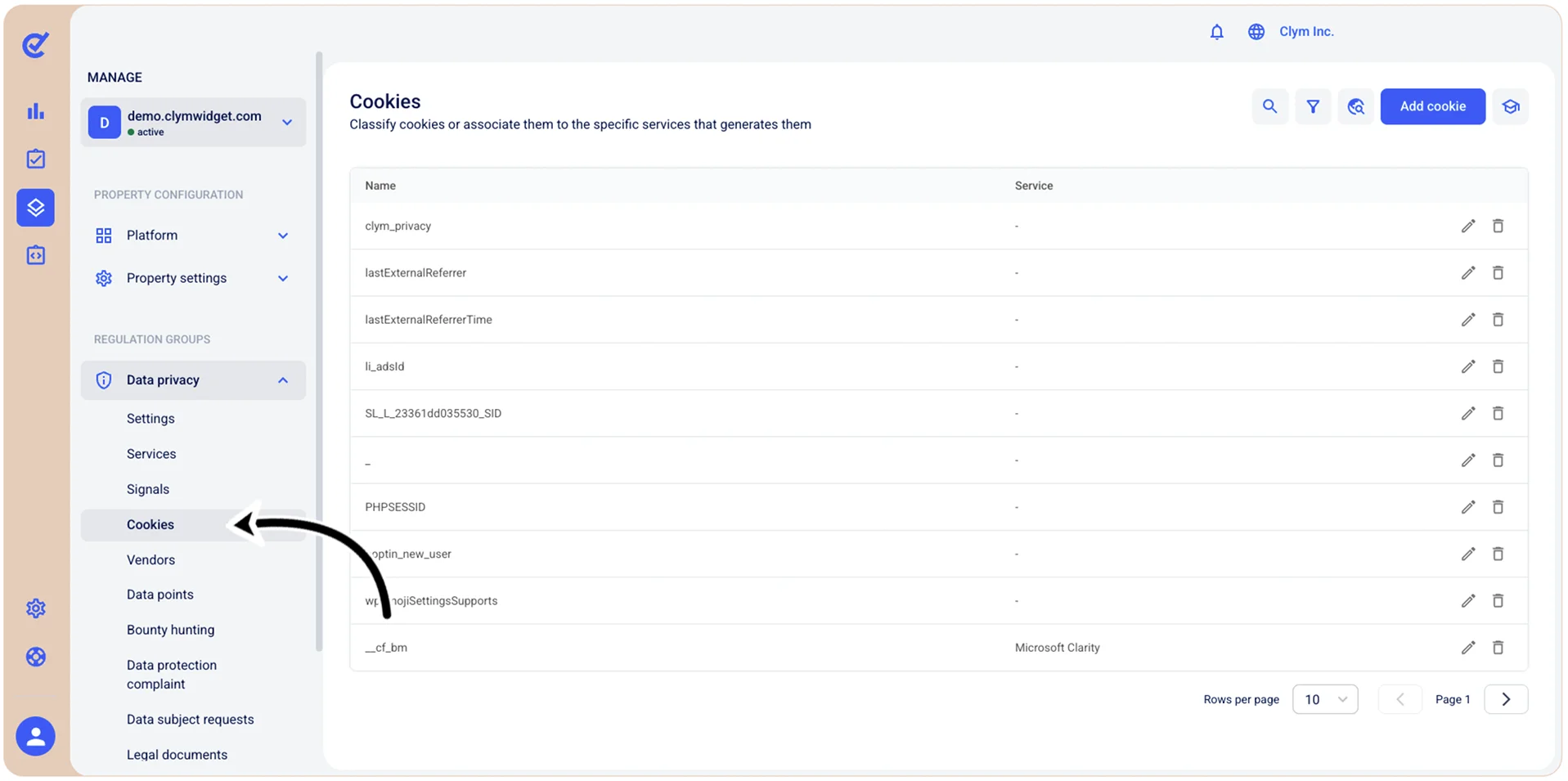
- In the Cookies section, select +Add cookie and then configure the cookie details, as follows.
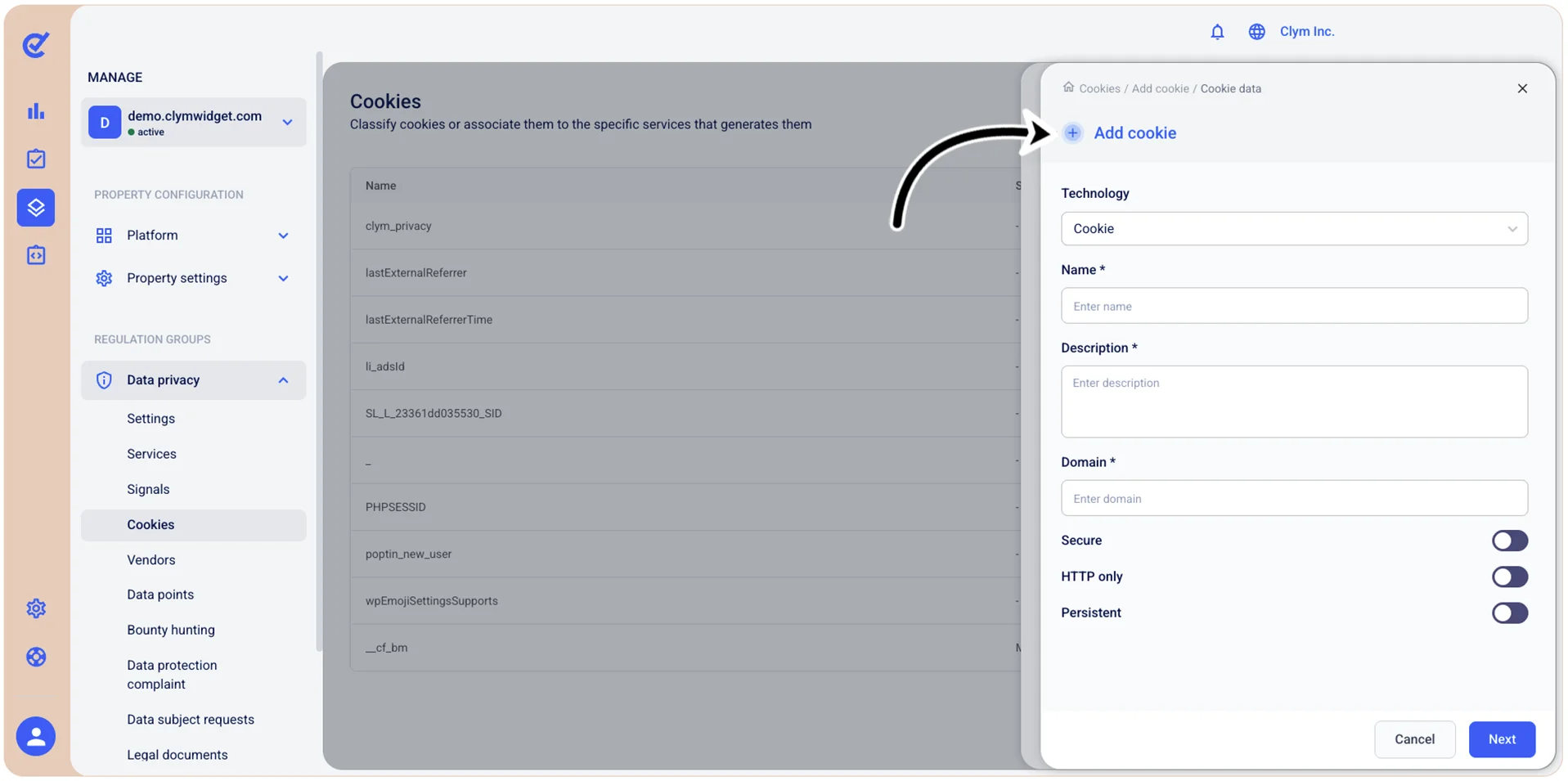
- Technology: Select the type of tracking technology you are adding (for example, Cookie/Local storage/Web SQL and so on).
- Name: Enter a descriptive name for the cookie or tracking technology.
- Description: Enter a meaningful description - for example, explain what the cookie or tracking technology does and what data it collects.
- Domain: Enter the domain that sets or uses this cookie or tracking technology.
- Secure: Toggle on to indicate the cookie is only transmitted over secure HTTPS connections.
- HTTP only: Toggle on to indicate whether this cookie uses the HTTPOnly flag, which means the cookie cannot be accessed by client-side JavaScript, providing protection against cross-site scripting (XSS) attacks.
- Persistent: Toggle on to indicate this is a persistent cookie, in which case the cookie remains on the user's device after the browser is closed and has a set expiration date. Toggling on this feature activates the Duration setting (see below).
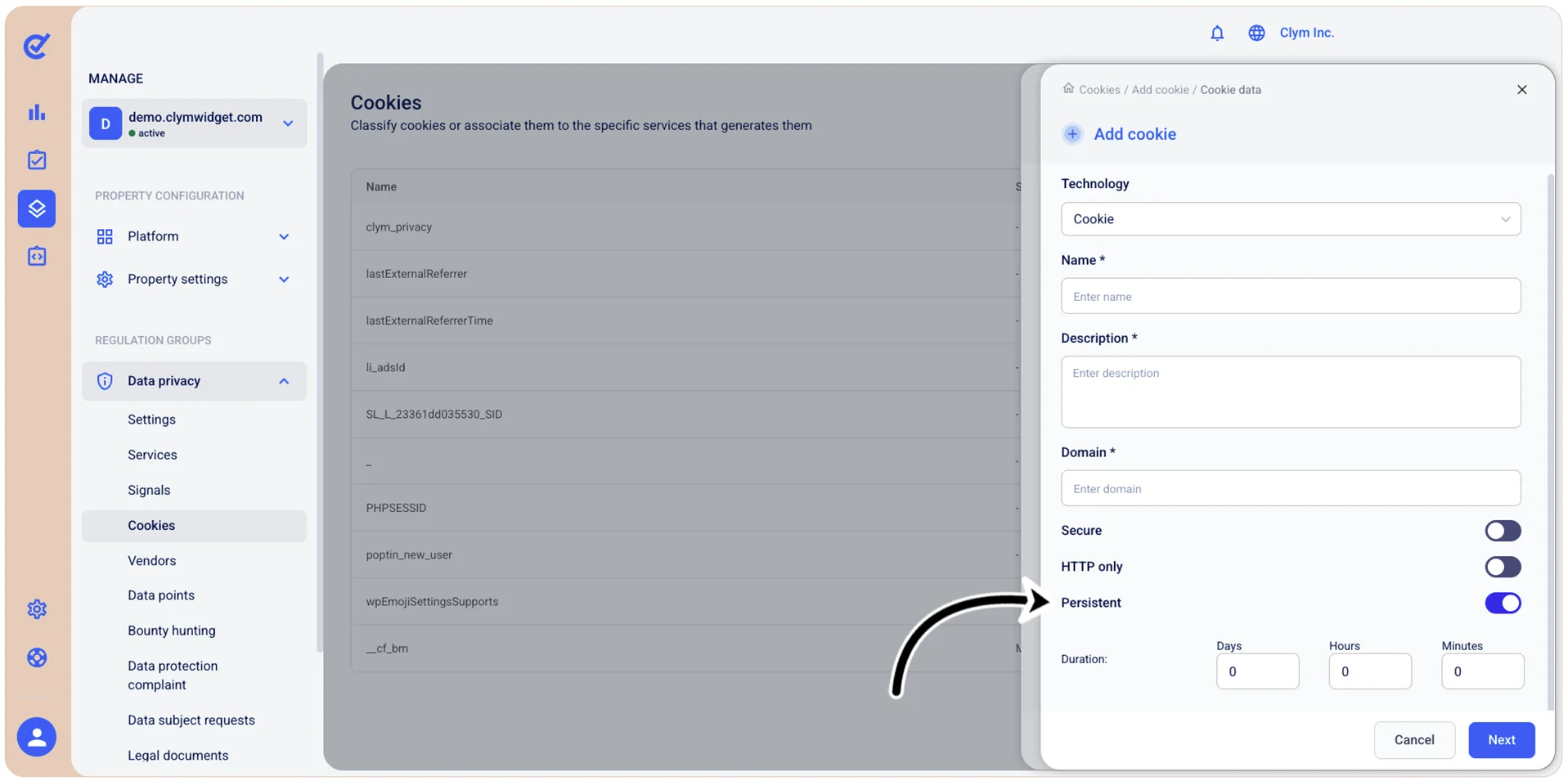
- (If you toggled on Persistent above) Duration: Configure the cookie’s duration on the user’s device.
When finished, select Next.
- Next, select the desired Type and Service of the cookie.
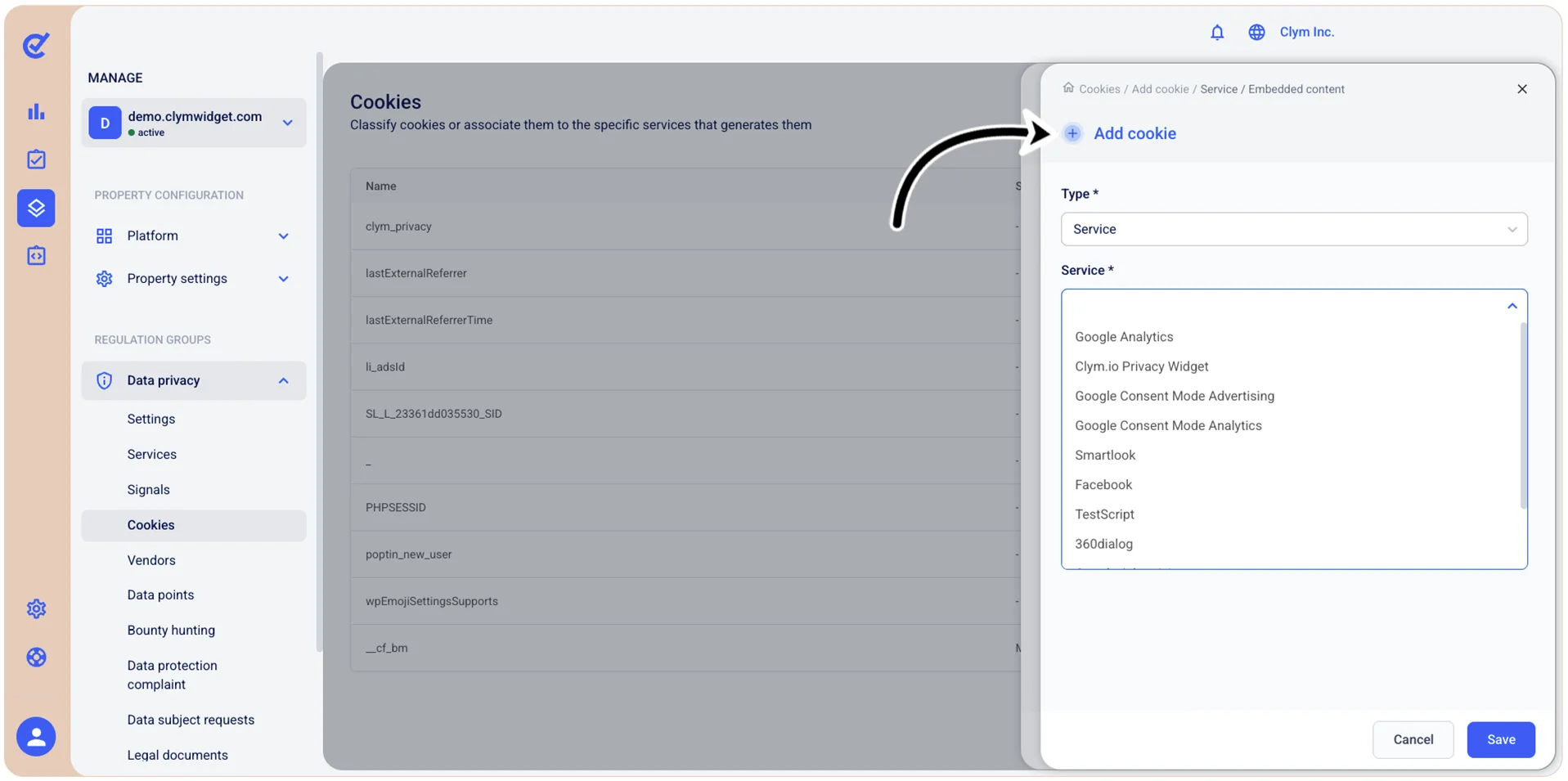
- When finished, select Save.
- To create the Cookie, select Add. Your newly-created cookie is displayed in the Cookies list.