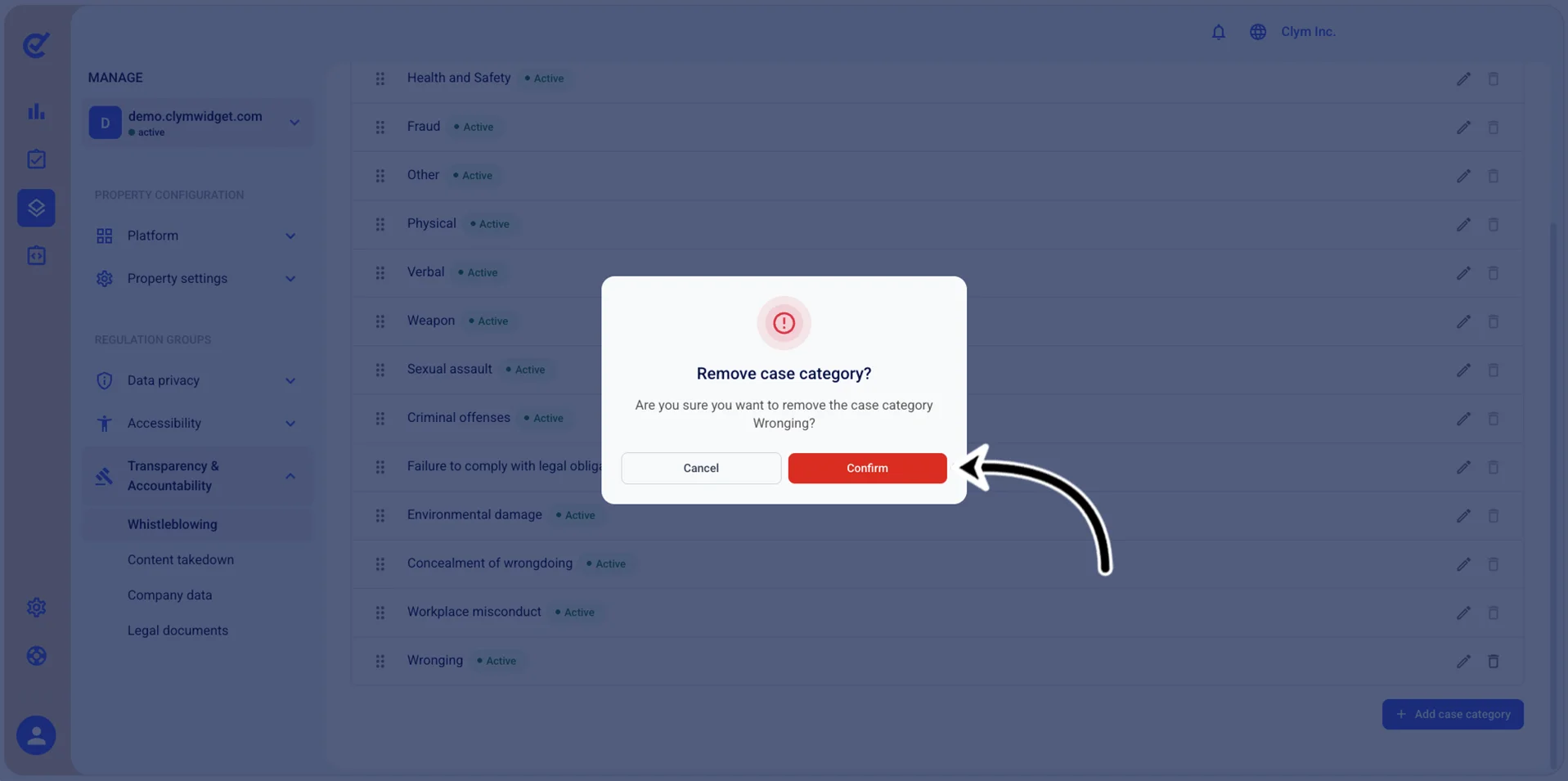
Configure the case categories for whistleblowing cases
Whenever submitting a Whistleblowing report, a reporter needs to fill in a report to describe the nature of the case. The report contains several types of Transparency & Accountability issues that you can configure to better suit your individual needs.
Important!
- To be able to customize this section, you need to toggle on Overwrite default settings.
- When configuring this section, make sure that you select Save on the tab you just configured before moving on to another tab.
To configure the Whistleblowing case categories:
- Go to
 Manage>Transparency & Accountability>Whistleblowing.
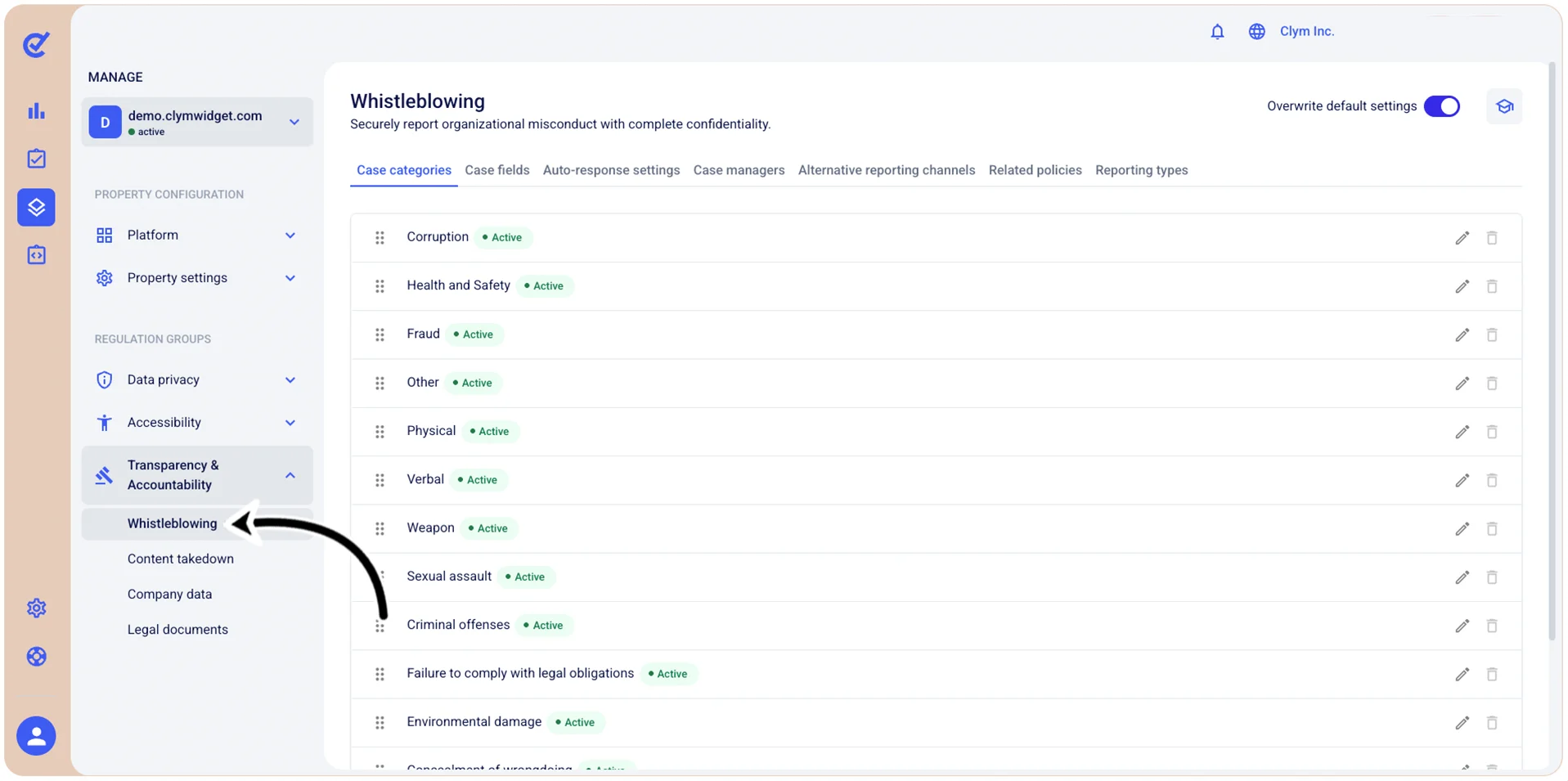
- In the Case categories tab, you can see all the case categories that a whistleblowing case could belong to. You can add, modify and delete a whistleblowing case category.
Add a whistleblowing report case category
In the Control Center, you can add a new report case category to suit your needs.
To add a new whistleblowing report case category:
- Go to Manage>Transparency & Accountability>Whistleblowing.
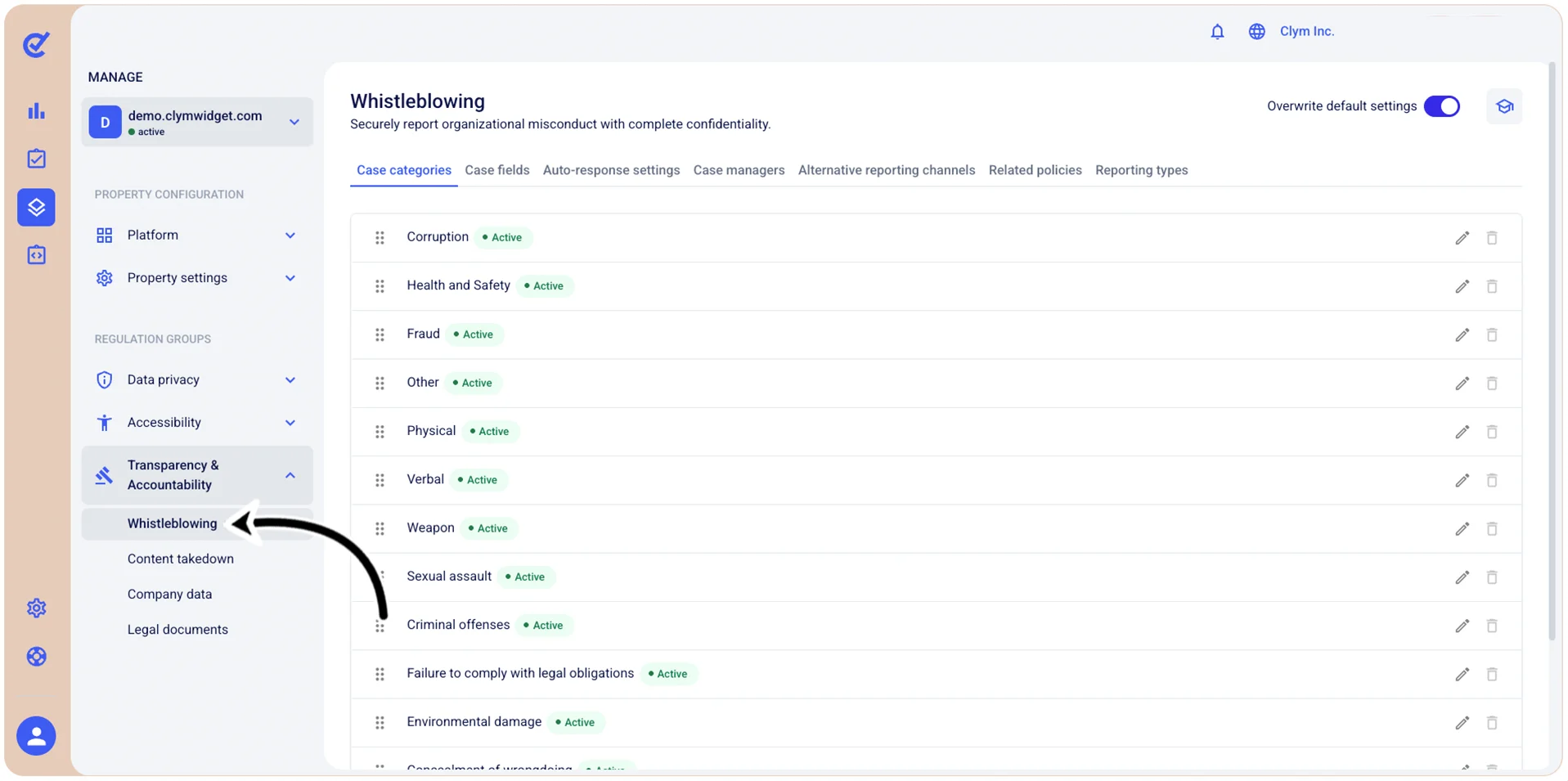
- In the Case categories tab, select +Add case category and then configure the new case category details, as follows:
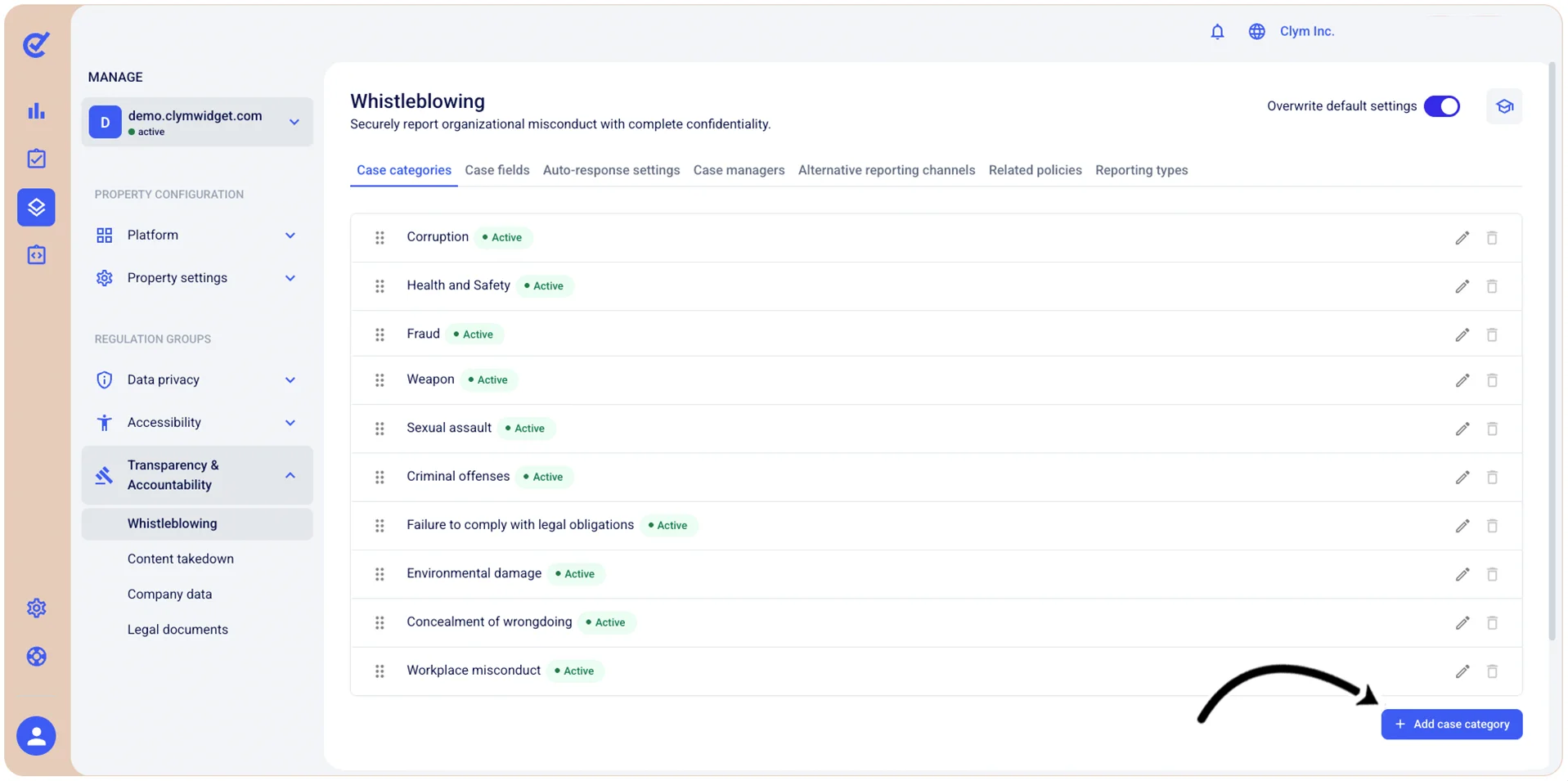
- Name: Give your new case category a descriptive name.
- Description: Give your case category a meaningful description.
- Category enabled: Toggle on to make this case category active.
- When finished, select Save. Your newly-created case category is displayed in the Whistleblowing section, in the Case categories tab.
Deactivate/Reactivate a whistleblowing report case category
Depending on your organization’s needs, you can temporarily deactivate or reactivate a whistleblowing case category. Deactivating a case category does not remove it, but only makes it unavailable until you reactivate it.
To deactivate/reactivate a case category:
- Go to Manage>Transparency & Accountability>Whistleblowing.
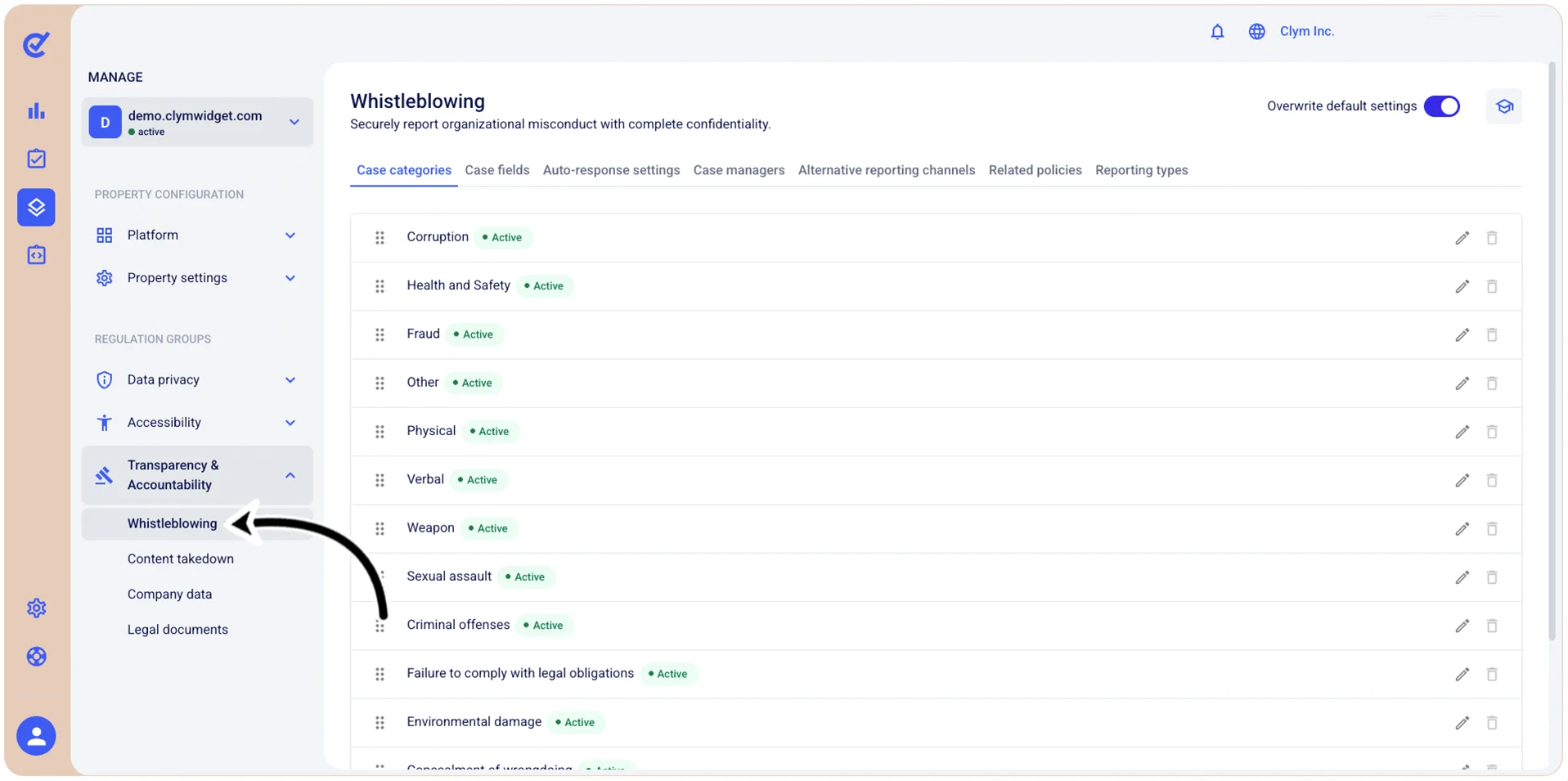
- In the Case categories tab, select
 Edit details next to the desired case category if it is marked with the Active label.
 - In the Edit case category section, toggle off Category enabled to deactivate it or toggle it on to restore it.
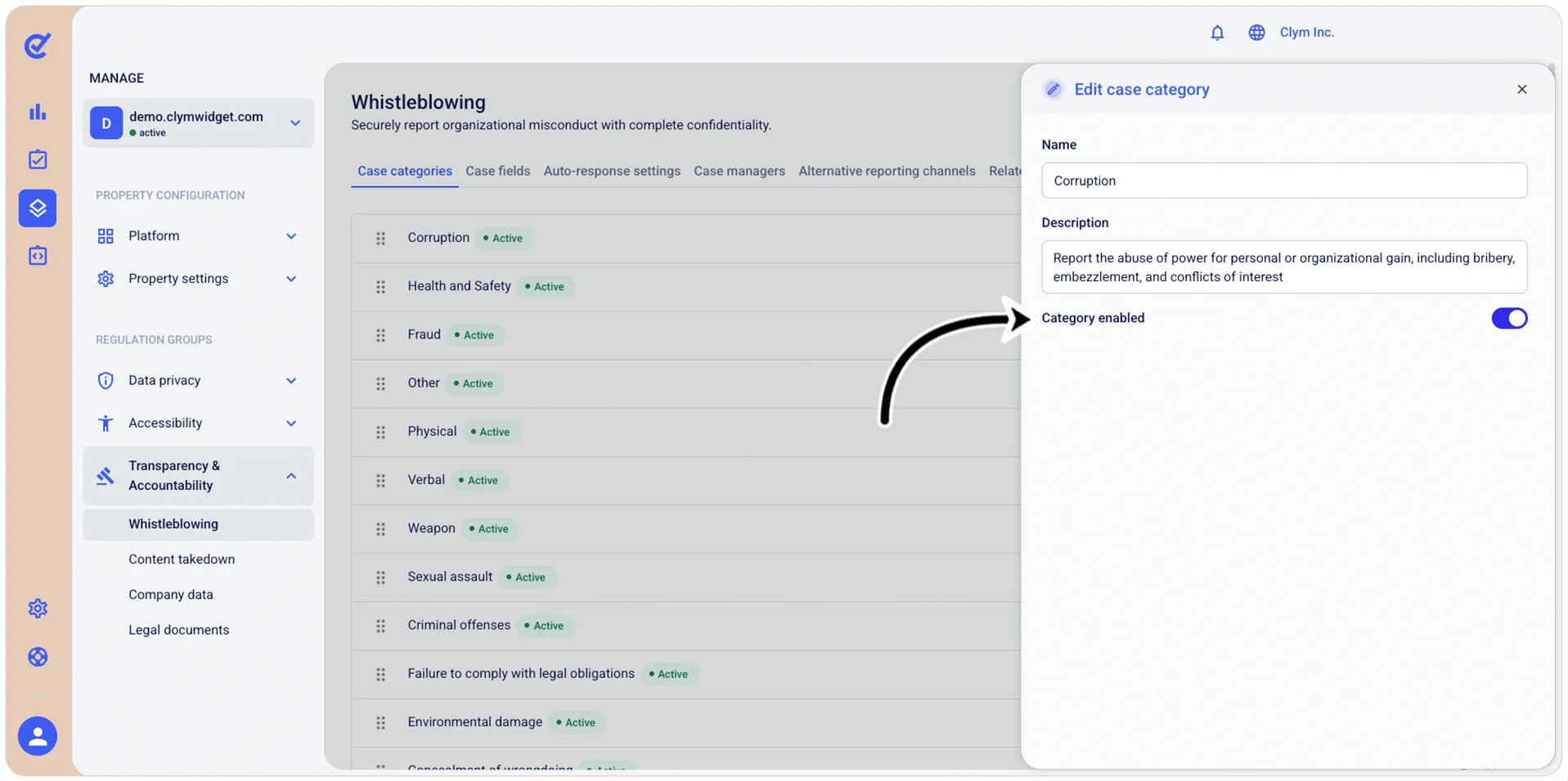
- When finished, select Save.
Reposition a whistleblowing report case category
Depending on your organization’s needs, you can reposition a whistleblowing case category in the hierarchy it is displayed on the UI.
To reposition a whistleblowing case category:
- Go to Manage>Transparency & Accountability>Whistleblowing.
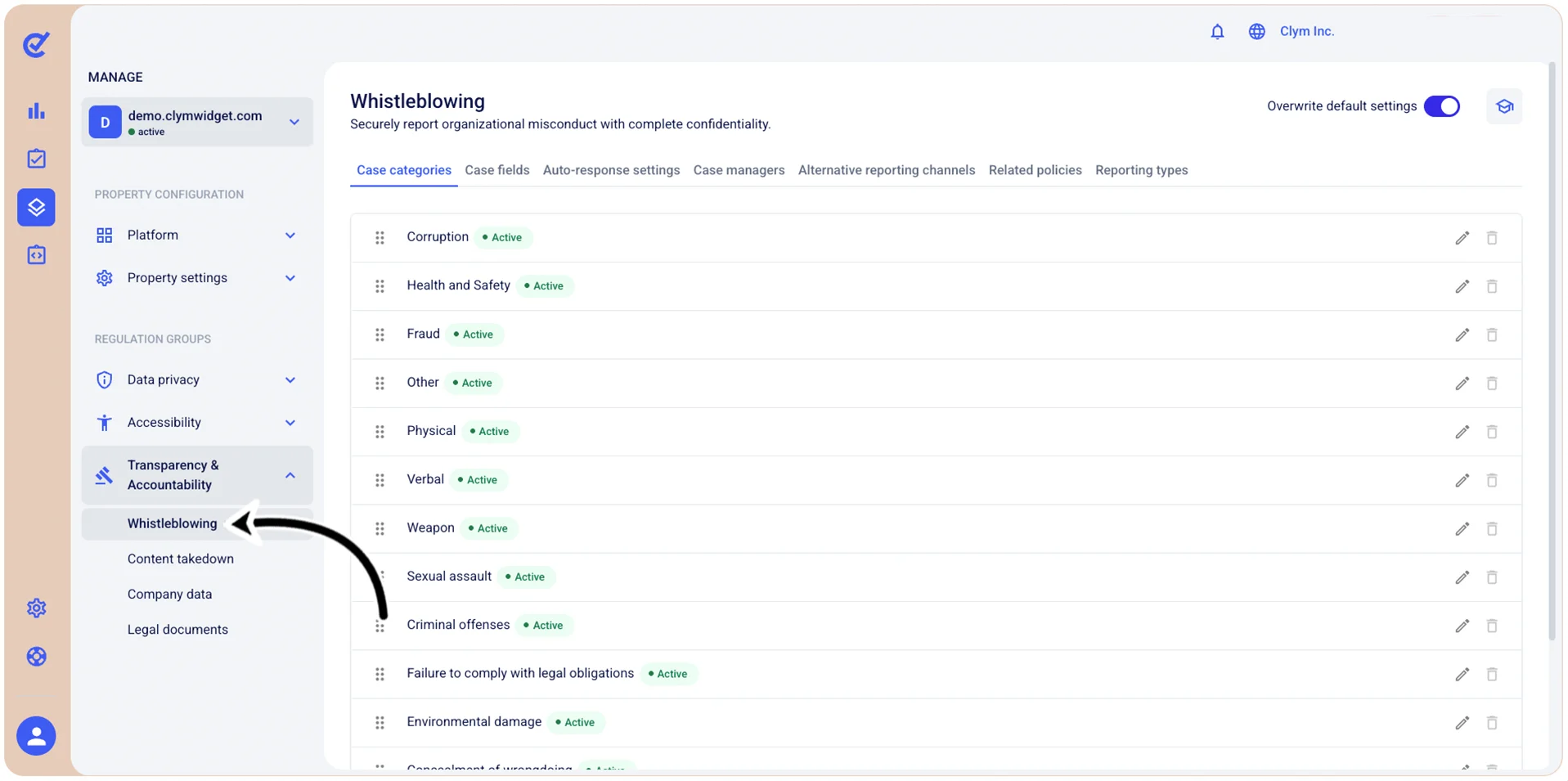
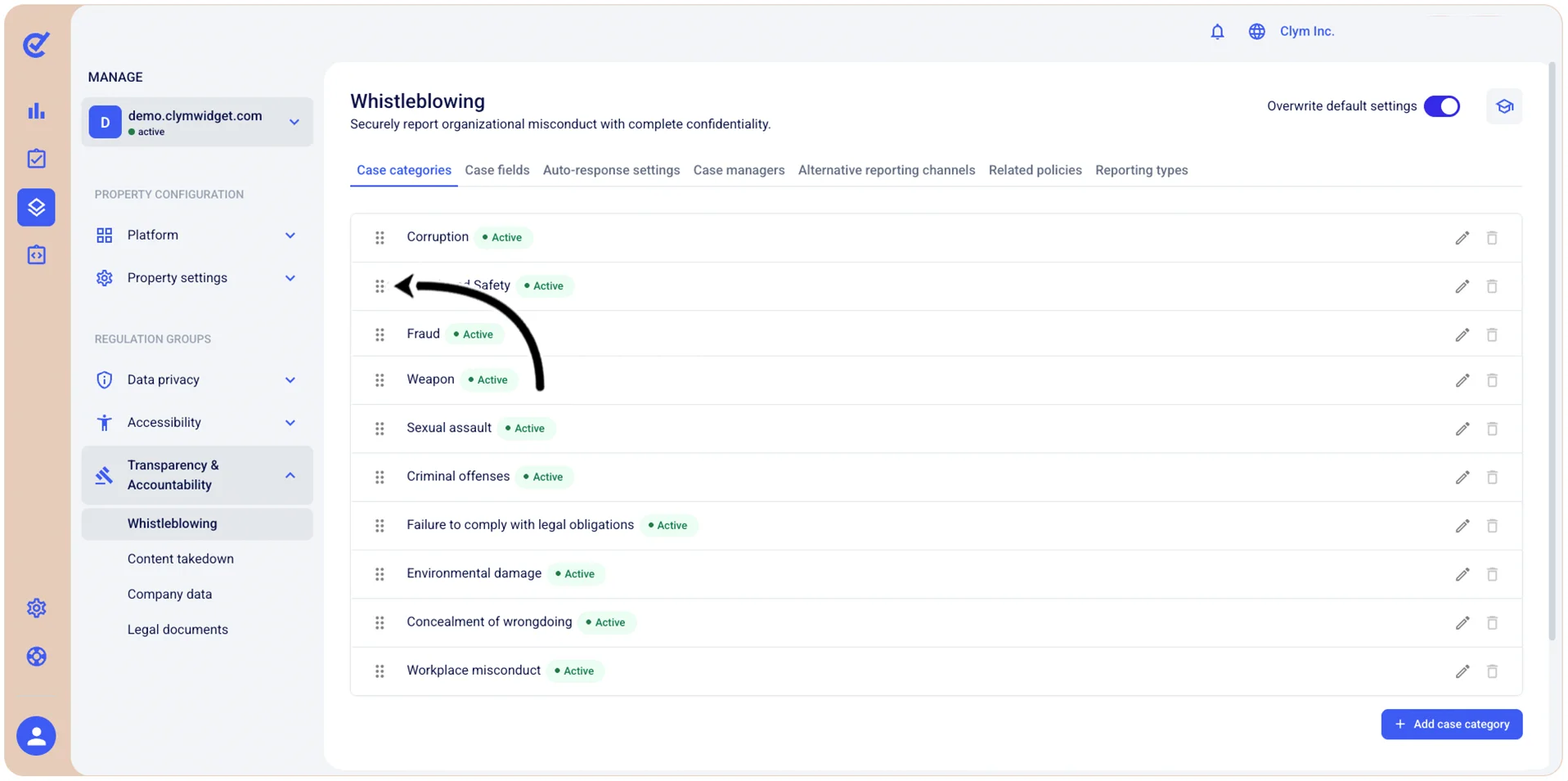
- In the Case categories tab, use the drag handle (⋮⋮) to rearrange the desired item in the list.
Edit a whistleblowing report case category
In the Control Center, you can modify a report case category to suit your needs.
To edit a whistleblowing case category:
- Go to Manage>Transparency & Accountability>Whistleblowing.
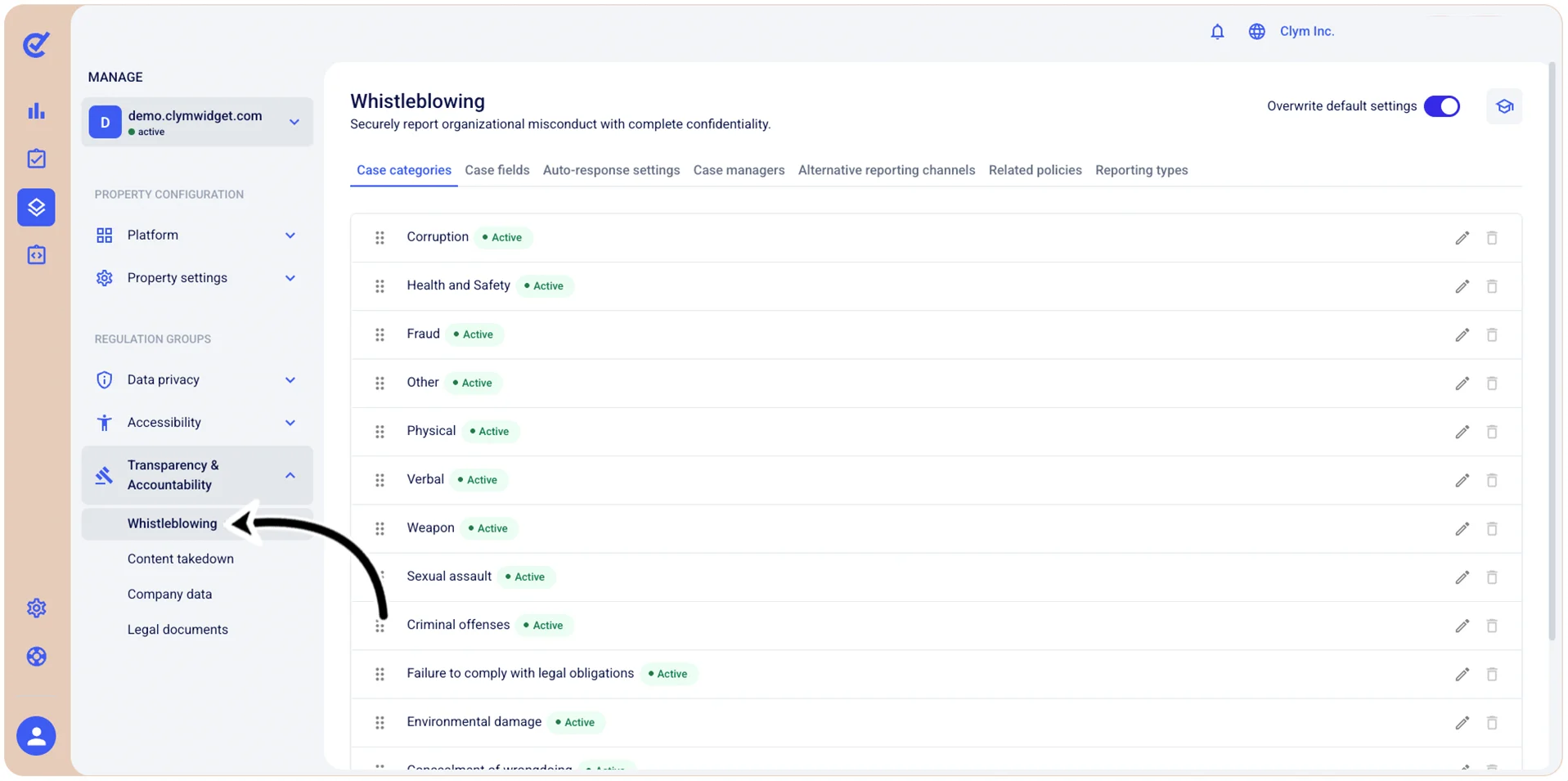
- In the Case categories tab, select Edit details next to the desired case category.
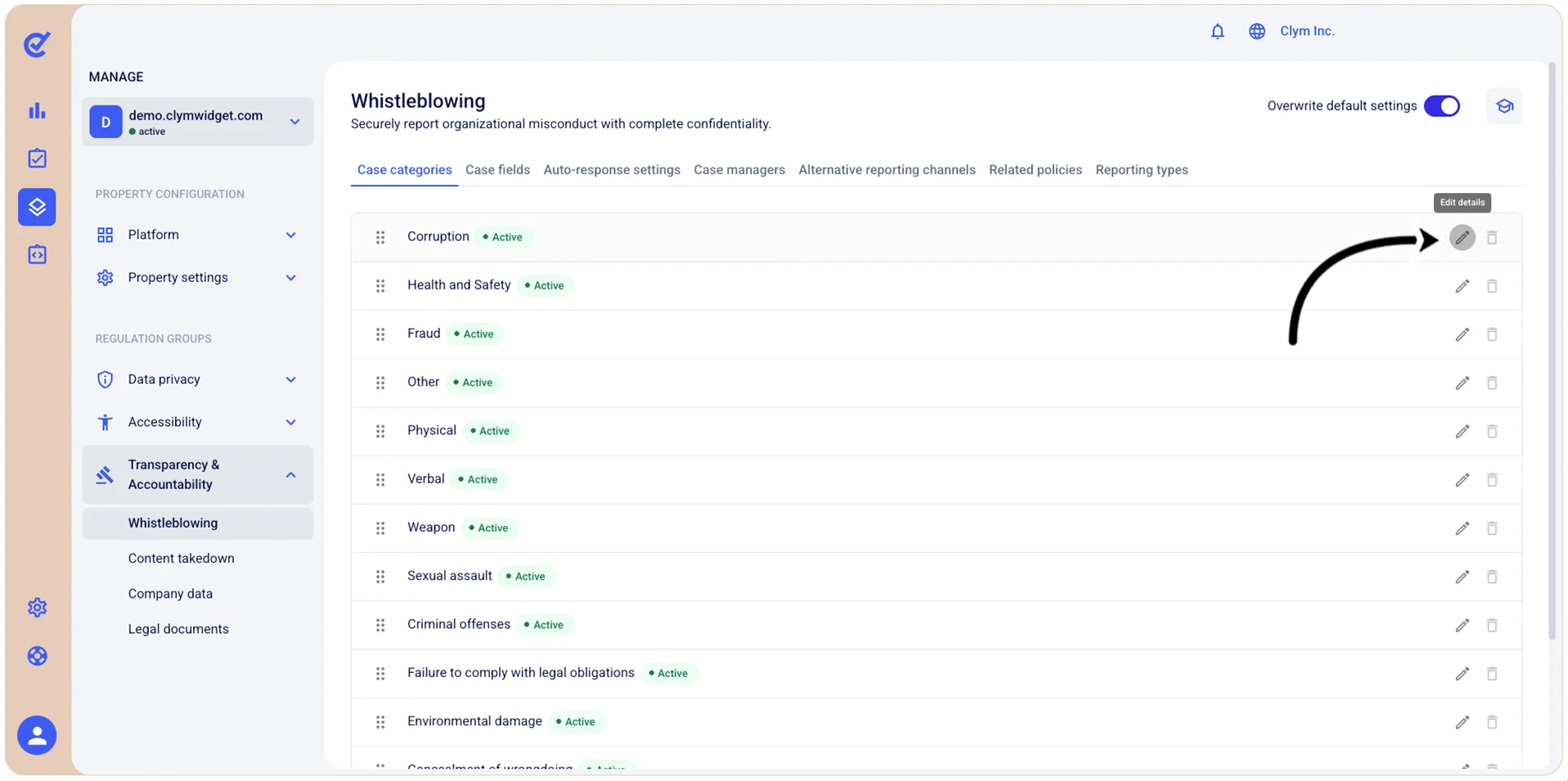
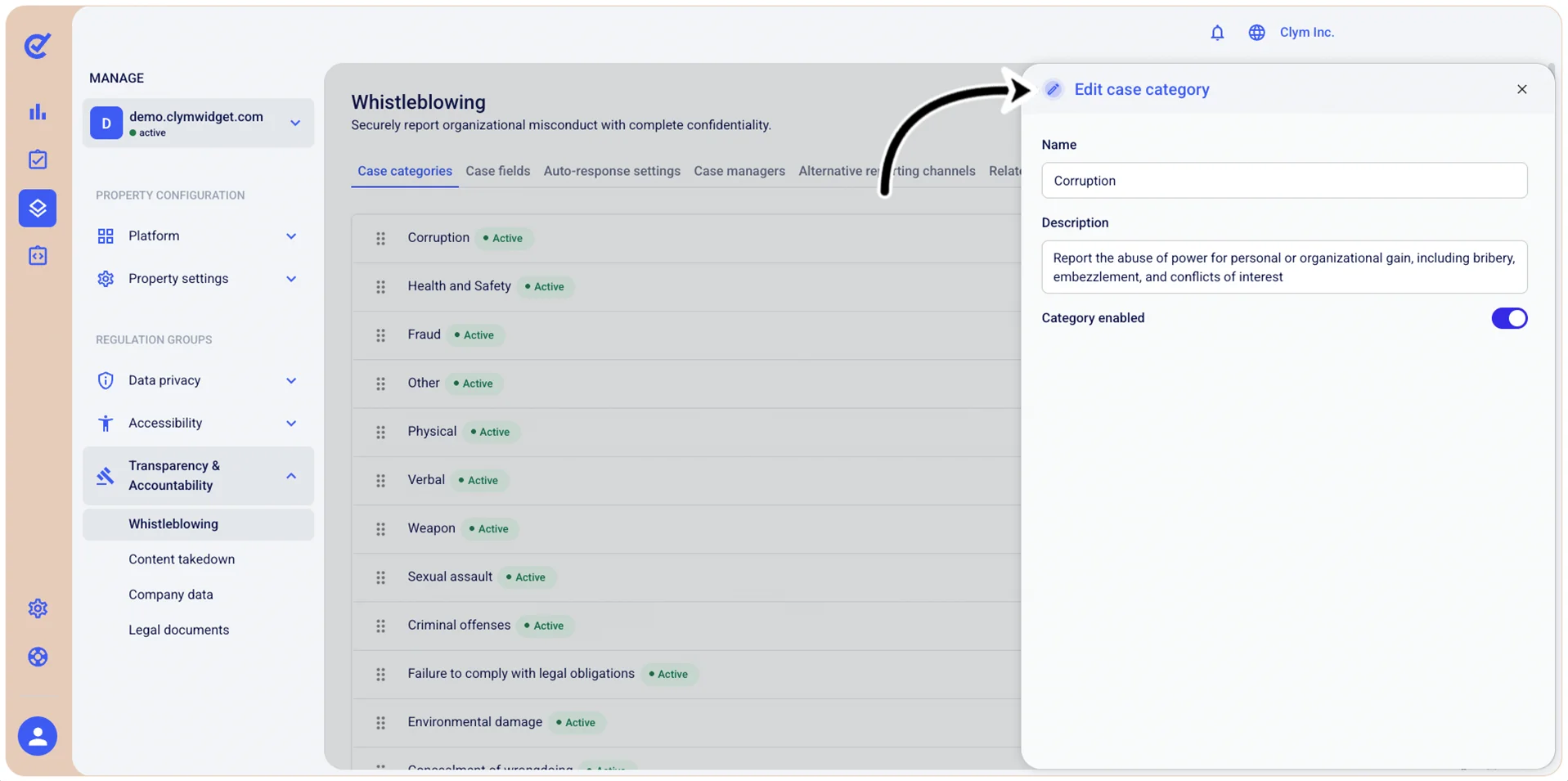
- In the Edit case category section, you can rename the case category, change its description, or make it active/inactive by toggling on/off Category enabled.
- When finished, select Save.
Delete a whistleblowing report case category
You can remove the whistleblowing case categories that your organization no longer needs.
In the Control Center, you can delete a report case category to suit your needs.
Note: You can only remove the case categories that you created, not the built-in ones.
To remove a whistleblowing case category:
- Go to Manage>Transparency & Accountability>Whistleblowing.
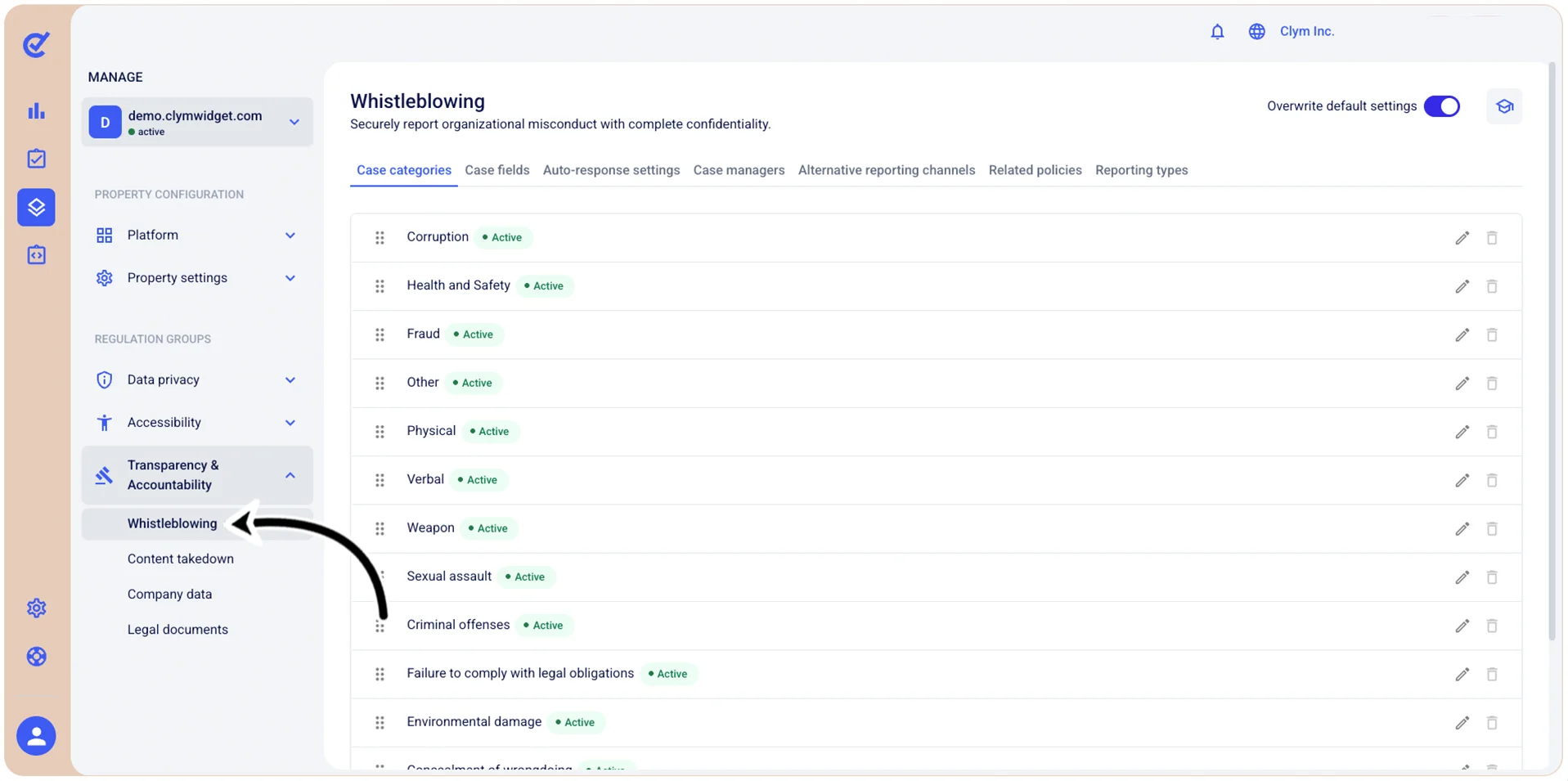
- In the Case categories tab, select
 Delete next to the case category that you want to remove.
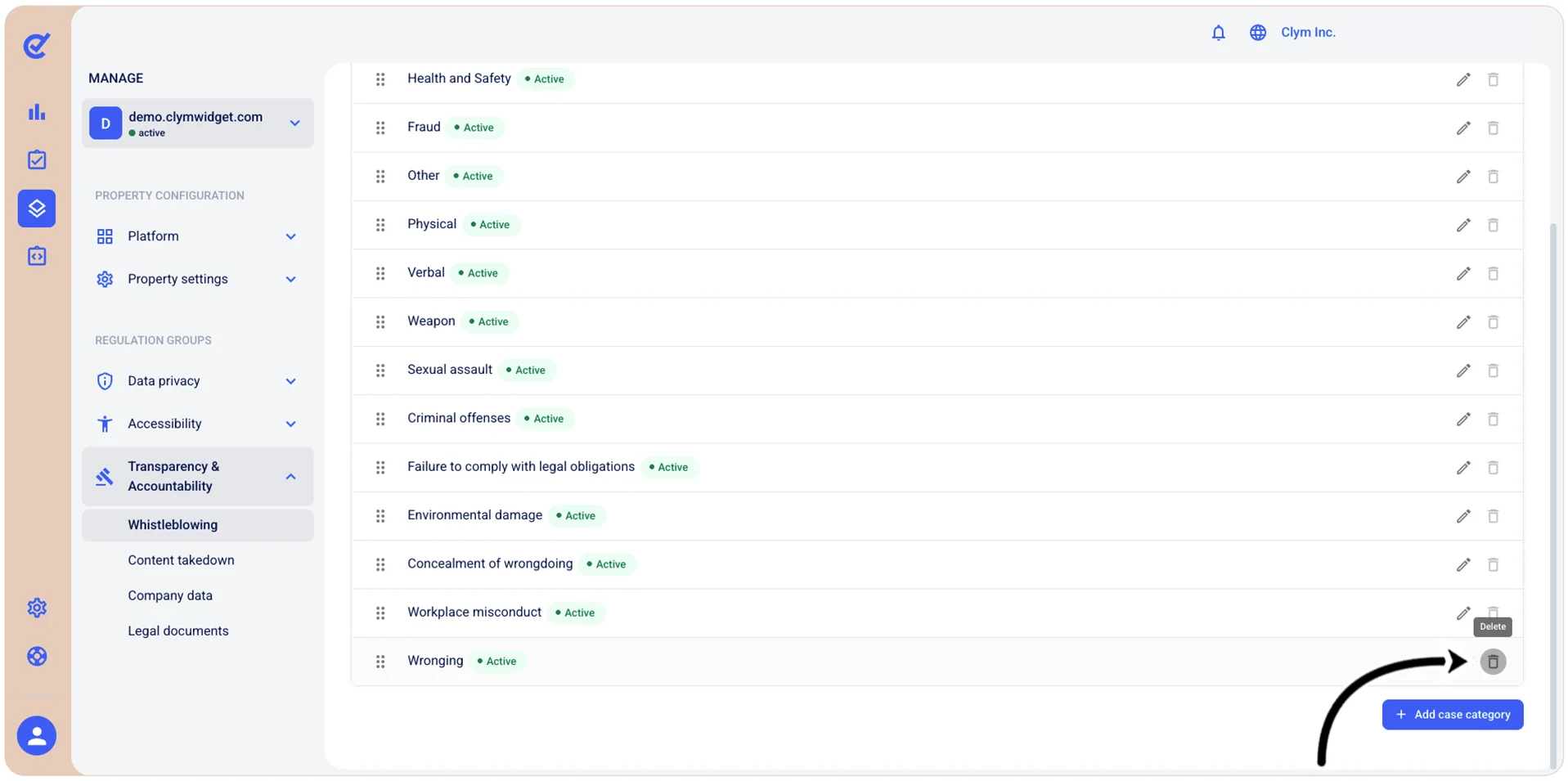
- In the confirmation message, select Confirm.