
Configure the data privacy general settings
In the General Settings section, you can configure the general parameters of the data privacy settings, as well as RealtimeCompliance™, the 24/7 compliance monitoring of your website. The configurations you make here manage the private data of your users whilst taking into account their browser’s privacy settings.
Note: When you are finished with this configuration, make sure to select Save before moving on to configure another tab, otherwise your changes will not be saved.
To configure how you manage the general parameters of the users’ data privacy settings:
- Go to
 Manage>Property Settings>Settings.
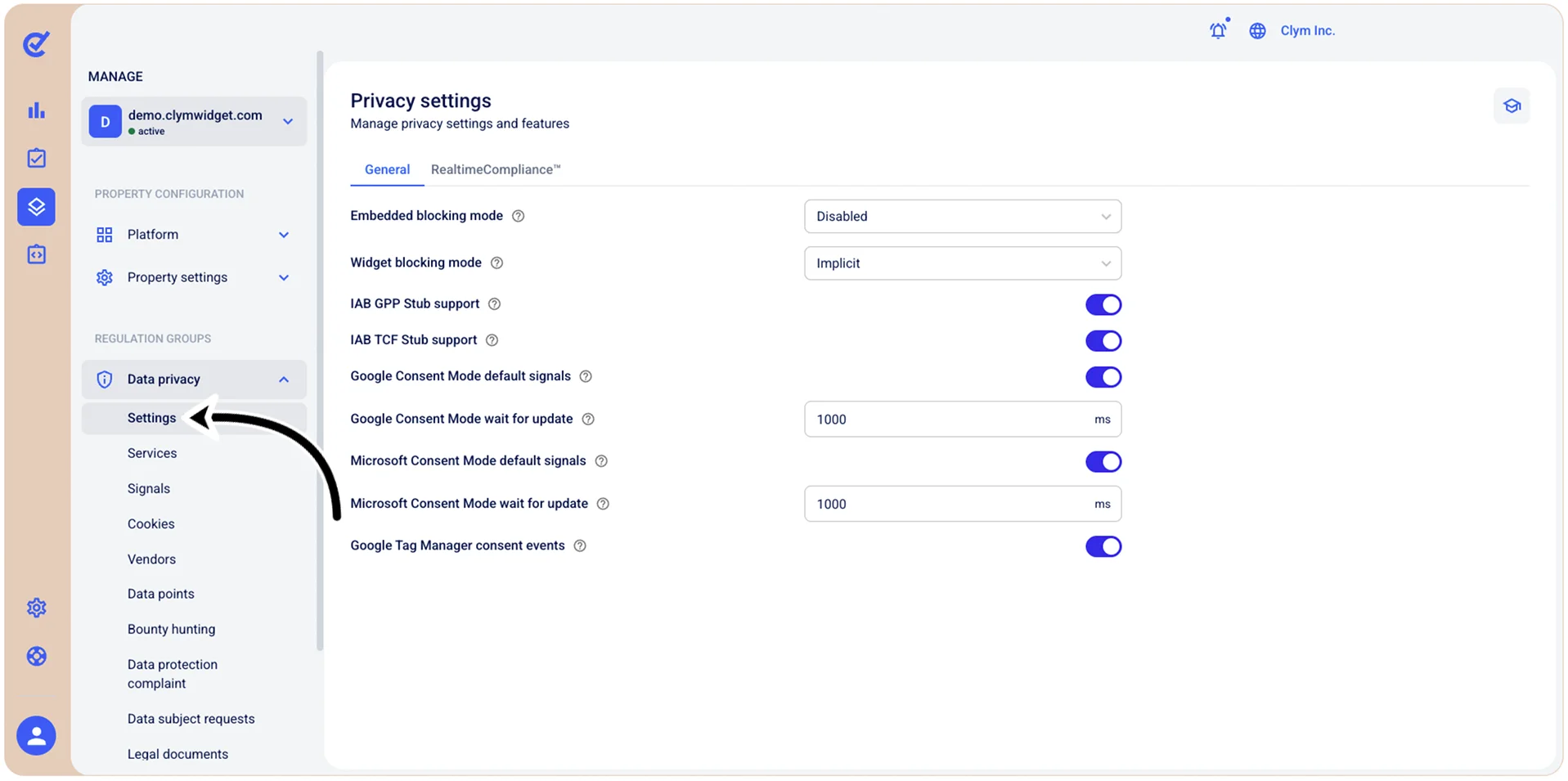
- In the Privacy settings section, in the General tab, configure the fields, as follows:
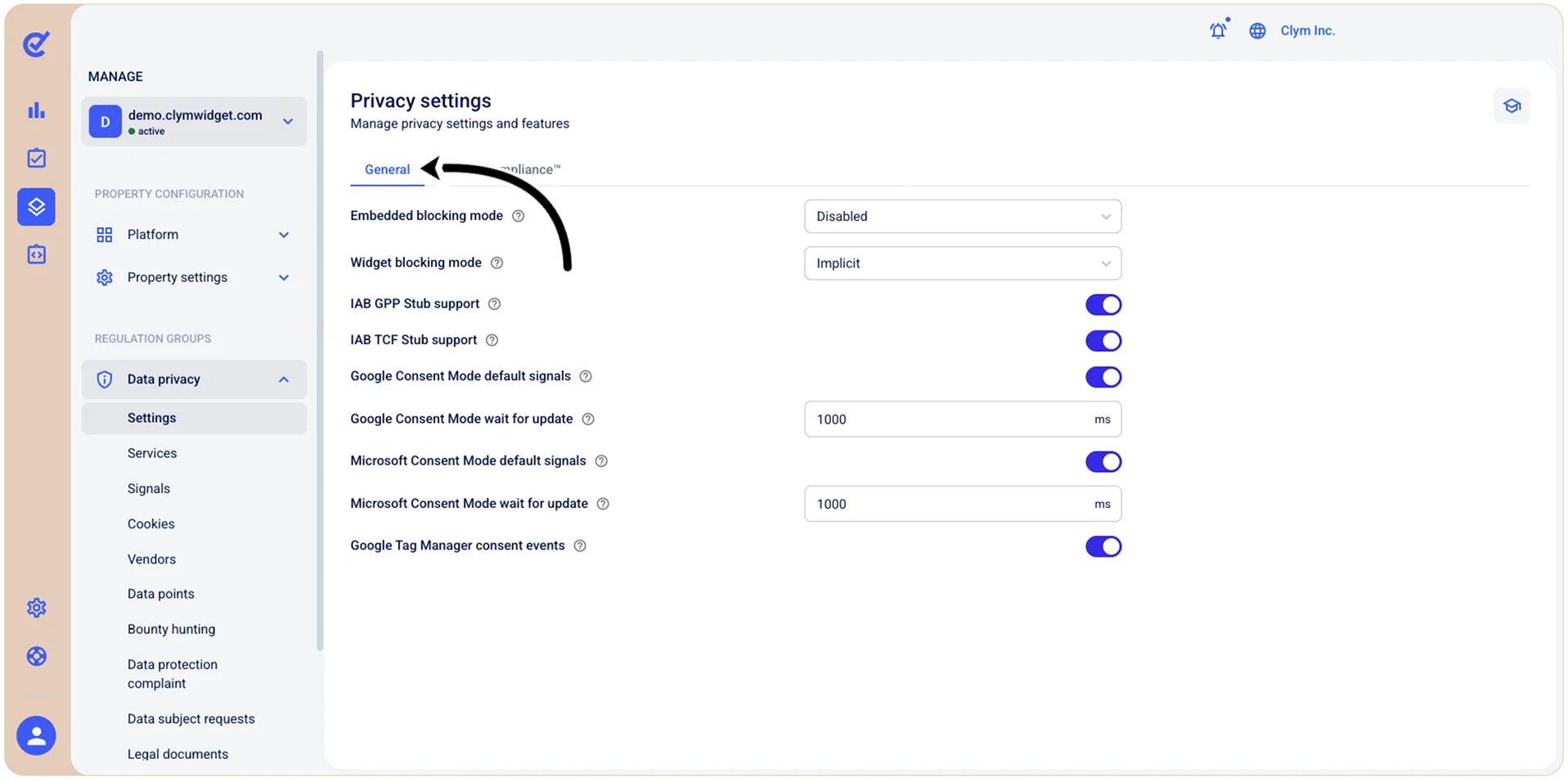
- Embedded blocking mode: Select how the data privacy scripts of embedded third-party content (such as YouTube videos, Social Media widgets, maps) is blocked before user consent:
- Implicit: As per the regulations, all embedded content scripts are automatically blocked by default.
- Explicit: As per the regulations, the only embedded content scripts allowed to run are the ones that the users have previously consented to.
- Disabled: No scripts are blocked.
- Widget blocking mode: Select how the privacy widget blocks cookies and scripts:
- Implicit: Automatically blocks scripts for configured services until the user consents to them. No manual code changes needed.
- Explicit: Only blocks scripts that are manually marked in the website’s source code. It gives the developer full control, the blocking is manual.
- Disabled: No direct blocking. Scripts run as implemented; Consent signals can still be passed to external tools (for example, GCM, GTM).
- IAB GPP Stub support: Toggle on so that the widget can implement the GPP framework, which provides a unified approach to managing user consent across multiple privacy regulations globally.
- IAB TCF Stub support: Toggle on so that the widget can implement the TCF standard for managing user consent for advertising and data processing.
- Google Consent Mode default signals: Toggle on so that the widget can send default consent states to Google services (Analytics, Ads) before user interaction, allowing Google to adjust its behavior based on consent status.
- Google Consent Mode wait for update: Enter the maximum time (in milliseconds) before the consent widget initializes and captures user preferences before loading Google tags.
- Microsoft Consent Mode default signals: Toggle on to enable the widget to send default consent signals for Microsoft Consent Mode (Universal Consent Mode).
- Microsoft Consent Mode wait for update: Enter the maximum time (in milliseconds) before consent state updates before loading Microsoft tags.
- Google Tag Manager consent events: Toggle on to enable the widget to fire GTM events whenever users update their consent preferences, allowing you to trigger tags, track consent changes, and adjust tag behavior based on current consent states within your GTM container.
- When finished, select Save.