
Install the Widget on a HubSpot website
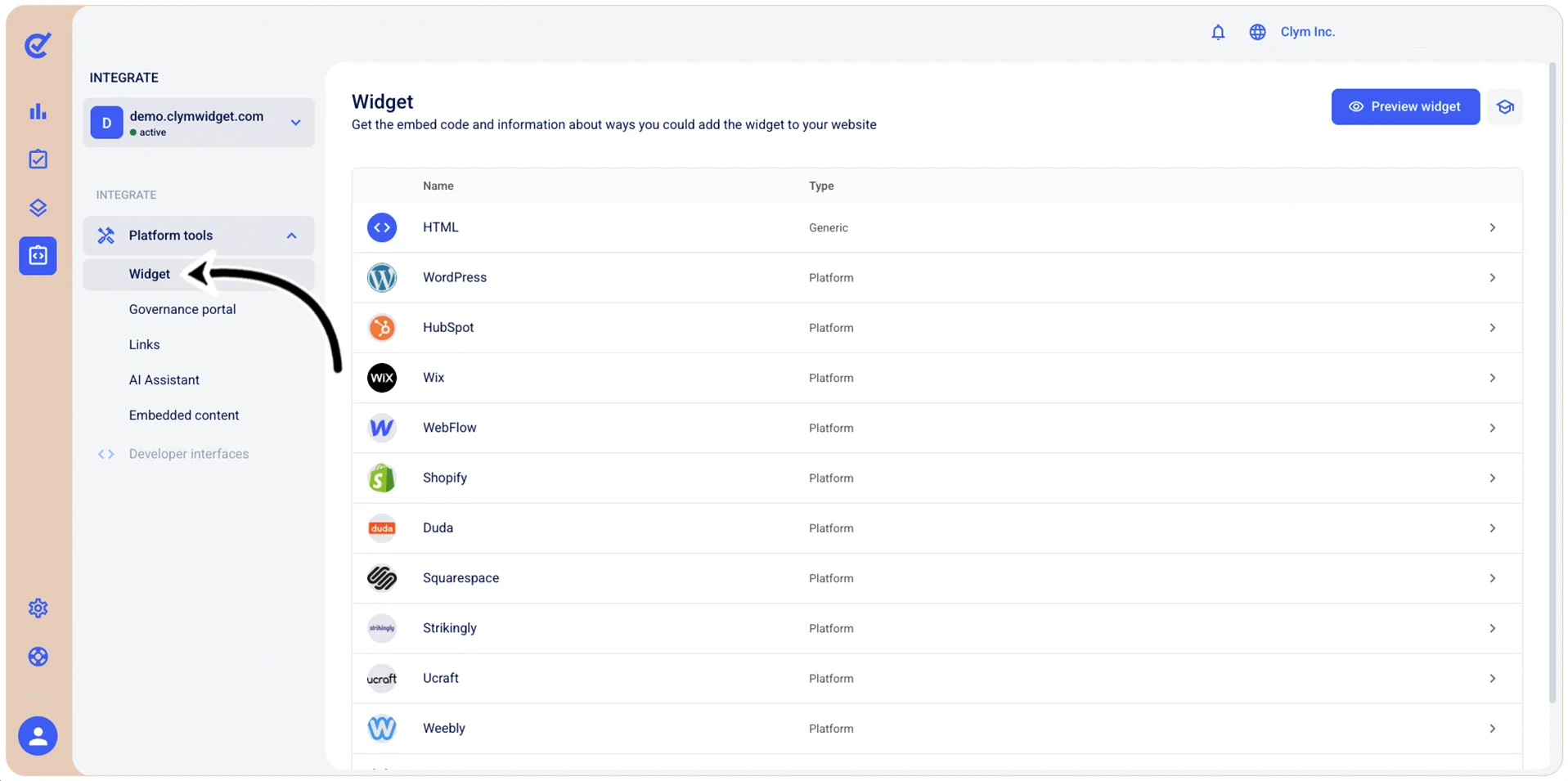
- Go to
 Integrate>Platform Tools>Widget.
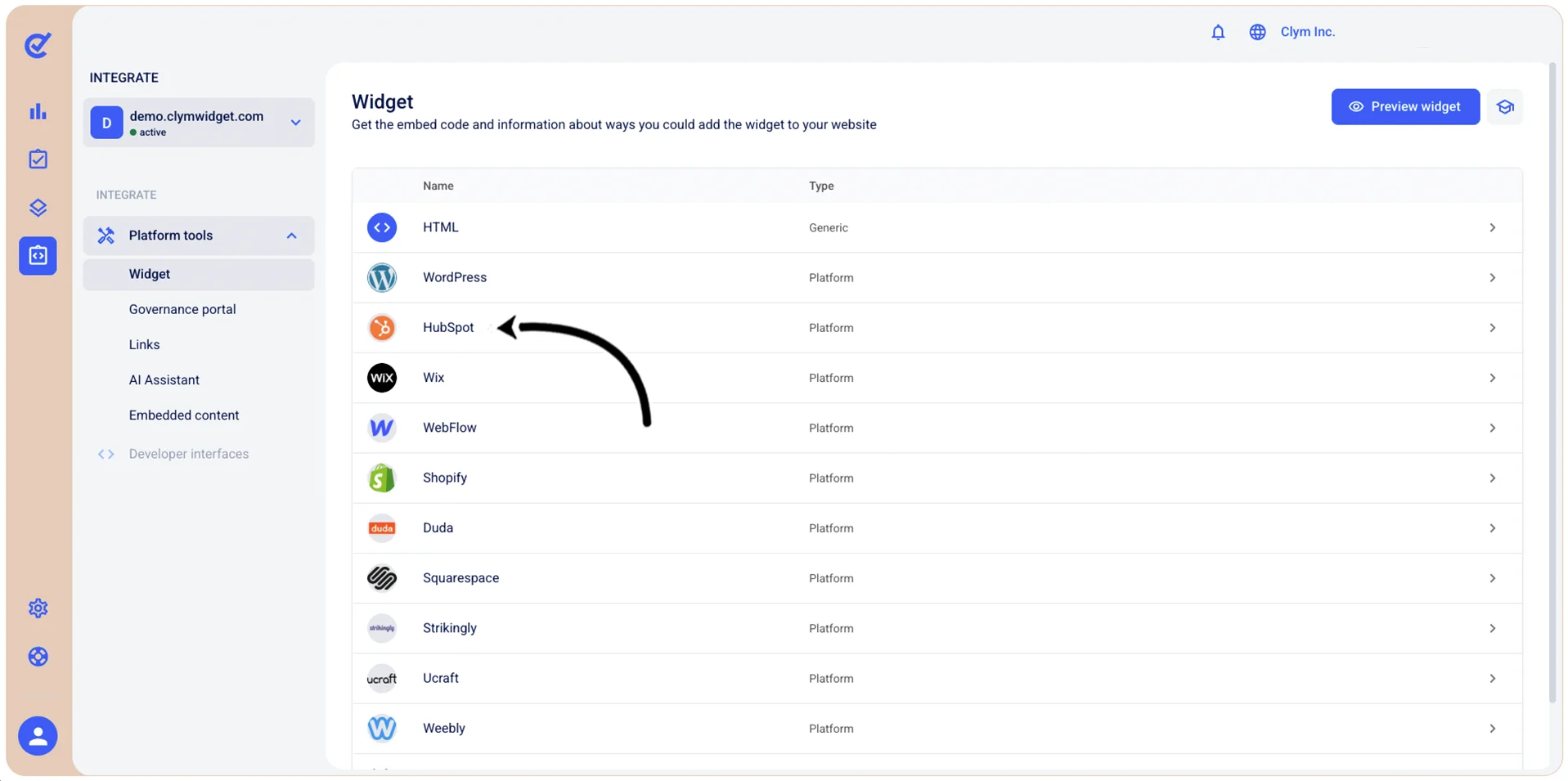
- In the Widget screen, select HubSpot.
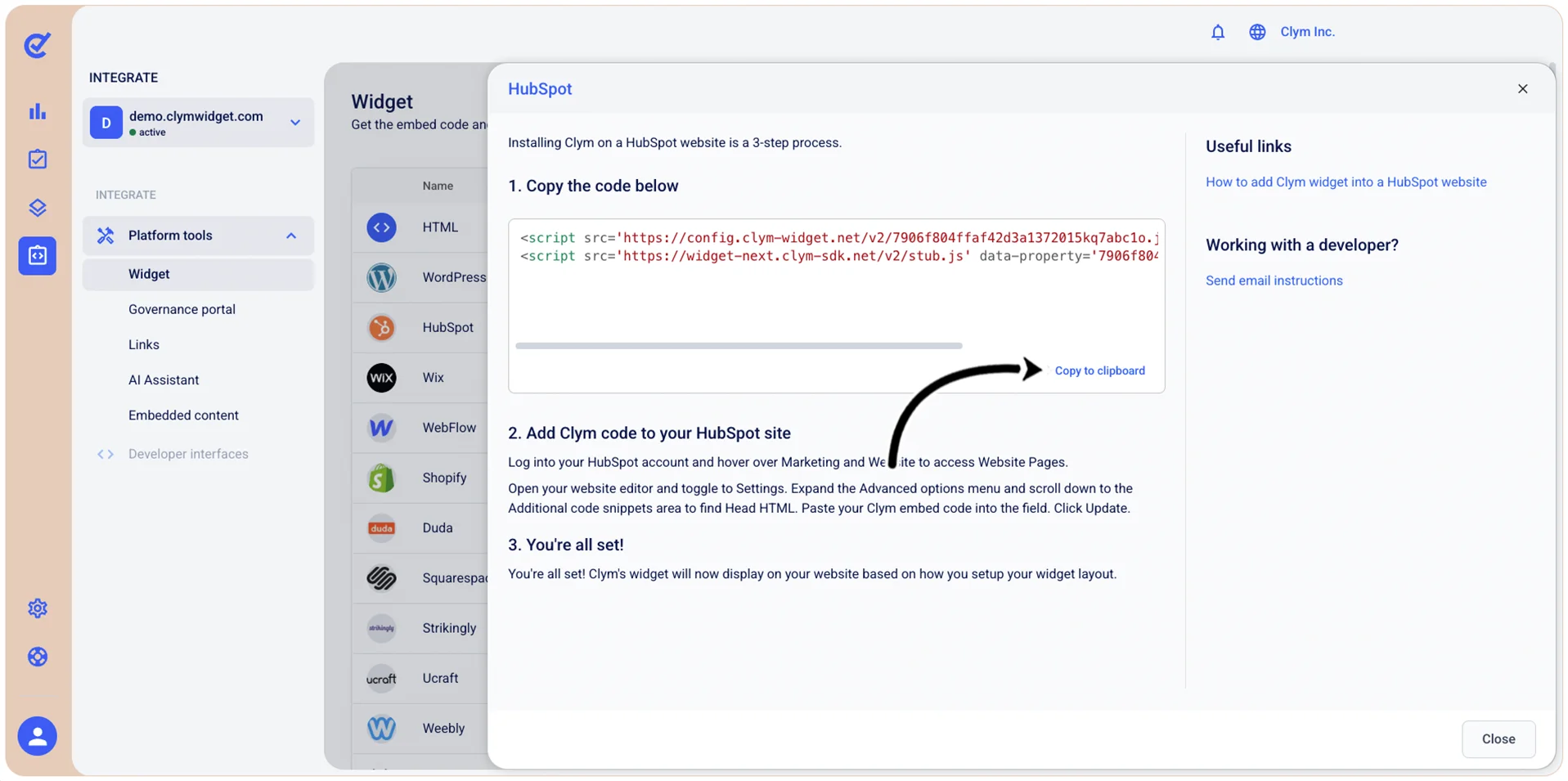
- In the HubSpot screen, under 1. Copy the code below, select Copy to clipboard.
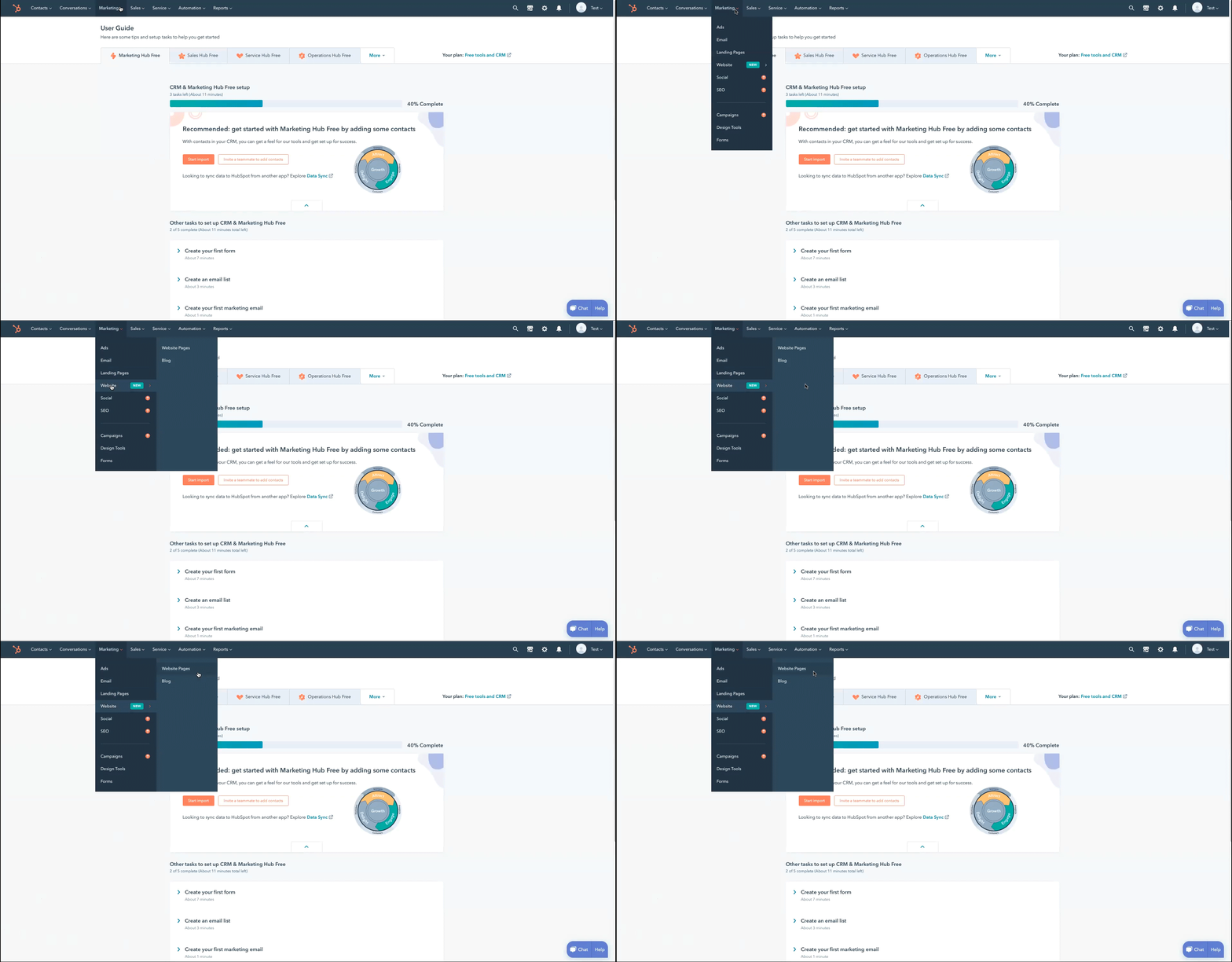
- Next, in your HubSpot account, go to Marketing>Website>Website Pages.
- Open your website editor and go to Settings, then expand the Advanced options menu. Scroll down to the Additional code snippets and then, in the Head HTML field, paste your embed code.
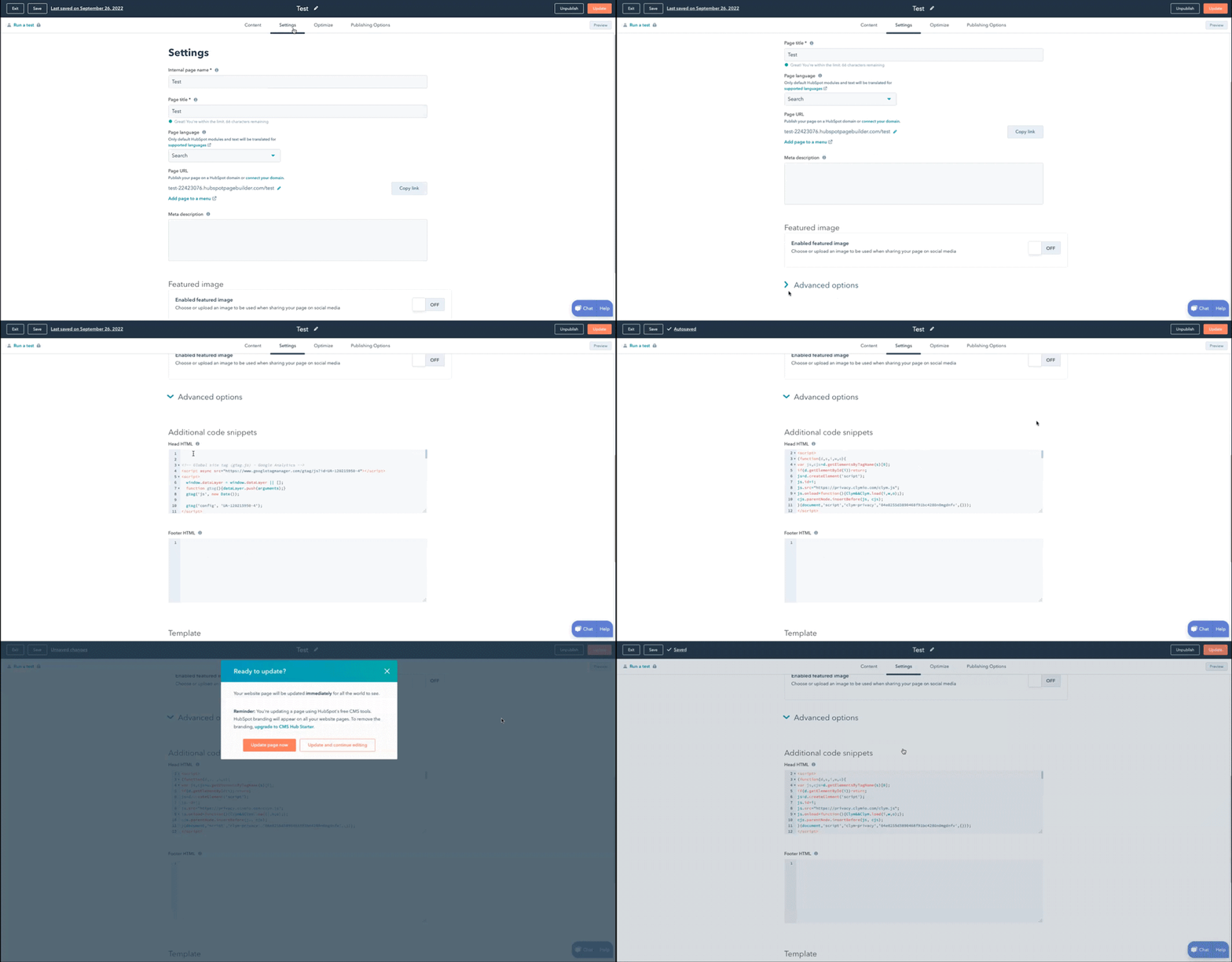
- When finished, select Update and then, in the confirmation message, select Update page now.
Note: To facilitate compliance, the script needs to be inserted as the first script under the header section of your website. Failure to do so might allow third-party scripts to be loaded on your website which, depending on regulation, might result in non-compliance. For a better view, leave a space between the script and any following scripts or code.
If, at any stage, you discover that your website has a different setup, consult a developer or contact our support team for assistance.