
Generate custom links in the Control Center
Custom links can be added to your website, typically in the footer, to allow your website visitors to quickly and easily open your Clym Widget and Governance Portal. For example, you can embed the following direct links into your website's footer: Privacy Center Do not sell or share my personal information (a legal requirement as long as you are serving customers from California, United States of America).
Note: In previous versions, custom links were referred to as footer links.
To create custom links:
- Go to Integrate>Platform Tools>Links and customize the links, as follows:
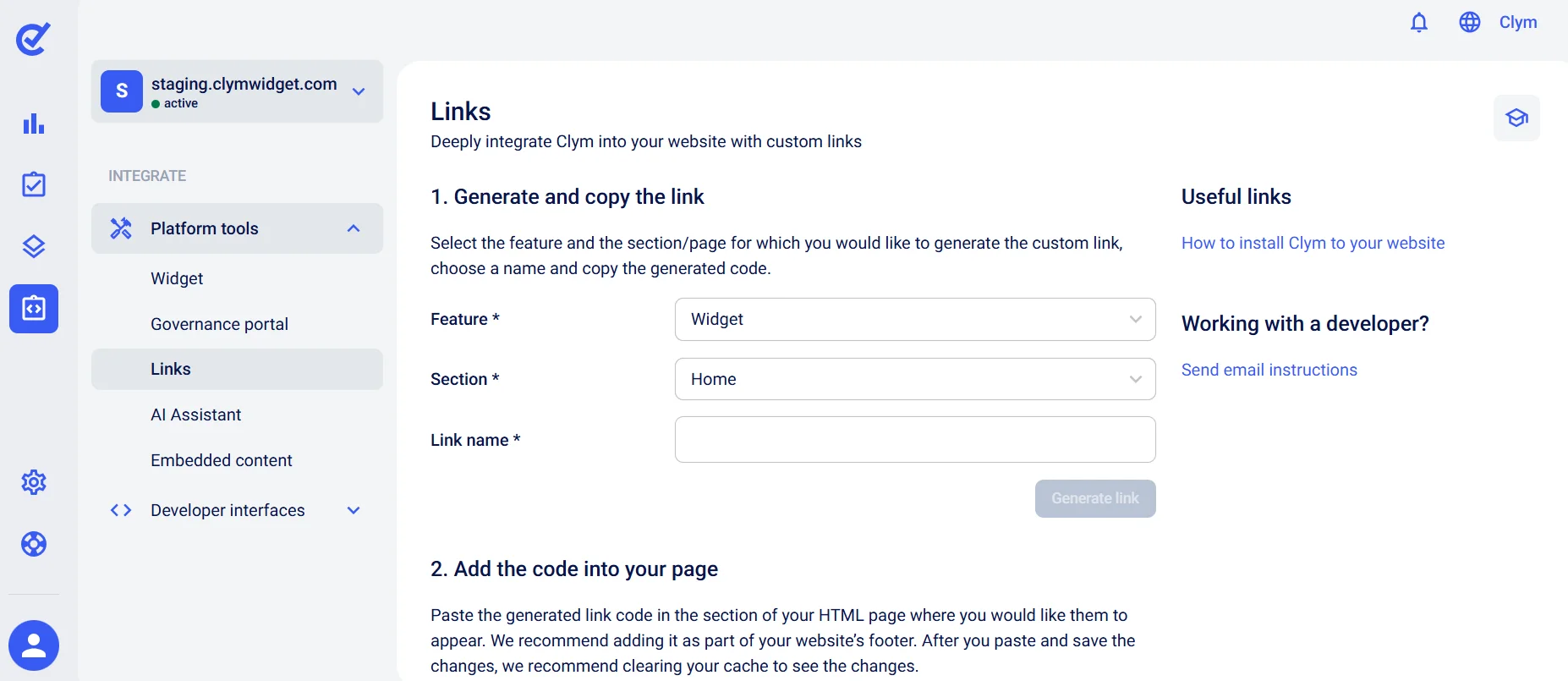
- Feature: Select either Widget or Governance Portal.
- Section: Select under which category of the widget you want the link displayed, as follows:
- Accessibility: Opens the accessibility section of your Widget
- Company: Opens your company's information in your Widget
- Create Data Subject Request: Opens a new data subject request form in your Widget
- Data Subject Requests: Opens the menu of data subject request types in your Widget
- Home: Opens the home tab of your Widget
- Legal Documents: Opens your menu of legal documents, such as your Privacy Policy or Cookie Policy, in your Widget
- Privacy: Opens the cookie consent menu in your Widget
- Link name: Give your link a descriptive name under which it will be displayed in the website footer. See examples of guidelines that ensure that consumers have clear and accessible options to control the use of their data in Installation: Appendix A.
- Generate link: Select to generate the embed code based on the configured parameters.
- Select Copy.
- Next, move on to your website to paste the code. Depending on the platform upon which the website is built, the procedure may vary, but it has been described for every supported platform.