
Configure how the Widget is displayed
You can configure the look-and-feel of the Widget on the website to fit the design of the page. You can make the Widget discreet or have it displayed in full, or centered, at the bottom/top, or even to conceal it.
Note: Some data privacy regulations require that your widget be displayed in a certain way to your website visitors. Based on this, when your account is created, each jurisdiction is automatically pre-configured based on various regulatory requirements. However, you may wish to change the display mode after that to meet your business needs.
To configure how to display the widget:
- Go to
 Manage>Property Settings>Jurisdictions and select Add Rule to add a new Data Privacy rule, or, if you want to set up the position of your widget in an existing rule, go to Manage>Property Settings>Jurisdictions and select
  Edit next to the desired jurisdiction.
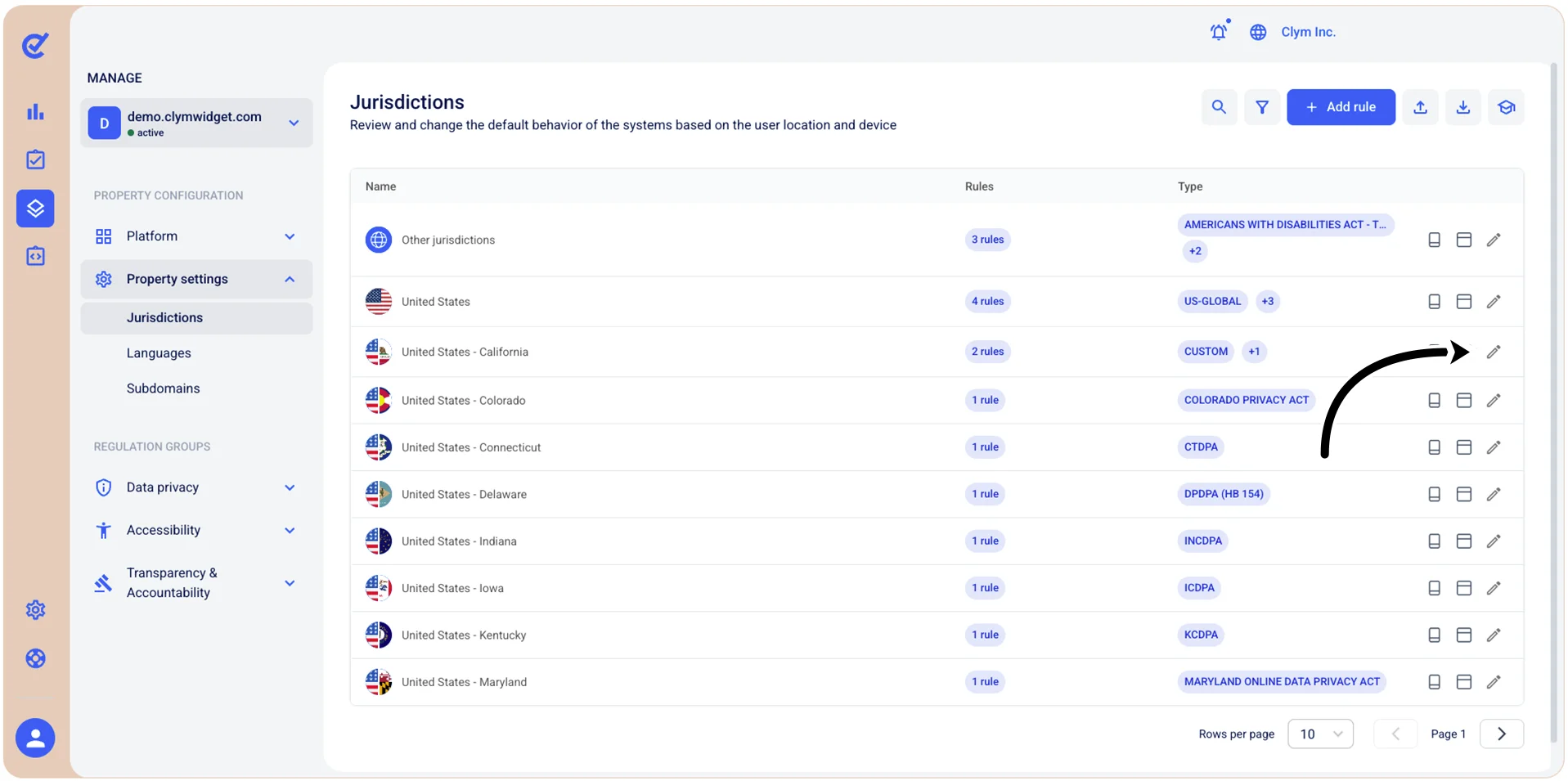
- Under Country and State, expand Data privacy and select Add rule (to create a rule) or, if you have an existing Data privacy rule, select Edit next to the desired Data privacy rule.
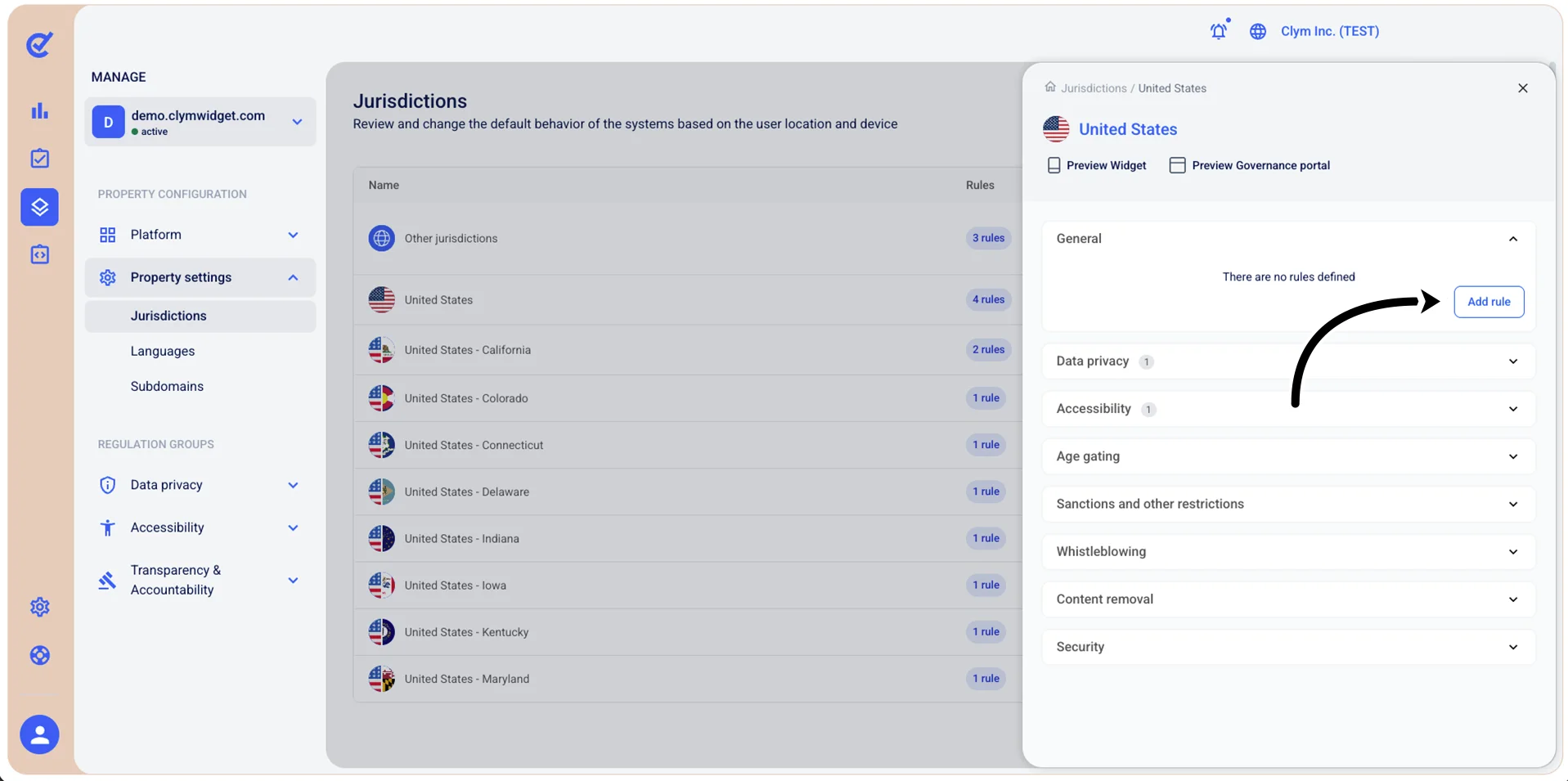
- Under Rule configuration, to configure the Widget, select Widget and then select Initial notification.
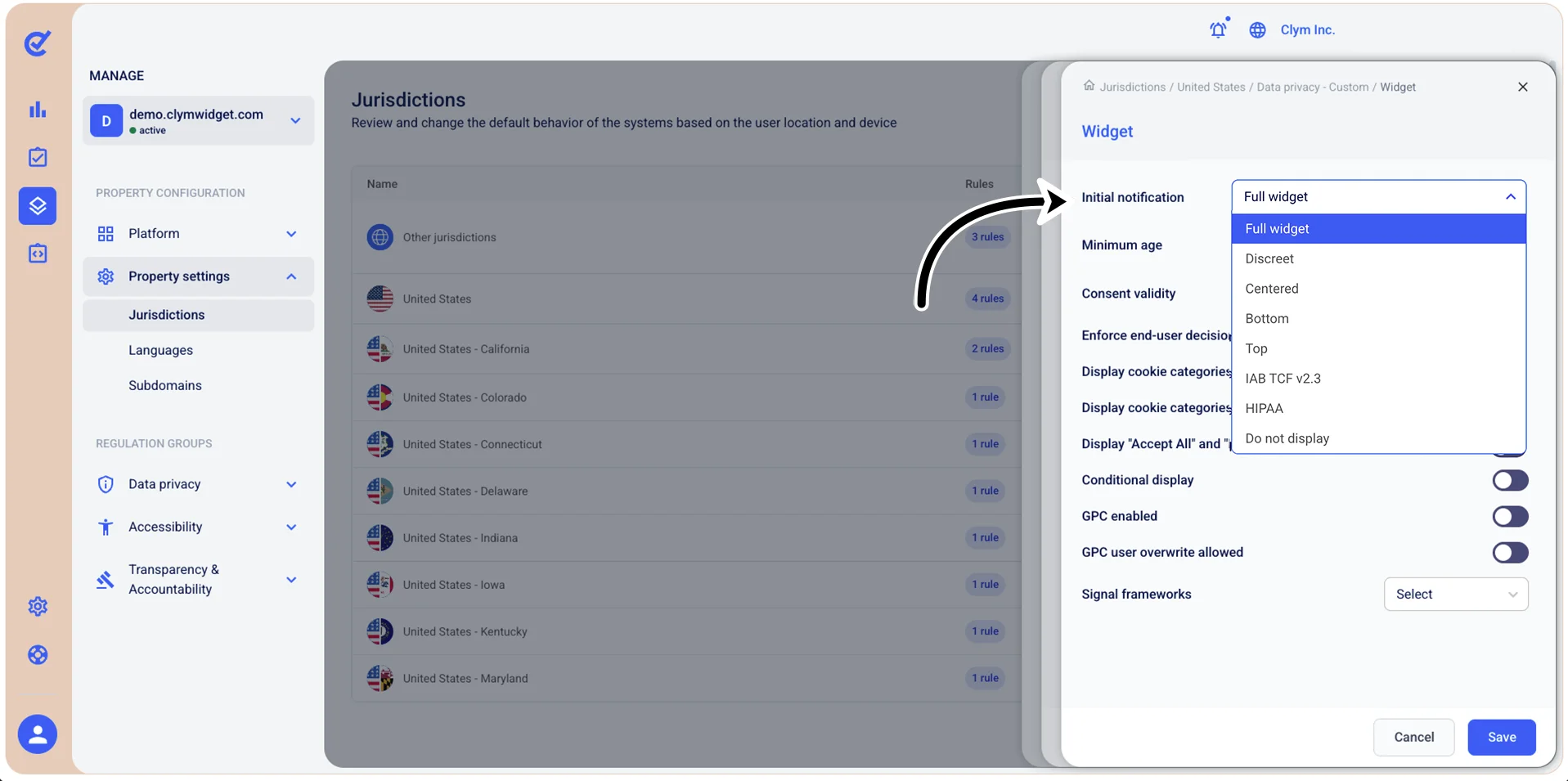
- From the list, select the desired widget behavior: Full widget, Discrete, Centered (also add a title and a message), Bottom, Top, IAB TCF v 2.3, HIPAA or Do not display. Note that, if a geographical region is set to Hidden, the widget will only display the Accessibility icon if Accessibility is activated on the domain.
- When finished, select Save.