Manage your company’s address
Displaying your company’s physical address is essential for transparency, for observing Data Protection regulations, and for enabling individuals to exercise their data rights.
You can add, modify and delete one or several contact addresses for your company, one primary, depending on the number of subsidiaries your company might have.
Important: After editing any parameters in this section, select Save on the tab you just configured before moving on to another tab, otherwise the updated parameters will not be saved.
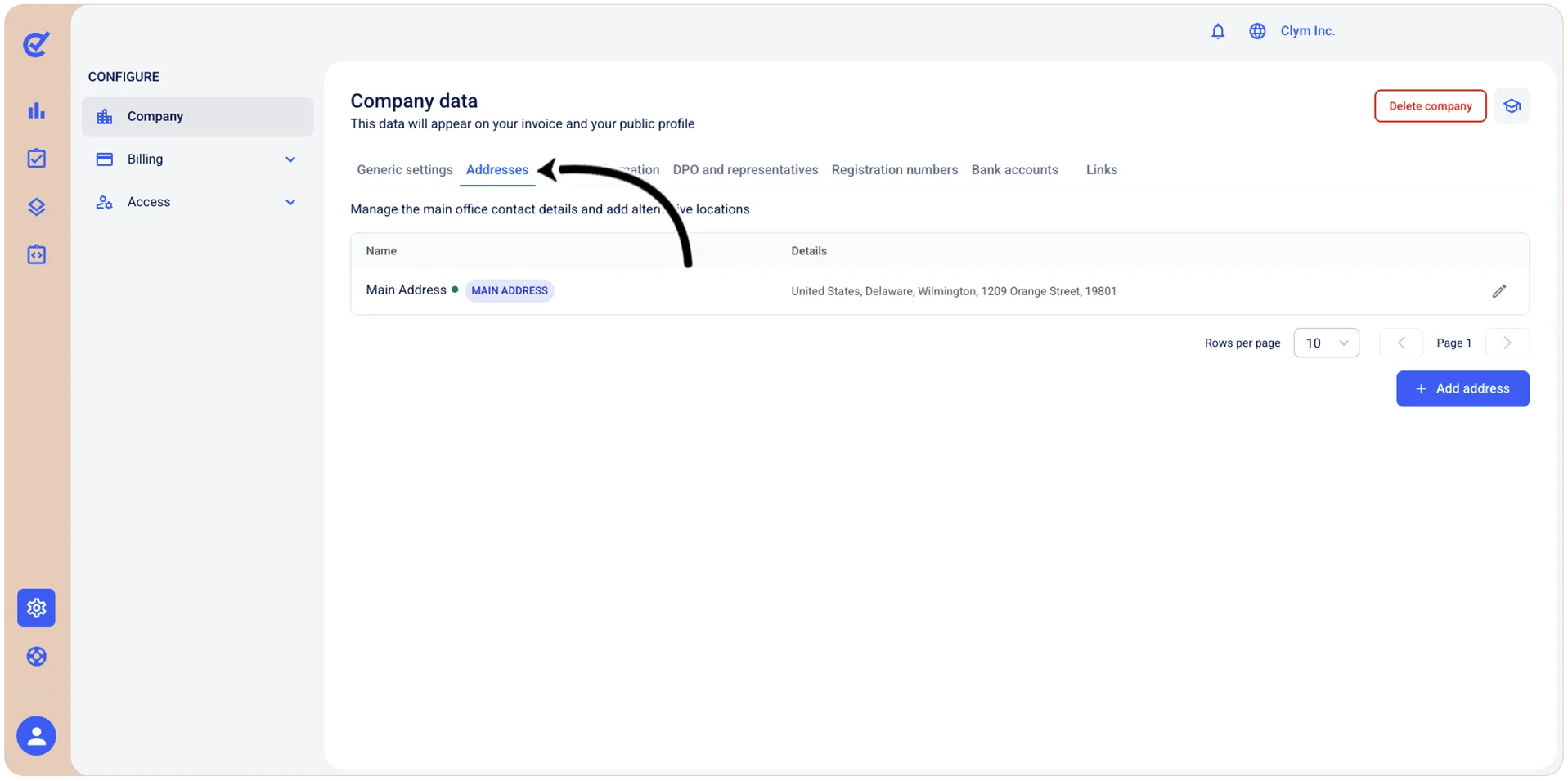
To access the configuration section of your company’s address, go to  Configure>Company and select the Addresses tab.
Add your company address
In the Control Center, you can easily add your company address.
Important! When configuring this section, make sure that you select Save on the tab you just configured before moving on to another tab/section.
To add an address for your company:
- Go to Configure>Company.
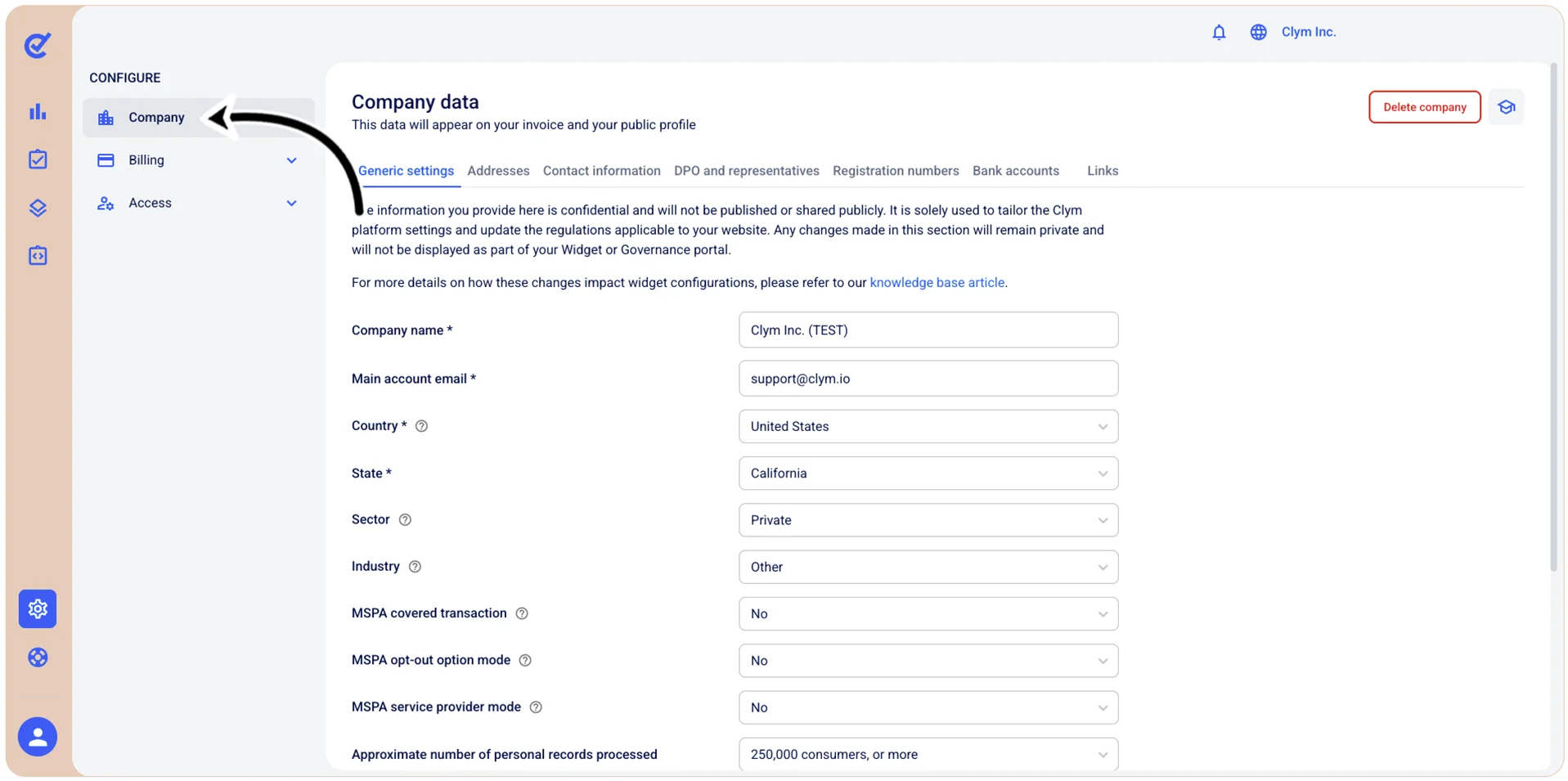
- In the Company data section, in the Addresses tab, select +Add address.
- Under Add address, enter your company’s address details, as follows. All fields marked with * are mandatory.
- Main address: Toggle to designate this address as your company's primary (main) address. You can only have one primary address.
- Address name *: Enter a descriptive name to identify this address (such as, Headquarters, Billing Address, or Main Office).
- Country *: Select the country where this address is located.
- County/Province: Enter the county or province for this address, if applicable.
- City *: Enter the city or town name for this address.
- Address *: Enter the street address, including the building number and street name (e.g., "123 Main Street").
- Address 2: Enter additional address information, such as apartment number, floor, or building name.
- Postal code: Enter the postal code, ZIP code, or equivalent for this address.
- Phone number: Select a country code and enter your contact phone number in the appropriate format—for example, for the USA, the correct format is (202) 555-0125).
- Mark as active: Toggle this option to activate or deactivate this address.
- When finished, select Add.
If you want to add another secondary address, repeat the above procedure.
Edit your company address
In the Control Center, you can easily edit a company address, according to your needs.
Important! When configuring this section, make sure that you select Save on the tab you just configured before moving on to another tab/section.
To modify the address of your company:
- Go to Configure>Company.
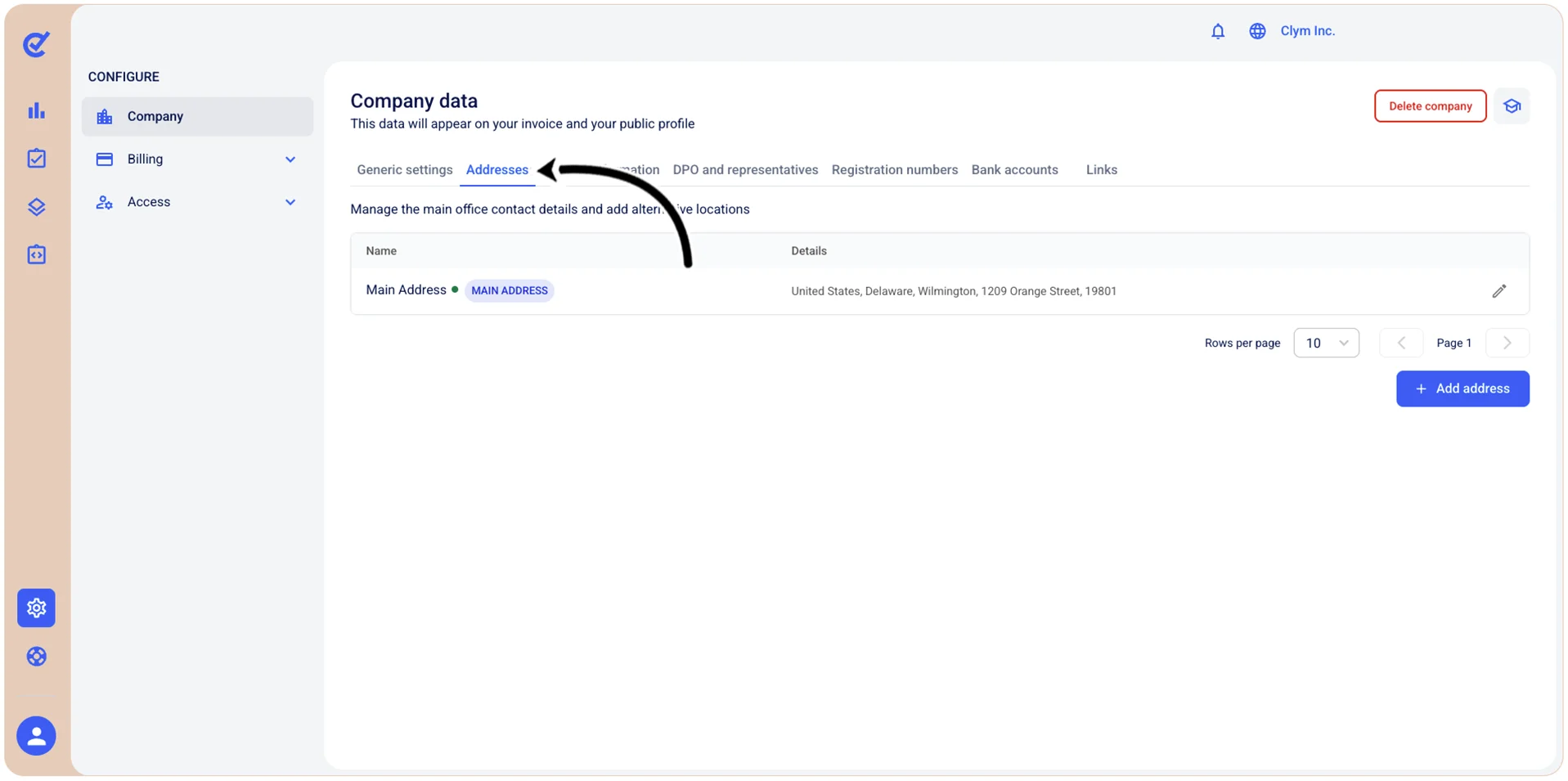
- In the Company data section, in the Addresses tab, select
 Edit address next to the address that you want to modify.
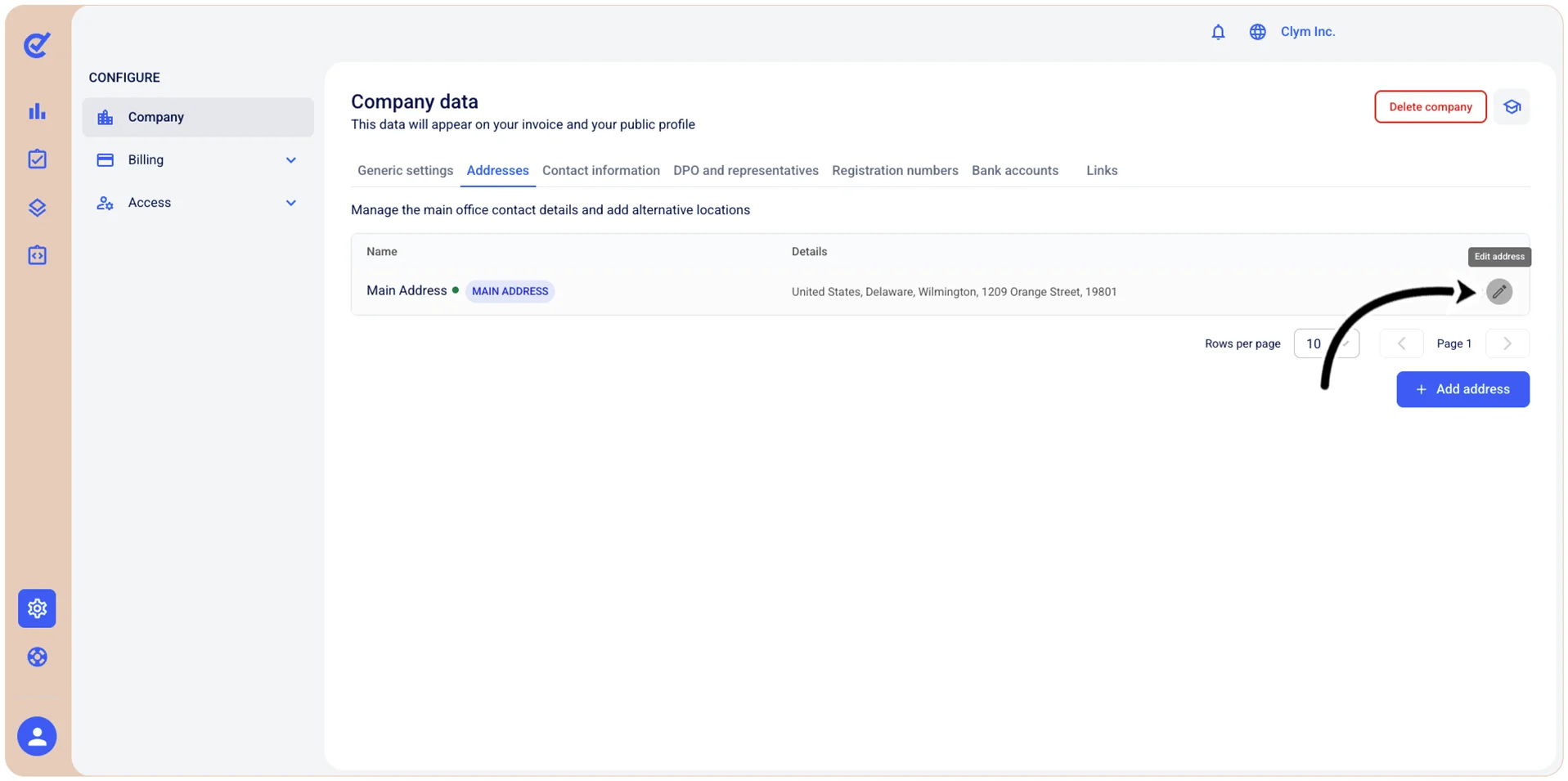
- Under Edit address, modify your company’s address details.
- When finished, select Save.
Delete your company address
Before removing your company’s address, make sure you no longer need this data.
Note:
- You can only delete your company’s secondary address, not the primary address.
- Deleting your company’s address cannot be undone and all data will be permanently lost!
To delete your company’s address:
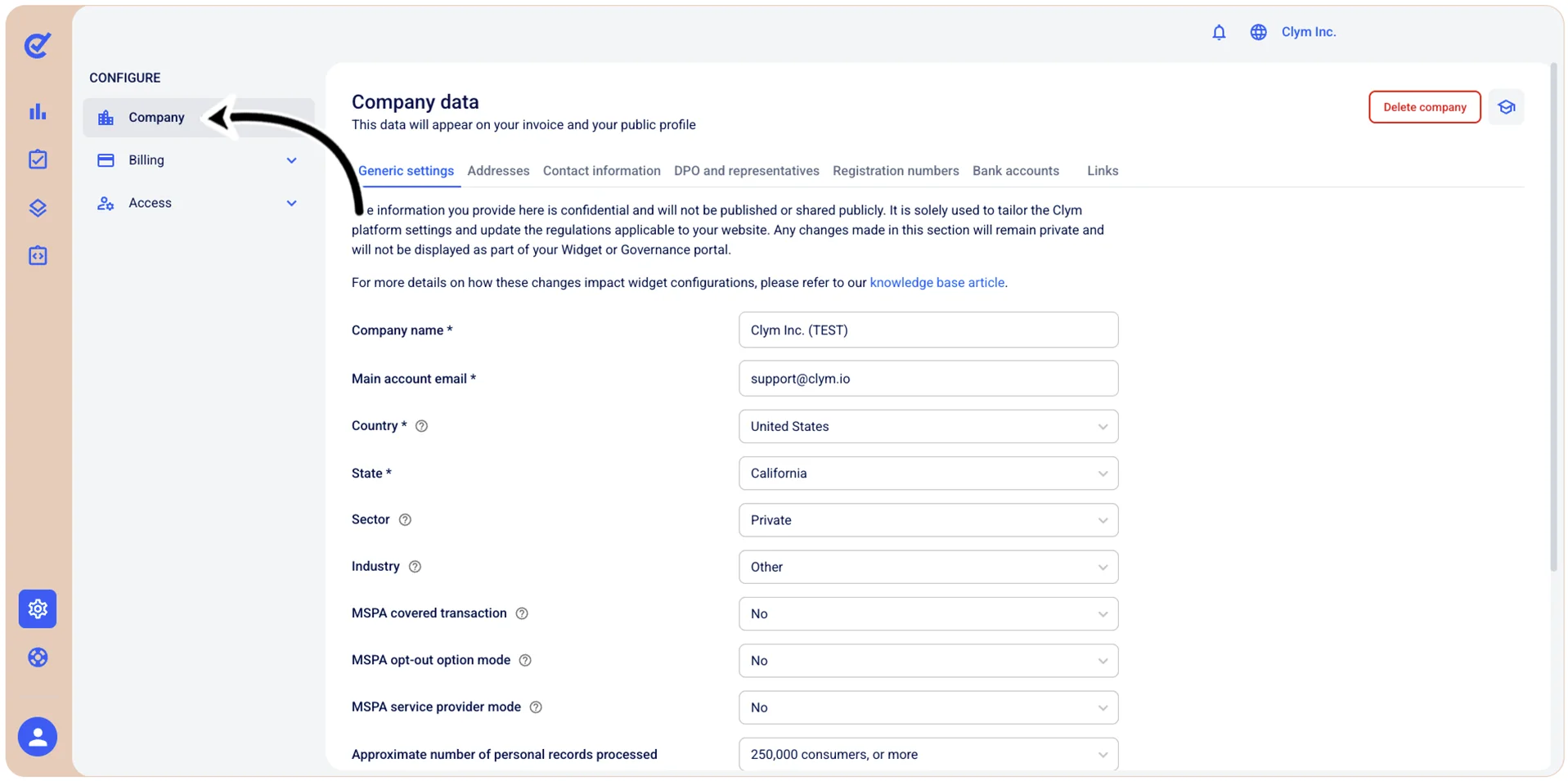
- Go to Configure>Company.
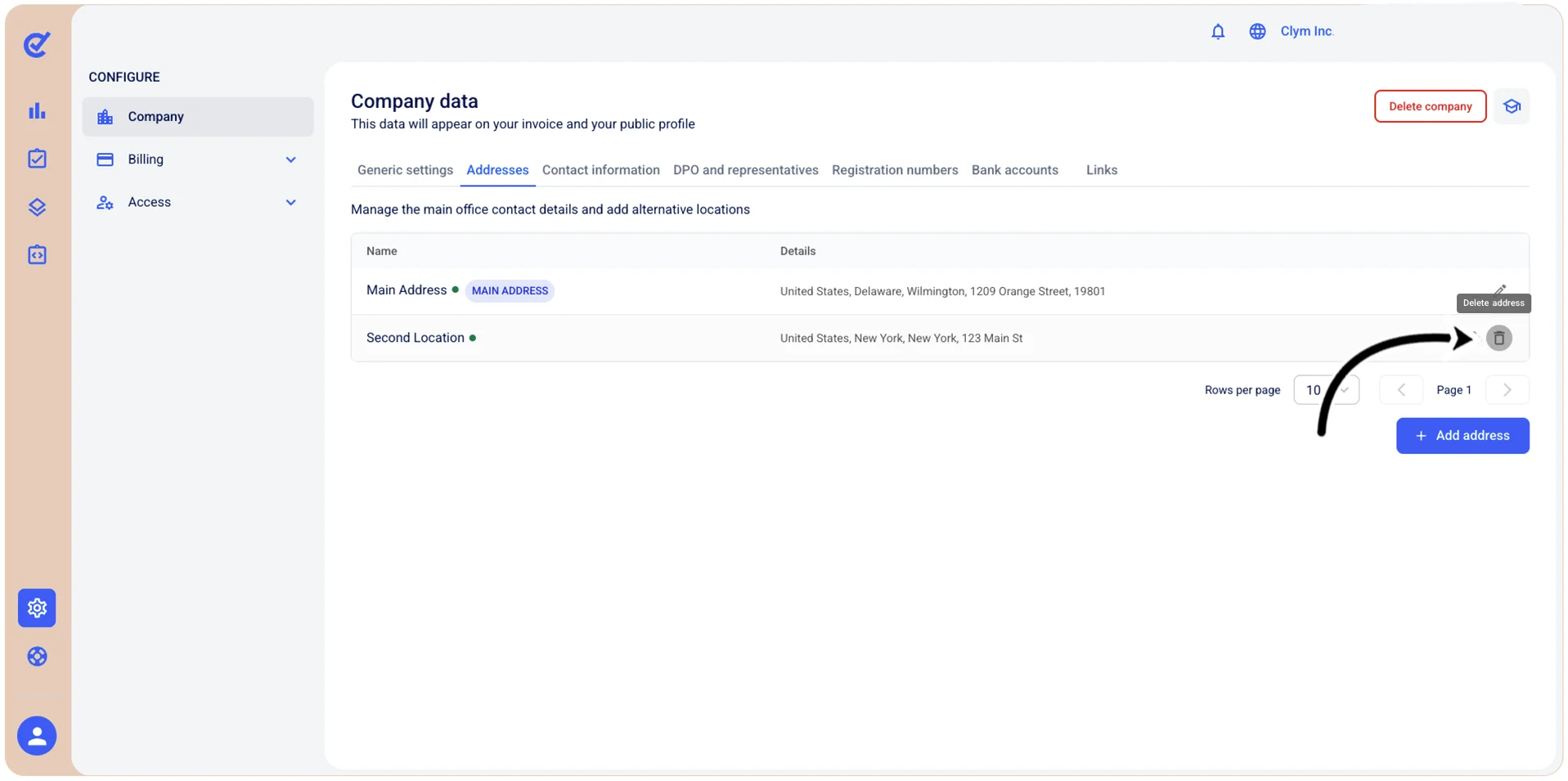
- In the Company data section, in the Addresses tab, select Delete address.
- In the confirmation message, select Confirm.