
Define your company’s bank accounts
In some jurisdictions, you may be required by law to expose your bank accounts online, for example for users who may request a refund for a canceled purchase, for tax purposes etc.
Important: After editing any parameters in this section, select Save on the tab you just configured before moving on to another tab, otherwise the updated parameters will not be saved.
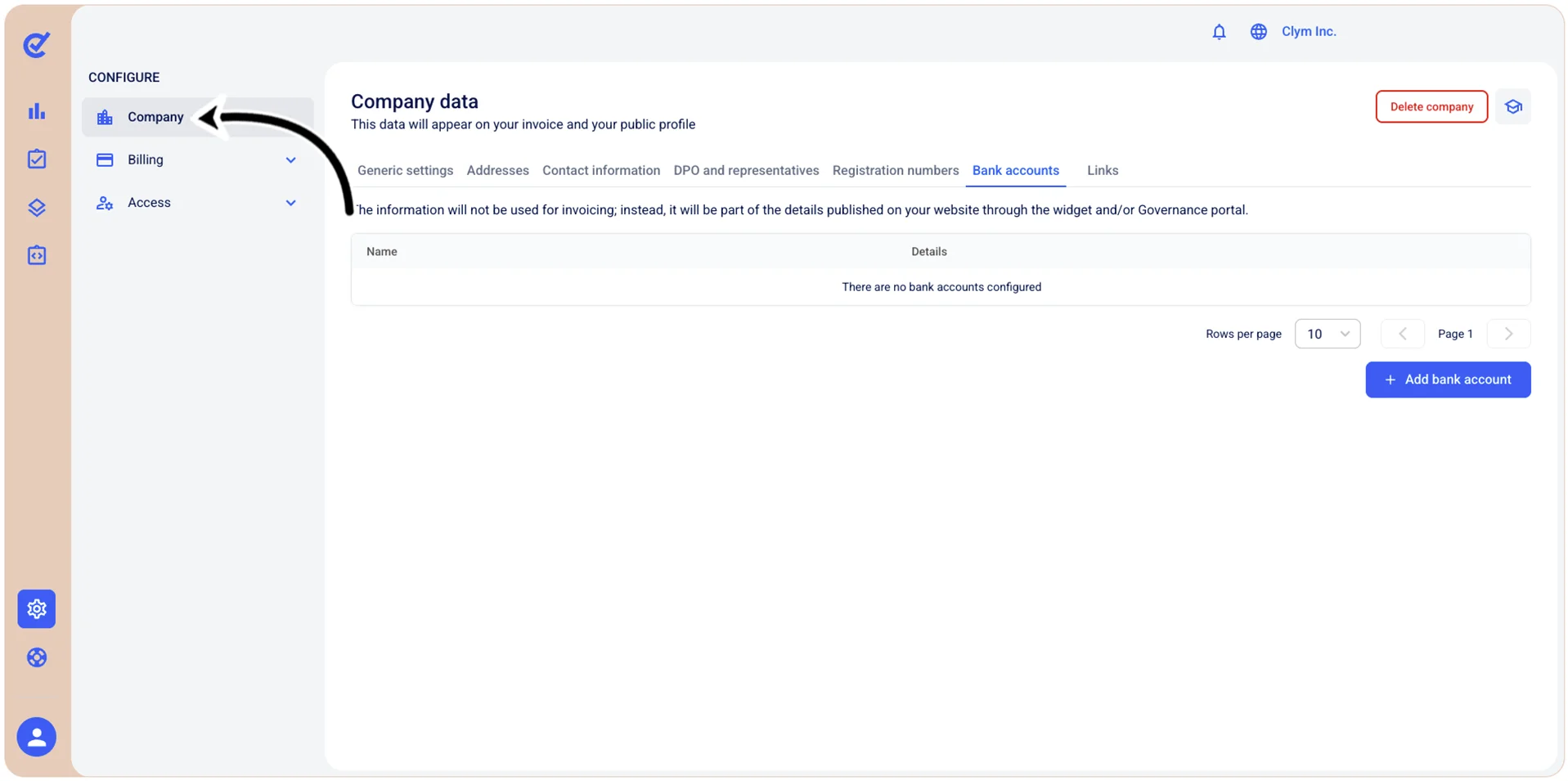
To access this section, go to  Configure>Company and select the Bank accounts tab.
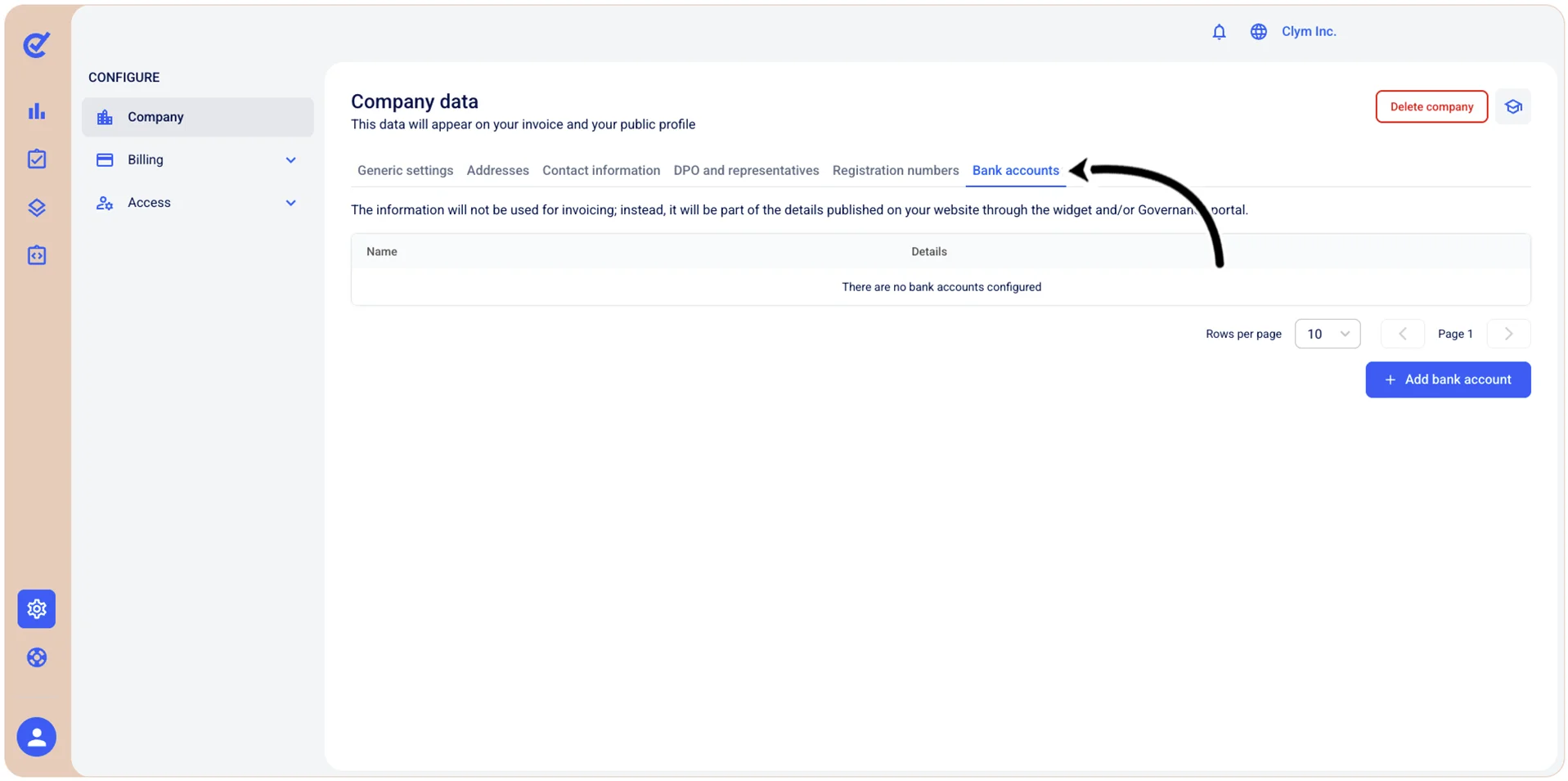
You can define one or more bank accounts, modify and delete them.
Add a bank account
To add a bank account:
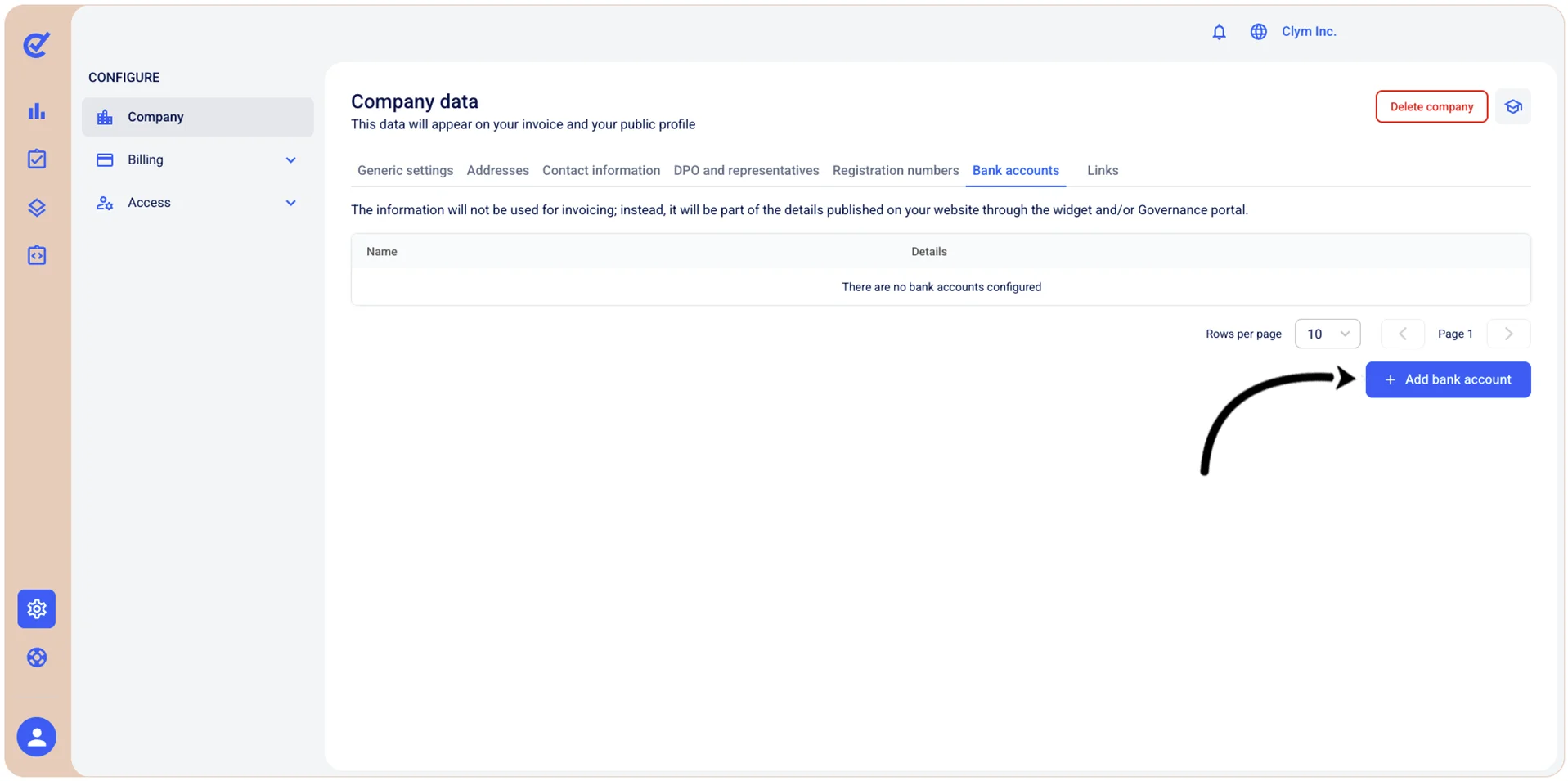
- Go to Configure>Company.
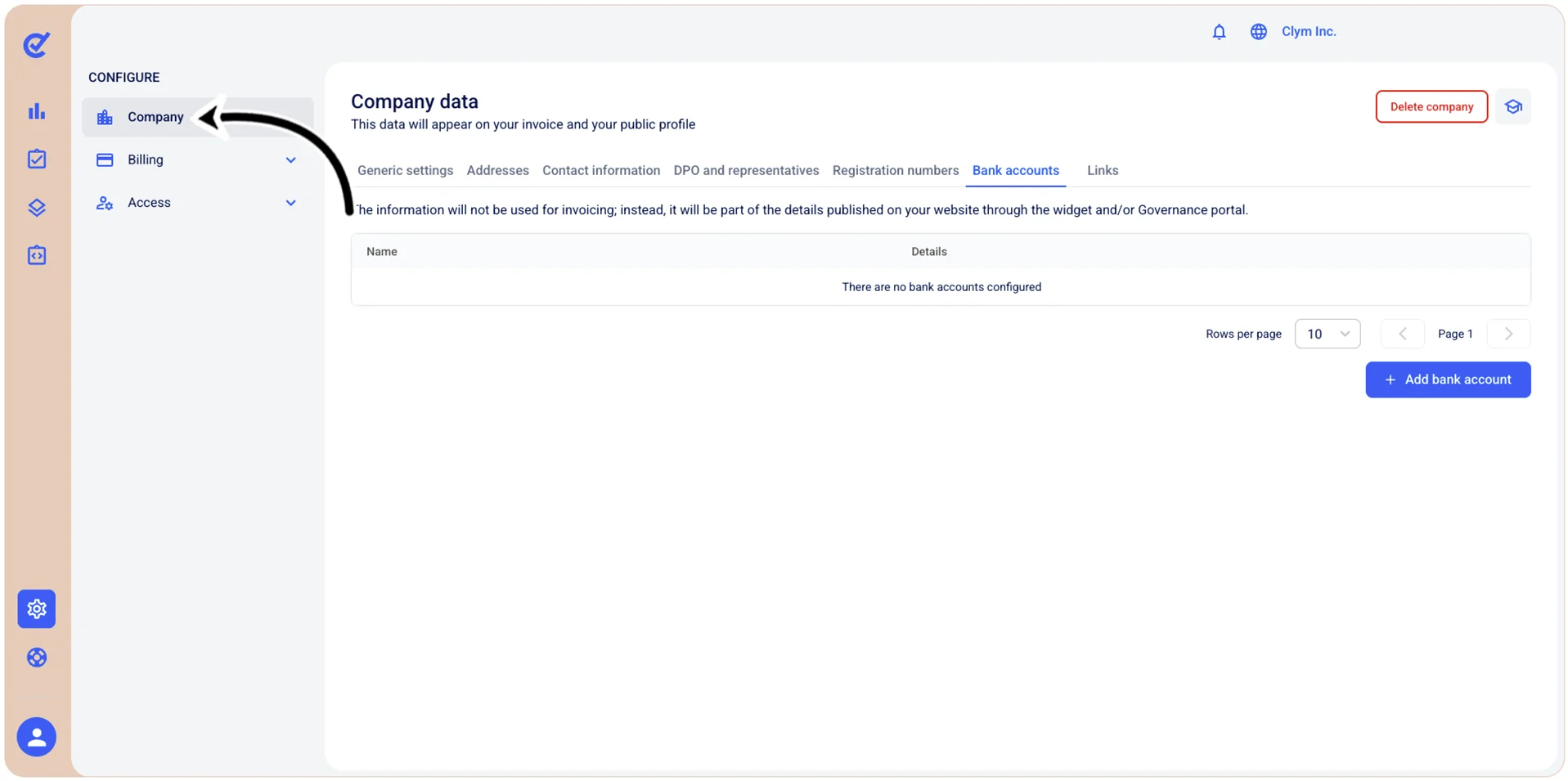
- In the Bank accounts tab, select +Add bank account and then, in the Add bank account section, configure the fields, as follows. All fields marked with * are mandatory.
- Account name*: Enter a descriptive name to identify this bank account (for example, Primary account, Payroll account, USD Operating Account).
- Bank name*: Enter the full name of the financial institution where this account is held. This is a required field.
- IBAN*: Enter the International Bank Account Number (IBAN) for this account.
- Country: Select the country where the bank account is registered or where the financial institution is located.
- SWIFT code: Enter the SWIFT/BIC (Bank Identifier Code) for the financial institution.
- Account number: Enter the bank account number. The format varies by country and financial institution.
- Routing number: Enter the routing number (also known as ABA routing number or routing transit number). This is primarily used in the United States to identify the specific financial institution for processing transactions. The routing number is typically a 9-digit code.
- Mark as active: Toggle this option to activate or deactivate this bank account. Only active bank accounts will be available for use in transactions and financial operations within the platform.
- When finished, select Add.
Edit a bank account
To modify a bank account:
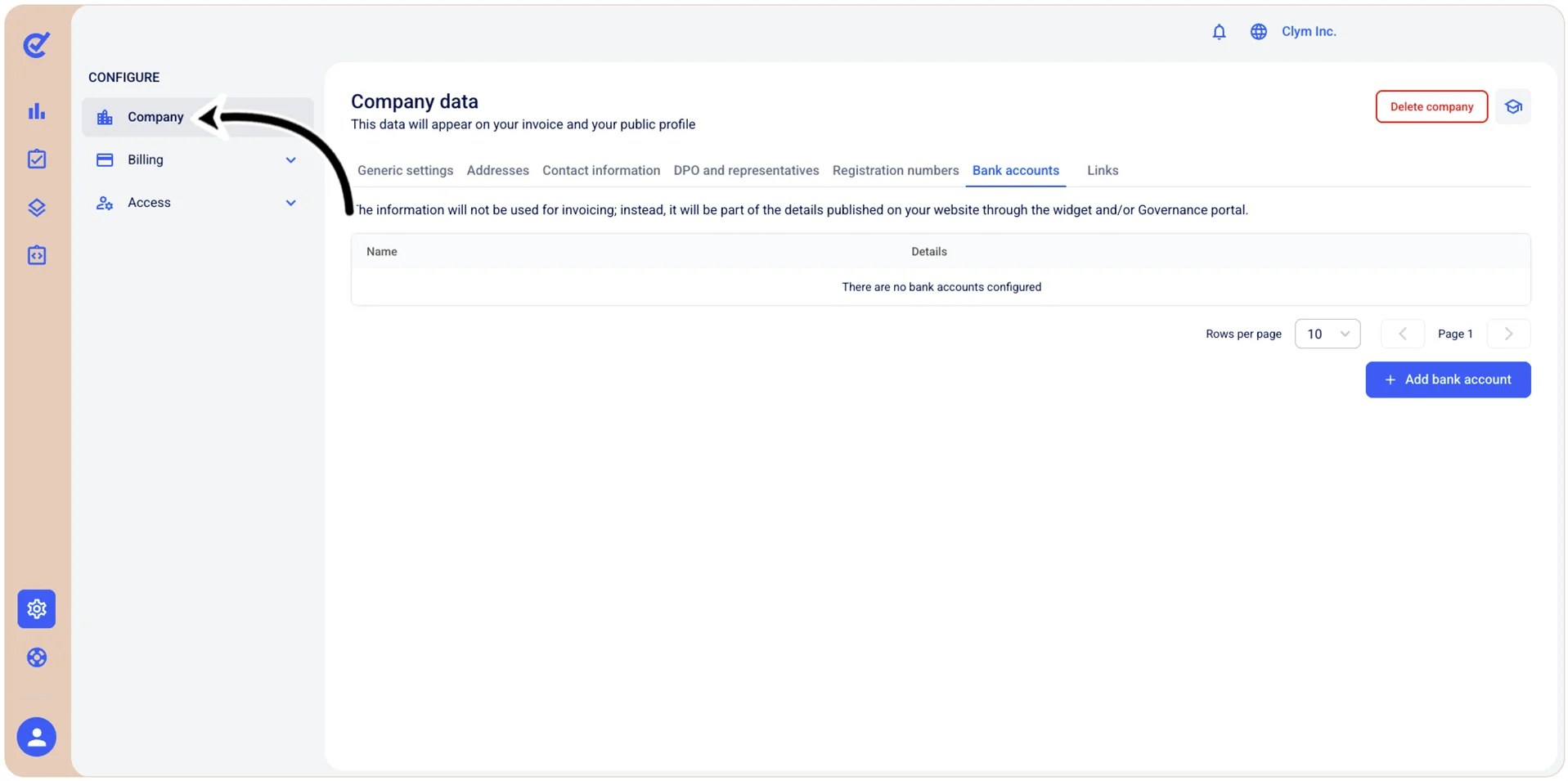
- Go to _Configure>Company.
- In the Bank accounts tab, select
 Edit bank account next to the desired entry and then proceed to modify the bank account details accordingly.
Delete a bank account
To remove a bank account:
- Go to Configure>Company.
- In the Bank accounts tab, select
 Delete bank account.
 - In the confirmation message, select Confirm.