Establish your company's Data Protection Officer and other representatives
In the Control Center, you can easily configure the contact details of the Data Protection Officer (DPO) or other similar representatives so that your users know whom to address for any Data Protection queries they might have.
Important! When configuring this section, make sure that you select Save on the tab you just configured before moving on to another tab/section.
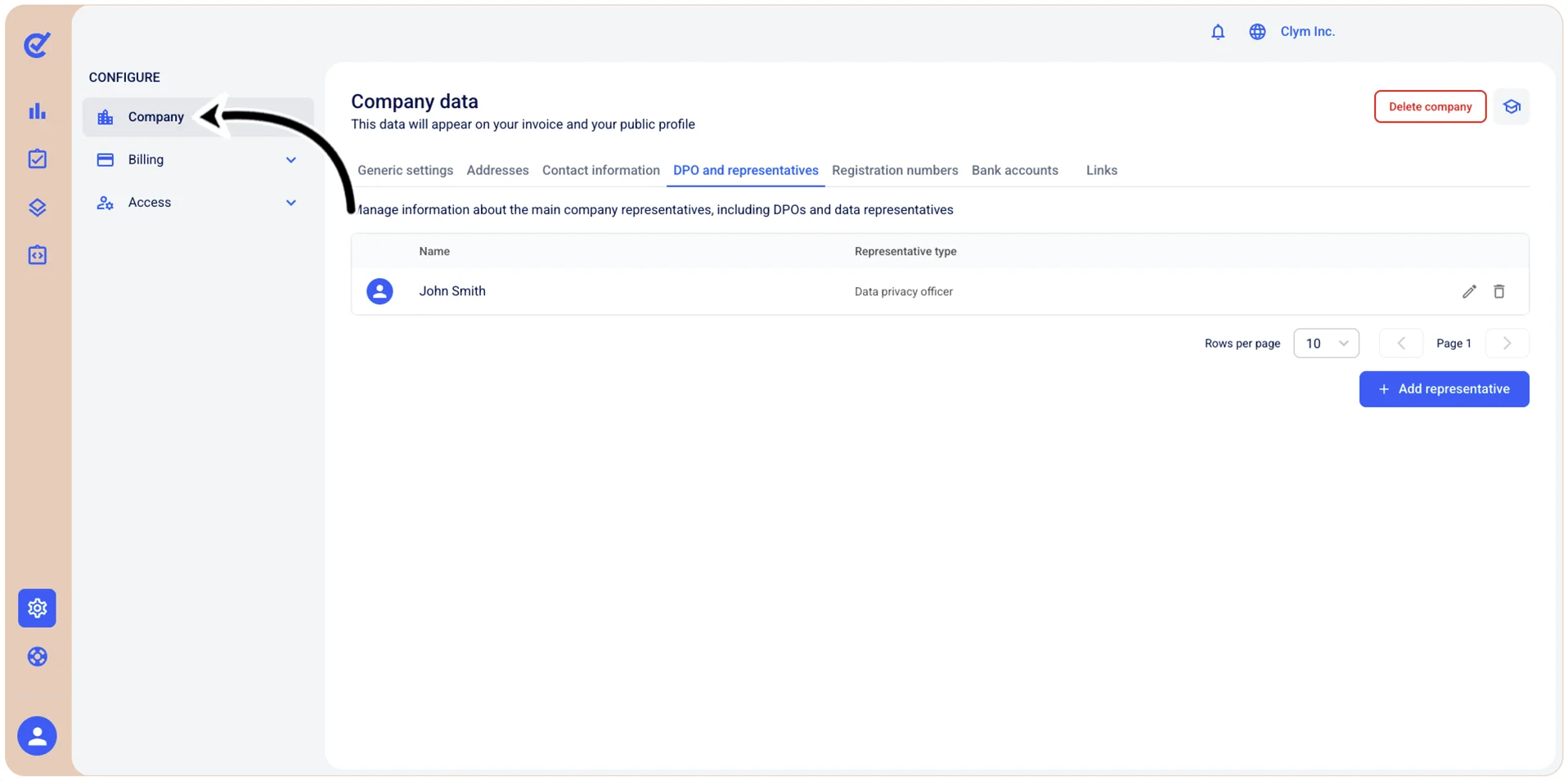
To access this section, go to  Configure>Company and select the DPO and representatives tab.
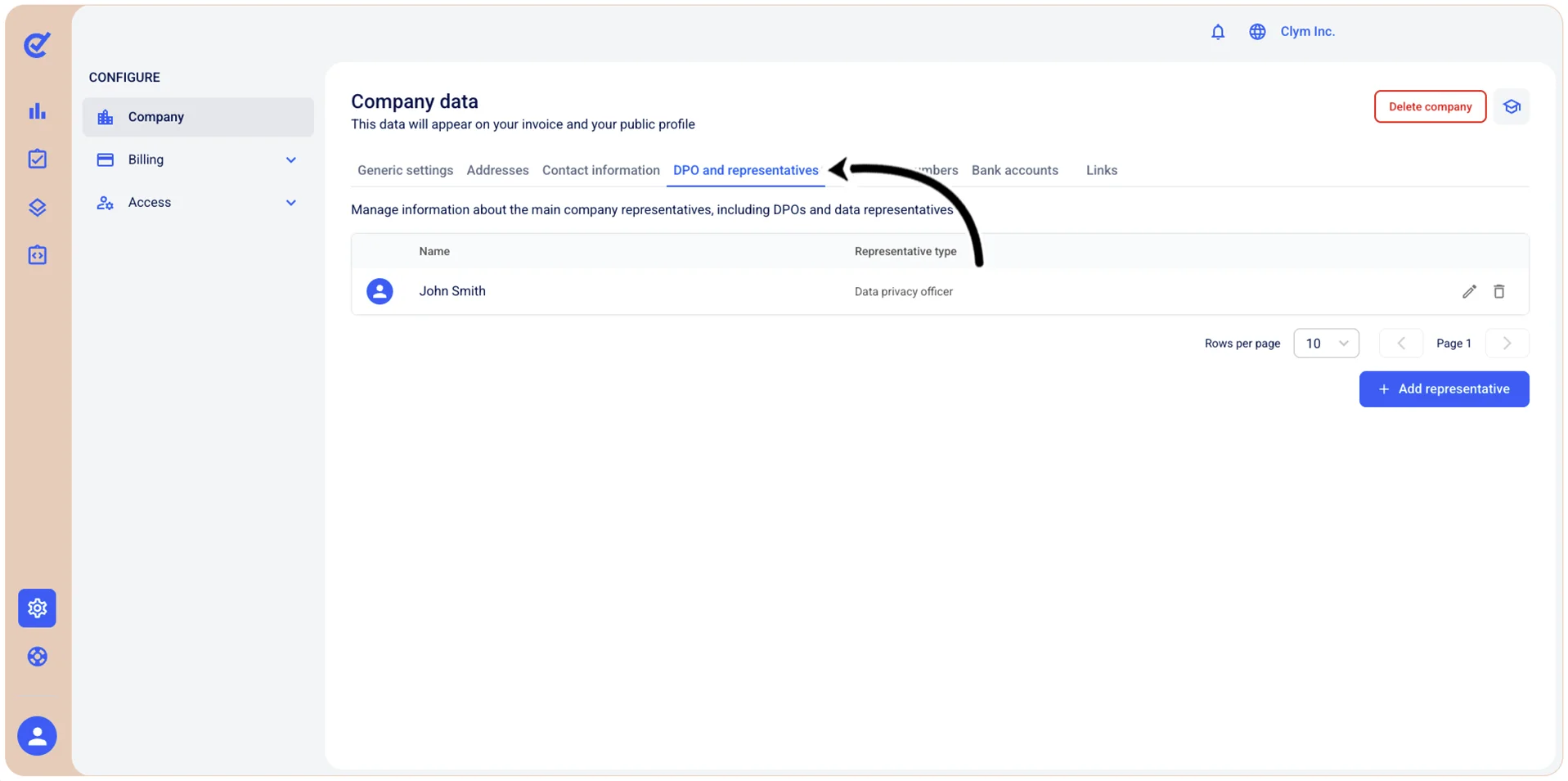
You can add, modify and delete DOPs and other representatives.
Add a DPO and other representatives
To add a DPO:
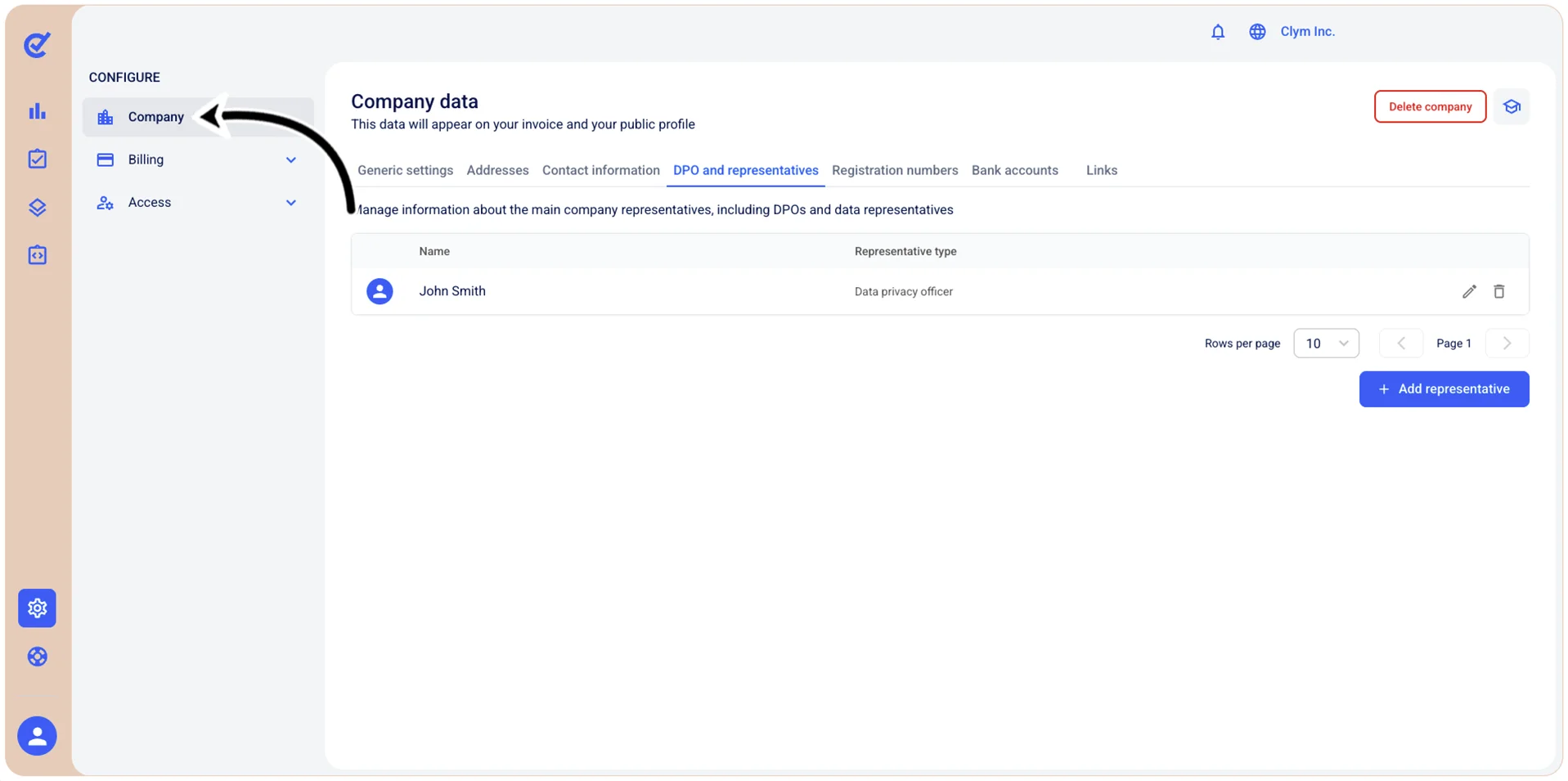
- Go to Configure>Company.
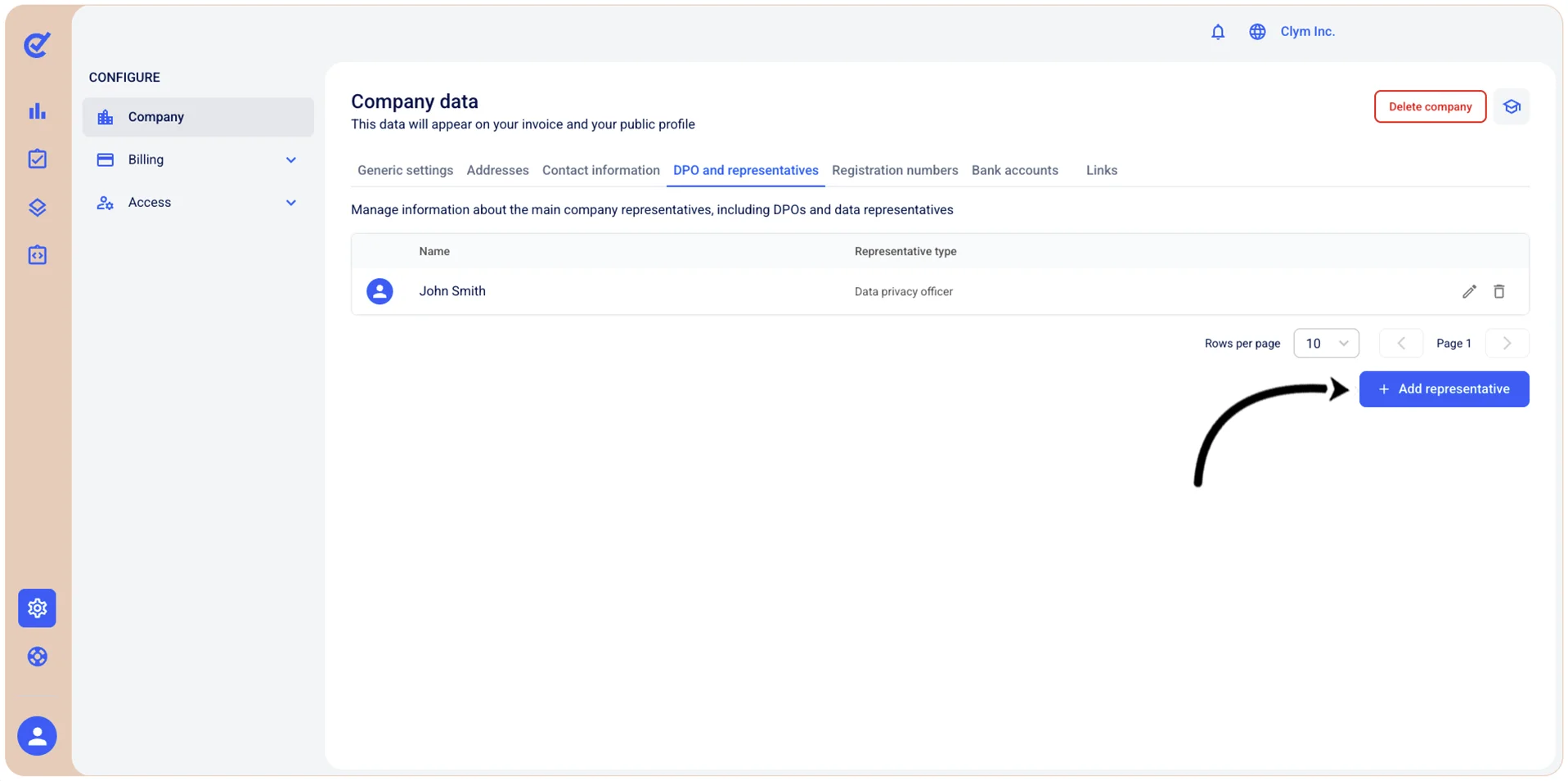
- In the Company data section, in the DPO and representatives tab, select +Add representative.
- Under Add representative, select Personal details and then configure the fields, as follows. All fields marked with * are mandatory.
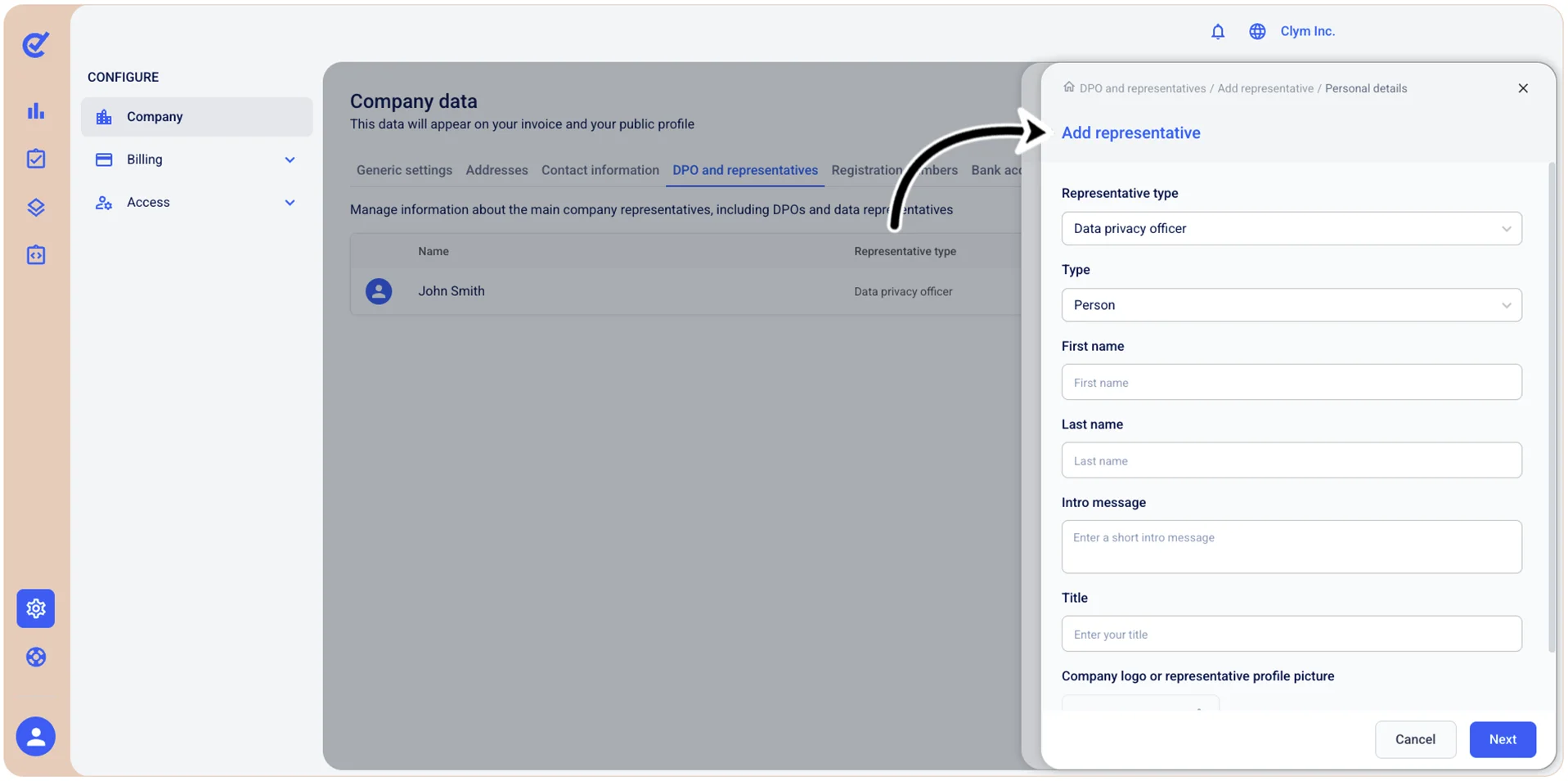
- Representative type: Select the role or function this representative serves for your organization (for example, Data Privacy Officer, Legal representative and so on).
- Type: Choose whether this representative is a Person or an Organization/company.
- First name*: If the representative type is set to Person, enter the first name (given name) of the representative.
- Last name*: If the representative type is set to Person, enter the last name (surname/family name) of the representative.
- Company name*: If the representative type is set to Organization, enter the name of the legal entity.
- Intro message: Enter a brief introductory message or description about this representative which will be displayed in privacy notices or when users contact the representative regarding data privacy matters. For example, you can configure a generic message, such as “For any Data Privacy violations, please contact us at <email>”.
- Title: Enter the professional title or position of the representative (for example, Chief Privacy Officer, Data Protection Officer, Legal Counsel and so on) to clarify their role and authority within the organization.
- Company logo or representative profile picture: Upload an image to represent this contact. You can upload either your company logo or a profile picture of the representative. Accepted formats are JPG or PNG, with recommended dimensions of 96x96 pixels.
When finished, select Save to return to the Add representative section.
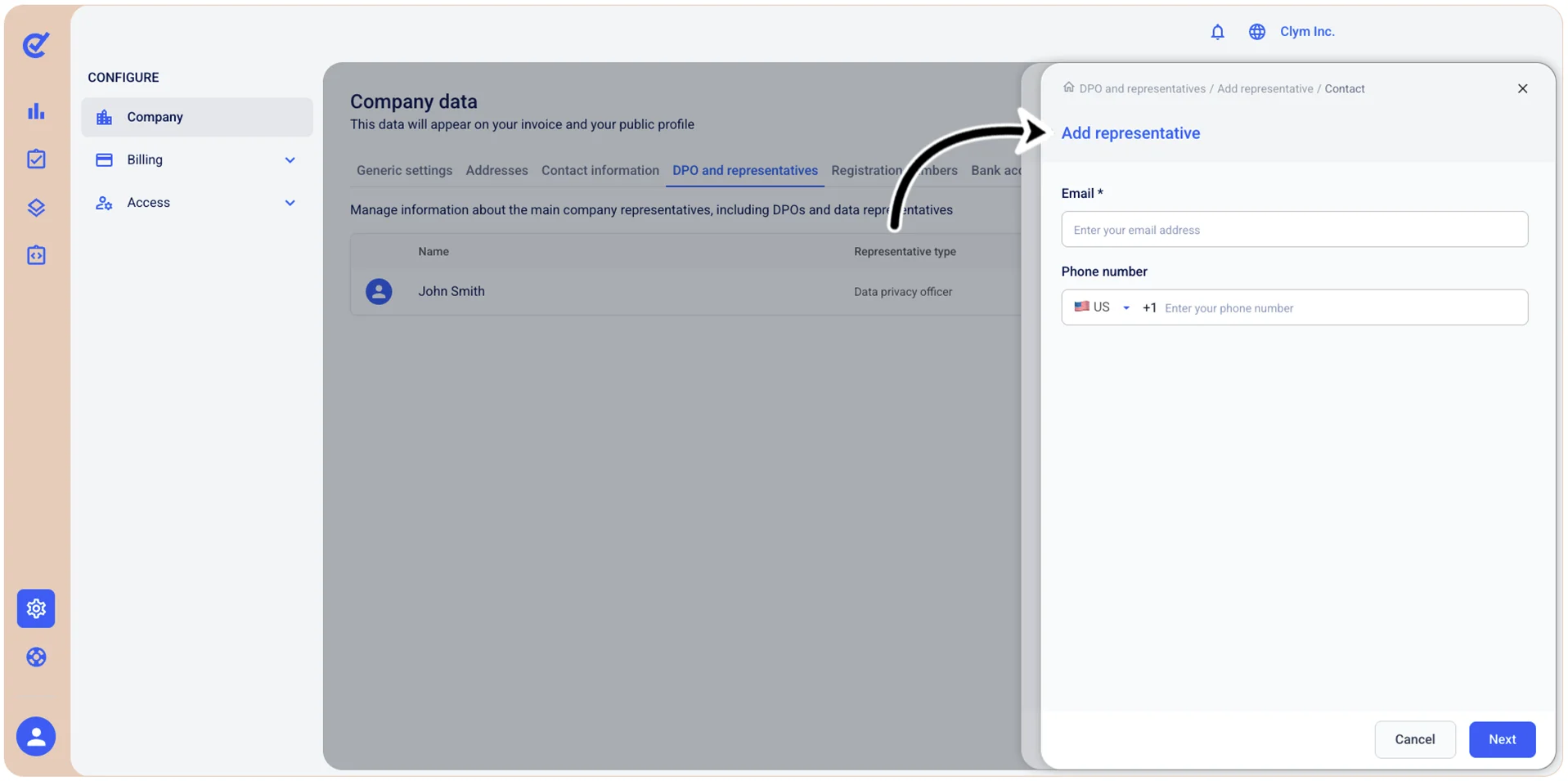
4. Next, under Add representative, select Contact and then enter the email and the phone number (in valid format) of the Data Protection representative.When finished, select Save to return to the Add representative section.
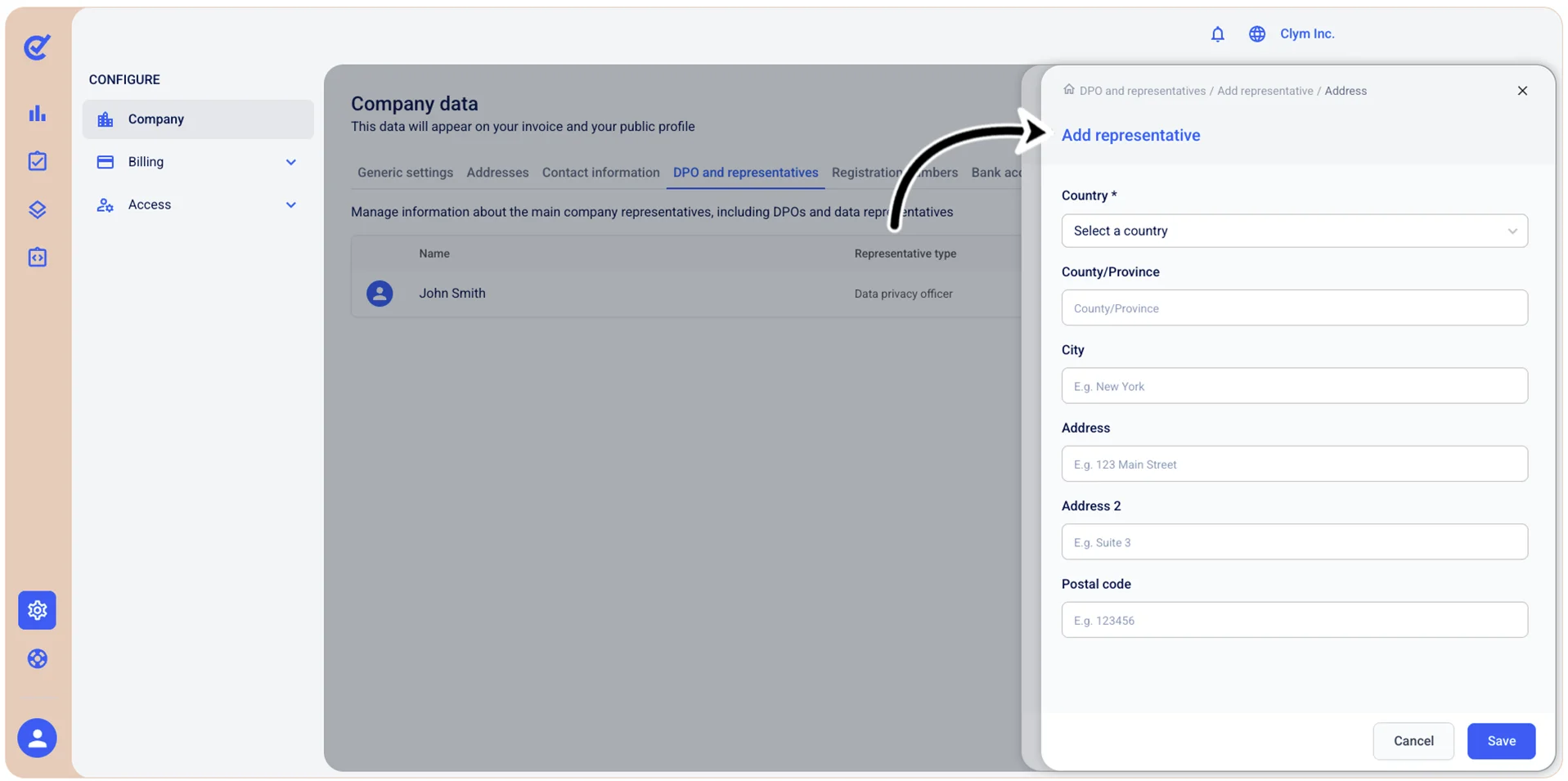
- Next, under Add representative, select Address and then configure the address details fields. All fields marked with * are mandatory. When finished, select Save to return to the Add representative section.
- After configuring the DPO’s personal details, contact information and address, select Add. Your newly-added DPO is displayed in the DPO and representatives screen.
Modify the details of the designated DPO and of other representatives
To edit a DPO:
- Go to Configure>Company.
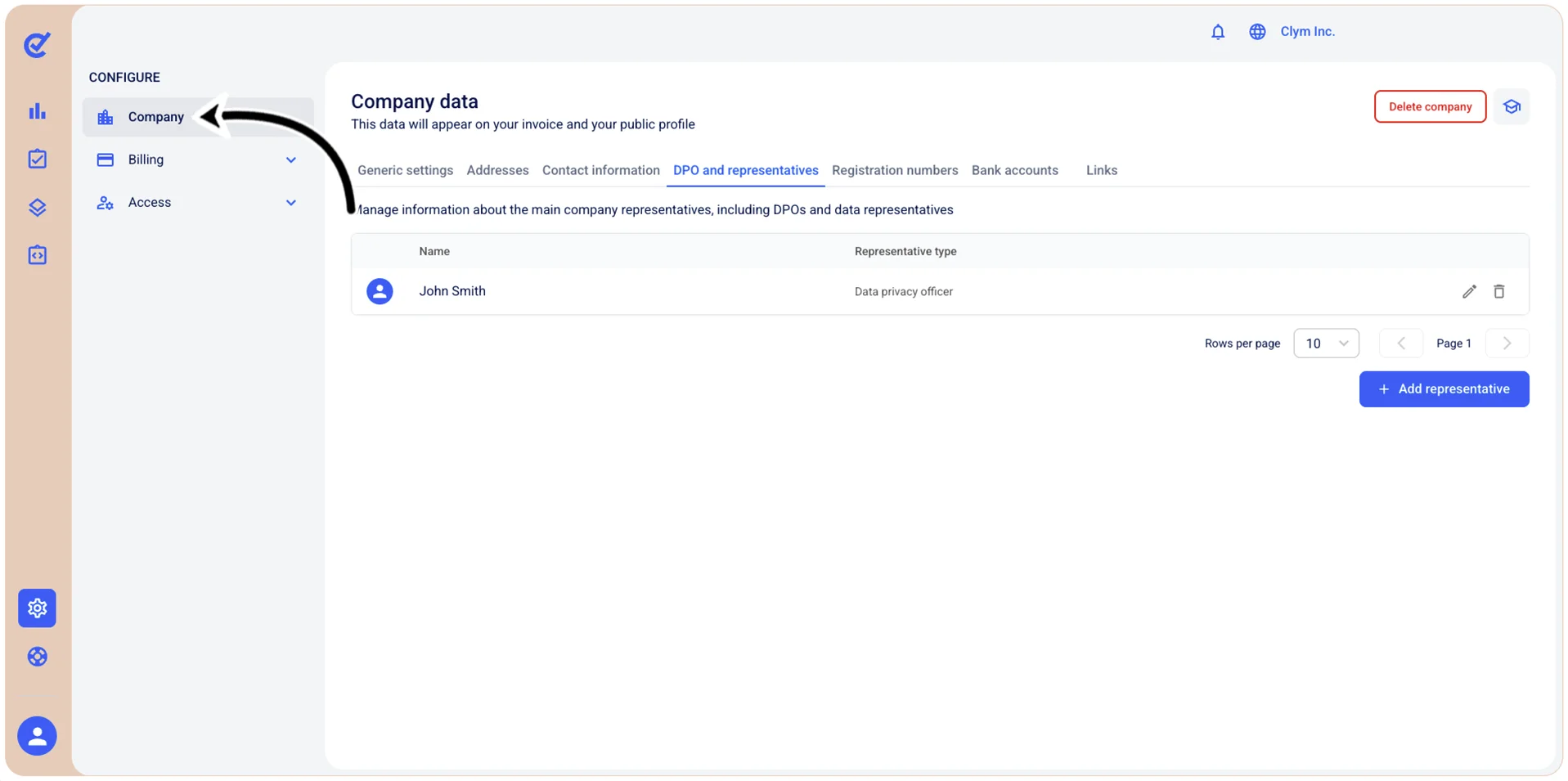
- In the Company data section, in the DPO and representatives tab, select
 Edit representative next to the desired DPO and then proceed to modify their details. For more information about the options available to you at this stage, see [???Add a DPO and other representatives].
Delete the designated DPO and other representatives
To remove a DPO or similar representative:
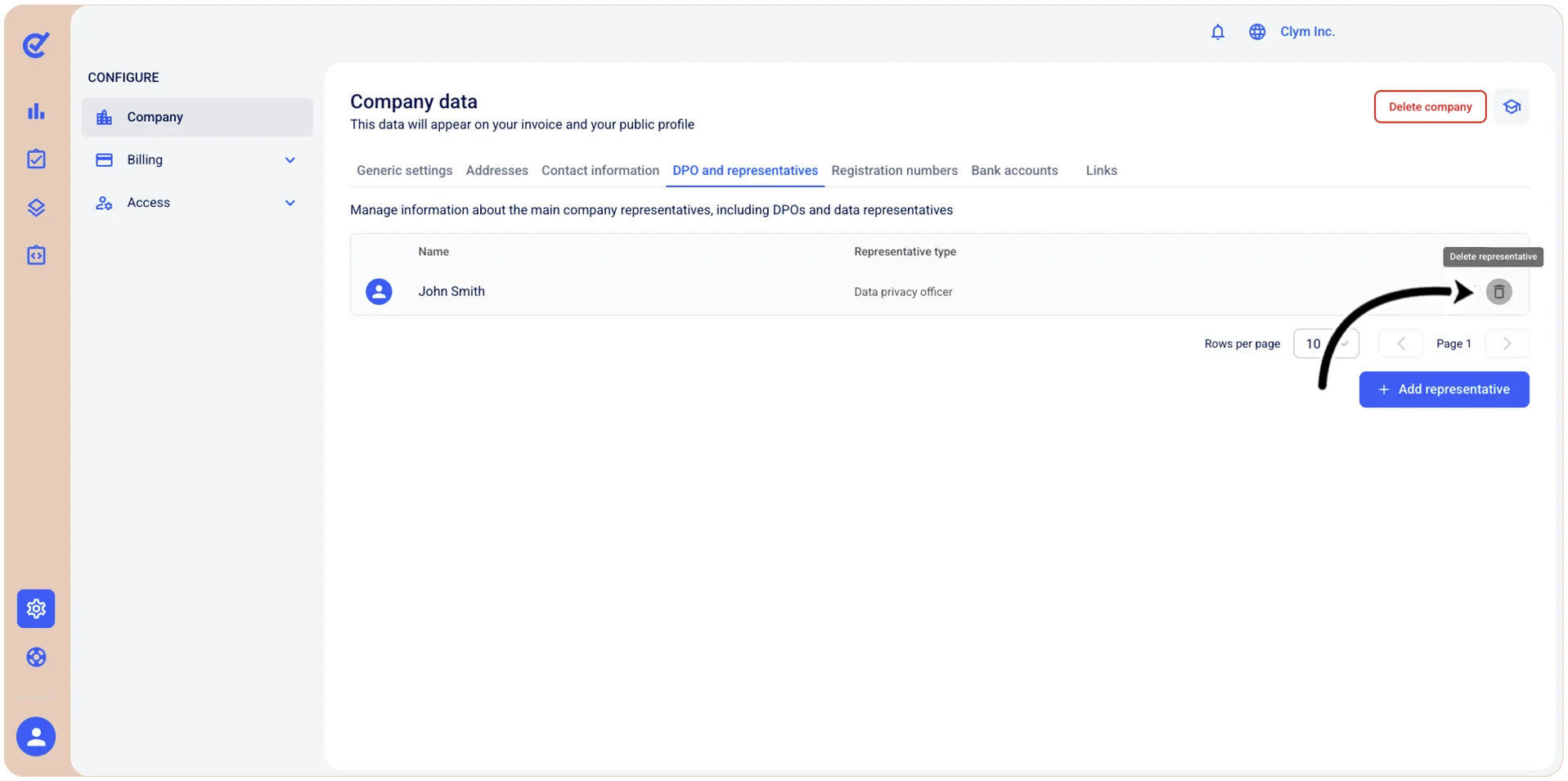
- Go to _Configure>Company.
- In the DPO and representatives tab, select
 Delete representative.
 - In the confirmation message, select Confirm.