
Filter content takedown cases
To narrow down your search using filtering:
- Go to
 Operate>Cases>Content takedown.
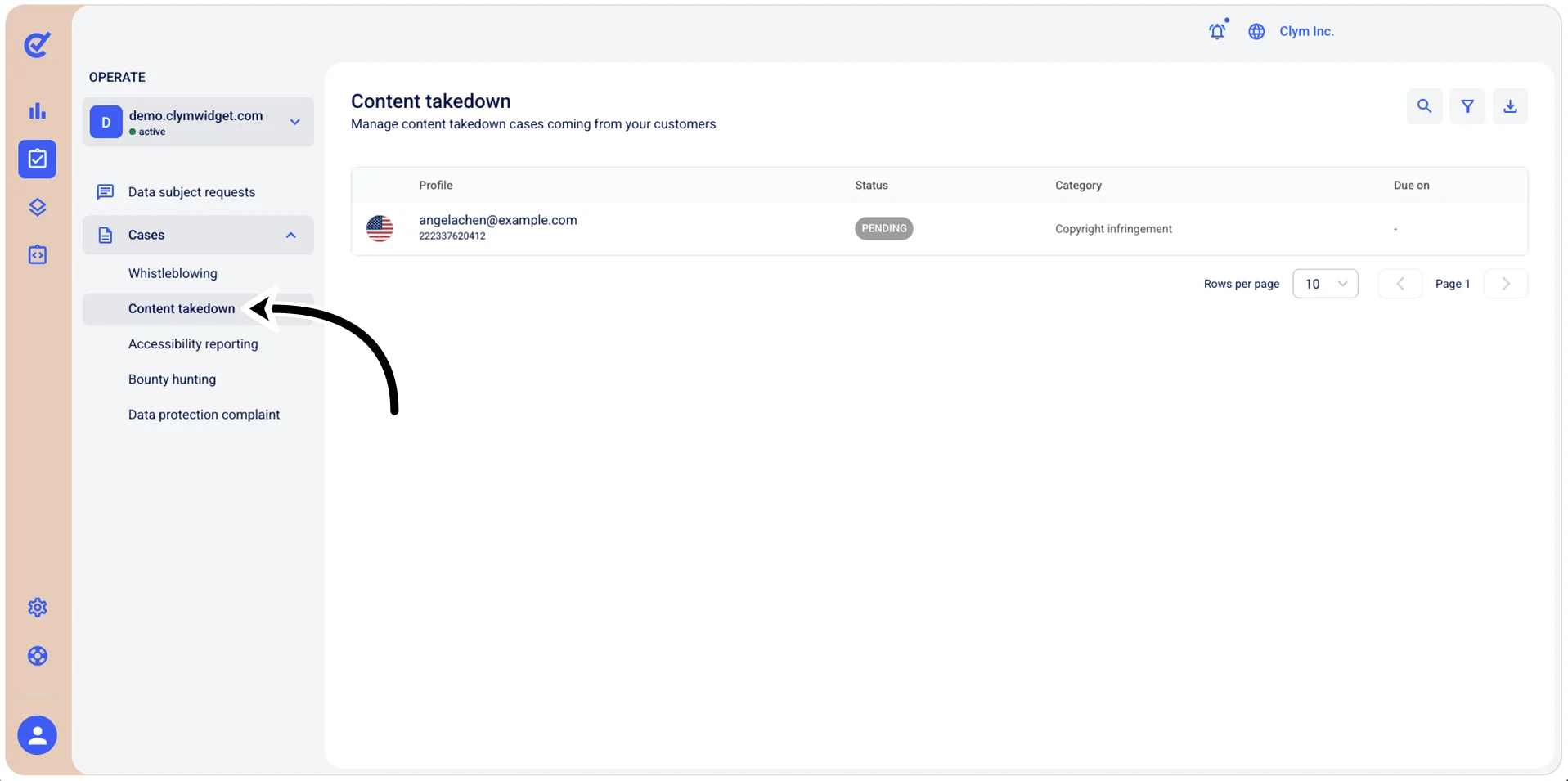
- Select the
 filter function.
 - In the Filters section, fill in the filtering parameters to refine your search, as follows:
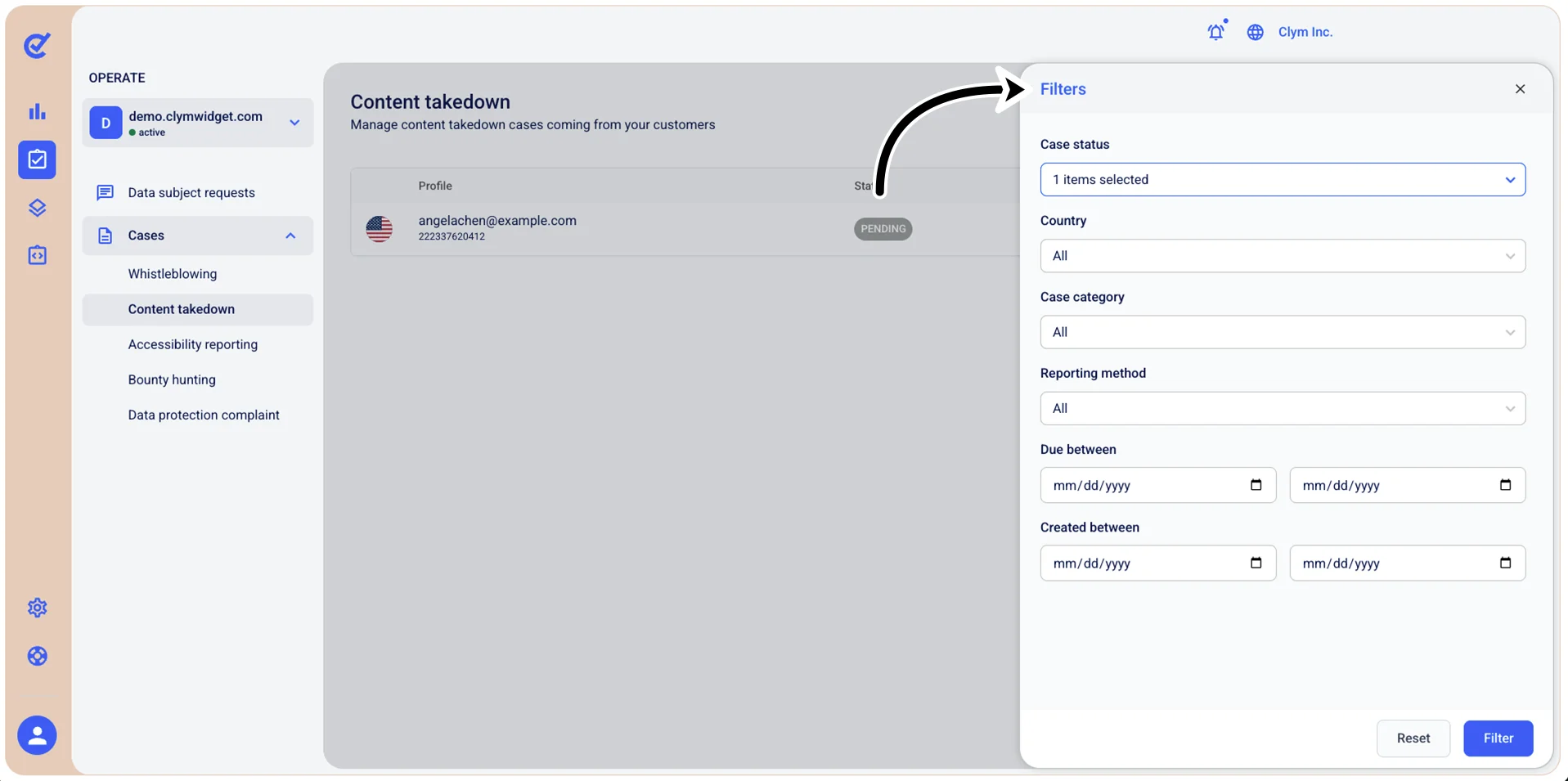
- Case status: Select a specific status to view only cases based on their current processing status (for example, Pending/Open/In progress and so on).
- Country: Select the desired country to view only cases originating from that region.
- Case category: Select a specific category to view only cases of that type (for example, Copyright infringement/Hate speech/Cyberbullying and so on).
- Reporting method: Filter cases by how the whistleblower submitted their report:
- Report anonymously: The reporter's identity is completely unknown to the organization.
- Report confidentially: The reporter's identity is known to the organization (or specific designated personnel) but is kept private and protected from disclosure.
- Due between (Start date-End date): Filter cases by their resolution deadline or due date range.
- Created between (Start date-End date): Filter cases by the date range when they were submitted or created in the system.
- When finished, select Filter.
The filtered results are displayed in the Content takedown section. Note that, whenever the Control Center displays filtered information, the
 filter icon is marked with a green dot.