
Manage the activity log using the audit feature
In the Control Center, you can monitor the latest activities performed by anybody using the Audit section. Every action performed by a user is logged for future consultation and you can track it using this advanced feature.
To view the log and the details of an event:
- Go to
 Configure>Access>Audit.
- In the Audit section, you can see the history of all events, together with the action type, the user who performed the action, the property, and the date and time of the event.
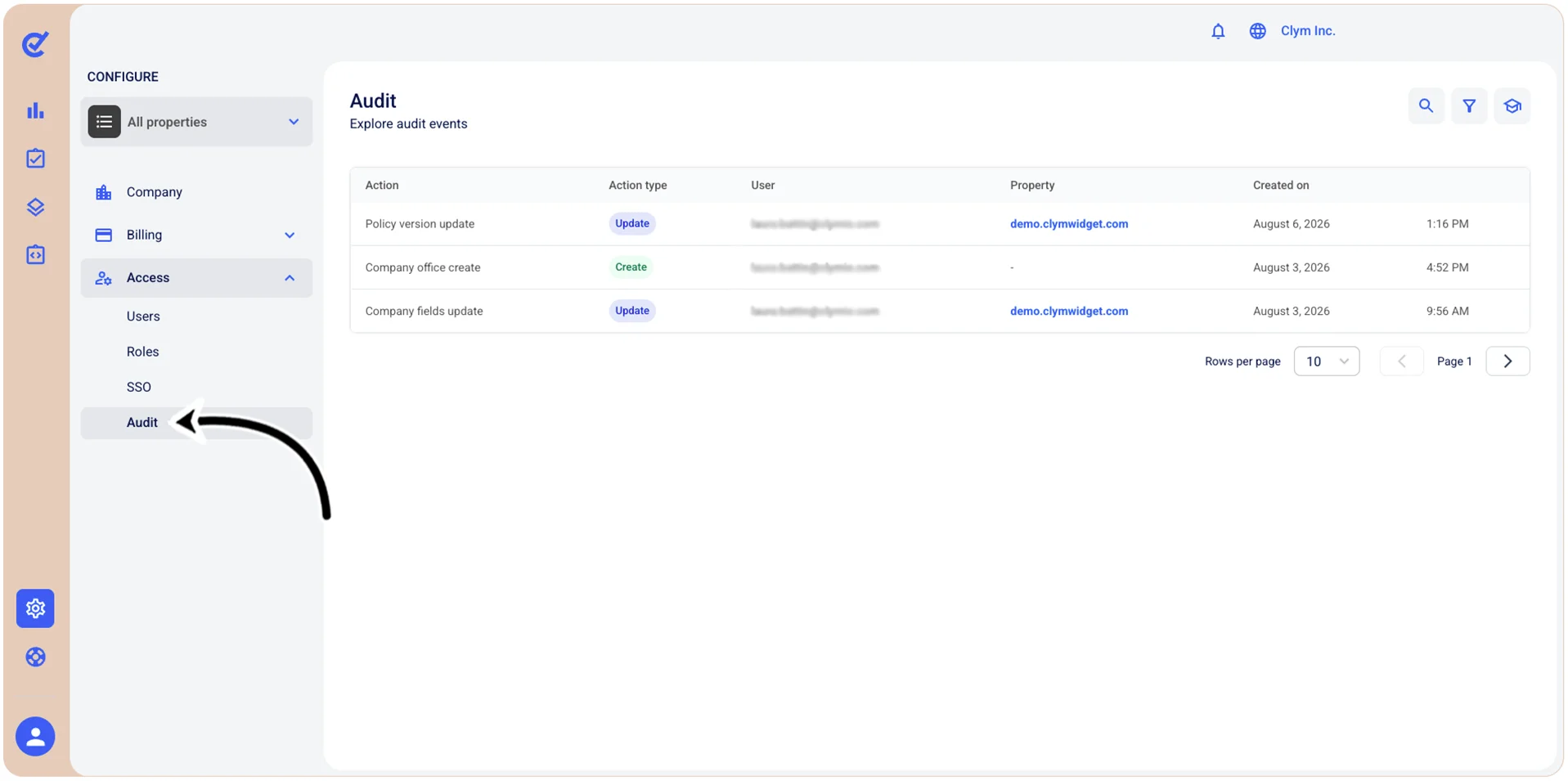
a. To view an event, simply select it. The details of the event are displayed in the View event details section, as follows:
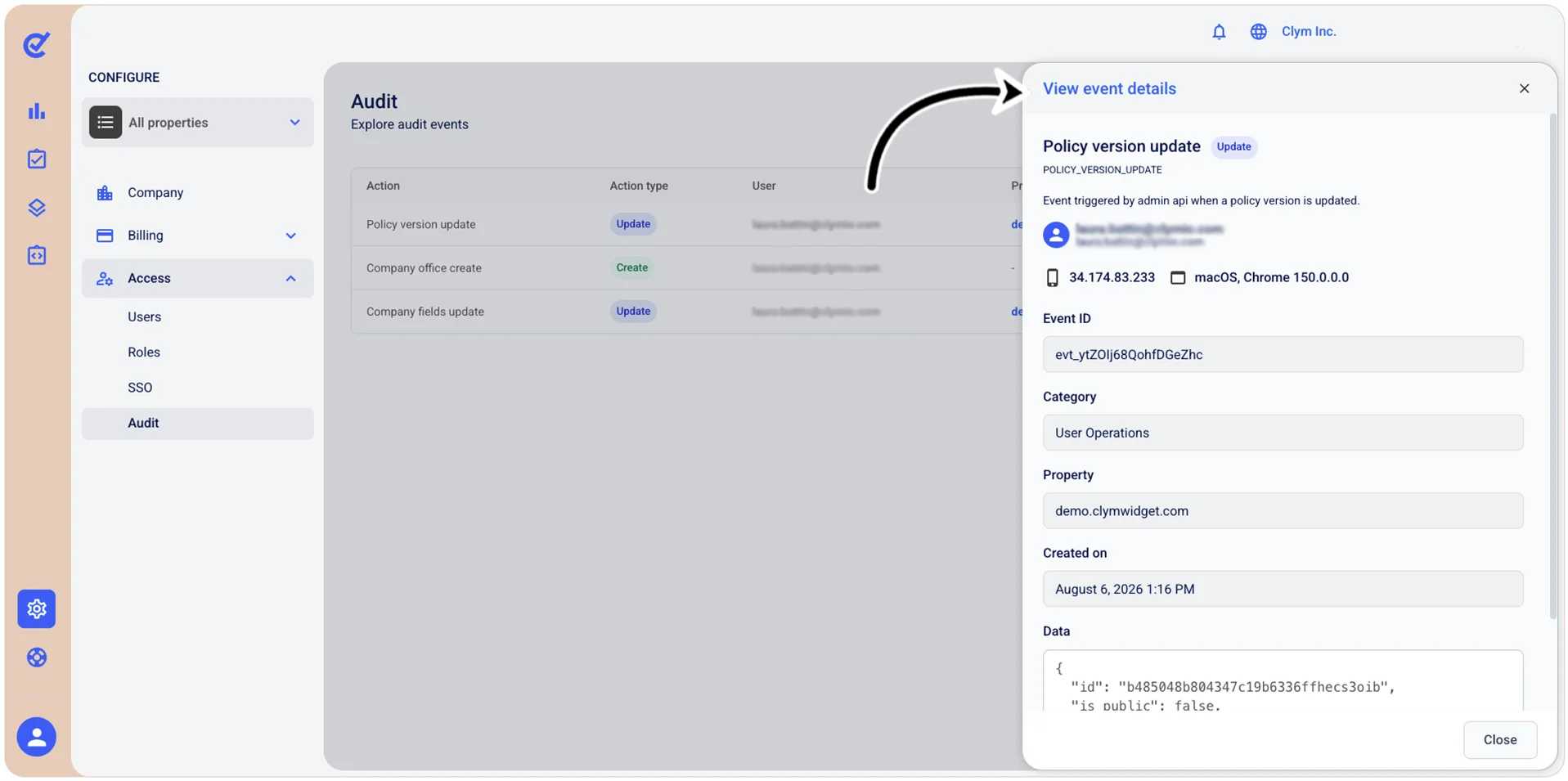
- Event ID: This is the event’s specific unique identifier, which can be used for tracking, debugging, or referencing the event in support requests or API calls.
- Category: The classification or grouping to which this event belongs.
- Property: The resource, object, or entity that this event relates to.
- Created on: The date and time when this event occurred..
- Data: The complete event payload in JSON format. Depending on the nature of the event, this technical data may include all kinds of parameters, values, and metadata associated with the event.
To return to the Audit section, select Close.
b. To find specific events invoices based on specific key words, use the  search function.
c. To narrow down your search, use the
search function.
c. To narrow down your search, use the  filter function and then, in the Filters section, find events based on:
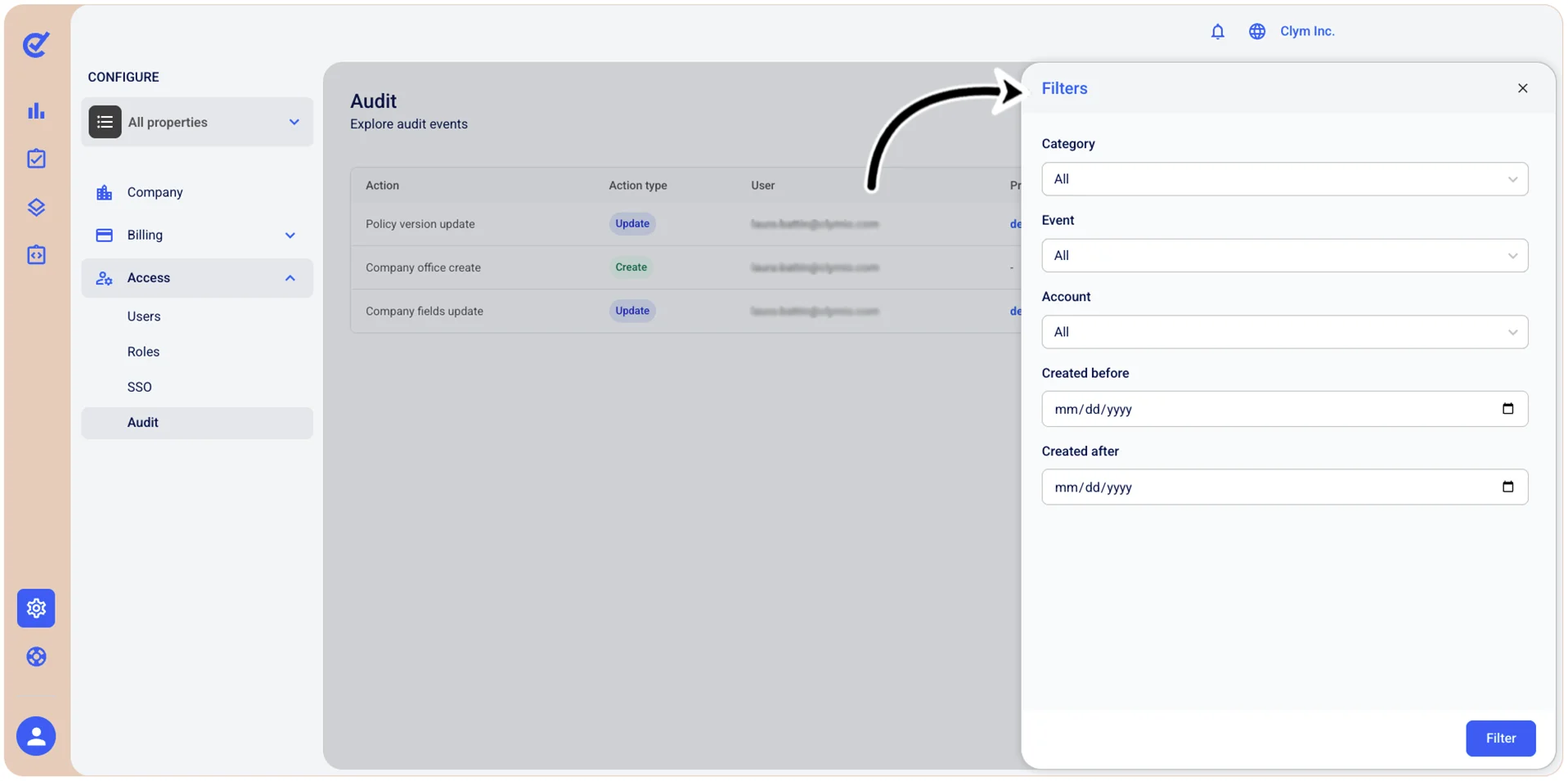
- Category: Filter results by category type, such as user operations, onboarding and so on.
- Event: Filter results by event type, such as account creation or deletion, account update and so on.
- Account: Select for which account (represented by an email) you want to view the history.
- Created before: Filter results to show only items created before the date you specify here.
- Created after: Filter results to show only items created after the date you specify here.
To view the results, select Filter.