Manage Users
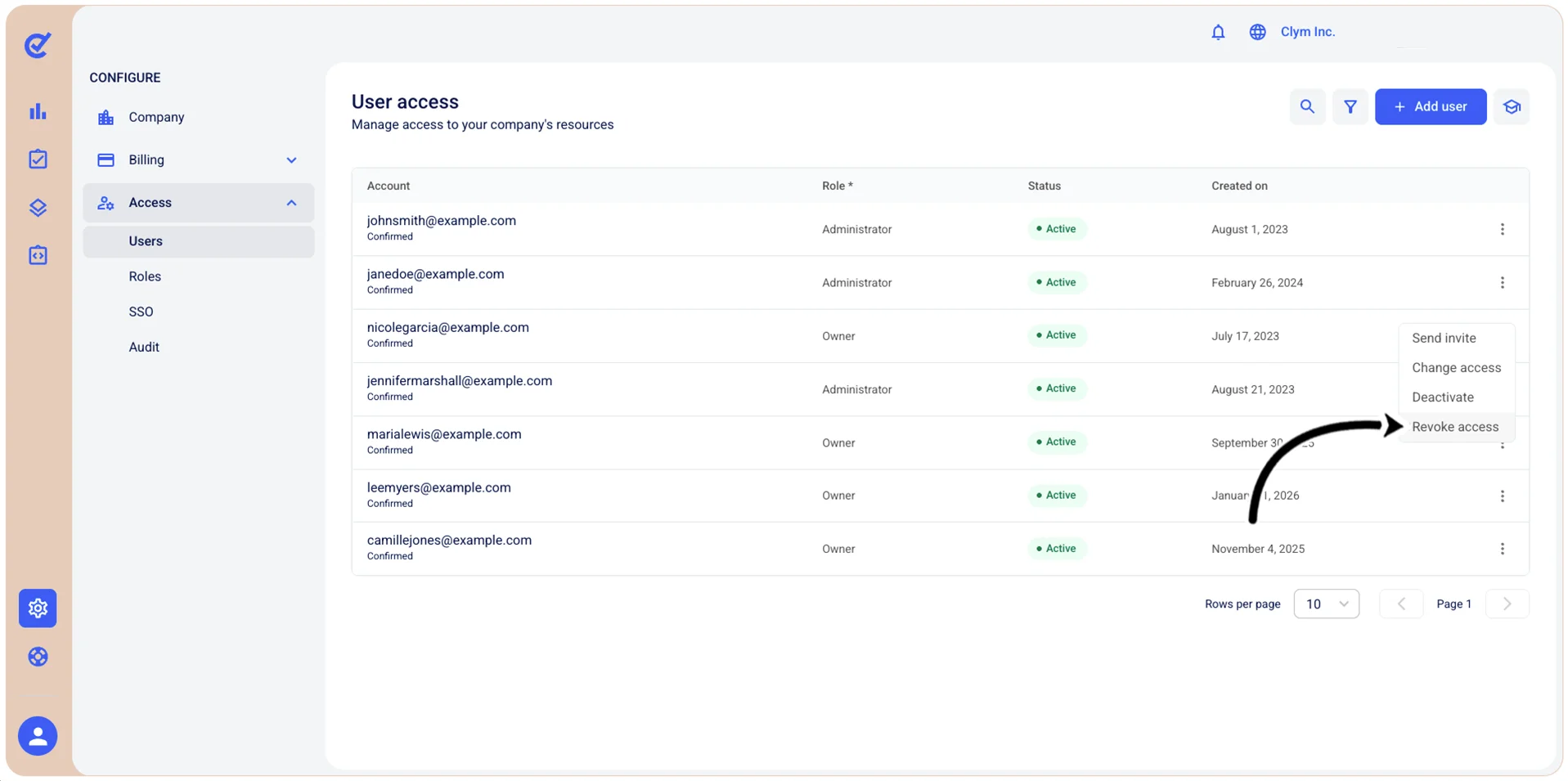
In the Control Center, you can add users, change and remove their access rights, and deactivate them.
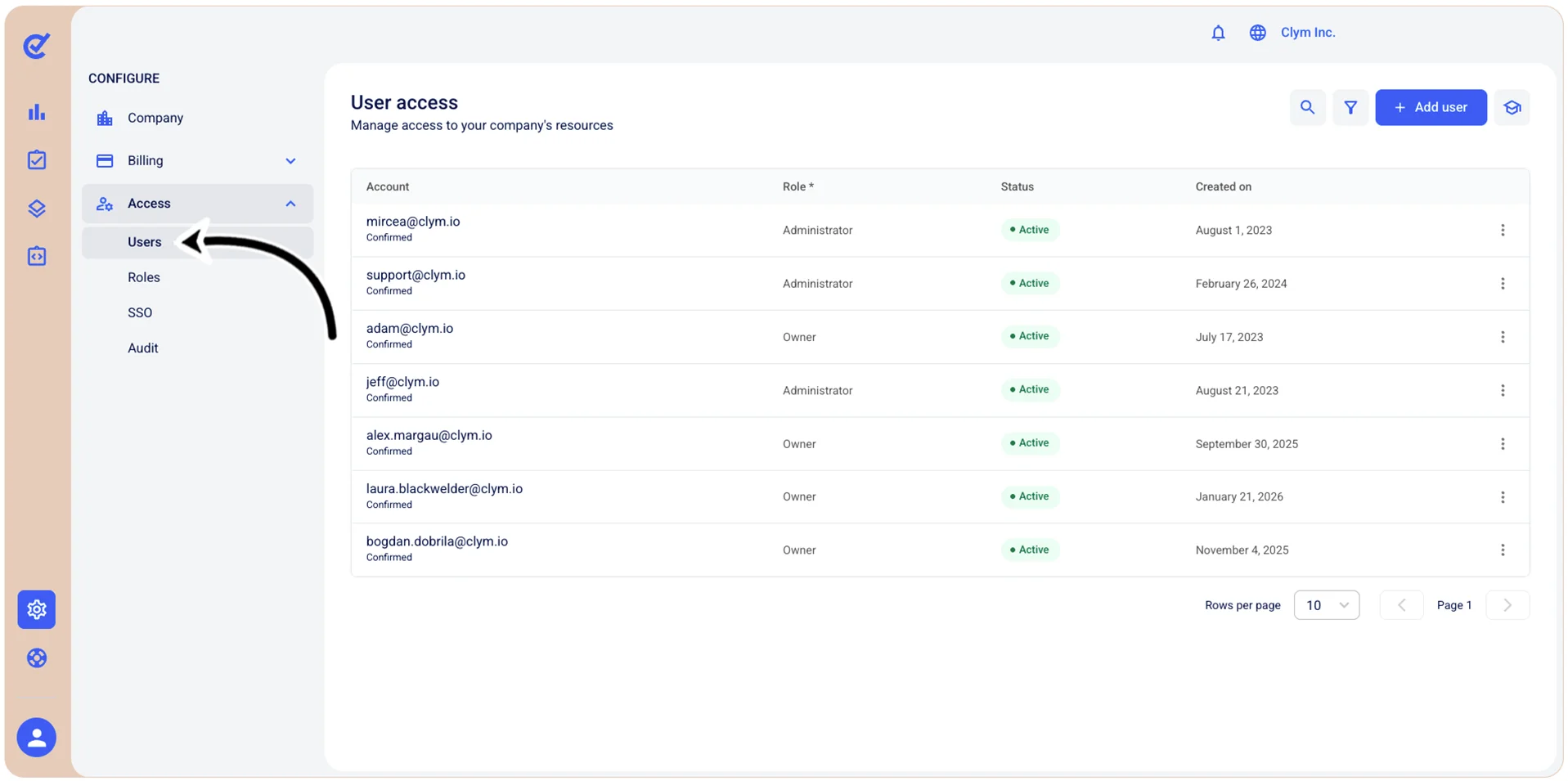
To access this section, go to  Configure>Access>Users.
Add users
To create a user in the Control Center:
- Go to Configure>Access>Users.
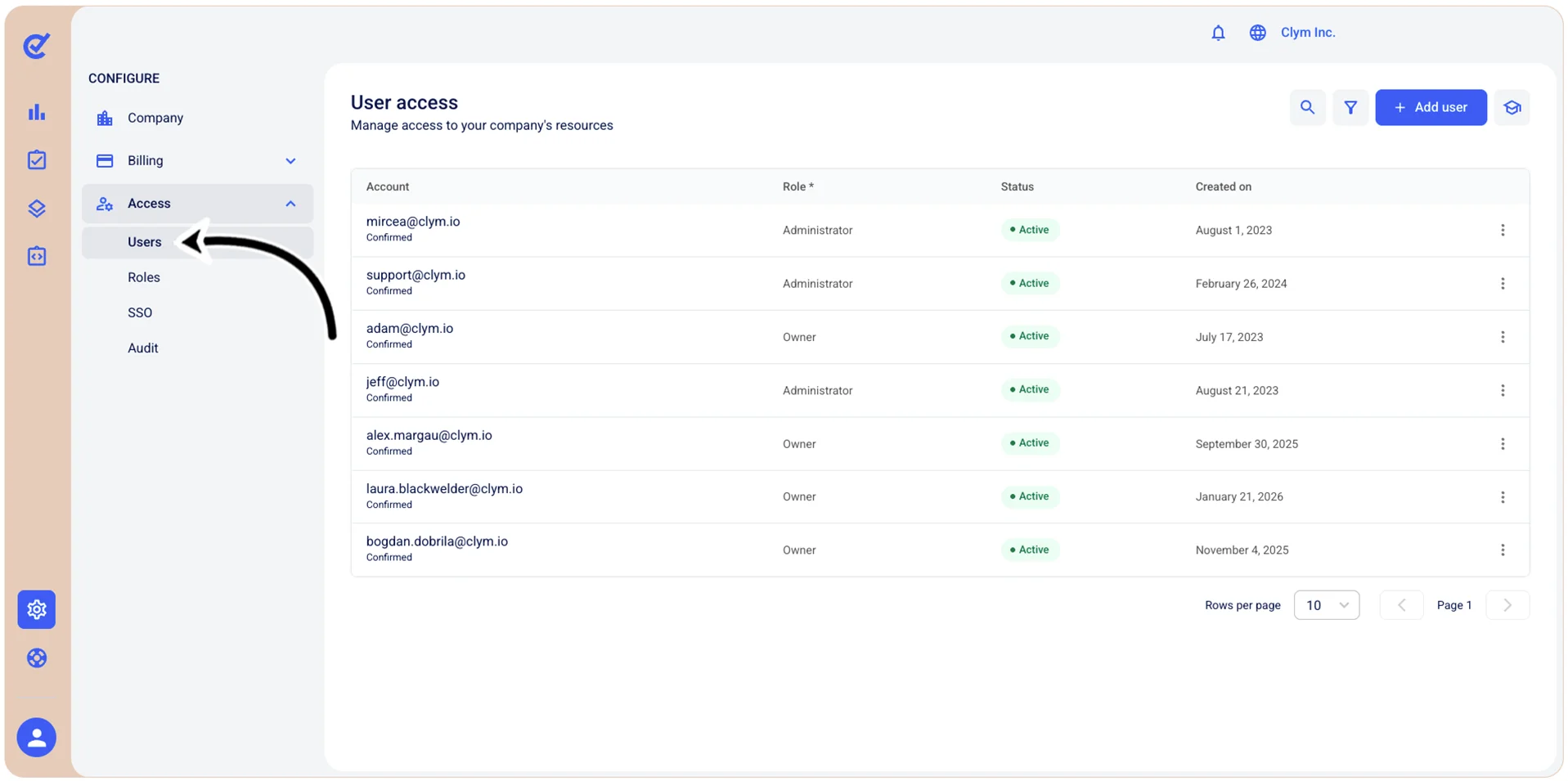
- In the User access section, select +Add user.
- In the Grant company access section, configure the fields, as follows. All fields marked with * are mandatory.
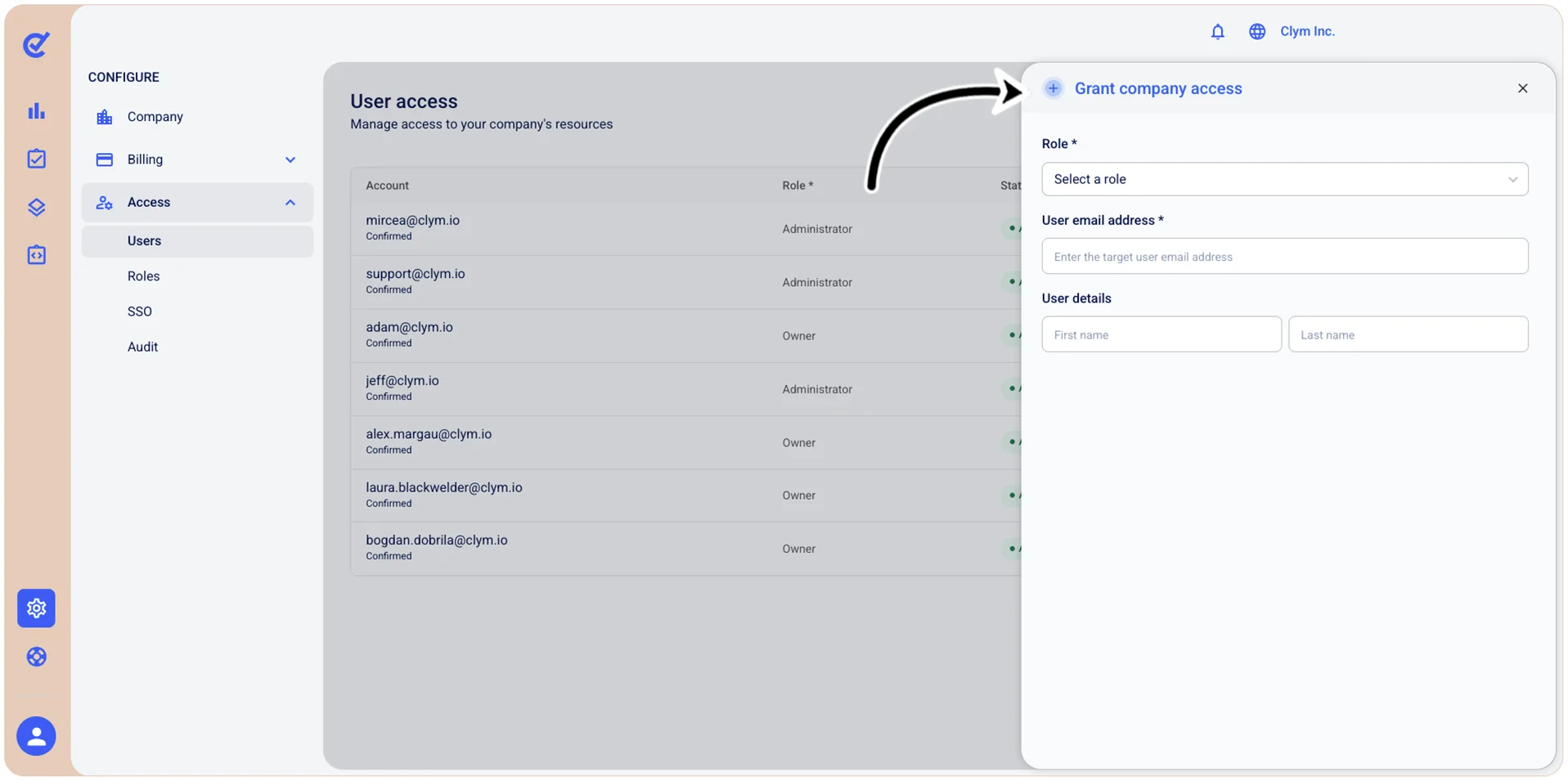
- Role: Select a role for your user, such as Owner, Administrator, etc.
- User email address: Enter the user’s email address.
- User details: Type the user’s first and last name in the respective fields.
- When finished, select Save.
Change user access
To change a user’s access rights to Control Center:
- Go to Configure>Access>Users.
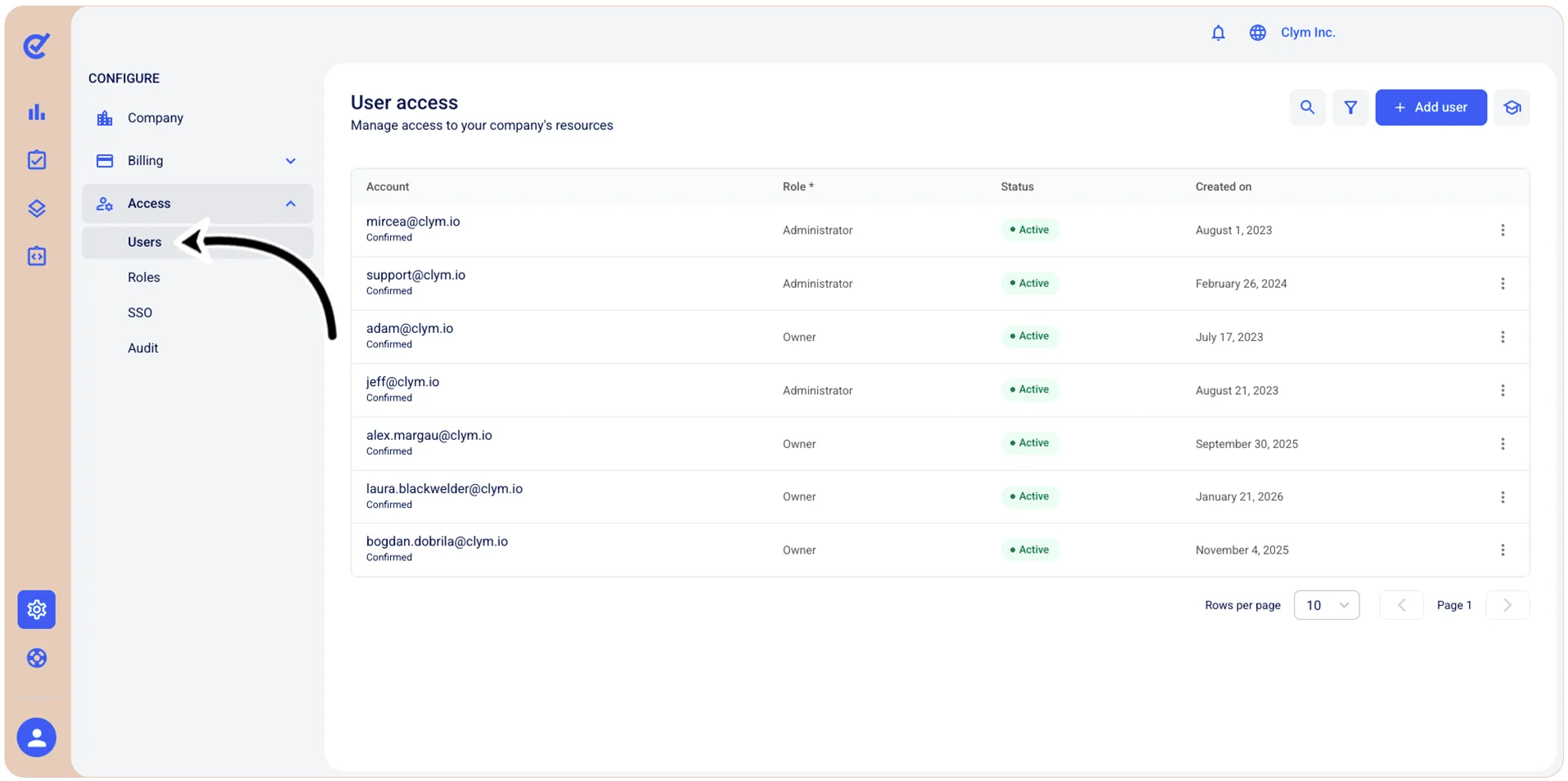
- In the User access section, select ⋮ Settings next to the desired user and then select Change access.
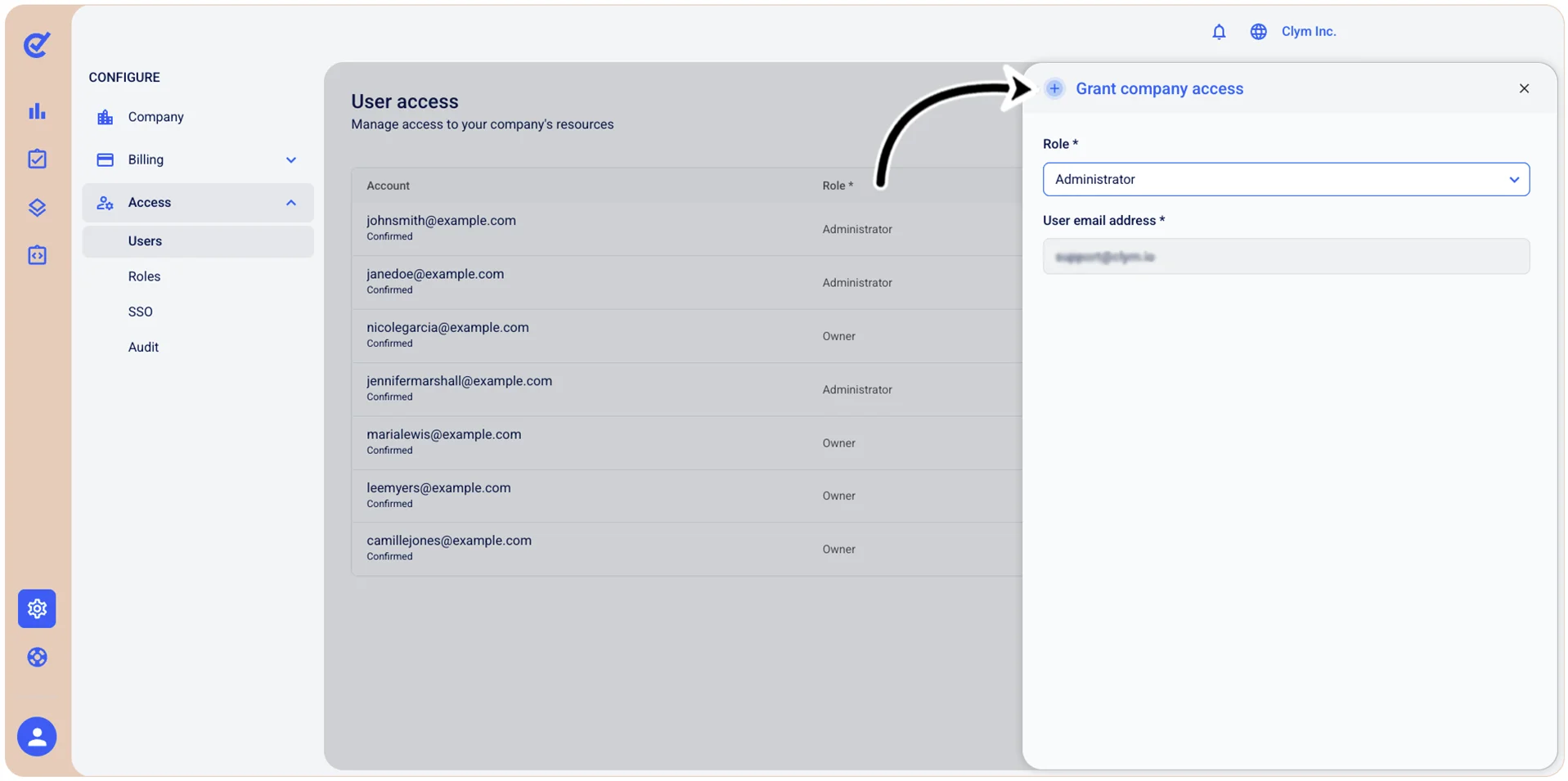
- In the Grant company access section, select another role for the selected user.
- When finished, select Save.
Deactivate user access
To deactivate a user’s access to Control Center:
- Go to Configure>Access>Users.
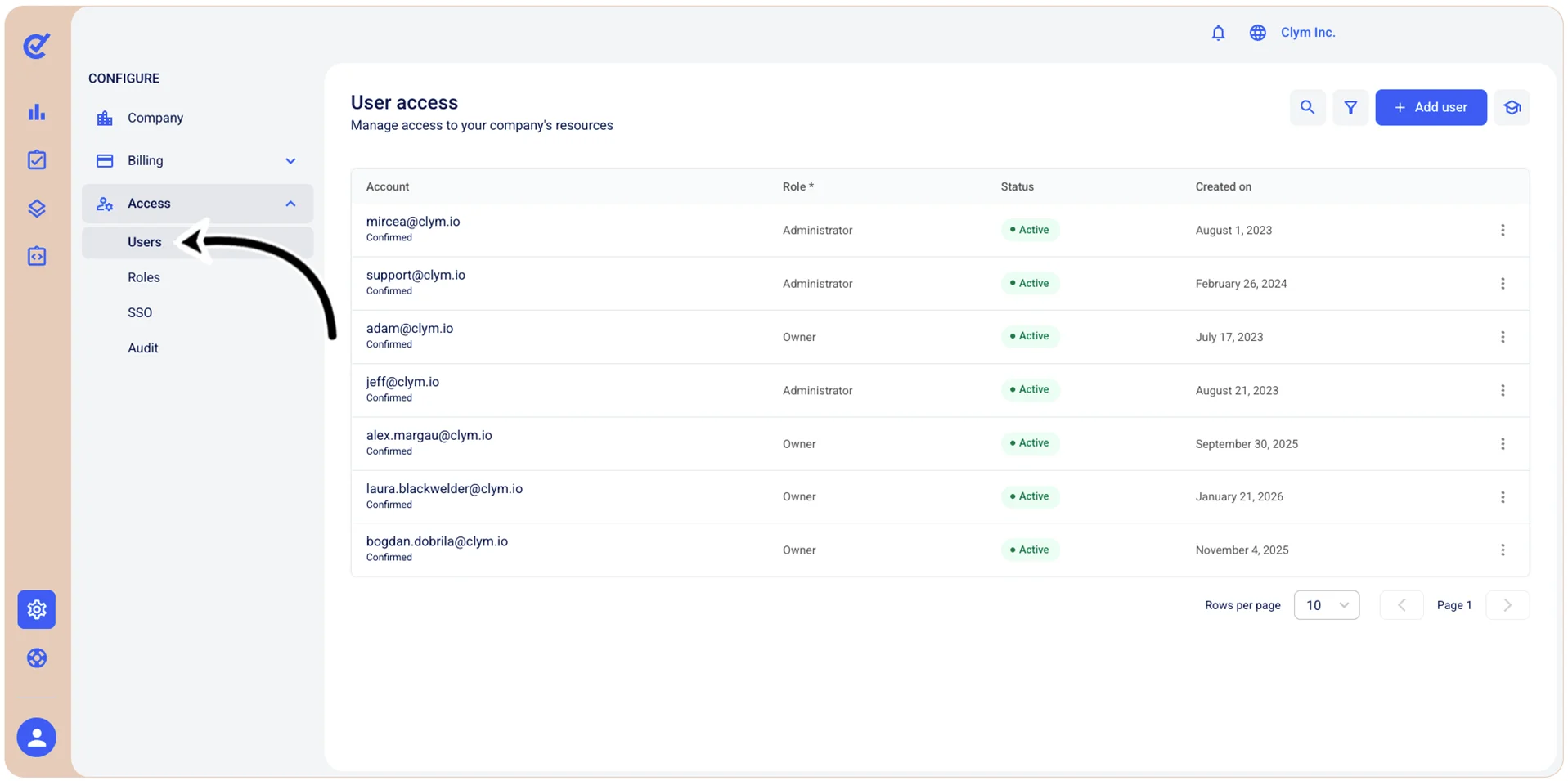
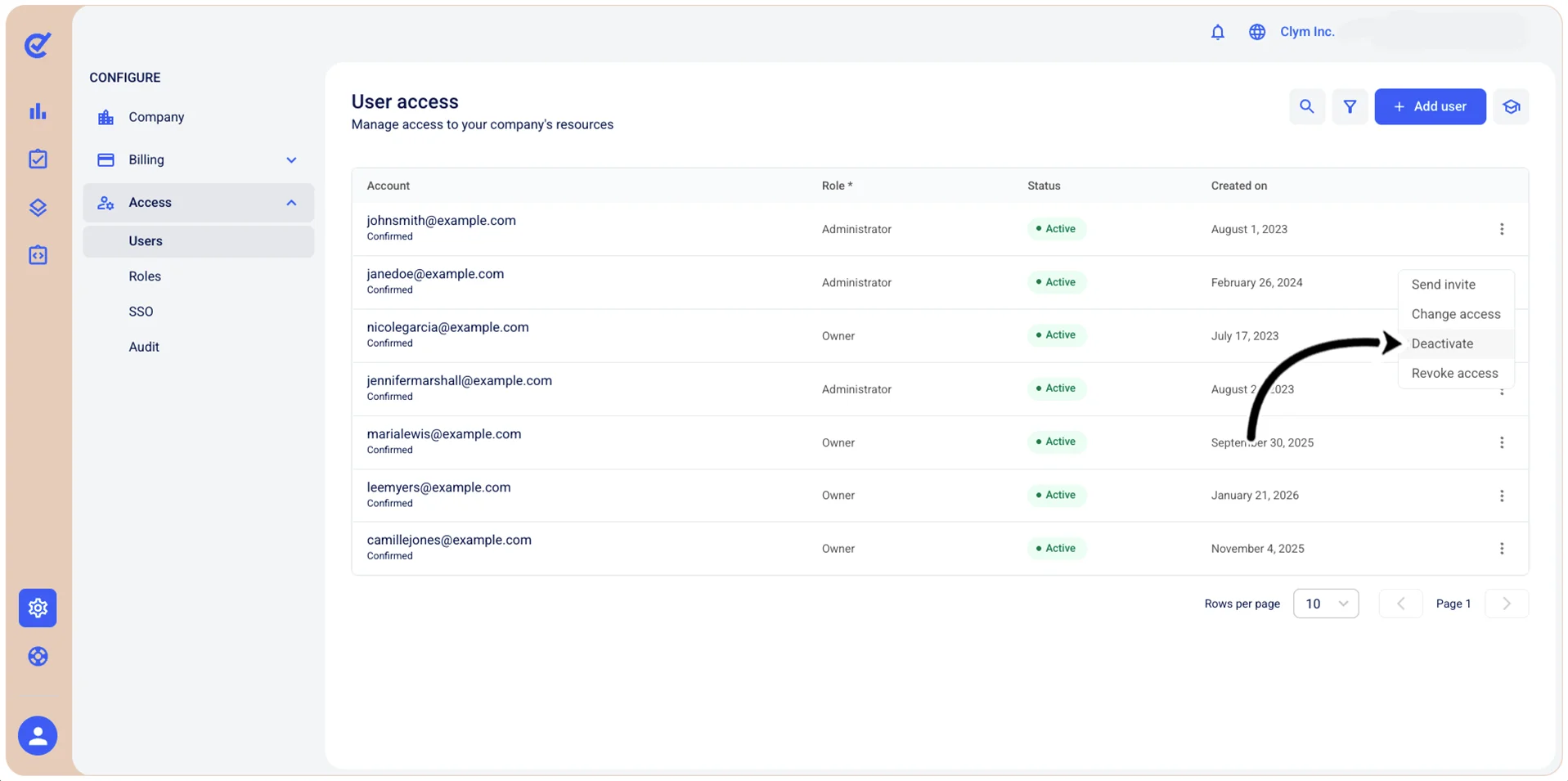
- In the User access section, select ⋮Settings and then select Deactivate.
- In the confirmation message, select Confirm.
Revoke user access
To revoke user access:
- Go to Configure>Access>Users.
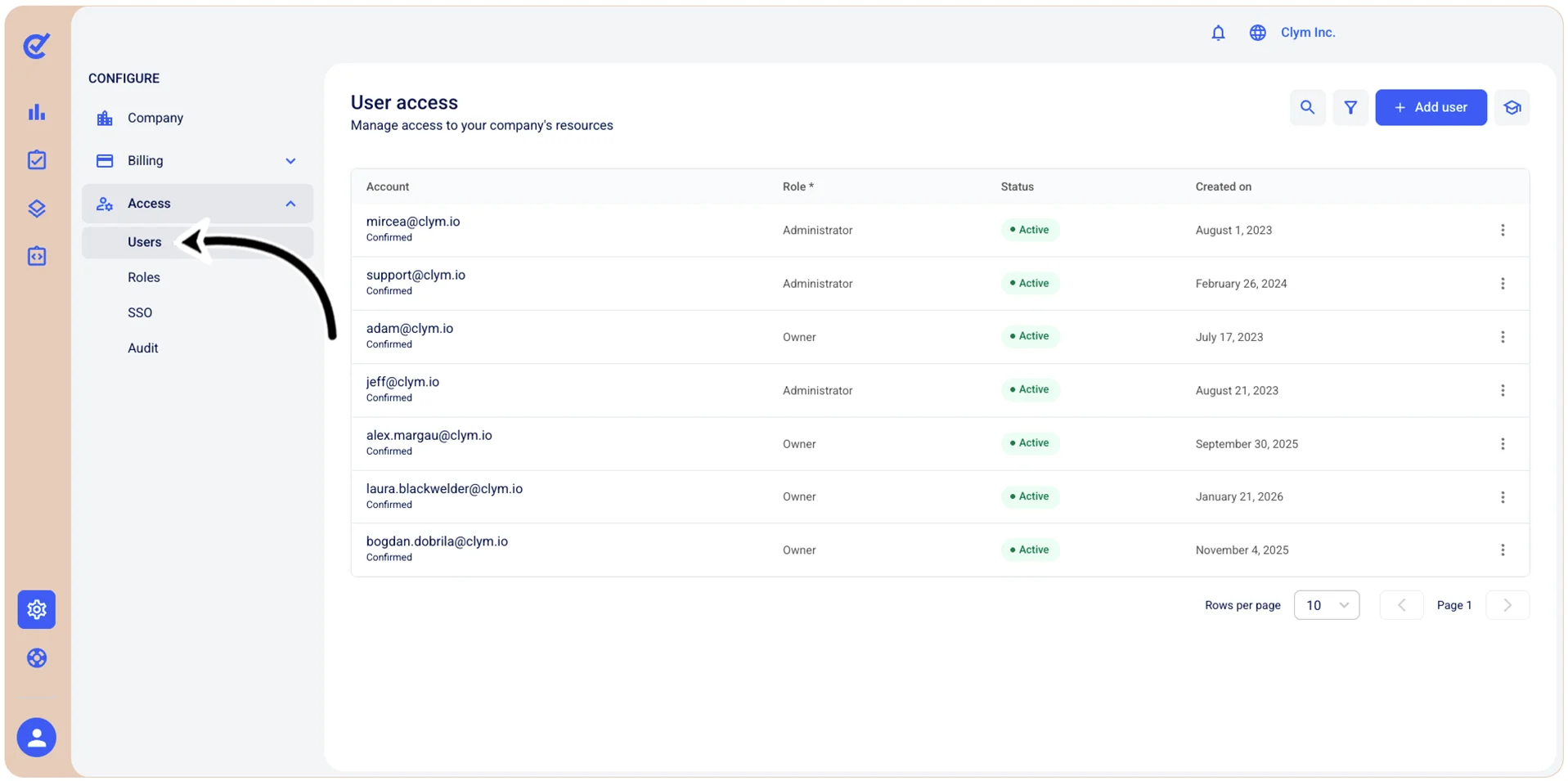
- In the User access section, select ⋮Settings and then select Revoke access.
- In the confirmation message, select Confirm.