
Work with invoices
In the Control Center, you can view all the invoices issued to you, you can search, filter, and you can download your invoices.
To access your invoices, go to  _Configure>Invoices_.
View the invoices issued to you
For easier finance management, in the Control Center, you can easily view the invoices sent to you.
To access the invoices section:
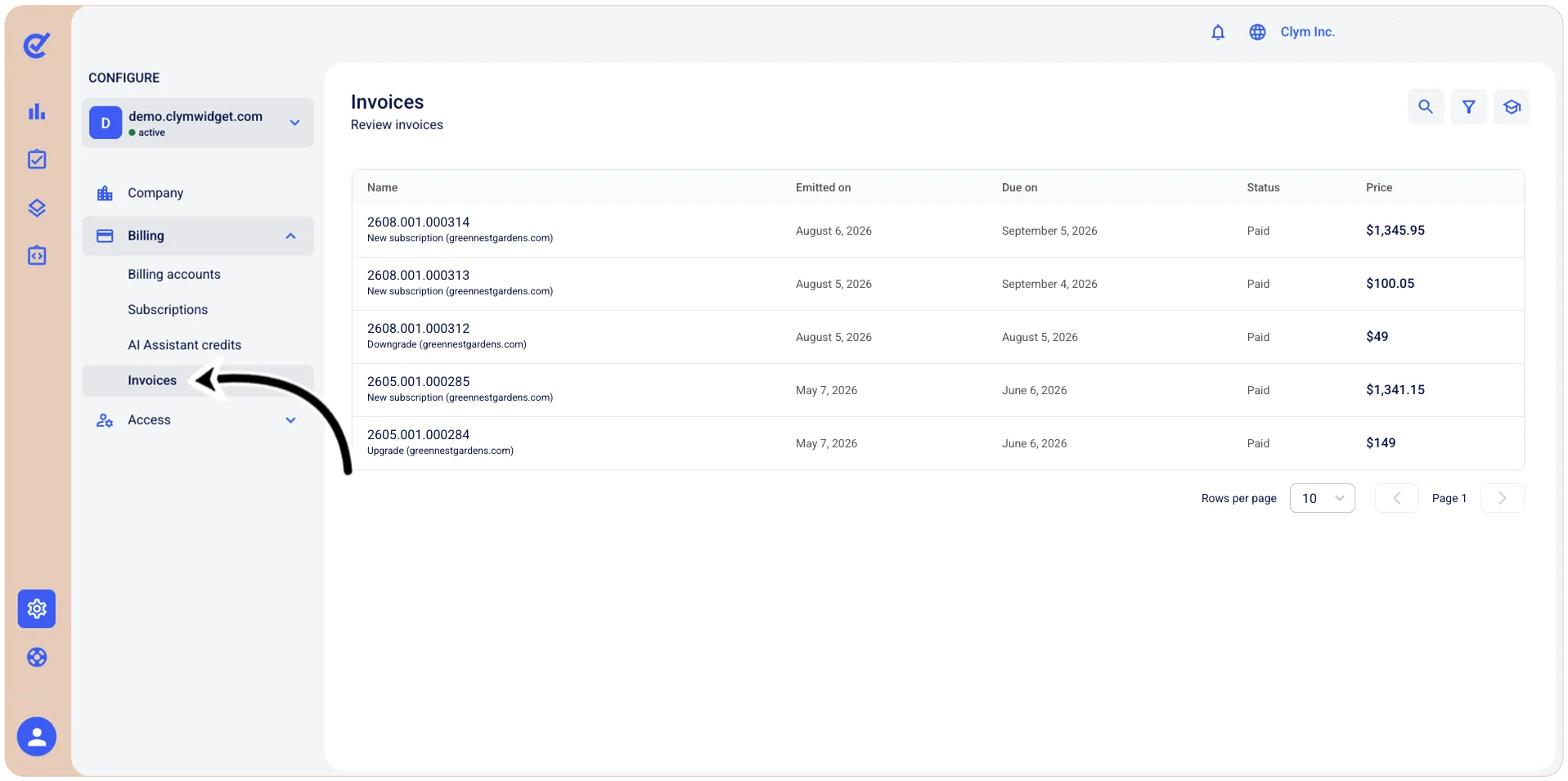
- Go to Configure>Billing>Invoices.
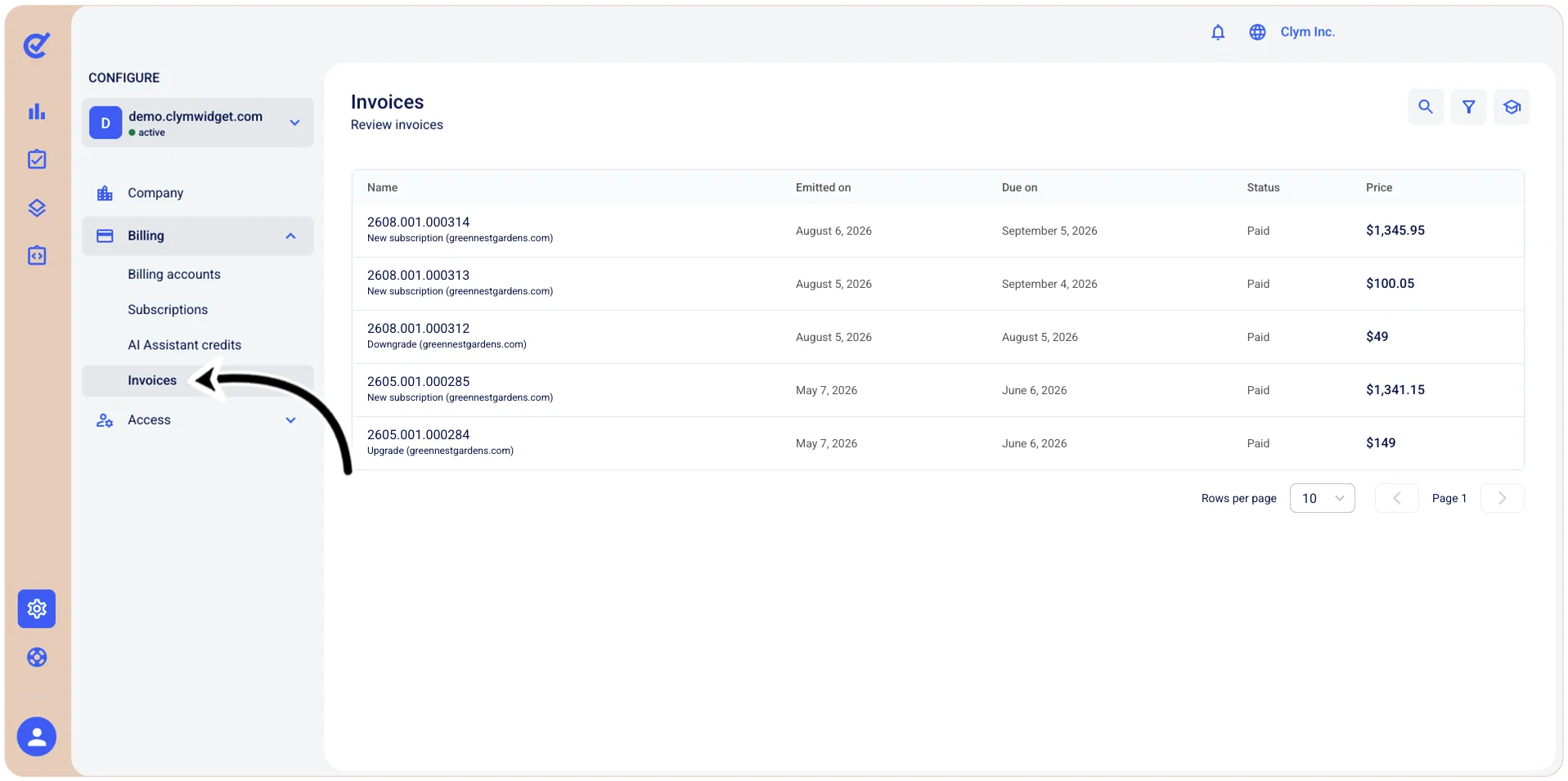
- In the Invoices section, you can see all the invoices issued to you, together with their issue and due date, status (paid/not paid) and the amount. To view the details of a specific invoice, simply select it to have it displayed in the right-side View invoice section.
Search through your invoices
In the Control Center, you can find the desired invoice sent to you using the search functionality.
To search for an invoice:
- Go to Configure>Invoices.
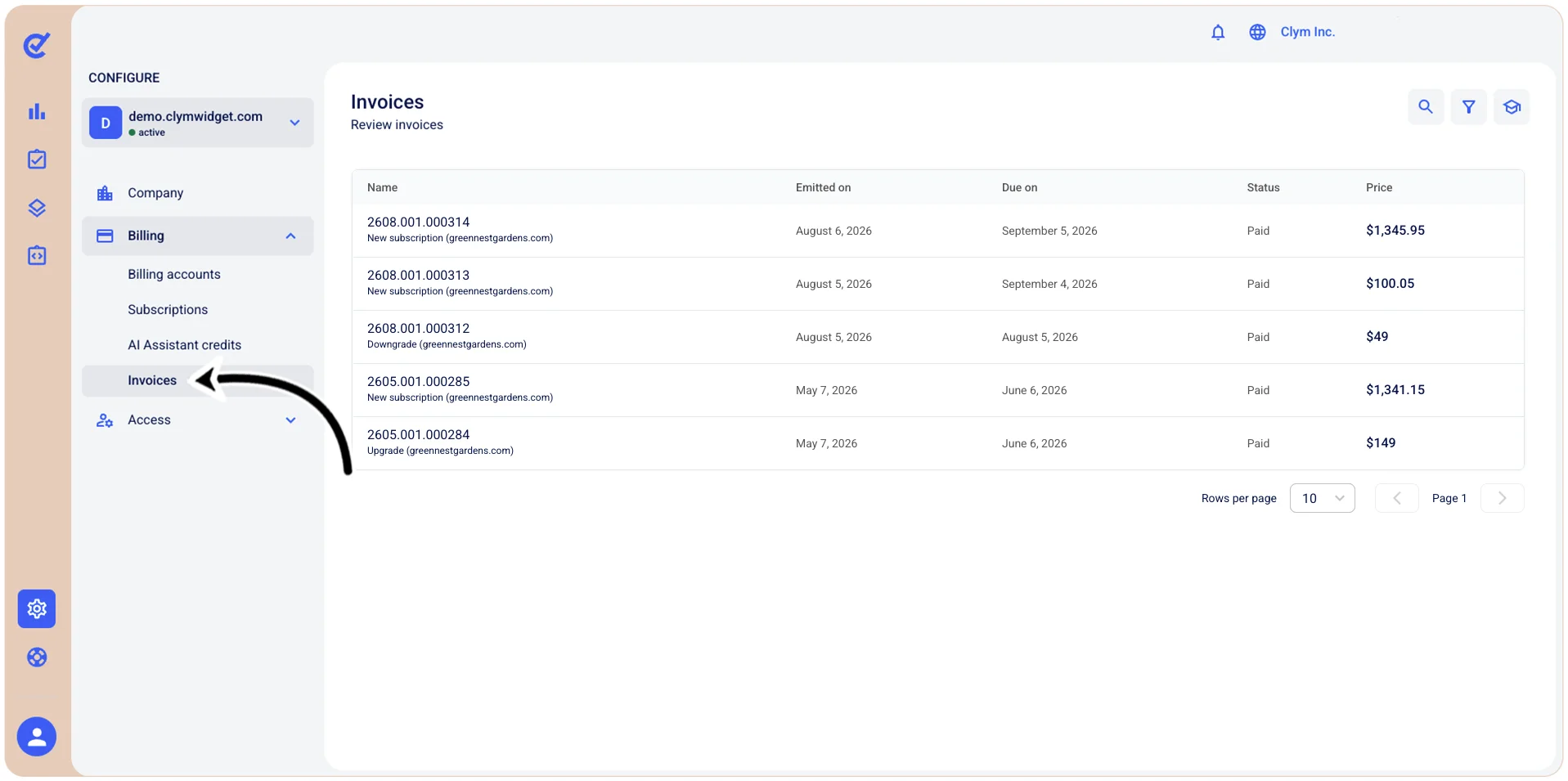
- In the Invoices section, select
 Search.
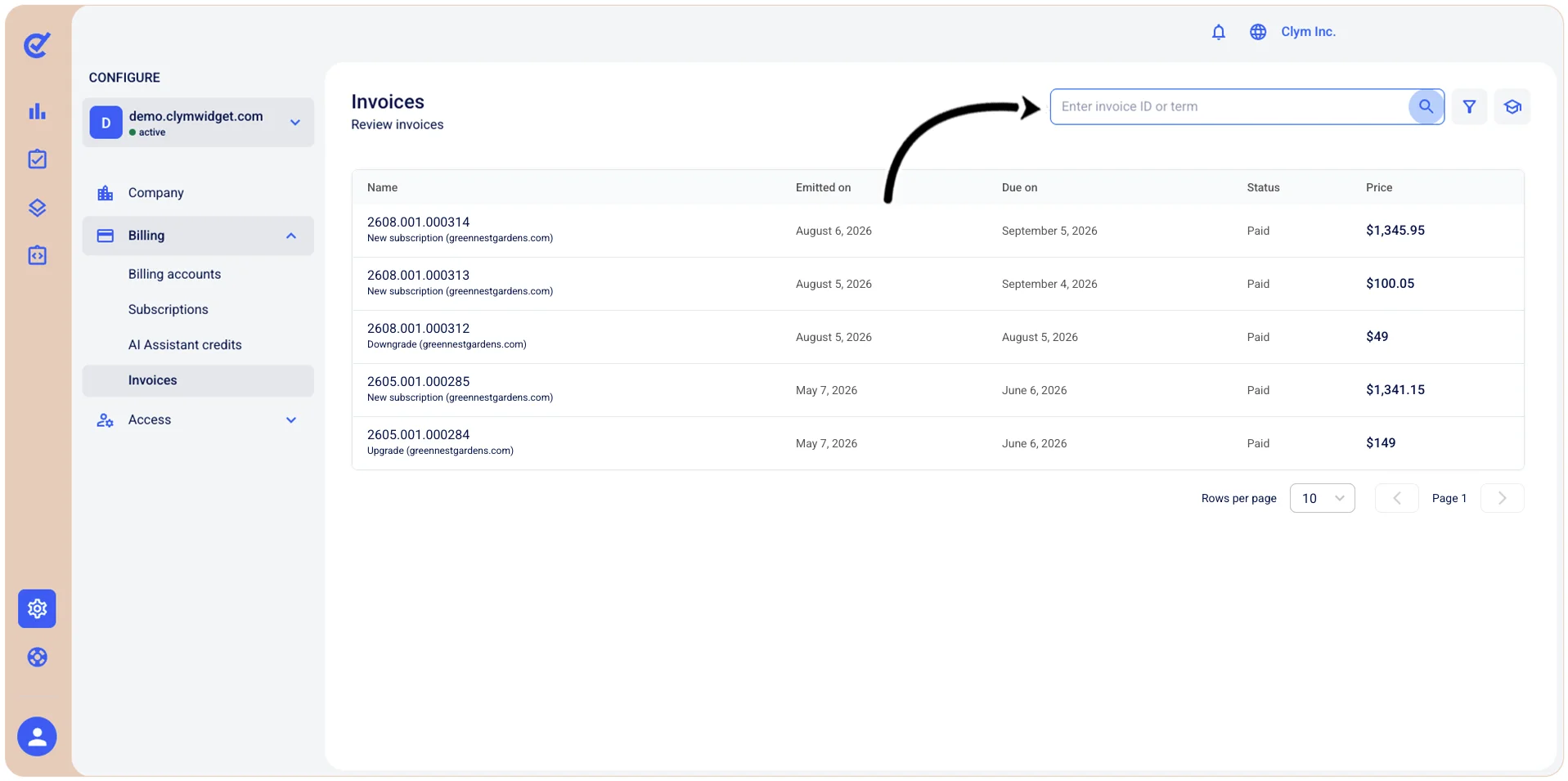
- In the Search field, enter the desired search parameter. The results of your query are displayed in real-time, but you can also select Search or press Enter.
Filter your invoices
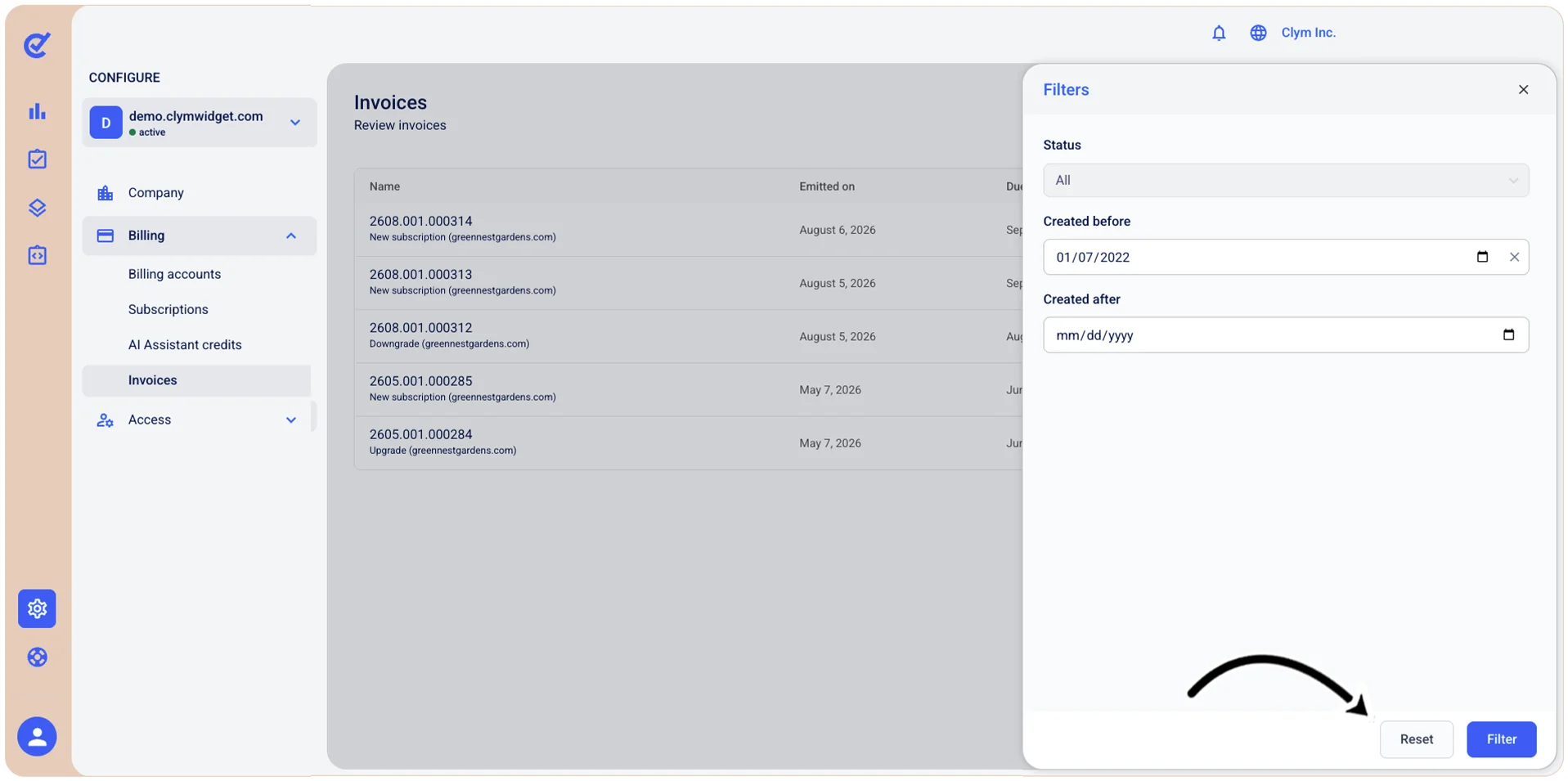
To narrow down your search for invoices using filtering:
- Configure>Billing>Invoices.
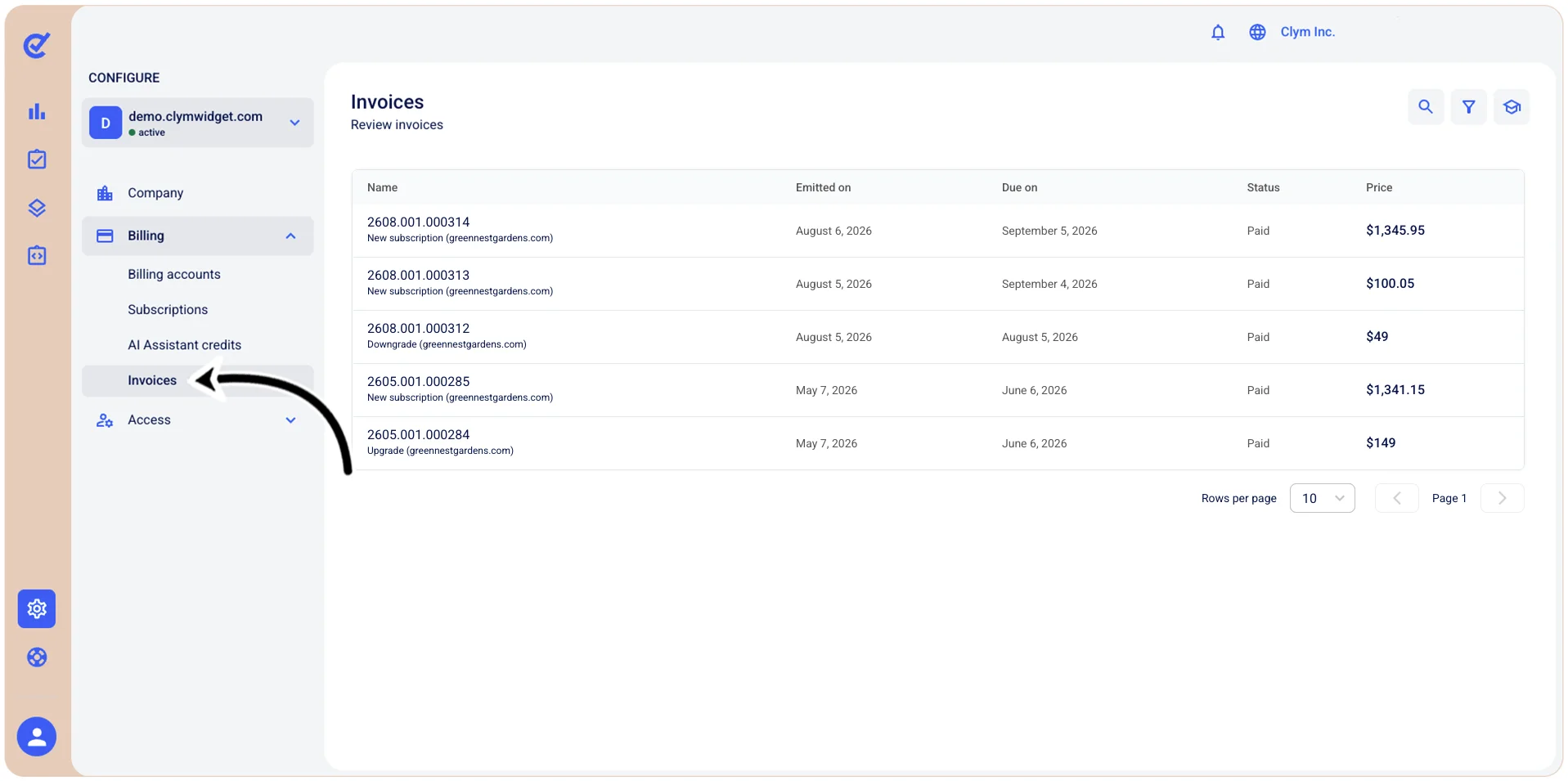
- In the Invoices section, select
 Filter.
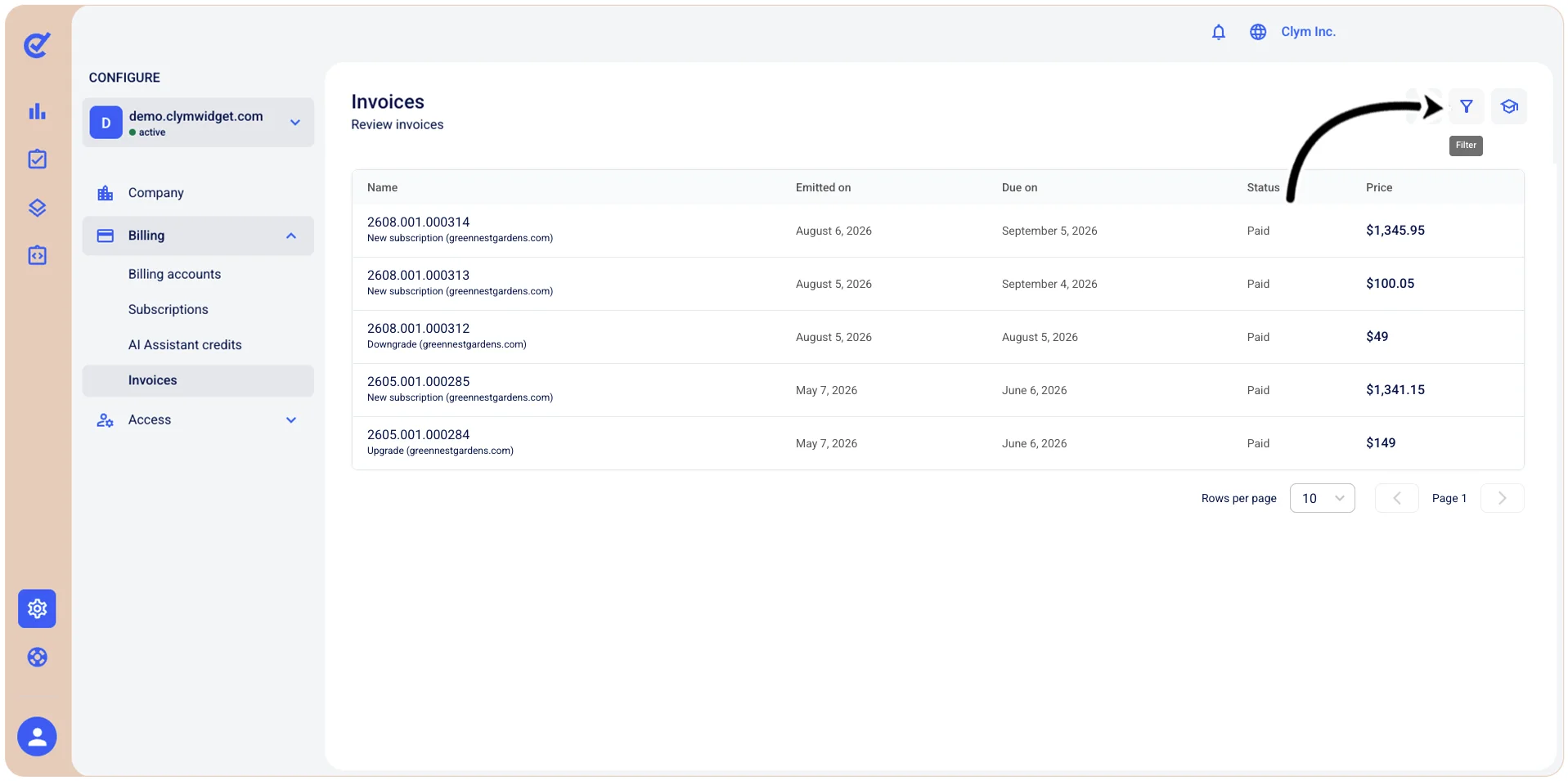
- In the Filters section, use the filtering parameters to find cases, as follows:
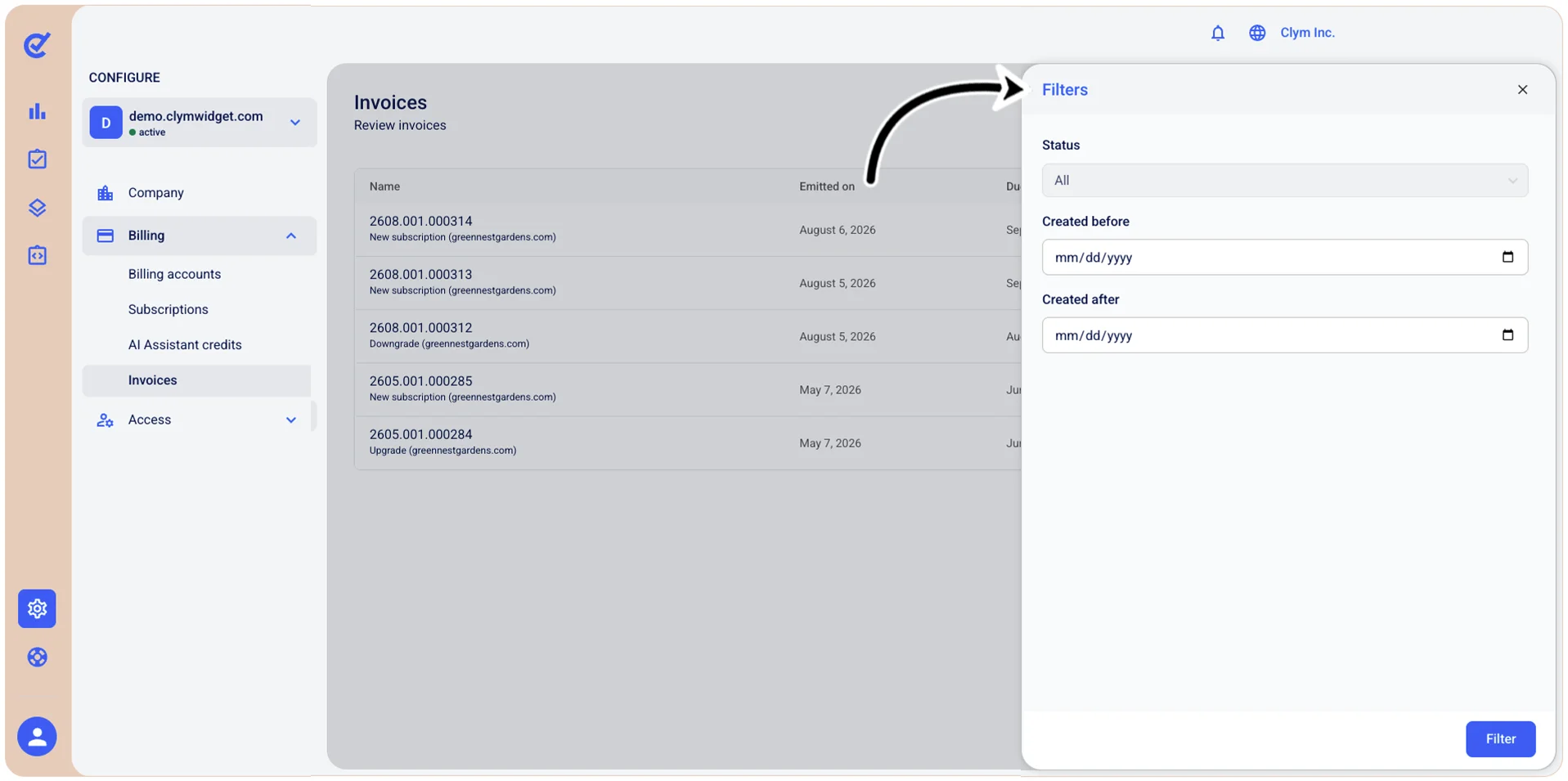
- Status: Select a specific status to view only cases based on their current status (for example, Paid/Not paid/Canceled).
- Created before: Use the
 date selector to show only the invoices issued before the date you specify here.
 - Created after: Use the date selector to show only the invoices issued after the date you specify here.
- The filtered invoices are displayed in the Invoices screen.
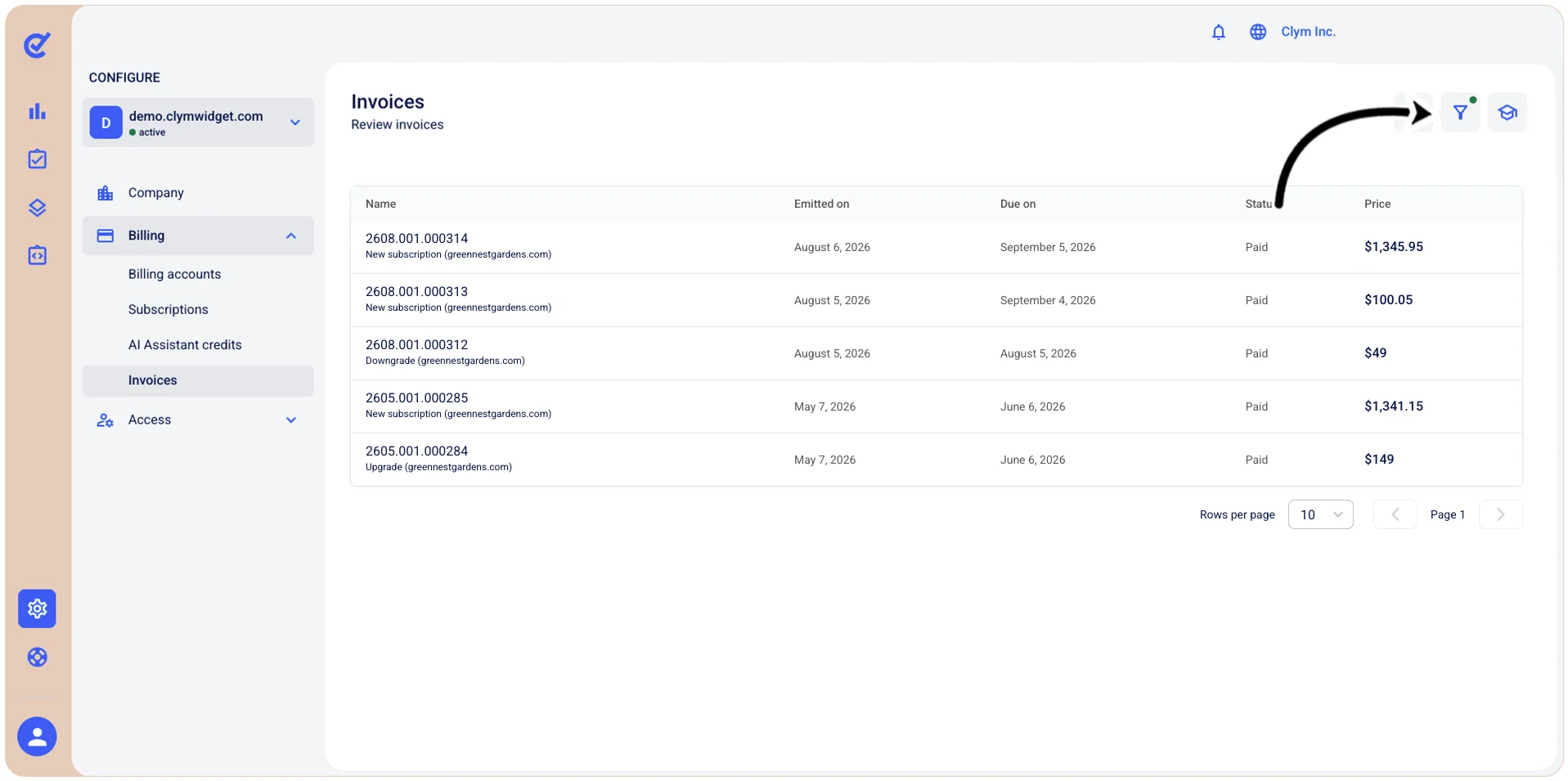
Note that, whenever the Control Center displays filtered information, the Filter icon is marked with a tiny bubble.
Clear a filtered Invoice query
After performing a search using filters, you can clear the filtered parameters to revert to the default display on the page.
To clear a filtered query:
- Configure>Billing>Invoices.
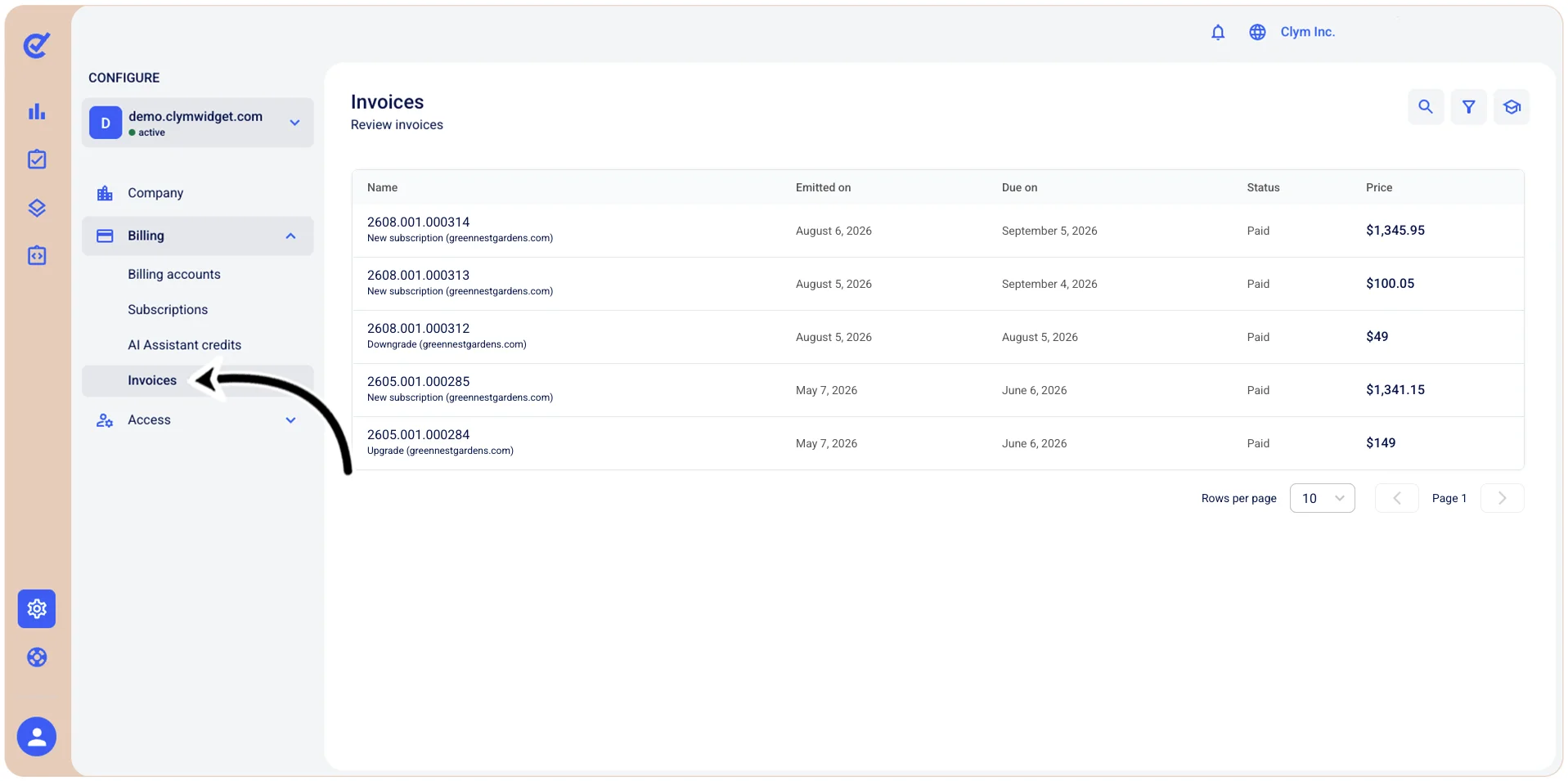
- In the Invoices section, select Filter. If the filter is applied, the filter icon is marked with a tiny green dot.
- In the Filters section, select Reset.
Download an invoice
In the Control Center, you can easily download an invoice issued to you.
To download an invoice:
- Go to Configure>Billing>Invoices.
- In the Invoices section, select the invoice that you want to download and then select Download invoice.
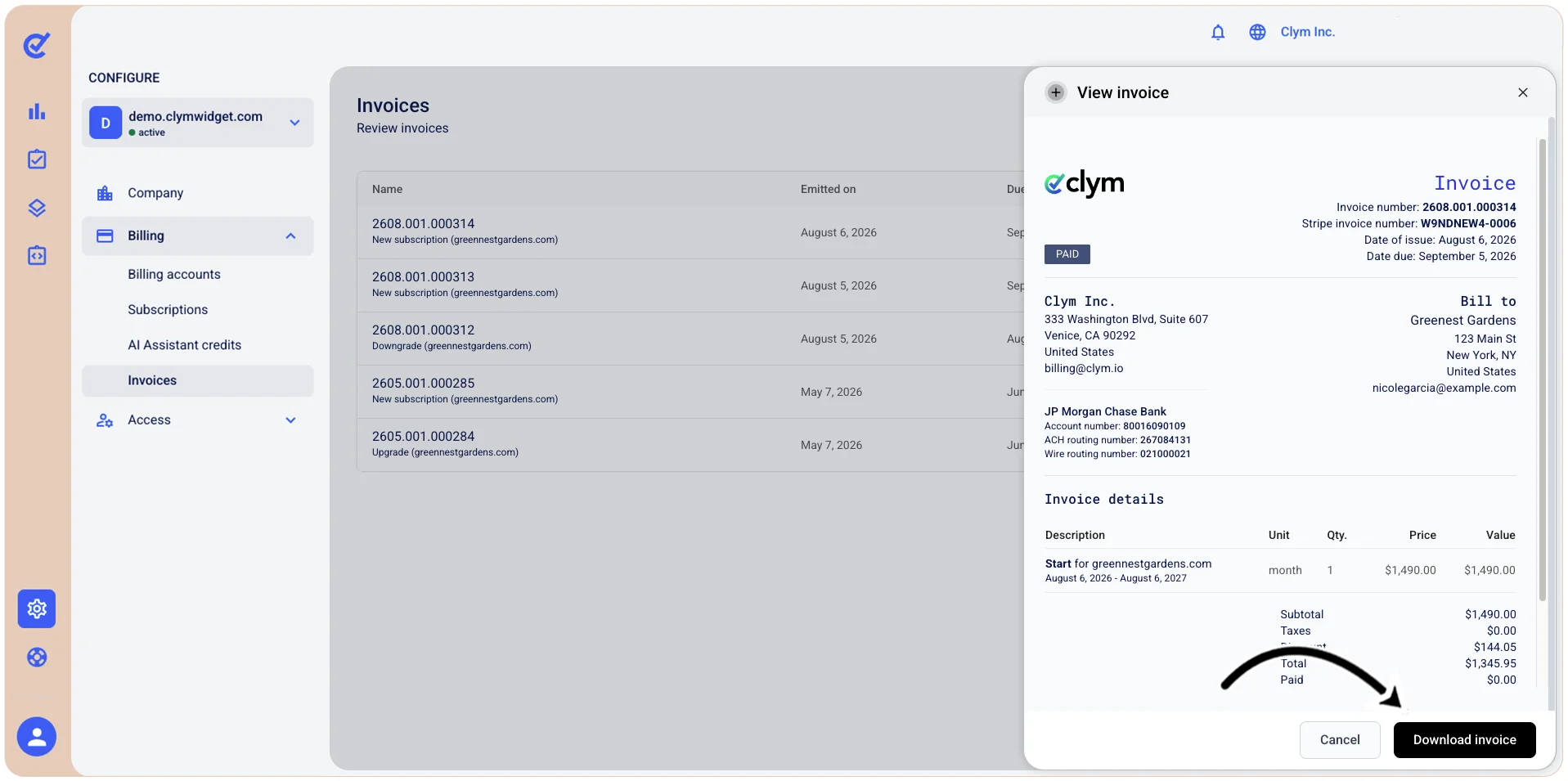
- Your invoice will download as a PDF file to your device.