Configure your Control Center account subscriptions
The Control Center provides several packages that you can subscribe to in order to have your data protection needs met, all tailored to suit your needs. Depending on your business particularities, you can choose different subscriptions for different websites that you own, you can upgrade, downgrade, or subscriptions.
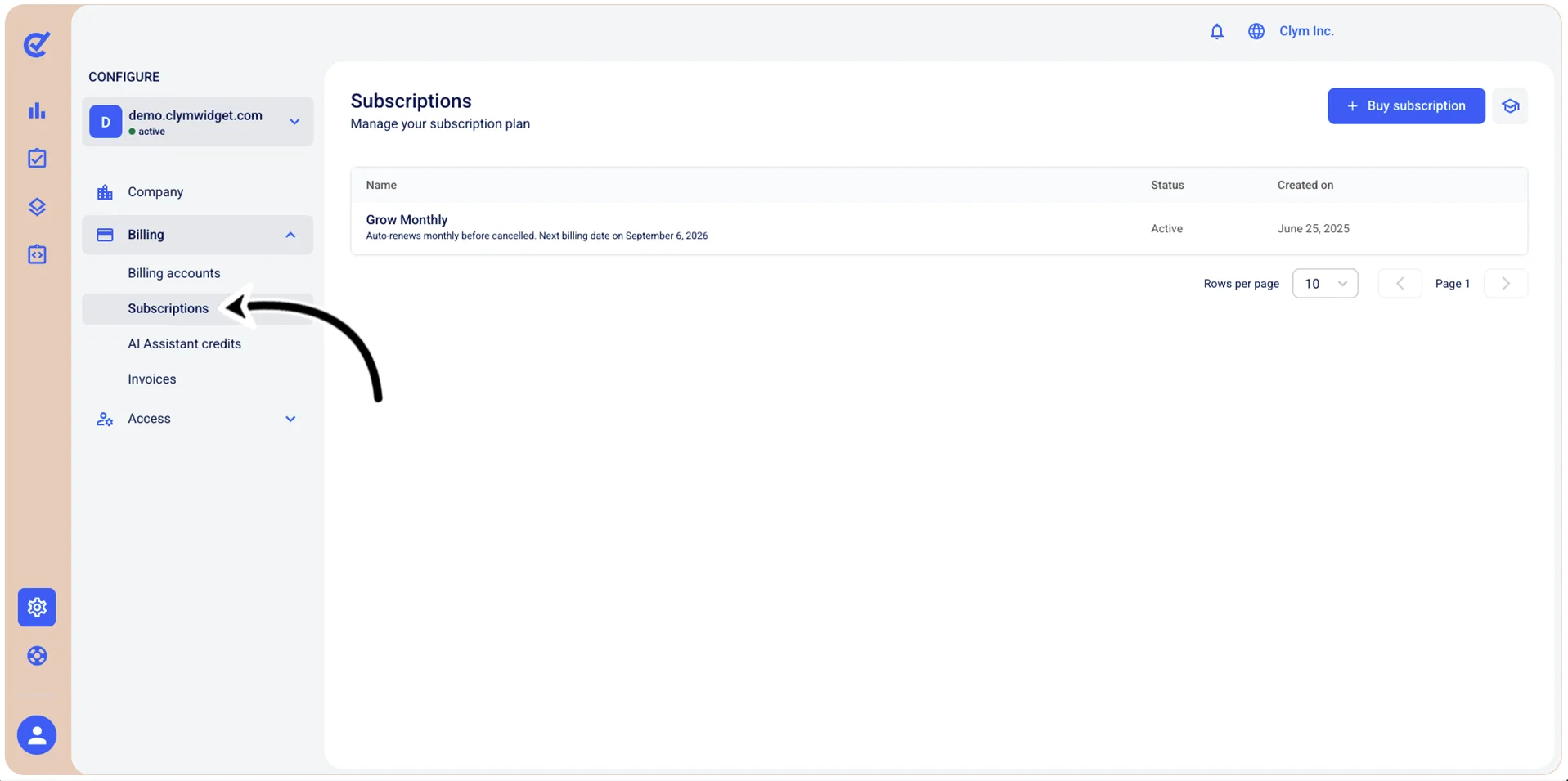
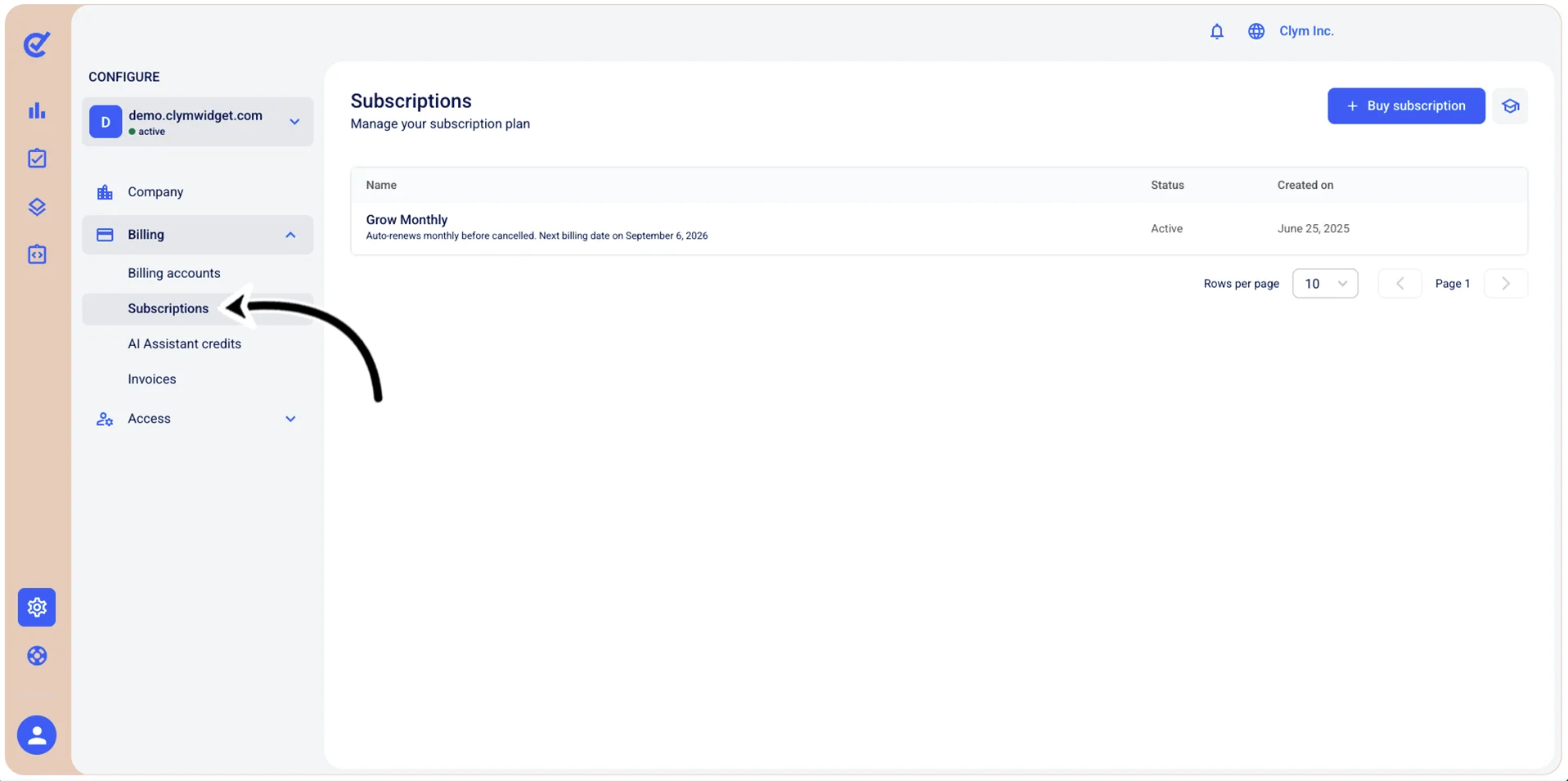
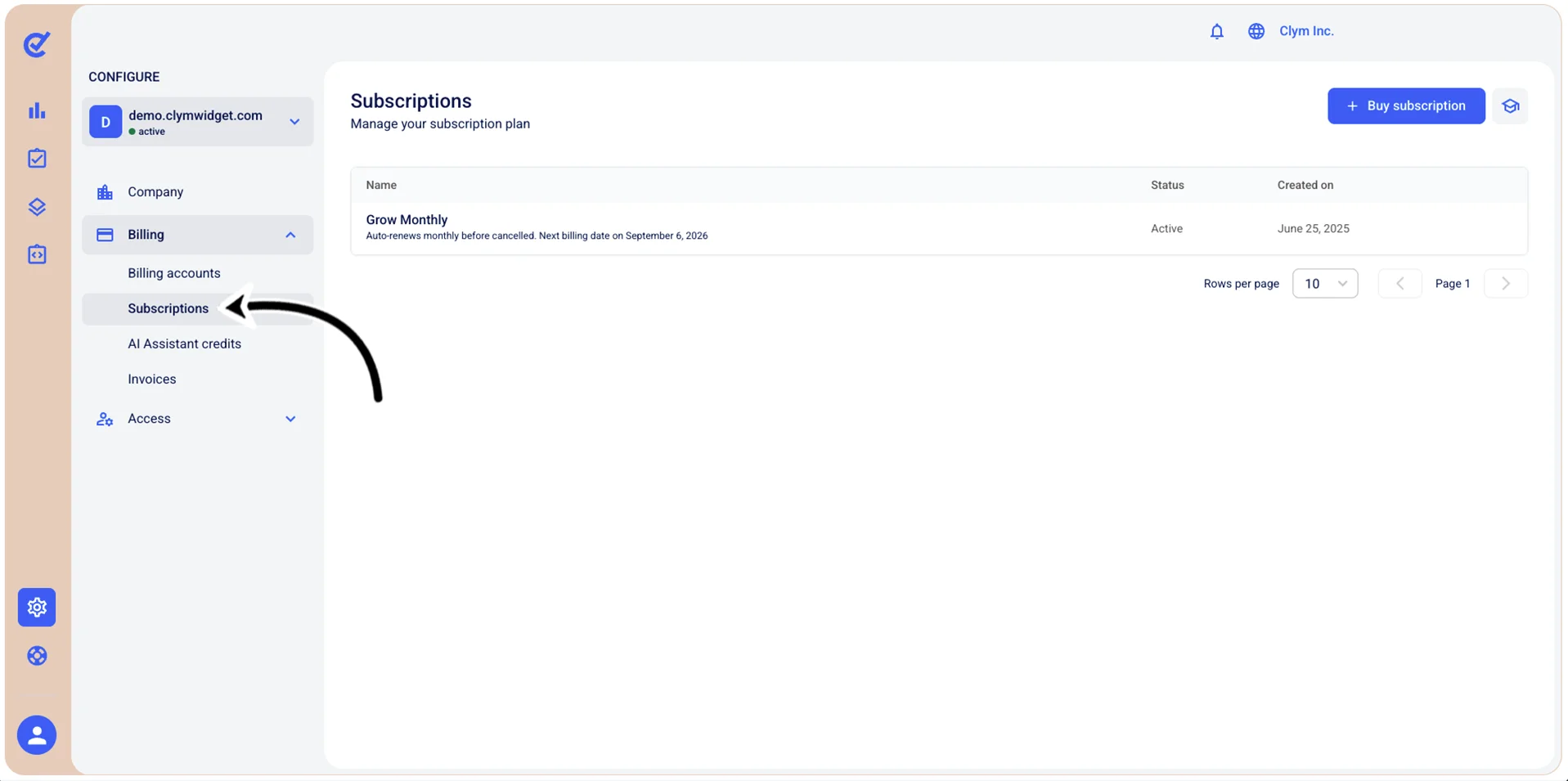
To access the Subscriptions page, go to  Configure>Billing.
Abous subscriptions plans
The Control Center offers flexible subscription types designed to meet the needs of organizations of all sizes. Whether you're just getting started with digital compliance or managing complex multi-jurisdictional requirements, you can choose a plan that fits your needs and scale as your organization grows.
The following subscription plans are available:
- Start: Ideal for small businesses that receive up to 50k pageviews/month. The Start package includes all features for accessibility, cookie consent management, policy management, and data subject request management.
- Grow: Dedicated for businesses that receive up to 1.5 million pageviews/month. The Grow package includes all features for accessibility, cookie consent management, policy management, and data subject request management.
- Enterprise: Designed for any businesses that receive over 1.5 million pageviews/month and have more complex requirements. The Enterprise package includes all features for accessibility, cookie consent management, policy management, and data subject request management. You may benefit from the Enterprise package if you need any of the following:
- Dedicated support
- API integration
- High traffic
- Dedicated instance
- Multiple domains
- Bulk onboarding
All package options are billed monthly by default. If you are interested in an annual subscription, please contact our support team.
Buy a subscription
To purchase a subscription:
- Go to Configure>Billing>Subscriptions.
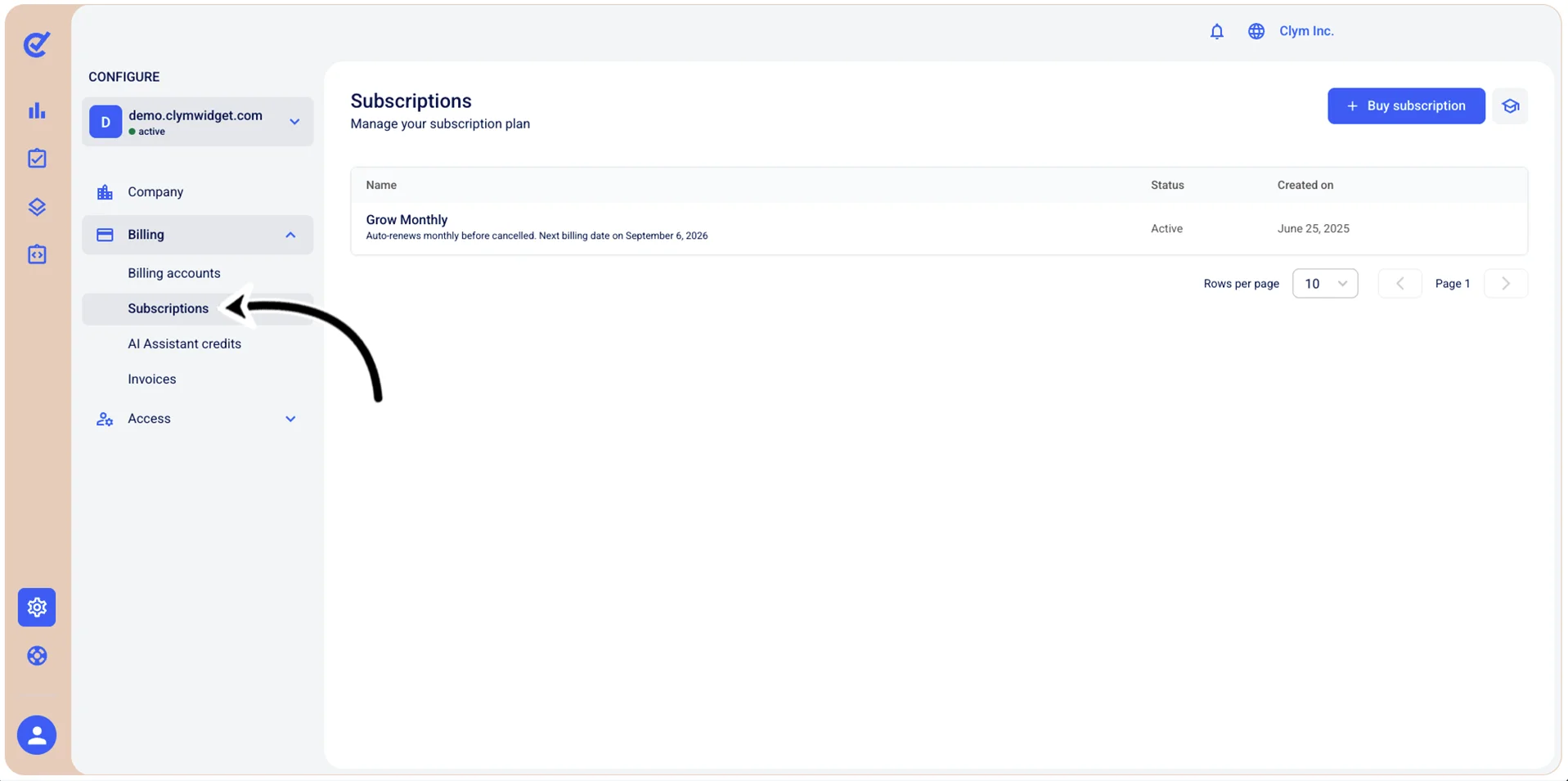
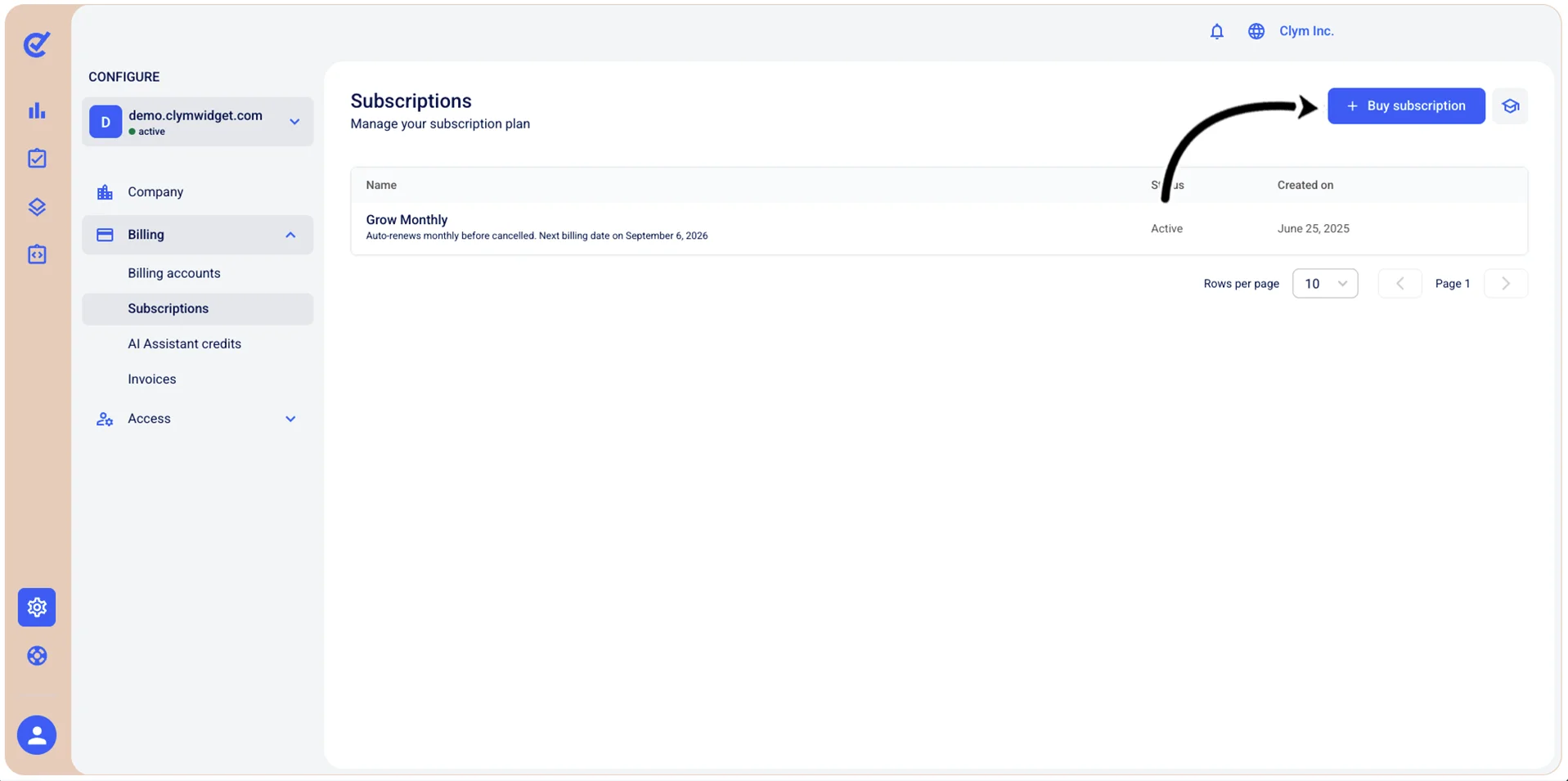
- In the Subscriptions section, select +Buy subscription.
- In the Add property section, configure the fields, as follows:
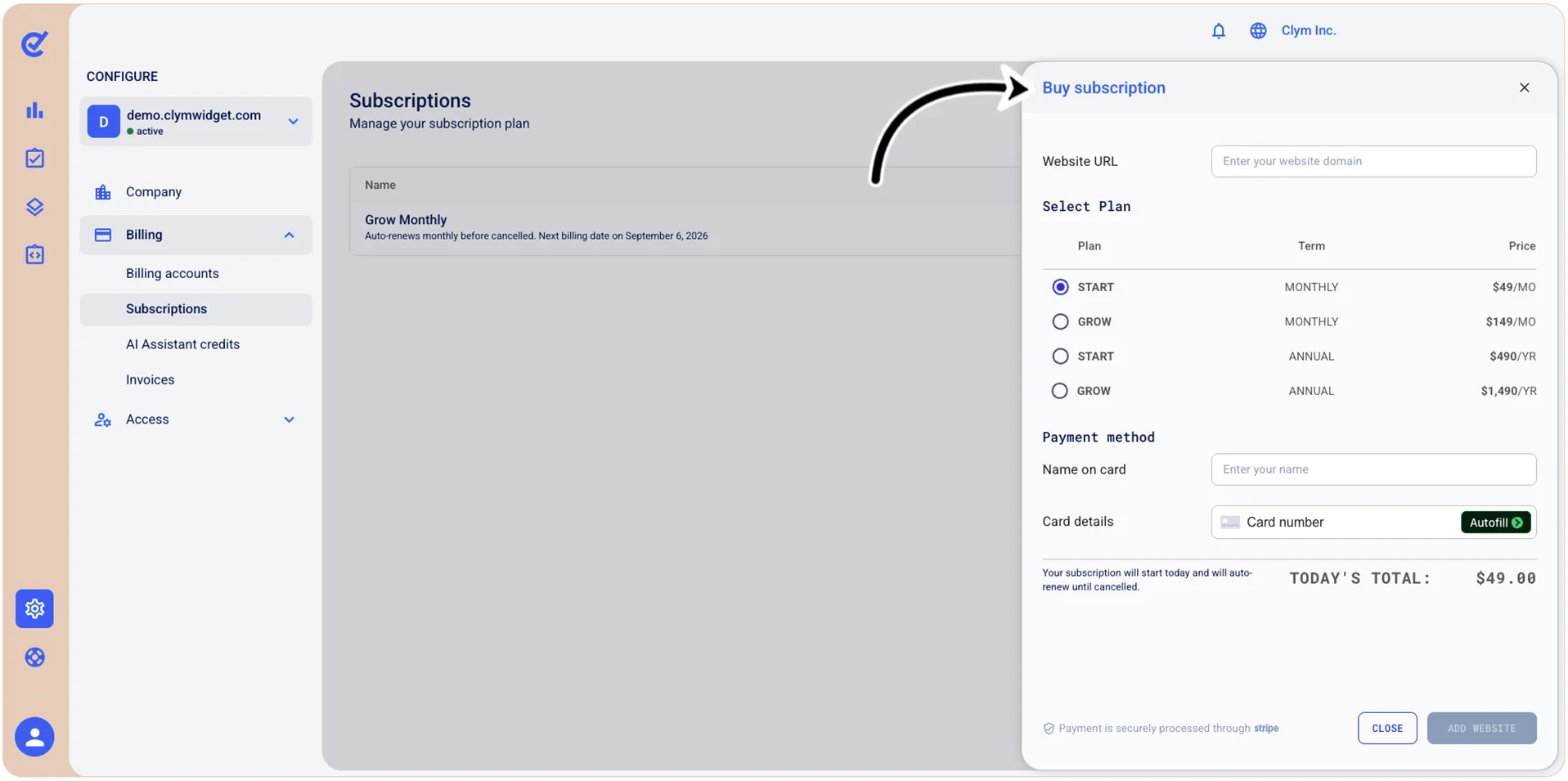
- Website URL: Enter the website for which you are purchasing the subscription.
- Under Select Plan: Select the desired monthly/annual subscription plan. Not that, depending on your needs, you can upgrade or downgrade your subscription later on.
- Name on card: Enter the holder’s name, as displayed on the card used for this transaction.
- Card details: Type the card’s number, expiration date and CVC code.
- When finished, select Add website.
Upgrade a subscription
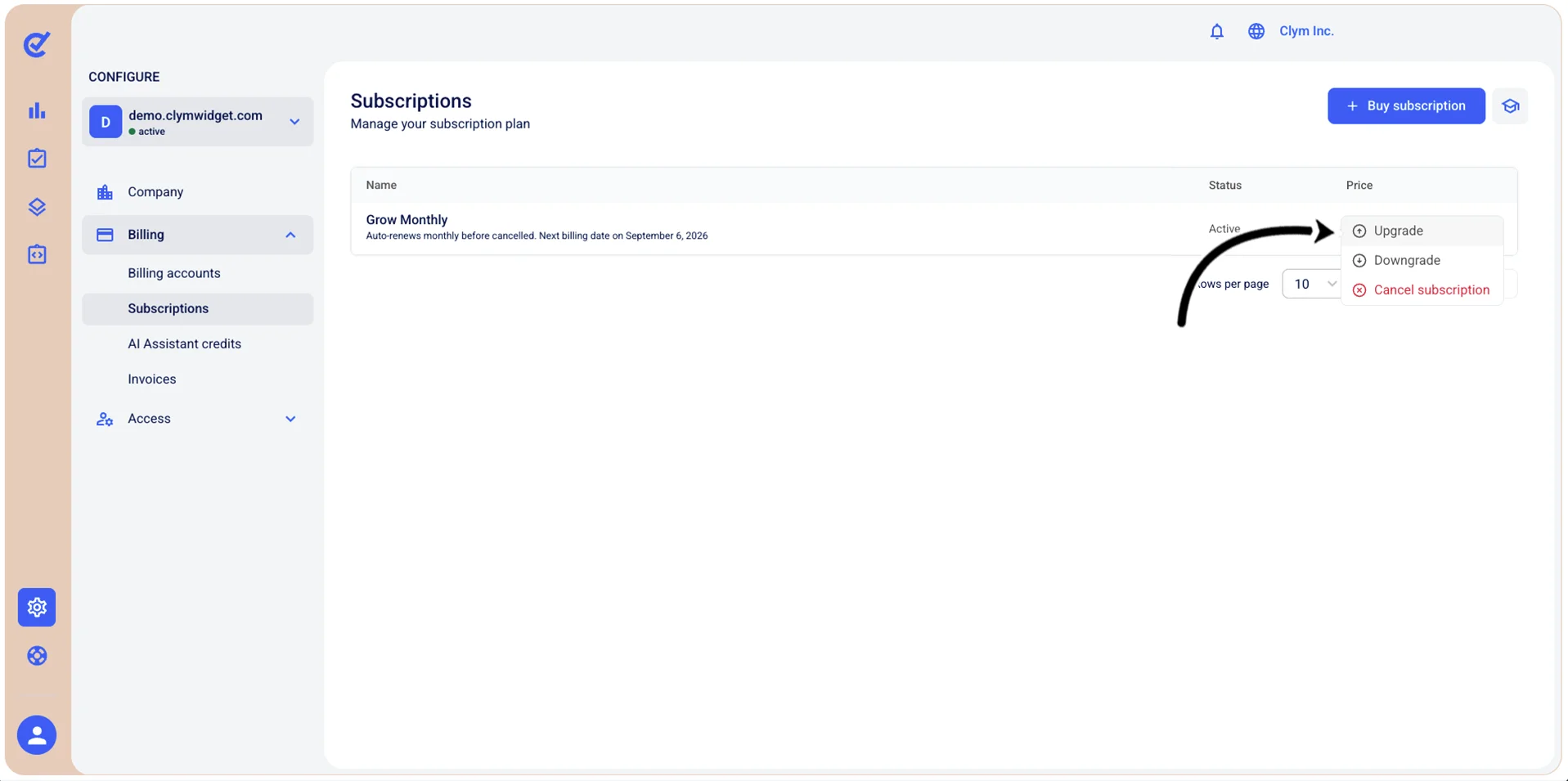
To upgrade a subscription:
- Go to Configure>Billing>Subscriptions.
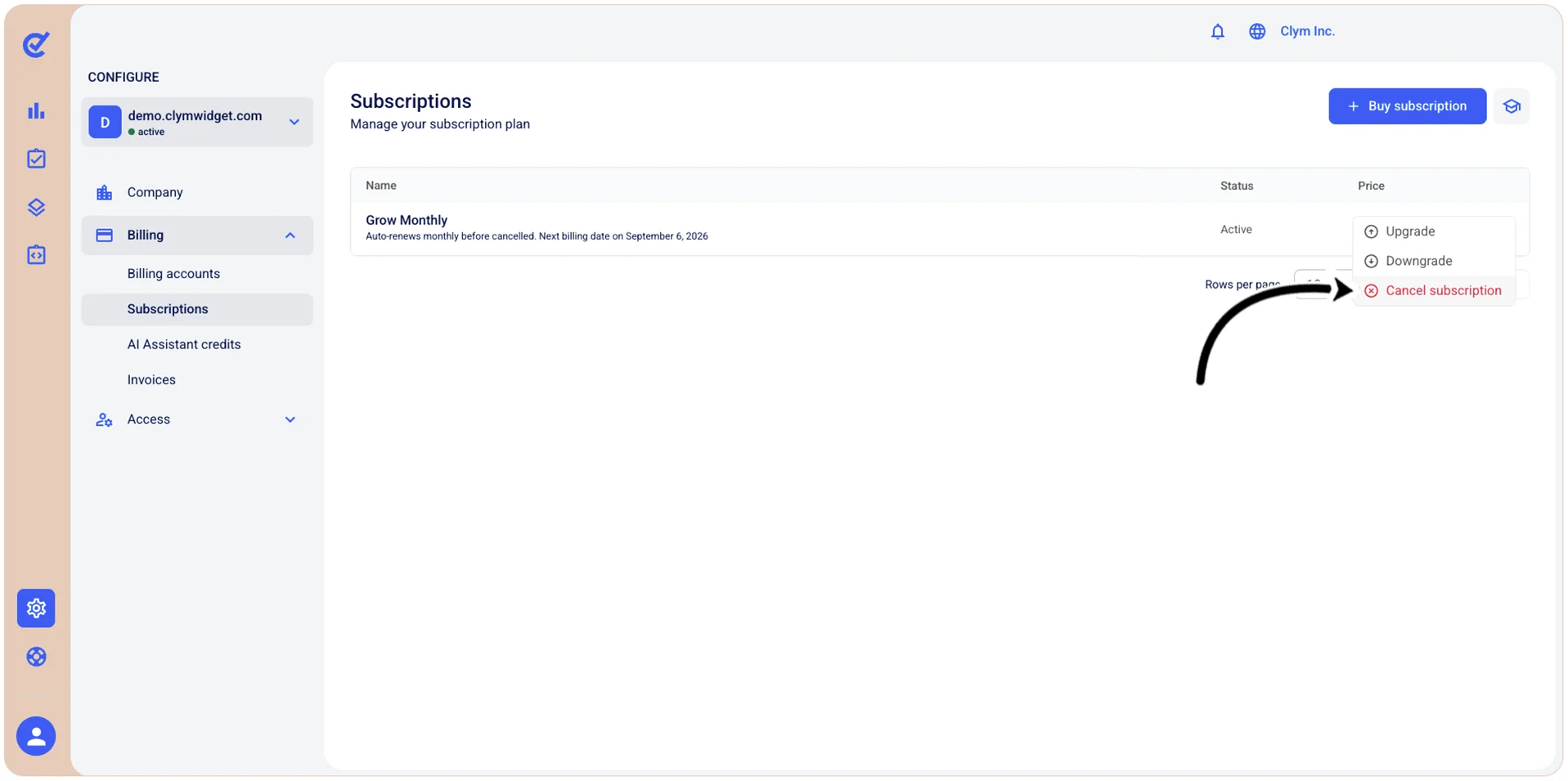
- In the Subscriptions section, select ⋮ Settings next to the desired subscription plan and select Upgrade.
Downgrade a subscription
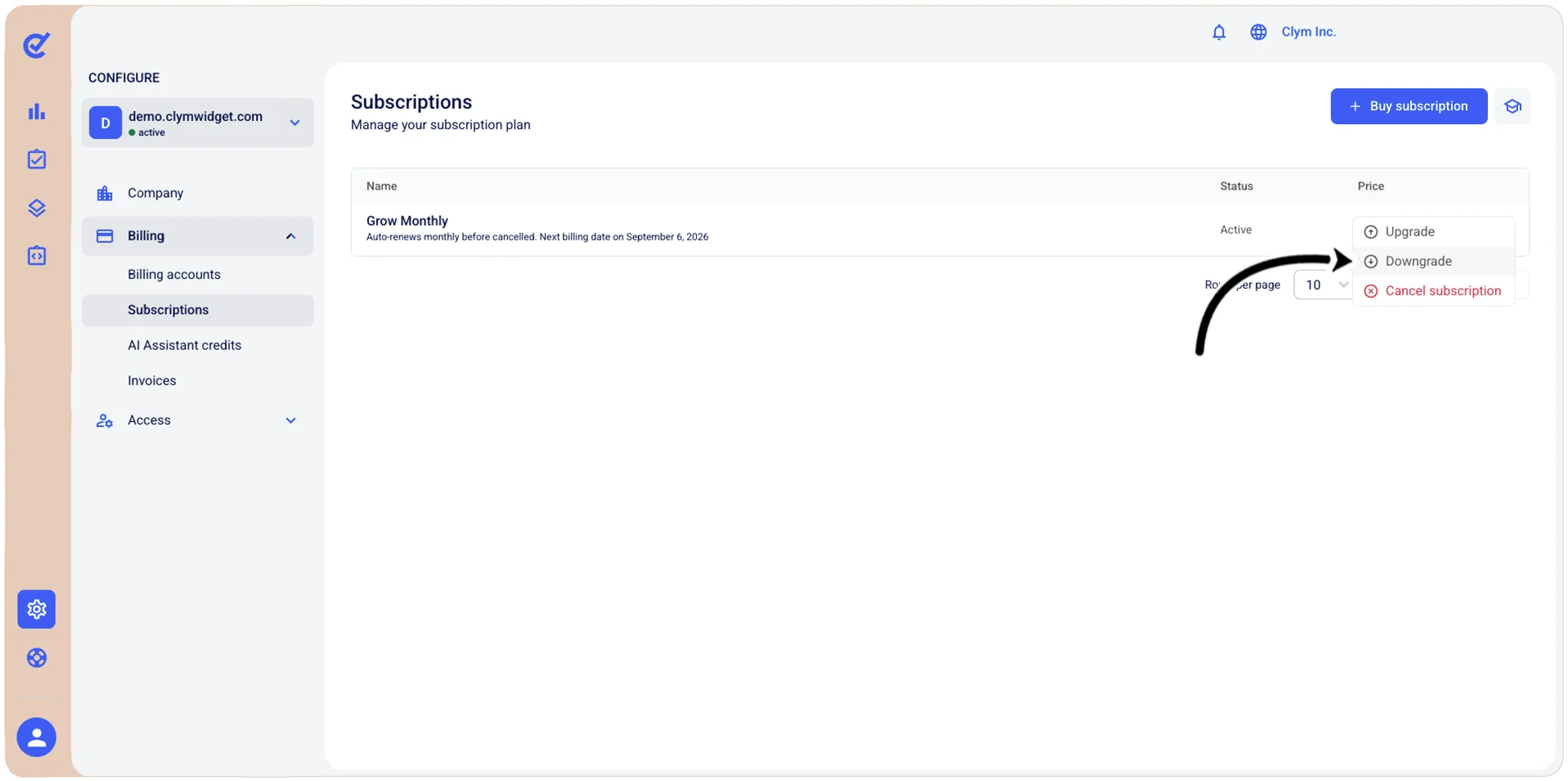
To downgrade a subscription:
- Go to Configure>Billing>Subscriptions.
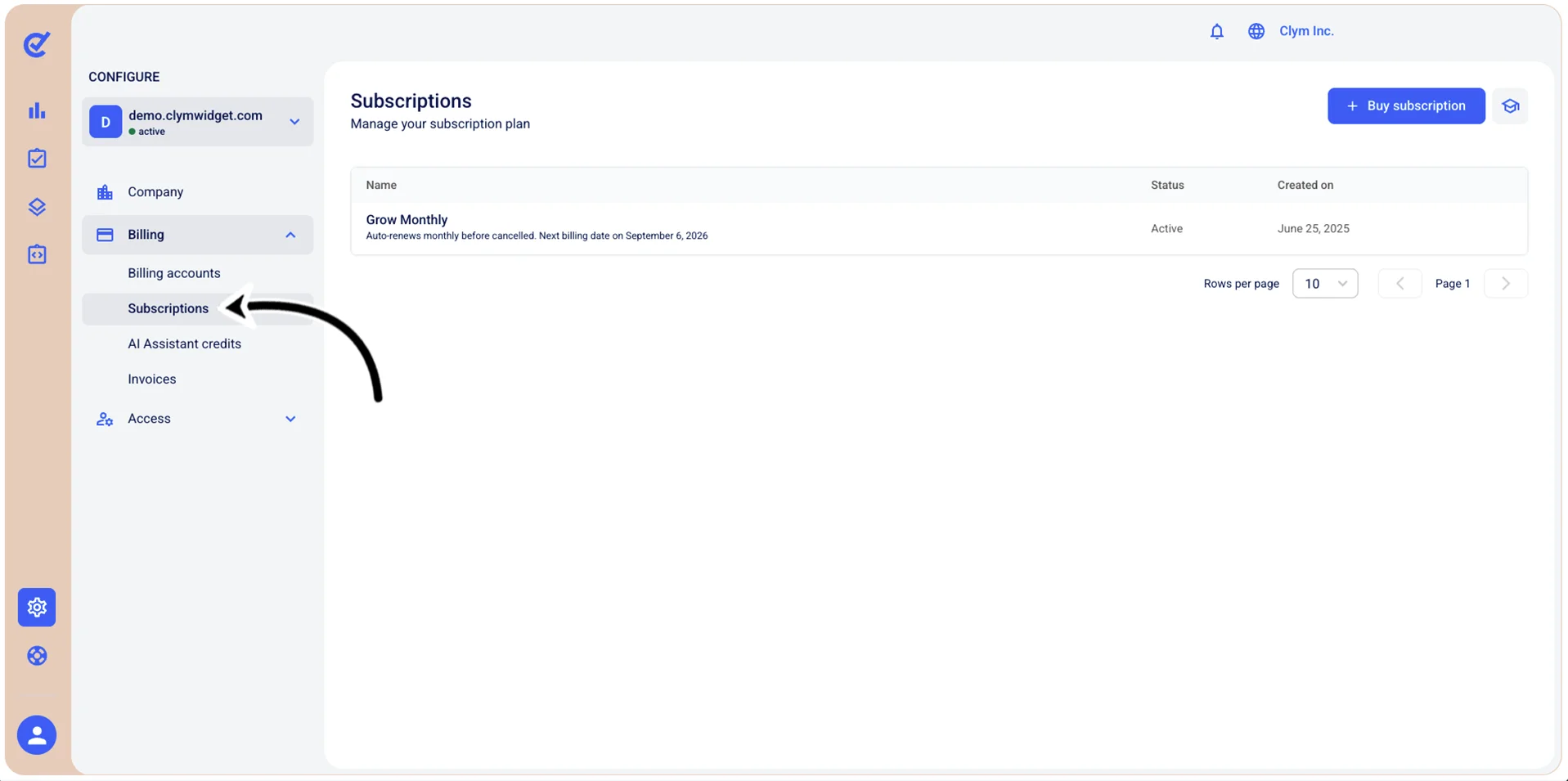
- In the Subscriptions section, select ⋮ Settings next to the desired subscription plan and select Downgrade.
Cancel a subscription
To cancel a subscription:
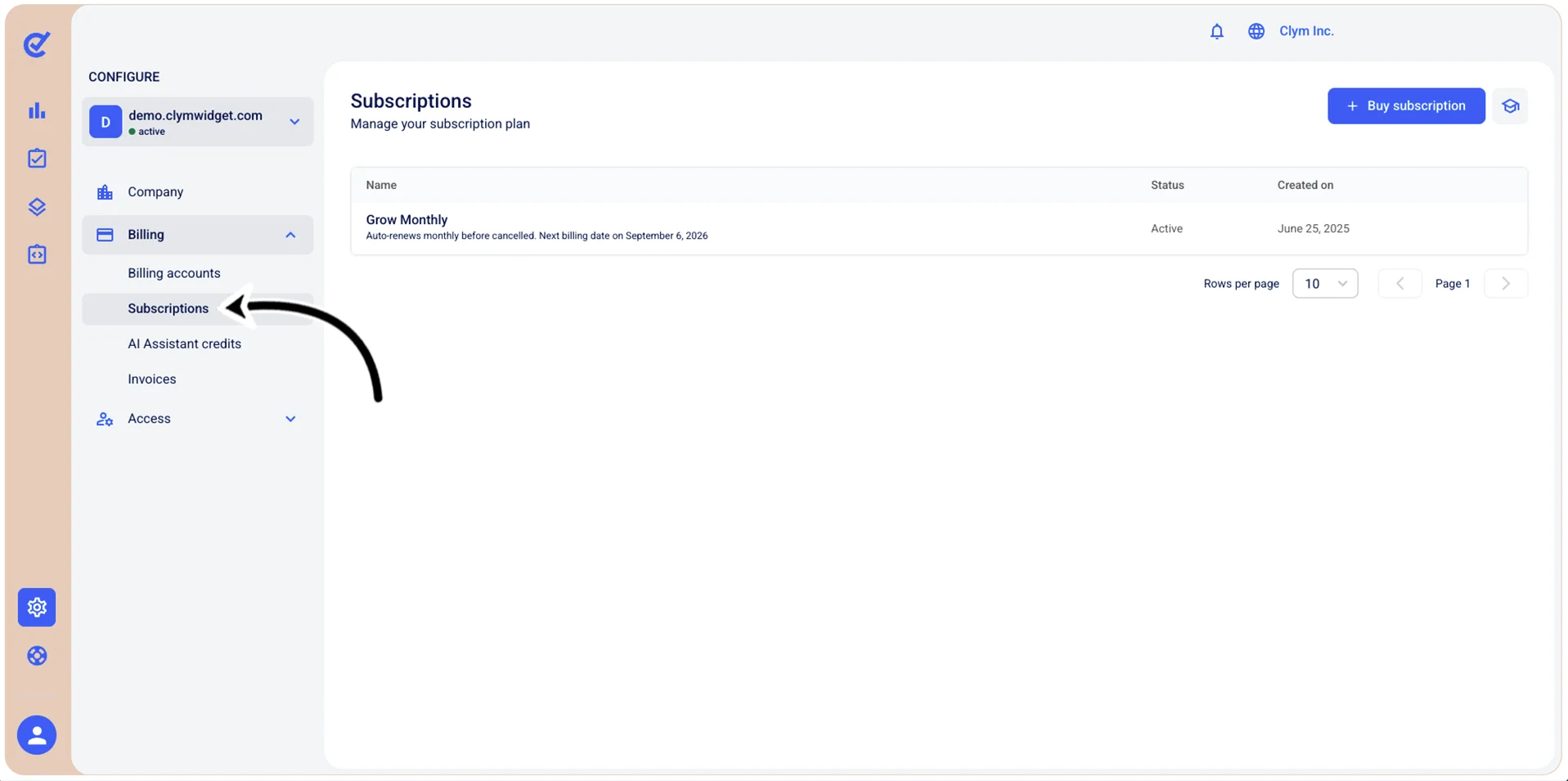
- Go to Configure>Billing>Subscriptions.
- In the Subscriptions section, select ⋮ Settings next to the desired subscription plan and select Cancel Subscription.
- In the Cancel subscription section, you are asked to give a reason for canceling the subscription. Your feedback provides us with the opportunity to better ourselves and provide more valuable service to you in the future.
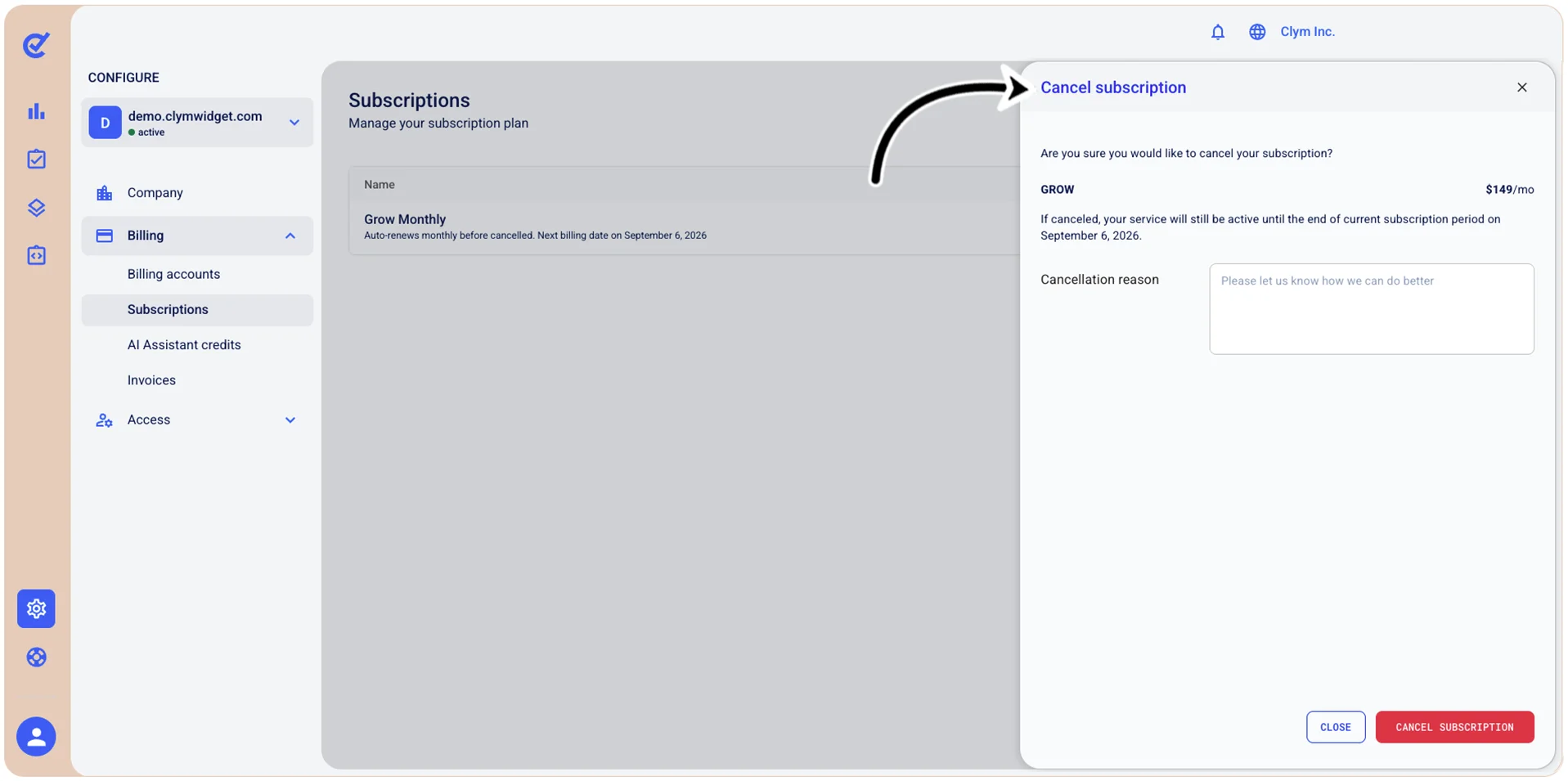
- When finished, select Cancel subscription.
Reactivate a subscription
To reactivate a subscription:
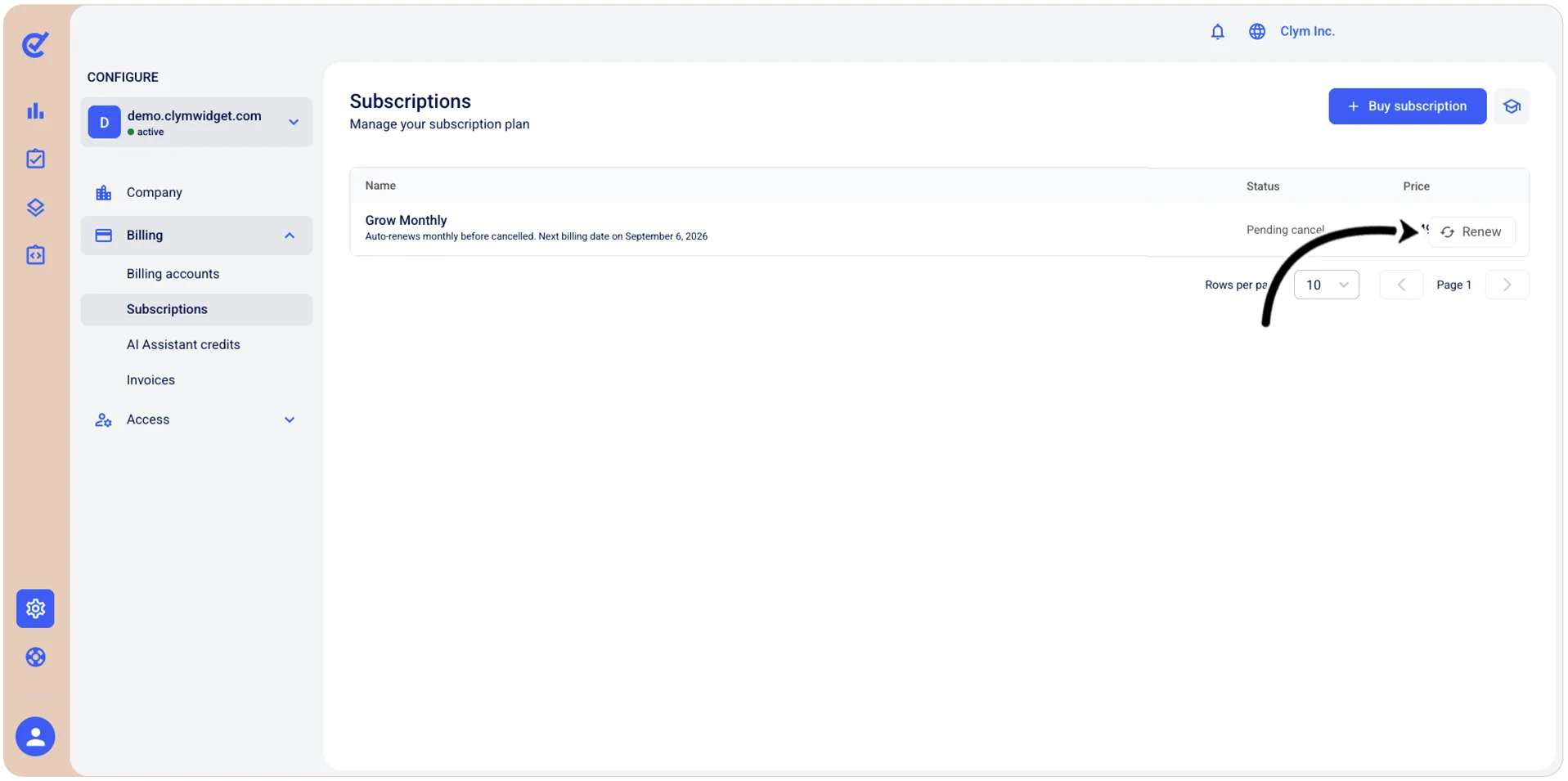
- Go to Configure>Billing>Subscriptions.
- In the Subscriptions section, select ⋮ Settings next to the canceled subscription plan and select Renew.